Introducción
Esta guía te guiará por los pasos necesarios para hacer un disco de reparación USB para Windows 10, que idealmente debería hacerse antes de que se presente un problema. Una buena práctica es hacer uno de estos con un dispositivo USB antiguo y dejarlo en un cajón para un "día lluvioso".
Sin embargo, si tienes dificultades para iniciar tu sistema operativo, puedes hacerlo utilizando otra PC con Windows.
Herramientas
-
-
Ve a: https: //www.microsoft.com/en-gb/software ...
-
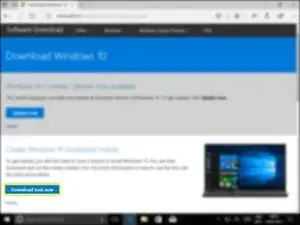
Y haz clic en "Descargar herramienta ahora"
-
-
-
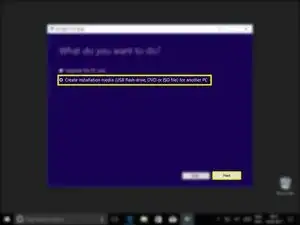
Selecciona "Crear un medio de instalación (unidad flash USB, DVD o archivo ISO) para otra PC"
-
Haz clic en "Siguiente"
-
-
-
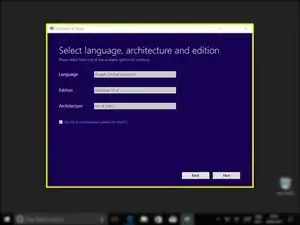
Si estás creando un USB para otra computadora, ten cuidado de hacer que esta configuración sea correcta para la computadora en la que se utilizará. El lenguaje no es tan importante, ya que puede cambiarse más tarde.
-
Si estás creando una copia de seguridad para la computadora en la que está ejecutando la herramienta, seleccionando la casilla de verificación "Usar las opciones recomendadas para esta PC" seleccionará la configuración automáticamente.
-
-
-
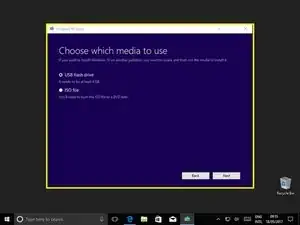
Selecciona "unidad flash USB"
-
Haz clic en Siguiente"
-
Al seleccionar "Archivo ISO", puedes crear una imagen de disco que se puede grabar en un CD o USB en una fecha posterior.
-
-
-
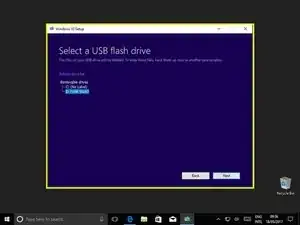
Ahora selecciona la unidad USB en la que desea colocar la herramienta.
-
Si tu unidad no aparece aquí, asegúrate de que esté insertada y detectada correctamente por Windows.
-
-
-
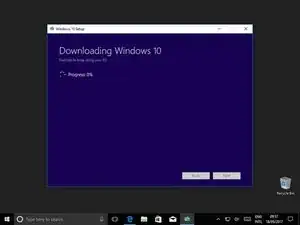
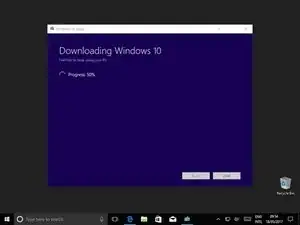
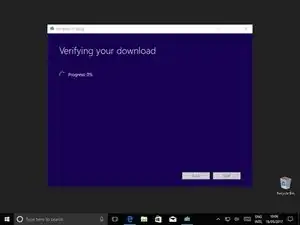
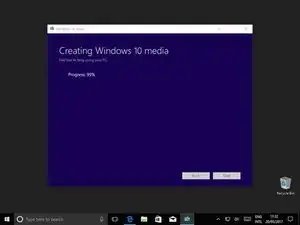
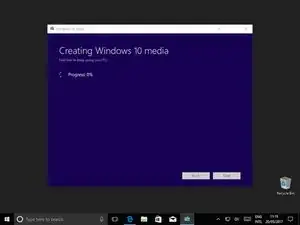
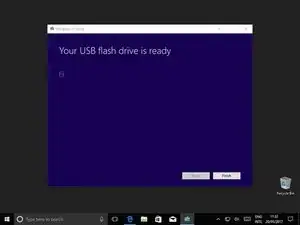
Una vez que haya terminado de escribir en el disco, haz clic en "Siguiente"
-
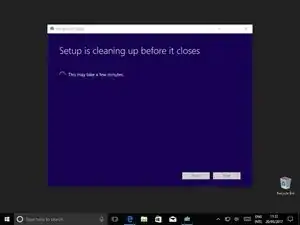
¡Y después de una corta espera, terminaste!
-
Para volver a ensamblar tu dispositivo, sigue estas instrucciones en orden inverso.

23 comentarios
Mr. Bailey. How is this Boot drive different from the Recovery drive that I create directly from my PC? Thanks.
They do the same thing essentially, they allow you to boot and recover your windows installation. However there is a one difference and that's that, I believe, the recovery drive tool only gives you the option to create a disk for the computer you are using. It's exactly like the recovery partition that some computers and laptops have.
My guide is quite generic in that you could create the disk for any Windows 10 installation.
Thanks for the question.
From my practice, UUByte ISO Editor can also create disks for any Windows 10 installation (including Windows 7, Windows 8 and Mac).
And compared with the method shared by Mr. Bailey above, UUByte ISO Editor saves time for users because it only takes 3 steps to create a Windows 10 bootable USB on my PC. It has no difficulty for those new users.
KKEmily -
I recommend you add something about how to boot from the USB drive, especially on a machine that has UEFI SecureBoot enabled.
I agree that that part of the process is important, however there are so many variables to uefi that writing a coherent guide for that would be difficult. Not to mention that screen shotting those steps a more difficult (although obviously not impossible).
But thank you for the feed back, I'll consider it in the future.
I'd like to see those instructions, too, just because with Windows, not everything is always as it would seem.
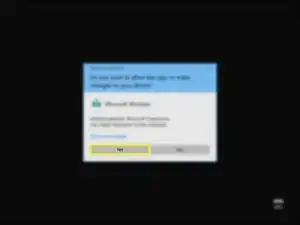
for the second step, what you mean UAC pls?
It's a feature of windows called User Access Control and is the name for the pop up asking for permission to run an app.
This feature can be disabled which is why I say if.
Download tool? I just got an ISO file when following this link.
Marc -
So this guide is for windows users?
Marc -