Introducción
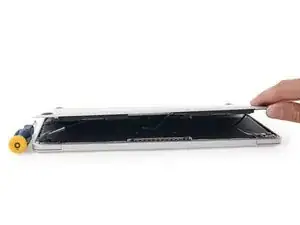
La función de Auto Encendido en tu laptop tan pronto cuando abras la tapa, así que debiera estar desactivado antes de empezar ciertas reparaciones. Auto Encendido puede ser encontrado en MacBook Pros de 2016 (y mas nuevos) y en los MacBooks Retina de 12" del 2017 (y mas nuevos).
Esta guía te guiara por el proceso de desabilitar Auto Encendido, y después re-habilitarlo cuando tu reparación es completada.
Nota: Desabilitar Auto Encendido puede no funcionar en los nuevos MacBook Pro o MacBook Air M1 basados en ARM de Apple, lanzados en finales de 2020. En este tiempo no sabemos de ningún procedimiento para desabilitar Auto Encendido en dispositivo equipados con Big Sur v11.1 o después.
-
-
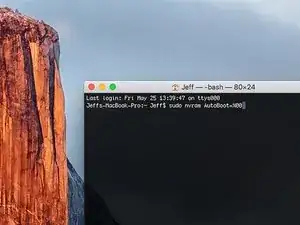
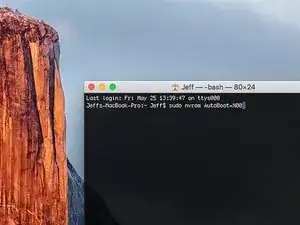
Copia y pega el siguiente comando (o escríbelo exactamente) en el Terminal:
-
sudo nvram AutoBoot=%00
-
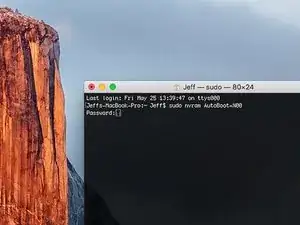
Presiona [Return].
-
Si la contraseña administrativa es solicitada, escribe la contraseña y presiona [Return].
-
-
-
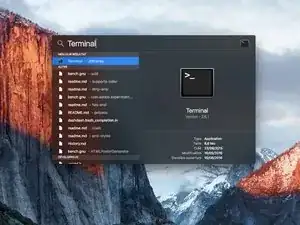
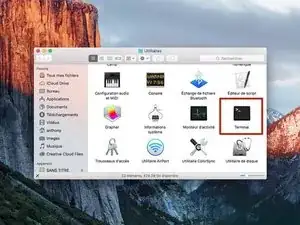
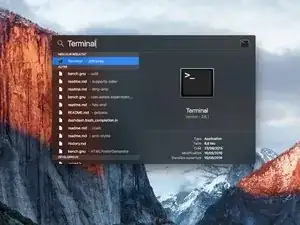
Enciende tu Mac y lanza el Terminal.
-
Copia y pega el siguiente comando (o estribillo exactamente) en el Terminal:
-
sudo nvram AutoBoot=%03
-
Presiona [Return].
-
Si la contraseña administrativa es solicitada, escribe la contraseña y presiona [Return].
-
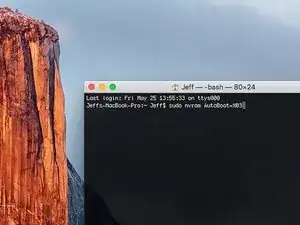
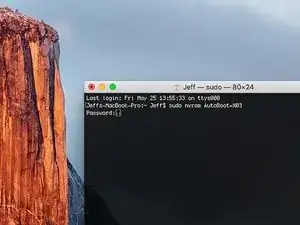
Felicidades! Estas listo.

14 comentarios
hello may i ask, how do u make it Jeff$? mine’s scarlet$ and i want to change it but idk how
I can’t type anything into the terminal…what am I doing wrong?
HELP
it doesn’t work on MacBook Air><
my sister’s pro did work, thanks!! but mine can’t do so. what should I do???
Hi. This does not work on 2018 13” MacBook Pro with Touch Bar. I did exactly this to disable auto boot. But when I check by using nvram -p it says: auto-boot true. Am I doing something incorrectly? I did everything step by step. Copied and pasted the sudo command, pressed enter and then entered my password. I have Big Sur 11.1 installed. Is there any other way since I need to replace the screen. Thank you. Adrian
Adrian Vizik -
I am having trouble enabling and disabling auto boot on a 2018 A1932 Air. If you are going to replace the screen, just open the machine and let it boot. Then hold the on / off touch ID button in until it shuts down. Then remove the back cover and slide the battery plug out of it's socket on the logic board. It's then safe to replace the screen.
Peter Newman -