Introducción

  1. 1KYGFBXEjBCNtXCW
    1KYGFBXEjBCNtXCW
    ArY2SMUF4KIBfKAK
    dQ3AhFsLE5mqyIZA
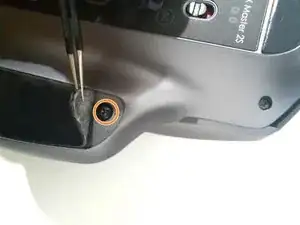
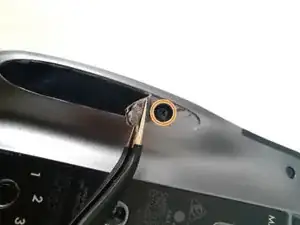
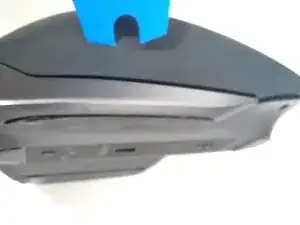
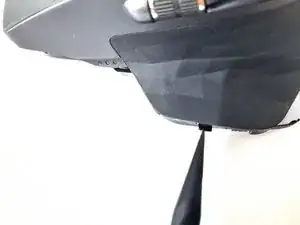
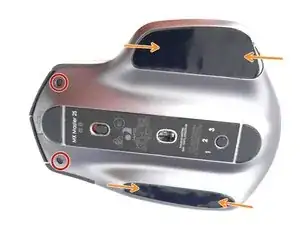
    • Verificamos que el mouse esté apagado, le damos la vuelta para acceder a 6 tornillos en la parte inferior.

    • Ten en cuenta que para acceder a los tornillos debajo de las pegatinas, debe quitarlas o al menos levantar cada extremo. En esta guía no las quito, solo levanto con cuidado cada extremo.

    • Retira los dos tornillos frontales T5.

    • y 4 tipo Phillip debajo de las pegatinas, 2 a cada lado.

    • Si se manipulan con cuidado y las pegatinas no se desgastan con el uso, se pueden reutilizar sin ningún problema.

    if the problem is that the scroll wheel spins freely, the button next to it controls that.

    Rob Miller -

    The stickers have two layers. To avoid de-laminating them, stick a sharp, flat object underneath the edge of the sticker and try to carefully pry up all of the material at once.

    Maddison Hellstrom -

  2. dndD3uYMC2WXFPVa
    dndD3uYMC2WXFPVa
    LJ2V3wgROmR2HeBf
    huMX12mV14IGu5um
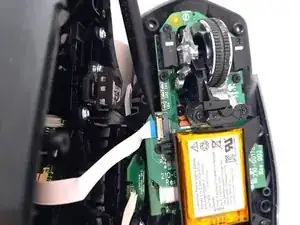
    • Para separar las dos partes que componen el mouse, ayúdate de una tarjeta o herramienta de apertura de iFixit, principalmente en la parte frontal, y el lado que no tiene botones. Luego la trasera, y finalmente el lateral donde está el botón lateral, ten cuidado al levantar estos dos, ya que requieren un ligero movimiento.

    • Ten en cuenta que ambas partes están conectadas por dentro mediante un conector tipo cinta. No los separes abruptamente.

    • Separa cuidadosamente las dos partes.

    • Levanta el pestillo de plástico para liberar el cable plano.

    • Desconecta el cable plano de su enchufe.

    the ribbon connector clamp flips up 90 degrees from pcb

    Rob Miller -

    This comment was super helpful, thank you Rob! Just pry the little white piece up very gently to free up the ribbon.

    Pete Richardson -

  3. xplUjZxTYXZYSi2W
    xplUjZxTYXZYSi2W
    WewIlNGNSKVuWCOT
    jmiHWtJW1mLEdUhL
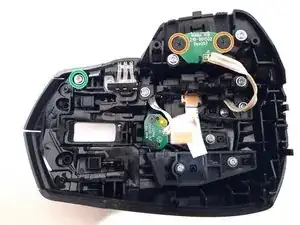
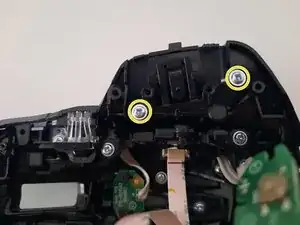
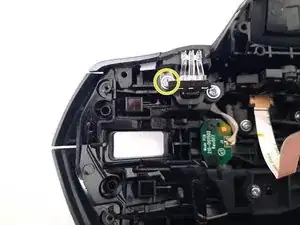
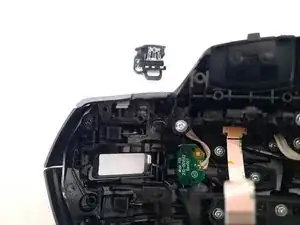
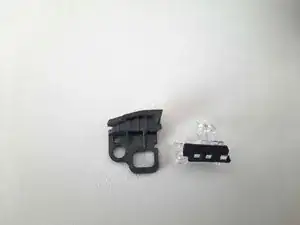
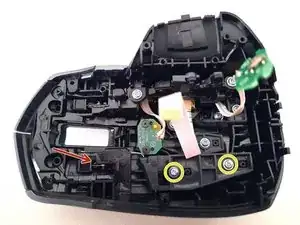
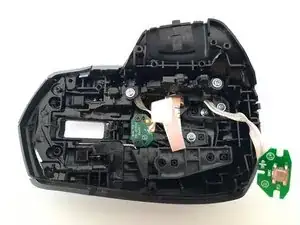
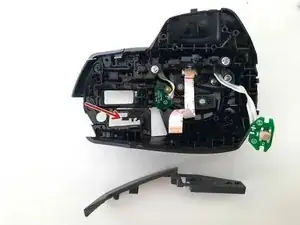
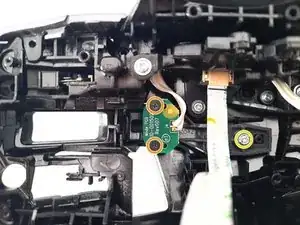
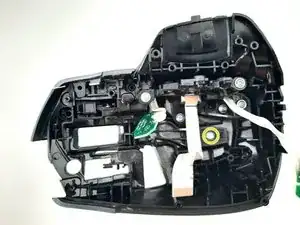
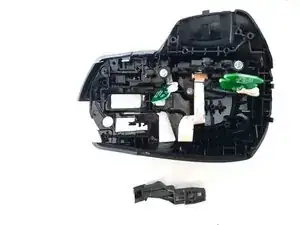
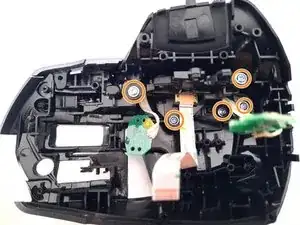
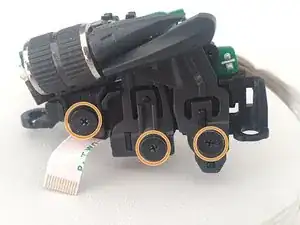
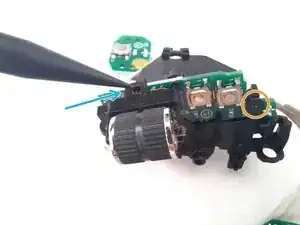
    • Retira los tornillos negros de la placa del botón.

    • Desenrosca también el tornillo que sujeta la carcasa superior y la tapa lateral.

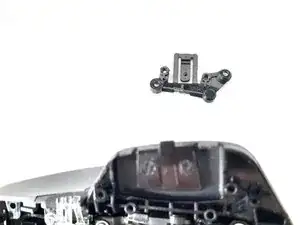
    • Retira el mecanismo del botón.

    • A lo largo de la parte superior, hay dos tipos de tornillos, ambos requieren destornilladores Phillips. Los 4 negros sujetan las placas electrónicas y el resto (color plata) sujetan todas las piezas de plástico.

    When reassembling, don't tighten the silver screws too much. The way the upper case fits into the lower case, this button may end up held down. On my system (macOS, no Logi software), this caused the cursor to not work at all

    Mike -

  4. OjWyDnDynlHsNOkt
    OjWyDnDynlHsNOkt
    MNF2BnkVQQAonHii
    e4esQINY6KFV1KZB
    • Retira el tornillo que sujeta la pieza con cuidado. Además si lo deseas puedes separarlo en dos partes muy fácilmente, para su limpieza.

  5. Klofrbnbs1VwmKfX
    Klofrbnbs1VwmKfX
    LpeiEnfMyR3PVgQA
    vOgOgnLUgkPtVOUK
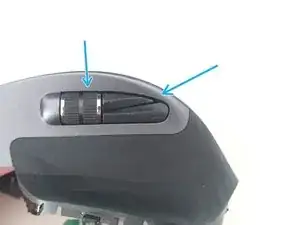
    • Desatornilla los dos tornillos que sujetan el botón.

    • Al quitar los tornillos, tira suavemente del botón hacia adelante.

    • Ten cuidado con el resorte que sostiene el botón. Se utiliza para evitar que el botón se mueva hacia arriba, no se apoya en el botón, solo en la cara del mouse, no hay necesidad de tocarlo, aunque si lo deseas, una vez que quitas el botón puedes quitarlo.

  6. KkTFIWdvytEFBWSZ
    KkTFIWdvytEFBWSZ
    QhRtgGpsRqQPLsw3
    OpY1rPVN2DqSsUAV
    • Retira los tornillos negros de la placa del botón.

    • Desatornilla el tornillo que sujeta el botón.

    • Retira el botón de plástico con cuidado.

  7. SkIfKlFyggIHRva5
    SkIfKlFyggIHRva5
    wS1HFsdNHa6kxYL4
    GX1GtHeIPTPUuhvi
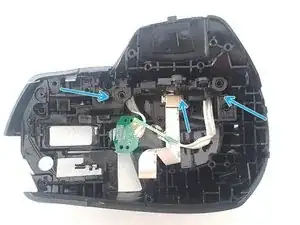
    • Retira los tornillos que sujetan todo el mecanismo de desplazamiento y dos botones laterales. También quitamos la mayoría de los tornillos que sujetan el botón de clic derecho.

    • Presiona suavemente el scroll desde el exterior del mouse, tira hacia arriba del interior de la pieza, te puedes ayudar con una palanca de plástico, pero no es necesario, toda la acción que sea muy suave, para no dañar los cables y el mecanismo

  8. 2idUDnePHflKoxAA
    2idUDnePHflKoxAA
    NInhakYjIjEETdf2
    3iNIxjjaxOVrSfMP
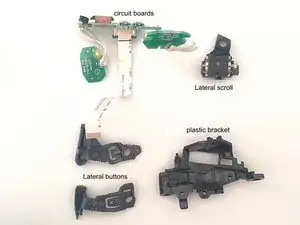
    • Retira los tornillos que sujetan los botones y el scroll.

    • Usando una palanca o una cuña de plástico, termina de desarmar el scroll.

    • Luego retira el tornillo que sujeta la placa con los circuitos.

  9. bMCdjOQhCXMltYYQ
    bMCdjOQhCXMltYYQ
    c1fNQb1GX3uV6aoV
    XcwWXrBnPGXmsDYL
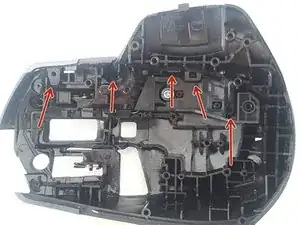
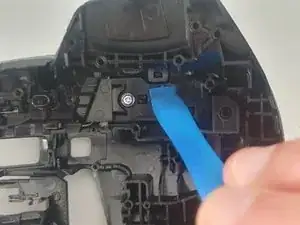
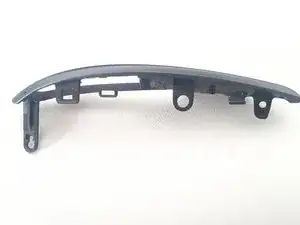
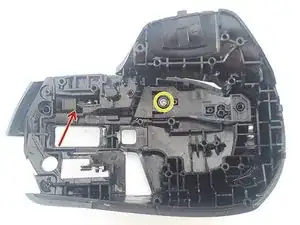
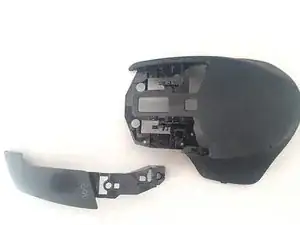
    • La cubierta lateral tiene varios ganchos para la carcasa del mouse, mira las imágenes a continuación y usa elementos plásticos como Spudger o iFixit Opening Tool para ayudarte. Al mismo tiempo, puedes retirar el botón de clic derecho, que verás en el siguiente paso.

  10. J1ZR1AUVIA5EyTnN
    J1ZR1AUVIA5EyTnN
    XgqNZudoj3kABX4c
    • Desatornilla el tornillo que sujeta el botón.

    • Al retirar el tornillo, tira suavemente del botón hacia adelante.

    • Acuérdate del resorte, al igual que del botón derecho.

  11. gsJjM5lUgN6VE4yT
    gsJjM5lUgN6VE4yT
    fXnMjSKlHoXnHQxM
    NUBpC2Vc5Be615Yn
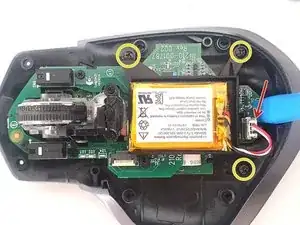
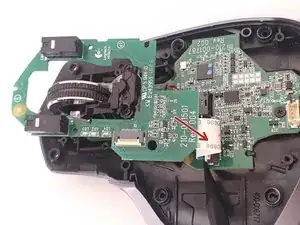
    • Desatornilla los tres tornillos del soporte de la batería y retira la conexión a la placa base.

    • Retira los tornillos de una de las dos placas electrónicas.

    • Ten cuidado con la cinta electrónica que une las dos placas, asegúrala con la ayuda de un spunger u otro elemento, sin dañarla.

  12. hVtR21HBXv2W3jH4
    hVtR21HBXv2W3jH4
    S2xW2bi4tFW5h3jE
    HiuNaZfSm3LGexFK
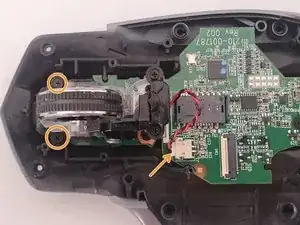
    • Todo el mecanismo está sujeto únicamente por dos tornillos y la conexión del cable que alimenta un pequeño motor. En la parte inferior del mecanismo hay un pequeño resorte anclado, ten cuidado al levantar el sistema.

    • Retira los dos tornillos y desconecta el cable.

    Donde puedo conseguir el rodillo de este raton, lo he buscado por eBay y por Aliexpress y no lo encuentro

    joseluischongkoon -

  13. EDAPeBLkrN5bQovr
    EDAPeBLkrN5bQovr
    jLIVCAgrAjjHBwrC
    tLcV5nHY4AZIxJAh
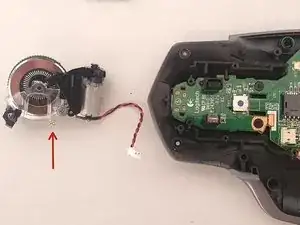
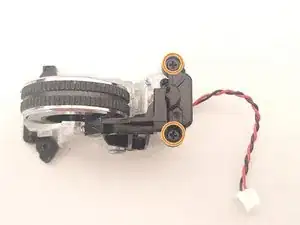
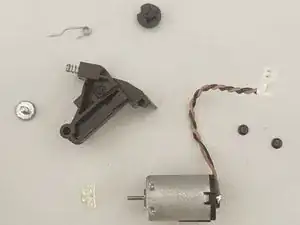
    • Retira los dos tornillos que aseguran la cubierta del rotor del motor y luego retira la cubierta con cuidado.

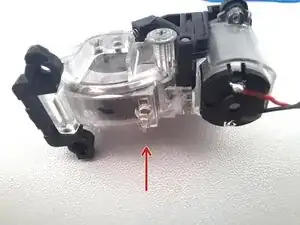
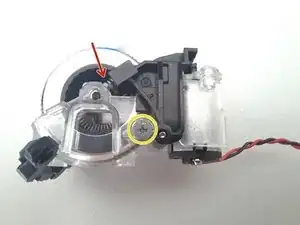
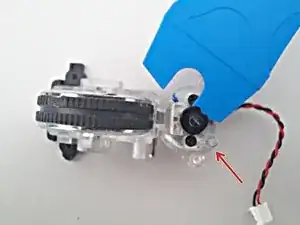
    • Quita el tornillo que sujeta la pieza de plástico. Ten en cuenta que para quitarla debes quitar con cuidado el pequeño resorte que la conecta al soporte transparente donde descansa la rueda de desplazamiento.

    • Ten cuidado con la correa que ayuda a la cabeza del motor y el resorte de la pieza de plástico.

    • Desmonta el rotor o la cabeza del motor haciendo palanca muy suavemente con una herramienta de apertura iFixit u otro instrumento. Ten en cuenta la posición en la que estaba antes de desmontar, ya que solo tiene una posición para montar.

    The last picture showing that spring is too blurry, and the spring popped off before I could see where it was supposed to be. Now I can't figure how to add it back since it doesn't seem like it does anything

    Mike -

    Hi Mike! Look at the 1st picture in the step 14. With a red arrow, that is the first spring (or strap, I don't know what's is the name for that), It's a support for the "rotor motor cover" (step 13, 3rd picture).

    A 2nd spring (step 14, 3rd picture) is a support (or "shock absorber" maybe) for the scroll wheel, It's is located inside the black plastic piece.

    Victor Crespo -

    As a followup to my previous comment. The spring is the only piece left from the reassembly, and my scroll wheel works just fine

    Mike -

  14. MvgoUpupiLFMxbdD
    MvgoUpupiLFMxbdD
    In3SukigUdaVKtj5
    BCwRVWHfYosSiY3s
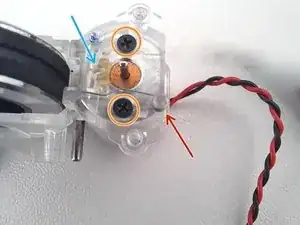
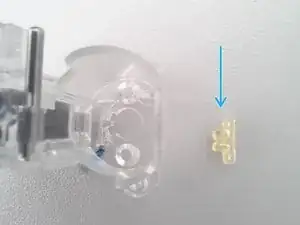
    • La flecha roja te muestra la correa que se mostró en el paso anterior, ten esto en cuenta durante el proceso de desmontaje.

    • La flecha azul te muestra el "soporte de goma" que soporta el motor, cuando retires el motor, es probable que también salga. Es muy fácil de volver a montar, fíjalo en la posición que tiene antes de quitar el motor y ayúdate de algún instrumento como el Spunger o unas pinzas.

    • Retira los dos tornillos que sujetan el motor, quedará completamente libre.

  15. NgYFNNLBUNve5cBB
    NgYFNNLBUNve5cBB
    cTKUh3QA5BFZxDgl
    sOJPvleKClowuhyP
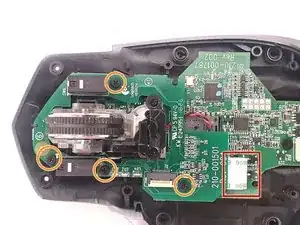
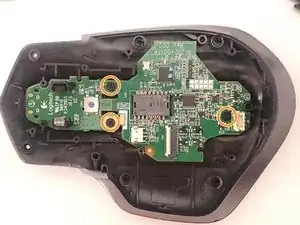
    • Retira los tres tornillos que sujetan la placa base.

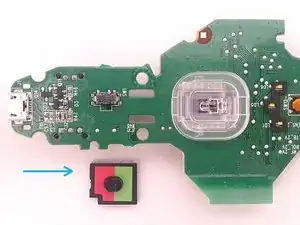
    • Retira el botón de encendido y mira la posición como estaba

Conclusión

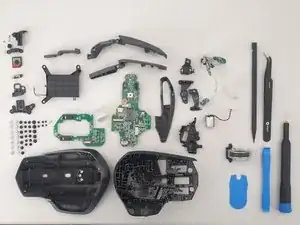
Para volver a armar tu dispositivo, sigue estas instrucciones en orden inverso.

Victor Crespo

Miembro Desde 20/07/15

1205 Reputación

22 comentarios

I’m not sure I see any reason why anyone would to this and risk it being ruined. In other words, what are the potential benefits? Cleaning?

John Smith -

Yup cleaning that scroll wheel, and maybe even the switches if your really dirty. 15 min made my mouse new again

drawsmatthew -

Hello!! It is a spectacular product, with its mistakes (nothing is perfect ;)). The fundamental objective of this guide is simply to answer the question How does it work, what is inside? It can serve as a guide to clean it (either both scrolls or the button contacts), change the battery, etc. Everything that can contribute to extend its useful life much more.

Victor Crespo -

Read the name of the site

Fabrizio Schwarz -

Used this guide to clean my scroll wheel, took me 15 min, super easy. Didn’t need to remove anything, just opened it up and disconnected the 1 ribbon cable from the top half.

I used some clear tap folded on itself and ran it through the scroll wheel a few times. Only a bit of dust came out but the difference is crazy, its totally free spinning now.

Stop convincing yourself your scroll wheel is fine, open it up, clean it out and its even better.

Thanks iFixit

drawsmatthew -

It’s actually a REALLY good mouse

Jacob Fenn -

Very helpful since I need to replace the Li-on battery.

RonE -

Can be used without the lithium-ion battery, just like a normal wired mouse

Victor Crespo -

Great guide Victor. Thanks for mentioning the fact that you can use the mouse without battery - I was wondering about this since I was worried about long term use.

Fabrizio Schwarz -

Thanks you!!!

Victor Crespo -

Perfect! Mine had the base button not working, or perhaps not clicking anymore. I already have a new one so i'll try this for entertaining purpous and see whats wrong with it!

Réda Taoussi -

Thanks! the gesture button kept sticking so I needed to clean it out and it works now. I struggled at first though since the pictures only showed 4 screws. I didn't realize there were 6 until I re-read it..

poochyena -
Hello everyone! Some tricks to repair the led? My mouse is all operative but the movement led is apparently dead..

martino_toderi -
Great guide. Helped me when base button got stuck in 'cliked' position making the whole mouse unusable. Fixed in 15 minutes.

Paweł -
owners kitten caught its first mouse - turned out to be an excpensive one used this to dissemble and glue the RMB to the prongs where it came off it is now setting for 24hrs with chemical metal but the instructions were top notch !

Paul Haggett -

Excellent guide but I would have appreciated driver sizes since they are not all the same. And kudos to Logitech; this version seems so much more serviceable than the original MX Master.

John Mangos -

Hi @mangosjohn, the drivers used in this guide are listed at the top: Phillips #0 Screwdriver, Phillips #00 Screwdriver, and T5 Torx Screwdriver.

Amber Taus -

Thank you @amber. I had drivers for each step in mind since similar looking screws needed a different bit, but I admittedly did not see the list at the top either.

John Mangos -

Both this mouse from eBay.

Anyone have any idea why the left button behaves as the right button?

I can't seem to find what is the issue with it.

Adrian -

Hi.

Did you verify this problem by trying the following?

1. Installing and config the button with Logitech Logi Option+ Downloads - MX Master Wireless Mouse – Logitech Support + Download

2. Checking the native mouse settings in the operating system (Windows, Mac or Linux).

3. Test the mouse (see the menu, you can test each button independently) Mouse Test - Check Mouse Button, DPI, Sensor, and Double Click (clickspeedtest.io)

Victor Crespo -

Thanks so much for this guide! I spilled bubble tea on my mouse and decided I'd proactively take it apart and give it a wash (soap and water for the non electronic parts, isopropyl alcohol for the electronic parts), as even if the electronics didn't get ruined from the spill, the sugar made it very yuck to use. This is my first time taking apart an electronic device, and this guide made it a relatively simple process. Surprisingly satisfying too! I managed to lose a screw and ended up with two extra screws, but I suppose that can't be helped given that I spilled a bunch of the screws onto the floor at least two times. Hopefully this mouse will keep on working for many years yet. Thanks again, it was super helpful.

Jenny Huang -

You're welcome! I'm glad to hear that the guide was helpful to you in taking apart and cleaning your mouse. It can be a bit daunting to take apart an electronic device for the first time, but it sounds like you did a great job. It's definitely satisfying to fix something yourself and make it like new again. As for the lost screw and extra screws, those things happen even to the most experienced tinkerers! Hopefully, your mouse will continue to work well for you for years to come. You're welcome! I'm glad to hear that the guide was helpful to you in taking apart and cleaning your mouse. It can be a bit daunting to take apart an electronic device for the first time, but it sounds like you did a great job. It's definitely satisfying to fix something yourself and make it like new again. As for the lost screw and extra screws, those things happen even to the most experienced tinkerers! Hopefully, your mouse will continue to work well for you for years to come.

Victor Crespo -