Introducción
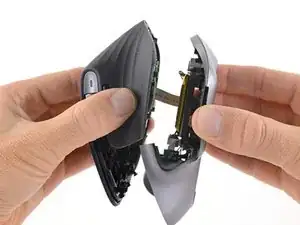
Use this guide to open your Logitech MX Master 3 for Mac mouse.
Open your mouse to clean its internals, troubleshoot mechanical problems, or replace a part.


-
-
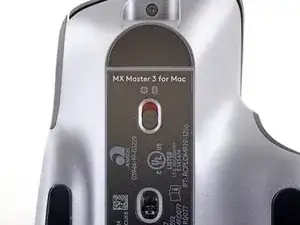
Flip the mouse's power switch into the OFF position, unplug any cables, and flip it over so the feet are facing up.
-
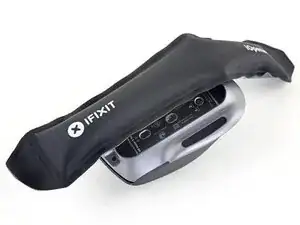
Heat an iOpener and apply it to the left foot for about two minutes.
-
-
-
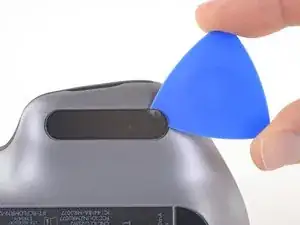
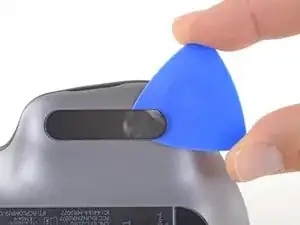
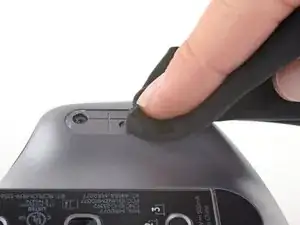
Slide an opening pick under an edge of the left mouse foot.
-
Slide your pick under the foot to separate its adhesive until you can grab it with your fingers.
-
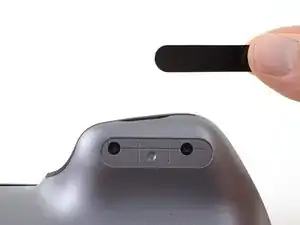
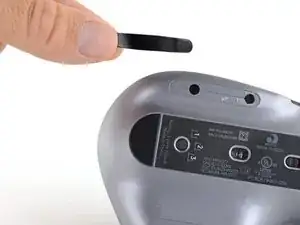
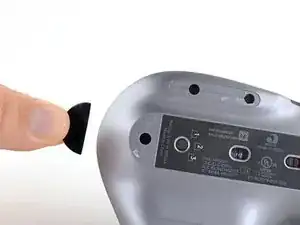
Peel up and remove the left mouse foot.
-
-
-
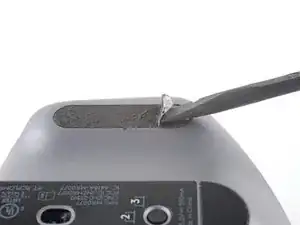
Slide the flat end of a spudger under an edge of the adhesive. If the adhesive seems stuck, you may need to heat the adhesive further.
-
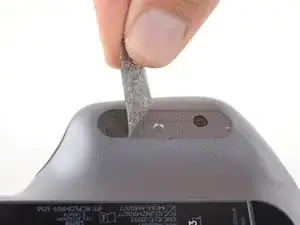
Use a pair of tweezers or a spudger to remove any large chunks of leftover adhesive.
-
Thoroughly clean the bottom of the mouse with isopropyl alcohol and a lint-free of microfiber cloth. Allow the surface to dry completely.
-
Peel your new mouse feet away from their adhesive liners and press them firmly into place.
-
-
-
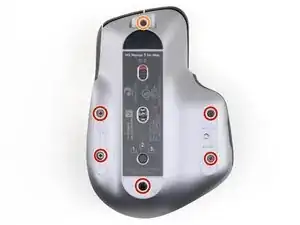
Use a Phillips screwdriver to remove the five 4.3 mm-long screws securing the lower half of the lower case.
-
Use a T5 Torx driver to remove the one 4.2 mm‑long screw securing the upper half of the lower case.
-
-
-
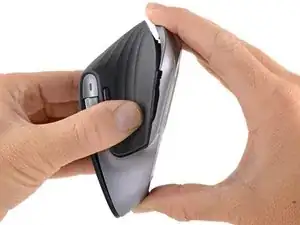
Use one hand to grip the mouse's upper shell.
-
Use your other hand to grasp the lower case at the back seam.
-
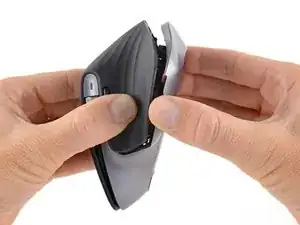
Pull the two halves slightly apart, just until there's a gap along the back seam.
-
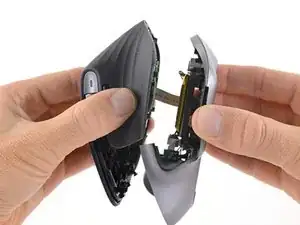
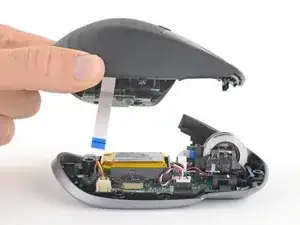
Move the hand on the lower case towards the middle of the mouse and continue pulling the two halves straight apart.
-
-
-
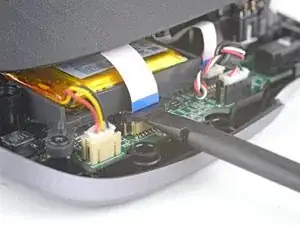
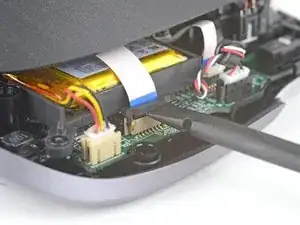
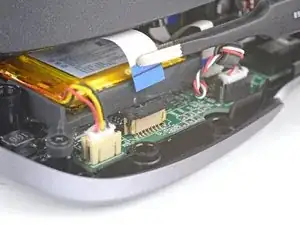
Use the flat end of a spudger to gently lift up the black sliding lock on the interconnect cable socket.
-
Slide the cable straight out of its socket on the motherboard.
-
To reassemble your device, follow these instructions in reverse order.
Repair didn’t go as planned? Check out our Answers community for troubleshooting help.