
Introducción
Puedes realizar esto en muchos Chromebook, no solo en los que ya no reciben actualizaciones de Google. Aparentemente, una gran excepción son los Chromebooks basados en ARM. El guión intermitente fallará de alguna manera para esos. No estoy seguro de si da un mensaje de error apropiado o un código inescrutable, ya que no tengo un sistema de este tipo para probar. Si alguien siente la necesidad, que me haga saber cómo se ve el error o que me envíe una captura de pantalla que incluiré en esta guía. Voy a proporcionar enlaces e información para algunos con los que estoy familiarizado sobre cómo desproteger las roms. Otros pueden sentirse libres de agregar otros adicionales como mejor les parezca (sin embargo, necesitaré 500 puntos de reputación para participar en las ediciones). No permitas que esto le suceda a tu Chromebook [enlace|http://h22235.www2.hp.com/hpinfo/globalc...|http://h22235.www2.hp. com/hpinfo/globalcitizenship/environment/productdata/Countries/_MultiCountry/disassembly_notebo_2013211112436.pdf]
Nota: Lamentablemente, muchos Chromebooks más nuevos requieren la capacidad de jugar con el firmware para desactivar el modo protegido contra escritura que está configurado de fábrica. La mentalidad original de los fabricantes era permitir un interruptor de hardware simple que fuera un interruptor físico de dos posiciones dentro de la caja lejos de los dedos indiscretos o la extracción de un tornillo físico de protección contra escritura de un punto especial dentro de la caja. Si sabes cómo se hace esto en algunos de los modelos más nuevos, comunícate conmigo y analicemos la modificación de esta guía para que sea más completa para los modelos más nuevos de Chromebooks que están saliendo ahora.
Nota 2: Actualización, ¿eres alguien que puede leer muchas instrucciones técnicas en inglés sencillo y no le teme a una interfaz de usuario de línea de comandos? Si esto te describe con precisión, hay una nueva forma de disfrutar de una experiencia de Linux en Chromebook para las nuevas generaciones de Chromebooks mencionadas en la primera nota anterior. Se llama "aliento". Si no está siendo sincero consigo mismo al responder la pregunta anterior, ¡deténgase ahora! De lo contrario, se verá frustrado mientras continúa aumentando las hordas de opositores y detractores de Linux que ya llenan la web con desinformación. Hay algunos requisitos de hardware para generar los medios de instalación y una lista creciente de Chromebooks más nuevos compatibles. ¡Ah, y también está cuidadosamente alojado en github! ¡Gracias a [enlace|https://www.ifixit.com/User/4102571/Came...|Cameron] por proporcionar el enlace! Voy a probar esto ahora! Tengo la intención de publicar los resultados aquí más adelante en función de mi experiencia. Aquí está el enlace: [enlace|https://cb-linux.github.io/breath/docs.h...|breath]
Herramientas
-
-
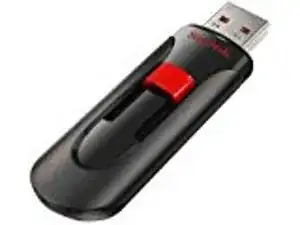
Necesitarás un par de memorias USB de tamaño decente. Yo usé memorias Cruzer Sandisk de 16 gb. Una para la imagen de Linux que desee y otra para realizar una copia de seguridad de su imagen original con soporte de Chrome OS. El segundo es opcional, ya que solo lo necesitas si alguna vez deseas volver a tu imagen de Chrome OS.
-
Lo hice por si acaso dañaba mi computadora portátil. Resultó innecesario ya que el guión funcionó a la perfección. Probablemente puedas omitir la copia de seguridad flash de Chrome OS, ya que probablemente tampoco la necesites para la suya.
-
Descarga la imagen amd64 lubuntu LTS o cualquier versión de linux que desee. Quémalo en una de tus memorias USB con un software adecuado para crear memorias USB de arranque. Descarga: http: //cdimage.ubuntu.com/lubuntu/releas ...
-
Ten en cuenta que puede utilizar una segunda computadora para realizar el paso anterior. Pude hacerlo con mi crouton chroot en mi Chromebook Pavilion existente. Utilizo y recomiendo el software Etcher para este paso: Linux - Mac - Windows creando imágenes de arranque en llaves USB - Tarjetas SD de manera fácil. o se puede...
-
Graba a un dispositivo USB con la "utilidad de recuperación de Chromebook" de la tienda web. Se hace un dd de cualquier imagen con una extensión .bin, cambia el nombre de la iso de linux descargada para agregar la extensión .bin, en la herramienta elige "usar una imagen local" haciendo clic en el ícono de ajustes en la parte superior derecha.
-
Ahora está listo para "desgooglear" tu Chromebook. ¿Recuerdas esos anuncios tontos? De hecho, amé mi Chromebook durante cinco años muy productivos. Si no le hubieran dejado de dar soporte, seguiría usándolo como está.
-
-
-
Paso 2 para HP Pavilion Chromebook en esta guía. ¡La guía anterior también contiene información y enlaces sobre cómo actualizar la memoria y el almacenamiento!
-
Paso 2 para Lenovo Thinkpad X131e Chromebook... Busca el interruptor de protección contra escritura dentro de la carcasa en la página 14 de este archivo pdf. Requiere un poco de desmontaje, por supuesto. Buena suerte
-
El paso 2 para muchos otros Chromebook implica quitar un tornillo de protección contra escritura en algún lugar de la placa madre. Google es tu amigo aquí
-
Ejemplo de tornillo de protección contra escritura en HP Chromebook 11 G3 (2013) Especificaciones del tornillo de protección contra escritura de HP Chromebook 11 G3
-
Dado que lo tiene aparte, este es un buen momento para actualizar a más memoria (si su modelo de Chromebook lo admite) o un SSD más grande si lo deseas o necesitas más espacio para el arranque dual, por ejemplo. Vuelve a montar con cuidado en orden inverso.
-
Arranca en Chrome OS para el siguiente paso.
-
-
-
Lo más probable es que necesites más almacenamiento para admitir este tipo de configuración. Dado que se trata de un uso avanzado, no cubriré ese tipo de cosas aquí. Dado que Google, en su sabiduría, dejará de admitir su hardware / software después de solo cinco años, probablemente no le importe el arranque dual de todos modos, ¿verdad?
-
-
-
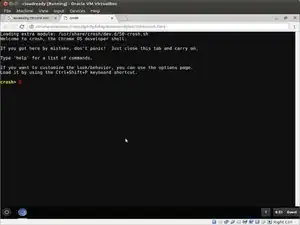
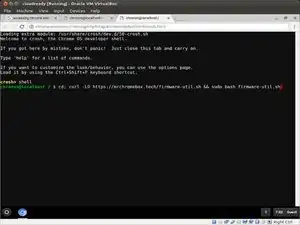
Presiona [Ctrl] [Alt] [T] para llegar al indicador de crosh shell en el Chromebook (Ver primera imagen). Nota: estas primeras 3 imágenes de shell se capturaron a través de la nube, que es un Chrome OS similar a un Chromebook real, pero son idénticas para nuestros propósitos aquí.
-
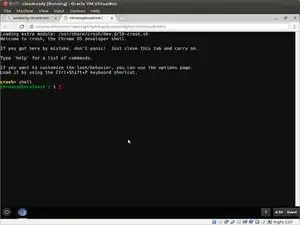
Utiliza el comando "shell" para acceder al indicador de shell. Simplemente escribe "shell" en el indicador y presione enter (vea la imagen de la segunda pantalla de shell).
-
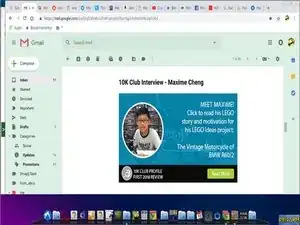
Escribe lo siguiente (o corte y pegue en una sola línea de comando ... vea la imagen de la tercera pantalla de shell). Incluyo el comando completo en la siguiente viñeta ...
-
CD; curl -LO https://mrchromebox.tech/firmware-util.s... && sudo bash firmware-util.sh
-
Presiona enter en la línea de comando anterior cuando esté listo para comenzar a convertir tu Chromebook en una computadora personal de uso general completamente funcional.
-
-
-
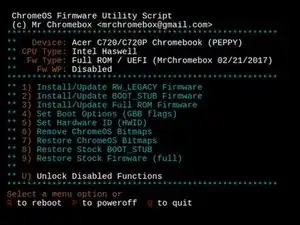
Deberías obtener ese menú (ver gráfico) con los datos del dispositivo adecuados para su Chromebook en particular. Seleccione la opción 3 para actualizar una rom completa con capacidad UEFI en su sistema. Ten en cuenta que este es el final de su Chromebook efectivamente una vez que pase el "punto de no retorno" claramente identificado.
-
Nota: Algunas arquitecturas de Chromebook no son compatibles (en particular, los sistemas de CPU ARM). Puedes recibir un mensaje de error si su sistema no es compatible.
-
Puedes realizar la copia de seguridad de la rom de Chrome OS no según se presente la opción (su elección). Necesitarás esa memoria USB adicional si elige hacer una copia de seguridad de la rom original. ¿Te sientes con suerte, punk? Perdón :D
-
Una vez que hayas terminado, se tes pedirá que apagues y reinicies el dispositivo. En ese punto, puedes insertar su nueva memoria USB de arranque / instalación de Linux. A partir de ahí, simplemente instales cómo lo haría en cualquier computadora portátil típica.
-
Opté por seguir la ruta UEFI completa en la mía, pero es opcional. Sigue las instrucciones en las preguntas frecuentes (https://mrchromebox.tech/#faq) La quinta pregunta se responde sobre cómo proceder para configurar correctamente los archivos de opciones de arranque UEFI.
-
-
-
He instalado Cairo-dock y ahora mi hardware está libre. Ahora tengo al amigo del pobre ... el software de código abierto gratuito Macintosh funciona igual.
-

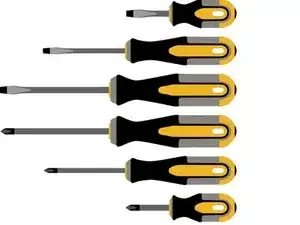

Para volver a armar tu dispositivo, sigue estas instrucciones en orden inverso.
12 comentarios
Thank you very much for the detailed information. I have successfully converted my ASUS C302C chromebook to Linux laptop.
A better and safer way to install Linux on Chromebooks exists :) https://cb-linux.github.io/breath/
Cameron -
Thanks for the useful input Cameron. I added a follow up note to the heading here. Now I am going shopping for a more modern used chromebook.
tcagle53 -
hello, thank you for sharing
i want to ask for lenovo chromebook slim 3, can it install linux?, cause when i reboot and start to mode developer not found properly
Did you read "Note2" in the above introduction? If not and if your device is supported by "breath" that may be a viable approach. It is a fairly complicated process that I have not tried so beware if it is out of your comfort zone.
tcagle53 -