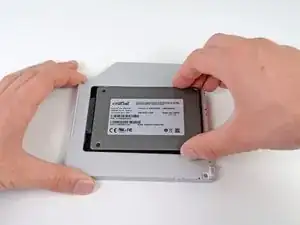
Introducción
Hay muchos beneficios al agregar un segundo disco duro a tu computadora portátil, como velocidades mejoradas, mayor espacio de almacenamiento y menos angustia al instalar un nuevo software. Utiliza esta guía para instalar uno utilizando nuestra carcasa de disco duro de puerto óptico.
Herramientas


Partes

-
-
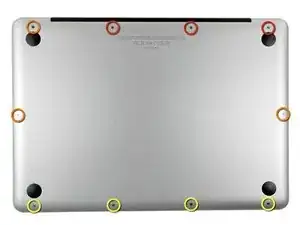
Extrae los siguientes diez tornillos:
-
Tres tornillos Phillips #00 de 14.4 mm
-
Tres tornillos Phillips #00 de 3.5 mm
-
Cuatro tornillos de resalto Phillips #00 de 3.5 mm
-
-
-
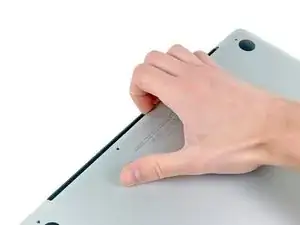
Usa tus dedos a modo de palanca para levantar la tapa inferior del cuerpo del MacBook por la zona del ventilador.
-
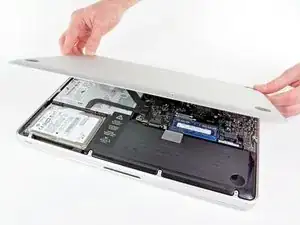
Extrae la tapa inferior.
-
-
-
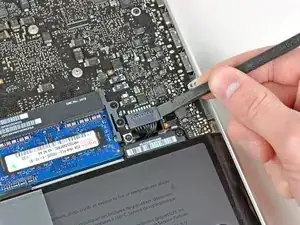
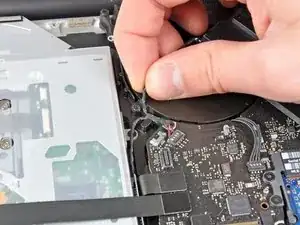
Usa el borde de un spudger para levantar el conector de la batería haciendo palanca para extraer su toma de corriente de la placa madre.
-
-
-
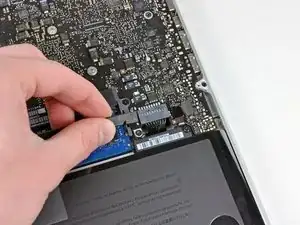
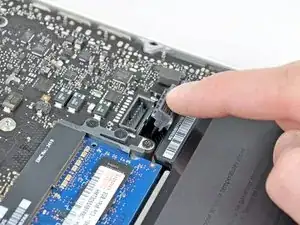
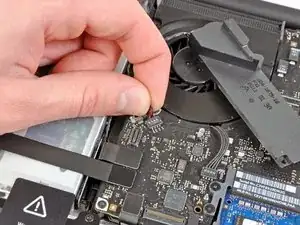
Dobla el cabre de la batería ligeramente para alejarlo de su conexión en la placa madre para evitar que se conecte accidentalmente mientras trabajas.
-
-
-
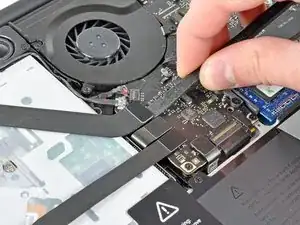
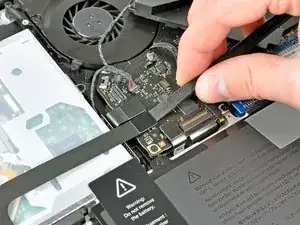
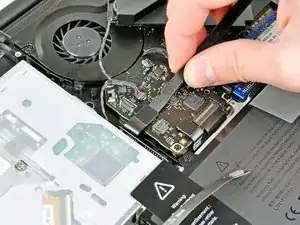
Usa el lado plano del spudger para hacer palanca y extraer el cable plano del conector con la placa madre correspondiente al AirPort/Bluetooth.
-
-
-
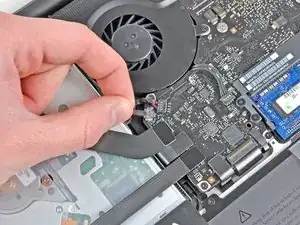
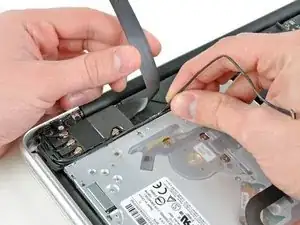
Con mucho cuidado aparta el cable plano del AirPort/Bluetooth mientras despegas el cable de la cámara de su adhesivo de seguridad hacia el subwoofer y la abrazadera del AirPort/Bluetooth.
-
Extrae el cable de la cámara de la cavidad moldeada en el soporte AirPort/Bluetooth.
-
-
-
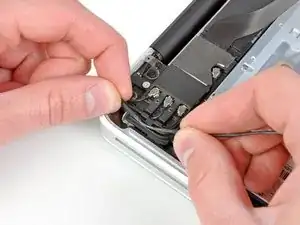
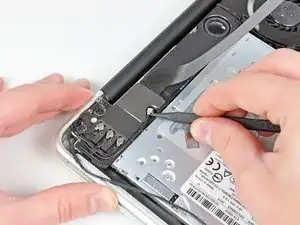
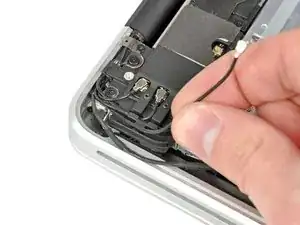
Utiliza la punta de un spudger para hacer palanca en el conector de antena más cercano a la placa lógica desde su zócalo en la placa AirPort/Bluetooth.
-
Desenruta el cable de antena desde debajo del dedo moldeado en el soporte AirPort/Bluetooth.
-
-
-
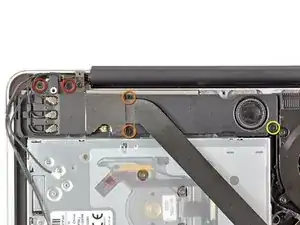
Retira los cinco tornillos siguientes:
-
Dos tornillos Phillips de 10,3 mm
-
Dos tornillos Phillips de 3,1 mm
-
Un tornillo Phillips de 5 mm
-
-
-
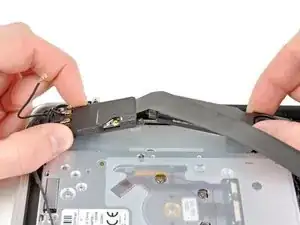
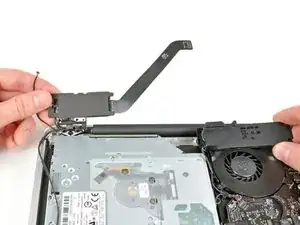
Tira del conjunto AirPort/Bluetooth y el subwoofer hacia arriba cerca del centro del lado de la unidad óptica hasta que se despejen entre sí.
-
Aleja el conjunto AirPort/Bluetooth y el subwoofer de la parte superior de la unidad óptica.
-
-
-
Tira del cable del altavoz/subwoofer derecho de debajo del dedo de contención cerca del lado de la unidad óptica.
-
Tira del cable del altavoz/subwoofer derecho hacia arriba para desconectarlo de la placa lógica.
-
-
-
Utiliza el extremo plano de un spudger para sacar el conector del cable del disco duro hacia arriba desde su zócalo en la placa lógica.
-
Dobla el cable del disco duro lejos de la unidad óptica.
-
-
-
Utiliza el extremo plano de un spudger para sacar el conector de la unidad óptica hacia arriba desde su zócalo en la placa lógica.
-
-
-
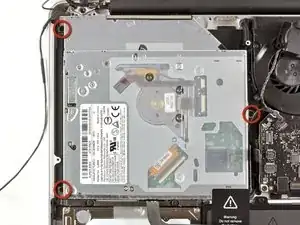
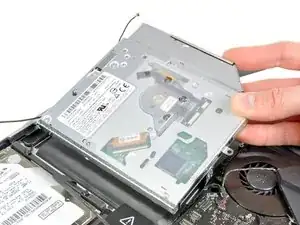
Tira de la unidad óptica hacia arriba desde su borde más cercano a la pantalla y retírala de la caja superior.
-
-
-
Tira del cable de la unidad óptica lejos de la unidad óptica.
-
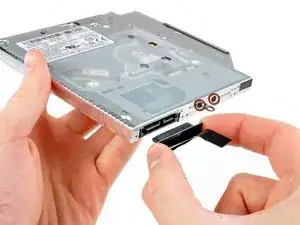
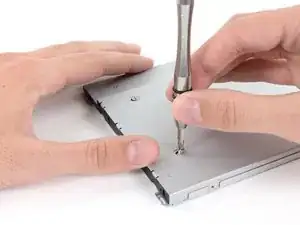
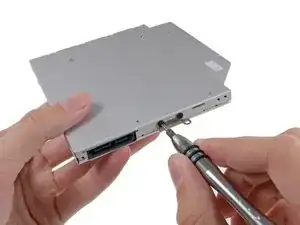
Retira los dos tornillos Phillips #0 negros que fijan el pequeño soporte de montaje metálico. Transfiere este soporte a su nueva unidad óptica o gabinete de disco duro.
-
-
-
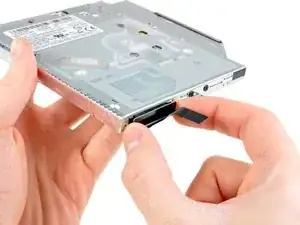
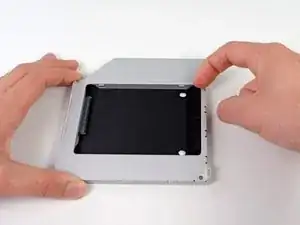
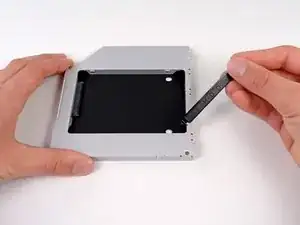
Retira el separador de plástico de la bahía del disco óptico presionando los cierres a cada lado, levántalo y sácalo de la bahía.
-
-
-
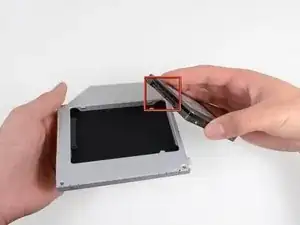
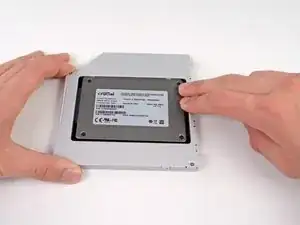
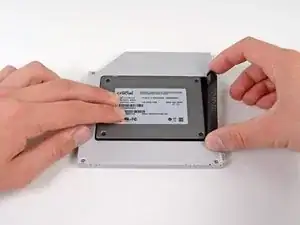
Asegúrate de que los conectores del disco duro miran hacia abajo antes de colocarlo en el hueco de la bahía.
-
Coloca con cuidado el disco duro en el hueco insertándolo en la ranura.
-
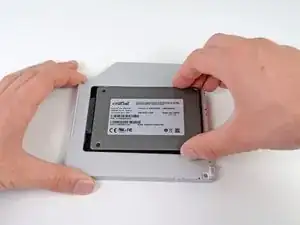
Mientras sujetas la bahía con una mano, presiona el disco duro con la otra mano para insertarlo en los conectores.
-
-
-
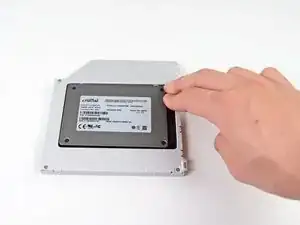
Una vez has ajustado el disco duro en su sitio, reinserta hasta el fondo el espaciador de plástico en el hueco.
-
-
-
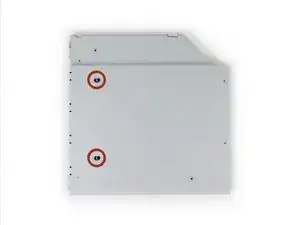
Fija el soporte del disco duro a la nueva bahía con dos tornillos Phillips #0.
-
Reconecta todos los cables que hayas desconectado del lector de discos ópticos original a la nueva bahía.
-
-
-
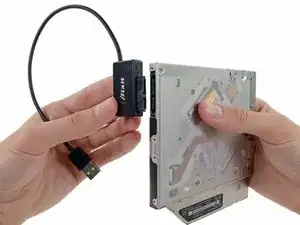
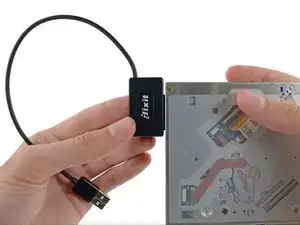
Alinea el conector SATA del cable con el puerto del lector y conéctalo cuidadosamente.
-
Conecta el conector USB a tu portátil. Tu lector óptico está listo.
-
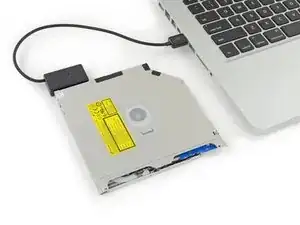
Para volver a armar tu dispositivo, sigue estas instrucciones en orden inverso.

54 comentarios
Has anyone else noticed their Macbook booting and responding slightly slower with this duel-hard drive setup? I first swapped out my main hard drive for a SSD and the computer felt amazingly quick. I then replaced the optical drive with another SSD for additional storage and backup and ever since then the computer has felt slightly more sluggish in general. I suppose the CPU now has to constantly communicate to the second SSD where it could mostly ignore the optical drive before. Has anyone else noticed this?
Just fixed that issue:
Put the new SSD where the old HD used to be. Put the old HD where the optical drive used to be.
I found that the ports in the motherboard inside the mac have different speeds. The HD port is 6mb/s and the optical drive is 3mb/s.
chicle -
Are you sure its MB/S that would be horribly slow.
Zarkex -
I am seriously considering replacing my old HDD with a SSD instead of using a dual drive. Would you recommend still adding a dual drive with new SSD/ old HDD or just replacing the HDD with an SSD. I like having an optic drive, although not necessary. I am looking from the point of utility and practicality. Cheers!
nshourds -
Zarkex is correct. The transfer speed for SATA 3 is not 6MB/s it is 6GB/s.
Successfully did this.
Didn't unplug camera, battery or speaker. Didn't remove orange screws from airport/bluetooth and didn't unplug antenna. I was just careful with the cables. One of the screws at the top left of the optical drive was sticky but just used a little contact cleaner and it came away fine. Everything is working as it should.
Will this work with 2 SSDs? I replaced my HDD earlier with a 500GB SSD and if I wanted to add a second SSD in the old optical drive site, would that slow down the computer or require tinkering with the OS to get it to accommodate two SSDs? Or if I did this, should I get a new HDD and put it in the optical port site (I prefer the SSDs because I "throw" my computer around a bit, keeping it in my backpack as I'm a uni student and I know that jostling a spinning HDD can cause problems)?
Kicking your mac around shouldn't have any noticeable effect on the hard drives - if you drop it from 1m every once in a while then yes, otherwise not really - remember iPods had hard drives for quite a while. Your computer sees hard drives and ssds the same way, you can have as many of either as you can fit
Darie H -
How much weight can I save by removing the optical drive?
gunes314 -
You can save a lot of weight if lets say your installing a solid state drive or putting in a second hard drive but if you know that you use the CD/DVD disc drive a lot then you might just want to leave the drive alone.
Marshall WahlstromHelgren -
Tip: Use one of those weekday pill holders to have a cheep way to store screws you remove and each day of the week can be for different sizes or parts. It has been handy to have (much less expensive than the magnetic mat.
Robert Wacker -
Hello, where can I buy the screws I need in case I lose one of them?
taylornya -
iFixit sells a kit: MacBook Pro Unibody Lower Case Screw Set
Darrell Johnson -
I have one stripped screw... How opening without drill it?! Any suggestions please?
rodrigosady -
I also stripped a couple screws. I wasn’t able to open it up without drilling. After drilling the heads and removing the cover it was easy to hacksaw the tip and unscrew with a standard driver.
Michael Wilkens -
We have a guide for that!
Cómo quitar un tornillo barrido
Sam Omiotek -
My top tip - make sure you buy good quality Phillips screwdrivers and a magnetic holder. Cheap screwdrivers won’t get the screws undone safely. Without a magnetic holder you have no chance of getting the tiny crews in and out safely.
jeremyyoung -
A good Phillips 00 is your friend here. Also, when reinserting the screws, gently start anticlockwise and you wil feel a click at the start of the thread. This tells you you’re in the right place and less likely to cross-thread through force in the wrong place.
Iain Boyd -
I feel like these are 000 screws. Amazon sales describe them as such and my 000 screwdriver fits better
cam2000deluxe -
Before ordering a new Trackpad remove the existing battery and try clicking the Trackpad. If it clicks OK with the battery out the source of problem is likely a swollen battery, which should to be replaced even if it still works to some degree. From the side of the battery you will likely see the soft part of the battery bulging beyond the hard case.
Patrick Langvardt -
That’s absolutely correct as I can testify. With the battery removed I also adjusted the T6 set screw that adjusts the sensitivity of the trackpad click, evidently someone had cranked mine down tighter than the factory setting.
Gary Register -
Le quatrième paragraphe dans les instructions en français n’est pas correct : ce ne sont pas les 2 petites vis, mais les 7 petites vis qui sont inclinées. Et les 3 grandes sont bien verticales.
Degeorges -
Bonjour ! Merci de votre observation. J’ai corrigé la traduction. iFixit étant un wiki, n’hésitez pas à modifiez si vous remarquez une erreur :) Encore merci de votre attention et à bientôt !
Claire Miesch -
Tip: if you have a magnetic screw mat or similar, lay the macbook over the mat to make sure it catches any screws that may decide to fall of and hide under your table
Moritz -
Funny, it's not her hands that are doing the close ups. :)
Cinemated Man -
What's the difference between the shouldered and non shouldered screws? They look exactly the same to me.
MLNLRD -