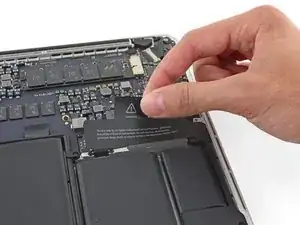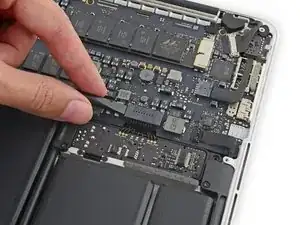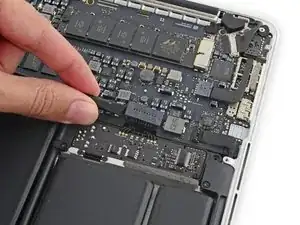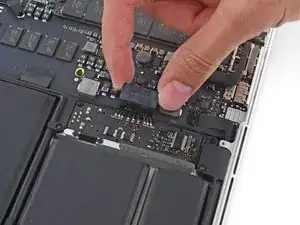
Introducción

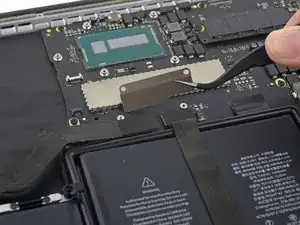
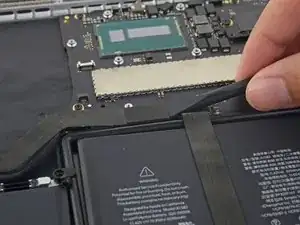
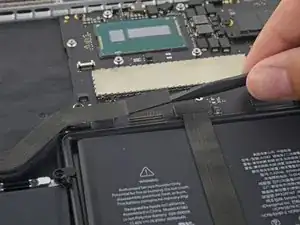
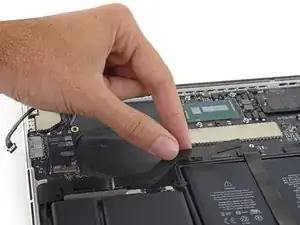
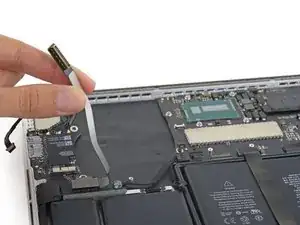
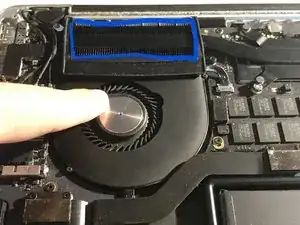
El polvo se puede acumular en todos los rincones de un MacBook Pro, lo que afecta significativamente la refrigeración. Sin embargo, con un poco de aire comprimido y algunos destornilladores, puedes limpiarlo fácilmente, reduciendo la temperatura de la CPU, el ruido del ventilador, la aceleración y el consumo de energía.

Si el conjunto de tu ventilador está relativamente limpio, puedes omitir los pasos para quitar la cubierta del ventilador in-situ. Si es el caso,

  1. Las aspas del ventilador están visiblemente cubiertas de polvo
  2. Necesitas un acceso más fácil al disipador de calor para la limpieza
  3. Sospechas que puede haber acumulaciones de polvo en el ensamblaje del ventilador que son demasiado grandes para soplar con aire

Luego, puedes quitar la cubierta del conjunto del ventilador para tener acceso completo, "sin" tener que quitar el disipador de calor y preocuparte por volver a aplicar pasta térmica, siguiendo esta guía.

  1. ovJZXaUhKXaROGSa
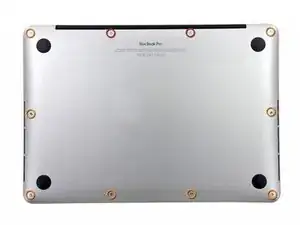
    • Quita los 10 tornillos que aseguran la parte inferior de la carcasa a la parte superior:

    • Dos tornillos Pentalobe P5 de 2.3 mm

    • Ocho tornillos Pentalobe P5 de 3.0 mm

    • A lo largo de esta reparación, realiza un seguimiento de cada tornillo y asegúrate de que vuelva exactamente de donde proviene para evitar dañar tu dispositivo.

    For all the screws you use the P5 pentalobe screwdriver?

    Carlos -

    Pentalobe is only for the screws on the bottom cover. The Torx screw driver is for the remainder.

    Fredrik -

    I never, ever, ever considered using anything but the correct tool on the Pentalobe screws. Too easy to strip and void your warranty (if still in effect), as well as make it almost impossible to get inside later for another upgrade or repair. The Wiha P5 Pentalobe screwdriver fits like a glove and costs only about $11 (a fraction of your drive's price)at Amazon.com. Get it!

    marketing -

    I followed this exactly and was able to replace my broken trackpad. I did not have to replace the ribbon OR the battery. However I would suggest getting the ribbon since it’s fairly cheap, as for the batteries I was able to do it with a card only. I didn’t use any heat or the liquid but it takes some time. You really have to work the card in there to release the glue. Also you must be very careful not to bend the batteries or damage them, if you do you must replace with new. This took me about 1.5hrs and my computer works like new. Apple cost for this job was around $450, I did it for $120. Big ups to ifixit for this awesome tutorial, tool set and parts!

    On a side note, only use quality tools, the cheap ones will break or strip the screws.

    Dustin Steward -

    Note that the eight 3mm screws have a shoulder under the head, while the two 2.3mm screws are “full thread”, i.e., there is no shoulder under their heads. It’s important to put the two screws with no shoulder at the hinge of the cover.

    All ten screws require a P5 Pentalobe screwdriver, preferably with a magnetized tip to help hold and position the screw.

    All of the screws have blue “Loctite” thread locker compound on their threads. This is to help prevent the screws from working loose and falling out. Don’t attempt to clean the Loctite from the screws — leave it in place, and it will continue to help prevent the re-inserted screws from working loose.

    When replacing the bottom cover, it is a good technique to insert and BEGIN tightening all ten screws BEFORE fully tightening any one screw. After all the screws have been started, then go around and finish tightening all of them. By doing this, you make it easier to feel that each screw has been started properly, and is not “cross-threaded”.

    doubleclutch -

    This is what I found on my MBP mid-2014 13” Retina. All 10 used the same screwdriver. I didn’t see the blue “loctite” but I also got my computer refurbished.

    Evan Shulman -

    A good technique for starting to thread the screws when replacing them is to position and align the screw, and with the driver, gently turn the screw in the REMOVAL direction until you feel and hear a slight click. This click happens when the leading thread of the screw drops off of the leading edge of the thread in the hole — this is the point at which the threads are properly positioned for engagement. You can now turn the driver and screw in the TIGHTENING direction. This technique will help prevent accidental “cross-threading” of the screw, which will damage the threads permanently.

    Note that this is a useful technique when installing ANY threaded fastener.

    doubleclutch -

    Hi peeps,

    I have a wifi problem on this MBP 13” early 2015 and was pleasently surprised to find your guide to changing the airport card.

    However upon closer inspection it seems that on my MBP (purchased new or so I thought) the 3 antennae seem so have been soldered together at the point where they are clamped to the chassis. I have photos but cannot post here. Can anyone conform that where the 3 antennae wires are held to the chssis by the 2 scew metal support (just before disappearing into the screen hinge), the support is not meant to short the 3 wires together. This makes no sense for 3 seperate antennae wires.

    Any advice /close up photos is welcome here.

    dom

    colonel mustard -

    Tip: Use post-it notes to keep track of screws

    1. Pack of post it notes

    2. Stick screws to the sticky part of the post it note

    3. Write on the post it note which step and what kind of screw it is

    ibash -

    Hi, in order to drain the battery I am running:

    yes > /dev/null

    in 4 terminals, so the CPU maxes out at almost 99%.

    I hope this speeds up the battery draining process.

    And the backlight is at maximum brightness :-)

    You can see the cpu load in Activity Monitor.

    Its draining at 20% per 15 minutes.

    Any concerns about draining the battery in this way?

    Andre van der Ham -

    Something I’ve been curious about, is it possible to upgrade a late 2013 Retina model MacBook Pro, with the improved 16gb ram and i7 processor logic board from the 2015 retina model? I’d be interested to try but not ready to shell out the $500+ to be the first lol

    Chat Dawgie -

    Without rehashing what others have said, I would highly recommend reading through the steps *and* the comments for each before tackling your replacement for tips. Highlights for me were: only disconnecting what actually needed to be disconnected, rotating the spudger to release the track pad cable, a hair dryer worked perfectly fine, and the pencil outline of the battery before you remove. You got this!

    N DesRochers -

    Installation of replacement AirPort card was easier than I had expected thanks to this guide. Thank you.

    chaslaw -

    I use replaced SSD and it was super easy and working great. I can finally upgrade Mac OS with plenty of room to spare and no more low memory alerts. Well worth investment and didn’t have to buy new laptop

    Pete James -

    It's interesting that this tutorial is rated Moderate even though you need to remove the battery. The battery removal tutorial which is basically the same but with fewer steps is rated Difficult.

    Marv Ruona -

    when i pulled the screws out i arranged them in the same way they were in. the top 2 middle screws appeared to be shorter than the rest. in order to keep them in place i got a square of packing tape sticky side up, taped both sides down with 2 other pieces of tape. and then put the screws head down in the order i pulled them.

    Jason Wade -

    Excellent instructions although checking battery and speakers aligned before fixing batteries into place is essential. MacBook good as new!

    John Foreman -

    I find it helpful to spread a soft, slightly fuzzy cloth (like flannel) over my workspace before doing something with small parts. It keeps screws and things from rolling or bouncing away. A towel might be too plush, though, as a screw might get lost in it.

    Richard KeslerWest -

  2. LeHZGQqOmJ5HNBPs
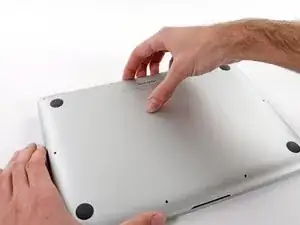
    • Introduce tus dedos entre la parte superior y la parte inferior de la carcasa.

    • Tira suavemente de la carcasa inferior para retirarla.

    This takes a bit more effort than you might expect. Put your fingers where shown and lift about 3inches. With enough upwards pressure the plastic holders will “pop free” and the bottom will come off easily.

    hamiltont -

    To reattach bottom case I found it helpful to line fingers up with clips under case should snap easily

    Peter Stoll -

    If your old battery has swollen, the lower case may “pop” open. Don’t lose your screws!

    Maxine Loveman -

  3. 3QrmmYdOGiTrsDa3
    3QrmmYdOGiTrsDa3
    ZD5XX1oOYH2LCLLQ
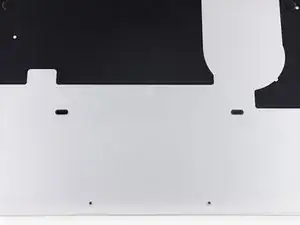
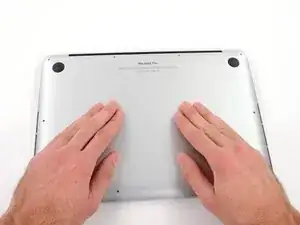
    • La carcasa inferior está conectada a la carcasa superior con dos clips de plástico cerca de su centro.

    • Durante el reensamblaje, empuja suavemente hacia abajo el centro de la carcasa inferior para volver a sujetar los dos clips de plástico.

    This wording I found quite confusing. They just mean when putting the lid back on that you just removed in the previous step, push here.

    Mmm ttt -

    I took my pointer and thumb (which are luckily long enough) to feel where the studs are on the back panel, and then as I put the back panel back on, I pushed in the spot I had marked with my fingers to ensure I was applying pressure only on this part.

    Evan Shulman -

    If you’re doing an iFixIt battery replacement, the replacement battery has two rubber nubs which are right where the clips are that receive these studs. Folks have been saying it’s hard to get the studs to clip back in after replacement, and I had the same issue. I trimmed the top of these rubber nubs, which are a bit bigger than those on the original battery, with some side cutters. That made the fit much better.

    Rob Gorbet -

  4. RjNdjyPoDnNTyyUB
    • Si es necesario, remueve la cubierta de plástico adherida a la placa de contacto de la batería.

    A plastic foam cover also covers plug and socket and the whole battery. It is easy to remove it from the right side to the trackpad wire that the battery plug is free like shown in the picture. I kept it to use it again later.

    Daniel Brehm -

    I have done tons of these battery replacements.

    You don’t need to do anything on the list after you disconnect the battery, apart from carefully moving the speakers out of the way, and then prise up the battery modules. I just very carefully, and with little even motions, use a large slot screwdriver. Being careful to keep it flat, to not puncture the battery.

    Easy peasy. I have never had an issue after dozens of the tasks…

    davelarose -

    Dear Sir,

    as you seem to be very much experienced with battery replacements you might perhaps give me a hint why after having removed the battery pack successfilly, the keyboard doesn't work anymore after booting the system. The Touchpad works, the keyboard backlight works but typing does not function at all.

    I only disconnected the battery connector and touched nothing else. I am quite desperate …

    Gerd Uyan -

    I agree with Dave la Rose, provided you use heat rather than solvent to remove the old battery (or possibly floss, haven’t done that). Please see my comment further down this thread on how to use an iOpener for correctly heating the glue joint

    I. Margaronis -

  5. Z3NUBtyfmOAH54su
    Z3NUBtyfmOAH54su
    MGkoyh6DPJiRtR6G
    • Utiliza el extremo plano de un spudger para levantar el conector de batería directamente de su enchufe en la placa lógica.

    • Asegúrate de levantar solo en el conector o puedes arriesgarte a dañar la placa lógica permanentemente.

    I have a friends MacBook Pro that has some water damage that caused the MacBook not to be able to use battery power, but still work when plugged into A/C. Upon further inspection I can see visible corrosion on a few of the 9 cables going from the battery connector to that small circuit board. Is it possible to just replace that circuit board?

    jramsey21 -

    Sometimes it can be enough to just clean the contacts without having to replace the entire board. Dosent work for complicated IC's like plcc type, where corrosion is underneath the chip. Here you will have to reheat and reapply the IC.

    andrehedegaard -

    When placing the battery connector back into the socket on the logic board, check that every part of connector is pressed down. You should hear a soft click when it's back in place.

    Ethan Tarquin -

    +1

    I thought I made sure it was connected but when running the computer it only detected the battery but couldn’t power it. I had to run with power adapter. Also it didn’t charge. I guess some pins were connected but not all. To verify that all were connected I removed the plastic cover, placed it carefully completely flat, and then reattached the plastic cover. After that it worked!

    Jonas Ehrs -

    Removing the battery connector took a bit of finagling. It wasn’t as easy as one would think. Be very careful when doing this as they warn to not damage it. Otherwise great instructions!!!!

    Peppon -

    Lift from the long, flat side, not the shorter side. In this picture, you should lift from the NORTH part of the connector, not the WEST side like they are doing. This is because you can spread the pressure from lifting the connector across more area, as compared to the side. I accidentally broke off part of my battery connector lifting it up the way shown, but was able to do it the way I described without problem. Make sure to lift from the wide part so you don’t have my same trouble!

    Jaden Salama -

    The connector is no more than 1mm thick… the socket is 3-to-4mm deep so make sure you’re trying to remove the connector itself, and not pulling at the socket.

    Richie Egg -

    Thank you Richie I was trying to lift the socket.

    be careful the little square block is actually made of 2 parts and you only have to lift the upper part as Richie said

    ilyes -

    You can do it from the side like the picture, but i would recommend twisting almost like a screw driver once you have leverage under the overhanging part of the left side like in the picture. Twist the tool so that it starts to put pressure on the top, until you’ll hear it click out. You can be somewhat forceful but it shouldn’t require a lot of strength. Guiding the tool with one hand and twisting with the other is a good way to attempt this.

    Colin Nowers -

    After I put the battery back I found out at this step that the new battery connector was off by 2 mm (because I installed my battery slightly off). Since the connector is rigid, I removed it’s plastic cover (just like we all did in Step 4) to free the cable, which allowed me to bent it enough to properly plug the connector.

    Marc -

    Simple question: why we need to do this, I mean, disconnect battery from main board?

    Bin Zhu -

    Well, I’m reading this step in the battery replacement repair guide, so it’s pretty critical to disconnect the battery from the main board. I’m guessing these steps are reused in other guides where disconnecting the battery might not be such an obvious need.

    surf -

    The connector wires from the battery to the connector are long

    You'll have to bend them downward and into the small cove that exists so the connector can fit in place.
    So use the a plastic card or flat end of the spudger to bend them downward and folded a bit back so the connector will fit in place.
    Use your old battery as a guide for how they should be bent.

    RON BUENO -

    Hi All ,

    I followed the instructions step by step and changed the board successfully and reconnected everything back. When I powered it back on I can see it is charging again however it just displays a black screen and no display. Keyboard light comes on as well and the apple logo light on the back lid also turns on. Not sure what is wrong ? It has been charging for more than 15 minutes and still no joy. Anyone able to help solve or identify the issue .

    Thanks

    Kaleem -

    The connector cover is slightly wider and longer than the socket (<1mm) so there is a small "lip" around the top that can be used to lift it.

    Richard KeslerWest -

    If your are not familiar with those repairs, and as with most of those connections, I recommend to take the time to observe your computer and the pictures from the tutorial, reading instructions and comments before starting each step. This battery connector needs both a bit of force and of precision. For a battery repair the connection of the new battery is a bit more tricky, you need to have your battery in the right position and to force it a bit the connector

    David Obis -

  6. FwTIMvtITSjKBUfL
    • Pliega el conector de la batería hacía arriba y sácalo del medio para prevenir contacto accidental con su enchufe durante la reparación.

    If you miss or let this step for later like I did, the power left in the battery even though the computer is completely shut down, will screw up the I/O board cable like I did. I noticed this after I put all the pieces back, turn the computer on and surprise, no wifi hardware is detected. -.-

    sebasgaes -

    I put a small piece of blue painters tape on the battery connector contacts to prevent it from accidentally making a connection and shorting. This helped keep things a bit more protected.

    LaymanLab -

    @sebasgaes, shoot, I'm only part way through the process, but I skipped this step thinking it wasn't necessary. I'm only through step 12 right now, but is there a fix if my machine doesn't recognize the wifi hardware after I've put it all back together? I don't see reference to the "I/O board cable" anywhere else in the instructions, so I'm confused about your mention of that...

    jiclark -

    UPDATE: I completed the job, rebooted, and all is well, wifi and all. Thanks anyway; gotta love iFixIt!!

    jiclark -

  7. s2Mh12yheONSRk4u
    s2Mh12yheONSRk4u
    Q3smZHDdXAX3Alya
    vUGVmoMHAPYRTvyh
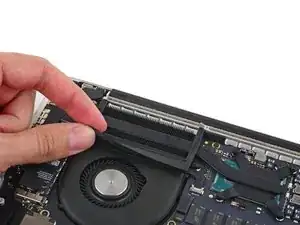
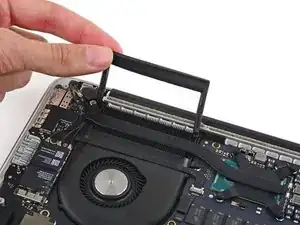
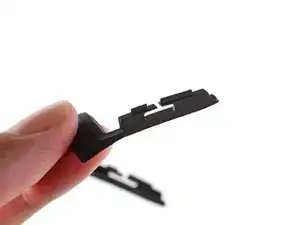
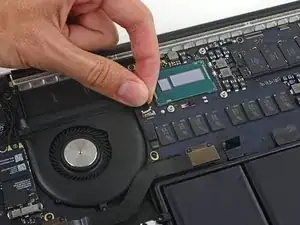
    • Retira con cuidado el tope de goma del ventilador del borde del disipador de calor.

    • El protector se mantiene suavemente en su lugar gracias a los labios de la tercera imagen que envuelven el disipador de calor. No hay adhesivo, por lo que quitarlo y volverlo a colocar debería ser fácil.

  8. PlJncytVbnR5eHGT
    PlJncytVbnR5eHGT
    aOkVXtPlNRa3hnAT
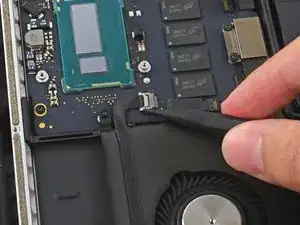
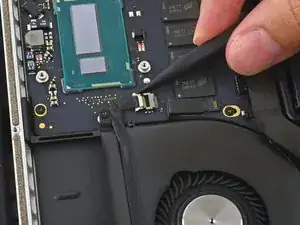
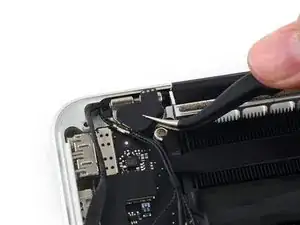
    • Usa la punta de un spudger para empujar a cada lado del conector del cable de la cámara iSight para sacarlo de su zócalo en la placa lógica.

    • El conector del cable es pequeño y delicado, así que asegúrate de sacarlo un poco a la vez desde cada lado, alternando hasta que esté completamente fuera. Un spudger o unas pinzas son ideales para esto.

  9. tsrwDgAnf2sYT5Xd
    tsrwDgAnf2sYT5Xd
    RqWtpGpWEIkKZCCE
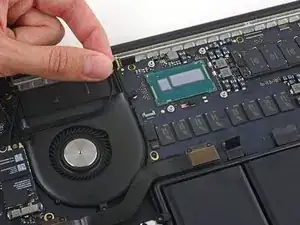
    • Despega el cable de la cámara iSight de la carcasa del ventilador para doblarlo y quitarlo del camino.

    • Opcionalmente, puedes usar aire caliente para ablandar el adhesivo y/o un spudger para ayudar a separar el cable de la carcasa del ventilador.

  10. ALWapaNNwN44FkB1
    ALWapaNNwN44FkB1
    CGKPPATJDN3DLBFR
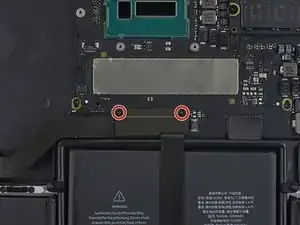
    • Uno de los tornillos que sujetan la carcasa superior del ensamblaje del ventilador está oculto justo detrás del cable de la placa de E/S.

    • Retira los dos tornillos Torx T5 de 2,1 mm que sujetan el soporte del cable de la placa de E/S a la placa lógica.

    • Retira el soporte del cable de la placa de E/S.

  11. JnCabD4fdGvbbMpM
    JnCabD4fdGvbbMpM
    XHSmIAGJeCxVgRvD
    • Usa el extremo plano de un spudger para sacar el conector de la placa de E/S de su zócalo en la placa lógica.

    • Ten cuidado de hacer palanca solo en el cable de la placa de E/S, no en el zócalo en sí o corres el riesgo de dañar la placa lógica.

  12. hGJFmUYNSuXIBmfK
    hGJFmUYNSuXIBmfK
    KdsrVUeaevL1TJ4I
    • Levanta el extremo de la placa lógica del cable de la placa de E/S hacia arriba para doblarlo y apartarlo.

    • Para evitar dañar el cable, dóblalo solo en el doblez del extremo del cable de la placa de E/S. Solo se interpondrá en el camino momentáneamente, así que no intentes forzarlo a quedarse.

  13. VZueARnfuH4aNuTc
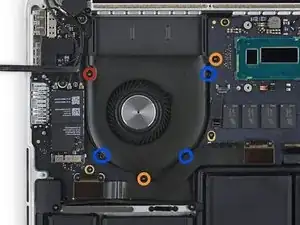
    • Retira los siguientes tornillos que sujetan la cubierta del conjunto del ventilador al resto del conjunto:

    • Un tornillo Torx T5 de 5,0 mm.

    • Este tornillo mantiene unidos la carcasa superior, el conjunto del ventilador principal y el conjunto del ventilador, por lo que debe retirarse.

    • 3 tornillos Phillips #000.

    • El tornillo inferior derecho está justo debajo del cable de la placa de E/S y será visible una vez que se haya retirado.

    Ignore the orange circles in this step. This photo is also used for a fan replacement, in which case you need to remove the orange ones.

    Rob Gorbet -

  14. TsUUlSDnXP3rEAQd
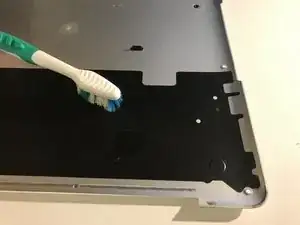
    • Es probable que el interior de la placa de la caja tenga polvo. Dado que esta pieza no tiene componentes electrónicos delicados, simplemente puedes limpiarla con tu cepillo antiestático o, mejor aún, con un cepillo de dientes usado.

    • Lo ideal es hacer este paso al aire libre.

    • Opcionalmente, puedes usar una pequeña cantidad de alcohol isopropílico si se ha acumulado suciedad en alguna parte (siempre que la dejes secar antes de volver a instalarla), aunque esto no debería ser necesario.

  15. LyVyqdbecPHAWiwd
    • Usa tu lata de aire comprimido para eliminar el polvo suelto de la placa base.

    • Sigue las instrucciones de tu lata de aire comprimido. Por lo general, sostendrás la boquilla de 3 a 4 pulgadas del objetivo, con el lado derecho hacia arriba, y solo aplicarás ráfagas cortas de aire.

    • No soples aire comprimido cerca del conjunto del ventilador sin sujetar el ventilador, ya que esto puede hacer girar las aspas del ventilador a alta velocidad y generar un voltaje dañino.

    • Si llevas puesto un brazalete antiestático con conexión a tierra, puede eliminar los trozos de polvo más grandes con la mano.

    • Si tienes un cepillo antiestático, puedes usarlo para quitar o aflojar el polvo antes de expulsarlo con el aire.

  16. QNiONpBYZebYJRbv
    • Si solo hay una pequeña cantidad de polvo en el disipador de calor y el conjunto del ventilador, puedes soplarlo sin quitar la cubierta del conjunto del ventilador, siempre que mantenga el ventilador firme.

    • Si las aspas del ventilador tienen mucho polvo, deberás quitar la cubierta del conjunto del ventilador para limpiarlas más a fondo y eliminar cualquier acumulación grande de polvo.

    • Retira la cubierta del conjunto del ventilador; debería salir sin resistencia alguna si quitaste los 4 tornillos

    • Usa un cepillo para aflojar el polvo pegado.

    • Siempre que tengas cuidado de cepillar solo las aspas de plástico del ventilador y la carcasa, no necesitas estrictamente un cepillo antiestático. Un cepillo de dientes viejo volverá a funcionar perfectamente aquí.

  17. ySUSCFhjHAXFgVyk
    • Voltea con cuidado la computadora portátil boca abajo sobre una superficie plana para que caiga el polvo suelto.

    • En este punto lo único que puede caer además de polvo (además de polvo) son las cubiertas de goma de las bisagras, cuyo adhesivo puede estar suelto. Simplemente reemplázalos como se muestra en la última foto si es necesario.

    • Deberías tener una visión menos obstruida de las aletas del disipador de calor. Afloja el polvo acumulado con un cepillo antiestático antes de expulsar el polvo suelto por las rejillas de ventilación traseras de la carcasa con aire comprimido.

    • Nuevamente, sostén el ventilador quieto cada vez que soples aire comprimido cerca de él.

    • Sopla el aire suelto del interior del conjunto del ventilador.

    • Inspecciona el resto del interior de la computadora en busca de polvo suelto que pueda haber caído y límpialo antes de cerrar todo de nuevo.

Conclusión

Para volver a armar tu dispositivo, sigue estas instrucciones en orden inverso.

Stefan Countryman

Miembro Desde 25/11/17

417 Reputación

0 comentarios