Introducción
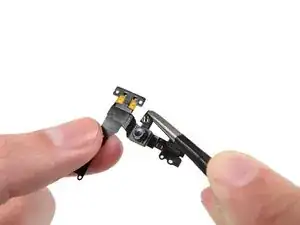
Usa esta guía para reemplazar el cable del sensor que contiene la cámara frontal, micrófono, sensores ambientales, y el pad de contacto del auricular, en tu iPhone SE.
La cámara frontal y el cable del sensor son compatibles con los del iPhone 5s.
También puedes usar esta guía para reemplazar las partes siguientes:


-
-
Apaga siempre tu iPhone antes de comenzar el desmontaje.
-
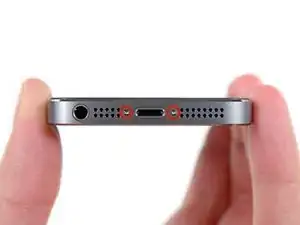
Retira los dos tornillos Pentalobe de 3.9 mm de cada lado del conector Lightning.
-
-
-
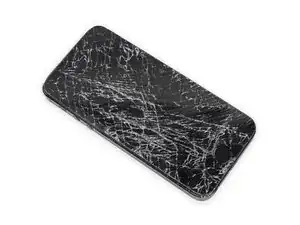
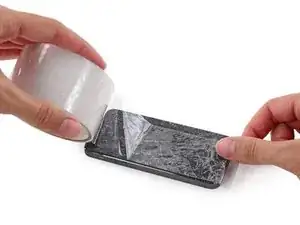
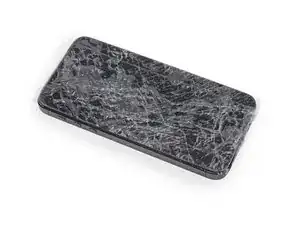
Si la pantalla de tu dispositivo está rota, evita sufrir daños físicos utilizando cinta adhesiva.
-
Pon tiras de cinta adhesiva transparente sobre la pantalla rota hasta que la totalidad de la pantalla esté cubierta.
-
-
-
Da igual que herramienta utilices, pero debes estar seguro de que sacas toda la pantalla.
-
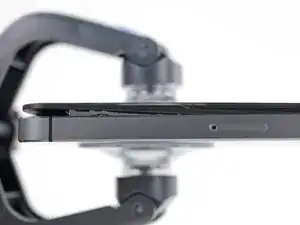
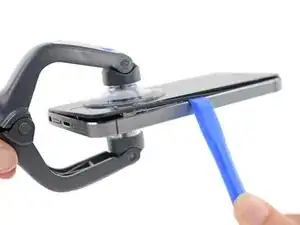
Si el cristal empieza a separarse del plástico, como se muestra en la primera imagen, desliza una herramienta de apertura entre el bisel de plástico y el cuerpo metálico del teléfono para que los clips metálicos de los laterales salgan del chasis.
-
-
-
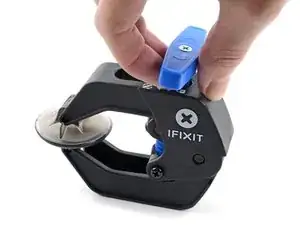
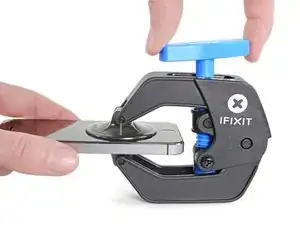
Para obtener instrucciones completas sobre cómo usar Anti-Clamp, consulta esta guía.
-
Tira de la manija azul hacia la bisagra para desactivar el modo de apertura.
-
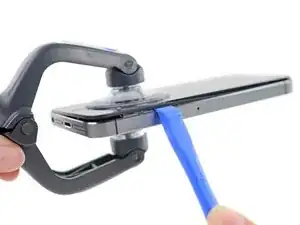
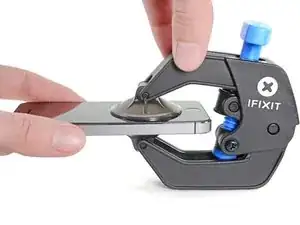
Coloca las ventosas justo encima del botón de inicio en la pantalla, una en el frente y otra en la parte posterior.
-
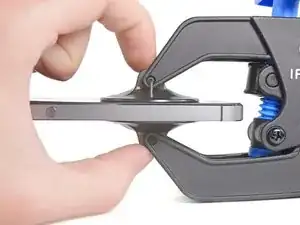
Coloca las ventosas justo encima del botón de inicio en la pantalla, una en el frente y otra en la parte posterior.
-
-
-
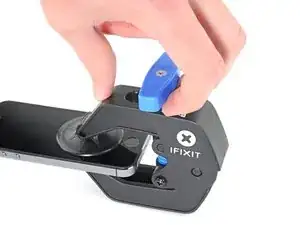
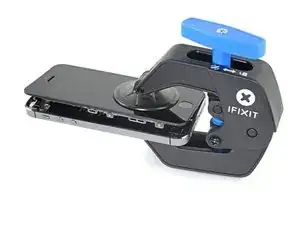
Empuja la manija azul lejos de la bisagra para activar el modo de apertura.
-
Gira el mango en el sentido de las agujas del reloj hasta que veas que las copas comienzan a estirarse.
-
Espera un minuto para que el adhesivo se suelte y se abra la parte inferior de la pantalla.
-
Omite los siguientes dos pasos.
-
-
-
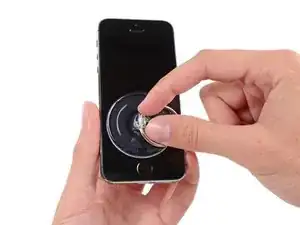
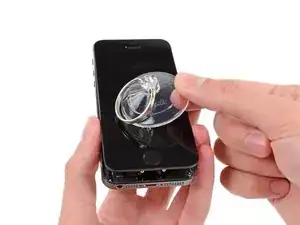
Si no tienes iSlack, utiliza una ventosa para levantar el panel frontal de tu iPhone.
-
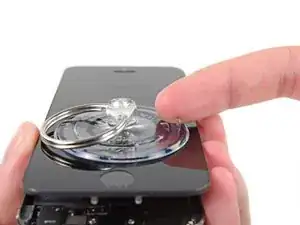
Presiona la ventosa contra la pantalla, justo por encima del botón de home.
-
-
-
Mientras sujetas el iPhone con una mano, tira de la ventosa para arriba para separar la pantalla del chasis a la altura del botón de inicio
-
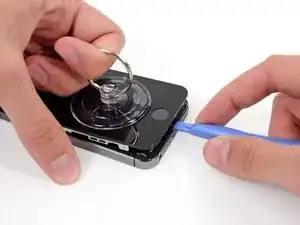
Con una herramienta de apertura, deslízala por los bordes del chasis del teléfono, no por los de la pantalla, mientras tiras hacia de la ventosa.
-
-
-
Jala de la protuberancia de plástico para liberar el sello de vacío de la ventosa.
-
Remueve la ventosa de la pantalla.
-
-
-
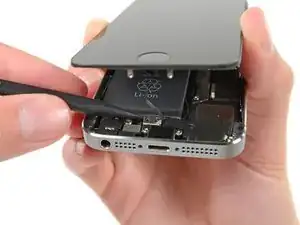
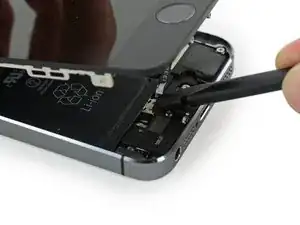
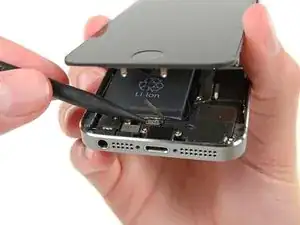
Abre el telefono lo suficiente para revelar el soporte de metal cubriendo el cable de boton de inicio.
-
Solo el ensamblaje original de boton de inicio del telefono sera capaz de utilizar la funcionalidad de Touch ID. Si rompes el cable, instalando un nuevo boton de inicio solo restaurara la funciones ordinarias de boton de inicio, no las funciones de Touch ID.
-
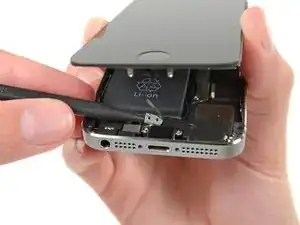
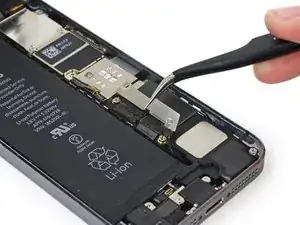
Utiliza la punta de un spudger para empujar y liberar el soporte y quita lo con un par de pinzas.
-
-
-
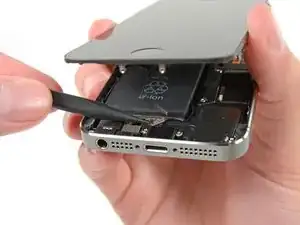
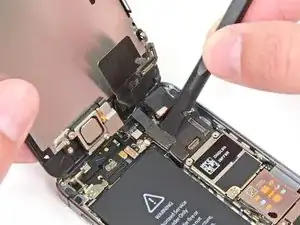
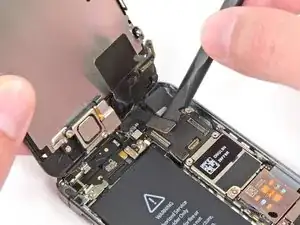
Utiliza la punta de un spudger para hacer palanca y desconectar el conector de cable del boton de inicio.
-
-
-
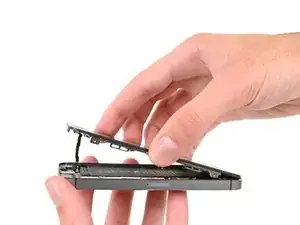
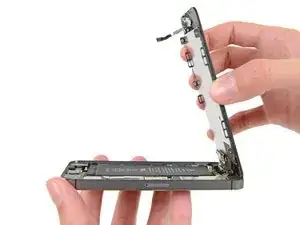
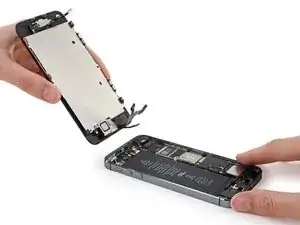
Una vez que el conector del botón home ha sido desconectado, tira de la pantalla con el cable del botón home fuera del chasis utilizando la parte superior del telefono como una bisagra.
-
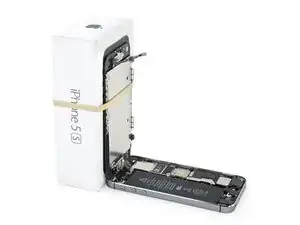
Abre la pantalla en un angulo de 90º y asegúrala contra algo para mantenerla apoyada mientras trabajas en el telefono.
-
Agrega una bandita elastica para mantener la pantalla asegurada en su lugar mientras trabajas. Esto previene tension excesiva en los cables de pantalla.
-
-
-
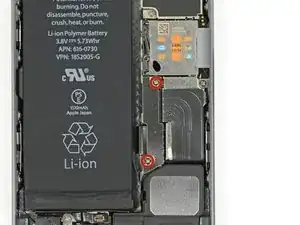
Quita los tornillos Phillips #000 de 1.6 mm del conector metalico de la bateria a la placa logica.
-
-
-
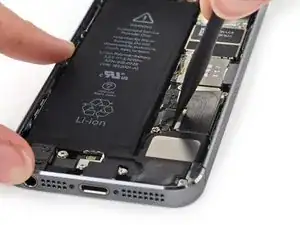
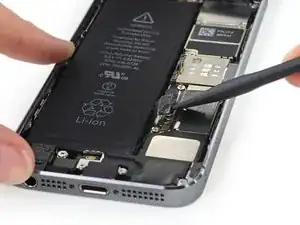
Utiliza la parte plana de un spudger para cuidadosamente hacer palanca a el conector de batería hacia fuera de su enchufe en la placa lógica.
-
-
-
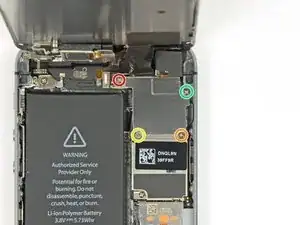
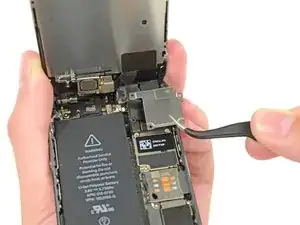
Quita los siguientes tornillos que aseguran el soporte de los conectores del panel frontal a la placa lógica:
-
Un tornillo Phillips #000 de 1.7 mm
-
Un tornillo Phillips #000 de 1.2 mm
-
Un tornillo Phillips #000 de 1.3 mm
-
Un tornillo Phillips #000 mas de 1.7 mm
-
-
-
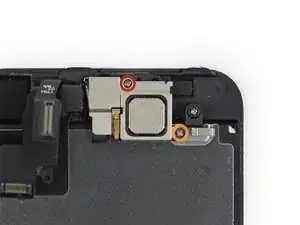
Quita los dos tornillos que sujetan el soporte del componente superior:
-
4.0 mm Phillips #000
-
2.3 mm Phillips #000
-
-
-
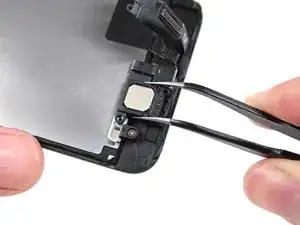
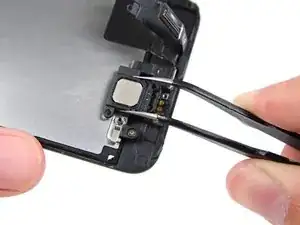
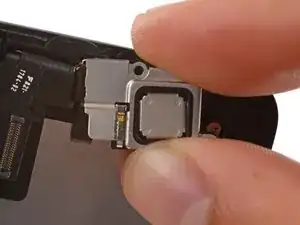
Desliza suavemente el clip, cerca de la esquina inferior izquierda del soporte del altavoz del auricular, hacia afuera de su hueco en el conjunto del panel frontal.
-
Con un conjunto de pinzas, desplaza el soporte hacia la izquierda para desengancharlo.
-
-
-
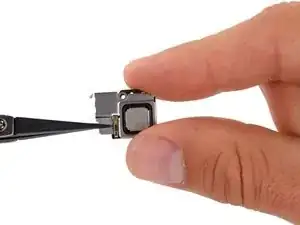
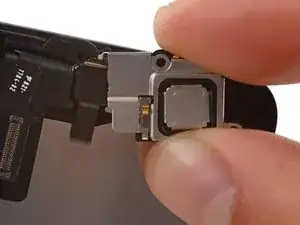
Coloca el soporte del altavoz del auricular sobre el altavoz para que encaje perfectamente en su alojamiento.
-
Desliza el gancho izquierdo del soporte en la muesca por encima de la esquina superior izquierda de la cámara frontal.
-
Gira el soporte para que quede plano sobre la caja trasera, alineando los dos agujeros de los tornillos. Presiona el soporte en su lugar, asegurando que el gancho en el lado derecho del soporte metálico se enclave en la pantalla.
-
-
-
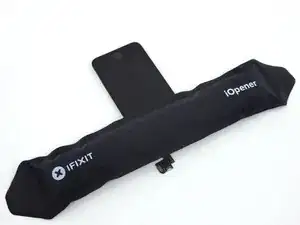
Usando el iOpener para suavizar el adhesivo, este, ayudará a removerlo con seguridad. Sigue nuestras instrucciones para usar el iOpener
-
-
-
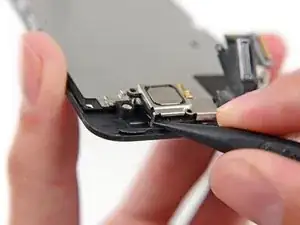
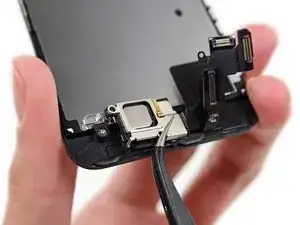
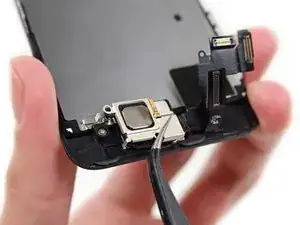
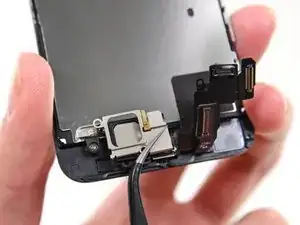
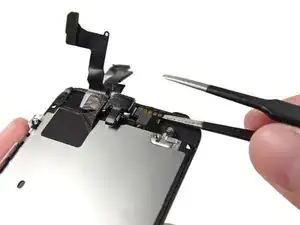
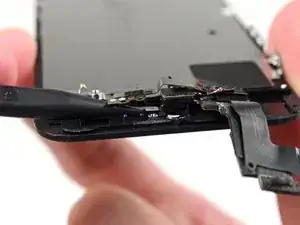
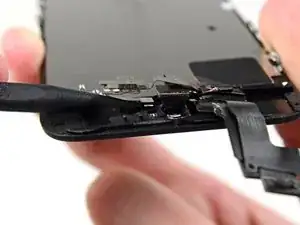
Utiliza el borde de la pinza o un spudger, para hacer palanca y levantar suavemente el cable de contacto del altavoz del auricular hacia arriba, para separar esta parte de la cámara y el sensor del adhesivo.
-
-
-
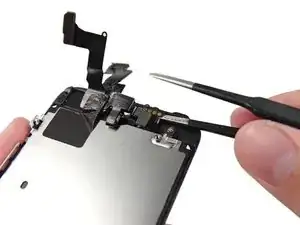
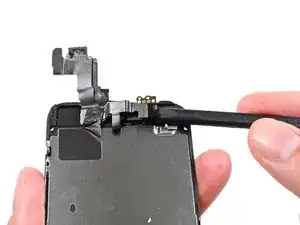
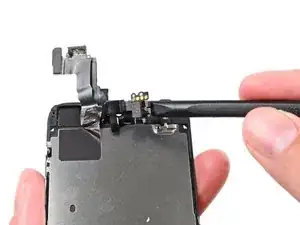
Utiliza la punta de un spudger para levantar los sensores de luz ambiental y proximidad fuera de sus lugares en el display
-
-
-
Utiliza la parte plana de un spudger para levantar y separar la cámara frontal de la pantalla
-
-
-
Cuidadosamente despega el cable de la placa de protección del LCD para removerlo del pantalla.
-
-
-
Puedes necesitar un par de pinzas para doblar la porción del cable del micrófono para que la parte de oro está adentro del cable, y la de plata arriba.
-
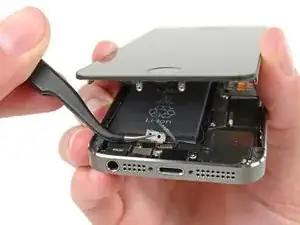
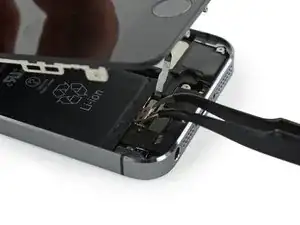
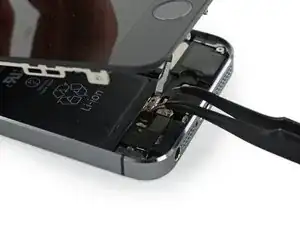
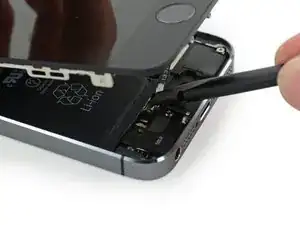
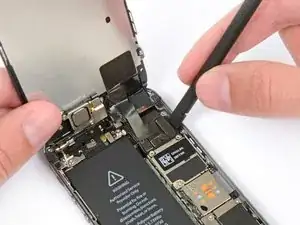
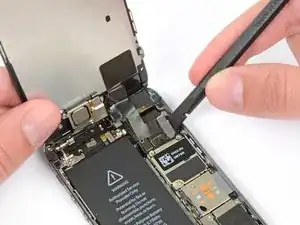
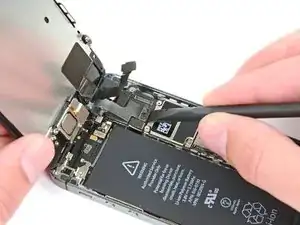
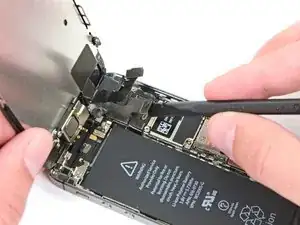
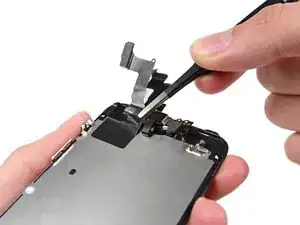
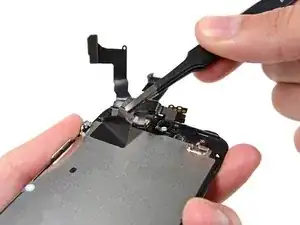
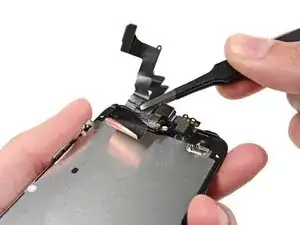
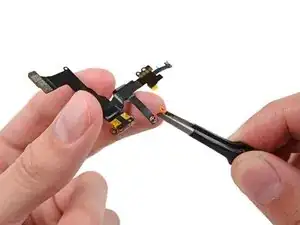
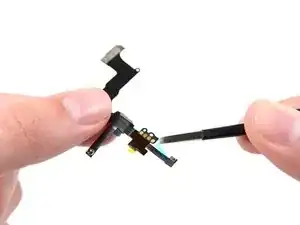
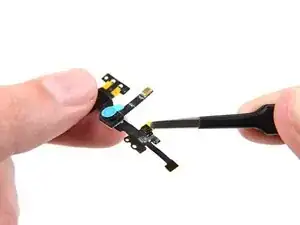
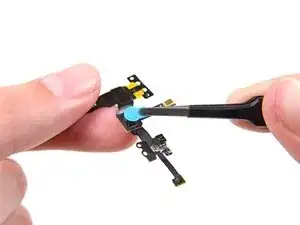
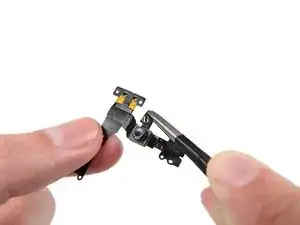
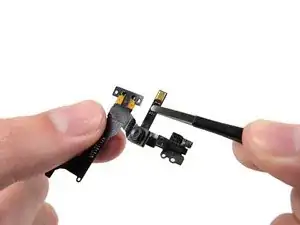
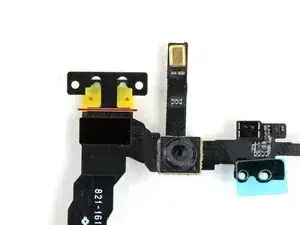
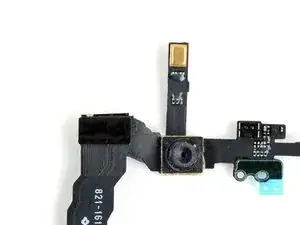
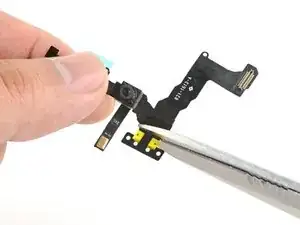


Para volver a ensamblar tu dispositivo, sigue las instrucciones en orden inverso.

6 comentarios
Remember that iPhone 5s and iPhone SE frontflex is different. If you use iP5s frontflex the frontcam microphone will not work.
Yes I did experience this…… But where can be found the SE specific flex???
Any idea on where to get the iPhone SE specific part?
I have successfully transferred my SE flex cable from it’s screen assembly onto a 5s screen assembly that I will be using on my SE.
I found that starting with peeling the tape of the lcd shield plate is a much faster and easier way of getting the entire thing off. In one go even. Just make sure to do it gently. I have done it successfully while removing the 5s cable but when removing the SE I accidentally ripped the tape off. Thankfully it does not need to be attached directly to the cable to be used the same way it was.
The metal case for the proximity sensor came off but thankfully it is rally easy to just put it back where it was with the adhesive that was already on.
I used a white terrycloth hand towel as my work surface and to position and retain all the screws and part in their relative positions, so I didn't mix things up. I also magnetized the screwdriver tips and that made it very easy to deal with these tiny, tiny screws.
Magnus Dalen -
For a secure working, put a small pot with lid on your workplace. When the battery starts burning, throw it in the pot, close it with the lid and get the pot safely out of the building, e.g. on the balcony or throw it out of the window. Do not try to extinct the battery with water, just let it burn out outside. This might take some hours.
Raymond Willems -
This is a really helpful one! My battery caught fire but luckily it was only one cell and not the entire battery. So it was done after a few seconds and I could go on with the replacement.
Matthias Blab -
Directions should say “use the P2 screwdriver head.”
William Kolb -
This step should have included that information. It was very helpful and important. Thank you very much.
Jeffery -
ifixit supplied a set of replacement philips screws (marked “Liberate!”). Thanks but I’m sticking with the pentalobe since they fit more securely than philips which have a chance of stripping if not held with the right amount of pressure.
Don Libes -
What are you supposed to do if the screws are stripped or won’t come out. No luck with the tweezers either.
ibrokeit -
Yep i‘ve had the same problem. One screw out, one that won‘t budge!!!
Stennett -
“cheater” reading glasses are a big help. Carolyn
Carolyn Green -
In this step, it is the P02 screwdriver from the kit (see that the nib has five sides , exactly for ‘pentalobe’ screws). All the other steps involving screws it was the Philips 000 (there was a third screwdriver Y 000 in the kit which I did not use). Did not have any problems at all removing and readding screws back through the process.
Andre Silva -
I'm trying to fix my 5s’s but one has some water damage, and impeccable screen but won't turn on,then I have another one that has no water damage, screens a bit busted but won't turn because of the screen. If I use the good screen from the water damaged phone would it work?
samuel.m.fudge -
After removing the phone from a very good plastic case and before I started the repair I cleaned the entire phone with a soft cloth misted with rubbing alcohol. That removes all the grunge which builds up in the seams of the phone and the small spaces inside the case. Having a clean phone to work on makes the job a lot easier and prevents grunge from falling into the phone.
David Park -
General comment about the screwdriver tips and reassembly: If you get a screw nicely set in place using tweezers and then use the screwdriver, the magnet will probably pull the screw out before you can tighten it. If this is a problem use just the tip (without the handle) to start the screw, then tighten using the handle.
Kevin Patfield -
DO NOT disconnect the screen.
Benjamin Piscopo -
Having two SE’s needing batteries, I ordered an extra battery. The extra battery did not come with the Phillips replacement screws. It would be helpful if every battery came with a set of case replacement screws.
Dorothy Campbell -
Upon reassembly I found it useful to squeeze the phone right above the screws so everything lines up nice. I noticed that when I didn’t do this the new Phillips screws were trying to go in crooked. So just holding the phone together helps.
Samara Sullivan -
hello i am replacing my iphone 5s battery but i am stucked because the adhesive broke whiles pulling it out
before i started i made sure my battery was 0% but i am afraid that when i mistakenly puncture it with the spudger it might catch fire
please is the battery capable of catching fire when it has no power (0%)?
please can someone give me the honest answers before i continue
thank you
George Rockson -
The screws in my iPhoneSE were not P2 (1,2mm) but P1 (0,8mm). I had to order an extra screwdriver which is not available at iFixit.
Tadeus Nawka -
Instructions were fine until removing the battery , No adhesive strip at the bottom of the battery . Unable to remove battery as the battery was stuck sold with adhesive but could not get at the adhesive strip to remove battery . seems whoever put the battery together did not put a strip across the bottom . Had the phone from new and this was the first time I tried to replace the battery . Now I need a new phone
J Caley -
Instructions fine until removing the battery . No strip at bottom of the battery hence impossible to get at the adhesive strips around the battery . This must have been done in the factory as I have had the phone from new and this was the first time the battery was being replaced . Cheesed off as I now need a new phone
J Caley -
30 minutes - to an hour? I gave up after removing the screws and spending an hour trying to lift the display with a suction pad.
harwood -
iPhone 5s maderbored
Rahan Ali -