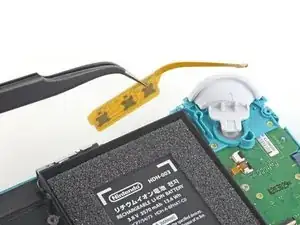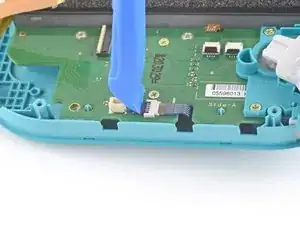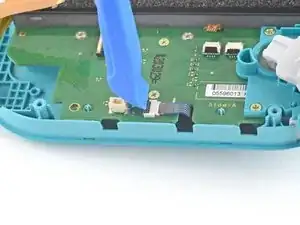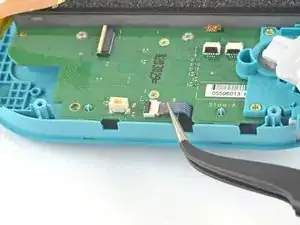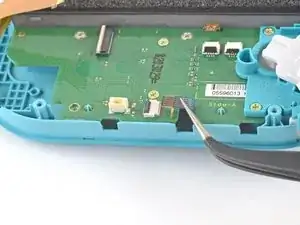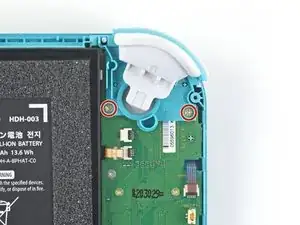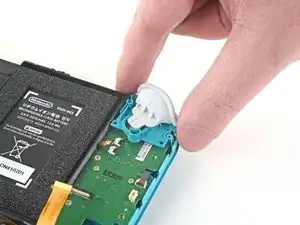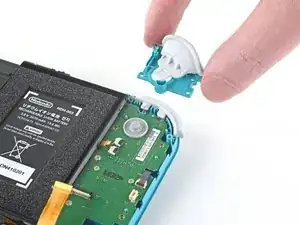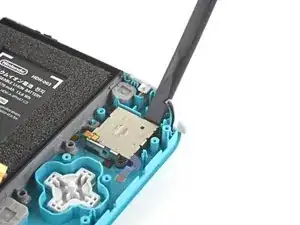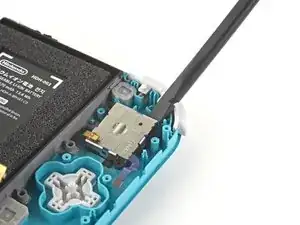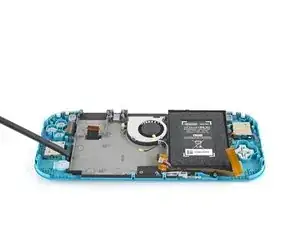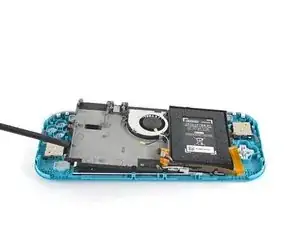
Introducción

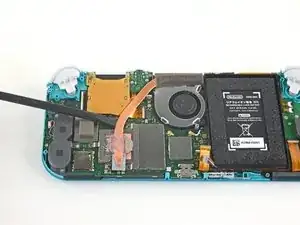
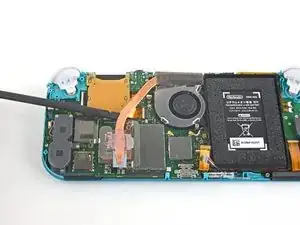
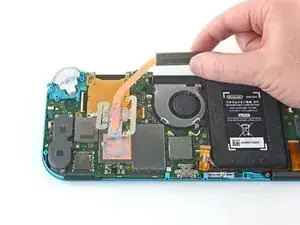
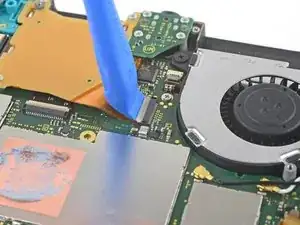
Sigue esta guía para reemplazo un LCD defectuosO o dañadO en la Nintendo Switch Lite.

La Switch Lite utiliza tornillos JIS, pero puedes utilizar un destornillador Phillips en caso de necesidad. Ten mucho cuidado de no desprender los tornillos. Las brocas Phillips de iFixit están diseñadas para ser compatibles con los tornillos de tipo JIS.

***Nota: No es necesario quitar los joysticks y los botones, pero facilita mucho la reparación.

***Nota: Si el cristal del LCD está agrietado o roto, pero la pantalla sigue funcionando, tendrás que reemplazar el digitalizador.

***Nota: Este procedimiento requiere retirar la placa de protección y el disipador de calor. Será necesario limpiar la pasta térmica de ambos componentes -así como de la CPU- y volver a aplicarla antes de reinstalar la placa de protección y el disipador de calor.

  1. CtSXh5SNdBfY3d4X
    • Antes de comenzar esta reparación, asegúrate de que el dispositivo esté completamente apagado.

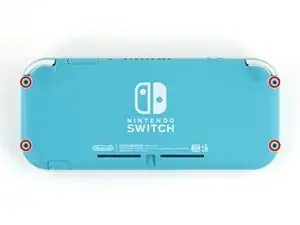
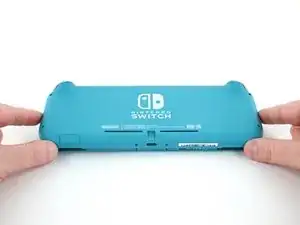
    • Usa un destornillador Y00 para quitar los cuatro tornillos de 6.3 mm de largo que aseguran el panel trasero.

    • A lo largo de esta reparación, mantén un registro de cada tornillo y asegúrate de que vuelva exactamente a su lugar de origen.

    All my screws got stripped any ideas on how to remove?

    Almost A Mammal -

    A Y0 screwdriver seemed to work better for me.

    Tommy Morrill -

    What type of screw driver do I use to un screw the screws and which way

    Luca Capito -

  2. LoododBfWX565CM3
    LoododBfWX565CM3
    axePI5XqFET5KVdd
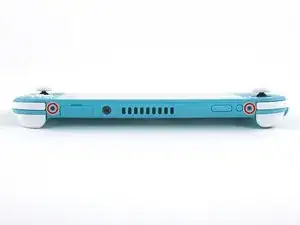
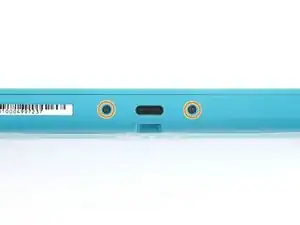
    • Usa un destornillador JIS 000 o un Phillips 000 para remover los siguientes tornillos que sujetan el panel trasero.

    • Dos tornillos de 3.6 mm en la parte superior del dispositivo.

    • Dos tornillos de 3.6 mm en la parte inferior del dispositivo.

    • Para evitar que los tornillos muy apretados se barran aplica fuerza fírmemente hacia el tornillo y gira lentamente, intenta con varios destornilladores si no sale.

  3. OdqFPXbVWUcLdDot
    OdqFPXbVWUcLdDot
    CIVhMktLorQQTIDM
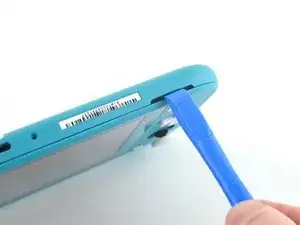
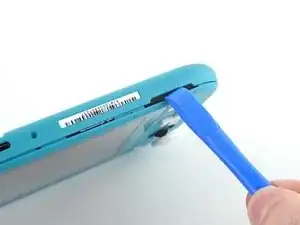
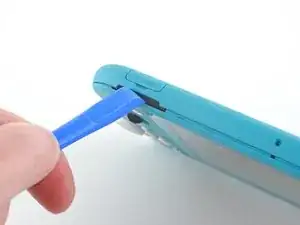
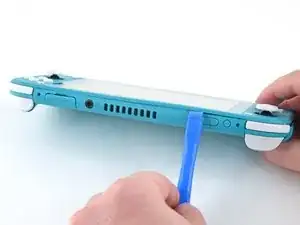
    • Inserta una herramienta de apertura en la rejilla del altavoz izquierdo en la parte inferior del dispositivo.

    • Gira la herramienta de apertura para liberar los clips que aseguran el panel trasero.

    • Evita insertar la herramienta de apertura más de lo necesario para evitar que se dañe el módulo del altavoz.

  4. wrE1q1yNyF2ogBV4
    wrE1q1yNyF2ogBV4
    Pmw5QYCTejXbIUKw
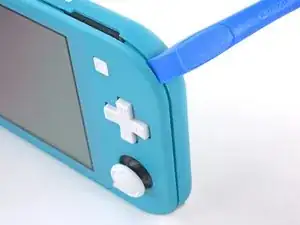
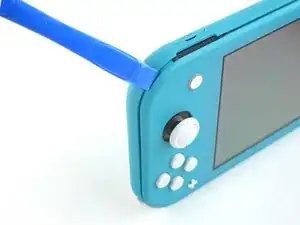
    • Desliza la herramienta de apertura por la esquina inferior izquierda para liberar los clips del lado izquierdo del dispositivo.

  5. RlPaVdXmyVJlvRdR
    RlPaVdXmyVJlvRdR
    xpNFcLWpxIZGYAZo
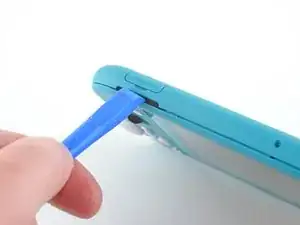
    • Inserta la herramienta de apertura en la rejilla del altavoz derecho en la parte inferior en el dispositivo.

    • Gira la herramienta de apertura para liberar los clips.

    • Evita insertar la herramienta de apertura más de lo necesario para evitar que se dañe el módulo de altavoz.

  6. nKd22DZNmOtktjJ6
    nKd22DZNmOtktjJ6
    ZFI5WyJ26AuYMJ34
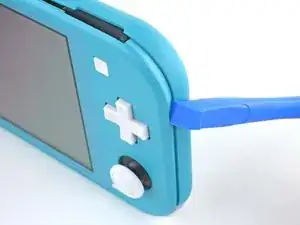
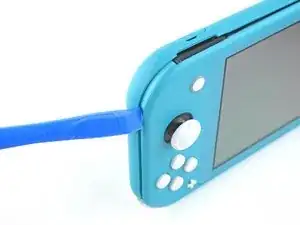
    • Desliza y empuja la herramienta de apertura por la esquina inferior derecha para liberar los clips del lado derecho del dispositivo.

  7. UB4MQPADBNC3AKGp
    UB4MQPADBNC3AKGp
    FDjmileJQ6nKxeRT
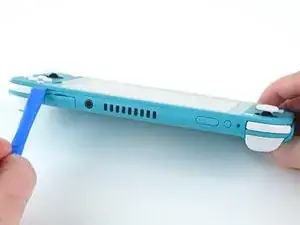
    • Continúa deslizando y apretando la herramienta de apertura a lo largo del hueco en la parte superior del dispositivo para liberar los clips.

  8. 3YVyXRJqMpDtXeYv
    3YVyXRJqMpDtXeYv
    N5JkogvdUb1o4kID
    ZH5AGwN3bXMGGKnl
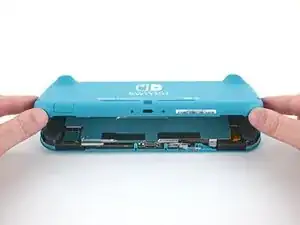
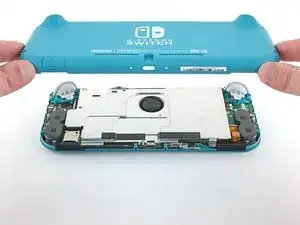
    • Levanta el borde inferior del panel trasero abriéndolo como un libro.

    • Remueve el panel trasero.

  9. vsR2tYTiCfHGSlh1
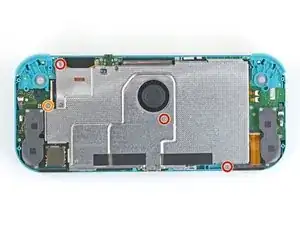
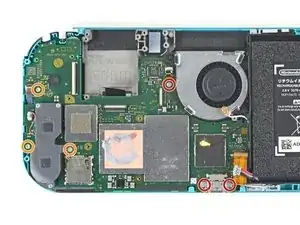
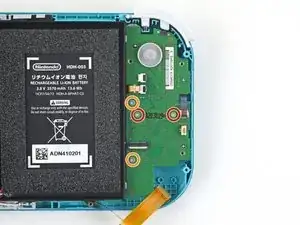
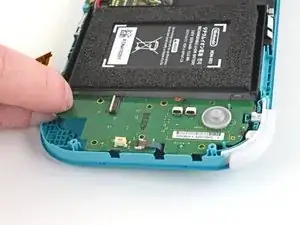
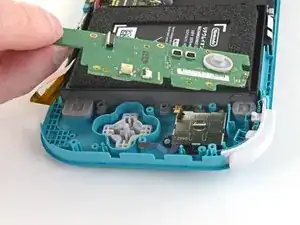
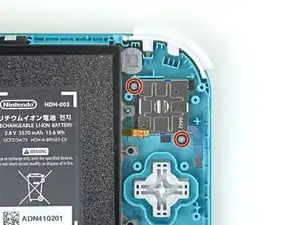
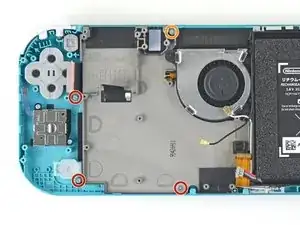
    • Usa un destornillador JIS 000 o un Phillips (de cruz) 000 para remover los cuatro tornillos siguientes:

    • Tres tornillos de 3.1 mm

    • Un tornillo de 4.5 mm

    There are four screws instead of three mentioned

    Khurram Chaudry -

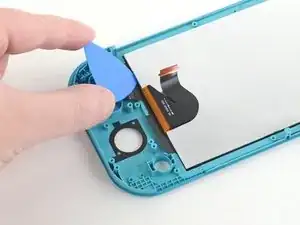
    it doesnt mention 3 anywhere, and it labels all four

    Ezi -

    With how easy it seems to be to do serious damage with the next few steps, I figured I'd say that realistically you can skip steps 9-13 when doing this repair. While they provide a bit of extra security by disconnecting the battery, the left stick is completely accessible and replaceable without touching the heat shield or anything underneath (And steps 17 and 18 disconnect power from the daughter board regardless).

    Nate -

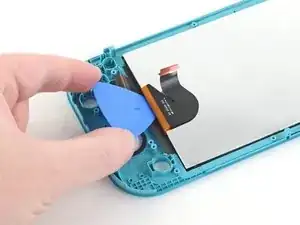
  10. FIwGjkfOhVmFCyvp
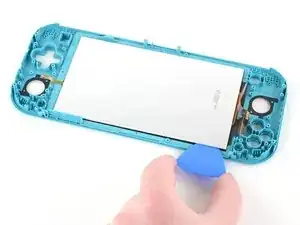
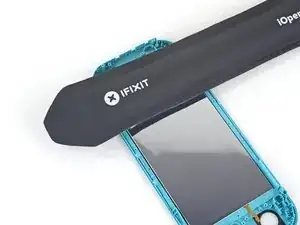
    FIwGjkfOhVmFCyvp
    LUwt2Ov3TDBmbBMy
    CxSr6WAFIqTkPknC
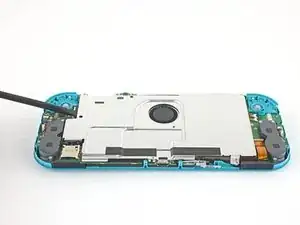
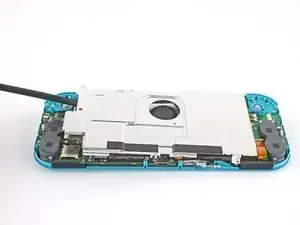
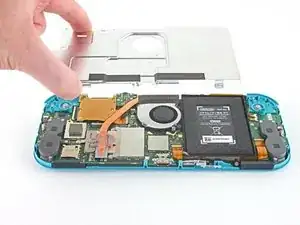
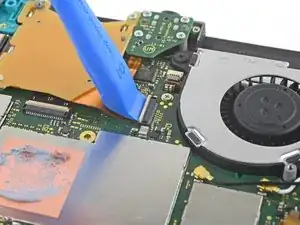
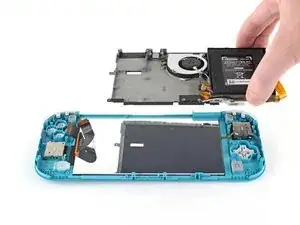
    • Usa un spudger o sus dedos para levantar la placa del escudo y sacarla del dispositivo.

    • Puede que sienta un poco de resistencia. Esto es normal, ya que la placa de escudo está ligeramente adherida al disipador de calor con pasta térmica.

    • Remueve la placa de escudo.

    • Limpia la pasta térmica vieja de la placa de protección y del disipador de calor con alcohol isopropílico y un paño de microfibra. Aplica la nueva pasta térmica al disipador de calor antes de volver a montarlo.

    You may need to replace the thermal paste on the heat sink.

    ahoz28 -

  11. NfJ4EyXkJrCSjyMP
    NfJ4EyXkJrCSjyMP
    SWRCDlfTfCNLuWJO
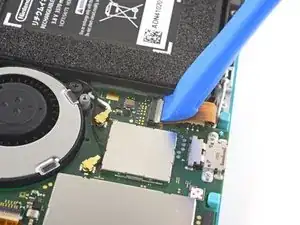
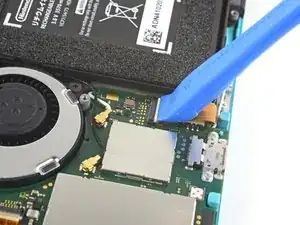
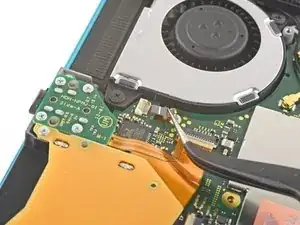
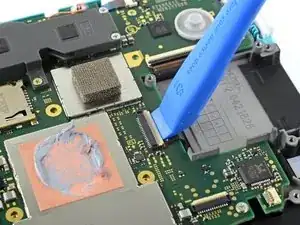
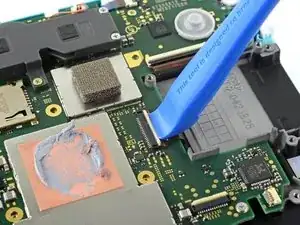
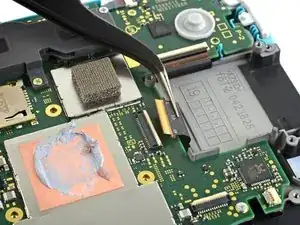
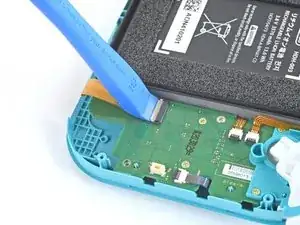
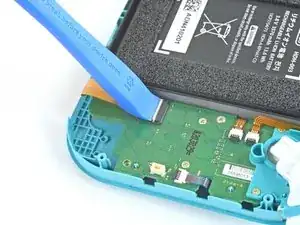
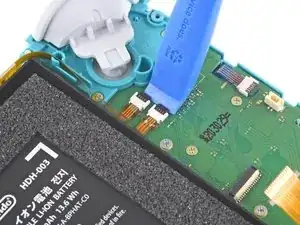
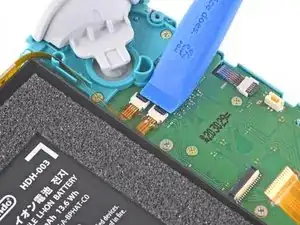
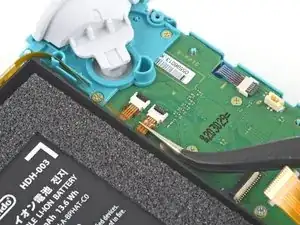
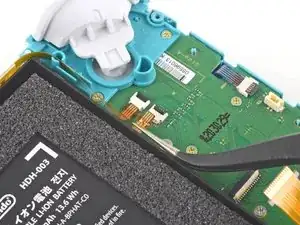
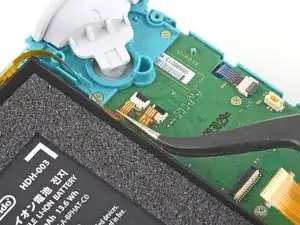
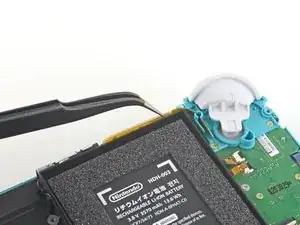
    • Utiliza una herramienta de apertura o tu uña para levantar la pequeña tapa de cierre con bisagra del conector ZIF del cable de interconexión de la placa madre.

    The clip broke off when trying to remove this cable. Audio only works through headphones and the display now won’t turn on after the clip broke. Does anyone know where I could get a clip or how I could fix it without it?

    Alexz Zepeda -

  12. EOLi3GutoqJNvstI
    EOLi3GutoqJNvstI
    hO2FmA16pHiJq2to
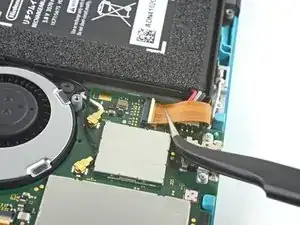
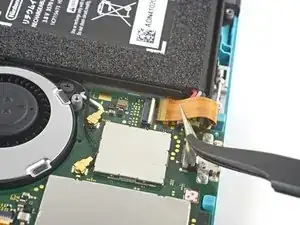
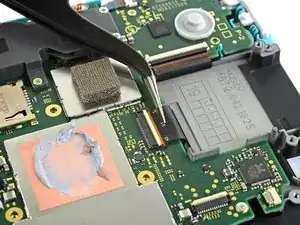
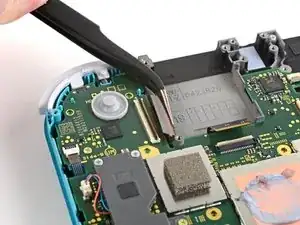
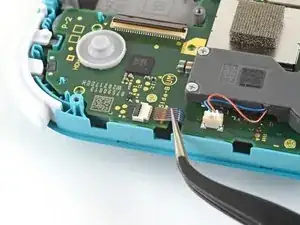
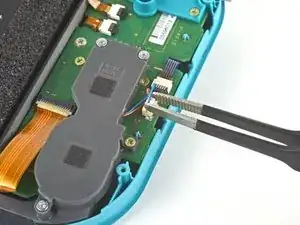
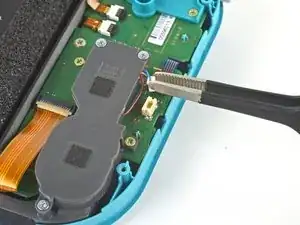
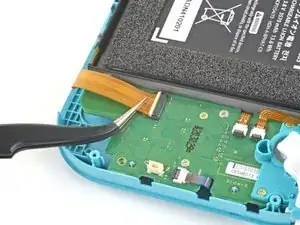
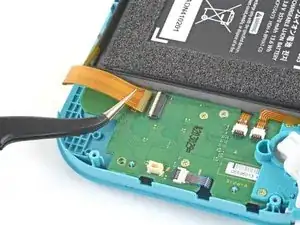
    • Usa un par de pinzas para sacar el cable de interconexión de su conector en la placa madre.

    I turned the unit off beforehand, I used tweezers just like the instructions said (ifixit branded) , my device sparked and now it won’t turn back on

    User Service -

    The flap came off is it important or is there a way t fix it?

    Jose Cruz R Rangel Cordero -

    We're you able to get it working without the white flap? My screen is not working after putting it back together and i noticed this white flap was falling off

    Jimmy “Ghost” Trost -

    Did you get it working without the white flap? Everything on the switch works fine except for audio going through headphones and the display not turning on.

    Alexz Zepeda -

  13. yfTkAmQeCWGhAEl2
    yfTkAmQeCWGhAEl2
    SFobIivmPhWAmdMb
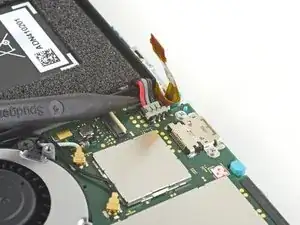
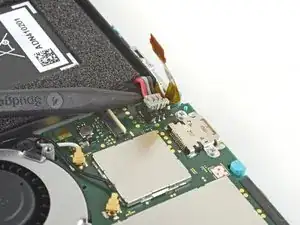
    • Usa la punta de un spudger para levantar el conector de la batería de su zócalo en la placa madre.

    Caution the connector may not be properly soldered onto the motherboard. For me it snapped off the pins and now have to find a place to get that fixed if even possible. may have bricked it.

    Craig Osman -

    Yup, broke the connector right off the motherboard. Thanks, ifixit -_-

    Justin Kerr -

    I backed out when I reached this point. I couldn't risk damaging it. Do u just need to pull it up? Did you mean that it might have been soldered shut below?

    Jannalyzer -

    You should just need to pull straight up, but make sure you’re pulling on the wires or the gray plug—do not pull on the black socket or it can snap off of the motherboard.

    Adam O'Camb -

    I pulled straight up from the south side on under 2 or three wires and held down the device as I pulled and the gray connector disconnected from the black connector on the Switch. Just be careful at this part.

    Jon -

    With how easy it seems to be to do serious damage at this point, I figured I'd say that realistically you can skip steps 9-13 when doing this repair. While they provide a bit of extra security by disconnecting the battery, the left stick is completely accessible and replaceable without touching the heat shield or anything underneath (And steps 17 and 18 disconnect power from the daughter board regardless).

    Nate -

  14. iuutsxvMo3TxGutF
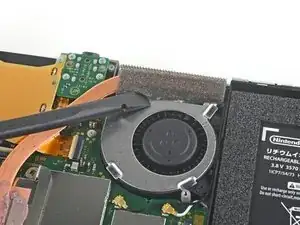
    • Usa el extremo plano de un spudger o tus dedos para despegar con cuidado la espuma que está adherida al ventilador.

    • La espuma sólo necesita ser retirada lo suficiente para despejar el ventilador.

    When reassembling, the foam may fold down between the fan and heatsink, blocking airflow. Gently lift the foam back up on top of the fan. The adhesive film should hold the foam together.

    Kean Stump -

    Is removing the heat sink absolutely necessary?

    Clark Aulden -

    It’s not necessary, but it makes it much easier to remove and replace the game card reader, since the heat sink partially covers the connector.

    Craig Lloyd -

    Not really…….. I never remove it. It slides out quite easily once disconnected.

    Alan Sears -

    What do you do if these screws are stripped? They strip easily

    Whatever -

  15. QWMQ2YrSy4JCPv4E
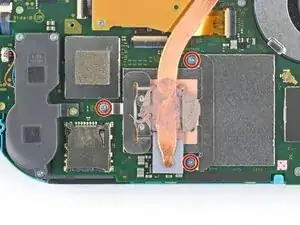
    • Usa un destornillador JIS o un destornillador oficial iFixit PH 000 para quitar los tres tornillos de 3 mm que aseguran el disipador de calor a la placa madre.

  16. 4x22rRB1EQtWewRL
    4x22rRB1EQtWewRL
    jBHwjFqQxbHLBpjV
    bXVdT31XEDGyDS5L
    • Usa un spudger o tus dedos para levantar el disipador de calor y sacarlo de la placa madre.

    • Puede que sientas un poco de resistencia. Esto es normal, ya que el disipador de calor está ligeramente unido a la CPU con pasta térmica.

    • Limpia la vieja pasta térmica del disipador de calor y la CPU usando alcohol isopropílico y un paño de microfibra. Aplica la nueva pasta térmica a la CPU antes de volver a montarla.

    16.5 remove cartridge / headphones jack……….

    Calvin Martin -

    I've read that there are different ways to apply thermal paste, which should I use?

    Kai B -

    My kit did not come with thermal paste..

    Bryan Donovan -

  17. TedQdrMIGlD5s2Cs
    TedQdrMIGlD5s2Cs
    iV5IFW6AXF4xQsAZ
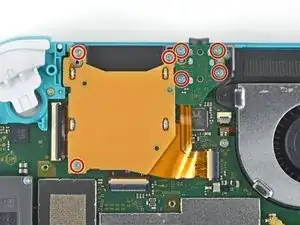
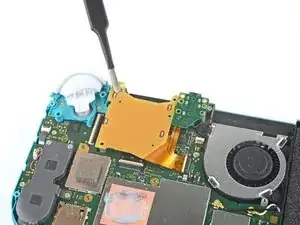
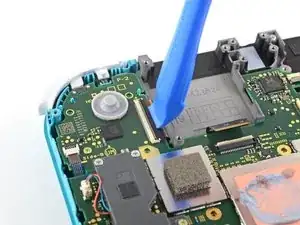
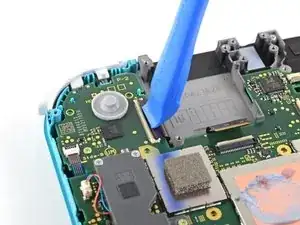
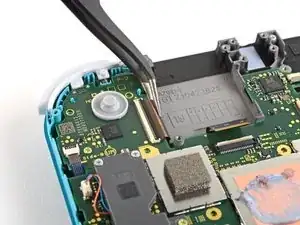
    • Utiliza una herramienta de apertura o tu uña para levantar la pequeña tapa de cierre con bisagras del conector ZIF del cable del lector de tarjetas de juego.

  18. 6DhSgR2bkKKHYvWB
    • Utiliza un destornillador JIS 000 o un destornillador oficial iFixit PH 000 para retirar los siete tornillos de 3,1 mm que sujetan el lector de tarjetas de juego y la toma de auriculares.

  19. C31EaHZUrBYXyVbx
    C31EaHZUrBYXyVbx
    OllZknAglBNcYDEl
    fdvAGth5QQYsx3K5
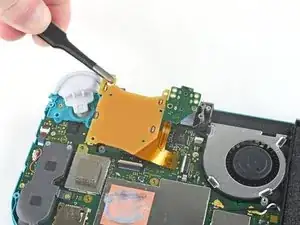
    • Utiliza unas pinzas o tus dedos para levantar con cuidado el lector de tarjetas de juego y maniobrar hacia la izquierda para sacar el cable de su conector.

    • Retira el lector de tarjetas de juego y la toma de los auriculares.

  20. KrXqYGqKyhavqmAm
    • Utiliza un destornillador JIS 000 o un destornillador iFixit PH 000 oficial para quitar los dos tornillos de 4,5 mm que sujetan el conjunto del botón disparador derecho a la placa base.

    I think a whole step to remove the game card reader and speaker jack was skipped here…

    ConfusedAzn Random -

    yes, just found that sadly these comments do not show unless we click on the , which is unhelpful

    Micheal speed -

    also, you need to remove the left trigger button

    Micheal speed -

  21. 5lu12BIJX1YVqAn2
    5lu12BIJX1YVqAn2
    JqP15TQm6YEPY2LD
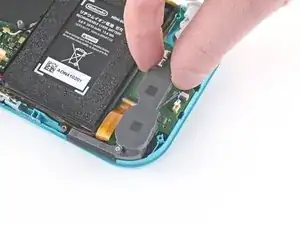
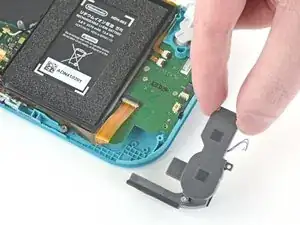
    • Retira el conjunto del botón disparador derecho.

  22. chqnDc31GYFROsZw
    chqnDc31GYFROsZw
    xiBauSfiZNTfHMTR
    • Usa un par de pinzas o tus dedos para quitar la almohadilla de goma del conjunto del botón del gatillo derecho si no quedó adherido al conjunto del botón.

  23. xcOWWVkaeBgFKHal
    xcOWWVkaeBgFKHal
    24CeDyxGrpjSn1Za
    1lPMeSKxkRAeXsx5
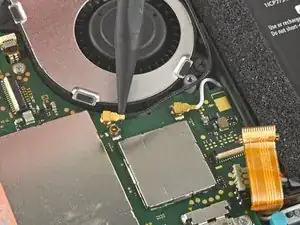
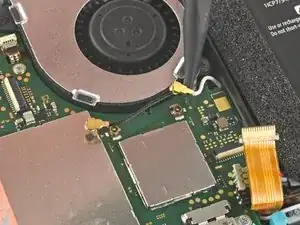
    • Usa la punta de un spudger para sacar el cable negro de la antena de su zócalo en la placa base.

    • Repite el mismo proceso para el cable de antena blanco.

  24. GoxOWhyctZE5h3Vb
    • Usa una herramienta de apertura o la uña para levantar la pequeña solapa de bloqueo con bisagras en el conector ZIF del cable del ventilador.

  25. lyZ4AOAU4AZl5tqe
    lyZ4AOAU4AZl5tqe
    wRLrI3jwCANoNyju
    • Usa un par de pinzas para sacar el cable del ventilador de su conector en la placa base.

    There’s a step missing after this to remove the screws that hold the orange game cartridge slot. Those 7 screws have to be undone and the ribbon unclipped first before moving on to the next step.

    Heather Thrasher -

  26. FfuwxRxZSkQcVKpi
    FfuwxRxZSkQcVKpi
    4gU2dcBdLmKxWPjo
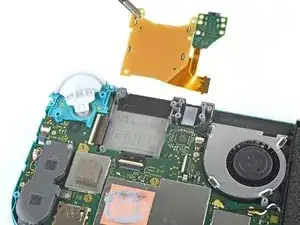
    • Usa una herramienta de apertura o tu uña para levantar la pequeña solapa de bloqueo con bisagras en el conector ZIF del cable de pantalla.

    skipped a step or two about removing the golden piece in the photo above, and the other little board

    Eddy Whitaker -

    If I broke the clasp on the ZIF connector can I elec tape it down?

    kevin miller -

  27. wSwylFJAsZW3NgsI
    wSwylFJAsZW3NgsI
    OeV561fN4xH1AcgI
    • Usa un par de pinzas para deslizar el cable de la pantalla fuera de su conector en la placa base.

  28. FWkJe1DNdTPNxfFc
    FWkJe1DNdTPNxfFc
    MgI1qpopQRiC1Coj
    • Utiliza una herramienta de apertura o la uña para levantar la pequeña solapa de bloqueo con bisagras del conector ZIF del cable del digitalizador.

    Can I electrical tape this down if I broke the clasp?

    kevin miller -

  29. Tp6mukLD3ybSYZfq
    Tp6mukLD3ybSYZfq
    ATK1pvPvge36251G
    • Usa un par de pinzas para deslizar el cable del digitalizador fuera de su conector en la placa base.

  30. SxMDga2Qvmmjn5Ar
    SxMDga2Qvmmjn5Ar
    GFUX4uIGXPqnyGqf
    • Usa una herramienta de apertura o la uña para levantar la pequeña solapa de bloqueo con bisagras en el conector ZIF del cable del joystick derecho.

  31. pEFHSSkWUaqGATlV
    pEFHSSkWUaqGATlV
    eMQ2CE3UiSPwibFF
    • Usa un par de pinzas para deslizar el cable del joystick derecho fuera de su conector en la placa base.

  32. 3GkQQgnWlLlGONVE
    • Usa un controlador JIS 000 o un controlador oficial iFixit PH 000 para quitar los siguientes seis tornillos que sujetan la placa base:

    • Tres tornillos de 3,1 mm

    • Tres tornillos de 4,5 mm

    how to get the c port off

    Dustin Cronk -

    When re-assembling, be sure the fan cable (step 25) is completely pulled through prior to tightening the screw that’s right next to it.

    John Glaeser -

  33. dKc6KXcUwADISyuy
    dKc6KXcUwADISyuy
    BWklTKR1T4CAQHCW
    cEYHxoErVSYY1wd3
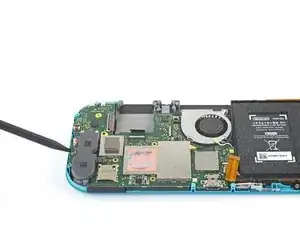
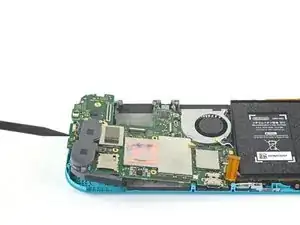
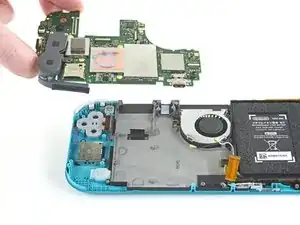
    • Inserta un spudger en el espacio entre el marco y la placa base y levanta la placa base para sacarla de su hueco.

    • Retira el conjunto de la placa base.

  34. e2BhbC1SeeZlIwoR
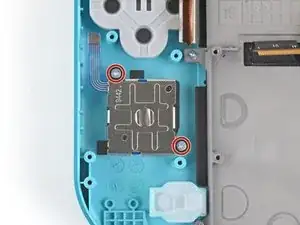
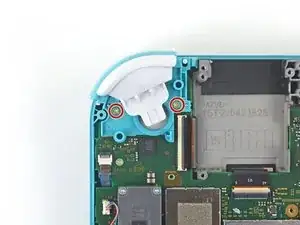
    • Utiliza un destornillador JIS 000 o un destornillador iFixit PH 000 oficial para quitar los dos tornillos de 3,5 mm que sujetan el joystick.

  35. 55A3frWJ1YylkjOM
    55A3frWJ1YylkjOM
    5HkWFWjBe3NNes2P
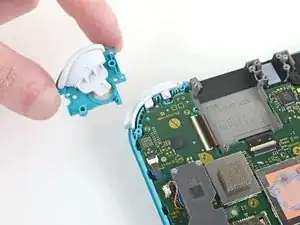
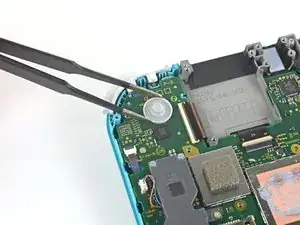
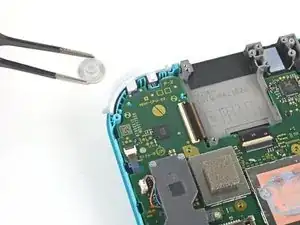
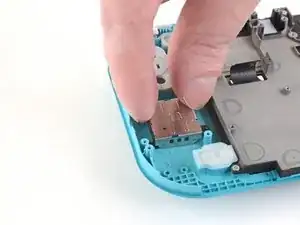
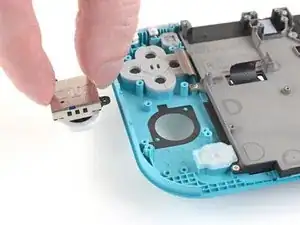
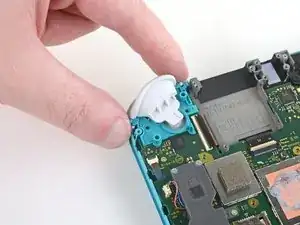
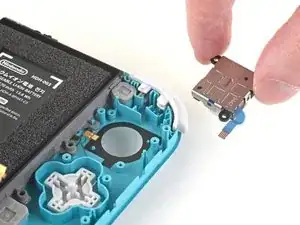
    • Usa tus dedos para quitar el joystick.

    • Hay una junta negra delgada alrededor del orificio donde el joystick sobresale del marco. Trata de no tocar esta junta cuando retires el joystick.

    Where are parts for the right joystick?

    John -

  36. nuVsDQNmqQoywpiB
    nuVsDQNmqQoywpiB
    Vm1uBmbYeq4KuLZI
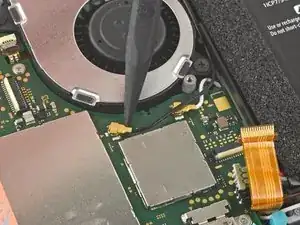
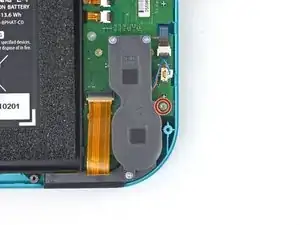
    • Usa un par de pinzas o tus dedos para sacar el cable del altavoz izquierdo directamente de su zócalo en la placa hija.

    • No tires de los cables, o te arriesgas a arrancar los cables del conector.

    pulled from the connector, not the wires, and ended up ripping them off the connector anyways since it encountered tension from the other end (the gray chamber on the left)

    consider doing step 15 before pulling the wire, just in case.

    Phillipe Legenda -

    Why even disconnect this cable. Not worth the risk leave it connected to daughter board.

    Michael McNally -

    while doing this I ripped the pad on the circuit board off. Should i risk trying to repair it or should i just try to go without the speaker???

    sarah.carney203 -

    I also accidentally ripped off the connector, disabling the left speaker. However, that will not break any functionality of the switch. The right speaker works just fine on its own (just remember to turn the audio to mono in system settings) and I was successfully able to replace the joystick. Although the audio quality is a little bit depleted, you barely notice it if you turn up the volume a little, and I think being able to actually MOVE FORWARD in my games is a better plus than having louder, stereo, audio.

    Jonathan Maye -

    Went to pull the speaker connector and it pulled right off the motherboard. Would not come loose.

    putnamjerome4 -

    I'm gonna echo what others said here and suggest that you skip this step. After you complete Step 15, you can just move the speakers enough with your fingers to complete Step 26, which involves a screw half underneath it.

    Regarding the ribbon cable in Step 17 & Step 18, you can honestly use your fingers if they're small enough. The ribbon cable is wide enough for you to press down on it a little and slide it out bit by bit.

    Overall, this makes the disassembly and eventual reassembly process easier and lets you avoid running the risk of damaging or completely tearing out the wires, like I almost did.

    ThatDerpGuy -

  37. rfJx5DDGcYumZLDZ
    • Utiliza una herramienta JIS 000 o una oficial iFixit PH 000 para quitar el tornillo de 4,5 mm que sujeta el módulo del altavoz izquierdo.

  38. i1fgqmy1vHD5EmGs
    i1fgqmy1vHD5EmGs
    6hloEhG1xAM2cIWL
    sIT3siejtjNVrL4W
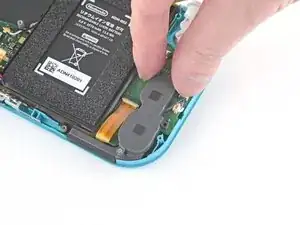
    • Usa tus dedos para levantar el módulo del altavoz y sacarlo de su hueco para quitarlo.

    • Parte del módulo del altavoz se encuentra debajo de un delicado cable plano. Ten cuidado de no enganchar el módulo del altavoz en el cable al retirarlo.

    Pulling the lower screw on the speaker assembly gave me a little more wiggle room to get it out without damaging the flat cable.

    Spacer -

  39. rUdjNcGiZVMqokyq
    rUdjNcGiZVMqokyq
    rPRud43Zc3ynVY4L
    • Utiliza una herramienta de apertura o tu uña para levantar la pequeña tapa de cierre con bisagra del conector ZIF del cable de interconexión de la placa madre.

  40. QnRCVKS2hdlaYdZY
    QnRCVKS2hdlaYdZY
    DjPDMEBck3WLETTZ
    • Usa unas pinzas para deslizar el cable de interconexión de la placa madre fuera de su conector en la placa hija.

  41. fk4CET6RdhAMLfyv
    fk4CET6RdhAMLfyv
    VLmY4Du2JeqXEHpJ
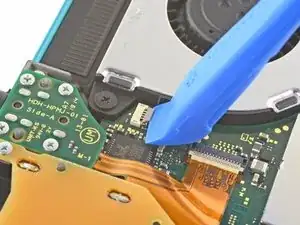
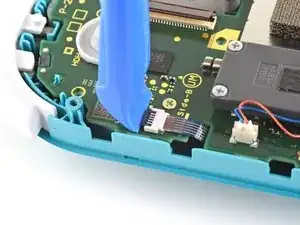
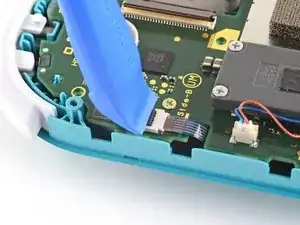
    • Utiliza una herramienta de apertura o su uña para levantar las pequeñas lengüetas de cierre con bisagras de los dos conectores ZIF del cable plano.

  42. NJYbXYEobSDpb3fT
    NJYbXYEobSDpb3fT
    aAr6MeGWIOxGtMAc
    HeFIUbfQhWtqQQWO
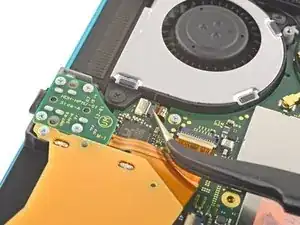
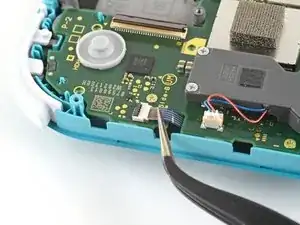
    • Usa un par de pinzas para deslizar el cable de la pantalla de la placa hija fuera de su conector en la placa madre.

    • Repite este procedimiento para el cable del botón de volumen.

  43. YU6kfk2AMvX131DF
    YU6kfk2AMvX131DF
    KkNUAgCK3xhOHNaD
    • Usa un par de pinzas o tus dedos para remover los botones del volumen.

  44. sUkMCNGNN4LPVZZM
    sUkMCNGNN4LPVZZM
    1HRu2lfDPkcscVmU
    • Utiliza una herramienta de apertura o tu uña para levantar la pequeña tapa de cierre con bisagra del conector ZIF del cable del joystick izquierdo.

  45. 3ewDGowSEYRsSoGe
    3ewDGowSEYRsSoGe
    ZSbVLJT5TyMEMdw1
    • Usa un par de pinzas para sacar el cable del joystick izquierdo de su conector en la placa hija.

    The connector for my left joystick broke. Is there a way to fix it?

    Christopher Shackelford -

    How badly did it broke?

    Daniele Carminati -

  46. aMfx1XnPjD2XJZU1
    • Usa una herramienta JIS 000 o una oficial iFixit PH 000 para quitar los dos tornillos de 4.5 mm que aseguran el ensamblaje del botón del gatillo izquierdo.

  47. U1DZ6ItpRRDM6bR6
    U1DZ6ItpRRDM6bR6
    XDWLwsSDmteyClP6
    • Retira el ensamblaje del botón del gatillo izquierdo.

  48. nNWn4JQ3wWAM1bPO
    • Usa una herramienta JIS 000 o una oficial iFixit PH 000 para retirar los cuatro tornillos siguientes:

    • Dos tornillos de 4.5 mm

    • Dos tornillos de 6 mm

    The two 4.5 mm screws were very difficult to remove here and ended up getting stripped. I CANNOT remove them, help!

    Sara Rouse- Barker -

  49. LWqBVq43uhACZLOx
    LWqBVq43uhACZLOx
    BDc2sqDrthKMLEHE
    • Use tus dedos para levantar la placa hija y sacarla de su hueco para quitarla.

    Stop here if repairing Switch Lite for joycon drift. After removing daughter card you can see the bottom of the joystick. This thin metal actually bends during use causing bad connection of joystick. If you cut out a business card the same size as the joycon and put it on the bottom of the joystick it gives the metal enough backing to fix the issue. I used two layers with just a small bit of glue stick to adhere it. Put it all back together and you will find your issue is fixed.

    Michael McNally -

  50. jdTAwLEurNQPQFuR
    • Usa una herramienta JIS 000 o una oficial iFixit PH 000 para quitar los dos tornillos de 3,5 mm que aseguran el joystick izquierdo.

  51. jRQVdAFSfv3GTGIf
    jRQVdAFSfv3GTGIf
    bRIXL3cebNsxNFfE
    GcVdmXworPOUWNUn
    • Usa el extremo plano de un spudger para levantar el joystick de su hueco.

    • Usa tus dedos para remover el joystick.

    • Hay una fina junta negra alrededor del agujero donde el joystick atraviesa el marco. Intenta no perturbar esta junta al retirar el joystick.

  52. cBIloHANYQOflHx6
    • Usa un destornillador Phillips para remover los cuatro tornillos siguientes:

    • Tres tornillos de 2.5 mm

    • Un tornillo de 6 mm

    Be careful not to get the upper far-left screw stuck on the digitizer cable.

    Hayden -

  53. rAUSMFH23BUrRC3w
    rAUSMFH23BUrRC3w
    QvbYKAwjvfCCgSTZ
    Q3BQKQtiCK42YXpR
    • Usa un spudger o tus dedos para levantar el ensamblaje de marco medio fuera de su hueco.

    • Remueve el ensamblaje del marco medio.

  54. 1AOJ2gykA1OKsDVI
    1AOJ2gykA1OKsDVI
    ZCHyfmZyDVuEswCJ
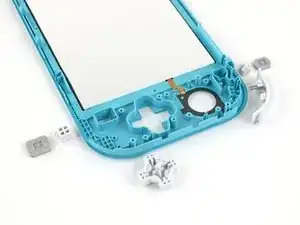
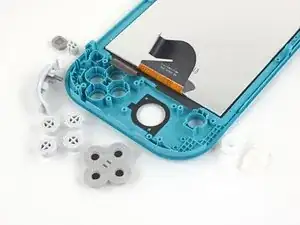
    • En este punto de la reparación, quita todos los botones si no lo has hecho ya, para evitar que se caigan y se pierdan.

    • Usa estas dos fotos para referencia.

  55. NqPG41lAiyMe1YwF
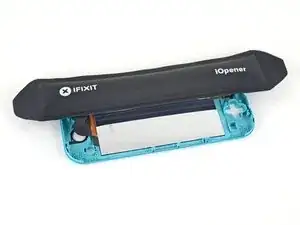
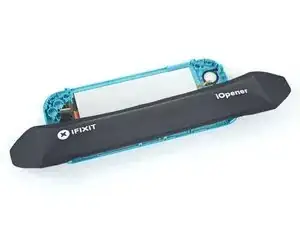
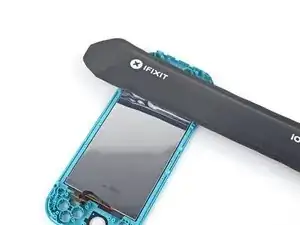
    • Calienta un iOpener y aplícalo en la parte posterior de la pantalla LCD a lo largo del borde superior durante 2 minutos.

    • También se puede usar una secadora de cabello o una pistola de aire caliente, pero ten cuidado de no sobrecalentar la pantalla LCD si planeas reutilizarla, ya que es susceptible al daño por calor.

  56. jESjKSNGlCCawGxX
    jESjKSNGlCCawGxX
    HvTBiilcvZGLktad
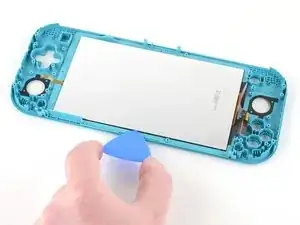
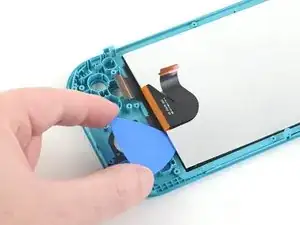
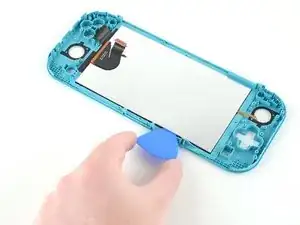
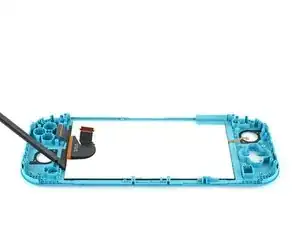
    • Inserta una púa de apertura entre el marco y el borde superior de la LCD para comenzar a separar los dos componentes.

    • Asegúrate de insertar la púa completamente debajo del panel LCD para no partirlo y dañarlo.

    • Sabrás que estás partiendo el panel si el respaldo plateado burbujea y se separa del revestimiento blanco.

  57. H6puhNJ3ZADEHoGB
    H6puhNJ3ZADEHoGB
    DnLXQq2xv4E3ZN2M
    pDgBlWpAQFBfExXI
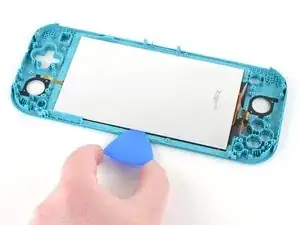
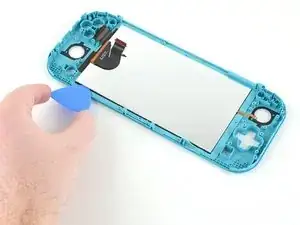
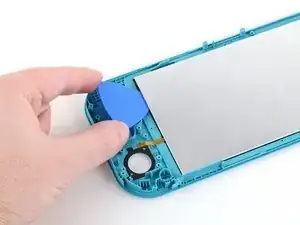
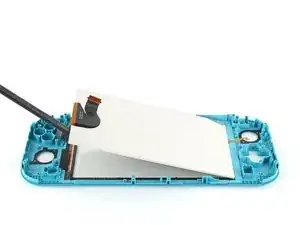
    • Desliza la púa de apertura a lo largo del borde superior de la LCD para cortar el adhesivo.

  58. WBlEwGXkNnHvDE1l
    • Aplica un iOpener calentado en la parte posterior de la pantalla LCD a lo largo del borde derecho durante 2 minutos.

  59. T6CAfNQwAIICT63l
    T6CAfNQwAIICT63l
    Ipydsbh2tPJF3oVJ
    ACX4lKawGiAOkXPI
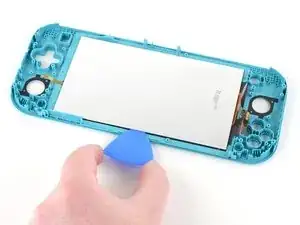
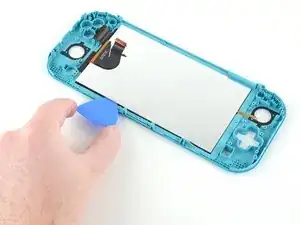
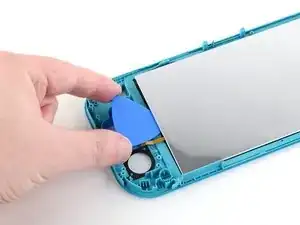
    • Continúa deslizando la púa de apertura alrededor del borde derecho de la pantalla LCD, cortando el adhesivo.

    • Los cables de la pantalla LCD y del digitalizador están colocados de manera que se evite que se enganchen fácilmente en la púa de apertura, pero ten cuidado al deslizar la púa de apertura a lo largo del espacio.

    저부분 들어올릴때 정말정말 약하니 점착제를 자르고 열을 가하며 천천히 들어 올려야함

    정광재 -

  60. DpmQpN5cRD6CJRBO
    • Aplica un iOpener calentado en la parte posterior de la pantalla LCD a lo largo del borde inferior durante 2 minutos.

  61. mnnNHIXBWKgfF2U2
    mnnNHIXBWKgfF2U2
    31BpMBgdfgJUOmP1
    ndPLbiKVICrxNPU6
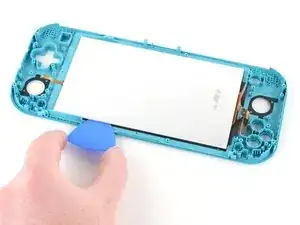
    • Continúa deslizando la púa de apertura a lo largo del borde inferior de la LCD para cortar el adhesivo.

    • Tendrás que quitar y volver a insertar la púa de apertura en varios puntos a lo largo del borde de la LCD para trabajar alrededor del marco.

  62. PZF2soI255nVegcR
    • Aplica un iOpener calentado en la parte posterior de la pantalla LCD a lo largo del borde izquierdo durante 2 minutos.

  63. 4oPUxKX6dxRsG4Os
    4oPUxKX6dxRsG4Os
    d2QpWiWOIphUdCBJ
    • Continúa deslizando la púa de apertura a lo largo del borde izquierdo de la LCD para cortar el adhesivo

    • Ten cuidado de no enganchar el cable de la placa hija de la LCD en la púa de apertura.

  64. UQmLHqc2HHBjUXbp
    UQmLHqc2HHBjUXbp
    K1gfR3QZq6XnJQOm
    EIhHlcENpo3bUbwp
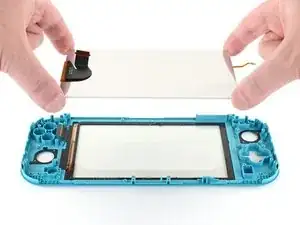
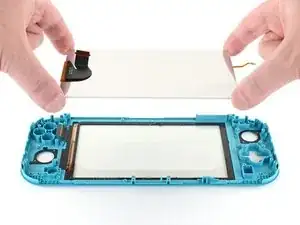
    • Utiliza el extremo plano de un spudger o tus dedos para levantar la LCD y sacarla del marco para quitarla.

    • Si vas a reutilizar la LCD (o tu nueva LCD no viene con adhesivo preinstalado),sigue esta guía para instalar el adhesivo precortado alrededor del perímetro antes de volver a montarla.

  65. X1vvVSJEdS2MfKXt
    X1vvVSJEdS2MfKXt
    OCbJAc2OGVcmHawu
    VFh6uti2L6VAjqnE
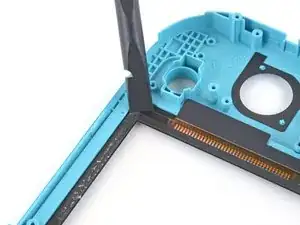
    • Si también estás reemplazando el digitalizador, puedes saltarte este paso.

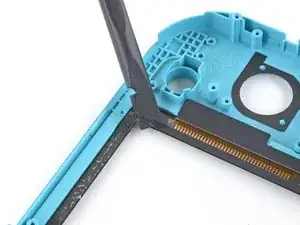
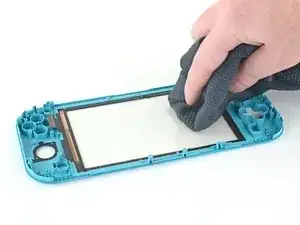
    • Usa el extremo plano de un spudger para raspar el adhesivo restante alrededor del perímetro del digitalizador.

    • Antes de instalar una nueva LCD, usa alcohol isopropílico y un paño de microfibra para limpiar y eliminar cualquier residuo de adhesivo de la parte posterior del digitalizador. Espera varios minutos para que se evapore el alcohol restante antes de instalar la LCD.

Conclusión

Para volver a ensamblar tu dispositivo, sigue los pasos arriba en orden inverso.

Lleva tus desechos electrónicos a un centro de reciclaje certificado.

¿La reparación no salió como planificaste? Intenta algunas soluciones para problemas básicos, o pide ayuda a nuestra http://www.ifixit.com/Answers/Device/Nin...)|comunidad de respuestas de Nintendo Switch Lite]

Craig Lloyd

Miembro Desde 10/02/16

30254 Reputación

12 comentarios

Followed the guide to replaced a cracked screen on a Switch Lite, all good, guide was easy to follow and refitting wasn't too hard either, just a reversal of the disassembly

Luke Randall -

Fantastic guide, exactly what I was looking for! Unfortunately I managed to make the tape unusable and I need tape to connect the lcd to the digitizer and the digitizer to the case. I will likely use 2-3mm tape for the lcd to digitizer but I'm unsure what to use to connect the digitizer to the case. Any suggestions?

Sam Red -

Thanks for taking the time to type this up. Really appreciate the effort that went in to this guide.

Matthew D. H. -
Great guide, I wish it would mention some of the procedures to tape the screen back in. After that, reversing the process was easy.

Stephen Hotchkiss -
For gluing the screen and digitizer back in, I would strongly recommend liquid glue, like Zhanlida T-8000 for example. You can apply it very precisely and you can also correct/remove it if needed pretty easily. I used this stuff to repair around 200 phones and tablets in the last couple of years and were never disappointed.

Also I would remove the digitizer AND the screen together, before removing the screen first from the digitizer… This will make the process of removing the screen from the digitizer a lot easier and safer.

I have ordered a crystal replacement case and a used lite with a scratched digitizer.. Have glued in the replacement digitizer so far, the console should arrive tomorrow.

Gluing in the digitizer was a breeze, just applied some glue all around (be careful not to use too much) and then just pressed down the digitizer all around and put a book on the top… Let the glue harden for around 24 hours and you are good to go.

Will leave some feedback how the screen removal went tomorrow. ;)

mathiasludewig -
Yeah.. The display was actually glued completely together with the digitizer! So not just only on the sides, but on the whole display with an UV reactive transparent glue, like with most smartphones nowadays…

This way this whole tutorial obsolete, because there is almost no way you can remove the digitizer from the display an vise versa…

Also my suggestion was totally right to remove the digitizer and display together.. The way it is shown here is absolutely over complicated.

Maybe the UV glue is used in a new revision ifixit wasn't aware of, but this has to be updated!!!

mathiasludewig -
So I Need to replace Just the glass over the screen but I cant find a replacement or a guide

Jack Hadad -
I just did this repair the other day. You would still need to follow this guide because of the ribbon cable you need to plug in. You just need to take the digitizer off in the end. I would buy an lcd just incase it breaks while trying to get it separated which there is a good chance that will happen.

Derek Osmulski -

I was wondering if 99% IPA could be an issue to a screen, I am definitely an amateur at this but originally I was going to replace the joysticks and wanted to clean the console.

In a moment of carelessness I spilled IPA on the midframe assembly and some on the side, which seeped to the screen. I had accidentally doused the screen with a relatively small amount of IPA but I dried off what I could and turned on the screen successfully but there was a light colored splotch on the screen. After a couple of days the splotch on the screen is much smaller but it doesn’t seem like it will go away, is this permanent damage? I am wondering if it is possible to clean or fix this, if I get under the screen is it possible to clean, fix it or do I need a new LCD?

Thank you for any guidance in advance.

Helios -

What about the outer screen part of the switch lite?

Daniel Bumgardner -

Just a heads up, steps 34, 35 and 50, 51 are uneccessary as the joysticks don't obstruct anything being removed in this repair. They can be left in. Just saves an extra couple of steps :)

Tom -

I bought the digitizer and screen all in one from IFIXIT and replaced the screen and now only the backlight comes on and the screen does post battery level or see anything on it other than backlight on. I can hear the buttons work and the touchscreen works. I tried the hold 15 seconds and restart with plugged in and power cable out, it did not work. Does anyone know what may have gone wrong, reseat the cables or do I need a another new screen?

Jose Tierra -