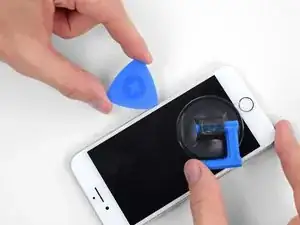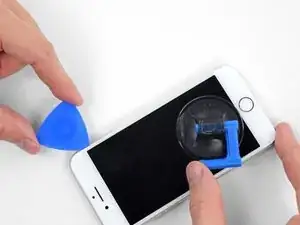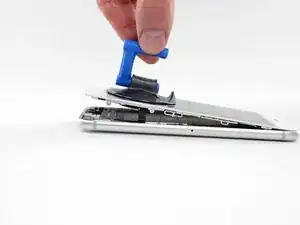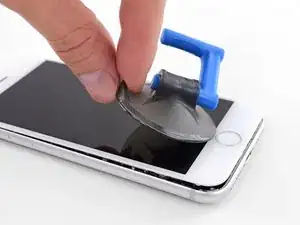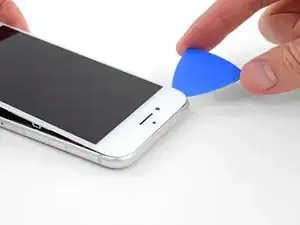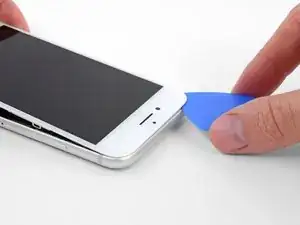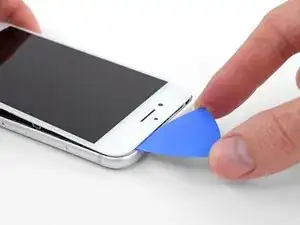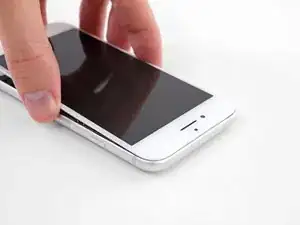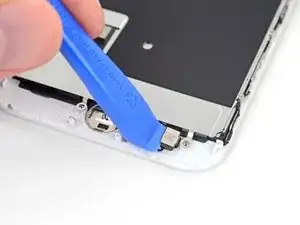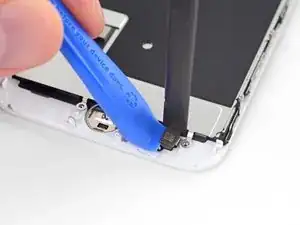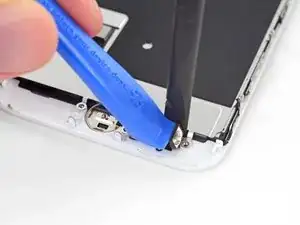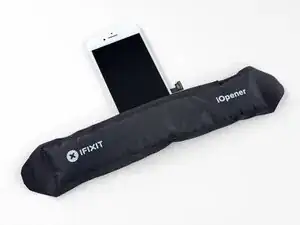
Introducción

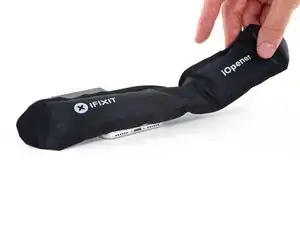
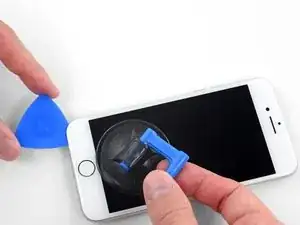
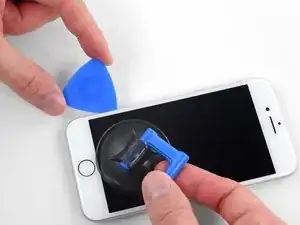
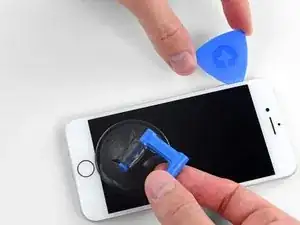
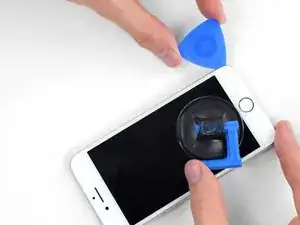
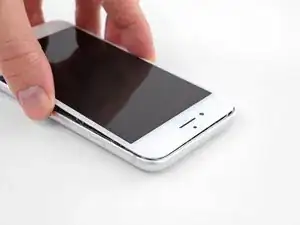
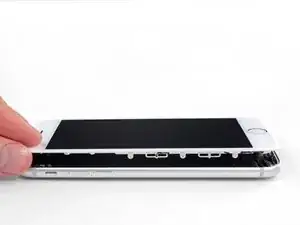
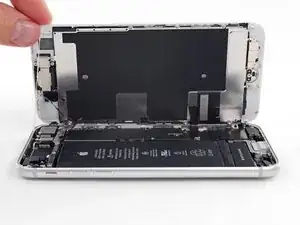
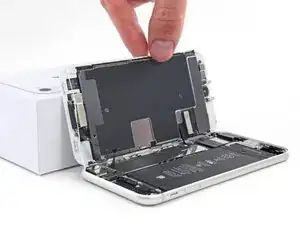
Para una reparación más sencilla, utiliza nuestro kit de reparación y sigue la esta guía breve para reemplazar toda la pantalla de tu iPhone.

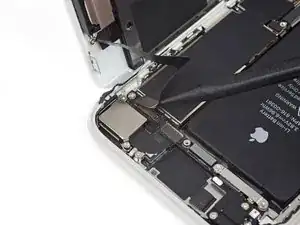
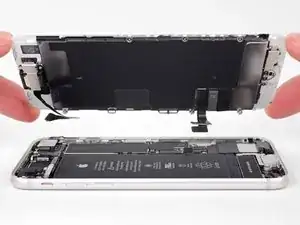
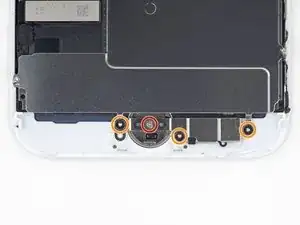
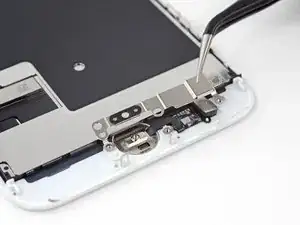
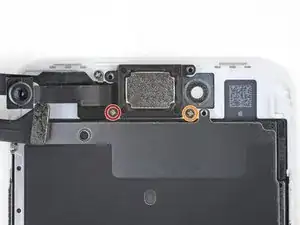
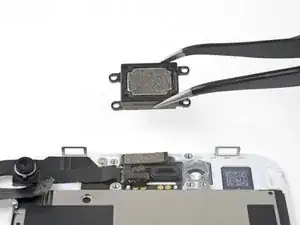
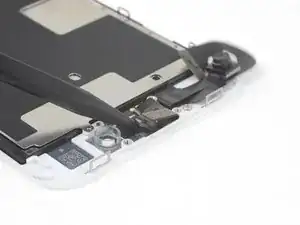
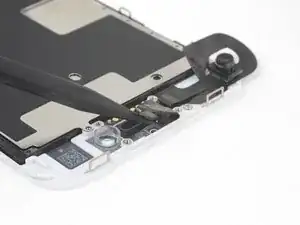
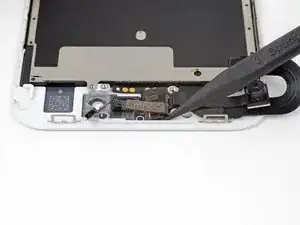
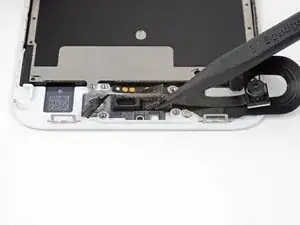
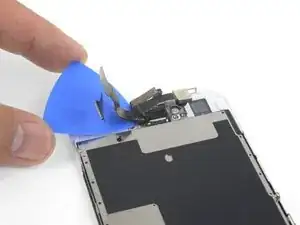
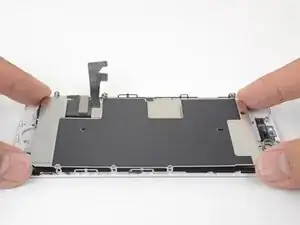
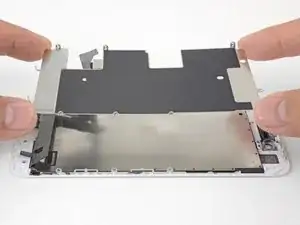
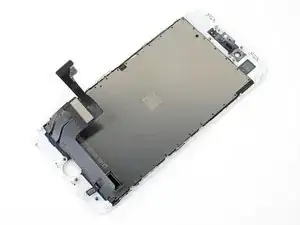
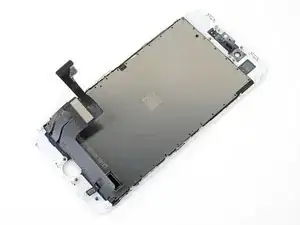
Para reparadores más avanzados, esta guía los ayudará a reemplazar "solo" el ensamblaje del digitalizador y la pantalla LCD del iPhone SE 2020 (también conocido como el "panel frontal" desnudo). Esto requiere que transfieras varios componentes de tu pantalla original a la nueva antes de instalarla, incluida la cámara frontal, el altavoz del auricular, la placa de protección LCD y el conjunto del botón de inicio.

Para todas las reparaciones de pantalla/monitor, es importante transferir con cuidado el sensor de ID de inicio/táctil original a la nueva pantalla para que funcione. El botón de inicio de estado sólido se empareja con su placa lógica original en Apple, por lo que reemplazarlo lo dejará inutilizable.

  1. kH33mVcxVN2MyNsd
    • Antes de comenzar, descarga la batería de tu iPhone por debajo del 25%. Una batería de iones de litio cargada puede incendiarse y / o explotar si se perfora accidentalmente.

    • Apaga tu iPhone antes de comenzar el desmontaje.

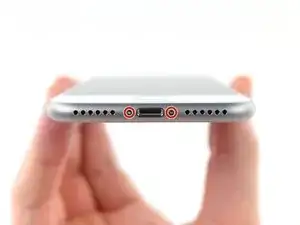
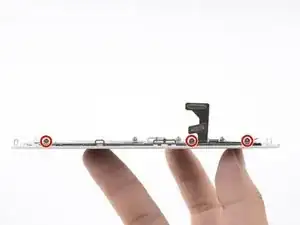
    • Retira los dos tornillos pentalobe de 3,5 mm en el borde inferior del iPhone.

    • La apertura de la pantalla del iPhone comprometerá sus sellos de impermeabilidad. Ten listos los sellos de repuesto antes de seguir adelante con este paso, o ten cuidado de evitar la exposición a líquidos si vuelve a ensamblar su iPhone sin reemplazar los sellos.

    just how long are those screws- i turn and turn and turn and the lift off is soooo slight, seemingly insignificant…

    An. Jahnke -

    I would recommend, from the very beginning, dumping all tools out of the kit (if you got it) and using that white paper tool box as a tray to organize the screws and braces in. It’s nice to work over because it catches screws well and makes it easy to see them if you drop any.

    Johnny Emrica -

    That’s a great idea thank you

    Mohamed Dekkiche -

    Screw to the left of the charging port will not come out. Screw on the right came out no problem. Any ideas?

    Bill Maher -

  2. VZtFUbiTGlxKvKuS
    VZtFUbiTGlxKvKuS
    nEk1gF4aPAU5BRUh
    jIumJl2vN3XDIiSv
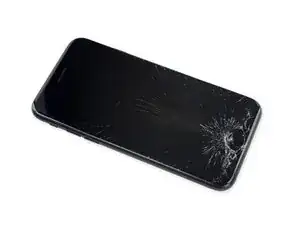
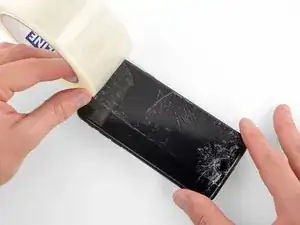
    • Si el cristal de la pantalla está agrietado, mantén unidos los trozos y evita lesiones corporales durante la reparación poniendo cinta adhesiva sobre el cristal.

    • Coloca cintas superpuestas sobre la pantalla del iPhone hasta cubrir toda la cara.

    • Esto mantendrá los fragmentos de vidrio contenidos y proporcionará integridad estructural al hacer palanca y levantar la pantalla.

    • Usa gafas de seguridad para proteger sus ojos de cualquier vidrio que pueda saltar durante la reparación.

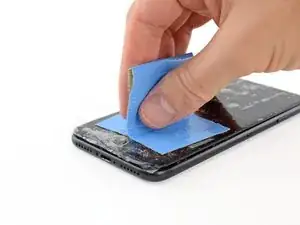
    • Si el vidrio roto dificulta la colocación de una ventosa en los siguientes pasos, intenta doblar un trozo fuerte de cinta (como cinta adhesiva para ducto)en una esquina y levanta la pantalla con eso.

    In case of broken glass you can make the suction cup much more effective by covering the glass with a broad piece of translucent tape which eliminate air leakage through cracks in the glass.

    lionno1 -

    Il n’est pas nécessaire de mettre beaucoup de scotch.

    Au contraire plus vous mettez de scotch, plus il y aura de défauts et la ventouse ne collera pas.

    Une bande bien positionnée suffit.

    Chloé Bossuette -

    I’ve used hot glue on low setting to remove all types of crystals. The hot glue will release with a little iso alcohol. No damage to glass or plastic faced crystals or screens. Use a narrow piece of wood as a prying handle.

    Emilio Gonzalez -

    I recently had issues with removing the glass with the suction cup. I have done this many times with older generation iPhones but this time the glass seemed sealed on quite solidly. I told myself that the last option would be to use the screwdriver tip. After all my attempts, I transitioned to the option of using the screwdriver tip. Surprisingly, it was the easiest thing ever. I placed the 1mm flathead screwdriver at the interface between the glass and the cover (normal start location) and pried up very gently. Voila, the glass came up and I can’t even notice any dents or scratches. It felt much easier than the suction cup technique. If the suction cup is giving you a hard time consider using that 1mm flathead.

    forhereyesonly -

    This is definetly the best option to open this thing up. I’ve spend 30min with trying to heat it up and remove it using the suction cup. I needed 3sec with the 1mm flat screwdriver and i t was’nt scary at all. No dents nor scratches here too. Thanks for your comment.

    Berggorilla -

    thank you!!!!!

    Adrian Phan -

    Great suggestion to use the screwdriver!! Thanks, it really helped

    obo12759 -

    Duck Tape worked great for me. Thanks for the great instruction!

    Michael -

    Tried several types of tape but finally used this screw driver solution. At first I wasn't pushing hard enough for fear of damaging things but with just a bit of extra force I was able to open it right up. Everything is fine with only a slight scratch on the frame.

    Wesley Shank -

  3. HWFBtehBMjCQcFAc
    • Calentar el borde inferior del iPhone ayudará a suavizar el adhesivo que asegura la pantalla, facilitando la apertura.

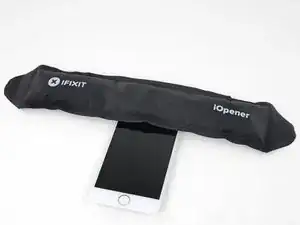
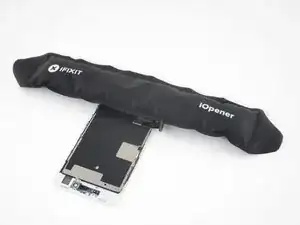
    • Usa un secador de pelo o prepara un iOpener y aplícalo en el borde inferior del teléfono durante aproximadamente 90 segundos para suavizar el adhesivo que se encuentra debajo.

    No hair dryer so GENTLY heated over stove burner

    John Toth -

    Hello,

    What temperature is suitable for removing the front display ? I bought i-Fixit ProTech which is not include the heating "roller" . Thanks for help

    Jiří Sítko -

    Ich habe eine heiße Wärmflasche verwendet. Das hat gut funktioniert :-)

    Moritz Hartges -

    I laid my phone face-down on my 3D printer’s heated bed, and set the temperature to 60 C. After a few minutes, it was ready to loosen.

    Nate B -

    If you don’t have an “iOpener” or heat gun, try using an electric heating pad. I have a small $11 pad I got at CVS for my knee. On medium heat it worked fine for removal and with the “pennies” for setting the new seal.

    Pete P -

    I used a heated tea kettle and a tea towel, it worked!

    Adam Yavner -

    I put on the furnace vent for 10 minutes to get it warm to the touch but not hot.

    terrelldoc -

    I attached it to the after burner of my rocket ship and that worked.

    Matt Brown -

    I'm holding mine just above an erupting volcano but I'm still waiting to see if it has worked. How long does it need?

    Paul Aron -

    I used a water-filled ziploc bag, heated it in microwave. fast, cheap, worked.

    John Barker -

  4. uSKuDUqkPXShJGIe
    uSKuDUqkPXShJGIe
    IeAAHaduoE44JpAR
    t5GbMXdtcHZSd6UW
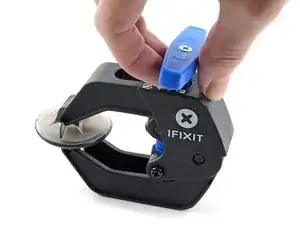
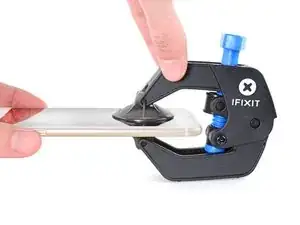
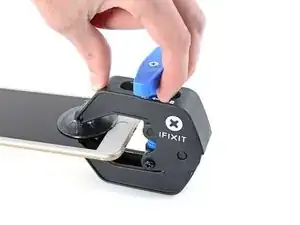
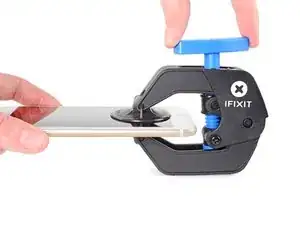
    • Los siguientes dos pasos demuestran el Anti-Clamp, una herramienta que diseñamos para facilitar el procedimiento de apertura. Si no estás utilizando Anti-Clamp, salta dos pasos hacia abajo para obtener un método alternativo.

    • Para obtener instrucciones completas sobre cómo usar Anti-Clamp, consulta esta guía.

    • Tira de la manija azul hacia la bisagra para desactivar el modo de apertura.

    • Coloca las ventosas cerca del borde inferior del iPhone, justo encima del botón de inicio, una en el frente y otra en la parte posterior.

    • Empuja hacia abajo las copas para aplicar succión en el área deseada.

    • Si encuentras que la superficie de tu dispositivo es demasiado resbaladiza para que el Anti-Clamp la sujete, puedes usar cinta de embalaje para crear una superficie más adherente.

  5. KDAeBh2lnZbXICfQ
    KDAeBh2lnZbXICfQ
    PeluubAbBVTKej6A
    JRgRfsPXUPFQfx1E
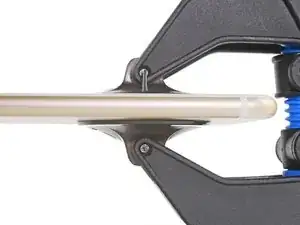
    • Empuja la manija azul lejos de la bisagra para activar el modo de apertura.

    • Gira el mango en el sentido de las agujas del reloj hasta que veas que las copas comienzan a estirarse.

    • Asegúrate de que las ventosas permanezcan alineadas entre sí. Si comienzan a salirse de la alineación, afloje ligeramente las ventosas y vuelve a alinear los brazos.

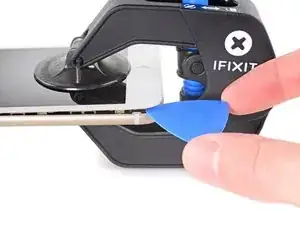
    • Espera un minuto para que el adhesivo se suelte y se abra la parte inferior de la pantalla.

    • Inserta una púa de apertura debajo de la pantalla cuando Anti-Clamp cree un espacio lo suficientemente grande.

    • Si el Anti-Clamp no crea un espacio suficiente, aplica más calor al área y gira la manija en el sentido de las agujas del reloj media vuelta.

    • No des más de media vuelta a la vez y espera un minuto entre vueltas. Deja que el Anti-Clamp y el tiempo hagan el trabajo por ti.

    • Omite los siguientes dos pasos.

  6. VRy3fVrOovwUCabE
    VRy3fVrOovwUCabE
    A5IlSaM3n1xvayKW
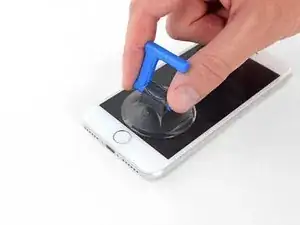
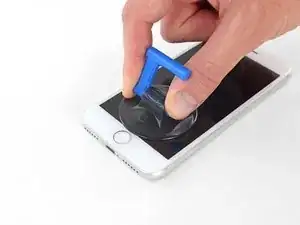
    • Aplica una ventosa en la mitad inferior del panel frontal, justo encima del botón de inicio.

    • Asegúrate de que la ventosa no se superponga con el botón de inicio, ya que esto evitará que se forme un sello entre la ventosa y el cristal frontal.

    • Si tu pantalla está muy agrietada, cubrirla con una capa de cinta adhesiva transparente puede permitir que la ventosa se adhiera. Alternativamente, se puede usar una cinta muy fuerte en lugar de la ventosa. Si todo lo demás falla, puedes pegar la ventosa a la pantalla rota.

    Even with using high heat from a blow dryer, I had to put the suction cup over the home button or the bottom edge wouldn’t lift at all. That waterproof adhesive is incredibly strong.

    Aaron Soderholm -

    As others have said, this part really stinks, but it’ll work if you keep trying. Agree with multiple rounds of hair dryer on high (did about 60-90s each time), and with having to out the suction cup over the home button. You don’t need a big gap to pry it open - it’ll be slight …

    Johnny Emrica -

    Patience is the key here. Expletives and patience. Like previous comments say, putting the suction cup over the home button (I used packing tape to maintain the seal) will allow you to apply force to the proper location to separate the screen. Good luck!

    J Rawlinson -

    Get a suction cup pliers. It’ll make this part fun

    Bradley Steiner -

    iSclack EVO opened the iPhone easily even without heating with no fear of accidentally over-opening it like with a simple suction cup.

    Matti Haveri -

  7. PnYJMHrBqA2Jh22u
    PnYJMHrBqA2Jh22u
    5BxGfRPfmCqCLMOc
    xYlJ5IgLFMxCDZ2B
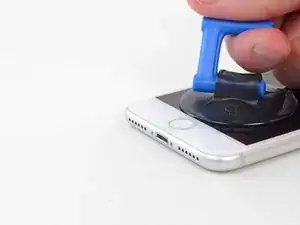
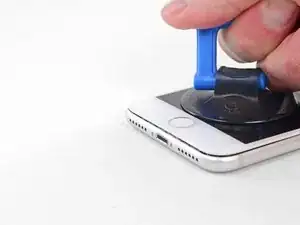
    • Tira hacia arriba de la ventosa con una presión firme y constante para crear un pequeño espacio entre el panel frontal y la caja trasera.

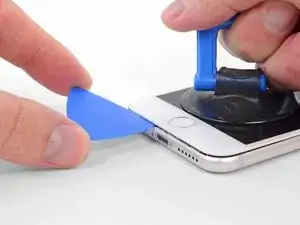
    • Inserta un púa de apertura en el espacio.

    • El adhesivo hermético que sostiene la pantalla en su lugar es muy fuerte; crear esta brecha inicial requiere una gran cantidad de fuerza. Si te resulta difícil abrir un espacio, aplica más calor y balancea suavemente la pantalla hacia arriba y hacia abajo para debilitar el adhesivo hasta que cree suficiente espacio para insertar la herramienta.

    The screen on my phone was so broken, a suction cup did not work, so I softened the adhesive with a blow dryer and used a Jimmy to carefully pry open the phone from the bottom just enough to slip a pick in.

    charguy -

    Just completed a smashed screen replacement, this is probably the most time consuming part. Used packing tape to cover the screen to help create a suction surface (had to replace it a couple times because it pulls away after a purple good pulls ) Used consistent heat for about 5 minutes, then stuck a pick in the tiniest opening… and pry pry pry!

    Brian Gill -

    I failed at this step. No amount of heating, pulling, and rocking opened up enough of a gap to slip in even a knife let alone the blue plastic tool. That's with a phone that has an undamaged screen - just trying to replace the battery. Apple won this round :(

    Michael Sherman -

    Be really careful here. I placed a sucker to the front and rear to help lever off the screen. However, the whole thing came away much easier than I anticipated and I ripped the front part completely away from the rear, tearing all three connector cables. New iPhone required.

    Chris Wood -

    Note that the opening pick they show here does not appear to come with the kit, which is a bummer! The plunger, the mini blue crowbar thing, these are too thick. I ended up using a really thin guitar pick.

    Johnny Emrica -

    Following careful methods can mostly preserve the seal and reusable. Won’t be as water tight but probably still pretty good.

    Bottom edge is pull up with suction + separating tool. Use small precision scissor to cut any tape that gets overly stretched upon initial opening.

    - For the 2 long edges, use an exacto knife to separate the seal from the screen. This keeps the tape on the chassis. Go slow along the long sides. Becareful to avoid scratching the paint on underside of the screen’s edge.
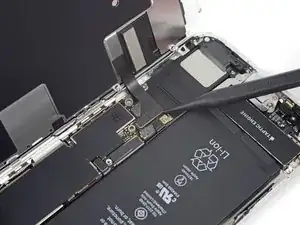
    - Top corners have a thick sealed tape. Best to just use separating tool to twist it open.
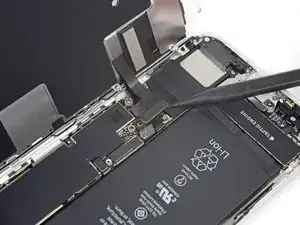
    In summary, top and bottom edge use separating tool. Side long edges can use exacto knife to gradually gently separate the seal from underside of the screen’s edge.

    Howard -
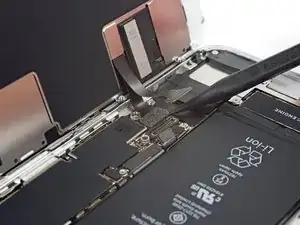
    4 picks and an exacto knife, plus 45 minutes later, I finally got it to open! Thanks tor the tip!

    Cat -

    Intact screen, check. Tool kit, check. Hair dryer hot enough to make the phone too hot to touch, check. Following all instructions, check. Screen still in place and refusing to come off, check.

    I heated, reheated, pulled and pulled. I simply could not get it off. Worked at it for an hour and a half, and I’m not a small guy. Yes it is hard to hold, but could get a grip. Just could not get it to budge. Off to the iPhone repair shop tomorrow. Anybody want to buy a repair kit and replacement battery?

    Jim Meyers -

    After struggling for 30m, I looked up some alternate methods and found this helpful:

    https://www.youtube.com/watch?v=25zAK5mG...

    - I used a utility knife and pried up right under the home button

    - the angle matters! I was trying to go too far down before going in. The top surface of the phone is rather thin, so you go in after barely getting under the chassis lip

    - tilt utility knife left to right once you’ve got it under to work it in

    - leave the utility knife in, and now add that pick

    Jared Wilk -

    Pro-tip: don't be an idiot like me. Instead, remove the screen protector you have on the phone before applying the suction cups. Derp.

    hunter.geofizz -

    I struggled with a hair dryer at first and a singular suction cup. However, I tried putting packing tape on the spot where I put the suction job (even though my screen isn't cracked) and I was able to do it first try with ease. Definitely recommend packing tape.

    Alessio Toniolo -

    Suction cup pliers. Dead easy

    Bradley Steiner -

  8. 2QPL6xQ1bKKTHEE2
    2QPL6xQ1bKKTHEE2
    Scr2EQgs2BWhSj3N
    KyO5DVLoiSXnDh2Z
    • Desliza la púa de apertura hacia arriba por el borde izquierdo del teléfono comenzando en el borde inferior y moviéndose hacia los botones de control de volumen y el interruptor de silencio, rompiendo el adhesivo que mantiene la pantalla en su lugar.

    • Detente cerca de la esquina superior izquierda de la pantalla.

    • No intentes sacar el borde superior de la pantalla de la caja posterior, ya que se sujeta con clips de plástico que se pueden romper.

    My Plektrum worked ok, but the edges broke off a bit towards the end

    griffin.weber -

  9. bYHHQWBLX2SbZ4ZM
    bYHHQWBLX2SbZ4ZM
    oWPIhKQUMFLQKwJF
    VbhlSMqUKVaR3i4t
    • Vuelve a insertar tu herramienta en la esquina inferior derecha del iPhone, y deslízala alrededor de la esquina y hacia arriba del lado derecho del teléfono para separar el adhesivo.

    • No insertes la púa muy lejos, o puedes dañar los cables de la pantalla a lo largo de este lado del iPhone. Insértalo solo unos pocos milímetros, o aproximadamente el ancho del bisel de la pantalla.

    No pick in the kit you sent me.

    Ted Cooper -

  10. JsELGeLj2sULj4Rl
    JsELGeLj2sULj4Rl
    1Q5TB6TXChTQrCSO
    • Levanta suavemente la ventosa para levantar el borde inferior de la pantalla.

    • No levantes la pantalla más de 15º o corres el riesgo de forzar o romper los cables planos que conectan la pantalla.

    • Tira de la pequeña protuberancia en la ventosa para quitarlo del panel frontal.

  11. 1wx6fuMwGlVmTVwg
    1wx6fuMwGlVmTVwg
    L5DvjVj5xMJAlXg4
    y6nMrARZIGjH4KZO
    • Desliza una púa de apertura debajo de la pantalla alrededor de la esquina superior izquierda y a lo largo del borde superior del teléfono para aflojar el último adhesivo.

    I did end up using just a smidge of IFIXIT adhesive remover along the edge before opening and that seemed to really help

    Karen Flowers -

    I have been using the pointed tweezers to pull the adhesive strands apart and out as the display comes off.

    Adam Yavner -

  12. pmOBsioPu6PHdocL
    pmOBsioPu6PHdocL
    wCWsnncFGO1Jy1KT
    • Desliza el ensamblaje de la pantalla ligeramente hacia abajo (lejos del borde superior del teléfono) para desenganchar los clips que lo sujetan a la caja trasera.

  13. XaJPKiESSbHGIDqx
    XaJPKiESSbHGIDqx
    TKsLuMfvlLBnsdMa
    uyGD4MIvBrhLyuiO
    • Abre el iPhone moviendo la pantalla hacia arriba desde el lado izquierdo, como la contratapa de un libro.

    • No intentes separar por completo la pantalla todavía, ya que varios cables planos frágiles aún la conectan a la placa lógica del iPhone.

    • Apoya la pantalla contra algo para mantenerlo apuntalado mientras está trabajando con el teléfono.

    Nach RECHTS klappen - nicht nach links!

    Manfred Wachtel -

    Als ich das Flachbandkabel auf der rechten Seite sah, hab ich mich auch gefragt, ob die das mit nach Links klappen ernst meinen, und das „Buch“ lieber auf japanische Art nach rechts aufgeklappt. Das sollte dringend in der Anleitung korrigiert werden!

    Sebastian Plickert -

    “Up from the left” means lift up the left side.

    Which is the same as folding to the right.

    “Like the back cover of a book” explains it even more clearly.

    Maybe it gets lost in translation?

    Nick Shtangey -

    Fold to THE RIGHT - not to the left!

    Jim Glenys -

    When I saw the ribbon cable on the right side, I also wondered if they were serious about folding it to the left, and the "book" would rather be opened to the right in the Japanese way.This should be corrected urgently in the manual!

    Jim Glenys -

    Hi Jim, the display opens from the left side, toward the right side. It should look like the back cover of a book. Hope this helps. Good luck with the repair!

    Adam O'Camb -

  14. X4JWAcg6GhHQOSP3
    X4JWAcg6GhHQOSP3
    CnISuIWAepn3nMmI
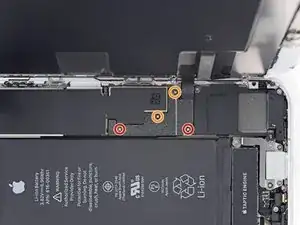
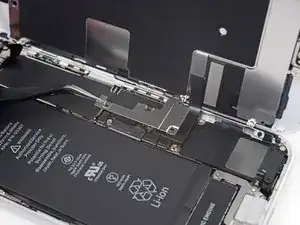
    • Remueve los cuatro tornillos Phillips que sujetan el soporte de cable de pantalla inferior a la placa lógica, de los siguientes largos:

    • Dos tornillos 1,3 mm

    • Dos tornillos 2,8 mm

    • Durante esta guía, controle sus tornillos para que cada uno vuelva de donde salió cuando vuelva a ensamblar. Instalar un tornillo en el lugar equivocado puede causar daño permanente.

    • Remueve el soporte.

    Not Y000 this time haha

    Easy Repair -

    can same length screws mixed up?

    Brook布魯克 -

    It is not ideal, but possible for these screws.

    Arthur Shi -

    using the repair kit i purchased with my screen replacement, i am currently having issues removing these screws with the PH000. please help

    Mark Ordaz -

    I was too, thankfully I had another set that contained the PH00 bit, that worked great for me.

    William Mitchell -

    Ok. My screw is stuck. How do I remove it? Philips head is stripped.

    Kristina Graham -

    Solved it myself. Firm pressure did the trick.

    Kristina Graham -

    Takes a little pressure with the Philips head

    John Toth -

    Upon this step, I noticed I had no bracket or screws. I had my screen replaced previously and I’m disappointed to find out the repairperson made no effort to replace these parts. I’ll start trusting myself more to do my own repairs.

    O D -

    took me awhile to figure out I needed to use PHOO bit for the 2 -1.3 screws

    Karen Flowers -

    It is important to keep careful track of the screws' position. Have a tidy workplace -- a few times when I tried to re-attach the very tiny screws with the tweezer, they slipped and flew away and I almost lost them.

    Matti Haveri -

    can you strip the screws / how can you tell if its strip or not

    antonio -

  15. vdubYBYlNkIsKuhK
    vdubYBYlNkIsKuhK
    asfJCUmeGVaHpBuD
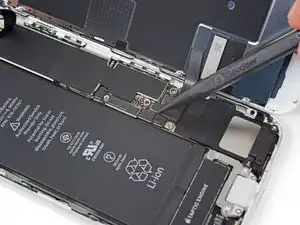
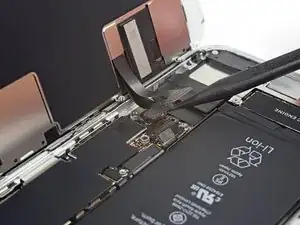
    • Utiliza la punta de un spudger para levantar el conector de la batería de su cuenca en la placa lógica.

    • Dobla el cable de conector de batería ligeramente fuera de la placa lógica para prevenir que haga contacto accidentalmente con la cuenca y proporcione potencia al teléfono durante tu reparación.

    Make sure you pry the battery connector off from the right hand side as shown in the picture. Theres a delicate component on the logicboard near the battery connector called a Mosfet which is linked to the battery charging software. If you knock it off accidently you’ll loose battery charging and the phone will boot loop and youll need to have it re-soldered back on.

    Gareth -

    I can confirm this as I learned my lesson by unknowingly prying the mosfet off. The phone will not charge now and is useless. I really wish they would add a note about this on Step 12 as a warning.

    Jeff -

    So this is it. You don’t have to go any further removing the screen. You can replace the battery right from this point.

    John M -

    I wish I saw this comment 2 hours ago

    Kenneth Moore -

    If I have to repeat this, I'd also consider removing replacing the battery at this point. The loose display must be then carefully fixed so the connectors don't break. And then it is not possible to re-attach the waterproof seal.

    The waterproof seal was included in the kit, but there were no instructions for it so I now skipped that. I later found YouTube video which seems to describe it (starting at 7:40):

    https://www.youtube.com/watch?v=RcgGRhaX...

    Matti Haveri -

    This is where I broke my phone, a phone that was working quite well, paid for in full. Just because I had a cracked screen. Be super careful when connecting the cables. I was in a hurry and not paying attention, used too much force when re-connecting and broke those teeny little pins that could not be repaired. A tech tried for an hour to no avail. cautionary tale. Good luck

    Karen Flowers -

    The display ribbon is a certain length and allows for some give, but behind it is hidden the Home button/TouchID ribbon, which sits against what amounts to a razor blade. This ribbon is much more taut than the display one, and therefore you have far less freedom of movement than you think you do. This is absolutely an intentional trap to discourage replacing your own battery. Quite frankly, it’s despicable.

    Anyway, so beware of that, because although I was very careful and did not even swing the screen very far (not more than 90°), the Home button ribbon tore and now needs to be serviced. Home button is disabled now.

    Apple should be ashamed of themselves for this. Please do look at the legislation effort that people are doing to try to get this kind of sabotage illegal, as well as all sorts of other gimmicks they pull. For a company that makes phenomenal products, they’re controlling like an abusive spouse.

    Dan Knight

    daniel -

    That happened to me and I could not figure out how it got broken. It's the home button and fingerprint reader.

    But I'm not bothering to get it fixed and I'm not replacing the entire screen. I went into system prefs/accessibility and activated the on-screen home button. Oh, well.

    robin -

    I cannot get the new battery reconnected to the connection port. Any tips/tricks? New and old battery connections appear similar. It wasn't difficult to disconnect to old battery.

    Robert Ast -

    Some reports here seem to indicate that the battery must be the very last connector to re-connect because otherwise there might be malfunction in some display components?

    It wasn't difficult to disconnect to old battery. But the most difficult part for me was to get the new battery reconnected to the connection port. I tried many times to carefully position and press it down with my fingertip or the flat end of the spudger but it did not hold its position. Maybe I pressed too weak because I was afraid breaking the connector and the mosfet above (?) it. But finally to my surprise it connected (at that point I temporarily booted the iPhone with the loose display to verify that the battery was connected). Whew, it succeeded!

    Matti Haveri -

    The connectors have very little "click" to them when they do seat properly, and are covered with soft foam. Very challenging to attach them by feel, and having the screen propped up, blocks light from exactly where you need it.

    Steve Trotman -

  16. TCwUjpw4oswOSAXN
    TCwUjpw4oswOSAXN
    Vjj4xROqJwdhjhrT
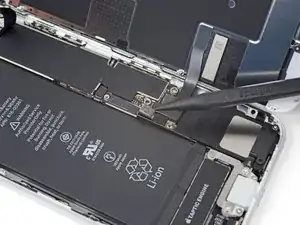
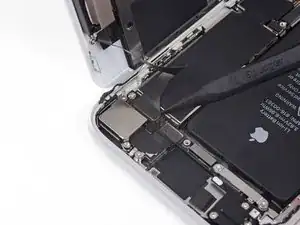
    • Utiliza el punto de un spudger para levantar el conector inferior de pantalla del su cuenca.

    • Para volver a sujetar conectores a presión como este, presiona sobre un lado hasta que haga clic, luego repite en el otro lado. No presiones en el medio. Si el conector está ligeramente desalineado, el conector puede doblarse y causar daño permanente.

    I broke the lower display connector. Is it possible to replace that part separately or do I need to buy a full screen replacement?

    Ross Mckellar -

  17. nuu4q5qZrNVlF1n2
    nuu4q5qZrNVlF1n2
    ZeGwj4XhWqCFSoRa
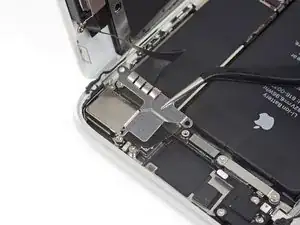
    • Utiliza la punta de un spudger para desconectar el segundo cable inferior de pantalla.

  18. hGBZSQdwlg53JjuO
    hGBZSQdwlg53JjuO
    EiOkLa1UAXIrQF1o
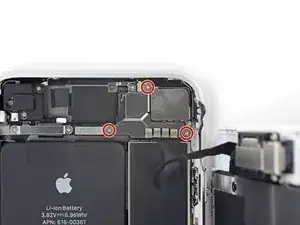
    • Remueve los tres tornillos Phillips de 1,3 mm que sujetan el soporte sobre el conector de ensamblaje del sensor del panel frontal.

    • Remueve el soporte.

    If you are replacing the adhesive liner, the remaining release liner strips will interfere with the two outer screws. I had to cut a working section out of the liner at each location and move it aside with the spudger.

    Thomas Tritt -

    This part is throwing me for a loop. Having difficulty finding the read head for these screws. Is it the same size as the two small 1.3mm screws in step 12?

    Jared Hensley -

    ended up getting it with the PH000, I must of just been rushing it.

    Jared Hensley -

    My bracket looks different and none of the screw heads I have fits.

    Ray Rushing -

    Mine too? Any help?

    George Waller -

    These screws did not stick to the magnetic screwdriver. Extremely difficult to get them back in place - but with some patience i succeeded :)

    Niklas Brammer -

  19. 1qYKeCSMYWRsFEnh
    1qYKeCSMYWRsFEnh
    tDDsCXEve1a6jSr3
    • Utiliza la punta de un spudger para desconectar el conector de ensamblaje del sensor de panel frontal.

    Do you have a link for the flex cord shown in the pictures so I can purchase it? Having a hard time locating that exact assembly

    Regal Carveiro -

  20. VcZIwswUILoZYWbE

    Hi ifixit, if you find my method dangerous, please remove it.

    After Step 17, I skipped Step 18 to Step 28.

    At Step 29, I lifted up the four adhesive black pull-tabs to expose the white adhesive side. Next, I use hot air gun and blow on the back cover of the iphone for about a minute (maybe a hairdryer will work too) .

    Warning: Don't overheat the iPhone, or you may accidentally ignite the battery.

    I think the temperature was around 60 DegC.

    Extreme Caution: Do Not overheat. I use my hand to gauge the hotness. Careful not to burn yourself or the board.

    I was able to pull out all the white adhesive tapes easily as the adhesive soften.

    DO NOT TRY this method if you are a novice or inexperience! I am not responsible if you hurt yourself or damage your iphone!

    John -

    Hey John! I’m glad the repair worked out for you!

    From our research, applying heat does soften the adhesive strips, but it also causes them to lose structural integrity and break more easily. That’s why we normally suggest using heat after the strips are already broken. Removing the Taptic Engine definitely takes a few extra steps, but we feel that it gives fixers the best chance of pulling out the adhesive strips intact.

    Arthur Shi -

    I agree with John, skip 18 through 27. These are to make it easier to remove the battery adhesive. I replaced the batteries on two IPhone 8s. The first one I did all that stuff and the adhesive still broken and I had to carefully pry the battery out anyway. When I reassembled the phone the Home button no longer worked. Looking it up, this is apparently fairly common due to all the fragile wires involved in these steps. The second I skipped these steps and when I reassembled it everything worked fine. Not one of the eight (both phones) adhesive strips came out properly. I fully drained the batteries before doing the repairs. By the way, I use the virtual home button on the one phone, it’s a little annoying, but the phone is still usable if you’re not ready to shell out for a new phone.

    Gary Berman -

    I also skipped removing the Taptic Engine. I could only half-way pull the lower battery tapes and completely the upper tapes after carefully prying them loose with the tweezer. I then used a hair-dryer for a minute to warm the battery and the other side of the phone (I used my other hand to make sure I did not apply too much heat. Make sure you do not blow the tiny loose screws away with the hair dryer!) and then slowly lifted the upper battery somewhat with the Opening pics tool, then re-heated the lower remaining tapes and quite easily lifted the battery out.

    I had bought two-sided tape to reconnect the battery but it had the tapes pre-installed (I wonder if it is necessary to tape the battery at all?).

    Matti Haveri -

    I also skipped these steps. I won’t say it was entirely successful - two of the four adhesive strips broke and could not be grabbed with tweezers. But I had gotten most of the adhesive out already and the battery was quite loose, so I used a warmer under the phone, then gently slid a flat plastic blade under one end of the battery and slowly worked it up the phone. (Dental floss would have been safer-don’t do what I did, kids!)

    Matt D -

    Likely can skip step 18-28 and all the risks. Battery tape is relatively removable by the following method

    - use a tweezer to pull up a corner of each tape. Then use fingers to peel back all the black tab on top of battery

    - use 2 hands. Index and thumb on both. Pull about 1/4” with one hand, hold the tension and pull 1/4” with the other hand. Alternate, go slow. Pull out all 4 tape completely. I think the pause after each 1/4” while holding the stretched tape firmly prevents the tape from over stretching to become too thin and break.

    - Don’t apply heat, I would guess that makes tape softer and break easier.

    Have tried other methods and failed in the past. Pulling too fast (tape will snap) or use a tweezer to twist/roll (sharp edges will cut tape) Anyway, just use index/thumb on both hands and alternately pull slowly

    I did do 2 iPhone 8 battery change this way. One removed all tape without breaking. Another broken all 4 tape after about 1/3 pulled so likely some factory assembly differeces.

    Howard -

    I second this, this method works well in most cases. Removing the haptics helps to keep the angle low and pulling the tape as straight as possible

    Hein Blöd -

    Howards method for removing the adhesive works like a charm. The only addition I made was to slightly warm the back of the iphone on a rice pack (used for sore neck muscles—haha). Going back and forth between hands is really crucial. While on hand gives a gentle pull, the other holds the phone from moving. Slow back and forth. Thanks.

    Lynn Thomas -

    Struggling with the glued down display, then properly cleaning all the remains of the old seal, then positioning the new seal is 95% of this job. I purchased my phone refurbished and it clearly had already been serviced once, there were remnants of an old seal below the current seal due to improper cleaning and prep that made getting the phone open harder than it needed to be.

    Steve Trotman -

  21. C3FyYiUfZDrATcGX
    C3FyYiUfZDrATcGX
    W6ZvW53leLeJoPxm
    • Remueve los cuatro tornillos Y000 que sujetan el soporte sobre el sensor de ID Táctil/botón de inicio:

    • Un tornillo de 1.2 mm

    • Tres tornillos de 1.3 mm

    • Remueve el soporte.

    • Durante el reensamblaje, ten cuidado de no apretar demasiado estos tornillos, o el botón de inicio podría no funcionar

    Bei meinem iPhone waren das Y00 Schrauben, nicht Y000

    Andreas Veeser -

    If the screw on the home button is broken, you can bend the metal sides upwards and pull down out of the phone and push and refold into the new display. Example: https://www.youtube.com/watch?v=DTCQA-jn...

    Andy Knapp -

    Andy Knapp - wherever you are - you saved me. NOTE: the iphone 8 has four tri-wing screws - that means you need a tri-wing screwdriver. I ordered an entire replacement set and mine had one in there, but it does not mention anything about tri-wing in these instructions… so. Hope that helps someone.

    Paula Lofland -

    On my iPhone, these were Y00 screws, not Y000

    Jim Glenys -

    Dutch version speaks of one 1,3 mm screw, but has 3 of those screws.

    Fonne Van Gils -

    There is a difference between Y00 and Y000. I realized this after unknowingly trying the Y000 and damaging the tip of the screwdriver, as the metal is apparently softer than the screw. I was able to use the corner of a flat metal file to make the cheap Y0000 work (which came with the replacement kit) by making 3 adjustments: 10 filing down the tip, 2) filing the shoulders to make the tips more pointed, and 3) cleaning out the 3 channels to remove burrs from the tip edges.

    Robert Lanzafame -

  22. 5JRgEZR3QgUIKnIK
    5JRgEZR3QgUIKnIK
    WOm34TtFHCZDroBc
    Rtmt1jOfimOEWcIp
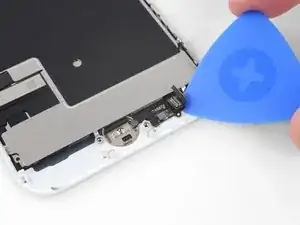
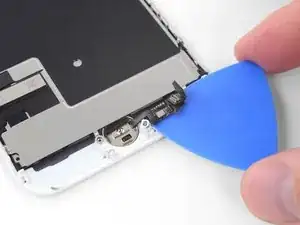
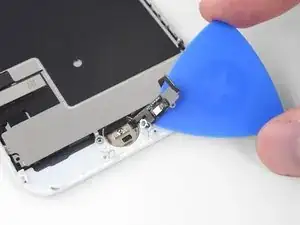
    • Usa una herramienta de apertura para hacer palanca por debajo de borde izquierdo del conector de cable de botón de inicio para desconectarlo de su zócalo.

    • Si el conector completo comienza a darse vuelta sin separarse, presiona el cable en el borde superior del conector con el extremo plano de tu spudger, mientras simultáneamente levantas el borde izquierdo del conector. Ten mucho cuidado de no dañar el cable o conector o el sensor se inutilizará de manera permanente.

    To have a better view on this connection I have removed the metal plate covering the back of the glass. Its a thin piece of metal held by 9 screws. To unscrew the 8 screws you need the screwdriver head with 3 sides like the Mercedes Benz symbole. The last is with a phillips near the camera.

    forhereyesonly -

    I thought I was going to tear the cable doing it the way it’s suggested in the guide. After examining the cable on the replacement screen, I found it easier to hold the bottom connector pressed against the screen with one leg of needle nose tweezers whilst gently prying off the top connector with an opening tool.

    Cool_Breeze -

    See step 22 to get a clearer picture of what the connector looks like when it is separated from its socket. Your replacement screen will have a new socket (i.e., the bottom piece of the connector). My replacement screen had a new socket attached to the unit by a thin piece of plastic. For reassembly, when working the Home Button/Touch ID assembly back into the new screen, I had to work the connector cable under the socket in order to get the connector re-attached.

    Kristina Graham -

    Be extra careful with this step: it wasn’t clear to me from the description that the connector wrapped from underneath to connect, nor did my set come with picks. I used a blade from the wrong side, inadvertently (but way too easily) severing the connector and destroying the function of the home button and thus the entire phone.

    Jennifer Indeliclae -

    Be careful, I initially didn’t found the connector and nearly ripped the cable. The connector leads to a cable that goes under the metal plate. Found a YouTube video with very good close ups for this part (go cell phone repair detailed version)

    Svenja Büsing -

    I initially didn’t found the connector and cable and nearly broke it. The connector leads to a cable that goes under the metal plate, I needed YouTube video with good close ups to understand the setup.

    Svenja Büsing -

  23. TIioXdAH3FA1YH5f
    • Calentar el área alrededor del sensor ID Táctil/botón de inicio ayudará a ablandar el adhesivo que sujeta su cable delicado, haciendo fácil que se remueva de forma segura.

    • Voltea el ensamblaje de pantalla. Utiliza un secador de pelo o prepara un iOpener y aplícalo en el borde inferior de la pantalla durante 90 segundos para ablandar el adhesivo debajo.

    • No sobrecalientes la pantalla. Debe estar ligeramente demasiado caliente como tocar cómodamente.

    The stove top works well also. Remember, as the main instructions say, it should be slightly too hot to touch comfortably.

    forhereyesonly -

  24. nnPsbhgZ3Ciy3MYd
    nnPsbhgZ3Ciy3MYd
    Exy4jdwBwNiRYVwl
    VCXYytuxIOIRZKMf
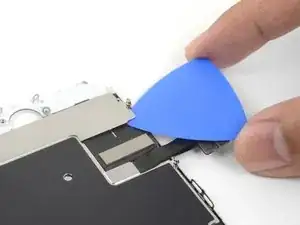
    • Usa una púa de apertura para cuidadosamente separar el adhesivo que sujeta el cable del sensor ID Táctil/botón de inicio a la parte trasera del panel de pantalla.

    My original assembly broke trying to follow this step carefully. :(

    Ann -

    This one’s kind of hard to reconnect. Just remember to be gentle, take your time, and use your hands so that you can really feel it out.

    Johnny Emrica -

    Keep in mind, there’s a tiny rubber ring gasket between the Touch ID button and the display. In my experience when removing the button, the gasket stuck partly to the the button and partly to the display. I gently removed the part that was sticking to the display and guided it back on the button. If you’re missing that gasket it won’t be waterproof.

    Sam Tropper -

    I used a heat gun set at 300*F to heat up the glass side for about 20 seconds and on connector side for about 10 seconds (touchscreen was a little too hot to the touch). Pulled connector with fingers and pried off with plastic tool.

    anonymous 6745 -

  25. VPPBP1NZRwGXKW5H
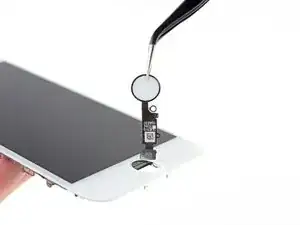
    • Remueve el ensamblaje del sensor ID Táctil/ botón de inicio levantando a través del lado frontal de la pantalla.

    • Para volver a instalar, pasa primero el cable a través del orificio en la parte frontal de la pantalla como se muestra.

    • Tu parte de repuesto podría incluir tornillos extras Y000 ya instalados cerca del Botón de Inicio. Remueve los tornillos innecesarios así puedes volver a instalar el soporte de botón de inicio.

    Instructions were great. Putting the connections back is a bit of a hassle, but patience is your friend. Phone is up and running. Thanks iFixit.

    pwpfef01 -

    Couldn’t get the Home Button (original one I was transferring) to work. I know the instructions said something about not tightening down the 4 screws around the Home Button too much, but how much is too much. Also, a day later, the screen I bought starting having green vertical lines. Took everything back apart and started from scratch the next day and still had the same 2 problems. Just for the heck of it, I put the old cracked screen back on the phone and everything started working again. Figured I wasted about 6-8 hours total on this rather small project and I’m right back where I started again. Something definitely wrong with the screen I ordered and I’m very disappointed. I’ve bought products from ifixit before and they worked, but no such luck this time. Anyone know how I get my 70 bucks back?

    Todd Skobjak -

    Hi Todd!

    I’m sorry to hear about your experience! Please contact our customer support and we will get the issue resolved!

    Arthur Shi -

    They charged you $70 bucks for a new replacement screen for an iphone8 and it didn't even work right that's crazy they are over charging people considering my wife only payed $23 for a new replacement screen kit that comes with the new screen and everything else you need to change it out plus a extra screen protector and I just finished replacing the screen and so far so good no green vertical lines running down my screen. I like ifixit because they show me how to fix what I need to fix but I don't think I will be buying anything from them anytime soon.

    Lincoln -

    I greatly support Ifixit… but.. for me the same story as Todd Skobjak. Put in the new screen. Touch button is not found. Retried with screws loosened and refitting the plug. Nothing. Put the old screen back and the touch button worked again. So.. something with the new provided screen from Ifixed must be the case. I'll also get in touch with customer support.

    Ifixed: not only check the screen but also the cable to the touch button!

    Ton Vaes -

    What’s the trick here?

    Getting an “unable to activate Touch ID” after replacing the home button and a new screen - somewhat similar to that above. Any troubleshooting steps/resolution? I loosened, tightened screws holding the assembly, no effect.

    schaferjon -

    The button is paired with the motherboard. if you change the screen, always attempt to retrieve the original button.. otherwise touchid will not be available

    Bill McNamara -

    The instructions for this home/touch button repair were spot on! The special tip in red for Step 19 was extremely useful because that was exactly what I encountered while attempting to remove the original home/touch button from the original front screen. Step 21 and accompanying photos were a life saver as well, but this process did require heating the screen with my wife’s hair dryer several times to be able to gently pry up the adhesive for the home/touch button ribbon without ripping it to pieces. And yes my phone worked great after completing this repair. Time spent meant money saved and a personal satisfaction and pride in a job well done. Thank you Team iFixit!

    Jeffery Anderson -

    the steps to move the front camera and speaker to the new screen are missing, right?

    martijn.klabbers -

  26. rDN11SlRpAxKEtFM
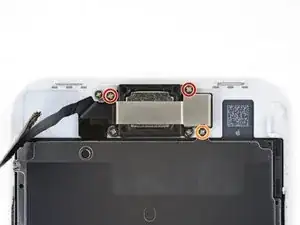
    • Remueve los tres tornillos Phillips que sujetan el soporte superior del auricular al panel frontal.

    • Dos tornillos de 2.6 mm

    • Un tornillo de 1.8 mm

    from which one?

    Brodie Larkin -

    I updated the step to clarify that!

    Arthur Shi -

  27. NZEE4Nl66U5NOqOK
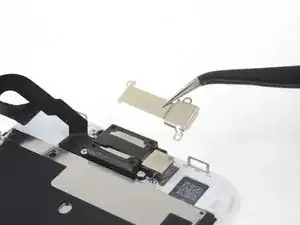
    • Remueve el soporte de altavoz auricular.

  28. sqB2SqkClGKubrmO
    sqB2SqkClGKubrmO
    K6n4tHhT6EqMEvVy
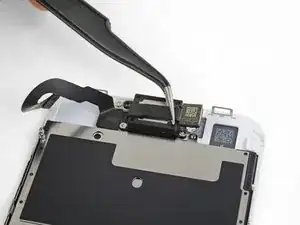
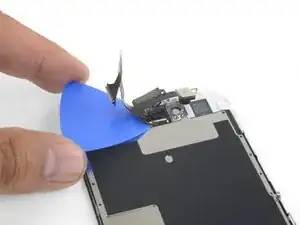
    • Levanta la cámara frontal de su zócalo y desplázala fuera del camino.

  29. rpbGKtNCNlyQiJ3A
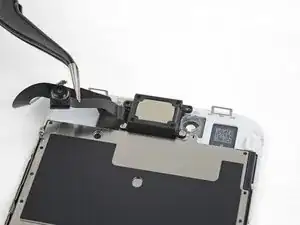
    • Remueve los dos tornillos que sujetan el altavoz auricular al panel frontal.

    • Un tornillo de 1.8 mm

    • Un tornillo de 2.3 mm

  30. vp1AfVp2TVjLMfxx
    • Remueve el altavoz auricular

    The metal faceplate that you can see in the image on my speaker has been scratched an scored from a previous repair by someone else. Could this affect the speaker in any way?

    Kyle Webb -

    Hi Kyle,

    The metal shield should have no effect on the speaker. Granted, it may hint that damage was done around the area, which may have damaged the speaker module.

    Arthur Shi -

    Hi , I have Changed with success the camera piece but after reassembling, the speaker does Not work.A weird fact ist that Wireless Headphones will now reproduce músic but Not Phone Sounds(voices)! Have you Got any idea about this ? I am quite Sure I didn t damage the speaker but before changing It(as a posible Next step)I world like to ask you for any comment ! Thanks

    enbernat -

  31. E33MT4EuxRqcVnZa
    • Calienta un iOpener y aplícalo al borde superior de la pantalla para ablandar el adhesivo que sujeta el ensamblaje de cámara frontal y sensor en su lugar.

    • Espera alrededor de dos minutos antes de seguir con el siguiente paso para ablandar adecuadamente el adhesivo.

  32. Jxu1MnCRHsybW1I5
    Jxu1MnCRHsybW1I5
    mXVfN1oOVFXBQN6s
    • Utiliza la punta de un spudger para levantar cuidadosamente el sensor de proximidad de su zócalo en el panel frontal.

    • Trata de colocar tu herramienta totalmente debajo del sensor para levantarlo del plástico claro debajo. Si haces palanca solo contra el cable, el sensor podría separarse del ensamblaje de cable y necesitará reemplazarse. Si estás reemplazando el ensamblaje de cable/sensor de todas formas, entonces no importa.

    Achtung: sehr kritische Operation !!! Kabel löst sich sehr schnell vom Sensor…nur am Sensor arbeiten, nicht am Kabel ziehen…gut wärmen und Geduld !

    ubrunner -

    Attention: very critical operation !!! Cable detaches very quickly from the sensor... only work on the sensor, do not pull the cable... warm well and patience !

    Jim Glenys -

  33. YCR2yPFxPx5JoM3j
    YCR2yPFxPx5JoM3j
    k2LDJiXLxbjFexcK
    • Desliza la punta del spudger por debajo del cable flexible del sensor de luz ambiente y levanta el sensor de su recoveco.

  34. 41YtN6HRWLTCXFmV
    41YtN6HRWLTCXFmV
    flTUHdPmiG5clFPC
    2PNGDnYjOXlwHjf5
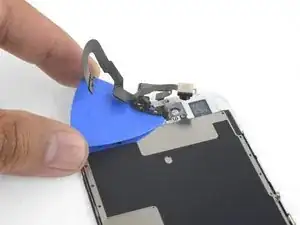
    • Desliza una púa de apertura por debajo del ensamblaje de cable de cámara frontal separando el adhesivo que sujeta la cámara y el cable sensor.

  35. V2Uj21gCNVZ6DVwp
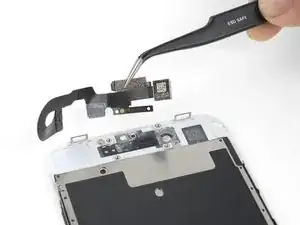
    • Remueve la cámara frontal y cable del sensor.

  36. Xxj6bXCiOMHmJkUM
    Xxj6bXCiOMHmJkUM
    maVMTPfwmEEuGBf1
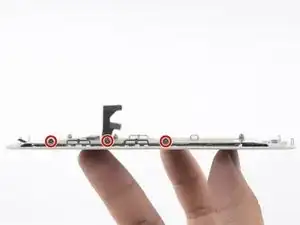
    • Utiliza un destornillador Y000 para remover los tres tornillos de 1.2 mm de un lado de al pantalla para un total de seis tornillos.

    Bei meinem iPhone 8 handelt es sich hierbei um Y00 Schrauben, der Y000 Bit greift nicht richtig

    Andreas Veeser -

  37. d2lb1QtcbeirBLjl
    • Calienta un iOpener y colócalo sobre el borde del escudo que está más cerca al botón de inicio para ablandar el adhesivo que lo sujeta en su lugar.

  38. DZQSiuUIqmiuF5F1
    DZQSiuUIqmiuF5F1
    OOLVWMRnAaKC6PxN
    uEWPOXtaZoVJVtRC
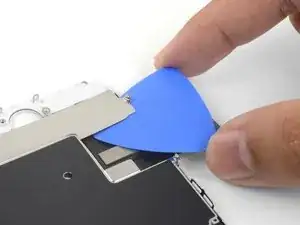
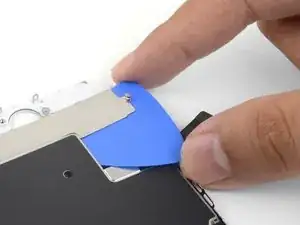
    • Usa una púa de apertura para romper el adhesivo cerca del botón de inicio que sujeta el cable plano de pantalla a la placa de escudo de LCD.

  39. caZODcNVshPXkwpi
    caZODcNVshPXkwpi
    UZ42dw1LAjYItDgH
    VRriQyS15AoVORGE
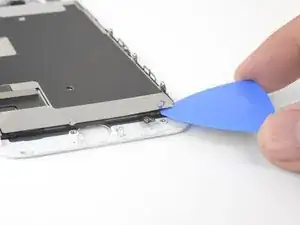
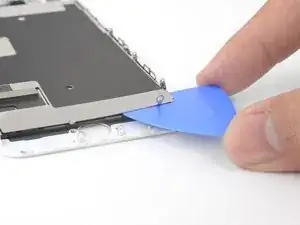
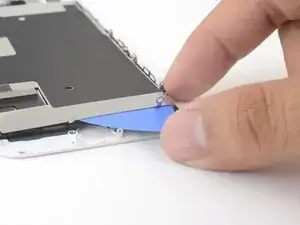
    • Inserta una púa de apertura desde la esquina inferior derecha y continua separando el cable de pantalla de la placa de escudo de LCD.

  40. rShTvIFqPYg6ghtR
    rShTvIFqPYg6ghtR
    6Kx1WKVkGgLl2WQc
    • Cuidadosamente levanta la placa de escudo de LCD del ensamblaje de pantalla.

    • Ten cuidado de no enganchar los cables de datos de pantalla cuando remuevas la placa de escudo de LCD.

  41. Pma2ha6MDEIZHXCo
    • Sólo falta el LCD y el digitalizador.

Conclusión

Compara tu nueva pieza de repuesto con la pieza original. Es posible que debas transferir los componentes restantes o quitar los respaldos adhesivos de la pieza nueva antes de instalarla.

Para volver a armar tu dispositivo, sigue estas instrucciones en orden inverso.

Lleva tus desechos electrónicos a un centro de reciclaje certificado.

¿La reparación no salió según lo planeado? Consulta nuestra comunidad de respuestas del iPhone SE 2020 para obtener ayuda para solucionar problemas.

Adam O'Camb

Miembro Desde 11/04/15

179525 Reputación

4 comentarios

Is anyone else experiencing low brightness after replacing the LCD? TrueTone to blame? Any known fix yet…

Device Trader -

true tone is disabled after a screen swap. At least thats what I see online

catchpoler725 -

Will the screen replacement disable anything? I know it's common to have true tone disabled, but will replacing it disable touch id on this device?

Phone repair -

Currently this device will still allow Touch ID to work after a screen repair, but if you try to replace the home button you will lose Touch ID functionality. It will work ONLY as a home button if you replace Touch ID.

BRUCEL86 -