Introducción
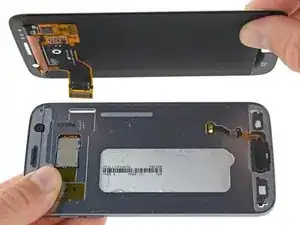
Usa esta guía para reemplazar una pantalla OLED defectuosa o agrietada en tu Samsung Galaxy S7.
Ten en cuenta que la guía de vídeo "no" coincide con la guía paso a paso abajo, es una versión más antigua de la guía.
Esta guía de vídeo recomienda quitar la batería, la bandeja SIM y la placa madre. Esto no es necesario, pero hace que calentar el teléfono sea más seguro. Este procedimiento solo se recomienda si estás reemplazando la batería y la pantalla al mismo tiempo.
Esta guía te enseña a reemplazar solo la pantalla mientras dejas el marco, placa lógica y la batería original en su lugar. Nota: Algunas pantallas de reemplazo para este teléfono vienen preinstaladas en un nuevo marco (o chasis), lo que requiere trasplantar todas las piezas internas de tu teléfono e instalar una batería nueva. Asegúrate de tener la pieza correcta antes de comenzar esta guía.
Si el marco está dañado o doblado, es importante reemplazarlo, de lo contrario, la nueva pantalla podría no montarse correctamente y sufrir daños por la presión desigual.
El proceso de separar la pantalla del marco generalmente destruye la pantalla, por lo tanto, no sigas esta guía a menos que tengas la intención de reemplazar la pantalla.
Si tu pantalla está hecha añicos, usa protección para tus ojos y aplica un protector de pantalla o cinta a la pantalla para contener los vidrios rotos.


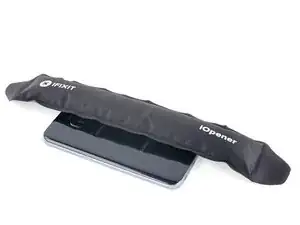
-
-
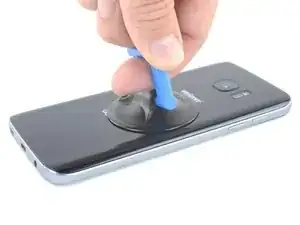
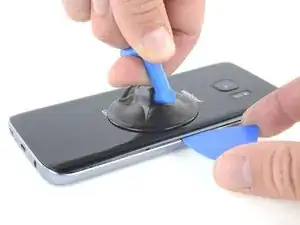
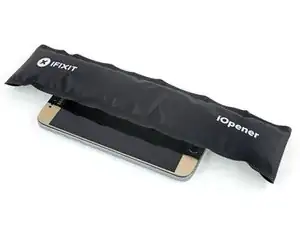
Una vez que el panel esté lo suficientemente caliente al tacto, coloca una ventosa lo más cerca posible del borde calentado, evitando la parte curvada.
-
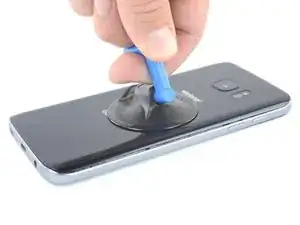
Levanta de la ventosa e inserta un spudger Haldberd o púa de apertura debajo del cristal trasero.
-
-
-
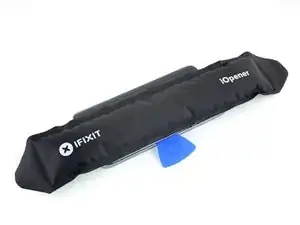
Una vez que esté firmemente introducida la púa, vuelve a calentar y aplicar el iOpener para ablandar el adhesivo.
-
-
-
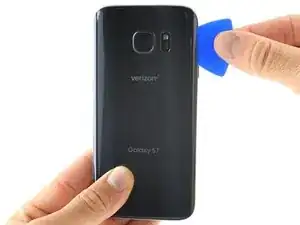
Desliza la púa de apertura a lo largo del borde del teléfono separando el adhesivo.
-
Deja la púa en su lugar y toma una segunda púa mientras continúas con el próximo paso. Si dejas la púa insertada previenes que el pegamento que has separado se vuelva a adherir.
-
-
-
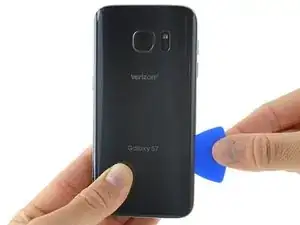
Repite el paso previo de calentado y corte del adhesivo en los tres bordes restantes.
-
Deja una púa de apertura en cada borde del dispositivo mientras continúas para evitar que se vuelva a unir con el adhesivo.
-
-
-
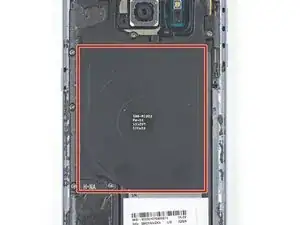
Si estás limpiando superficie intermedia con alcohol isopropílico, sé muy cuidadoso de no derramar nada de alcohol en el módulo de carga inalámbrica. El recubrimiento de carga inalámbrica puede dañarse si entra en contacto con el alcohol.
-
-
-
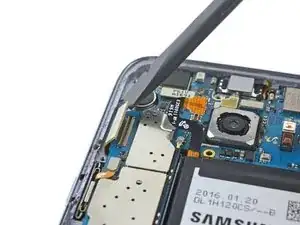
Introduce la punta de un spudger en la pequeña muesca en el lado izquierdo del ensamblaje de antena y levantarlo del marco.
-
Remueve el ensamblaje de antena.
-
-
-
Usa el extremo plano de un spudger para desconectar el conector de pantalla y digitalizador.
-
-
-
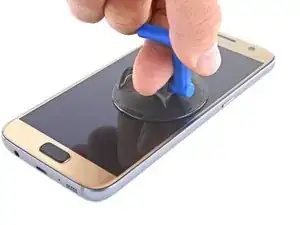
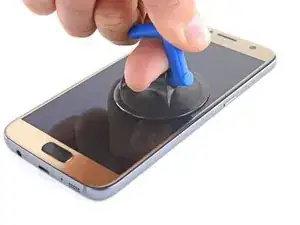
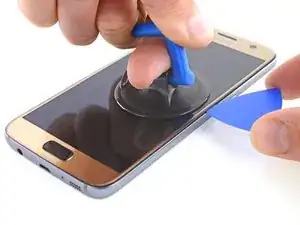
Una vez que la pantalla esté caliente al tacto, aplica una ventosa tan cerca al borde caliente del teléfono como puedas.
-
Levanta desde la ventosa e introduce la púa de apertura debajo del ensamblaje de pantalla.
-
-
-
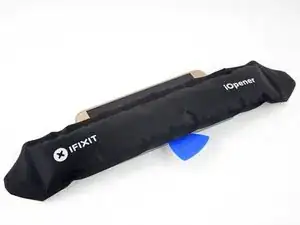
Una vez que la púa esté insertada por debajo de la pantalla, vuelve a calentar y aplicar el iOpener para ablandar el adhesivo de pantalla.
-
-
-
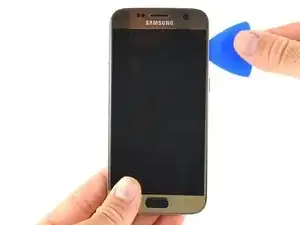
Desliza la púa de apertura a lo largo del teléfono separando el adhesivo.
-
Hazlo despacio así la punta no se escapa de la línea. Si el deslizamiento se hace difícil, vuelve a calentar y aplicar el iOpener.
-
Deja la púa en el lugar y toma una segunda púa mientras procedes al segundo paso. Al dejar la púa insertada puede prevenir que el pegamento que recién separaste se vuelva a adherir.
-
-
-
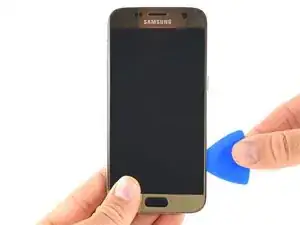
Repite el calentamiento previo y el procedimiento de corte para los tres lados restantes del teléfono.
-
Deja una púa de apertura en cada lado para evitar que el adhesivo se siga resellando.
-
-
-
Haz palanca del lado de la pantalla opuesto al cable de pantalla así el cable actúa como una bisagra al abrirse el teléfono.
-
-
-
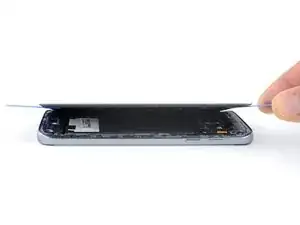
Con cuidado, levanta la pantalla separándola del marco medio pasando el conector de la pantalla a través del orificio en el marco medio.
-
Remueve la pantalla.
-
-
-
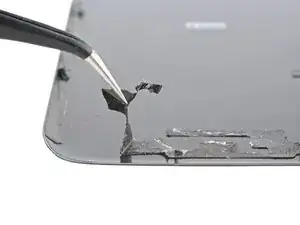
Luego de remover todos los restos de adhesivo y cristal del marco, limpia las áreas de adhesión con alcohol isopropílico 90% (o más) y un paño anti-pelusa o filtro de café. Desliza en una dirección solamente, no hacia atrás y adelante.
-
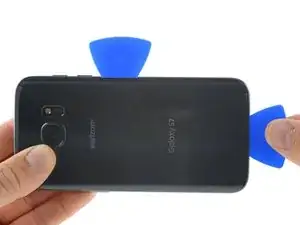
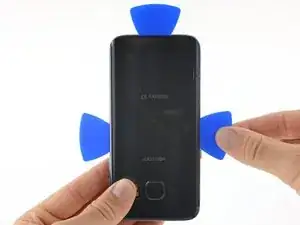
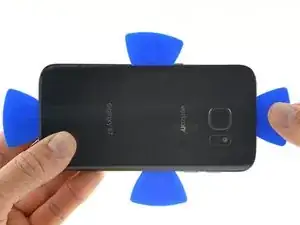
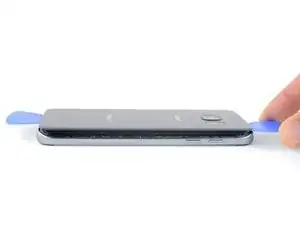
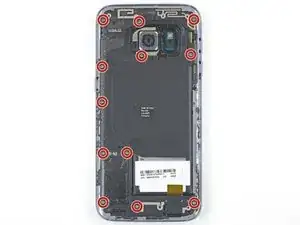
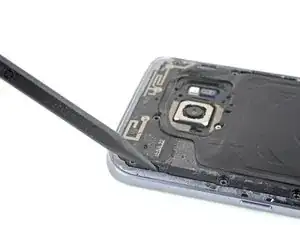
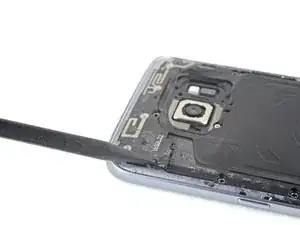
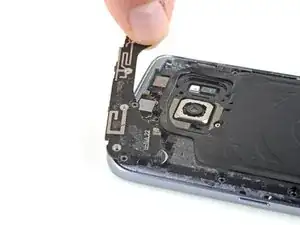
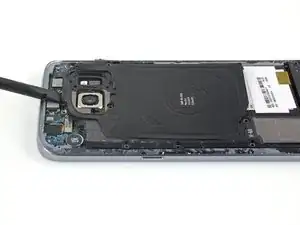
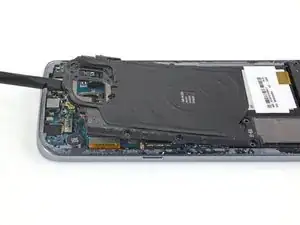
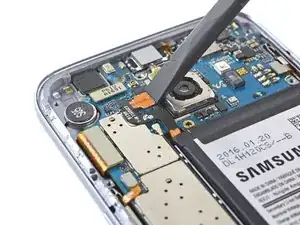
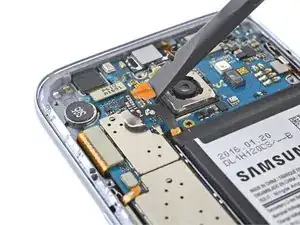
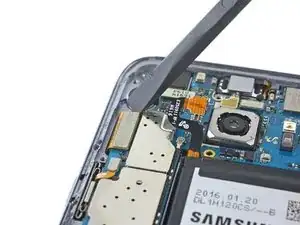
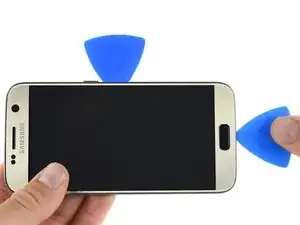
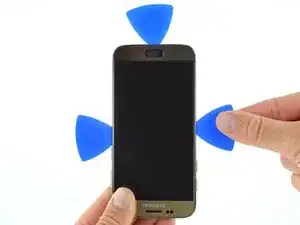
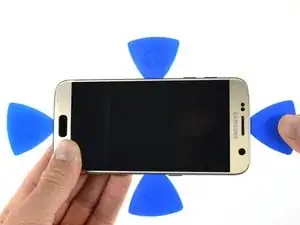
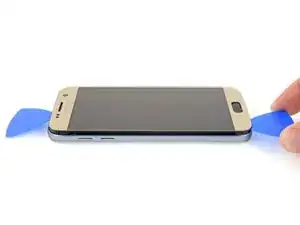
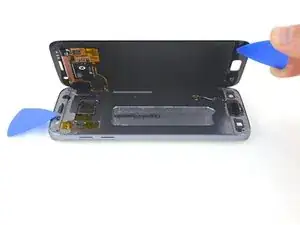
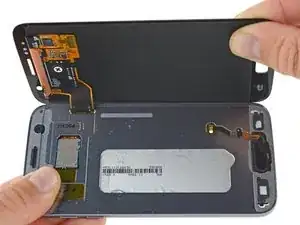
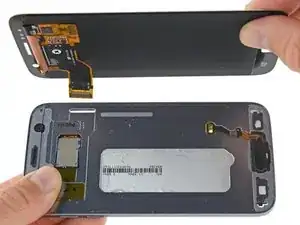
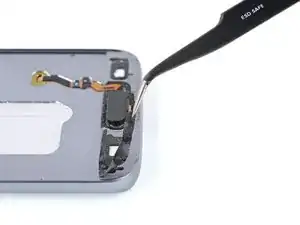
Para volver a ensamblar tu dispositivo, aplica adhesivo a la tapa trasera y sigue estas instrucciones en orden inverso.

28 comentarios
The screen replacement went smooth. I just wish it included the adhesive. I didn't see the note where the adhesive needed to be ordered in addition to the screen. Otherwise everything went well.
Thanks
For the price of the screen, I can replace it in a Samsung repair center...
I just need to replace the glass, not all of the AMOLED touch screen... :-( Sorry but this didn't help me.
Darky -
How much cost u paid to service centre for original display for samsung s7
You can not replace just the glass without special equipment (hot plate, laminator etc.)
I'm wanting to help my friend do this but I don't have a heat gun. Would a blow dryer work to loosen the glue or does it need to be hotter? He got a quote for 200 from a shop to fix it but they said it takes a month…lame! I've replaced screens in many tables and phones and I have all the necessary tools other than the heat gun and the replacement screen components obviously.
@Adam Bacon Heat guns are quite inexpensive. The model she uses in this video runs about $20 or less in most shops. A blow dryer may work, but it’s difficult to say for certain. The adhesive Samsung uses is pretty robust. If you find yourself fixing a lot of devices you should really consider investing in a heat gun.
E West -
I did this repair. A heat gun isn’t really hot enough to remove the screen without destroying it. A hair drying isn’t going to touch the glue.
armand -
Use a hair dryer and a spudger and a iSesamo to pop that bad boy off. No sense in buying a heat gun for one use.
It works great I got my Galaxy S7 apart within a hour using a hair dryer
I used a heat gun and heated it a little too much. The color of the rear glass is just a sticker on a clear cover. Due to this I tore the sticker off. Now the back cover is see through, which isn’t a bad thing but the repair was for a customer.
Kevin Bishop -
When using the iOpener, you may need more than 30 seconds, especially in compact or low wattage microwaves. Take this slowly, though, and be extremely careful, as it is easy to overheat your iOpener. Remember, you can always heat it up a tad more, but you cannot undo overheating it.
Jacob Pratt -
I used an adjustable heat gun and set it to 400 degrees (F). That was enough to seperate the glass without having to worry about exposure times of the heat. The front of the phone was just fine. Just be ready to use a bunch of picks to slide in between because they will be needed this way.
Ryan Schumerth -
I went from the bottom center up, using one ifixit tools, one suction cup and one pick.
Pick just popped in with some minor pressure.
Laid heat pack along base of phone 2 mins first and worked up slowly, rotating picks as I went. Had to heat iopener over several 30 second bursts
Lauren Burt -
This is useless because the phone does not recognize the new battery and will behave like on the old one
Search for “battery count xda"
Albert Einstein -
That is an interesting discovery! Thanks for pointing it out—I’ll have to look into it.
Even if this is true, replacing the battery should still give restore a significant amount of life, since the max voltage affects a minor amount of the battery’s capacity. If you charge a worn battery and a new battery to the same lower max voltage, the worn battery’s voltage will dip more under use and will be depleted faster.
Arthur Shi -
Thanks for the guide! It helped me replace a friend's battery with no problems!
Darren Crook -
I will never replace a screen again, and don’t recommend it. Not for phones nowadays. Once upon a time everything was screwed together, and you might even get the same quality or better screen when buying from eBay. And having the phone repaired was nearly the cost of the phone. Now, it’s the reverse. Removing the glued back and screen and cleaning off all the glue for a clean re-seal is an ordeal that takes multiple hours, AND, often the screen you buy on eBay is NOT OLED, but an LCD, and a blurry one at that. And the local phone repair store will replace the screen with an OLED, reliably, same day turn around, for not much more than the cost of an actual OLED screen, because they have the parts in bulk, and the tools and experience to do it quickly. Never again!
domarius -
have you ever had one that just wont open at all? i can not get mine to open to replace the battery i have heated with a heat gun and attached suction cup and it will not lift at all
Carla James -
Hi Carla,
I've definitely had that experience before. The adhesive is very strong, and the curved back makes getting the initial seam very difficult. I'd suggest focusing on one small area on the edge. Apply steady force when you pull, and repeat a few times to loosen the adhesive. Eventually it will give and present a small gap.
Arthur Shi -