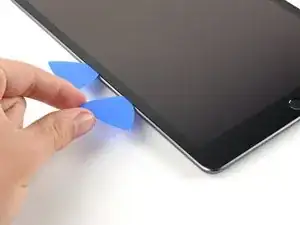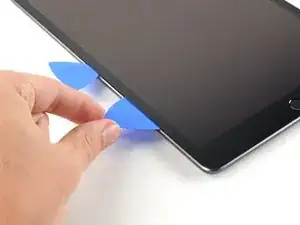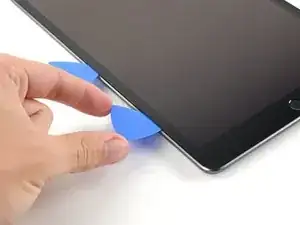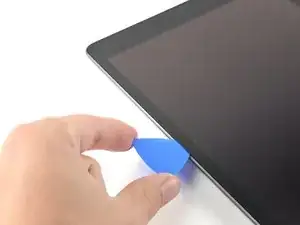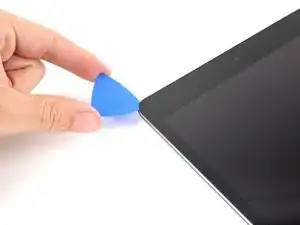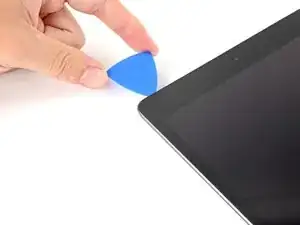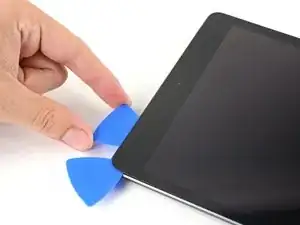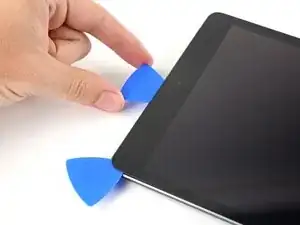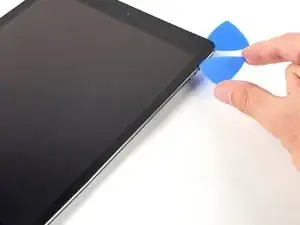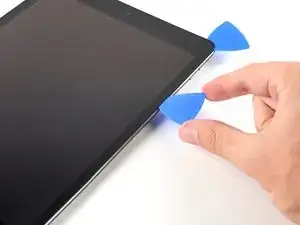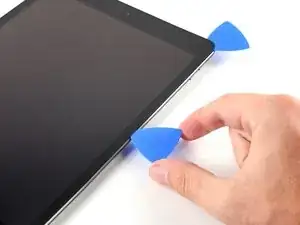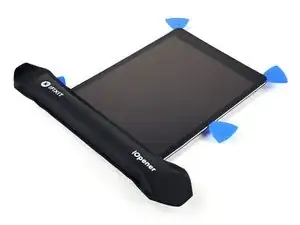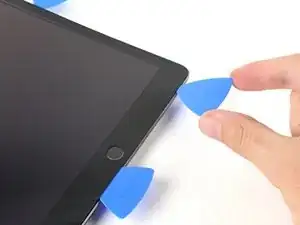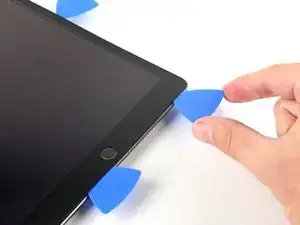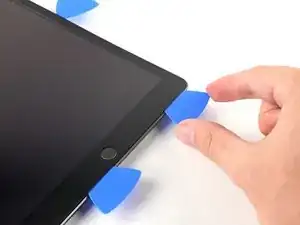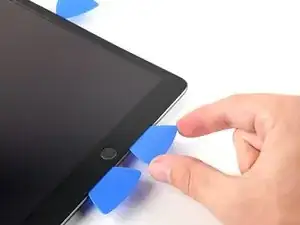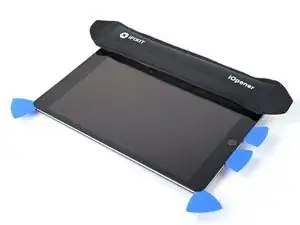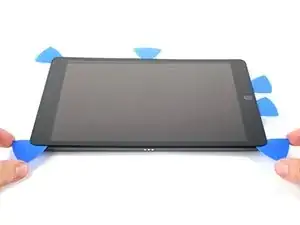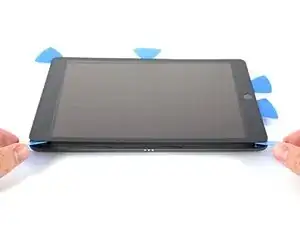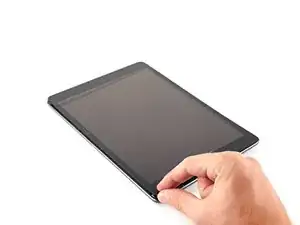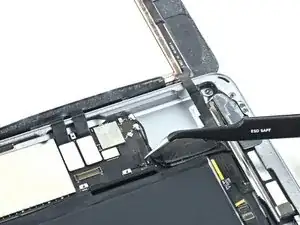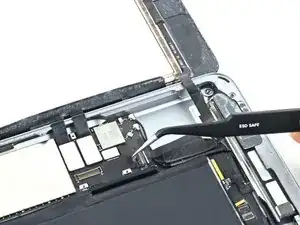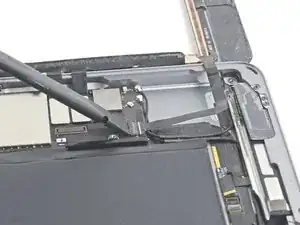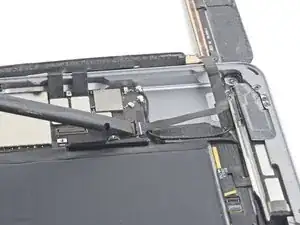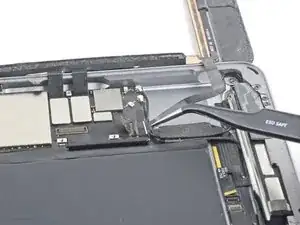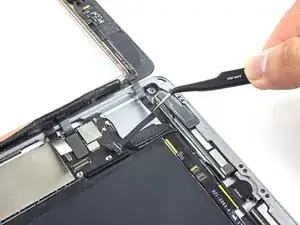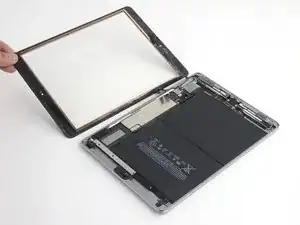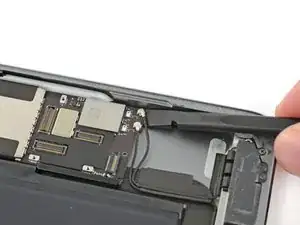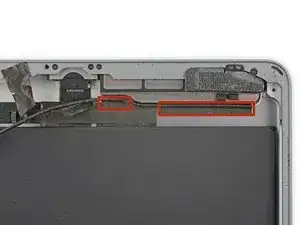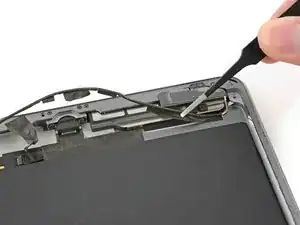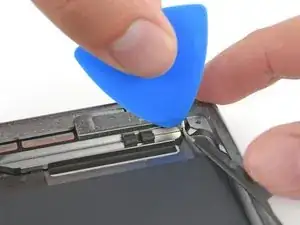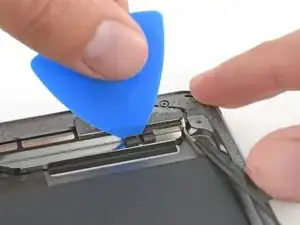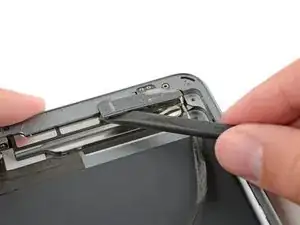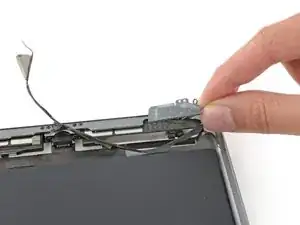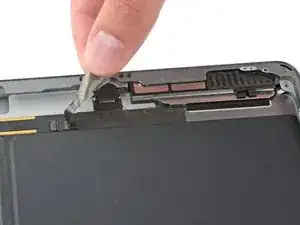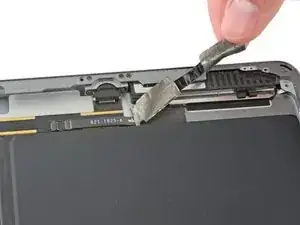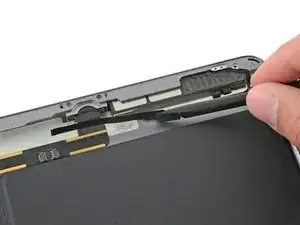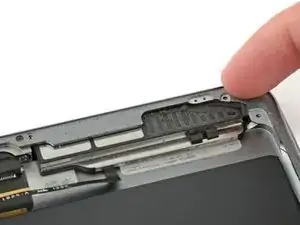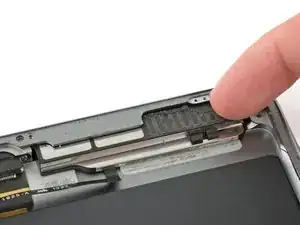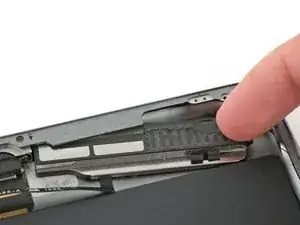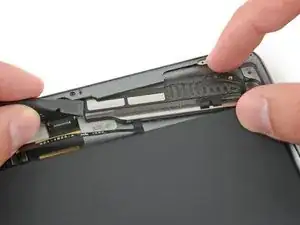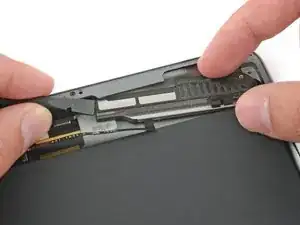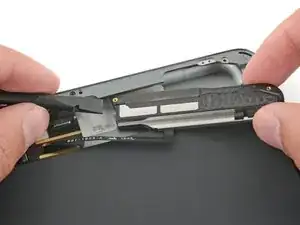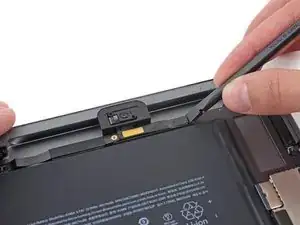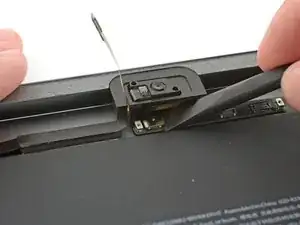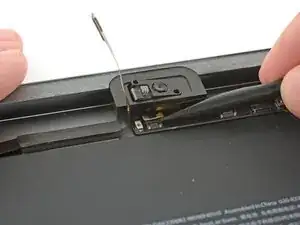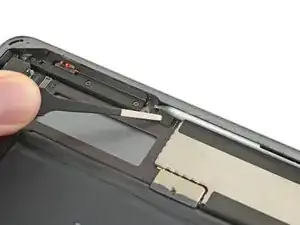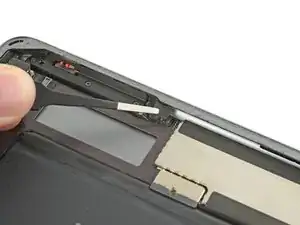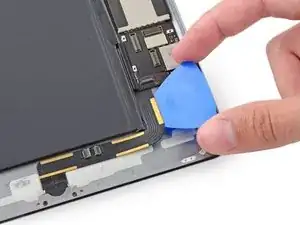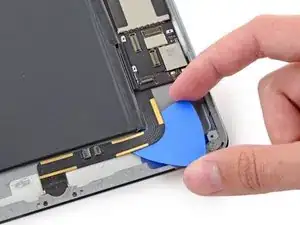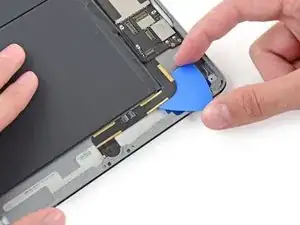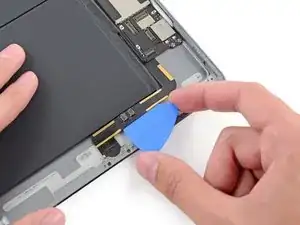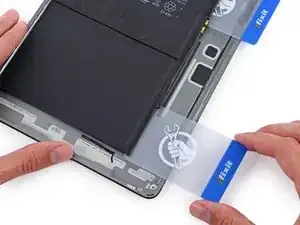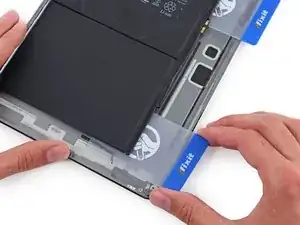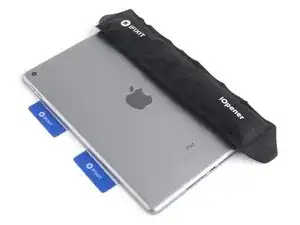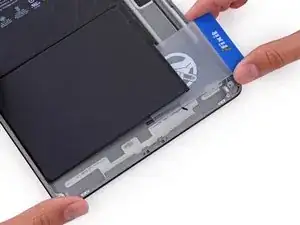
Introducción

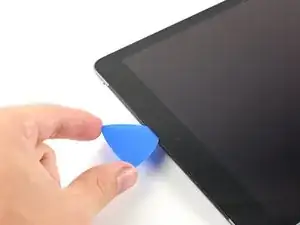
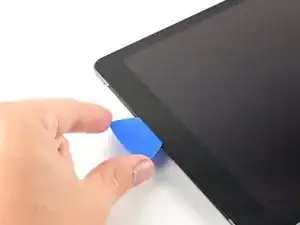
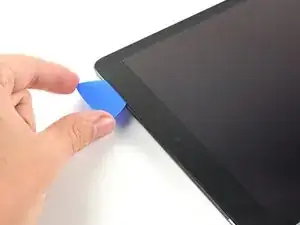
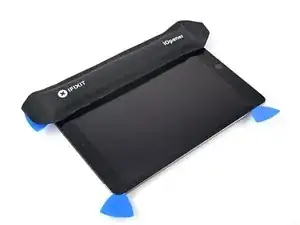
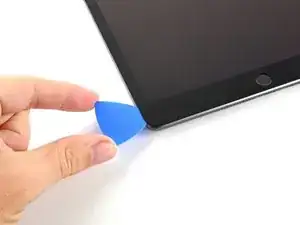
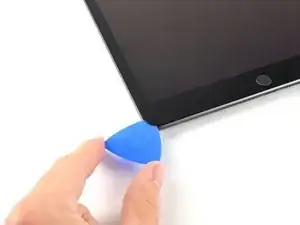
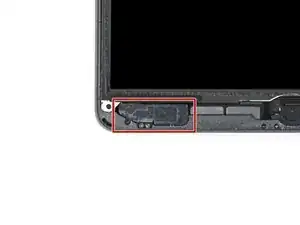
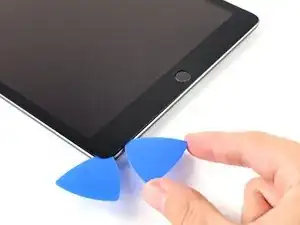
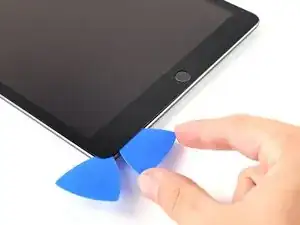
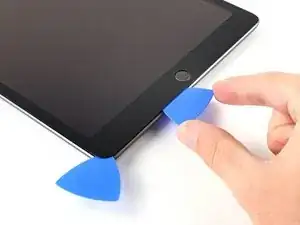
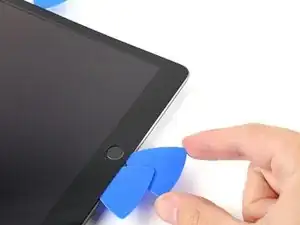
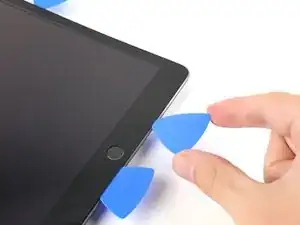
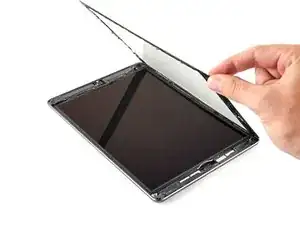
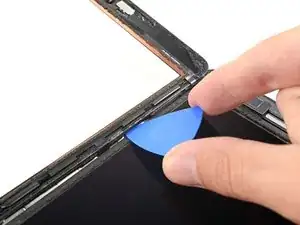
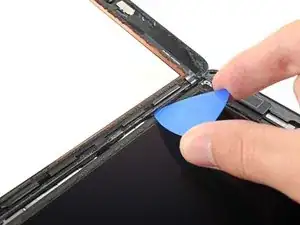
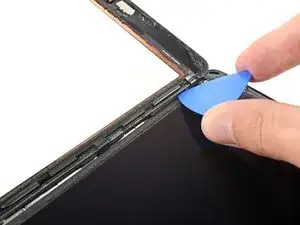
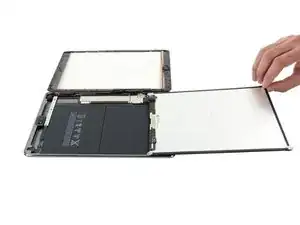
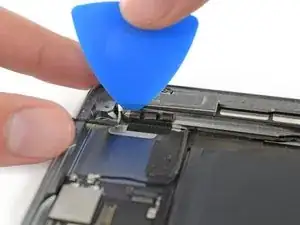
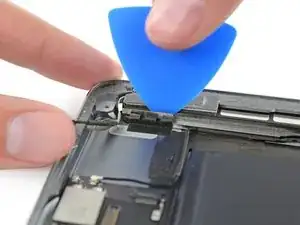
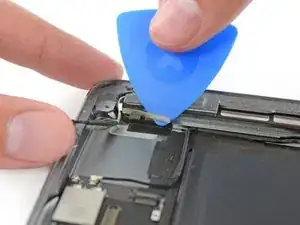
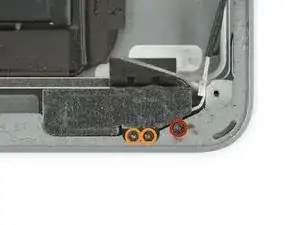
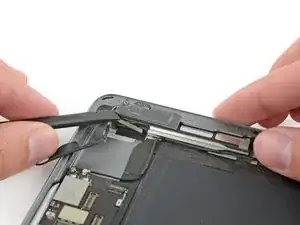
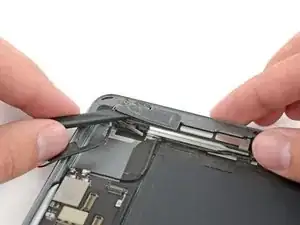
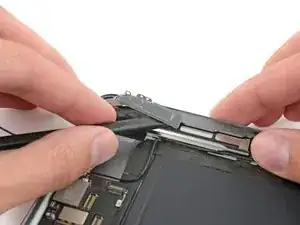
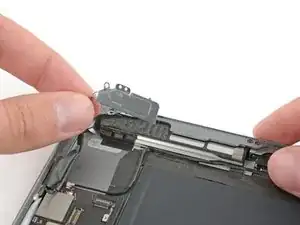
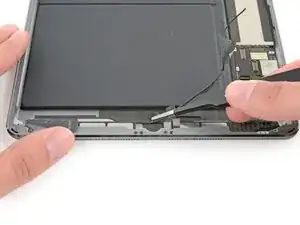
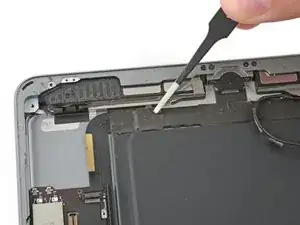
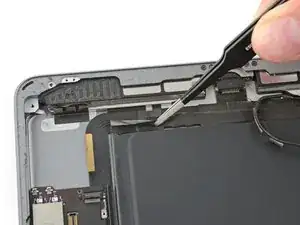
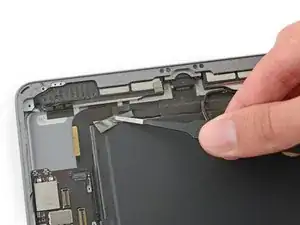
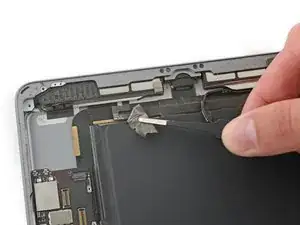
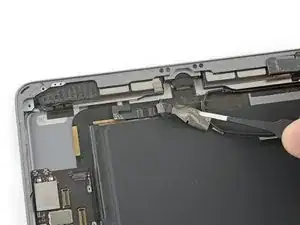
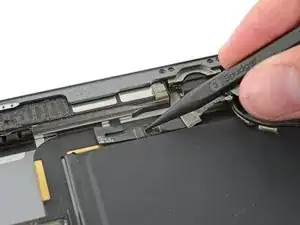
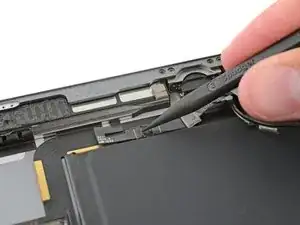
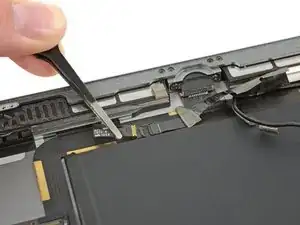
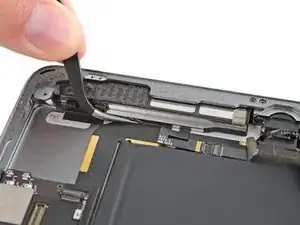
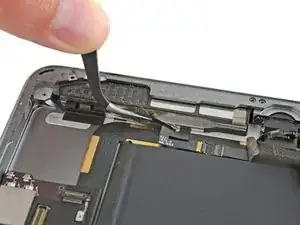
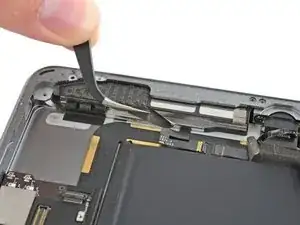
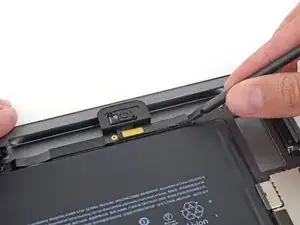
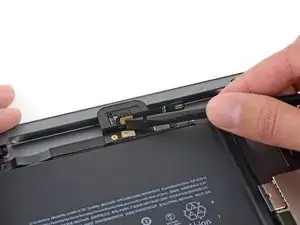
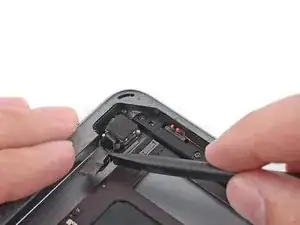
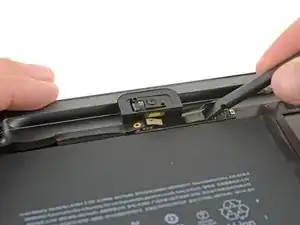
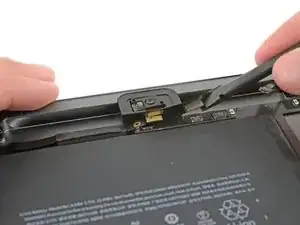
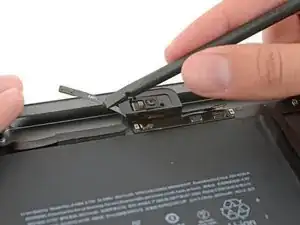
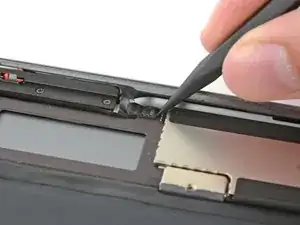
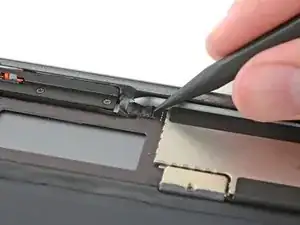
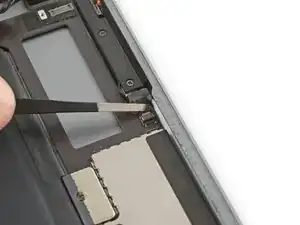
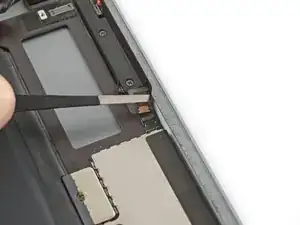
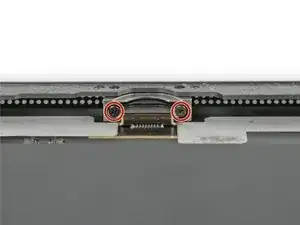
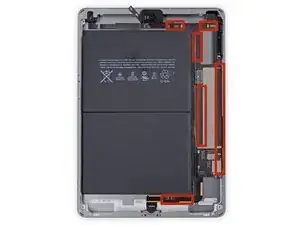
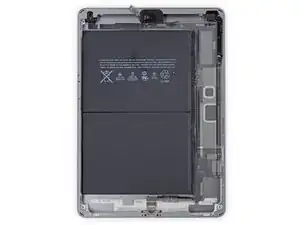
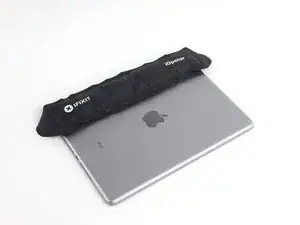
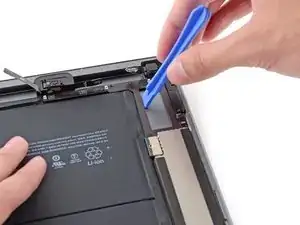
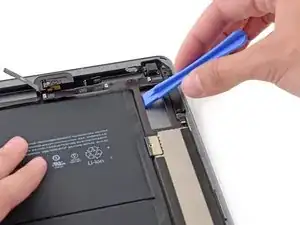
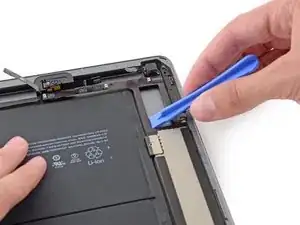
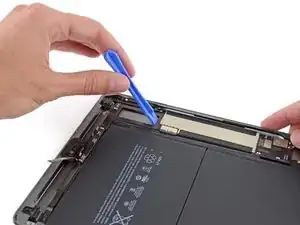
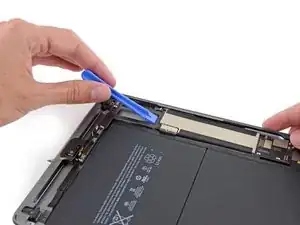
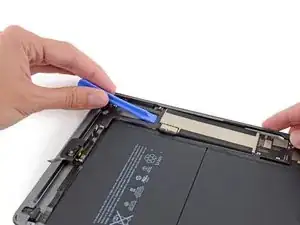
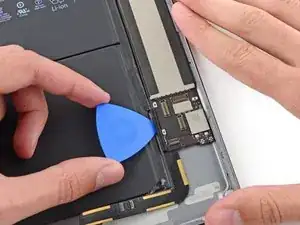
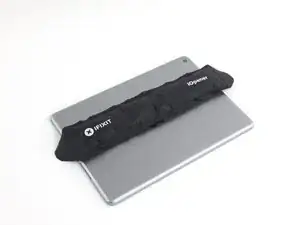
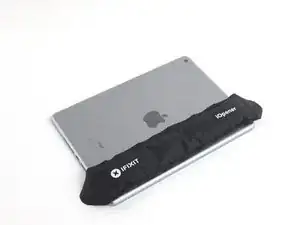
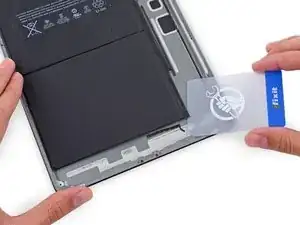
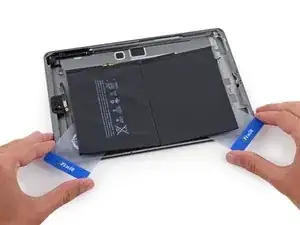
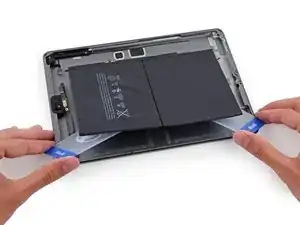
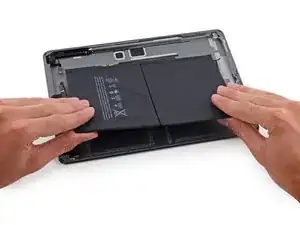
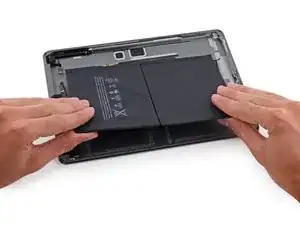
Sigue esta guía para reemplazar la batería en una iPad 6 Wi-Fi.

Si tu batería esta inflada, take appropriate precautions.

Ten cuidado cundo aísles la batería usando un bloqueador de baterías. Los contactos de la batería se dañan fácilmente resultando en daño irreversible a la tarjeta lógica. Si escoges completar esta guía sin aislar la batería, evita usar herramientas de metal excepto cuando sea completamente necesario (como al remover tornillos) para prevenir hacer corto circuito en la batería y dañar componentes del circuito sensibles.

  1. THxeZqAlU4lI3Dsj
  2. BRY15JSctKOZ3CkU
    BRY15JSctKOZ3CkU
    LLyoJyrOLVZBYT2x
    GwocxG65kALerIpv
    • Mientras estas esperando a que se afloje el dispositivo, nota que las siguientes áreas son sensibles al palanqueo:

    • Cámara frontal

    • Antenas

    • Cables del display

  3. BKhTiWCLNw5gfZpV
    BKhTiWCLNw5gfZpV
    ZBBKsxR5VftA3VCb
    nxYibxNVffBRXEWL
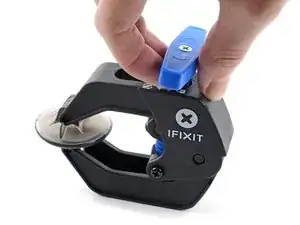
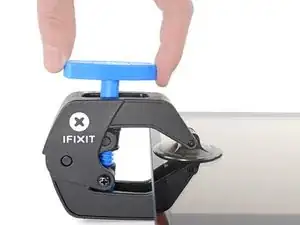
    • Los siguientes dos pasos muestran el Anti-Clamp, una herramienta diseñada para hacer el procedimiento de apertura más fácil. Si no estás usando el Anti-Clamp, salta dos pasos para un método alternativo.

    • Para instrucciones completas de como usar el Anti-Clamp, checa esta guía.

    • Jala el mango azul hacia la bisagra para activar el modo de apertura.

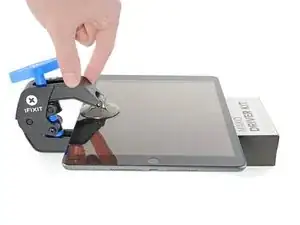
    • Levanta el iPad lo suficiente para que las bisagras del Anti-Clamp descansen por encima y debajo de la pantalla.

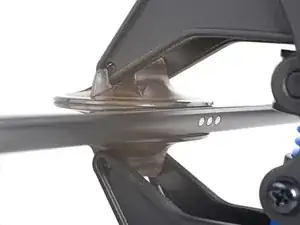
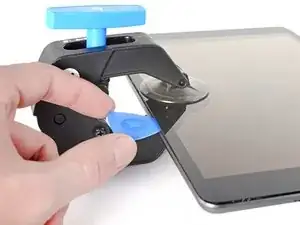
    • Posiciona las ventosas de succión cerca del borde izquierdo en la pantalla--una enfrente y otra detrás.

    • Presiona hacia abajo las ventosas para aplicar succión a la área deseada.

    • Si encuentras que la superficie de tu dispositivo está demasiado resbalosa para que el Anti-Clamp lo sostenga, puedes usar cinta de embalaje para crear una superficie más adherente.

  4. Swgw6vZfVodcAdSf
    Swgw6vZfVodcAdSf
    vBTl3xec5R11ODln
    6eTPKXJyPpiiiTte
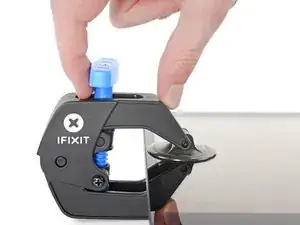
    • Empuja el mango azul lejos de la bisagra para activar el modo de apertura.

    • Gira el mango en sentido de las manecillas del reloj hasta que veas que las ventosas empiecen a estirarse.

    • Asegúrate que las ventosas de succión queden alineadas entre sí. Si empiezan a desalinearse, afloja las ventosas de succión y realinea los brazos.

    • Espera un minuto para darle oportunidad al adhesivo soltar y exponer un hueco de apertura.

    • Inserta una púa de apertura debajo del digitalizador cuando el Anti-Clamp cree un huego lo suficientemente grande.

    • Si el Anti-Clamp no crea un hueco suficiente, aplica más calor al área y gira el mango media vuelta en sentido de las manecillas del reloj.

    • No gires más de media vuelta en una sola vez, y espera un minuto entre giros. Deja el Anti-Clamp y al tiempo hacer el trabajo para ti.

    • Salta el siguiente paso.

  5. J2IQvQOy1BYPtTom
    J2IQvQOy1BYPtTom
    mHcQZ3ybJlVWXZAX
    ZE5bLBVCycZZ4IXh
    • Si tu display está muy roto, cubrirlo con una capa de cinta adhesiva permite la ventosa de succión adherirse. Alternativamente, cinta muy fuerte puede ser usada en vez de la ventosa de succión. Si todo eso falla, puedes pegar la ventosa de succión a la pantalla rota.

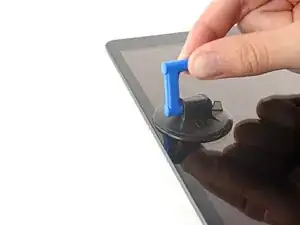
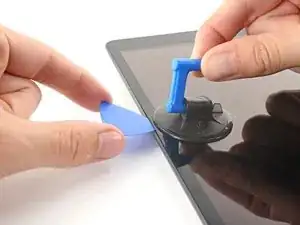
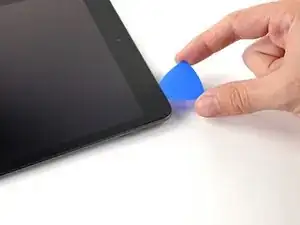
    • Una vez que la pantalla este caliente al tacto, aplica una manija de succión al borde izquierdo de la pantalla y lo más cercano al borde posible.

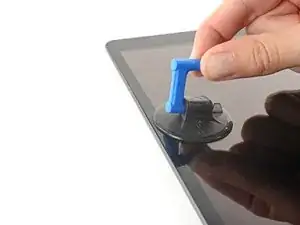
    • Levanta la pantalla con la manija de succión para crear un hueco pequeño entre el digitalizador y el marco.

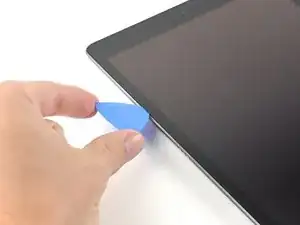
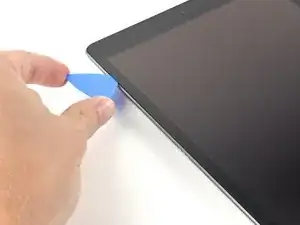
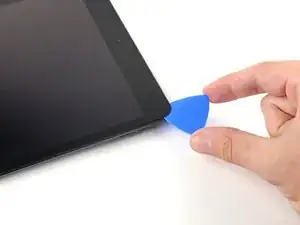
    • Inserta una púa de apertura en el hueco entre el digitalizador y el marco.

  6. x2uBdEGsXXD1UGux
    x2uBdEGsXXD1UGux
    dLpd1xH2K1QoGc6n
    2caJZKMEgJeYYxP4
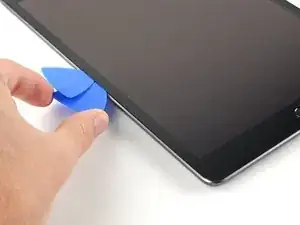
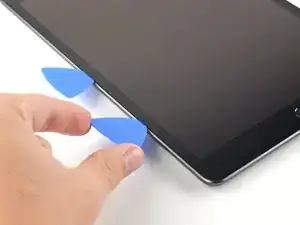
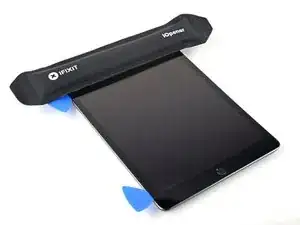
    • Inserta una segunda púa de apertura en el hueco que acabas de crear.

    • Desliza la púa hacia la esquina izquierda inferior en el dispositivo para separar el adhesivo.

    • Deja la púa en la esquina inferior izquierda para prevenir que el adhesivo vuelva a sellar.

    • No te preocupes si puedes ver la herramienta de apertura a través del digitalizador --solo jala la púa hacia afuera. La pantalla LCD no debería estar dañada, pero te arriesgas a dejar adhesivo difícil de limpiar.

  7. JPsPT5ML14VHRhGe
    JPsPT5ML14VHRhGe
    ultr2KYJ6Sc1kYaH
    ZATK6B6Fo1vrYUIw
    • Si la púa de apertura se atora en el adhesivo, "gira" la púa a lo largo del lado del iPad para continuar separando el adhesivo.

  8. EaRSxNw3vj5GpMur
    EaRSxNw3vj5GpMur
    yRXg6rNGAQgVf1Cf
    W26QbH5y1V5Kv2oM
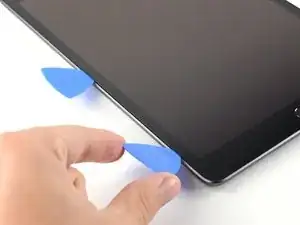
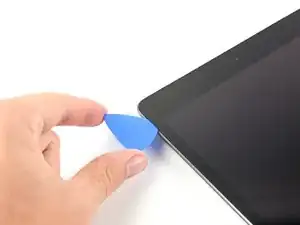
    • Desliza la primer púa de apertura hacia la esquina superior izquierda del dispositivo para separar el adhesivo.

    • Deja la púa en la esquina superior izquierda para prevenir que el adhesivo vuelva a sellarse.

  9. FLj6SpbOQdrvVpRi
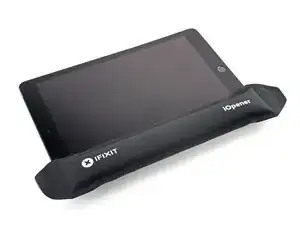
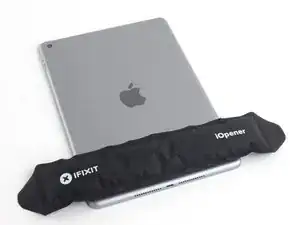
    • Calienta el IOpener y aplícalo al borde superior en el dispositivo por dos minutos.

  10. p15tb6VN1vUscQ2N
    p15tb6VN1vUscQ2N
    SocgxgkXBnLnGSWX
    oPDYoHHMVRcxhVPT
    • Rota la púa alrededor de la esquina superior izquierda en el dispositivo para separar el adhesivo.

  11. Jil3FKjTxdwCK5GP
    Jil3FKjTxdwCK5GP
    6nKHEJpQiZSaFBGo
    ROYjHt2LlrcPPDUx
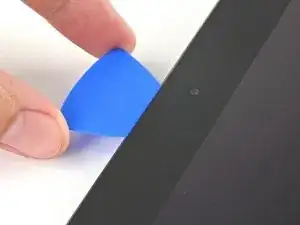
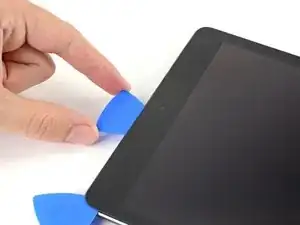
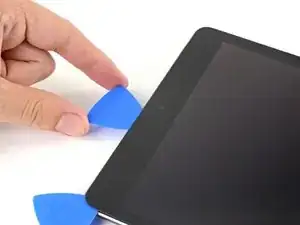
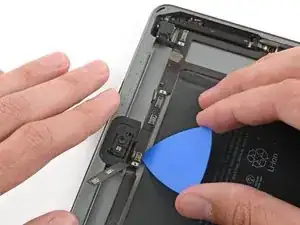
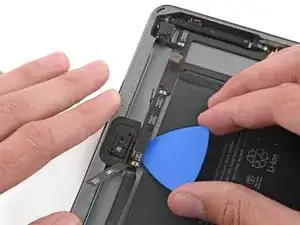
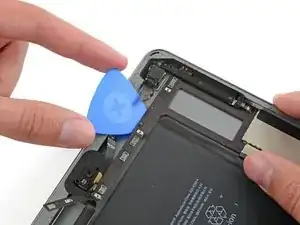
    • Desliza la púa de apertura a lo largo del borde superior del dispositivo, deteniéndote justo antes de llegar la cámara frontal.

    • Evita deslizar la púa sobre la cámara frontal, ya que puedes dañar los lentes. Los siguientes pasos mostrarán como prevenir esto.

  12. TioLriFFwlSWARE3
    TioLriFFwlSWARE3
    cBURkpbxyZsN2fs4
    fQWclYvRi615iGML
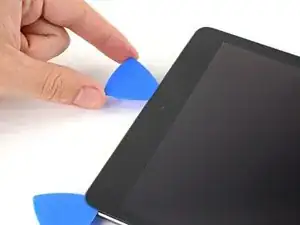
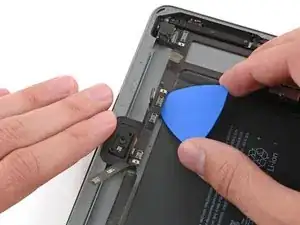
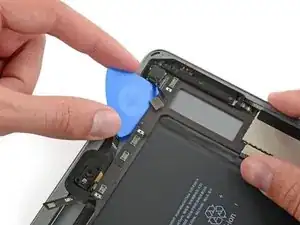
    • Jala la púa hasta que la punta este entre el digitalizador y el marco.

    • Desliza la púa sobre la cámara frontal para separar el adhesivo.

    • Deja la púa cerca del lado derecho de la cámara frontal antes de continuar.

  13. Jiwfe4BYASgflPlt
    Jiwfe4BYASgflPlt
    GNqQecAUKHkBQsFJ
    TjnBLTuM3hvFrh4t
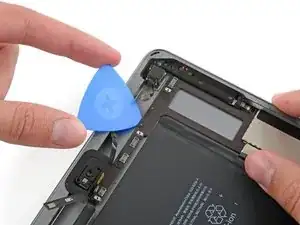
    • Re-inserta la púa y deslízala hacia la esquina superior derecha en el dispositivo para separar completamente el adhesivo en el superior.

    • Deja la púa en la esquina superior derecha para prevenir que el adhesivo vuelva a re-sellar.

  14. ZHBh3M1LZI1RNTnX
    • Calienta un iOpener y aplícalo al borde derecho del dispositivo por dos minutos.

  15. IaiyPav5brNr6jCX
    IaiyPav5brNr6jCX
    IXOuHUPJMRyyp3gb
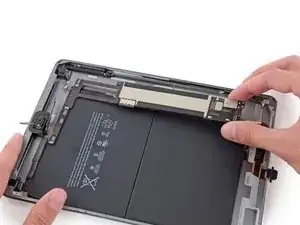
    wKVPV5jH516oONom
    • Rota la púa alrededor de la esquina superior derecha del dispositivo para separar el adhesivo.

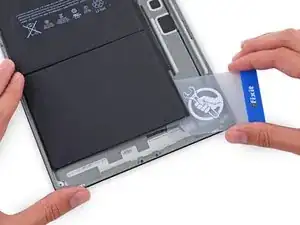
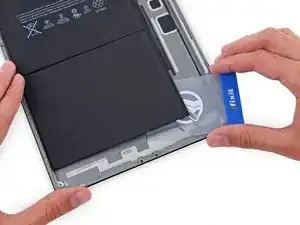
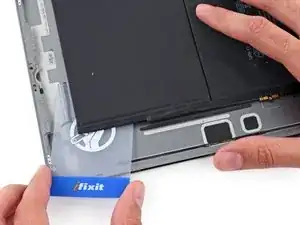
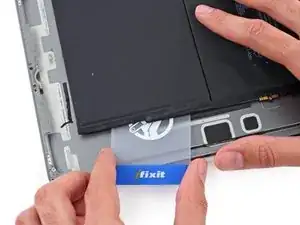
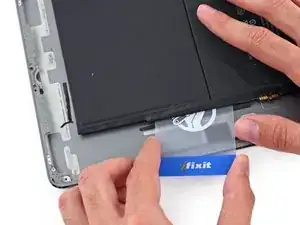
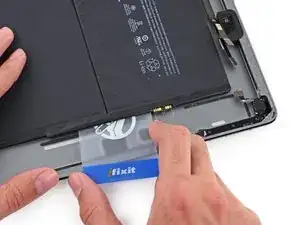
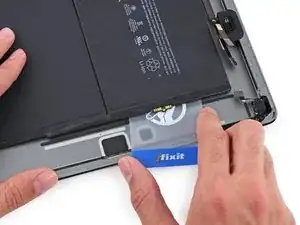
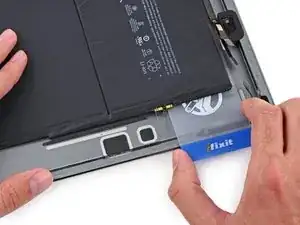
  16. uMAkRgI5TwCTd4Ks
    uMAkRgI5TwCTd4Ks
    6R5iFXyAqocMYSU4
    n3WPFtEKy3pVcab1
    • Inserta una nueva púa de apertura y deslízala hacia el centro del borde derecho del iPad.

    • Los cables del display están localizados aproximadamente a medio camino de la parte inferior del iPad. Deja de deslizar una vez que alcances tres pulgadas desde la parte inferior del iPad.

  17. UGjYPQYXKPD6dNES
    • Calienta el iOpener y aplícalo al borde inferior del dispositivo por dos minutos.

  18. ZLBC4NKlQbk3OZTD
    ZLBC4NKlQbk3OZTD
    OMqDTrkrkwxwGI5M
    A51oePiIiC2OVqED
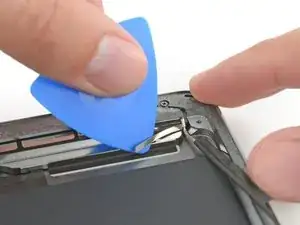
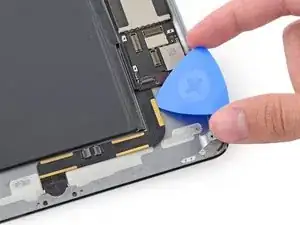
    • Desliza la púa den inferior izquierdo hacia la esquina inferior izquierda para separar el adhesivo.

    • No rotes completamente la púa alrededor de la esquina, ya que puedes dañar la antena.

    • Deja la púa en la esquina inferior izquierda antes de pasar al paso siguiente.

  19. TEwIBIf3sxmJiEN1
    TEwIBIf3sxmJiEN1
    xOEXNBRtCOWQeuFY
    22JRGthoRvQSYaRf
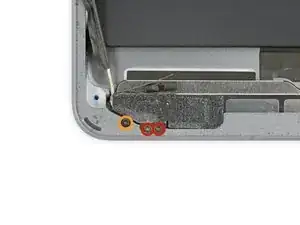
    • Inserta una nueva púa de apertura en el hueco que acabas de crear en el borde inferior del iPad.

    • Desliza la púa sobre la antena, deteniéndose antes del botón de inicio.

    • Solo desliza la púa hacia el botón de inicio y no lejos de él, ya que puedes dañar la antena.

    • Si necesitas deslizar la púa sobre esta sección nuevamente, remueve y re-insértala en la esquina inferior izquierda.

    • Deja la púa en la izquierda del botón de inicio antes de continuar.

  20. C2RdZwTKLextDlUC
    C2RdZwTKLextDlUC
    ZYORWWfQkWbQHeZk
    35FCdHGOd2P3tVJH
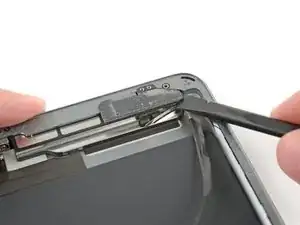
    • Inserta una púa de apertura en el hueco que acabas de crear.

    • Desliza la púa por debajo del botón de inicio y hacia la esquina inferior derecha, asegurándote que solo la punta esta entre el digitalizador y el marco.

    • Solo inserta la púa un mm para evitar dañar la antena derecha.

  21. EdcTHHvhSmUedM5X
    EdcTHHvhSmUedM5X
    aeho4dfNWsncrbYf
    CmWXujasluPDsXpH
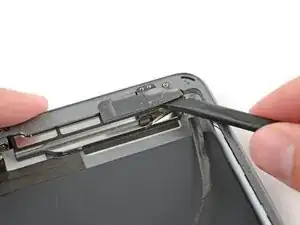
    • Re-inserta la púa y desliza hacia el botón de inicio para separar completamente el adhesivo inferior.

    • Solo desliza la púa hacia el botón de inicio a no al contrario, ya que podrías dañar la antena.

    • Si necesitas deslizar la púa otra vez, remueve y re-inserta en la esquina inferior derecha.

    • Deja la púa a la derecha del botón de inicio antes de continuar.

  22. lwiCOncwPlKLg3a3
    • Calienta un iOpener y aplícalo al borde derecho de tu dispositivo por dos minutos.

  23. ABh5NOiTnhO15fgU
    ABh5NOiTnhO15fgU
    Ub5UlnWWBB6GLUth
    • Ten cuidado con este paso. Tomate tu tiempo, asegúrate que el adhesivo este caliente y débil, asegúrate que separaste todo el adhesivo con una púa. No tengas miedo de detenerte y recalentar.

    • Gira las dos púas de apertura en las esquinas izquierda del iPad para levantar el digitalizador un poco, separando la última parte del adhesivo en el proceso.

    • Si hay alguna cantidad de resistencia, recalienta los bordes y trabájalos a lo largo con una púa de apertura.

  24. H1yAsJZcQDoPHbPD
    H1yAsJZcQDoPHbPD
    YepL35FhpR6erNWD
    • Levanta el borde izquierdo del digitalizador hacia arriba para separar el adhesivo que hay a lo largo del borde derecho del iPad.

  25. TuWcGklrctSA4vd1
    TuWcGklrctSA4vd1
    lCHklMQfQE6AZ6Gh
    kCab34QaCQWowvsm
    • Mientras sostienes el digitalizador, desliza una púa de apertura entre los dos cables del display para separar lo que queda del adhesivo.

  26. d6WFtDjCYJBQvFcC
    d6WFtDjCYJBQvFcC
    vhSOEKyqAlrBFbwH
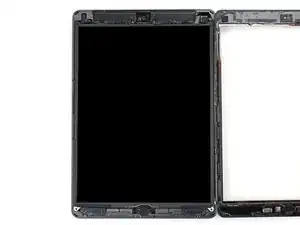
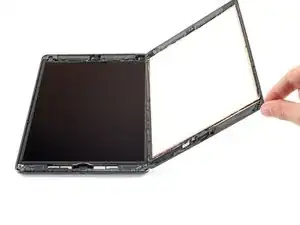
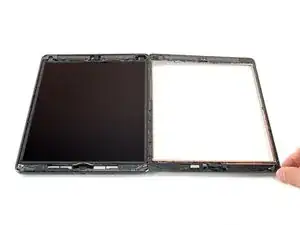
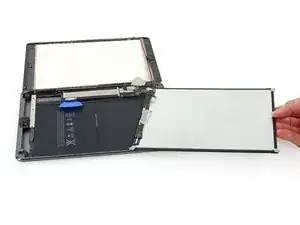
    • Una vez que todo el adhesivo ha sido separado, abre el digitalizador como un libro y déjalo paralelo al iPad.

    • Durante el reensamble, limpia el adhesivo restante del marco, --y del digitalizador si lo estás usando-- con alcohol isopropílico. Reemplaza el adhesivo con nuestras bandas de adhesivo o hojas de adhesivo precortadas.

    • Se consciente de los cables del display cuando reensambles el dispositivo. Asegúrate que están doblados propiamente debajo de la pantalla LCD para prevenir cualquier daño.

  27. UQQJiYXiSLt3Zr2u
    UQQJiYXiSLt3Zr2u
    OJTZ4aYLeO5gC61M
    TkO1pHHgA6i3OCYF
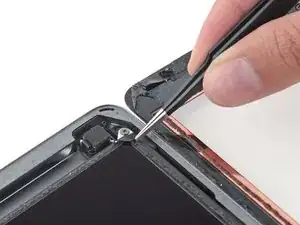
    • Remueve cualquier cinta adhesiva que obstruya los tornillos del LCD

  28. d3dgtSjjAxO1YiVE
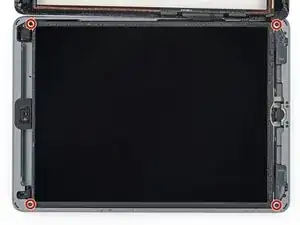
    • Remueve los cuatro tornillos Phillips #00 de 4.3mm que mantienen el LCD

    Both of the iPad 6th gen models i have seen so for (note they were cellular also) had the LCD secured with a grey silicone kind of adhesive in each corner under the screws. So you can’t just lift the LCD as you normally would after removing screws, it would break. I found you could pick at the corner closest to the rear camera easiest, slightly lift that corner and gently separate the other side next to the headphone jack. Then while supporting the LCD , lever the other end free with a up-and-down motion making slight progress each time.

    Anvil Electronics -

    I found the same thing on my 32GB wifi only ipad. Was unable to lift the screen off once I’d removed the screws so followed the instructions above and gently prized the screen up from the top left-hand screw bracket and it came away. Then moved onto the top right hand one.

    mann134 -

    One YouTube video said to dig all that glue out. I didn’t and it seems to not hurt to leave it there but you do have to break free from it.

    Robin -

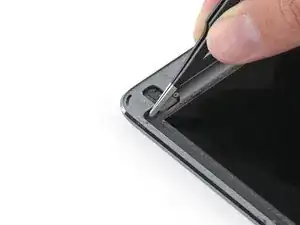
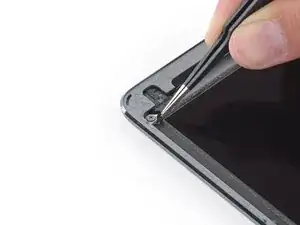
    On my iPad 6, there were small rubber tabs covering the two screws on the front camera side. I carefully held them out of place with tweezers while unscrewing the screws.

    Martin Winter -

  29. cR6vVoaWkLnrHZnU
    cR6vVoaWkLnrHZnU
    PjWMBMpFkiFMvo4h
    ycK5lK3MntiqbwwB
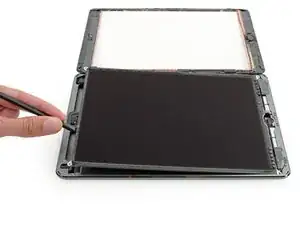
    • No intentes remover completamente el LCD del iPad, este sigue conectado por varios cables en la parte del botón inicio. levanta solamente de la cámara frontal.

    • Usa la punta plana de un spudger para levantar el LCD de su lugar y poderla sostener con los dedos. Puede que haya pegamento alrededor de los agujeros de los tornillos que se tenga que cortar con un cuchillo

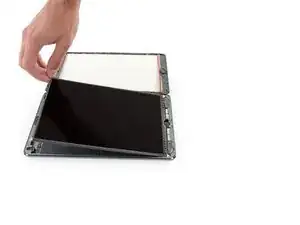
    • Gira el LCD levantando desde la cámara frontal hasta el botón inicio como si fuese un libro.

    • Se gentil y observa los cables del LCD mientras giras la pantalla.

    • Pon la pantalla sobre su cara para permitir el acceso a los cables.

    • Pon el LCD en una superficie limpia y suave para evitar daños.

    When you replace the LCD be sure to make sure it is screwed in fully. It is easy not, especially on the cornet where the digitizer cables are. The LCD is very sensitive and if you bend it then it can stop working. I was just pressing the digitized in place at the end of a repair and the screen was covered in white lines.

    hugh -

  30. GCxoFeK5h5SixExu
    GCxoFeK5h5SixExu
    Mm4BTgqqT56lZ4JY
    fbdcfAMbAPgEWNC1
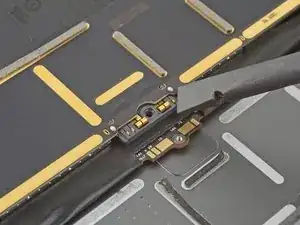
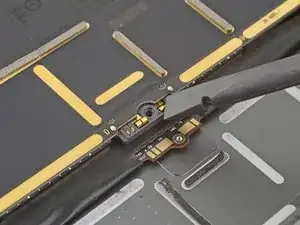
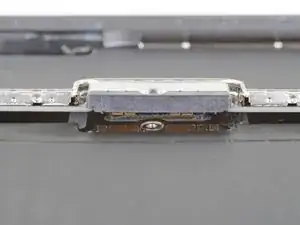
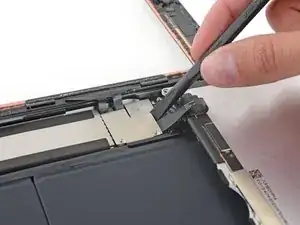
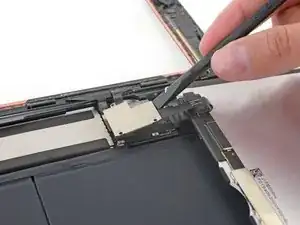
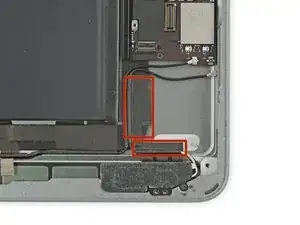
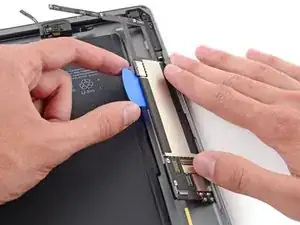
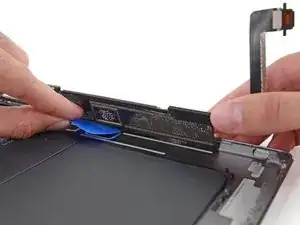
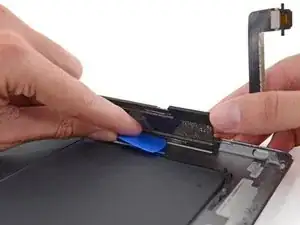
    • Estas fotos muestras como luce un conector de batería debajo de la tarjeta lógica. Usa estas fotos como una referencia mientras desconectas con seguridad la batería.

    • Nota que el conector de la batería tiene muelles voladizos en la tarjeta lógica que presionan en contra de las almohadillas de contacto de la batería. Debido que la tarjeta lógica y la batería están pegadas, necesitarás deslizar algo delgado y flexible entre los puntos de contacto para desconectar la batería.

  31. TpXsLubuOLsZMUPg
    TpXsLubuOLsZMUPg
    LAcvxpjpfWIdE36i
    1QiOl5J5OubEbiYM
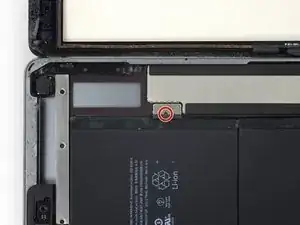
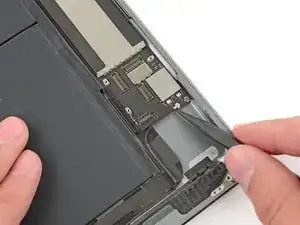
    • Remueve el único tornillo Phillips #000 2.3mm uniendo el conector de la batería a la tarjeta madre

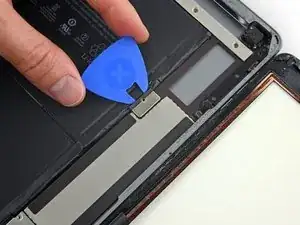
    • Para reducir el riesgo de un corto usando una púa de insolación para desconectar la batería.

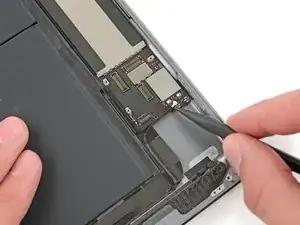
    • Desliza el bloqueador de batería por debajo del conector de la tarjeta lógica en un ángulo de 35 grados.

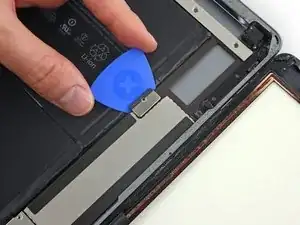
    • No empujes el bloqueador de la batería debajo del conector con demasiada fuerza. Si estas teniendo problemas colocando el bloqueador de batería debajo de la tarjeta lógica, puedes intentar usar un naipe en vez para desconectar la batería.

    • El bloqueador de batería o naipe idealmente debería deslizarse debajo de la tarjeta lógica sin encontrar algún bloqueo. Después de la inserción, debe descansar en un ángulo de 15 grados.

    • Deja el bloqueador de batería en este lugar conforme trabajas.

    If you insert a regular pick without a gap then you can damage this connector and will need a new motherboard. If in doubt just insert into the left corner enough to raise it a tiny bit. Arguably, if you are not sure, then it is safer just power off and don’t power back on until everything is fully connected. A photo of how this connector looks with its cover off would really help for people that have not seen this type of battery connector before. You just need to get it to lift a tiny bit, Do not try to slide anything under the contacts….

    hugh -

    I bumped this darn thing several times, it was twisted and skewed making me freak out but the iPad still works. I am thinking you should pull it out and put the screw back in right after the LCD is removed. Then use it again just before putting the LCD screen back in. The pick is sticking out there waitng to be be bumped.

    Robin -

    Hi Robin,

    Unfortunately, there is no easy way to pull the battery connector out of the logic board. If you try to pry this connector off, you will irreparably damage it. The easiest solution is to insert the battery blocker in-between to cut the power.

    Arthur Shi -

    The battery isolation pick or battery blocker is an outdated way of isolating the battery, as you risk damaging the battery pins underneath the logic board.

    So what is the new method?

    Wil Thieme -

    This is my question as well. Seems like this phrase contradicts the instructions. Confusing. Any reply?

    Melissa Hoffman -

    We are currently working on a better isolation procedure! In the meantime, I’ve updated the warning to hopefully clarify the issue.

    Arthur Shi -

    Why do you need to “To reduce the risk of a short”? There does not seem to by any risk of a “short” in this process. I can see other reasons for disconnecting the battery. I am an electrical engineer so I would appreciate a professional grade answer to this question.

    Rumboogy -

    I’ll give it a shot!

    When you remove the screw, it doesn’t disconnect the battery, as the connector uses spring contacts to touch the battery pads.

    If you leave the battery connected, it leaves the logic board energized. As there are many exposed traces and SMT components on the logic board, there is a chance that you accidentally bridge a trace with a metal tool, resulting damage. In addition, the display connector contains tiny pins, and the pinout is such that if you pry the connector from an energized logic board, there is a chance that a voltage rail pin may accidentally touch something it shouldn’t, blowing out the backlight circuitry.

    Arthur Shi -

    My battery was dead when i did the repair. Did not really need to perform this step

    Igor Kapitanker -

    Take a waterproof playing card, cut out the shape of the battery blocker and slide that under. Battery blocked and pins not at risk of damage. Got that from a YouTube video made by a microsolder repair tech fixing the damage caused by jamming a blocker in between the contacts.

    Melody Fraysier -

    Thanks for the tip Melody! I’ve updated the instructions to include the playing card method.

    Arthur Shi -

    I could not for the life of me get the playing card in there, but my iPad was turned off, so I decided to ‘risk’ a short, instead of potentially damaging the battery connectors by jamming the card in there as hard as possible. My repair went fine, no short, however I realized AFTER closing everything up that I forgot to put the battery screw back in. Really hoping this doesn’t become an issue long term, because I don’t want to pry this brand new screen off just to put the battery in.

    Janie Hughes -

    Let us know! I wasn't able to use the screw again after removing the battery blocker. Now my iPad turns off and on every so many minutes and when it restarts it's 1% and then shows actual charge.

    Martin Hinojosa -

    When you come to screw this back together, do not overestimate how little force it takes to strip the thread on this #000 screw. I did, and I now I can't screw this back down and have the problem where the iPad restarts every 3 mins 20 sec after you turn it on due to a poor connection here. I've used card to pack this out so the LCD puts a little clamping force on the terminal once you screw it back in, but it's not really enough so the iPad still suddenly restarts occasionally.

    Rory Condon -

  32. pSXagHwbWDIelll2
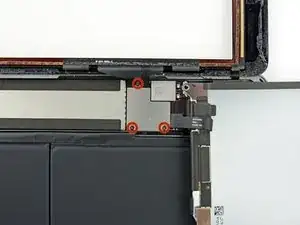
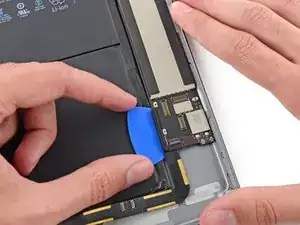
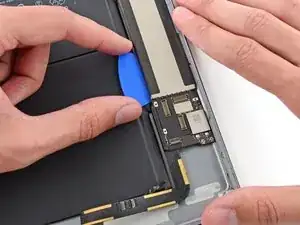
    • Quita los tres tornillos Phillips #000 1.4mm del soporte que mantiene los cables del LCD

    I believe these are also Phillips #00, not Phillips #000.

    Kevin Chatterton II -

    I lost a 1.4mm screw where can I buy these small screws and how big are they? 1.4mm x? flared or flat head

    ferdinando.gregis@gmail.com -

    Is this part important? It seems like I lost it.

    Will -

  33. CDkvW2pOADbCE5mp
    CDkvW2pOADbCE5mp
    bALHMflYomoDEAom
    • Usa la punta plana de un spudger para levantar con cuidado el cable y el soporte juntos de la tarjeta madre

    • El conector de la pantalla esta adherido a la parte baja del soporte, así que no metas mucho el spudger o posiblemente dañes el conector

  34. 2oYyLIWDGMDwn5ni
    • Remueve el LCD del iPad

  35. XyCWjxekvWxnuqOQ
    XyCWjxekvWxnuqOQ
    1vvwCYQqVcoof5FC
    • Remueve toda cinta cubriendo el cable del conector del botón Home.

  36. 1nnYUS6q3BYBMGJE
    1nnYUS6q3BYBMGJE
    SfhjSPRKbgrNF4JP
    kPXHEA5apZYGGZUl
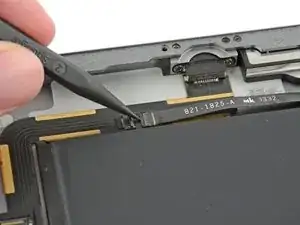
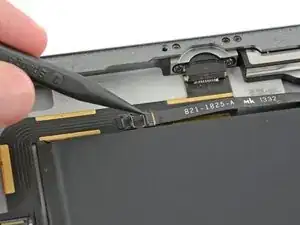
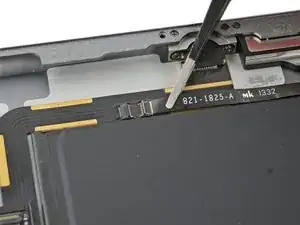
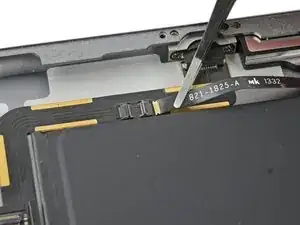
    • Usa el lado plano de un spudger para levantar la pestaña en el conector ZIF del cable plano del botón Home hacia arriba.

    • Cuidadosamente tira el cable plano del botón Home afuera del conector ZIF.

    I'm confused about the home flex cable connector required for the 6th generation iPad. It was my understanding that this model required an 18 pin connector. But these excellent pictures clearly show a 14 pin connector, just like the one for the first generation iPad Air AKA the iPad 5. I know this is not the primary focus of this guide, but can anyone clarify this for me?

    Bonnie Baxter -

    I did the whole repair but this part is the problem HELP !!! I unlocked it but it took me 1 hour to carefully pull out the HOME BUTTON RIBBON CABLE. It finally came out with tweezers but now I CAN'T GET IT BACK IN and as a result my touch I.D. won't activate. It seems there was a tiny bit of black tape overlapping the connector on the ribbon which I carefully cut off exposing only the connector on the ribbon itself but how the heck does it slide in before you lock it. It seems easy on Youtube videos but mine just doesn't slide in with hand or with tweezers. OR in fact is there another connector that controls the TOUCH I.D. ???

    Just a guy -

  37. bJwcDG4kFHJhGDIj
    bJwcDG4kFHJhGDIj
    ZdkVYykjGYHsGQGm
    XBHwTrTJUOej1eIU
    • Usa el lado plano de un spudger o una uña para cuidadosamente despegar los dos cables del digitalizador de su conector.

    • Para evitar dañar tu iPad, tira solo del conector en sí, no en el zocalo en la placa lógica.

    • Durante el re-ensamble, asegura que estos conectores están completamente sentados en su zocalo, o puede que encuentras problemas con la pantalla.

    Where can I get a good used motherboard for a A1954 iPad 6 gen everywhere I look, there sold out ?...

    Trent Weaver -

  38. IZgunLOMRiiOPIQX
    IZgunLOMRiiOPIQX
    TdHG1uN6NbfujTC2
    • Cuidadosamente pela el cable plano del botón Home de su adhesivo manteniéndolo a la carcasa posterior.

    If you can make sure to not pull on the home button side, i would leave out this step. i replaced two displays so far, on the first i removed it, but left it connected on the second attempt. worked like a charm

    Tommy Wienert -

  39. WaJMIvf2e2QUlJsQ
    WaJMIvf2e2QUlJsQ
    vdolqRB3iEWSTWhO
    • Remueve el ensamble del panel frontal.

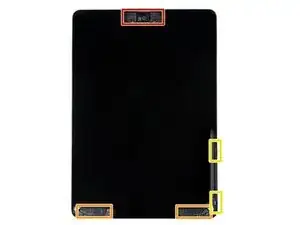
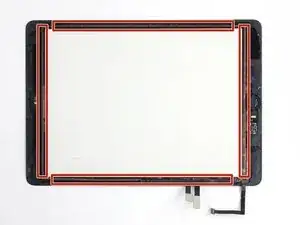
    • Si estas experimentando problemas "fantasma" o "espectro" con la entrada de touch en tu nueva pantalla, esto puede ser resuelto añadiendo una capa de cinta aislante muy delgada, como cinta (poliamida) Kapton, a las áreas destacadas en la parte de atrás del panel. Paneles de iFixit vienen con aislante apropiado, y no deberían requerir la adición de cualquier cinta.

    • Sin aislante apropiado, estas áreas del digitalizador pueden conectarse a tierra con otros componentes, causando problemas de la entrada de touch.

    • El aislante no es visible a simple vista, y es diferente de las tiras de barrera de espuma de polvo encontradas en muchas iPads.

  40. JEodTPTFmvaeaxMF
    JEodTPTFmvaeaxMF
    5nEtUOHF4mG6L52h
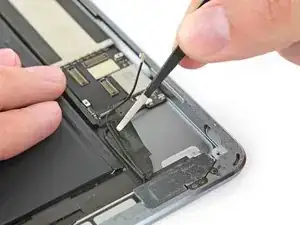
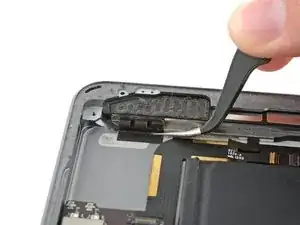
    • Inserta un spudger debajo del cable de antena más cercano al borde del iPad y levántalo para desconectar el conector del cable de antena.

    Skip to the step 98 or even 100 if you just need to replace the power button - I think you should even consider this to replace volume buttons. I am fixing mine right now and screwed up the speaker cable. I did follow the instruction but totally missed the cable right below the tape. I proceeded further, but I just realized I didn't have to go through all the troubles. I wish ifixit.com can manage this type of direction clearly so that dis-assembly is minimum.

    msgfromside3 -

    After you replace the Digitizer if you are getting random key presses it is likely to be because Kapton tape has not been applied to the edges of the digitizer. You need to cover the silver strip around the edge of the digitizer with kapton tape before reassembling. Works every time.

    Richard -

    This is my first ipad and when the battery dies, it will be my last, way overrated and no options like memory cards or mini usb ports, and the battery thing is ridiculous,I wish I would have never bought this knowing this stuff , and way over priced.

    Gary -

    It always helps to Google something before buying it. "iPad Air reviews" in Google would have saved you. I just find it funny how in this day and age, people STILL make "purchase mistakes" because they didn't take the time to research the several-hundred-dollar device they are about to commit to purchasing. You should have seen the amounts of research I did before buying my $1,399 Asus G751JY laptop. I'm absolutely pleased with it and am happy I don't deal with issues other people have. Just be weary, buddy. ALWAYS GOOGLE.

    Scott S -

    If you just want to replace the battery, skip to step 99. You can easily get to most sides of the battery without removing all other components. It worked for me. Good luck!

    Thomas Van den Dries -

    I wish I read this comment. Would have saved me a lot of time.

    leo -

    I followed your piece of advice and went to step 99. My new battery works just fine without removing all those components including the logic board - thanks a lot!!

    Charlotte M -

    An important note - as per the comments lower down, you can skip ahead to step 95 (unsticking the battery) just fine if you're just changing the battery, but after you've unstuck the battery you will need to go back to step 88 and soften the logic board adhesive so you can pry it up about a cm and lift the battery terminal up and over the post to remove it. I didn't realise the post was there, and broke off a piece of the original battery terminal that got stuck under the logic board. This prevented a good connection with the new battery, and caused random restarts after I put everything back together until I realised and went back to recover it.

    Rory Condon -

    Don’t skip to 99 because you need to remove the logic board.

    Cesar Hernandez -

    I have successfully replaced the Battery without removing any components other than the Screen Assembly and LCD. You can skip steps 44 thru 99 by using a spudger as a wedge to lift & hold the Logic Board high enough to lift the battery contact over the post that holds it in place… this will save you a lot of time and frustration and makes the repair sooo much easier.

    firestormmedia -

    My goal was to replace the battery. As some suggested I skipped some steps. I did Step 46 and left out 47 to 100. But I think Step 46 can be skipped too. iFixit probably does not recommend skipping these steps because it is riskier to bend the batteries and damage them. But if you work carefully enough and make sure the adhesive has been softened well, you should be fine. It was no problem for me. It saved me quite some time. (I will write a comment in Step 102 to help you get the batteries out without Steps 46-100.)

    marcelflueeler -

  41. 4YGsF6cTIbsxIAIM
    4YGsF6cTIbsxIAIM
    omA1sev5o2qj2WVK
    NkhFGa2iFORkIKIi
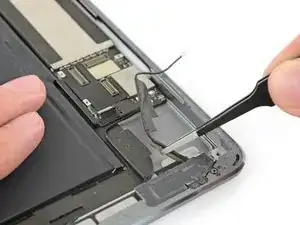
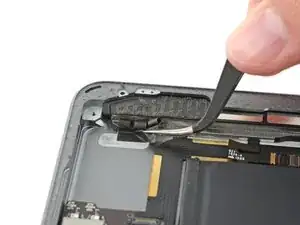
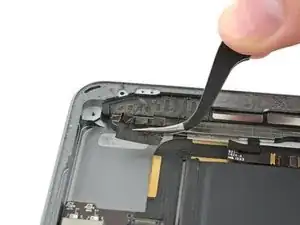
    • Hay dos piezas grandes de cinta envueltas alrededor del cable de antena derecho, asegurándolo a la carcasa trasera.

    • Despega la cinta de la caja trasera.

    • Mientras despegas la cinta de la antena, déjala en su lugar en el cable de la antena para ayudar con el reensamblaje.

  42. 6Lvj13JmylaQOMFu
    6Lvj13JmylaQOMFu
    VEfcomBQ6jNpIqWw
    ysIlEWOtJrEe5aqJ
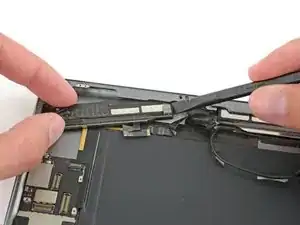
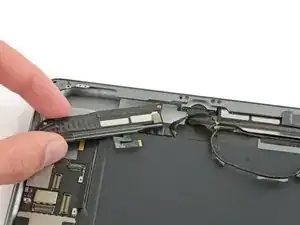
    • El cable de la antena está anclado al altavoz con un pequeño soporte de metal. El soporte está engarzado permanentemente a la antena y adherido a la caja del altavoz.

    • Inserte cuidadosamente una púa de apertura entre la caja del altavoz y el soporte del cable de la antena.

    • Desliza la púa hacia el botón de inicio para cortar el adhesivo.

    • Empuja el soporte lejos del altavoz hasta que despeje la cinta debajo.

    The pick was not thin enough but the razor worked.

    Moon & Snow -

    In my view there is a few destructive steps here. I have been able to remove this entire assembly by lifting only the adhesive tape anchoring it to the back without touching this fine metal bracket as touched in in Step 46 & 63 or tearing the foam in Steps 48 & 65 on both the left & right sides. Remove the screws as in Step 47 & 57 and the one’s either side of the charging port in 64 & 71. Once removed, the only thing securing these to the rear is adhesive tape. Lift the tape and walk the units out by nudging them from side to side.

    Neil Cross -

    Thanks. Made the whole next chunk much simpler :)

    Sarah Ybarra -

  43. KsmNcePCA3kLXZKL
    • Quita los siguientes tornillos Phillips # 000 que sujetan la antena derecha:

    • Un tornillo de 2.3 mm

    • Dos tornillos de 1.4 mm

  44. SGV2KrPlrLSHOhb2
    SGV2KrPlrLSHOhb2
    St255ufckLASEIbo
    wuonCPRvDSNtAOCO
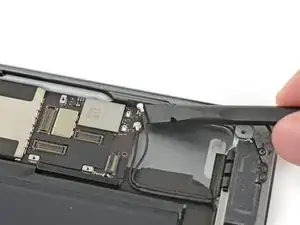
    • Inserta el extremo plano de un spudger entre la antena y el conjunto del altavoz.

    • Desliza el spudger hacia el botón de inicio para cortar el adhesivo de espuma que asegura la antena.

    Este paso es innecesario, ya que con solo quitar los tornillos es suficiente, no hace falta despegar la goma espuma que mantiene la antena de la bocina.

    Anthony Aguilar -

  45. tRJSBL5qs6jSAfcV
    • Quita la antena derecha del iPad.

  46. lbqhGsvc3RUfARbx
    lbqhGsvc3RUfARbx
    bmrTjqEVlE5Cf3ld
    • Inserta un spudger debajo del cable de antena izquierdo y levántalo para desconectar el conector del cable de antena.

  47. D3QASPvNfAUbKHWX
    D3QASPvNfAUbKHWX
    i5kklKjdUEb6drfV
    KW66CPLpRDcXXofj
    • Hay cinco piezas de cinta envueltas alrededor del cable de antena izquierdo que cubre el conector del cable del altavoz derecho.

    • Despega la cinta de la carcasa trasera.

    • Dobla el cable de la antena fuera del camino.

    What can I do if I accidentally peel

    off the speaker ribbon from both

    speaker connecters? Can I get a replacement part?

    mike -

    This step was not very well explained. It fails to mention the speaker cable attached on to the tape. This caused the speaker cable to be torn since it is so thoroughly attached to the tape. Guide made no mention that it was under there or that you should be careful about it. Not even the usual remove the tape gently they just tell you to rip it right off no problem. Not sure how this was missed when the guide was so thorough about this beforehand.

    Holden Bott -

  48. nF1cxZtWeqP4Gpk6
    nF1cxZtWeqP4Gpk6
    sQdaveGlcO13JJHi
    • Una curva en el cable del altavoz hace que sea difícil despegar la cinta desde el extremo.

    • En su lugar, agarra la cinta justo debajo del altavoz y pélala hacia abajo, lejos del borde de la carcasa.

    • Ten cuidado con tus pinzas, solo agarra y pela la cinta, y no el cable debajo.

  49. RLRPfHYaFQJTlqMK
    RLRPfHYaFQJTlqMK
    BBAwVwgHBHrD5MPU
    YKm3RQPMPWeqMGUv
    • Despega la cinta hacia el botón de inicio para descubrir el conector del cable del altavoz.

  50. lcsFOwredOQCmv6w
    lcsFOwredOQCmv6w
    vRlgVRIGBniee6Nc
    pujBlZWsX1OZAcLb
    • Usa el extremo puntiagudo de un spudger para voltear la aleta de retención en el conector del cable del altavoz derecho.

    • Desliza el cable del altavoz hacia afuera de su conector ZIF.

  51. kD5xOrVXvbaNBXHT
    kD5xOrVXvbaNBXHT
    qYDaXSo6ic1SUOkq
    j2PsCctFKEZwDIVT
    • Quita la cinta que sujeta el altavoz a la carcasa trasera.

  52. c1M6PDoDtLFXDUTj
    c1M6PDoDtLFXDUTj
    eFo1xrJHHEynimZC
    qBjaDEiM3TwUsQtT
    • Quita con cuidado la cinta de búfer LCD de la carcasa trasera.

  53. GNx6cCrswYZ4mgZ1
    • Quita el tornillo Phillips # 000 de 2.2 mm que fija el altavoz a la carcasa trasera.

  54. 46AU2SLS64FxrgiE
    46AU2SLS64FxrgiE
    TNSdjc4WsUnAp412
    wewTvI4fYYW5O2yj
    • Inserta una uña o el extremo plano de un spudger en la ranura de la carcasa del altavoz, cerca de la esquina de la carcasa trasera.

    • Tira del altavoz hacia abajo, lejos de la esquina de la carcasa.

    It is really not necessary to remove either speakers for a logic board swap.

    sergeymkl -

  55. KFCHIYopCLRJun4c
    KFCHIYopCLRJun4c
    LFSPrNRCIZhlCquG
    RADKhGgGbH2MXRbZ
    • Usa un spudger para ayudar a sacar el altavoz de debajo del borde de la carcasa trasera.

    • Quita el altavoz derecho del iPad.

    When did you remove the blocker after installing the battery blocker? No photos with blockers after this procedure.

    Prof.Sakamoto -

  56. SMpLAnhC2ov4ihqe
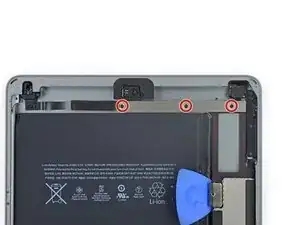
    • Quita los tres tornillos Phillips # 000 de 1.4 mm que sujetan el soporte del cable del componente superior.

  57. msdIRSyC2BxbHMba
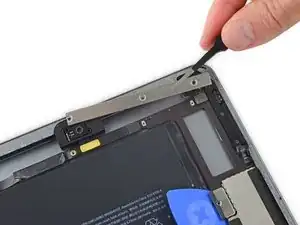
    • Quita el soporte del cable del componente superior.

    • Si tienes el modelo Wi-Fi / Cellular, tu iPad se verá ligeramente diferente y requerirá la extracción de dos tornillos adicionales para acceder a los componentes cubiertos por este soporte.

  58. OKGNQK6baPd5rvnQ
    OKGNQK6baPd5rvnQ
    fCUoXGRCD1GYKYpH
    • Hay dos trozos de cinta restantes que aseguran el cable de antena izquierdo a la carcasa trasera.

    • Despega la cinta de la caja trasera.

  59. 5UbTdJxHZSIjNmmG
    5UbTdJxHZSIjNmmG
    NXXDTQRvYi4DNUS5
    sne5rWJJWaH2E2KW
    • Inserta cuidadosamente una púa de apertura entre la caja del altavoz y el soporte del cable de la antena.

    • Desliza la selección hacia el botón de inicio para cortar el adhesivo.

    • Empuja el soporte lejos del altavoz hasta que quede libre de la cinta debajo.

  60. UBGoQho62v4mVphl
    • Quita los siguientes tornillos Phillips # 000:

    • Dos tornillos de 1,4 mm.

    • Un tornillo de 2.3 mm

    I didn’t need to take the left antenna and speaker out. If you just get the wire and tape out of the way so you can unplug the speaker flex cables and take out the lightning connector, then you should still be able to get the logic board out. the left speaker isn’t in the way at all.

    Reed Deemer -

  61. eVYbNXA4x3KnOwwo
    eVYbNXA4x3KnOwwo
    mWdOoCwIkJZqJL4C
    ESQkPIHbWypw13RQ
    • Inserta el extremo plano de un spudger entre la antena y el conjunto del altavoz.

    • Desliza el spudger hacia el botón de inicio para cortar el adhesivo de espuma que sujeta la antena.

    Este paso es innecesario, ya que con solo quitar los tornillos es suficiente, no hace falta despegar la goma espuma que mantiene la antena de la bocina

    Anthony Aguilar -

  62. TIimetMKDEKeB3Rh
    • Quita la antena izquierda del iPad.

  63. FK4Q1TSFAb1ZXuZu
    FK4Q1TSFAb1ZXuZu
    JjXXKiPB51qPIFeI
    • Quita la cinta que cubre el conector del cable del altavoz izquierdo.

    Pulled out the connector doing this step. Best to hold down cable while pulling tape.

    doug -

  64. DtxQZZlfxXYZLh5Y
    DtxQZZlfxXYZLh5Y
    s556XsxdM1gddcLl
    • Usa el extremo puntiagudo de un spudger para voltear la aleta de retención en el conector del cable del altavoz izquierdo.

  65. XVjvyUaECCBLKJWV
    XVjvyUaECCBLKJWV
    BOE4pquTBdnnIIgZ
    • Desliza el cable del altavoz hacia afuera de su conector ZIF.

  66. s4VVlCmNLTuZb2uc
    s4VVlCmNLTuZb2uc
    6uLY25GbRDy1uFHn
    • Retira la cinta que sujeta el altavoz a la carcasa trasera.

  67. unvEw21H3pDkUihJ
    • Quita el tornillo Phillips # 000 de 2.2 mm que fija el altavoz a la carcasa trasera.

  68. 6LiY1CdZfkFv1elV
    6LiY1CdZfkFv1elV
    UAUJKPDRiffUgT3h
    • Dobla suavemente el cable plano del altavoz izquierdo hacia arriba para que libere la batería cuando deslices la caja del altavoz.

  69. qrOpLR5DbDZ3bjFM
    qrOpLR5DbDZ3bjFM
    GAX11wFVkpHOmHWy
    f5CsYMMe4xKMbUcB
    • Inserta una uña o el extremo plano de un spudger en la ranura de la carcasa del altavoz, cerca de la esquina de la carcasa trasera.

    • Tira del altavoz hacia abajo, lejos de la esquina de la caja.

  70. lhG2CahJZQiML1W4
    lhG2CahJZQiML1W4
    a2BI11wKVW5Nfbrf
    lYgsna5QhWvKSI3Y
    • Usa un spudger para ayudar a sacar el altavoz de debajo del borde de la carcasa trasera.

    • Quita el altavoz izquierdo del iPad.

  71. AFYGEdKme64wH3g3
    AFYGEdKme64wH3g3
    wIcUaIBZpwbkkPEA
    ANcjma5fdxdR1Lvi
    • Usa el extremo plano de un spudger para desconectar el conector frontal de la cámara de la placa lógica.

    • Haz palanca solo en el conector, no en el zócalo.

    • Dobla el cable de la cámara frontal hacia afuera.

    • Hay un poco de adhesivo conductor entre los contactos del cable de color dorado. Asegúrate de aplicar presión para volver a leer estos contactos durante el reensamblaje.

  72. dcLbpEPcCyGtZSke
    dcLbpEPcCyGtZSke
    FxpIhmhtnyOqvmxK
    knKWvIbjQqcWu5ne
    • Usa el extremo plano de un spudger para desconectar el conector de la cámara que mira hacia atrás de la placa lógica.

    • Haz palanca solo en el conector, no en el zócalo.

    • Dobla el cable de la cámara que mira hacia atrás fuera del camino.

  73. KGkATqRyL2touSlN
    KGkATqRyL2touSlN
    gtGRV1DaTXp3bCZY
    yIJ1OOHA6syGgMJv
    • Usa el extremo plano de un spudger para desconectar el conector jack de auriculares de la placa lógica.

    • Haz palanca solo en el conector, no en el zócalo.

    • Las nuevas unidades de iPad tienen un bucle de cinta que conecta este conector a su zócalo en la placa lógica. Esta cinta debe cortarse para desconectar la toma de auriculares.

    • Dobla el cable de la toma de auriculares fuera del camino.

    Note for others. On this connector, i have some tape keeping it down, it's rather difficult to remove without ripping it. So i ripped the tape to remove it.

    justin Booras -

  74. LGx5PQcJIbNt6fYZ
    LGx5PQcJIbNt6fYZ
    c2ySd2yFhgmmVYv6
    • Usa el extremo plano de un spudger para desconectar el conector del cable del micrófono de la placa lógica.

    • Haz palanca solo en el conector, no en el zócalo.

  75. cbLMxr3Uwh1fq2VV
    cbLMxr3Uwh1fq2VV
    Drrg4UaMJ1g2IApf
    • Quita cualquier cinta que cubra el conector del cable del conjunto del botón superior.

  76. 1gi5DqXk5vdhEfSJ
    1gi5DqXk5vdhEfSJ
    cbtNEeAuMBwCxPZx
    • Usa el extremo puntiagudo de un spudger para levantar la aleta de retención en el conector del cable del conjunto del botón superior.

  77. ngQvAbiPFoEhE32C
    ngQvAbiPFoEhE32C
    bHOOBFCKXEPMU6yZ
    • Desliza el cable del conjunto del botón superior hacia afuera de su conector ZIF.

  78. r6GAcuojgusGtfUe
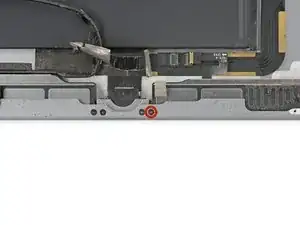
    • Quita los dos tornillos Phillips # 000 de 3.3 mm que sujetan el puerto Lightning.

    • Para encontrar estos tornillos, sostén el iPad verticalmente y mira en el puerto Lightning.

    NOTE for others who might miss this: this picture is looking down, out the bottom of the iPad. There are four other screws near the lightning port, two for the speakers and two for the port. You see these four easily, looking down at the battery and motherboard. These two are additional to those, and perpendicular to them. Both pairs of lightning port screws, one set perpendicular to the other, must be removed.

    Bonnie Baxter -

    Where did the battery blocker go? It was introduced in step 35. Nowhere has it been said it can be removed . . . yet it is now absent in this picture. I took it out when I got to steps 93-96.

    Randy Burgess -

    Yes this is a deceptive image as the battery and connector strap seem to be missing. Hold your iPad vertically and look down at the lightning port and you’ll see these hidden screws.

    Rusty -

    Thanks for your comment! I’ll add a note in the step.

    Arthur Shi -

  79. ZDh5ynVlQZUPFW5Z
    ZDh5ynVlQZUPFW5Z
    DadxKaYWBchdinVT
    H1cJbLnXwBMBb5b6
    • En los próximos pasos, usarás un iOpener para aplicar calor a la carcasa trasera del iPad para ablandar el adhesivo que mantiene la placa lógica en su lugar.

    • A medida que recalientas y colocas el iOpener en cada una de las ubicaciones indicadas, déjalo en su lugar durante al menos un minuto para ablandar el adhesivo a través de la carcasa trasera.

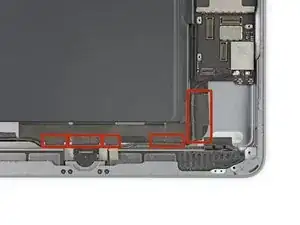
    • El adhesivo tiene la forma de seis piezas de cinta de espuma negra; consulta este paso mientras trabajas calentando y haciendo palanca para realizar un seguimiento de dónde se encuentra cada pieza.

    Thread a piece of dental floss under the tip of the logic board. Be careful when rounding the corner not to snag any ribbon cables. This easily released the foam tape up to the battery connector.

    ROBERT MORELLA -

    Les 2 images suivantes sont contradictoires. elles donnent l'impression de devoir enlever la carte mère.

    Humair -

    @totoy Effectivement, cela peut-être perturbant, mais ces images servent de référence et expliquent où se trouvent les six morceaux d'adhésif qu'il va falloir décoller au cours des étapes suivantes pour retirer la carte mère.

    Claire Miesch -

  80. uCKylSOeGWxOEivI
    • Coloca un iOpener calentado sobre el extremo de la cámara que mira hacia atrás del iPad y déjalo reposar durante al menos un minuto para suavizar el adhesivo a través de la carcasa trasera.

    • Dejarlo más tiempo no es problema, pero es posible que debas recalentar tu iOpener y volver a aplicarlo si lo dejas en la carcasa trasera durante demasiado tiempo.

  81. ZRLZuaGwLEYS3eOR
    ZRLZuaGwLEYS3eOR
    eVXuyu2ssHmA55es
    nSIKZAsGXniFlHKC
    • A medida que completas los siguientes pasos, haciendo palanca en el adhesivo que asegura la placa lógica en su lugar, siempre comienza probando suavemente para ver si el adhesivo se está ablandado. De lo contrario, recalienta el iOpener y vuelve a aplicarlo en la parte posterior de la carcasa trasera.

    • Inserta cuidadosamente una púa de apertura debajo de la placa lógica, entre la cámara frontal y la batería.

    • Desliza la púa hacia el conector frontal de la cámara y detente en la curva de la placa lógica.

  82. hyIQXCHGZPPQYy64
    hyIQXCHGZPPQYy64
    1eDFUlEn5Q2auXWF
    ZYxDNNslydXfDAyo
    • Desliza una púa de apertura debajo de la placa lógica desde la cámara frontal hacia la cámara posterior.

  83. qXKKyEQxLfqDg3Ci
    • Coloca un iOpener calentado a lo largo del borde inferior del iPad.

    • Nuevamente, deja que el iOpener repose durante al menos un minuto para ablandar el adhesivo a través de la carcasa trasera.

  84. RaDxnvxuhfWLnUFE
    RaDxnvxuhfWLnUFE
    F44x2ZyleA2FTipp
    HaLZGUmecKy4SFL2
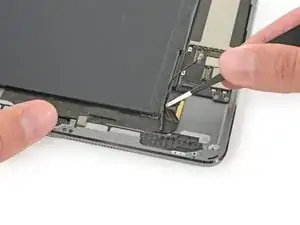
    • El cable del conector Lightning está pegado a la carcasa con algo de adhesivo. Para despegar el adhesivo, deslizarás una púa de apertura entre el cable y la carcasa. Ten mucho cuidado de no cortar el cable del conector Lightning.

    • Inserta una púa de apertura debajo del cable Lightning donde se encuentra con la placa lógica.

    • Desliza la púa hacia abajo y alrededor de la curva del cable.

  85. AdovD1W4CRSIBOfk
    AdovD1W4CRSIBOfk
    ZRUXwQ2CRCijgmPY
    • Continúa deslizando púa de apertura debajo del cable, deteniéndote antes de que el cable se doble al conector Lightning.

    • Muévete despacio y con cuidado. Si la púa de apertura no se desliza fácilmente, aplica más calor e intenta nuevamente. Si utilizas una fuerza excesiva, es probable que resbales y cortes el cable del conector Lightning.

  86. jYyxFUFTqCgFCCng
    jYyxFUFTqCgFCCng
    pQPquNbSILiITlpS
    • Finalmente, desliza la selección de apertura entre la batería y el conector Lightning para separar el último adhesivo debajo del cable.

    There are two screws holding the lightning connector to the rear case, I didn’t see them in this guide. I recommend removing them before you attempt to remove the lightning connector, otherwise you’ll look like an idiot struggling with it for around 1/2 an hour like I just did.

    Will Young -

    I had this problem too!!

    Jocelyn Hall -

    Will Young is correct. The two extra screws are horizontal - they are in addition to the vertical screws mentioned in step 82.

    Randy Burgess -

    @usablethought AFAIK there are only two screws securing the actual port to the chassis. You can tell by looking at the part—there are only two screw holes. Those additional screws can be left in place, as shown in the photos. At least, that was my experience. If you’re working on a different model, then of course you may need to improvise—the instructions are only for the model indicated.

    Jeff Suovanen -

  87. lCJNgg2NW6HKnK6c
    lCJNgg2NW6HKnK6c
    WYL4jHRnASDrKIHa
    • Extrae el conector Lightning de su hueco en la carcasa trasera.

    there were two screws holding the lightening connector in place on my iPad

    Nate Czupinski -

    Yep! In this guide those screws are removed in Step 82, but you can remove them at any point prior to taking out the Lightning connector.

    Jeff Suovanen -

    CAUTION - there are two ‘hidden’ screws holding the lightning port that face the battery. Hold the iPad vertically and look down to see them. I almost broke the cable trying to remove it thinking it was just stubborn adhesive. Yes its mentioned at Step 82 but its a confusing illustration and easily overlooked.

    Rusty -

  88. b2pZ21ijCiOvRbbA
    • Coloca un iOpener calentado en el lado izquierdo de la carcasa trasera, donde está adherida la placa lógica.

    • Deja que el iOpener repose durante al menos un minuto para ablandar el adhesivo a través de la carcasa trasera.

  89. 1NkMsUHT53PTRCjw
    1NkMsUHT53PTRCjw
    GjAYioJKNCCOJdTa
    XihXB31QutYs15rS
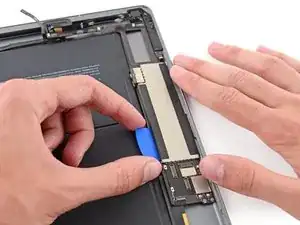
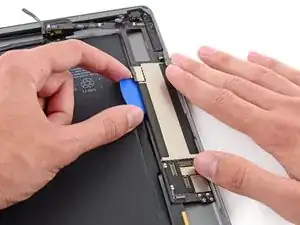
    • Inserta una herramienta de apertura de plástico en el espacio rectangular en el área superior de la placa lógica y levanta la placa lógica desde la carcasa trasera.

    • Mientras mantienes la herramienta de apertura debajo de la placa lógica, deslízala hacia abajo a lo largo del espacio para liberar el extremo superior de la placa lógica del adhesivo.

  90. CuxZnRBNuAyOUXND
    CuxZnRBNuAyOUXND
    4bTUdrBNMHbGPuiv
    RkwJIkpPYNYHHhbt
    • Levanta la placa lógica en el borde inferior del espacio rectangular, cerca del escudo EMI.

    • Levanta el extremo de la placa lógica lentamente. Si encuentras una resistencia significativa, deja de hacer palanca y vuelve a aplicar el iOpener.

  91. SNSY4Q5TnLiledfR
    SNSY4Q5TnLiledfR
    xAnVyZEdU4UH4E1f
    5ToFeiOuawfbeQRM
    • Desliza una púa de apertura debajo de la placa lógica entre ésta y la batería.

    • Desliza la púa desde la base hasta el centro de la placa lógica para cortar el adhesivo.

    • Ten cuidado de no cortar la batería con la púa de apertura; Una batería pinchada puede ser muy peligrosa. Si encuentras resistencia, recalienta y vuelve a aplicar el iOpener.

  92. l4CLYE5ouFhHT6NR
    l4CLYE5ouFhHT6NR
    IMrfA3Yhnhq2Tjiv
    4SyQYQYvRqWGl2Qi
    • Desliza la púa a lo largo de la placa lógica.

    • Una vez que se haya cortado el adhesivo, levanta el lado de la batería de la placa lógica hacia arriba de la carcasa trasera.

    Don't touch the small components which are under the motherboard !!! If you do it your iPad is definitively dead.

    Easy Repair -

  93. jaVRdG2sai5QjLBB
    jaVRdG2sai5QjLBB
    yN2UZlJeArNvghJX
    • Continúa levantando la placa lógica a lo largo del borde más cercano a la batería, hasta que pueda poner una púa de apertura contra el borde más alejado de la placa lógica.

    • Corta cualquier adhesivo que sostenga el borde exterior de la placa lógica a la carcasa trasera.

  94. W536aMoShTseB6SZ
    • Quita la placa lógica del iPad.

    Nice guide, thank you, very helpful. There would be no way to guess where the glue stripes are located and a couple of connectors are very difficult to spot. I don't see any need to remove the antennas and the speakers though, they are not really an obstacle to remove the board and can be left in place. The lightning connector is secured in place by two other two horizontal screws which are not shown in the guide.

    Thanks again !

    arbaman -

    This is a bear of a job, and I wouldn’t have had any hope of completing it without this guide. THANK YOU for all your hard work!!!!

    Bonnie Baxter -

  95. mIPL5R2a43otfbir
    mIPL5R2a43otfbir
    yStvH5oU4qs3GuOX
    mcFRHeSuUM5l5eFj
    • Los siguientes pasos te indican que uses calor para ablandar el pegamento que sujeta la batería. Una alternativa más segura es inyectar un disolvente, como el limpiador de adhesivo iFixit, entre la batería y la carcasa trasera para disolver el adhesivo.

    • Recalienta el iOpener en el microondas durante 30 segundos.

    • Recuerda tener cuidado de no calentar en exceso el iOpener durante el procedimiento de reparación. Espera al menos dos minutos antes de recalentar el iOpener, y nunca lo calientes por más de 30 segundos.

    • Coloca el iOpener calentado en el centro de la parte trasera del iPad. Déjalo reposar así por 90 segundos para ablandar el adhesivo de la batería.

    • Mueve el iOpener a la derecha (lejos de la cámara trasera), y deja el iOpener reposar por otros 90 segundos.

    • Finalmente, mueve el iOpener al borde derecho del iPad for 90 segundos.

    • El iOpener se puede enfriar bastante entre las sesiones — si lo hace, recaliéntalo por otros 30 segundos entre cada posición.

  96. VwnngtrMDbhIgiQh
    VwnngtrMDbhIgiQh
    xkMVpB1XRUQRPYKD
    rG1gBTHmHZxyycfA
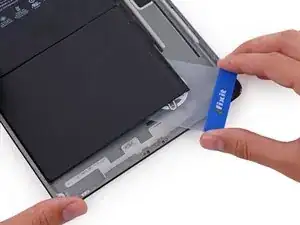
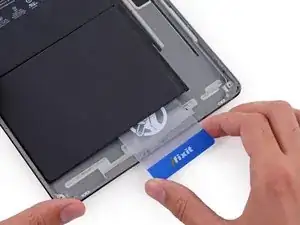
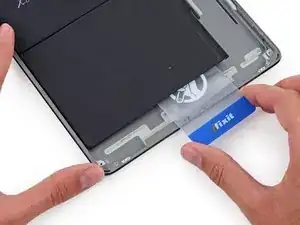
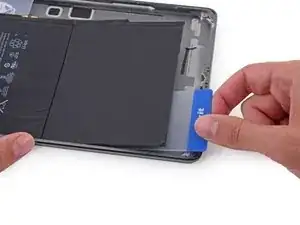
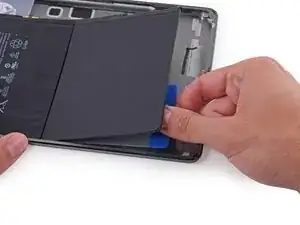
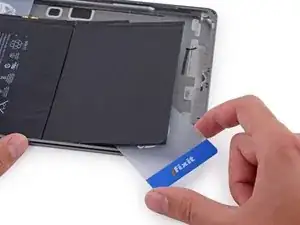
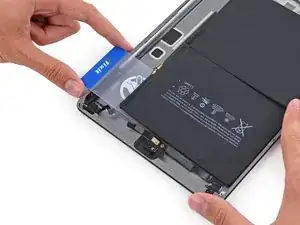
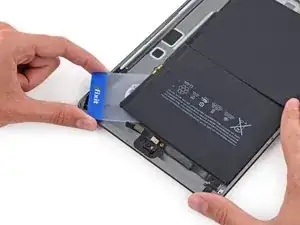
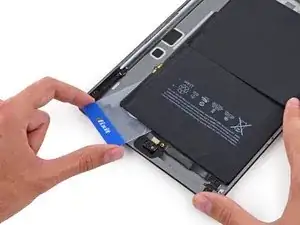
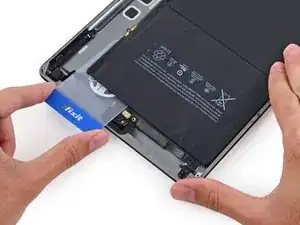
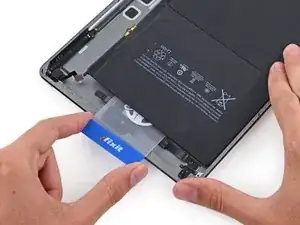
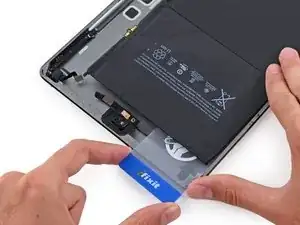
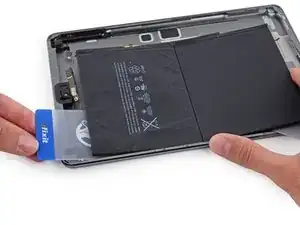
    • Durante el siguiente procedimiento, deslizarás tarjetas de plástico delgadas entre la batería y la carcasa trasera del iPad, para separar el adhesivo que asegura la batería. Ten cuidado de mantener las tarjetas lo más planas posible para evitar doblar la batería, lo que puede dañarla y liberar sustancias químicas peligrosas.

    • Inserta una tarjeta de plástico debajo de la celda inferior de la batería, en la esquina inferior derecha.

    • Si encuentras una resistencia significativa, vuelve a calentar el iOpener y repite el paso anterior para darle más tiempo al adhesivo para que se ablande.

    Did you skip Step 46 through 100, then this is for you: Because the logic board is still in, you will have less space to loosen the battery pack. Be extra careful not to bend it. Work from the sides that are more accessible like in Step 113 and slowly work your way underneath the battery pack to loosen it all over. As I was loosening the battery I had the heated iOpener underneath the part I was working on. This really helped a lot. And be patient. You do not want to force it.

    marcelflueeler -

    First of all, thanks @marcelflueeler and everyone else who gave advice on skipping ahead. This is definitely the way to go if you're just changing a battery! Once you've unstuck the battery you'll find you can't pull it out because it's stuck at the terminal though. Don't try and force it here! You'll need to return to step 88 and soften the logic board adhesive so you can pry it up about a cm, then you can lift the battery terminal up and over the locking post that's holding it in place. I didn't realise this and broke a piece of plastic off the old battery terminal, which got lodged under the logic board and prevented a good battery contact until I realised and retrieved it.

    Rory Condon -

  97. LE6ZpAFUTqtYEbqC
    LE6ZpAFUTqtYEbqC
    1VEPPNSSs53gVwmV
    CBeQTwNyxBwXhI6S
    • Con la tarjeta insertada aproximadamente a la mitad, deslízala hacia la parte superior del iPad, deteniéndote antes del contacto de la batería.

  98. LkHT3kXLxcHTAEYN
    LkHT3kXLxcHTAEYN
    VXB4Xv4FwCtgN5jB
    GhbDSlN3DCohU1o2
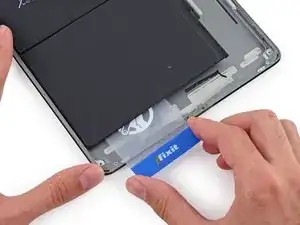
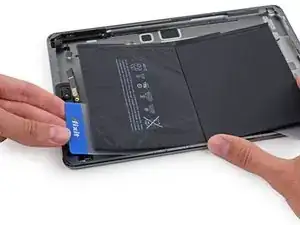
    • Levanta ligeramente la tarjeta de la carcasa trasera para permitir que pase sobre el poste de montaje del contacto de la batería.

    • Desliza la tarjeta desde el centro de las celdas de la batería hasta la esquina superior derecha de la batería.

  99. FvPyNDcBxtIEXHpB
    FvPyNDcBxtIEXHpB
    qAWmPnQOw6vjPq4j
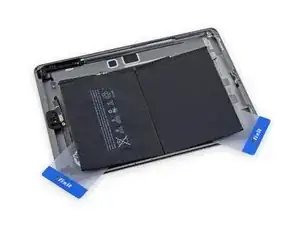
    • Coloca una segunda tarjeta de plástico a medio camino debajo de la celda de la batería de la izquierda para evitar que se vuelva a ajustar cuando vuelva a aplicar el iOpener.

  100. k5lBIJWcth4xMZJA
    • Coloca un iOpener en el lado derecho de la batería, opuesto a las tarjetas, para aflojar el adhesivo.

  101. 21xHkrOPGHJ2mpDk
    21xHkrOPGHJ2mpDk
    gBjXNomEAg5uCwaD
    gRG2KBYBr4y5ZYsZ
    • Desliza la tarjeta alrededor de la esquina inferior derecha de la batería.

  102. g5M6R3YcP3ujt6aO
    g5M6R3YcP3ujt6aO
    MMnWNQvsxZPqFAuy
    • Desliza la tarjeta de plástico hacia la esquina inferior izquierda de la batería.

  103. 3CJhlSV5kOAAFfiv
    3CJhlSV5kOAAFfiv
    sLfW6Zt14rlCYRBT
    nxioQNRMCpspTo1T
    • Presiona la tarjeta más adentro, rompiendo la mayor cantidad de adhesivo que puedas en la batería.

    • Coloca la tarjeta de plástico debajo de la esquina inferior izquierda de la batería.

  104. yju3AtMpqJYcAM44
    yju3AtMpqJYcAM44
    6GEaXYWNgBewdDXd
    wMIYUsq1dXFrhvHV
    • Desliza la tarjeta alrededor de la esquina superior derecha de la batería.

    • Ten mucho cuidado al deslizar la tarjeta sobre la cámara frontal y los cables de los auriculares para evitar cortarlos.

  105. CWQkThLf1axUkqRF
    CWQkThLf1axUkqRF
    HuOyQCPsW1sbAtc6
    KYevQV2oqFkeyhFo
    • Desliza la tarjeta de plástico hacia la esquina superior izquierda de la batería.

    • Ten cuidado de deslizar la tarjeta sobre la cámara frontal y los cables de los auriculares para evitar cortarlos.

  106. eYVOkHh3VygmBqFd
    eYVOkHh3VygmBqFd
    WijlxxnMeh1RR5wB
    SYmvENMZstUKEaUE
    • Presiona la tarjeta más adentro, rompiendo la mayor cantidad de adhesivo que puedas en la batería.

    • Coloca la tarjeta de plástico debajo de la esquina superior izquierda de la batería.

  107. bYiwAZsEBWPlfQrK
    bYiwAZsEBWPlfQrK
    FRPgCQS1gRJcmkwF
    TlTOyYY5faiysDpT
    • Sujeta ambas tarjetas firmemente y gíralas para levantar la batería de la carcasa trasera.

    • Quita la batería de la carcasa trasera.

    Finally done !

    Easy Repair -

    Apple aren’t stupid are they

    bob -

    It took me nearly 3hrs, but i finally made it. Thanks for the great instructions

    Oliver Wegen -

    New battery installed. Battery wont charge. Any ideas?

    David F -

    REASSEMBLY TIPS:

    The adhesive strips that come with the iFixit battery have no labels to say which goes where. Look at them carefully and one side has a blue protective cover that runs the length of each strip. This faces up and is to be removed at the last moment when you’re ready to stick the screen down permanently. One strip has a narrowed section in the long length to clear the glass touch screen cables, so stick this one down first to avoid mistakes.

    Before removing the protective strips, close the touch screen and boot the iPad. Test both cameras, wifi and speakers. (I found the rear facing camera connector hadn’t bedded properly which was easily fixed). Clean the screen and remove dust from LCD before bedding in touch screen.

    The iFixit site has updated battery calibration instructions which differ from the card packed with the battery:

    Charge it to 100% and keep charging it for at least 2 more hours.

    Then use your device until it shuts off due to low battery.

    Finally, charge it uninterrupted to 100%.

    Rusty -

    Great tip to boot the iPad before removing the adhesive from the battery. There are quite a few comments here about faulty batteries. Fortunately, mine worked just fine.

    Jonathan Koehler -

    The iFixit battery replacement kit worked great! The repair guide is very good also. So glad I didn’t just try buying the battery. While testing everything after finishing the battery replacement, the digitizer, volume controls and the sleep button did not work. I was very happy when I went back in and found the cable connections had just come loose. My wife couldn’t believe I fixed her iPad.

    Randal Haufler -

    The guide was pretty good but a few comments:

    I didn’t liked the iOpener that much. I used an heat gun with good temperature control instead.

    Any advice on how to remove the old glue residu would have been welcome. I used a combination of physical scraping and cleaning afterward with isopropyl alcohol.

    An extra guide on how to apply the new adhesive strips would also be nice.

    mlombaers -

    Fixed!....The guide is very clear and well laid out. I also had issues with the iOpener not working, I needed more heat, used heat gun with temp control. Also used floss to remove the logic board. Would have appreciated more clearer instructions on adding the adhesive strips.....Thanks

    hzulu88 Zulander -

    The iOpener is really bad. It isnt hot enough to keep the iPad that cools down to roomtemperature in a few seconds. I used an hair dryer which was also not warm enough but at least made it warm enough to create a gap where I was able to fit my pics under. Unfortunately my Digitizer still died. Battery works but I cannot turn off my iPad now lol

    Luca Steuer -

Conclusión

Para reensamblar tu dispositivo, sigue estas instrucciones en orden inverso.

Arthur Shi

Miembro Desde 03/01/18

219093 Reputación

6 comentarios

analyzing the structure of the arrangement of the components, is it necessary to remove everything? I think you could only remove the battery without removing the logic card.

Vik Ledesma -

Hi Vik,

While it may not be necessary to remove the logic board to remove the battery, we found that it is the safest option. Removing the logic board first allows you to pry the battery around all the edges while keeping the bending to a minimum.

Arthur Shi -

Geez, 111 steps to remove the battery and how many to reassemble? Insanity!!

rudyfs2 -

Thanks for a great guide! I left out steps 47 to 100 as some suggested and it worked fine for just replacing the battery. I was aware that the issue may be the bending of the battery and, therefore, iFixit does not recommend skipping these steps. However it worked fine for me. My tip is to allow yourself enough time to loosen the battery from the adhesive and keep the heated iOpener always underneath the section of the battery that you are working on. This way the adhesive softens and allows you to loosen the battery step by step. - It took me 3 hours of which the first hour was trying to figure out how to get Step 9 done. It took me a while to have the iOpener at the right temperature. So, be patient.
marcelflueeler -
The guide worked perfectly, thanks! But now there is an issue with the battery after reassembling. The iPad can‘t be charged and it turns itself off every 5min.

Any ideas?

Jonas (Dschounäs) -

Unfortunately I have the same issue, did you fix this after all?

I M -