Introducción
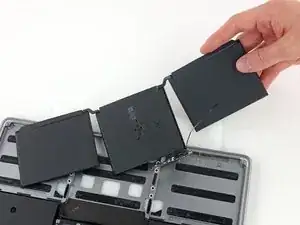
Usa esta guía para remover de forma segura la batería pegada de tu MacBook Pro con la ayuda de un kit iFixit con removedor de adhesivo. El removedor de adhesivo disolverá el adhesivo que sujeta la batería permitiendo que la remuevas con facilidad.
El removedor de adhesivo iFixit es inflamable. Lleva a cabo este procedimiento en un área bien ventilada. No fumes ni trabajes cerca de una llama al descubierto durante este procedimiento.
Para tu seguridad, descarga a batería de tu MacBook Pro antes de comenzar con este procedimiento. Una batería cargada de ion de litio puede crear un incendio peligroso e incontrolable si se la perfora accidentalmente.
Nota: El solvente utilizado para disolver el adhesivo de la batería puede dañar ciertos plásticos. Sigue todas las instrucciones y ten cuidado de donde aplicas el removedor de adhesivo.
Herramientas


-
-
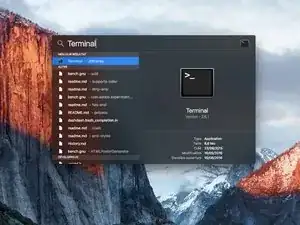
Enciende tu Mac y ejecuta Terminal.
-
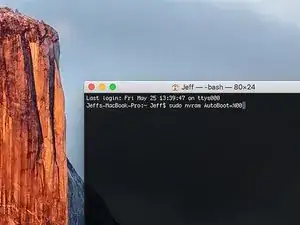
Copia y pega el siguiente comando (o escríbelo exactamente) en la Terminal:
-
sudo nvram AutoBoot=%00
-
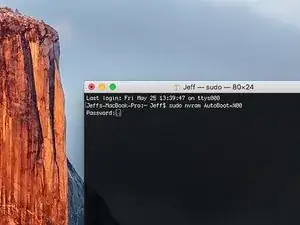
Presiona [return]. Si se te solicita, introduce tu contraseña de administrador y vuelve a pulsar [return]. Nota: La tecla de retorno también puede estar etiquetada como ⏎ o "enter".
-
sudo nvram AutoBoot=%03
-
-
-
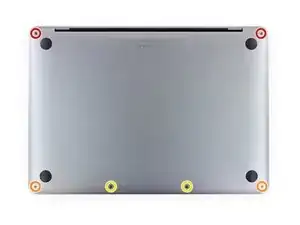
Usa el destornillador P5 Pentalobe para remover los seis tornillos que sujetan la caja inferior:
-
Dos tornillos de 6.2 mm
-
Dos tornillos de 5.3 mm
-
Dos tornillos de 3.4 mm
-
-
-
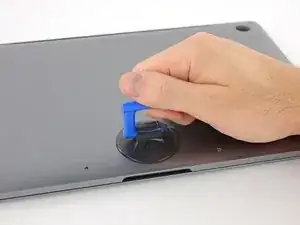
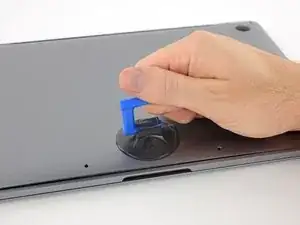
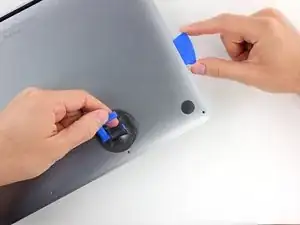
Coloca una ventosa en la caja inferior cerca del área frontal central de la MacBook Pro.
-
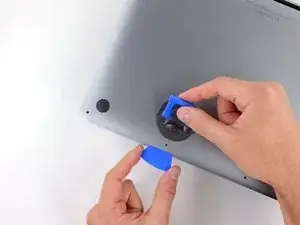
Levanta la ventosa para crear una ligera separación entre la caja inferior y el chasis.
-
-
-
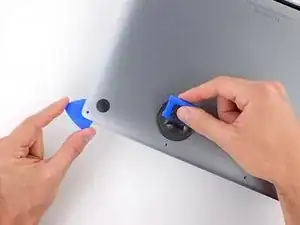
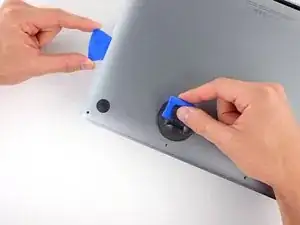
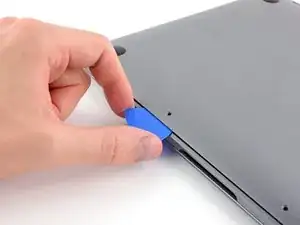
Inserta una esquina de una púa de apertura en el espacio entre la caja inferior y el chasis.
-
Desliza la púa de apertura alrededor de la esquina más cercana y por la mitad de un lado de la caja.
-
-
-
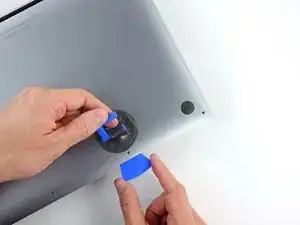
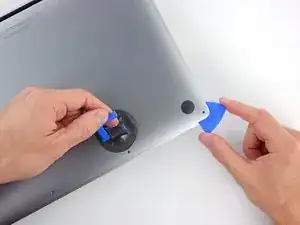
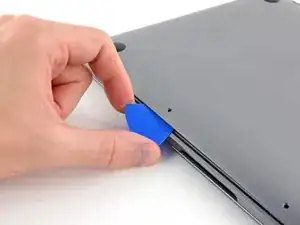
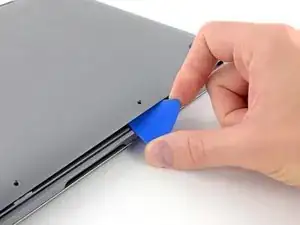
Repite el paso previo en el lado opuesto, deslizando tu púa de apertura por debajo de la caja inferior y tira hacia arriba de ese lado para que el segundo clip se libere.
-
-
-
Inserta tu púa de apertura una vez más debajo del borde frontal de la caja inferior, cerca de uno de los dos orificios de tornillos más centrales.
-
Tuerce firmemente la púa para liberar el tercer clip que sujeta la caja inferior al chasis.
-
Repita el procedimiento cerca del otro de los dos orificios de tornillo más centrales liberando el cuarto clip.
-
-
-
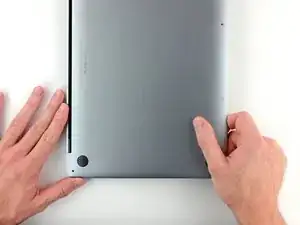
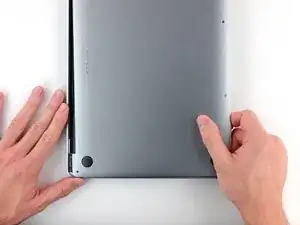
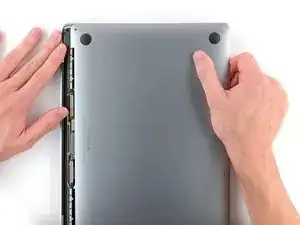
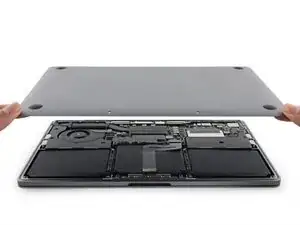
Tira de la caja inferior firmemente hacia la parte frontal del MacBook (hacia el lado contrario del área de la bisagra) para separar el último de los clips que sujetan la caja inferior.
-
Esto podría requerir bastante fuerza controlada.
-
-
-
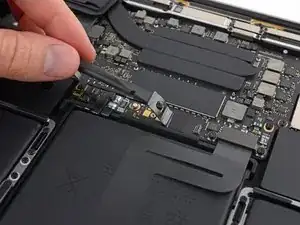
Con cuidado despega la parte grande de la cinta que cubre el conector de batería en el borde de la placa lógica más cerca de la batería.
-
Remueve la cinta.
-
-
-
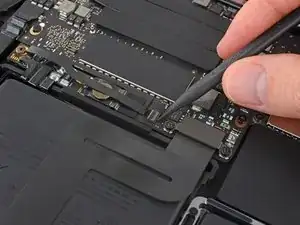
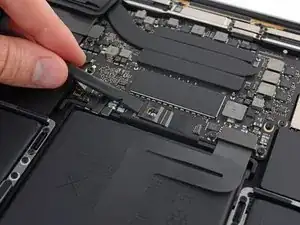
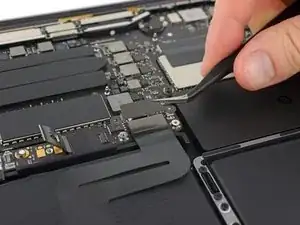
Con cuidado despega la parte pequeña de la cinta que cubre el conector del cable de datos de la placa de la batería.
-
-
-
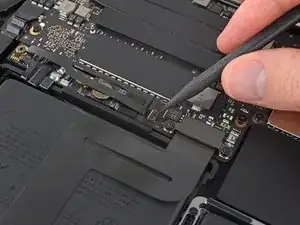
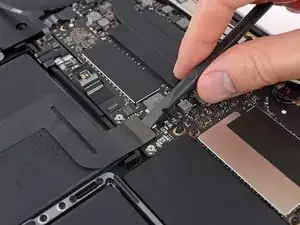
Usa la punta de un spudger para voltear hacia arriba la pequeña lengüeta negra de bloqueo que asegura el cable en su conector.
-
-
-
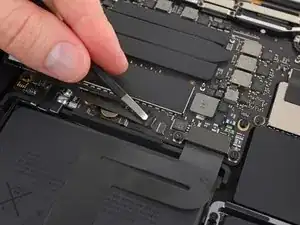
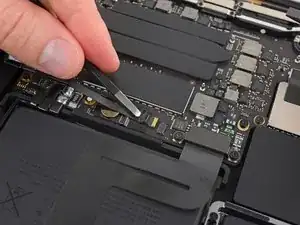
Desconecta el cable de datos de la placa de la batería deslizándolo de su zócalo.
-
Desliza en forma paralela a la placa lógica en la dirección del cable.
-
-
-
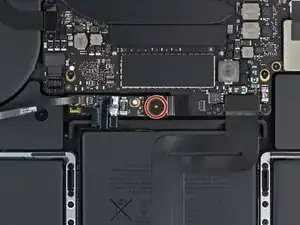
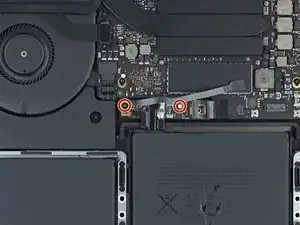
Usa un destornillador T5 Torx para remover el tornillo de 3.7 mm que sujeta el conector de alimentación de la batería.
-
-
-
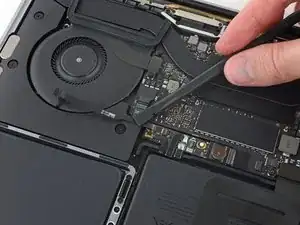
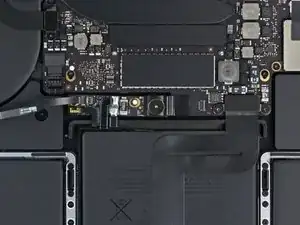
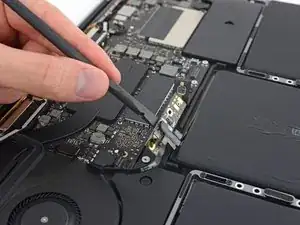
Usa un spudger para levantar con cuidado el conector de alimentación de la batería, desconectando la batería.
-
Levanta el conector lo suficientemente alto para que permanezca separado de la toma de corriente. Si accidentalmente hace contacto durante el curso de la reparación, podría dañar tu MacBook Pro.
-
-
-
Utiliza un destornillador Torx T5 para quitar los dos tornillos de 2.1 mm que fijan el soporte del conector del cable del trackpad.
-
-
-
Utiliza un spudger para desconectar el cable plano del trackpad, empujando suavemente su conector hacia arriba desde la tarjeta lógica.
-
-
-
Prepara un iOpener y colócalo sobre el cable plano del trackpad durante aproximadamente un minuto, para ablandar el adhesivo que fija el cable plano del trackpad a la parte superior de la batería.
-
Si no tienes un iOpener, usa un secador de pelo para calentar el cable. El cable debe estar caliente, pero no demasiado caliente para tocarlo. Ten cuidado de no sobrecalentar la batería.
-
-
-
Retira con cuidado el cable de la cinta del trackpad de la batería y empújalo para quitarlo del camino.
-
-
-
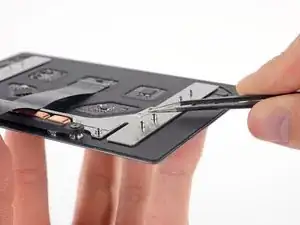
Usa un destornillador T5 Torx para remover los diez tornillos del ensamblaje del trackpad.
-
Dos tornillos de 4.3 mm
-
Ocho tornillos de 5.8 mm
-
-
-
Remueve el ensamblaje del trackpad.
-
Asegúrate de no perder las seis arandelas pequeñas (dos circulares y cuatro rectangulares) que descansan en la parte inferior del trackpad.
-
-
-
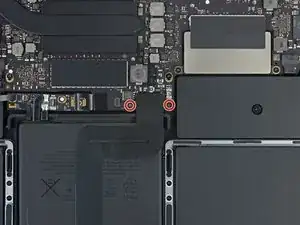
Usa un destornillados T5 Torx para remvoer los dos tornillos de 3.1 mm que sujetan la placa de la batería.
-
-
-
Inserta el borde plano de un spudger debajo de la placa de batería en el lado más cerca de la placa lógica.
-
Levanta la placa de la batería a un ángulo de 45 grados. Si es necesario, levanta el conector de alimentación de la batería y aléjalo para darle espacio necesario a la placa de la batería.
-
-
-
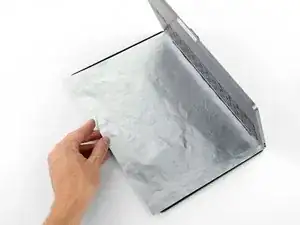
Para proteger tu pantalla, coloca una hoja de folio de aluminio entre la pantalla y el teclado y déjala allí mientras trabajas.
-
Adicionalmente, coloca una toalla absorbente directamente por debajo del área del panel táctil para que absorba cualquier exceso de removedor de adhesivo.
-
-
-
Ahora que tu MacBook Pro está totalmente preparada, es hora de que te prepares.
-
Usa gafas protectoras al manejar y aplicar el removedor de adhesivo (La protección de ojos está incluida en tu kit.)
-
No uses lentes de contacto sin protección.
-
Los guantes protectores están también incluidos en tu kit. Si te preocupa una posible irritación de piel, ponte los guantes ahora.
-
-
-
Saca el tapón negro de goma de tu botella de removedor de adhesivo.
-
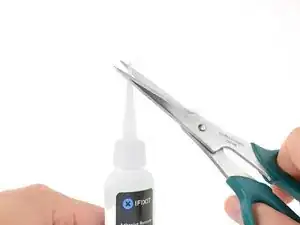
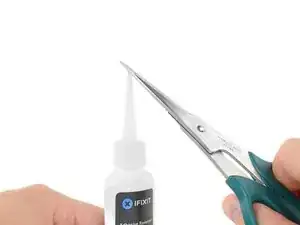
Usa la tijera para cortar la punta sellada del aplicador.
-
-
-
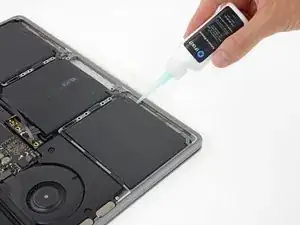
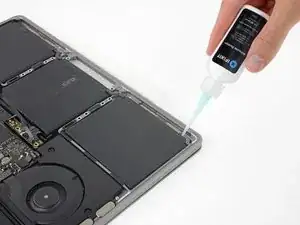
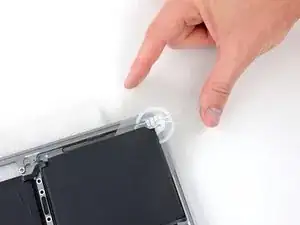
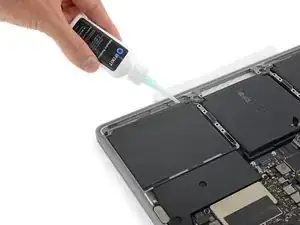
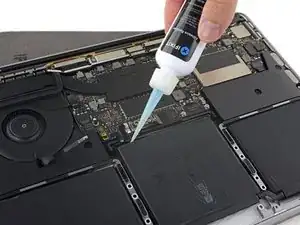
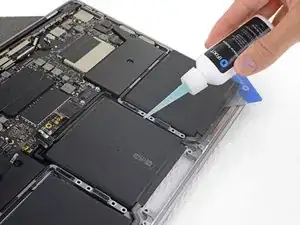
Aplica unas pocas gotas de removedor de adhesivo de forma pareja bajo el borde de la celda de batería que se encuentra más cerca del ventilador.
-
-
-
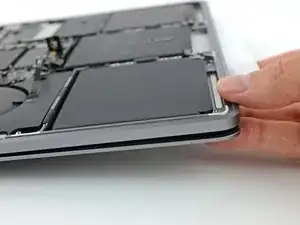
Inclina el borde frontal de tu MacBook Pro hacia arriba a un leve ángulo para que el removedor de adhesivo líquido fluya por debajo de la celda de la batería.
-
Espera 2-3 minutos antes de proceder al próximo paso para darle al adhesivo tiempo para que funcione.
-
-
-
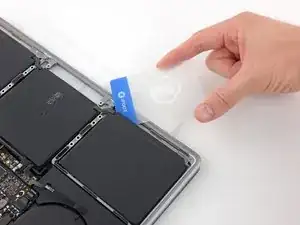
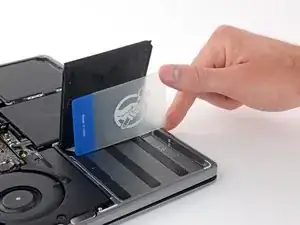
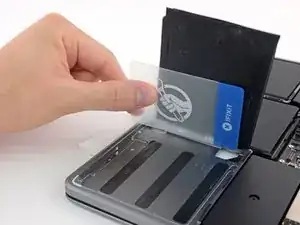
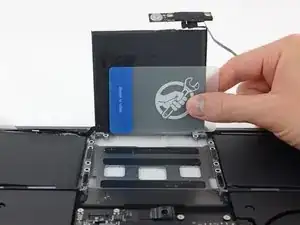
Luego de esperar 2-3 minutos, desliza una tarjeta de plástico bajo el borde de la celda de batería donde aplicaste el removedor de adhesivo.
-
-
-
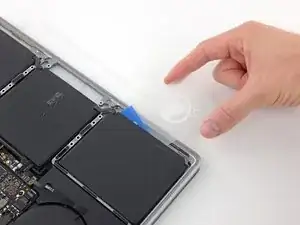
Con cuidado, desliza la tarjeta más profundamente bajo la celda de la batería para romper el adhesivo que la sujeta en su lugar.
-
-
-
Tuerce la tarjeta para levantar la celda de batería hasta que se separe completamente de la caja de aluminio.
-
-
-
Repite los seis pasos previos para separar la otra celda exterior de batería en el lado opuesto.
-
-
-
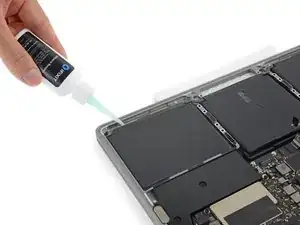
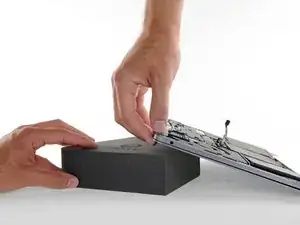
Para separar la celda de batería central, primero levanta el borde posterior del MacBook Pro y apóyala contra un bloque de espuma o libro para que el removedor de adhesivo se aleje de la placa lógica.
-
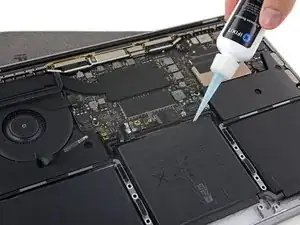
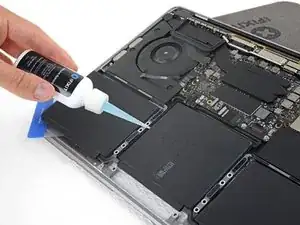
Aplica unas pocas gotas de removedor de adhesivo junta al borde posterior de la celda de la batería.
-
-
-
Para compensar, aplica una pocas gotas más de removedor de adhesivo a lo largo de cada lado de la celda central de la batería.
-
Espera 2-3 minutos antes de proceder al próximo paso.
-
-
-
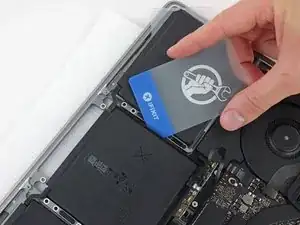
Desliza una tarjeta de plástico debajo de uno de los bordes laterales de la celda de la batería central.
-
Podría ayudar torcer suavemente la tarjeta para abrir un espacio entre la celda de la batería y la caja de la MacBook Pro.
-
-
-
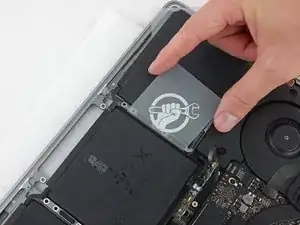
Usa la tarjeta para levantar la celda de la batería hasta que que separe completamente de la caja de aluminio
-
-
-
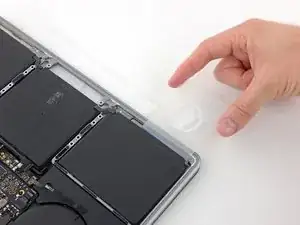
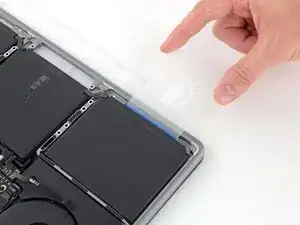
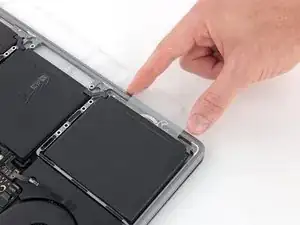
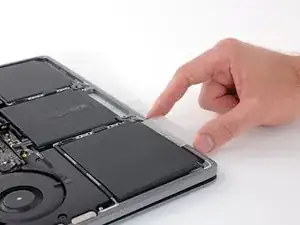
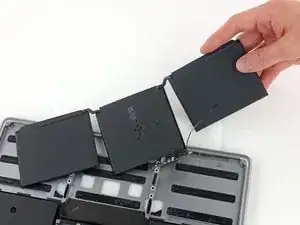
Levanta y remueve la batería
-
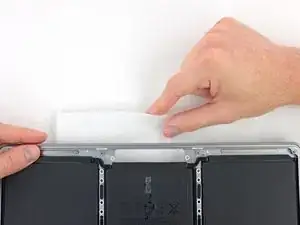
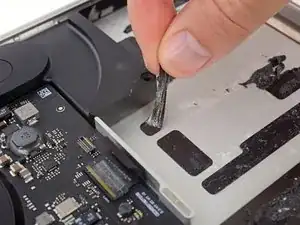
Con un poco de suerte, puedes lentamente levantar cada tira de adhesivo con tus dedos.
-
De lo contrario, empapa cada sección de adhesivo con un poco de removedor de adhesivo durante 2-3 minutos y luego raspa y sácalo con un herramienta de plástico. Esto podría ser mucho trabajo, así que ten paciencia.
-
Limpia cualquier resto de removedor de adhesivo y dale a tu MacBook Pro durante unos pocos minutos para que se seque al aire.
-
Calibra tu batería nueva. Cárgala hasta el 100% y luego sigue cargándola durante al menos 2 horas más. Luego, desenchúfala y úsala normalmente para drenar la batería. Cuando veas la advertencia de batería baja, guarda tu trabajo y mantén tu laptop encendida hasta que se duerma. Espera al menos 5 horas, luego cárgala de forma ininterrumpida hasta 100%.
-
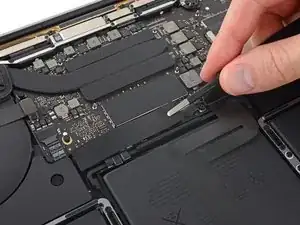
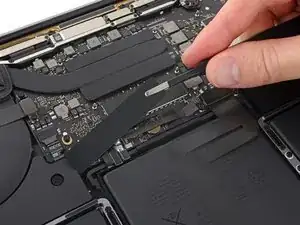
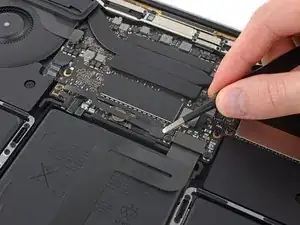
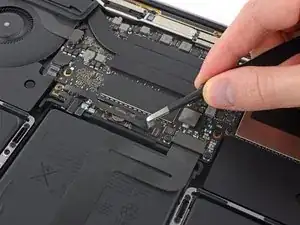
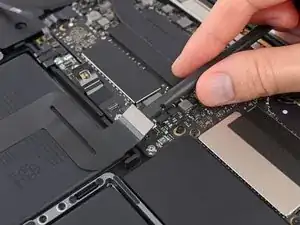
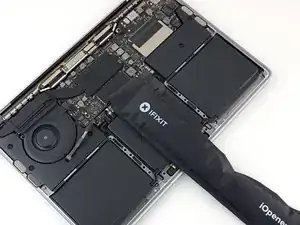
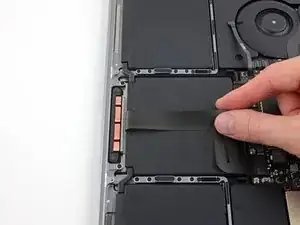
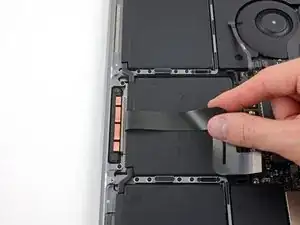
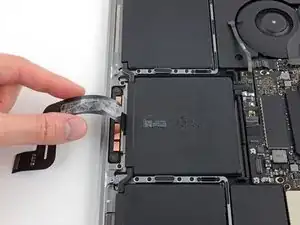
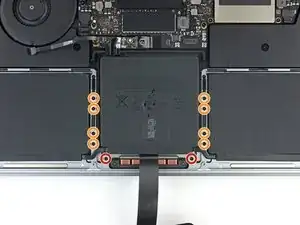
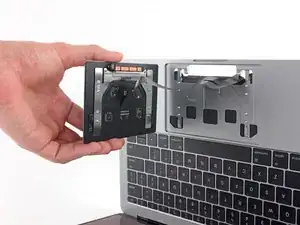
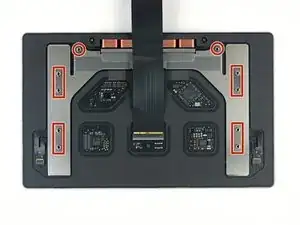



Compara la nueva pieza de repuesto con la original; es posible que tengas que transferir los componentes restantes o retirar los respaldos adhesivos de la nueva pieza antes de instalarla.
Para volver a ensamblar tu dispositivo, sigue los pasos arriba en orden inverso.
Para un rendimiento óptimo, calibra la batería recién instalada: Cárgala al 100% y manténla cargada durante al menos 2 horas más. Luego usa tu dispositivo hasta que se apague debido a que la batería está baja. Finalmente, cárgala sin interrupción hasta el 100%.
Lleva tus desechos electrónicos a un centro de reciclaje certificado.
¿La reparación no salió según lo planeado? Consulta nuestra https://www.ifixit.com/Answers/Device/Ma... para obtener ayuda en la resolución de problemas.

28 comentarios
Does the replacement battery comes with the same strong adhesive as the original battery?
Surgie -
I ordered my battery for the 2017 version of the Macbook Pro with function keys from ebay and it didn’t came with a adhesive strip. I am sure you can use your own adhesive strips or double sided tape, as long as you mind the gabs on the aluminum frame,
Serj Nko -
Thanks for the great guide! Can you copy the guide to the Macbook Pro 2017 thread, as it’s exactly the same procedure for the function key version? It might be obvious for some “Pros” but I realized it after some trial and error odyssey.
Serj Nko -
Hi Jeff,
Thank you for this great work to beat Apple greediness. I followed the exact steps and everything went well, but my battery is not charging nor the status is shown on the bar! I tried restarting and resetting and even restoring and it did not work would that be something you can help me with?
If the old battery still works, try putting it back in, and see if that clears up the problem. If it does, the new battery is defective.
Is this step necessary? I can’t perform this step as I am attempting to repair water damage and need to remove logic board & most likely replace the battery.
Macrepair SF -
@mac_medic You definitely don’t want the power coming on while the board is wet. In your case, I think powering on the machine to disable Auto Boot would do more damage than it prevents. I agree, skip this step and be prepared to disconnect the battery quickly if the laptop automatically powers on. Good luck!
Jeff Suovanen -
Thats right! You don't want power running while working on your logic board.
Dan -
This did not work when running High Sierra.
Kyle B -
Tried this on a 2018 MBP 13” Touchbar (there’s no iFixit guide for this model yet). Need to replace a broken screen.
Luckily I managed to connect to an external screen (Cmd-Down Brightness to switch displays) and enter above command. Seems to work, but there’s another problem with this model - it powers up as soon as any key is pressed……. ffs <gnashes teeth>
Cool_Breeze -
I unscrew the battery first and wrap electrical tape over the logic board battery connector before attempting any repairs to the board. Haven’t had any problems yet and I’ve worked on about 10 of these models already. Also when you open the bottom case use a suction cup at the bottom and pull up then run a plastic spudger along the edges to disconnect the clips. Also only use a plastic spudger on the board. Saw a youtube video from a repair shop and he did not disconnect the power and used all metal tools during the entire process of removing the board. His last step was to disconnect the battery terminal.
Brian -
Is this step necessary if my mac can turn on? Battery fully dead(
Nursat b -
BEFORE YOU START: The included torx head stripped off before I was done (and you might need an additional T4) so stop now and go buy a good one. Also they fail to warn you above to get some blue threadlocker ahead of time.
Jason Sherron -
This command did not work for me and I read that sometime in later 2020 Apple stopped this command from working…any ideas on a work around?
Patrick Machacek -
Not able to do that with damaged screen
richardjgreen -
If you have a damaged screen you can still use a converter from thunderbolt (USB 3) to HDMI and plug your Macbook Pro to your TV as monitor display. Just make sure to chose the right Source (HDMI IN) in your TV. I did it and to make it work I unplug and plug again in my Macbook and so I could disable the Auto boot
Roberto Sanchez Bustos -
Hi. This does not work on 2018 13” MacBook Pro with Touch Bar. I did exactly this to disable auto boot. But when I check by using nvram -p it says: auto-boot true. Am I doing something incorrectly? I did everything step by step. Copied and pasted the sudo command, pressed enter and then entered my password. I have Big Sur 11.1 installed. Is there any other way since I need to replace the screen. Thank you. Adrian
Adrian Vizik -
Hi everyone. This is also a little pointless if you can’t see anything on the screen, and you don’t have a display adapter to USB C to display it. I agree with Brian about removing the back and disconnecting the battery cable before you even think about opening the lid of the MacBook. Applying the insulation tape is also a handy little tip that just makes sure there is no way to discharge from either the board or battery.
Roberto Enrieu -
running `nvram -p | grep 'AutoBoot'` in terminal verifies that it was accepted
result: `AutoBoot %00`
Marek Polák -
Running Big Sur 11.6.7 on a 2019 16" MBP, it's "auto-boot". So it's:
nvram -p | grep 'auto-boot'to display the current state, the default istrue- and then to change it,sudo nvram auto-boot=falsewhich turns it off.Ed Mechem -
This step is completely unnecessary if you follow the guide to disconnect the battery properly. Just put some tape between the battery and logic board connection to prevent it from accidentally touching and therefore powering on the laptop.
Grant Ormsby -
It took me a few tries to make this command work, as I was able to copy and paste the command into Terminal, but could not type in my laptop’s password. I finally typed my password into a text document, copied it (command C), and then pasted it into Terminal and it worked.
tommy404 -
I didn’t do this. Mine never auto-booted before I replaced the battery. Now it does.
hatuxka -
BEFORE YOU DO ANYTHING - CHECK THE BATTERY!
I-fixit sent me a bad battery, which I didn’t realize until it was already install. They sent me a new one, but I wasted hours uninstalling and reinstalled.
Get a volt meter and measure the voltage on the output of the battery pack. If it reads 0 V, SEND IT BACK. It should read over 2 V.
bcardanha -
When I did this from Terminal.app within Recovery Mode, the “sudo” was not recognized but I could invoke it without the sudo part. It seems to have been accepted when looking at “nvram -p”
johann beda -
When in Recovery Mode, you already have superuser powers. So you don't need to prefix commands with the sudo command to invoke them with root privileges; you already have them. Do a
pwd(print working directory) after opening Terminal in Recovery Mode, and you'll see that you're in the root user's directory.Ed Mechem -
I received the battery kit for my 2018 MacBook Pro and as per the above comment from bcardanha - Oct 12, 2021, I checked the voltage on the pads marked + and - . It was zero volts so I panicked a bit.
I sent a message on the iFixiT Facebook page and I got no reply. I finally found the customer service email for Ifixit Europe and sent them an email voicing my concern as I was not keen to work for couple of hours just to discover that the battery is faulty. I had an almost instant reply on the email (kudos to them) and they adviced me to go ahead and install the new battery as the voltage measured when battery is not connected is not relevant.
I took a leap of faith and after two hours… the new battery showed 50% charge and everything seems to be working just fine. I am happy it worked.
Mircea Comanici -
After removing the old battery and installing the new battery I powered up the MBP before screwing the bottom on. I discovered the my keyboard would not function. It took a few hours of investigation and frustration that I discovered the track pad power ribbon had become partially dislodged from the trackpad. I was able to see that this through the little machined slot where the battery sat. I had to remove the trackpad to reinsert the power ribbon back into the connector in the trackpad. after reassembling and reinstalling the battery etc the keyboard worked. Just food for thought if your run into the keyboard issue.
Ed Mease -
This should be the default. IMO I tell you to power on - not the lid.
G Sena -
Est ce que cela fonctionne sur un macbook pro 2017 sans touchbar ?
maël muzelet -
Bonjour Maël, oui, ce tutoriel concerne "les MacBook Pro 2016 (et plus récents) et les MacBook Retina 12" 2017 (et plus récents)"
Claire Miesch -
Excellent instructions. I was able to follow and install the new screen. I recommend that you get a good set of tools before you begin. I started with an inexpensive repair kit bought online. The Penta and torx bits failed. I bought an IFIXIT kit with quality bits and I was able to do everything I needed.
Tom Markham -
If you're not running an admin account the sudo command won't work (which honestly, you should not be running admin). Rather than logging in to your admin amount via the OS, in the terminal type "login [admin username]," then the password and you'll be able to do the sudo command as described above. Once you're complete, type "logout [admin username]" and you'll be good to go. Obviously replace [admin username] with whatever the account name for your admin user is.
arichard2401 -