Introducción
Guía para el prerequisito de desconectar los cables de la pantalla en un iMac 21.5" Retina 4K de finales de 2015.
Herramientas

-
-
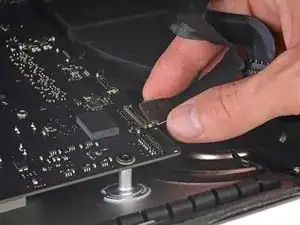
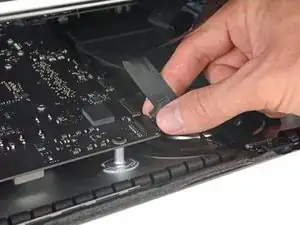
Sostén la pantalla con una mano, mientras usas la otra para desconectar el cable de energía de la pantalla.
-
-
-
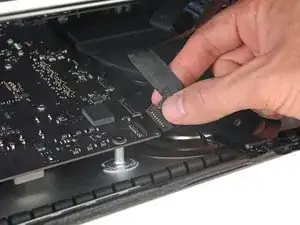
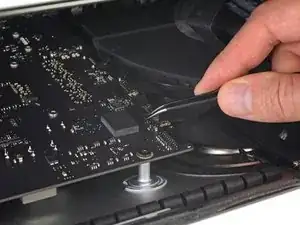
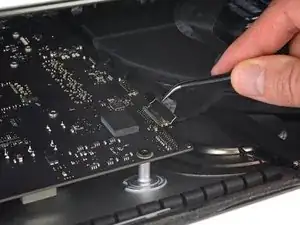
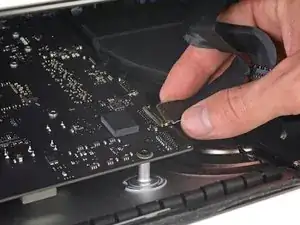
Continúa sosteniendo la pantalla con una mano, mientras muevas hacia arriba el soporte de metal en el cable de datos de la pantalla.
-
Con cuidado tira el cable de datos de su zócalo en la placa lógica.
-
Conclusión
Para reensamblar tu dispositivo, sigue las instrucciones en orden inverso.

It was difficult to remove this connection. I ended up having to gently pull-up vertically a little on the wire side to unsnap it about 1mm and then horizontally wiggle it out.
delacrj2 -
I had a difficult time removing this connection. I had to lift the wire-side about 1mm before it unsnapped and then carefully wiggle it out horizontally.
delacrj2 -
Can this cable be replaced? I am worried mine is damaged. I have no display after the screen fell and stressed the display flex cables following an SSD upgrade.
Jeremy Brainard -
This step should be done with extreme caution and care, as this step 19 is not described in great detail (sorry, author).
The first (most outward) cable will slide out by gently pulling it by its tabs. The second (inner) cable is more tricky, as the locking lever must be moved backward first, before gently pulling backward on the cable connector. The angled tweezers are useful here, to help lift that locking lever, because fingers are too big for this.
Ernst -
be VERY careful and SLOW...take your time. These displays crack VERY easily when removing and they'll spider web on you. I've done probably 20 or so of these and cracked 3 being super careful.....ugh.
Faslane -
I found the best way to unplug this display power cable was to use my right hand, and the fingernails of my index finger and thumb to grab the ends of the tabs on either side of the connector, squeeze, and pull the connector out gently.
Phil McInnis -