Introducción
Usa esta guia para cambiar completamente tu disco duro en tu mini.
Herramientas


Partes
-
-
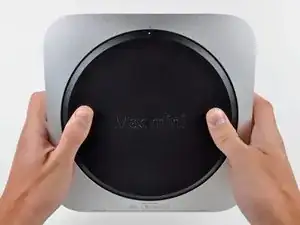
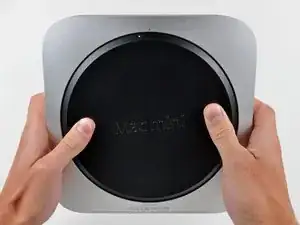
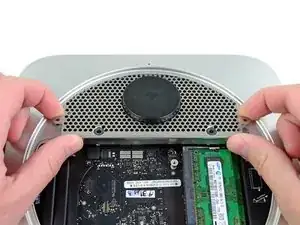
Posiciona tus dedos en las depresiones marcadas en la cubierta inferior.
-
Rota la cubierta inferior en sentido contrario a las agujas del reloj hasta el el punto blanco pintado en la parte inferior esté alineado con el anillo inscripto en la carcasa exterior.
-
-
-
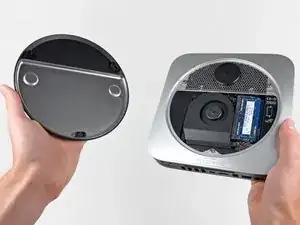
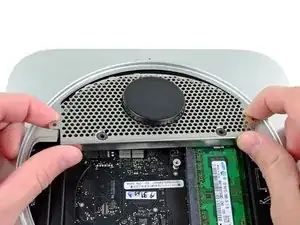
Inclina la mini lo suficiente para permitir que la parte inferior se separe de la carcasa externa.
-
Remueve la cubierta inferior y déjala separada a un lado.
-
-
-
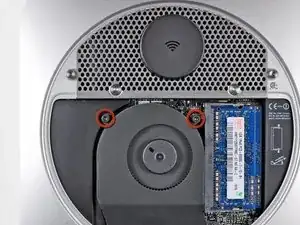
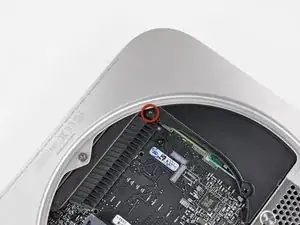
Remueve los dos T6 de 11.3mm tornillos Torx que aseguran el ventilador a la placa lógica cercanos a la bandeja de la antena.
-
-
-
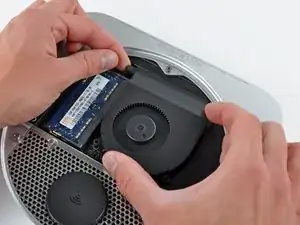
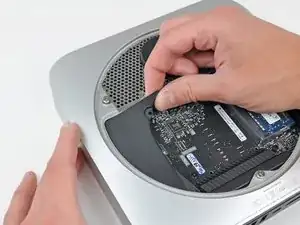
Levanta la oreja del ventilador cercano a la RAM hacia arriba del soporte asegurado a la carcasa externa.
-
-
-
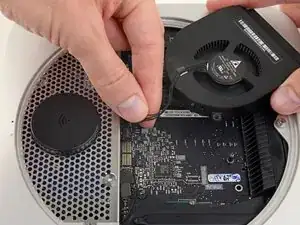
Levanta el ventilador de la mini para tener suficiente espacio para acceder a su conector.
-
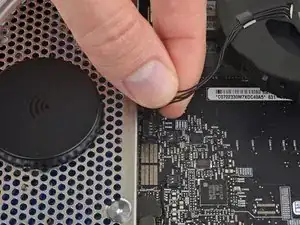
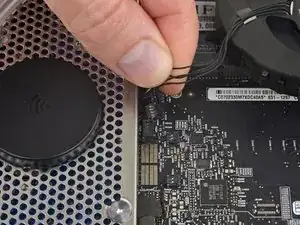
Toma todos los cables y gentilmente tira hacia arriba para desconectar el ventilador de la placa lógica.
-
Remueve el ventilador.
-
-
-
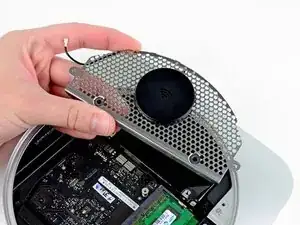
Levanta la cubierta desde la parte más cercana al plato de la antena.
-
Rota la cubierta lejos de la carcaza externa y remuévela de la mini.
-
-
-
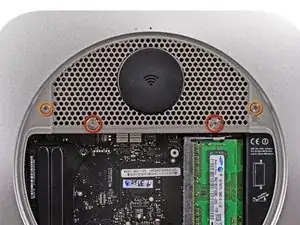
Remueve los siguientes tornillos que aseguran la chapa de la antena a la Mini:
-
Dos tornillos Torx T8 de 6.6 mm
-
Dos tornillos Torx T8 de 5.0 mm o tornillos Hexagonales de 2.0 mm (cualquier destornillador funcionará)
-
Cuando los coloques de vuelta juntos:
-
-
-
Delicadamente levanta la chapa de la antena del extremo más cercano a la RAM.
-
Con cuidado tira la chapa de la antena fuera del borde circular de la carcasa exterior.
-
-
-
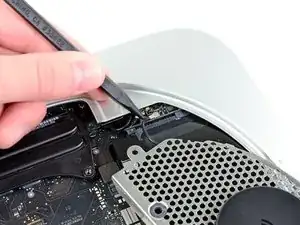
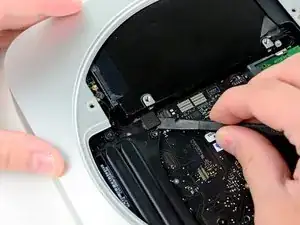
Usa la punta de un spudger para levantar cuidadosamente el conector de la antena de su zócalo en la tarjeta AirPort/Bluetooth.
-
-
-
Usa el extremo plano de un spudger para extraer el conector del disco duro de su zócalo en la placa lógica.
-
-
-
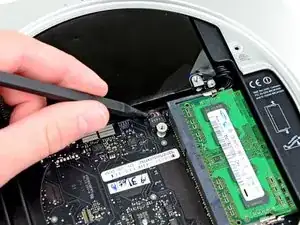
Usa la punta de un spudger para levantar el conector del sensor de infrarrojos y sacarlo de su zócalo en la placa lógica.
-
-
-
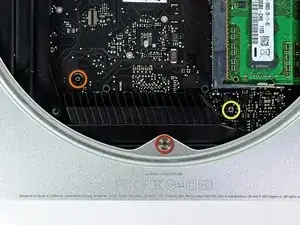
Retira los siguientes tres tornillos:
-
Un tornillo Torx T8 de 5.0 mm o tornillo hexagonal de 2.0 mm (cualquiera de los dos destornilladores funcionará)
-
Un tornillo Torx T6 de 16.2 mm
-
Un separador Torx T6 de 26 mm.
-
-
-
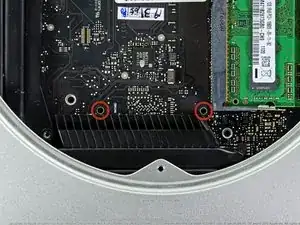
Inserta la herramienta de extracción de la placa lógica de Mac mini en los dos orificios resaltados en rojo. Asegúrate de que haga contacto con el lado superior de la caja exterior debajo de la placa lógica antes de continuar.
-
Tira con cuidado de la herramienta hacia la placa de E/S. La placa lógica y el conjunto de la placa de E/S deben deslizarse ligeramente hacia afuera de la caja exterior.
-
Retira la herramienta de extracción de la placa lógica de Mac mini.
-
-
-
Al mismo tiempo, empuja los dos clips de plástico en el extremo izquierdo y derecho de la placa de E/S hacia el centro de la placa de E/S y retire la placa de E/S de la caja exterior.
-
Tira del conjunto de la placa lógica fuera de la caja externa hasta que el borde de la tarjeta de E/S esté a aproximadamente .5 "del borde de la caja exterior de aluminio.
-
-
-
Remueve la tira de cinta que conecta el cable del disco duro al disco duro.
-
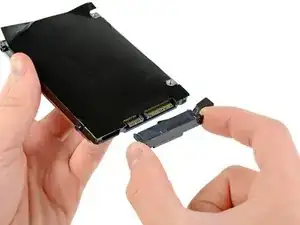
Remueve el cable del disco duro tirando de su conector fuera del disco duro.
-
-
-
Remueve el cable del disco duro.
-
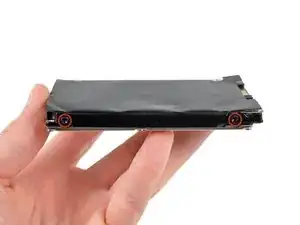
Remueve los dos tornillos Torx T8 de 6.2 mm del costado del disco duro.
-
-
-
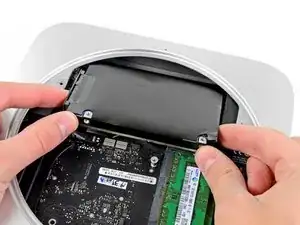
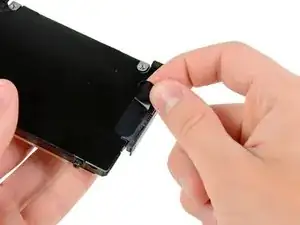
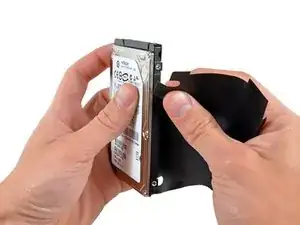
Con cuidado quita la cubierta del disco duro de la unidad.
-
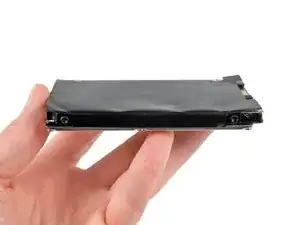
Queda el disco duro.
-
Si estás instalando un disco duro nuevo, tenemos una guía de instalación de OS X para que puedas estar en funcionamiento.
-
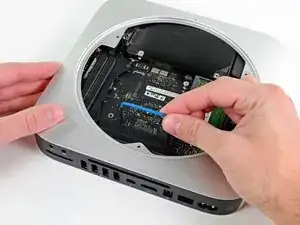
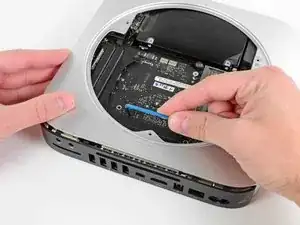
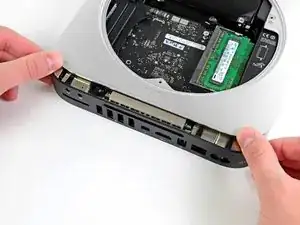
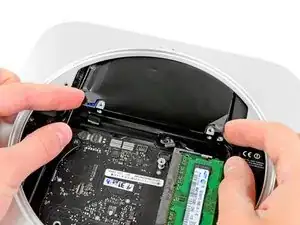

Para re ensamblar tu dispositivo, sigue estas instrucciones en orden inverso.

75 comentarios
no need to remove the logic board! the disk comes out after step 12.
Also you do not really need to disconnect the antenna. Just be carefull no to break the wire.
robert -
i replaced 5400 rpm hdd with Samsung SSD 840 Pro
I did it Rober's way - thanks - no disconnecting antenna in step 10
Stopping after step 12 and replacing hard drive there without removing logic board
I put the sheet that was around the old hard drive over the new one - not sure if its needed?
After it is all done i did Command + R to do internet recovery and get OS X mountain lion on the blank drive
Last thing to do is go here to enable trim: http://www.groths.org/?page_id=322
royl123 -
Very helpful guide, thanks! As many have said before, I would not detach the fan or antenna, just move it out of the way.
One very trivial tip: slide a piece of paper over the logic board as soon as you've removed the fan, as a protection against accidentally touching the components with your fingers or tools.
I did not reinstall the plastic cover on the HDD. This is only to protect the logic board of the HDD, which ofcourse is very well protected in SSD's.
Dismantling the Mini was simple, but the two hardest steps when installing a new hard drive were sliding the drive back in aligned correctly, and replacing the antenna grill.
Even with the logic board pushed out, I found it difficult to line up the screws on the hard drive and get it seated properly. As for the grill, it would not line up with the screw holes. I had to use the Mac Mini tool hooked into a hole in the grill as a lever to lift it up and in towards the lip of the rim it was sitting on. There was an audible snap as it settled into place.
That is an AMAZING tip!!!
I've done about a dozen mac mini to SSD upgrades over the past few years but I've only owned a logic board removal tool for my latest upgrade.
I was struggling to get the drive pegs into the grommet, and the usual 'turn it upside down and giggle it around' trick just wasn't working for me.
I tried getting a spudger underneath the drive to lift it up into the grommet holes but there wasn't enough clearance to get any leverage.
I used the mini opening tool with one end underneath the drive, and the center portion sticking out perpendicular to the motherboard (I'll add a picture) to lift the drive up and into place.
I too heard the satisfying click and it was glorious...
THANK you so much for the idea to use the logic board removal tool. It's now a permanent fixture in my new iFixit Pro Tech Toolkit (which is TOTALLY worth the money btw).
Similar experience here - everything was easy peasy but dropping the new drive back in was tricky because I couldn't get leverage to lift up the left side. With both the antenna plate and the fan still attached, it was hard to hold the mini vertically to let the new drive drop in. I just unplugged the fan and set it aside instead, held the Mini vertical and then wiggled in the new drive. It lined up pretty easily and I was able to reattach the connector and then plug the fan back in and proceed to reassembly. The antenna plate slid back in the same way it came out and I applied minimal pressure to get the last screw hole to align and it snapped into place perfectly. Whole project took about 30 minutes - including having several colleagues come by my desk to chit chat and distract me. Thanks!
Code -
I can also confirm that the drive can be replaced at step 12, WITHOUT disconnecting the antenna. the hardest part was getting the new drive in correctly. I turned the unit right-side-up to get the drive to "fall" into place correctly.
This took a lot of force on my Mac mini. A lot.
nh3 -
I agree. It took a crap ton of force from my thumbs to twist the bottom off.
sleeve -
I accidentally broke the little things that hold the cover to the case. Is there a cheap replacement to the cover? Those clips are held onto it very weakly.
Jacob Halton -
Don't just use your thumbs... Use your whole palm to twist it, with maybe a thumb in one of the recesses, applying slight downward pressure.
markbart -
Wish I would have read this comment before I did it!
I found that what markbart said works best. one palm one thumb (and my knees) My thumbs would do it. It was a bit at a time.
Same difficulty getting it back on.
Would be handy if this (difficulty) was mentioned in the guide
Also would be nice to mention the safe practice of pressing the power button for a few seconds after disconnected to rid the system of any residual power, working in a clean static free environment & they say on the crucial website to touch a metal surface of the machine before touching the RAM
Nancy -
I think it depends, I have seen some that are very difficult to open and some super easy. But I see them everyday. I wish there was a tool that fit in the holes.
Justin Weathersbee -
When seating the bottom RAM chip you may have to apply a little extra side force to get it to seat properly. I put in the new RAM and just got a beeping sound upon starting. I then put the old RAM back in and got the same result.
Here is the solution I found on the Apple discussion board.
"Take a small flat head screwdriver and after you put the memory in slot 0, put the screwdriver between the top of the mac mini and the memory then turn the screwdriver a little to exert pressure on the memory into the slot. Do it on both sides of the memory."
This worked for me.
littlemas2 -
I remember this when I was changing my memory ... I realized (after opening) that more you push, more force it take to open the cover. As you push down you force the cover "to rub" the casing and possibly other things inside. If you "lightly" hold the cover it comes right off ... Remember: less is more! :-)
Have fun!
Radek -
We found it hard to use the thumbs but if you put the casing on a carpet and one person is holding the case while the other is using his palm of one hand to turn the cover it comes off quite smoothly and without much downward pressure.
Alexander -
If you're upgrading to an SSD, before you even take this first step, I'd recommend putting the SSD into an external drive case, using USB and format the SSD first before trying to swap your existing hard drive or implementing a fusion drive. The external drive case will come in handy later so you can use the old drive as extra storage anyhow.
Once that SSD is internal, the Mac errors out during the formatting process. Once it was formatted externally, then installed inside the Mac again, there was no problem.
Orange Girl -
The first time I did this it hurt! The second time my mac mini 2012 had been running so was warm. VERY EASY WHEN WARM. No fun when cool!
Nancy -
Forget about those 2 circle indents. if you consider the 2 marked dots (open and close) as position 12 o’clock, place your thumbs at 11 and 1 o’clock on the outer rim of the cover and rotate from that position.
juicer52 -
No way was I getting the back off. So I made a tool. Took a large wrench longer than the Mac mini. Superglued 2 rubber feet on the wrench at the same location as the thumb indents. Put the Mac on the ground, between my knees and used my body weight to turn the cover. Worked like a charm.
Mark -