Introducción

Los entresijos de reemplazar la carcasa superior.

  1. dOyroxuUBfNu1T4K
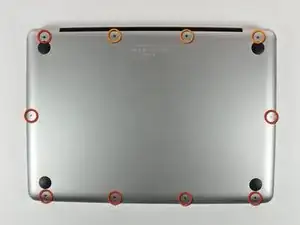
    • Retira los siguientes 10 tornillos que sujetan la tapa inferior del MacBook Pro 13 "Unibody:

    • Siete tornillos Phillips de 3 mm.

    • Tres tornillos Phillips de 13,5 mm.

    Compare the short screws carefully before reinstalling them. The shouldered screws go in the holes on the front edge.

    David Kilbridge -
    Before I started removing any screws I took a piece of paper and drew the bottom of the laptop and put a piece of double-sided tape in the spot where each screw goes. That way when I took out the screws, I could put them on the tape so I knew exactly which screw went in which spot. I did the same thing for dismantling the inside on another sheet of paper, then a third sheet for the screen after getting the front glass off.

    mastover -
    I use a similar technique: I print out the iFixit manual for the job, and Scotch-tape down the screws/brackets/cables I remove at each step next to the component descriptions. That way, when I'm reassembling, the bits are taped right next to the photo of where they came from.

    adlerpe -

    That's exactly what I do for all my repairs! It's the best way to keep track of all of the parts ' original location and to make sure that you don't miss any parts during reassembly.

    joyitsjennie -

    Great idea and one I use often

    Thomas Overstreet -

    Excellent idea! Thanks for sharing it here.

    Laura Sharkey -

    I used a 00 that fit but the screws were very tight so I used a tiny paintbrush with some wd40 on it and put it around the edges of the screws. Worked like a charm

    valentinedhdh -

    I use a magnetic mat and place the screws in order on that :)

    Cary B -

  2. bLtKOLyJdyAxkZaG
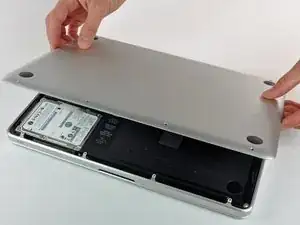
    • Levanta ligeramente la tapa inferior y empuja hacia la parte posterior para liberarlo de las pestañas que lo sujetan

    In the introduction you should link fixers to this excellent doc: https://www.ifixit.com/Misc/HD_Software_...

    It is really critical, super easy, and free(!) to clone your existing drive onto the new one you will install. I ran into one error, but SuperDuper! support replied immediately on how to fix it...Thanks ifixit and SuperDuper! (I ponied up the $28 for the software anyway, I was so impressed!)

    Mike -

    Long story short: I drank the AppleKoolAid back in 1984 and have always left the guts of my machines up to Apple - until recently when I needed to swap the SATAs from my original MacDaddy (2009 13" MBPro that I killed in 2018 - coffee + blackout = OOOOPS) into a pristine 2009 MBPro from a Goodwill in North Carolina through eBay. I need the files from iCal and MacMail that can't be opened in my newer machines.

    Well . . . I ain't never done nuttin' like that, before!

    Enter Luke Miani on YouTube. He raves about you guys! So, I watched everything I could, read your site, bought the right tools and at the ripe old age of 72, I sat down, this morning and did the work. Now my original MacDaddy lives in MacDaddy2.0.

    Am I allowed to cry?

    Seriously, I can't thank you enough for your bitchen site and killer tools. I wish I'd'a been turned on to this shizzle 30+ years ago.

    IFIXIT - IDIGIT!

    kath myers -

    HAHAHAHAHAHAHAHAHAHA.

    That was a brilliant read.

    Yes, I came across ifixit a few years ago. Totally helped me out on several occasions.

    Glad your Mac repair journey worked out.

    :)

    Cary B -

  3. B1SUXfcr5fruMavs
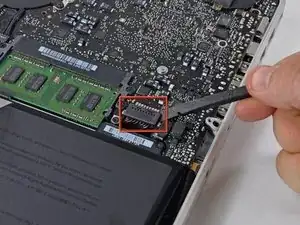
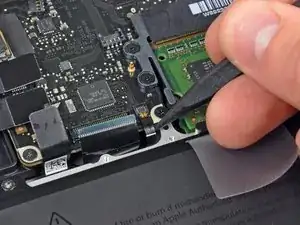
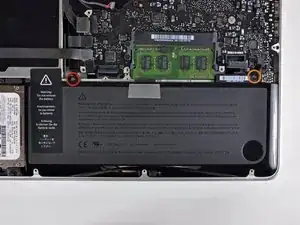
    • Por razones de precaución, le recomendamos que desconecte el conector de la batería de la placa lógica para evitar cualquier descarga eléctrica.

    • Utilice el extremo plano de un spudger para levantar el conector de la batería hacia arriba fuera de su toma en la placa lógica.

    Cita de gansodesoya:

    why is step 3 necessary?

    Just to disconnect any power source to avoid damages by short-circuits.

    MrKane -

    How do you get that battery connector back on? Do you just press it in back in place after you're done?

    Horace Chung -

    yes. I usually plug it in before I screw it down so I can lift the battery a bit and have enough slack to be able to go straight down on the connector, otherwise it comes in on a bit of an angle, which can't be good (though not necessarily bad).

    maccentric -

    This step almost finished me, and I did extensive damage to the battery plug. Fortunately, I later replaced the battery, and the replacement came with a new plug! :) Newbies need to know - 1. The battery plug is like a thin lip on a thicker lip, so you need to pry BETWEEN 2 thin lips to get it off, else you are trying to yank out the socket. 2. Mine was initially VERY tight, and trying to get it out broke the plastic on all sides of plug, even though I was as careful as possible. Luckily, this didn't hurt functionality and I later replaced the battery. AFTER disconnecting once, it was never so tight again,

    Jeff Diamond -

  4. oayXJg6IuMPTQyCH
    oayXJg6IuMPTQyCH
    WwrFHvUYBPYklZYx
    Hx6kNoL3Tll4qUlx
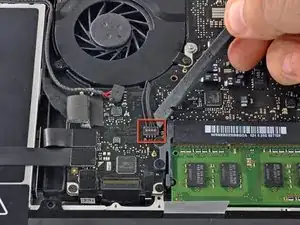
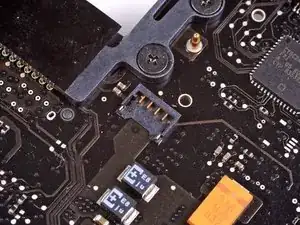
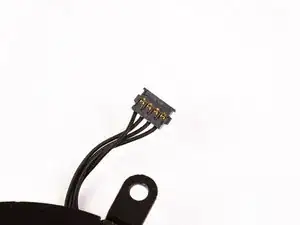
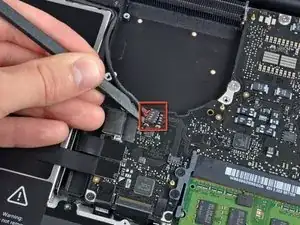
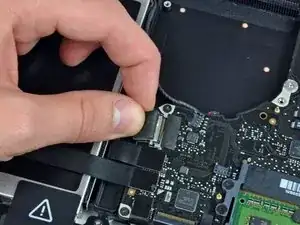
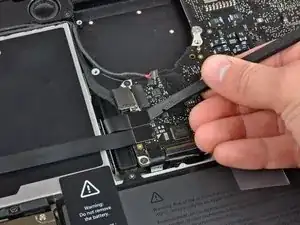
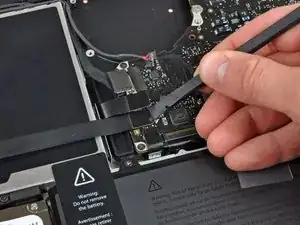
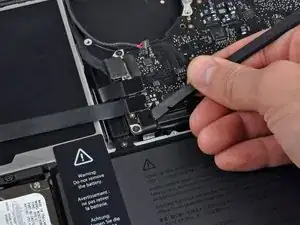
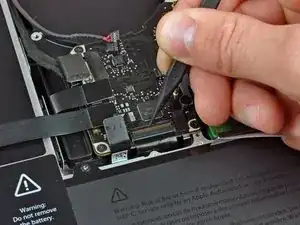
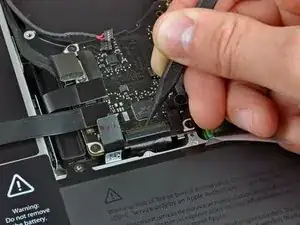
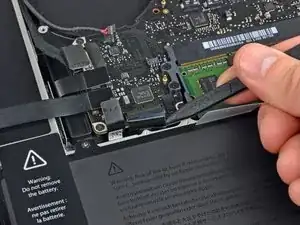
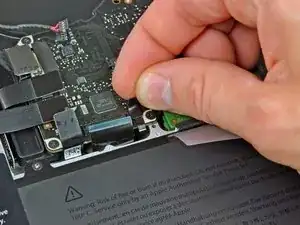
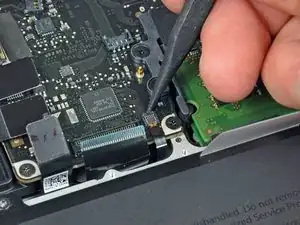
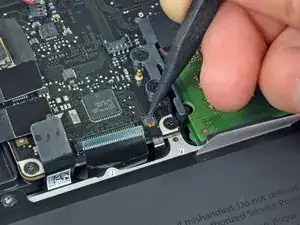
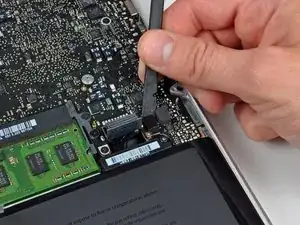
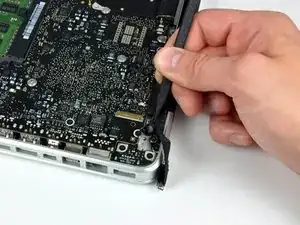
    • Utilizar un spudger para sacar el conector del ventilador de su asiento, y hacia arriba de la placa lógica.

    • Es útil girar el spudger axialmente desde debajo de los cables del ventilador para liberar el conector.

    • El zócalo del ventilador y el conector del ventilador se pueden ver en la segunda y tercera imágenes. Tenga cuidado de no romper la toma de plástico del ventilador de la placa lógica mientras utiliza su spudger para levantar el conector del ventilador hacia arriba y fuera de su zócalo.

    • El diseño de la placa lógica que se muestra en la segunda imagen puede parecer ligeramente diferente de su máquina, pero la toma del ventilador es la misma.

    I just soldered it back on. . . I tried to clean the pads with braid first, but it didn't do much so I don't think that's necessary. I first supper-glued it in place with the pins on the pads and then I put a tiny dab of solder on each pin/pad. Plugged in the fan and i works!

    Ron Hudson -

    Just the answer I was looking for Ron! Awesome work buddy!

    lucasjmenzie -

    i recommend not to use the spudger. you damage more than by unpluggin the plug by hand. just simply pull the cable close to the plug of the old fan softly upwards out. the plug than comes easily out. put the new fan in and push the new plug by hand in. it is much easier than using a spudger. i also started with a spudger but nearly broke the plug out, so i watched a youtube tutorial and learned about it…

    andre -

  5. 3Nc1eu6YQ2EkLTyw
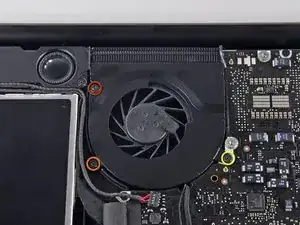
    • Retire los siguientes tres tornillos que sujetan el ventilador a la carcasa superior:

    • Un Phillips de 6.5 mm.

    • Un Phillips de 5.5 mm.

    • Un Phillips de 4.5 mm.

  6. PIOdxKZehcYT1lNG
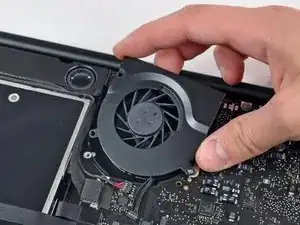
    • Levante el ventilador de la caja superior.

  7. H5WoEX35nCJxJoVc
    H5WoEX35nCJxJoVc
    2h2sAVKwuSa6RdtP
    GOTxbmD6vWqqpGd3
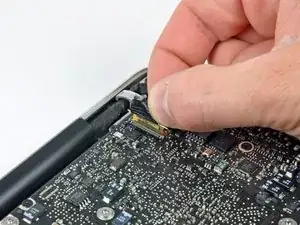
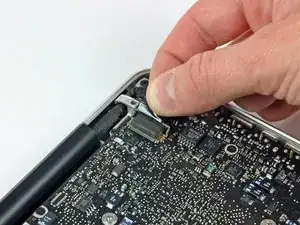
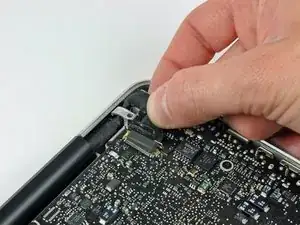
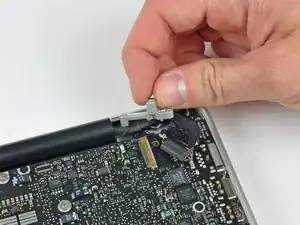
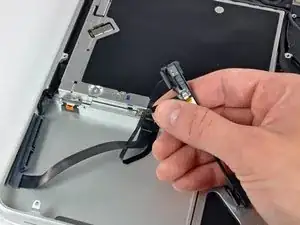
    • Toma la lengüeta de plástico asegurada al candado del cable de datos de la pantalla y gírala hacia el lado de entrada de CC de la computadora.

    • Saca el conector del cable de datos de la pantalla directamente de su zócalo, hacia el lado de entrada de CC de la computadora.

  8. gQSfcvhCduWgFmTM
    gQSfcvhCduWgFmTM
    SepnYJ2fJKAXxapY
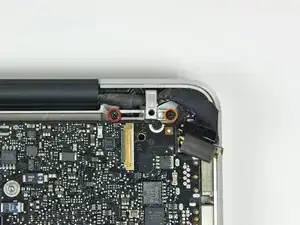
    • Retira los dos tornillos siguientes que sujetan el soporte del cable de datos de la pantalla a la carcasa superior:

    • Una Phillips de 7 mm.

    • Una Phillips de 5 mm.

    • Levanta el soporte del cable de datos de la pantalla para sacarlo de la carcasa superior.

    Mine are Torx and got an extra clamp for the cable, just above the left screw

    Martin -

    If you only want to replace the DC-in board, stop here and GOTO 17 (and DO NOT 4 and 6).

    When the Logic board is loose, lift it up on the Harddrive end and shift slightly towards the HD, so that the USB connectors at the outside come free from under the case rim and the board can be lifted up a bit. Then there´s enough room to move the DC in board, pull the cable out with a pair of tweezers, wriggle it out from under the microphone cable and wriggle the new connector in. It can be pushed into the socket with tweezers or a small screwdriver. This worked perfect for me.

    Be careful not to bend the logic board, but otherwise I think there´s much less risk of messing anything up with all the connectors and bits and pieces that need to be loosened and fastened.

    Mike -

  9. 5S2ufCCUjVZjRSVR
    • Usa el extremo plano de un spudger para levantar el subwoofer y el conector del altavoz derecho de la placa lógica.

  10. U6VC4QVXgkmSKuKW
    • En este paso desconectará el cable de la cámara. La mayoría de las máquinas tendrán un pequeño retenedor de plástico autoadhesivo pegado a la placa lógica para mantener el conector en su lugar. Antes de desconectar el cable, asegúrese de que este retenedor esté fuera del camino.

    • Tire del conector del cable de la cámara hacia la unidad óptica para desconectarlo de la placa lógica.

    • Este zócalo es de metal y se dobla fácilmente. Asegúrese de alinear el conector con su zócalo en la placa lógica antes de acoplar las dos piezas.

    There is a small piece just below this connector which is just an adhesive block to keep the connector from coming out. It is easiest to peel it up first with a fingernail or spudger then remove the cable. Likewise reinsert the cable before reapplying the adhesive safety stop.

    Justin Jett -

    I couldn't reconnect this cable correctly, so my camera is not working anymore.

    It doesn't matter to me, I didn't used the camera that often...

    But the Ambient Light Sensor uses the camera to control keyboard lighting, so I wasn't able to see my keyboard in the dark anymore... :(

    If you have the same problem, after a couple of google hits I've found this app: https://www.macupdate.com/app/mac/22151/...

    Problem solved! YAY!

    PS: be careful because WIFI passes through this cable as well!!!!

    simbass -

    Look at the photo intently. The connector is inserting not in parallel, but at a slight angle. The bottom corner of the connector is slightly ahead. It is important! Singular metod to insert it.

    Vladimir -

  11. mpLOpCIkoW2xCqif
    mpLOpCIkoW2xCqif
    W2C43m61pZ6Dyqcb
    eo6LQDikRDMpITI5
    • Usa el extremo plano de un spudger para levantar la unidad óptica, el disco duro y los conectores del cable del trackpad de la placa lógica.

  12. 4Sf1wHms3aaL4MXg
    4Sf1wHms3aaL4MXg
    AE14gLXhNbiplKt4
    C1TOaQijIPD6LtQn
    • Usa la uña o la punta de un spudger para levantar la solapa de retención del cable en el zócalo ZIF para el cable plano del teclado.

    • Usa tu spudger para deslizar el cable plano del teclado fuera de su zócalo.

    When reinserting the keyboard ribbon cable, make sure you push it in all the way (two plastic tools are helpful - one to push it down flat, the other to coax it all the way in). For 3 days after replacing a top case, my MacBook Pro 13" wouldn't start up. I thought the main logic board was fried too. However, reinserting the keyboard ribbon cable again, this time perhaps 1mm farther in, and it started up again! I did the same for the "keyboard backlight ribbon cable" (i.e. reinserted it just to make sure). Really not sure which completed the circuit so is would start, but I suspect the keyboard ribbon cable.

    amiller770 -

    Cita de amiller770:

    When reinserting the keyboard ribbon cable, make sure you push it in all the way (two plastic tools are helpful - one to push it down flat, the other to coax it all the way in).

    I usually use a piece of sticky transparent office tape and stick it over the flat cable a bit further away from the mating part then pull on it. There is no better way to force the flat cable into a stiff connector without damaging the fragile cable.

    Leo Bodnar -

    As others have stated, if the keyboard ribbon cable isn't fully inserted the MBP will not power on. Leo Bodnar's recommendation to use a piece of transparent office tape did the trick for me. Many thanks Leo!

    Matthew Rankin -

    Inserting the ribbon cable for the keyboard was really difficult, but i was able to get it in using a piece of tape and pulling it up, just like the tape on the keyboard backlight.

    Kelly Legner -

    Using a piece of tape is sheer genius Kelly. My mom once said her definition of genius was an idea that, when you hear it, you say to yourself, “now why didn’t I think of that?” But you never would have thought of it. Brava (or bravo) Kelly!

    JonnyLine -

  13. ORKjULSYLhNuFQUi
    • Despega la pequeña tira de cinta negra del conector del cable plano de la retroiluminación del teclado.

  14. omJ1eHiMfXlFtGVO
    omJ1eHiMfXlFtGVO
    GGYWsYuMi5kZONiq
    TPaIFGAGOPyrUnkA
    • Usa la punta de un spudger para levantar la solapa de retención del cable en el zócalo ZIF para el cable plano de la retroiluminación del teclado.

    • Usa tu spudger para deslizar el cable plano de luz de fondo del teclado fuera de su zócalo.

  15. cZ3jLTCybSZqjX1s
    • Usa el extremo plano de un spudger para levantar el conector del cable del indicador de batería de la placa lógica.

  16. 1ttqGf15CrXqgESa
    • Usa la punta de un spudger para quitar el micrófono del adhesivo que lo une a la carcasa superior.

  17. hlvPHn5hLlwTnykQ
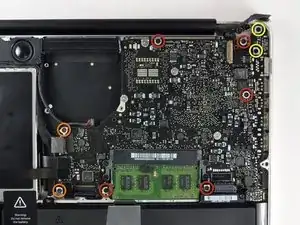
    • Retira los siguientes tornillos:

    • Cinco Phillips de 3,1 mm.

    • Dos Phillips de 3,9 mm.

    • Dos Phillips de 7 mm de la placa de entrada de CC.

  18. uqAscA6i2AwOjsxs
    uqAscA6i2AwOjsxs
    1FKTMO2VElhgwKAM
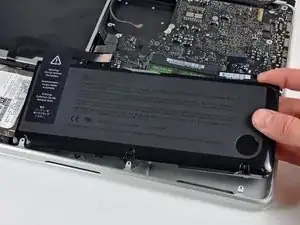
    • Retira los siguientes tornillos de tres puntas que sujetan la batería a la carcasa superior:

    • Un tornillo de tres puntas de 5,5 mm.

    • Un tornillo de tres puntas de 13,5 mm.

    • Saca la batería de la carcasa superior.

  19. MWPHlxOjnkYSuqrw
    MWPHlxOjnkYSuqrw
    ZgwauAvagMTUNQWZ
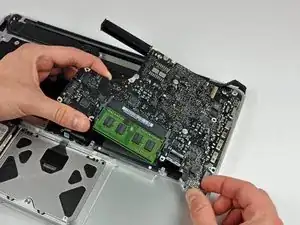
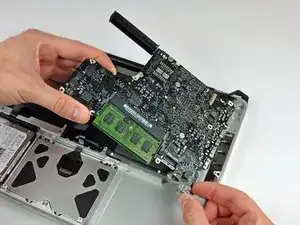
    • Levanta la placa lógica desde su borde izquierdo y levántala hasta que los puertos despejen el costado de la carcasa superior.

    • Separa la placa lógica del costado de la carcasa superior y retírala, teniendo cuidado con la placa de entrada de CC que puede quedar atrapada.

    • Ten cuidado de no arrancar el frágil conector del conjunto del micrófono.

    When putting the logic board back in place, it's easier to angle the mic down in it's place as you are placing the board in, rather than after the board is seated.

    amiller770 -

  20. xGyBjHOwQQdKoja5
    xGyBjHOwQQdKoja5
    ZdhJAH3BsrvYTWIX
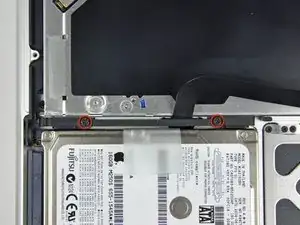
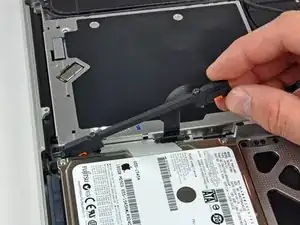
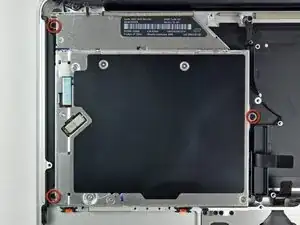
    • Retira los dos tornillos Phillips que sujetan el soporte del disco duro a la carcasa superior.

    • Los tornillos permanecen cautivos al soporte.

    • Levanta el soporte de retención de la carcasa superior.

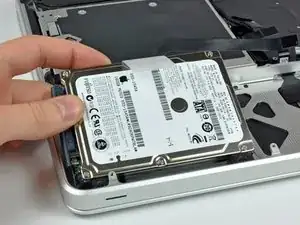
  21. PJnoG6qwh5cGlgTO
    • Levanta el disco duro desde su borde libre y sácalo del chasis, cuidando el cable que lo conecta a la computadora.

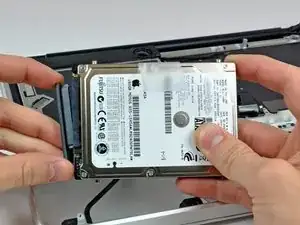
  22. cxWUEGYZqfFbFiHR
    • Desconecta el disco duro tirando del conector del cable del disco duro para sacarlo de la unidad.

  23. rmdEJNDff64DZ62H
    rmdEJNDff64DZ62H
    orewaCNHDgjVfyLv
    • Retira los siguientes cuatro tornillos que sujetan el disco duro y el cable del sensor de infrarrojos a la carcasa superior:

    • Dos tornillos Phillips de 1,5 mm.

    • Dos tornillos Phillips de 4 mm.

    • Desliza el disco duro y el soporte del sensor de infrarrojos para alejarlos del borde de la carcasa superior.

    • Retira con cuidado el disco duro y el cable del sensor de infrarrojos de la carcasa superior.

  24. Va2qhZsyLNL1RFm4
    Va2qhZsyLNL1RFm4
    wLbEBcVRAR5cEIE4
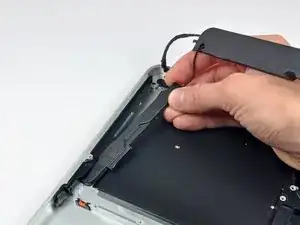
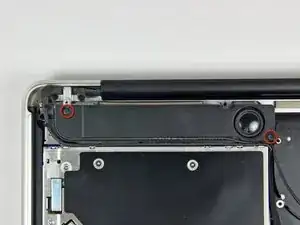
    • Retira los dos tornillos Phillips que sujetan el subwoofer a la carcasa superior.

    • El más largo (8,2 mm) de los dos tornillos está a la derecha. El más corto (5 mm) de los dos tornillos está a la izquierda.

    • El subwoofer todavía está conectado al altavoz derecho, así que no lo quites por completo todavía.

    • Levanta el subwoofer de la unidad óptica y colócalo sobre la computadora.

  25. 1PWxVpasGMpJpUkk
    1PWxVpasGMpJpUkk
    eN1iJ2lPKPbTbk3f
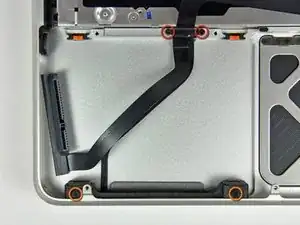
    • Retira los dos tornillos Phillips de 9,2 mm que sujetan el soporte del cable de la cámara a la carcasa superior.

    • El tornillo más interno puede permanecer cautivo en el cable de la cámara.

    • Si tienes la versión de mediados de 2010, el soporte del cable de su cámara puede verse ligeramente diferente, pero el procedimiento es el mismo.

    • Levanta el soporte del cable de la cámara para sacarlo de la carcasa superior.

  26. SNHJiAx1GSqdkH4H
    SNHJiAx1GSqdkH4H
    wiUTVLYpJrmHQcdU
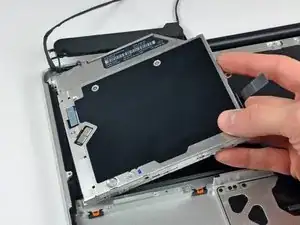
    • Retira los tres tornillos Phillips de 2,5 mm que sujetan la unidad óptica a la carcasa superior.

    • Levanta la unidad óptica desde su borde derecho y extráela de la computadora.

  27. y4MNPWHZHWjgFlaS
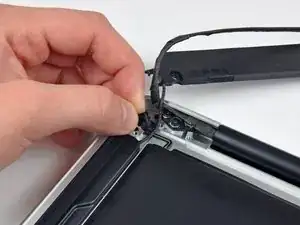
    • Retira el pequeño trozo de cinta negra que cubre el cable del altavoz derecho.

    • Ten cuidado, ya que el cable plano del botón de encendido está directamente debajo de este trozo de cinta.

  28. byuyI5iDbyWovPYf
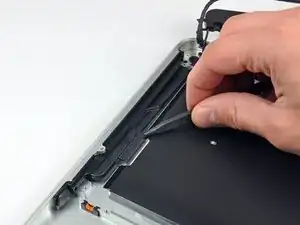
    • Usa la punta de un spudger para levantar el altavoz derecho del adhesivo que lo sujeta a la carcasa superior.

  29. Nf132Ihq3AGaHBpK
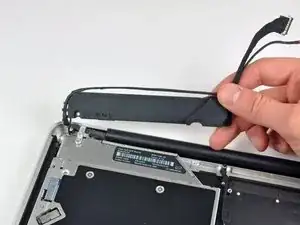
    • Levanta el conjunto de subwoofer y altavoz derecho para sacarlo de la caja superior.

  30. dG4xpxG2pnAFVYQW
    dG4xpxG2pnAFVYQW
    6yKVIATpyNrdcRCb
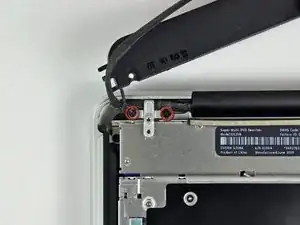
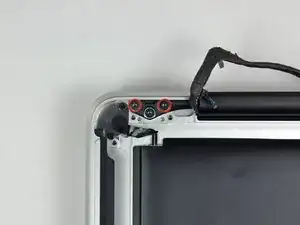
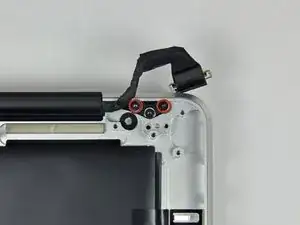
    • Retira los dos tornillos Torx exteriores de 6 mm que sujetan cada lado del soporte de la pantalla a la carcasa superior (4 tornillos en total).

    • Al volver a ensamblar, retira los tornillos Torx internos de 6 mm aproximadamente un cuarto de vuelta y alinea suavemente la pantalla y la carcasa superior antes de insertar los tornillos Torx externos de 6 mm.

    • Después de alinear la pantalla y la carcasa, aprieta los tornillos Torx internos de 6 mm, luego inserta y aprieta los tornillos Torx externos de 6 mm.

    When re-assembling everything, you'll need to back out the inner screws a bit and align the upper case and display. After aligning them, tighten the inner screws again, then insert and tighten the outer screws.

    bradeyh -

  31. IShfrACxd6jSboxA
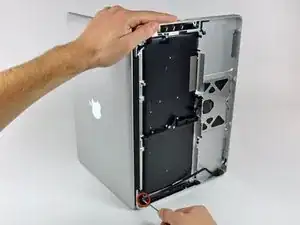
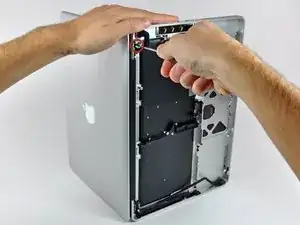
    • Abre tu MacBook para que la pantalla quede perpendicular a la caja superior.

    • Coloca su MacBook abierta sobre una mesa como se muestra en la imagen.

    • Mientras sujetas la pantalla y la carcasa superior con la mano izquierda, extrae el tornillo Torx de 6 mm del soporte inferior de la pantalla.

  32. BCZbyS2nOOk1w52i
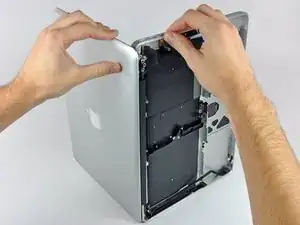
    • Asegúrate de sujetar la pantalla y la carcasa superior con la mano izquierda. Si no lo haces, la pantalla/carcasa superior liberada podría caerse, lo que podría dañar cada componente.

    • Retira el último tornillo Torx de 6 mm restante que sujeta la pantalla a la carcasa superior.

  33. YOsEAp3oxLNseANa
    YOsEAp3oxLNseANa
    FUTJUZDFDHM2wXLO
    JeNqIE2TKeWMcO5v
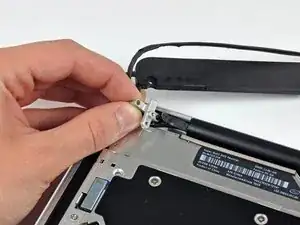
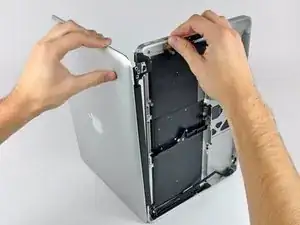
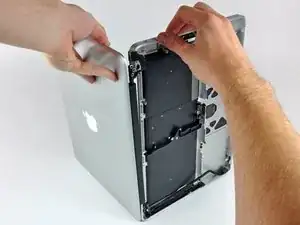
    • Toma la carcasa superior con la mano derecha y gírala ligeramente hacia la parte superior de la pantalla para que el soporte de la pantalla superior quede libre del borde de la carcasa superior.

    • Gira la pantalla ligeramente alejándola de la caja superior.

    • Levanta la pantalla y sepárala de la carcasa superior, prestando atención a los soportes o cables que puedan quedar atrapados.

Conclusión

Para volver a ensamblar tu dispositivo, sigue estas instrucciones en orden inverso.

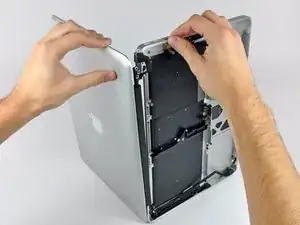
Walter Galan

685928 Reputación

0 comentarios