Introducción

En esta guía se explica cómo extraer y sustituir la batería del Lenovo ThinkPad X1 Carbon 6th Gen. Esto puede ser necesario si la batería está defectuosa, o simplemente es vieja. Las baterías de los ordenadores portátiles pierden parte de su capacidad a medida que se utilizan, y la batería típica sólo dura unos pocos años. Si tienes problemas con tu ordenador y crees que la batería es la culpable, consulta nuestra página de solución de problemas antes de intentar sustituir la batería. Ten en cuenta que un adaptador de corriente defectuoso puede estar causando los problemas. Antes de empezar, asegúrate de apagar el portátil y desconectarlo de cualquier fuente de alimentación. Ten cuidado al manipular la batería y deséchala correctamente.

  1. NFtYMIq2pIVe1NLS
    NFtYMIq2pIVe1NLS
    f3HPZLtAIooGCgUh
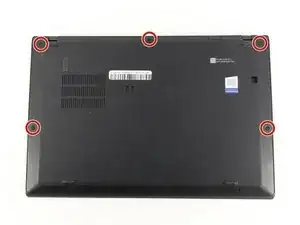
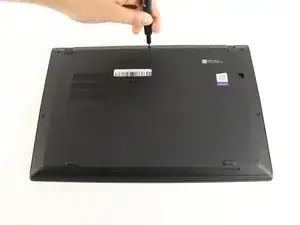
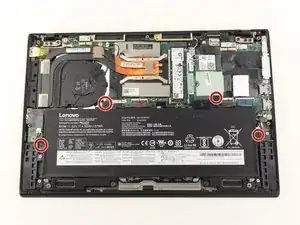
    • Utiliza un destornillador Phillips #0 para desatornillar los cinco tornillos que fijan la tapa trasera al portátil.

    • Los tornillos no se desprenden completamente de la tapa trasera. Afloja hasta que los tornillos estén completamente sueltos.

  2. HKMFZVKrjam3PWWH
    HKMFZVKrjam3PWWH
    6ZP1DMLSvgYbwIhX
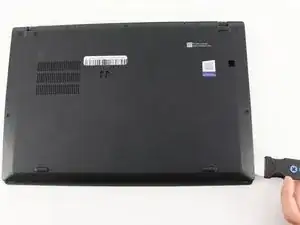
    • Utiliza un Jimmy para levantar la cubierta directamente de los pernos de localización.

    • Aunque en la imagen se muestra una herramienta de apertura de metal, recomendamos utilizar herramientas de apertura de plástico para minimizar cualquier daño cosmético.

    • Remueve la tapa trasera.

    • Si encuentras resistencia al levantar la cubierta, vuelve a revisar los tornillos para ver si alguno de ellos sigue enroscado en el dispositivo.

    I thank you for these instructions. They were quite helpful and I successfully replaced the fan. There is one thing however. Your instructions stated the following: "Be sure to pull on all of the cables at the same time."

    I disagree. One should never pull the wires. I was able to nudge the one part of the connector loose from the other part that it fit into." I then put the new fan in and gently and carefully pushed the connecting parts together.

    Otherwise, your instructions were clear and to the point. Thank you very much

    ALAN L SILBERLIGHT -

  3. 2xBAZNGktDaK54Lm
    2xBAZNGktDaK54Lm
    IIjEKPgWLiLkttCO
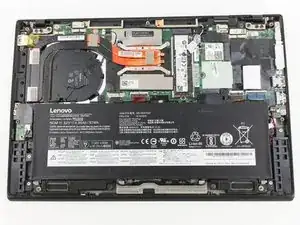
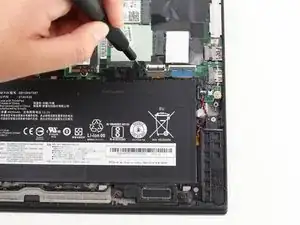
    • Utiliza el destornillador Phillips #0 para retirar los cuatro tornillos de 5 mm que fijan la batería al marco del portátil.

    The screw holes do not align 100%. Dont tighten all the screws as you re-insert them, leave just a little bit of play so that you can push the battery slightly until all the screws fit nicely, then tighten them. A little bit of DIY wisdom helps here. :-)

    Michael Dauer -

  4. OBGNfvQoRcUkViXt
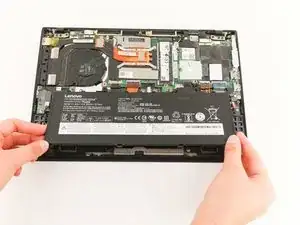
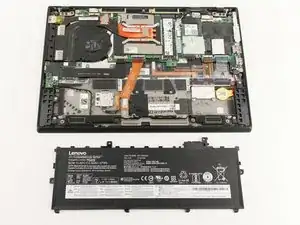
    • Extrae la batería levantándola desde el borde inferior del portátil y, a continuación, separándola de la placa madre.

    Recommend changing the command language to lifting from the TOP edge, as the BOTTOM edge is secured.

    Alexander Van Auker -

    Thank you, was wondering what I'm doing wrong

    Ash Weber-Campbell -

    You forgot to tell people to disconnect the battery from the motherboard before removing…

    Becky -

    Agree with both comments above: lift from top left and top right of battery. This disconnects it and it lifts out and away.

    Marc G -

    In my 6th generation X1 Carbon there are two wires that are routed on the edge of the battery and have to be moved out of the way. These are antenna cables, be gentle with them, kinks and indents change their high frequency properties and may lead to problems with your WIFI.

    Michael Dauer -

    Before removing laptop cover you can disable the battery in the bios before beginning work for extra safety. Battery will be re-enabled at next startup automatically.

    Darryl S -

    How do I know the generation of my X1 Carbon?

    Does this batter fit all generations?

    eric gofreed -

Conclusión

Para volver a ensamblar tu dispositivo, sigue estas instrucciones en orden inverso.

Michael Megna

Miembro Desde 23/01/20

1177 Reputación

4 comentarios

Does it require to switch off battery in BIOS first?

Rafal Skolasinski -

My work wanted to e-waste my 3 year-old ThinkPad. Bought the replacement battery here, followed the instructions—it works fine now. Thanks a lot.

Ryan Phillips -

danke )) ))

Daniel Paul -

Great guide, and what an easy laptop to work on!!!

surfdaworld -