Introducción
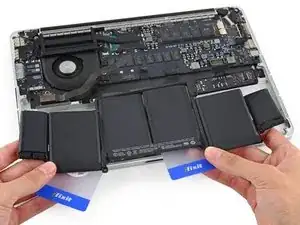
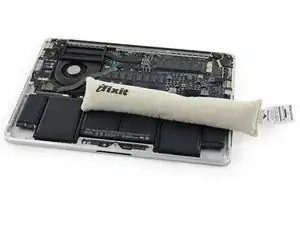
Utiliza esta guía para remover la batería pegada de tu MacBook Pro con la ayuda del kit de reemplazo de batería de iFixit. El removedor de adhesivo en tu kit disolverá el adhesivo que sujeta la batería, permitiéndote removerla con facilidad. La batería está constituida de seis celdas diferentes, cuatro de las cuales están adheridas a la caja superior.
El removedor de adhesivo de iFixit es altamente inflamable. Realiza este procedimiento en un área muy bien ventilada. No fumes o trabajes cerca de una flama al descubierto durante este procedimiento.
Para minimizar el riesgo de daño, enciende tu MacBook y deja que a la batería se descargue completamente antes de comenzar este procedimiento. Una batería cargada de ion de litio puede crear una incendio peligroso e incontrolable si se perfora accidentalmente. Si tu batería está hinchada, toma precauciones adicionales].
Nota: El solvente utilizado para disolver el adhesivo de batería puede dañar ciertos plásticos, como los recintos de plástico de los altavoces de la MacBook Pro. Ten cuidado al aplicar el solvente.
Si estás utilizando el removedor de adhesivo iFixit de estilo antiguo con una botella y una jeringa (no se vende más), [guía|110111|haz clic aquí para una guía de instrucciones ligeramente modificada].


-
-
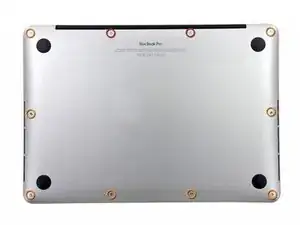
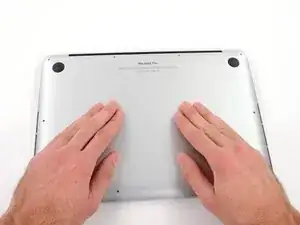
Quita los 10 tornillos que aseguran la parte inferior de la carcasa a la parte superior:
-
Dos tornillos Pentalobe P5 de 2.3 mm
-
Ocho tornillos Pentalobe P5 de 3.0 mm
-
-
-
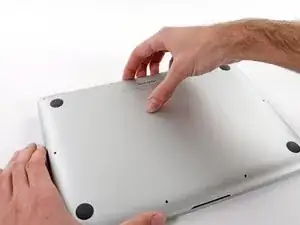
Introduce tus dedos entre la parte superior y la parte inferior de la carcasa.
-
Tira suavemente de la carcasa inferior para retirarla.
-
-
-
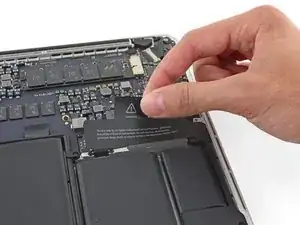
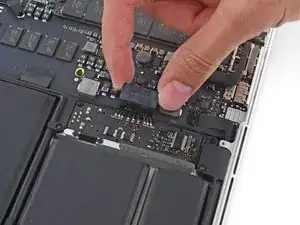
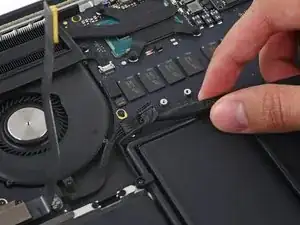
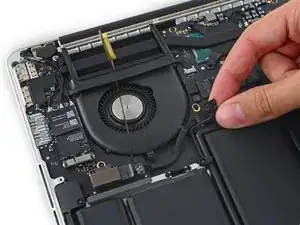
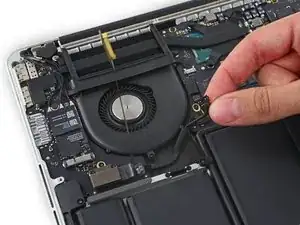
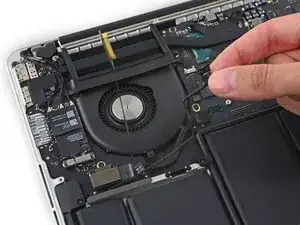
Utiliza el extremo plano de un spudger para levantar el conector de batería directamente de su enchufe en la placa lógica.
-
-
-
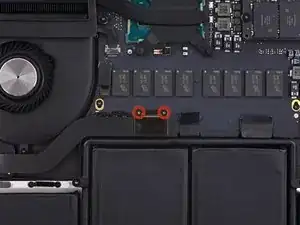
Remueve los dos tornillos Torx T5 de 2.1 mm que sujetan el extremo de la placa lógica del soporte del cable de placa de E/S.
-
-
-
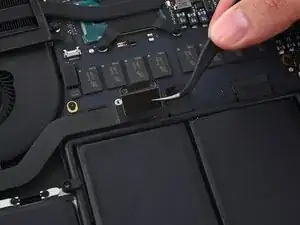
Agarra el soporte del cable de placa de E/S con un par de pincitas y remuévelo de tu MacBook.
-
-
-
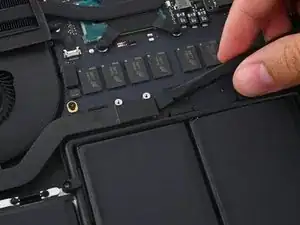
Usa el extremo plano del spudger para sacar el conector de placa de E/S directamente de su enchufe en la placa lógica.
-
-
-
Levanta el extremo de la placa lógica del cable de placa de E/S para plegarlo y sacarlo del medio.
-
-
-
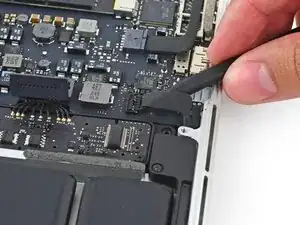
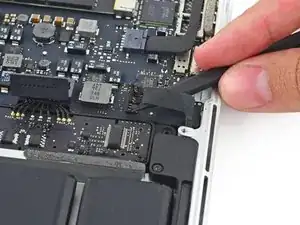
Con cuidado coloca la punta del spudger bajo el cable del altavoz derecho cerca del conector y levántalo de su enchufe en la placa lógica.
-
-
-
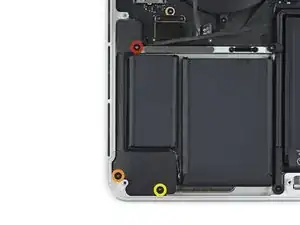
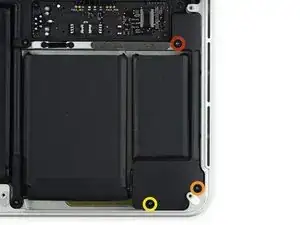
Remueve los siguientes tornillos que sujetan el altavoz derecho de la caja superior:
-
Un tornillo Torx T5 de 5.7 mm
-
Un tornillo Torx T5 de 6.5 mm
-
Un tornillo Torx T5 de 3.8 mm
-
-
-
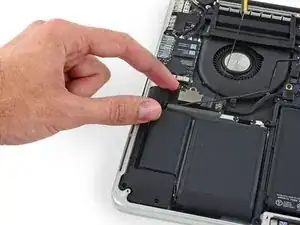
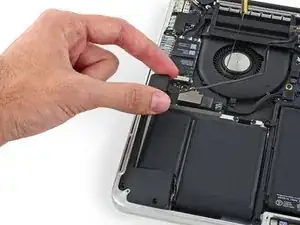
Con cuidado coloca la punta del spudger bajo el cable del altavoz izquierdo cerca del conector y levántalo de su enchufe en la placa lógica.
-
-
-
Remueve los siguientes tornillos que sujetan el altavoz izquierdo de la caja superior:
-
Un tornillo Torx T5 de 5.7 mm
-
Un tornillo Torx T5 de 6.5 mm
-
Un tornillo Torx T5 de 3.8 mm
-
-
-
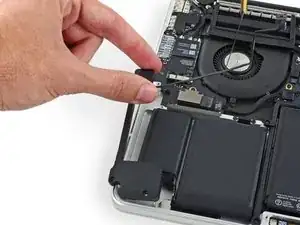
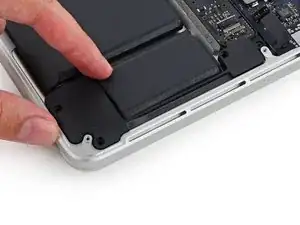
Levanta la esquina del altavoz izquierdo y deslízalo alrededor de la batería para sacarlo de la carcasa superior.
-
-
-
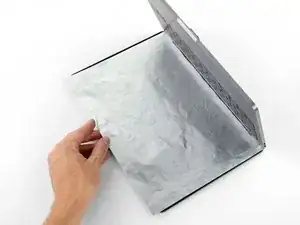
Para proteger tu pantalla, coloca una hoja de folio de aluminio entre la pantalla y el teclado y déjalo ahí mientras trabajas.
-
-
-
Alternativamente, si estás utilizando el método iOpener caliente, salta los siguientes tres pasos.
-
Usa protección para ojos al manejar y aplicar el removedor de adhesivo. (La protección para ojos está incluida en tu kit)
-
No uses lentes de contacto sin protección de ojos.
-
Los guantes protectores están también incluidos en tu kit. Si te preocupa la irritación de la piel, ponte los guantes ahora.
-
-
-
Saca el tapón de goma de tu botella de removedor de adhesivo.
-
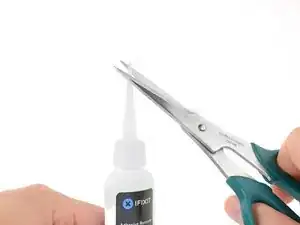
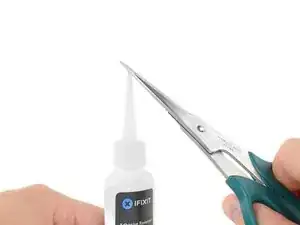
Utiliza una tijera para cortar la punta sellada del aplicador.
-
-
-
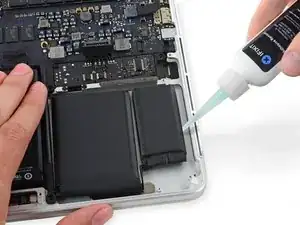
Aplica una pequeña cantidad de removedor de adhesivo de forma pareja bajo el borde de la celda de batería que se encuentra en el extremo derecho.
-
Espera 2-3 minutos para que el removedor de líquido de adhesivo penetre por debajo de la celda de batería antes de proceder con el próximo paso.
-
-
-
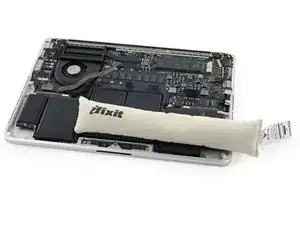
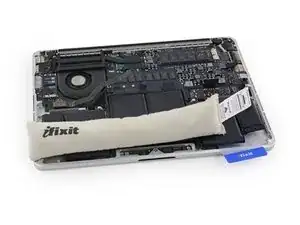
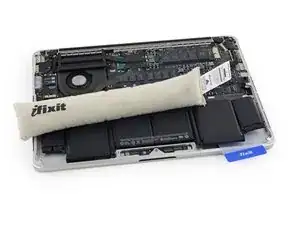
Usa el iOpener caliente para cubrir la mitad de las dos celdas baterías en el extremo derecho.
-
Luego de alrededor de un minuto, vuelve a calentar el iOpener y muévelo para que cubra la otra mitad de las dos celdas de baterías en el extremo derecho.
-
-
-
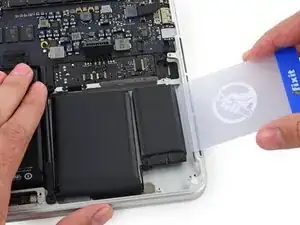
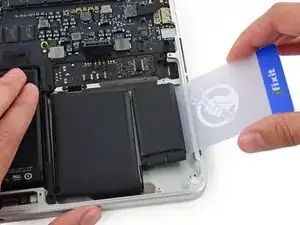
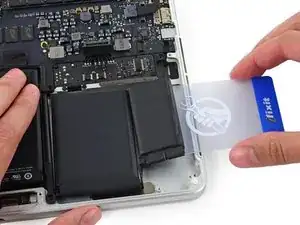
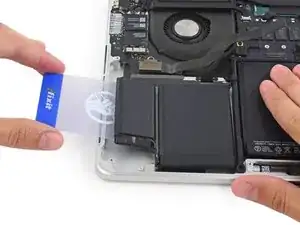
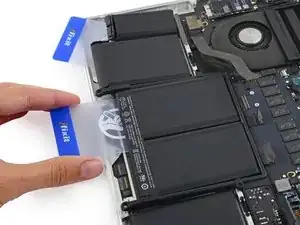
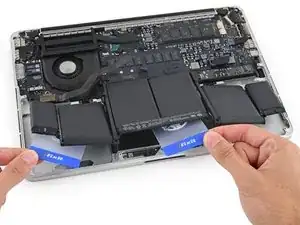
Empuja una tarjeta de plástico entre la celda de la batería del extremo derecho y la caja superior, cortando el adhesivo entre los dos.
-
Cuando utilices el método de iOpener caliente, si encuentras resistencia significativa para hacer palanca deténte y usa el iOpener para volver a calentar la sección en la que estás trabajando.
-
-
-
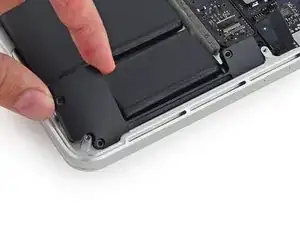
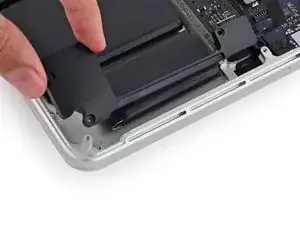
Usa la tarjeta de plástico para levantar la celda de batería del extremo derecho de la caja trasera.
-
-
-
Repite este procedimiento con la celda de batería adyacente:
-
Aplica una cantidad pequeña (alrededor de 1 ml) de removedor líquido de adhesivo debajo de la celda de batería, y espera 2-3 minutos para que penetre y ablande el adhesivo.
-
Alternativamente, vuelve a calentar esta sección con su iOpener si es necesario.
-
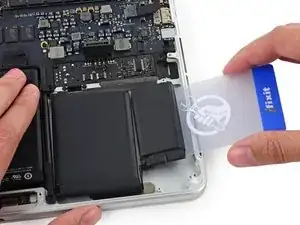
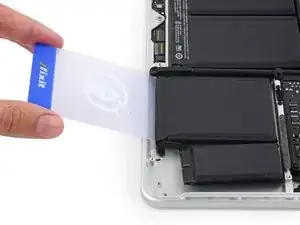
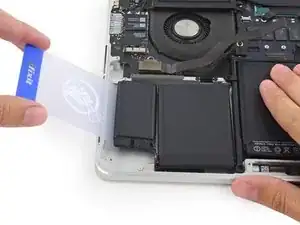
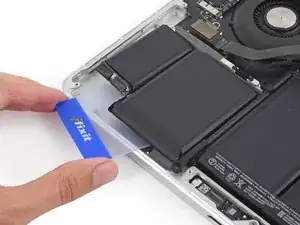
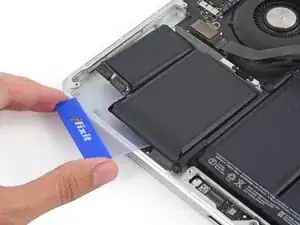
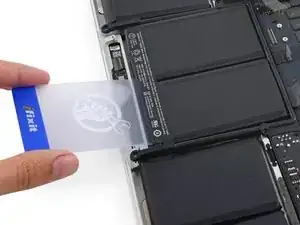
Empuja una tarjeta de plástico alrededor de una pulgada entre la celda de batería y la caja superior y lentamente levanta la celda para separarla de todo el adhesivo.
-
-
-
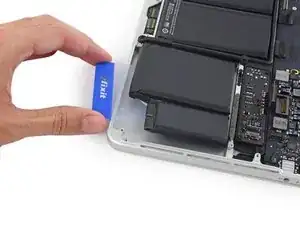
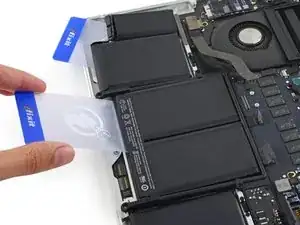
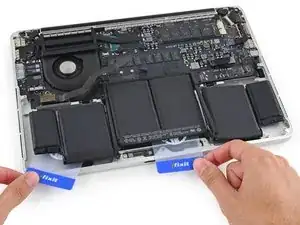
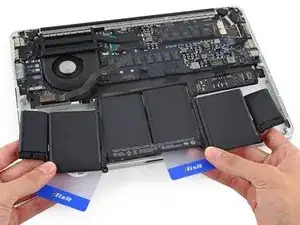
Deja temporalmente tu tarjeta de plástico debajo de las dos celdas de baterías del extremo derecho para prevenir que se vuelvan a adherir a la caja superior.
-
Si estás utilizando un iOpener, vuelve a calentar y aplicarlo, esta vez en las celdas de baterías del extremo izquierdo.
-
-
-
Repite el procedimiento de arriba para separar las dos celdas de batería del extremo izquierdo de la caja superior.
-
Recuerda de aplicar una pequeña cantidad de removedor líquido de adhesivo y espera 2-3 minutos para que penetre y ablande el adhesivo.
-
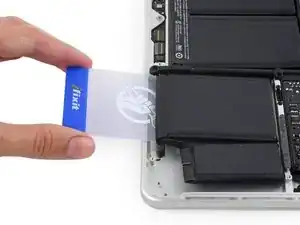
Usa una segunda tarjeta de plástico para separar las dos celdas de batería del extremo izquierdo de la caja superior.
-
-
-
Para separar el adhesivo que sujeta la dos baterías finales del medio, aplica otro milímetro de removedor líquido de adhesivo (o tu iOpener) en cada celda.
-
Podría ayudar si elevas un lado de tu MacBook Pro unas pulgadas para que el removedor de adhesivo fluya en la dirección correcta, por debajo de las celdas de batería. Puedes usar un libro robusto o bloque de espuma para apoyar un lado de tu MacBook Pro mientras trabajas.
-
Introduce la tarjeta alrededor de una pulgada entre la celda de batería del centro izquierdo y la caja superior, separando el adhesivo entre la celda y la caja.
-
-
-
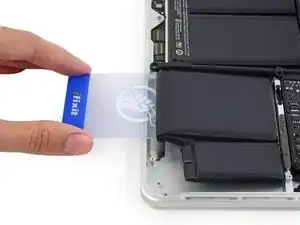
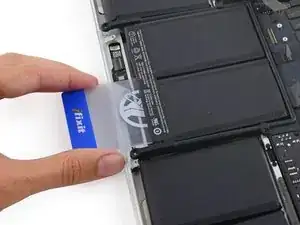
Retira la tarjeta y vuelve a introducirla una pulgada entre la celda de batería del centro derecho y la caja superior, separando el adhesivo entre la celda y la caja.
-
-
-
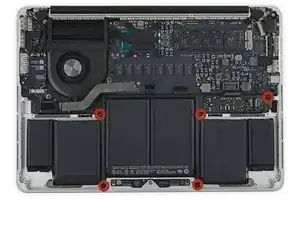
Levanta las dos celdas del centro para separar el último adhesivo y sacar la batería del dispositivo.
-
-
-
Remueve la batería.
-
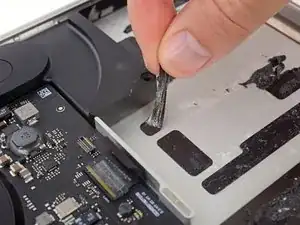
Con un poco de suerte, puedes lentamente levantar cada tira de adhesivo con tus dedos.
-
De lo contrario, empapa cada sección de adhesivo con un poco de removedor de adhesivo durante 2-3 minutos y luego raspa y sácalo con un pico de apertura o cualquiera de las herramientas en tu kit. Esto podría ser mucho trabajo, así que ten paciencia.
-
Limpia cualquier resto de removedor de adhesivo y dale a tu MacBook Pro durante unos pocos minutos para que se seque al aire.
-
Calibra tu batería nueva. Cárgala hasta 100% y luego sigue cargándola durante al menos 2 horas más. Luego, desenchúfala y úsala normalmente para drenar la batería. Cuando veas la advertencia de batería baja, guarda tu trabajo y mantén tu laptop encendida hasta que se duerma. Espera al menos 5 horas, luego cárgala de forma ininterrumpida hasta 100%.
-
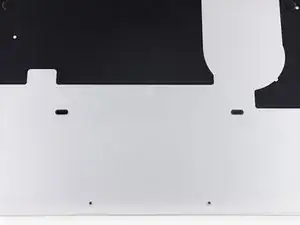
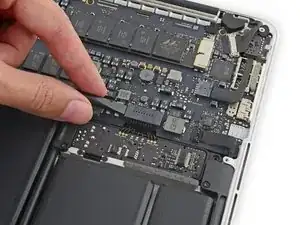
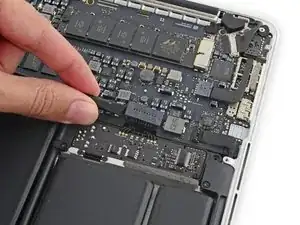
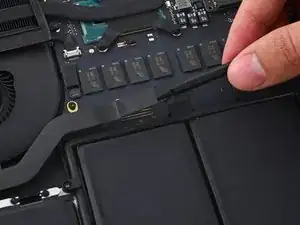
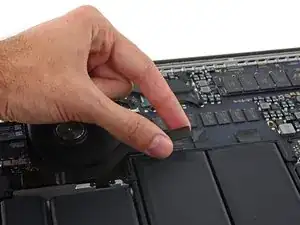
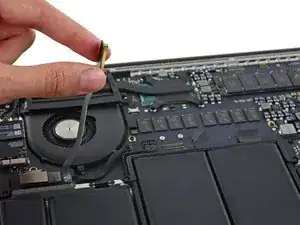
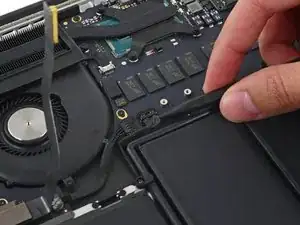



Para volver a ensamblar tu dispositivo, sigue estas instrucciones en orden inverso.

48 comentarios
What is the part number for the mid 2014 13 inch MacBook Pro battery? I see a lot of batteries for sale for the mid 2013 online. Are they compatible?
MacBook Pro 13" Retina (Late 2013-Mid 2014) Battery here is a battery replacement.
Macbook Pro A1502 not charging after disassembly/assembly (I just wanted to clean the touchpad). MagSafe is orange but the Macbook is not charging - running only when plugged in. MacOS says the battery needs to be replaced - even if it has 82% charged.. I alson tried reset of SMC and PRAM with no effect..
Any advice? Thanks
tommy69 -
Same problem here. Did you find a solution?
Tim Bo -
Yes, same thing. Had to replace battery and now it’s working.
Check if it’s actually charging. My battery status stated that it needs to be replaced and mac was running on ac instead of battery.
Dominika -
Bonjour, mon problème : mon Mac Book Pro 13" 2014 mes pourcentage descende de 2 pourcents toutes les 2 minutes il tiens a peine 3h a votre avis vaut t'il le coup que je change la batterie ?
Merci.
For all the screws you use the P5 pentalobe screwdriver?
Carlos -
Pentalobe is only for the screws on the bottom cover. The Torx screw driver is for the remainder.
Fredrik -
I never, ever, ever considered using anything but the correct tool on the Pentalobe screws. Too easy to strip and void your warranty (if still in effect), as well as make it almost impossible to get inside later for another upgrade or repair. The Wiha P5 Pentalobe screwdriver fits like a glove and costs only about $11 (a fraction of your drive's price)at Amazon.com. Get it!
marketing -
I followed this exactly and was able to replace my broken trackpad. I did not have to replace the ribbon OR the battery. However I would suggest getting the ribbon since it’s fairly cheap, as for the batteries I was able to do it with a card only. I didn’t use any heat or the liquid but it takes some time. You really have to work the card in there to release the glue. Also you must be very careful not to bend the batteries or damage them, if you do you must replace with new. This took me about 1.5hrs and my computer works like new. Apple cost for this job was around $450, I did it for $120. Big ups to ifixit for this awesome tutorial, tool set and parts!
On a side note, only use quality tools, the cheap ones will break or strip the screws.
Dustin Steward -
Note that the eight 3mm screws have a shoulder under the head, while the two 2.3mm screws are “full thread”, i.e., there is no shoulder under their heads. It’s important to put the two screws with no shoulder at the hinge of the cover.
All ten screws require a P5 Pentalobe screwdriver, preferably with a magnetized tip to help hold and position the screw.
All of the screws have blue “Loctite” thread locker compound on their threads. This is to help prevent the screws from working loose and falling out. Don’t attempt to clean the Loctite from the screws — leave it in place, and it will continue to help prevent the re-inserted screws from working loose.
When replacing the bottom cover, it is a good technique to insert and BEGIN tightening all ten screws BEFORE fully tightening any one screw. After all the screws have been started, then go around and finish tightening all of them. By doing this, you make it easier to feel that each screw has been started properly, and is not “cross-threaded”.
doubleclutch -
This is what I found on my MBP mid-2014 13” Retina. All 10 used the same screwdriver. I didn’t see the blue “loctite” but I also got my computer refurbished.
Evan Shulman -
A good technique for starting to thread the screws when replacing them is to position and align the screw, and with the driver, gently turn the screw in the REMOVAL direction until you feel and hear a slight click. This click happens when the leading thread of the screw drops off of the leading edge of the thread in the hole — this is the point at which the threads are properly positioned for engagement. You can now turn the driver and screw in the TIGHTENING direction. This technique will help prevent accidental “cross-threading” of the screw, which will damage the threads permanently.
Note that this is a useful technique when installing ANY threaded fastener.
doubleclutch -
Hi peeps,
I have a wifi problem on this MBP 13” early 2015 and was pleasently surprised to find your guide to changing the airport card.
However upon closer inspection it seems that on my MBP (purchased new or so I thought) the 3 antennae seem so have been soldered together at the point where they are clamped to the chassis. I have photos but cannot post here. Can anyone conform that where the 3 antennae wires are held to the chssis by the 2 scew metal support (just before disappearing into the screen hinge), the support is not meant to short the 3 wires together. This makes no sense for 3 seperate antennae wires.
Any advice /close up photos is welcome here.
dom
colonel mustard -
Tip: Use post-it notes to keep track of screws
1. Pack of post it notes
2. Stick screws to the sticky part of the post it note
3. Write on the post it note which step and what kind of screw it is
ibash -
Hi, in order to drain the battery I am running:
yes > /dev/null
in 4 terminals, so the CPU maxes out at almost 99%.
I hope this speeds up the battery draining process.
And the backlight is at maximum brightness :-)
You can see the cpu load in Activity Monitor.
Its draining at 20% per 15 minutes.
Any concerns about draining the battery in this way?
Andre van der Ham -
Something I’ve been curious about, is it possible to upgrade a late 2013 Retina model MacBook Pro, with the improved 16gb ram and i7 processor logic board from the 2015 retina model? I’d be interested to try but not ready to shell out the $500+ to be the first lol
Chat Dawgie -
Without rehashing what others have said, I would highly recommend reading through the steps *and* the comments for each before tackling your replacement for tips. Highlights for me were: only disconnecting what actually needed to be disconnected, rotating the spudger to release the track pad cable, a hair dryer worked perfectly fine, and the pencil outline of the battery before you remove. You got this!
N DesRochers -
Installation of replacement AirPort card was easier than I had expected thanks to this guide. Thank you.
chaslaw -
I use replaced SSD and it was super easy and working great. I can finally upgrade Mac OS with plenty of room to spare and no more low memory alerts. Well worth investment and didn’t have to buy new laptop
Pete James -
It's interesting that this tutorial is rated Moderate even though you need to remove the battery. The battery removal tutorial which is basically the same but with fewer steps is rated Difficult.
Marv Ruona -
when i pulled the screws out i arranged them in the same way they were in. the top 2 middle screws appeared to be shorter than the rest. in order to keep them in place i got a square of packing tape sticky side up, taped both sides down with 2 other pieces of tape. and then put the screws head down in the order i pulled them.
Jason Wade -
Excellent instructions although checking battery and speakers aligned before fixing batteries into place is essential. MacBook good as new!
John Foreman -
I find it helpful to spread a soft, slightly fuzzy cloth (like flannel) over my workspace before doing something with small parts. It keeps screws and things from rolling or bouncing away. A towel might be too plush, though, as a screw might get lost in it.
Richard KeslerWest -