Introducción

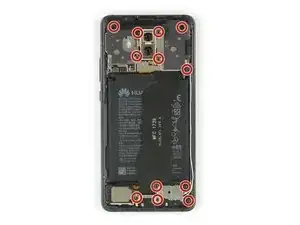
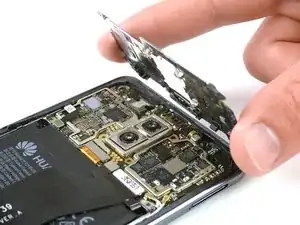
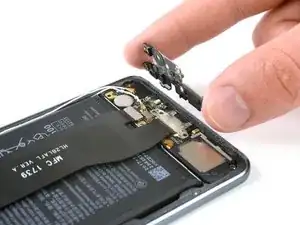
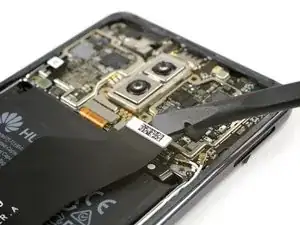
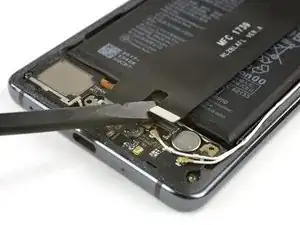
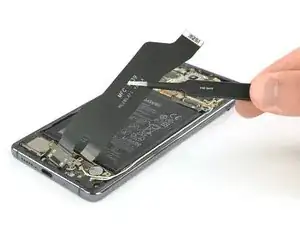
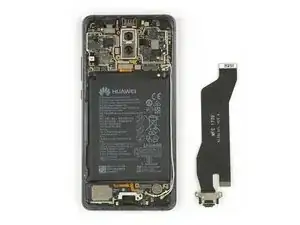
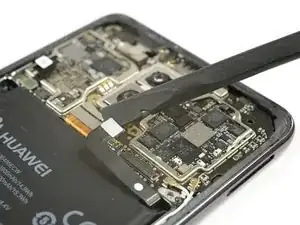
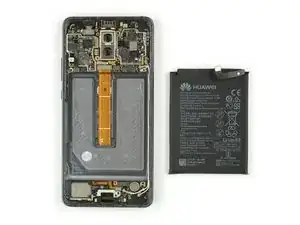
Usa esta guía para reemplazar una batería gastada en tu Huawei Mate 10 Pro.

Antes de desmontar tu teléfono, descarga la batería por debajo de 25%. La batería podría prenderse fuego y/o explotar si se la perfora accidentalmente, pero la posibilidad de que ocurra es menor si se la descarga.

  1. rg3xpGgvKOjMBPWO
    • Apaga tu teléfono.

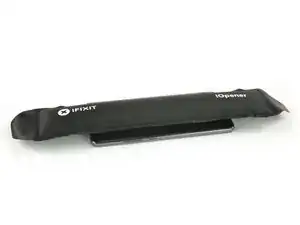
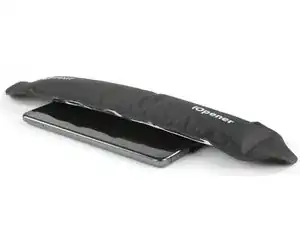
    • Prepara un iOpener y aplícalo a la parte trasera del teléfono durante alrededor de dos minutos para aflojar el adhesivo por debajo de la tapa trasera.

    Erm… Simply impossible to open the phone this way…

    I used the iOpener for 2 mins as instructed, I’ve used even an hair drier for 30 secs on max power (could barely touch the phone after) and still with the suction tool I was not able to open the phone.

    It simply doesn’t budge!!!

    Miguel Oliveira -

  2. vJVBYc2fWjWoTSNG
    vJVBYc2fWjWoTSNG
    wgXxR6VJO4alrBKR
    illPhNTBeVFxigjt
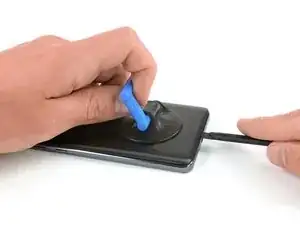
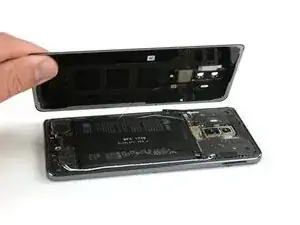
    • Levanta la tapa trasera con una ventosa hasta que puedas insertar el extremo plano de un spudger halberd.

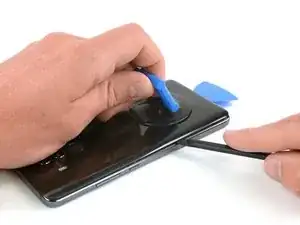
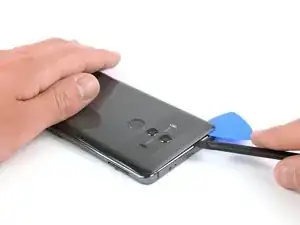
    • Usa un spudger halberd para cortar el adhesivo por debajo de la tapa trasera en todos lados del teléfono.

    • Usa púas de apertura para evitar que el adhesivo se pegue de nuevo en la tapa trasera mientras cortas el adhesivo en todos los lados.

    Faire attention à ne pas enfoncer trop le cutter/spatule hallebarde. Surtout à l’approche des boutons ON/OFF et volume, la nappe ne passe pas loin et se branche à coté de l’empreinte digitale.

    Bilan, j’ai coupé cette nappe et n’ai plus de bouton volume et on/off.

    Plus qu’à chercher la piece de rechange pendant que le telephone est ouvert ;)

    NeoX -

  3. C5QkPmrDkMAECFTO
    C5QkPmrDkMAECFTO
    lV1jdUdq1oorWMA2
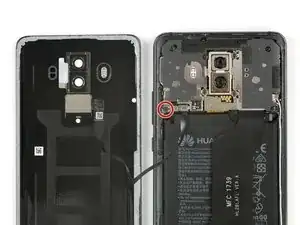
    • No remuevas la tapa trasera todavía. El cable del sensor de huellas digitales está todavía conectado a la placa madre.

    • Voltea la tapa trasera hacia un lado.

    • Retira el tornillo Phillips #00 que sujeta el escudo metálico, sentado encima de la conexión del cable del sensor de huellas digitales.

  4. VcxMNTBJfNQCqTLN
    VcxMNTBJfNQCqTLN
    Mx42vEmk5nW5QvKv
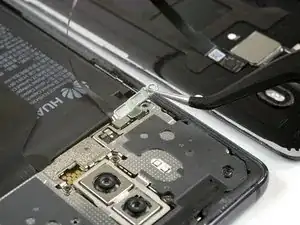
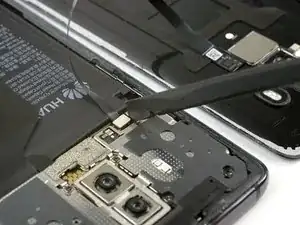
    • Utiliza un par de pinzas para quitar el escudo metálico que cubre el conector del sensor de huellas digitales.

    • Desconecta el cable del sensor de huellas digitales con un spudger.

    • Al volver a ensamblar tu teléfono, aplica adhesivo nuevo donde sea necesario.

  5. tAqccddL4PorxOAC
    tAqccddL4PorxOAC
    SF3upv2yvfqMQaPC
    CNBw4EBW6koEH2Ex
    • Remueve los doce tornillos Phillips #00.

    • Con cuidado remueve los escudos en la parte superior de la placa madre y la placa de carga.

    • En caso de que los escudos no salgan fácilmente por su cuenta después de quitar los tornillos Phillips, puedes utilizar el extremo puntiagudo de un spudger para sacarlos.

  6. AJKvpcjmmVncyGQ2
    AJKvpcjmmVncyGQ2
    GwxgGLrKtEWpWCmO
    • Usa un spudger para desconectar el cable flexible del puerto de carga de la placa madre y de la placa hija.

  7. O6QARa6cJ26AKtOX
    O6QARa6cJ26AKtOX
    pv3hObwLtKYKUyhH
    • Usa un par de pinzar para remover con cuidado el puerto de carga con su cable flexible.

    • El puerto de carga se asienta firmemente en su hueco. En caso de que tengas problemas para quitarlo, utiliza el extremo plano de un spudger halberd para sacarlo.

    Do I need to apply a new sealer / adhesive tape in order to assemble the phone back together? If yes, where can this be purchased for Huawei Mate 10 Pro?

    Megan -

    If the adhesive on the back cover is damaged too much and/or doesn’t stick any more it is recommended to remove the old adhesive from the back cover and clean off any residue with isopropyl alcohol (>90%). Then use thin double sided adhesive tape and apply new strips of adhesive.

    Tobias Isakeit -

    hi, after this install it will still will water proof ?

    David Tay -

    Hi David,

    opening the Mate 10 Pro will damage the waterproof sealing on the device. If you do not replace the adhesive seals, your phone will function normally, but will loose its water-protection.

    Dominik Schnabelrauch -

    Hi there, I completed the battery replacement nicely with all your steps, the phone could turn on and function normally, the only issue after the battery replacement is the phone has no sound and vibration. I have ensure all connectors are back to place securely. Does anyone have any clue of the cause of no sound and no vibration?

    Shawn W -

    You do not have to remove the charging port for battery replacement, it does not interfere anywhere. I couldn't get the charging socket out at all. Where is the trick?

    Christian -

  8. vVySn6qF1Frbna4b
    vVySn6qF1Frbna4b
    jc1mHKttOiBZ1TWY
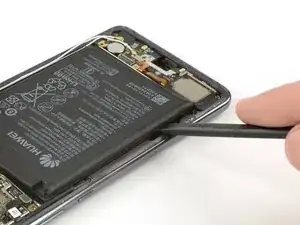
    • Usa un spudger para desconectar el cable flexible de la batería.

    • Aplica un iOpener en la pantalla durante al menos un minuto para aflojar el adhesivo debajo de la batería.

    Hier auf KEINEN Fall ein Werkzeug aus Metall (wie den iSesame) verwenden!

    Die Funken die dabei sprühen sollten sehr klar machen, daß das keine Gute Idee für den Akku ist. XD

    Evi1M4chine -

  9. ZJCareMLxjChjOlD
    ZJCareMLxjChjOlD
    NHMoGRWdv1HM2tj1
    eQQideJfRbkMmJOV
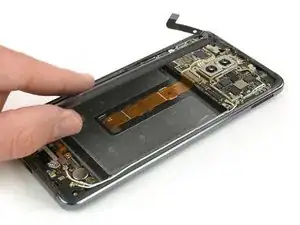
    • El cable flexible de la pantalla pasa por debajo de la batería. Ten cuidado de no dañarlo al aflojar el adhesivo. También ten cuidado de no doblar o perforar la batería en ningún momento.

    • Utiliza un spudger para levantar la batería y deslizarlo a lo largo del lado para separar el adhesivo.

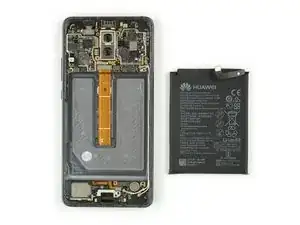
    • Remueve la batería.

    • Al ensamblar tu teléfono, reemplaza el adhesivo viejo con cinta de doble cara o adhesivo pre-cortado.

Conclusión

Para volver a ensamblar tu dispositivo, sigue estas instrucciones en orden inverso.

Dominik Schnabelrauch

Miembro Desde 23/11/16

169012 Reputación

7 comentarios

complimento ottima guida

coroby -

The battery was glued in really firmly. I ended up pulling it out with a plier and had some smoke and sparks, luckily I had made sure to drain it completely prior to repair.

Martin Olsson -

Hi there, I completed the battery replacement nicely with all your steps, the phone could turn on and function normally, the only issue after the battery replacement is the phone has no sound and vibration. I have ensure all connectors are back to place securely. Does anyone have any clue of the cause of no sound and no vibration?

Shawn W -

Geschafft! Okay, ich war sehr vorsichtig und extrem überlegt. (2 Stunden) Wichtig ist ein Test vor dem verschließen. Bei mir funktionierte der Lautsprecher nicht. Stecker für selbigen war aufgesteckt hatte aber keinen Kontakt. Nochmaliges festdrücken und seit dem ist alles iO. Achtung der Akku ist extrem fest verklebt. Nur mit viel Geduld, Kraft und Wärme war es überhaupt möglich ihn zu lösen. Mit den noch vorhanden Kleberresten im Deckel wieder verschlossen. Hat alles Geklappt und Danke nochmal an diese Super Beschreibung.

Andreas Fiedler -

Sehr gute Anleitung. Ist unter 30 Mminuten gut zu machen wenn nicht wie bei mir der Akku schon gebläht gewesen ist…Dadurch war es deutlich schwieriger den Akku raus zu bekommen - Huawei hat wirklich einen irren Kleber verwendet. Muss aber sagen das Stecker usw wesentlich besser flutschen als bei Iphones. Alles in allem finde ich das Mate 10 pro wirklich reparaturfreundlich. Danke nochmals an den Autor für die gute Anleitung?

Torsten Berges -

Followed instructions and apart from piercing battery covering on removal from phone, all went well. Relieved to say everything appears to be working normally, fingers crossed. Many thanks to the author (s?) of the guide.

Other21 -

Vielen herzlichen Dank für die Anleitung!

Wie oben schon mehrfach gesagt, war der schwierigste Schritt, den sehr fest verklebten Akku zu entfernen. Da ich keinen iOpener besitze, habe ich zum erwärmen eine Bettflasche verwendet. Die habe ich auf den Tisch gelegt und das Smartphone darauf. Das war auch deshalb notwendig, weil sich bei mir die Ladebuchse mit Flachbandkabel (Schritt 7) nicht entfernen ließ. Hier war ich einfach vorsichtig, beim Entfernen des Akkus das Kabel nicht zu beschädigen. Ist eigentlich kein Problem.

Um den Akku zu lösen habe ich zwei alte Check-Karten genutzt, die ich wie ein "Messer" benutzt haben, um von beiden Seiten des Akkus immer wieder von oben nach unten "schneidend" den Kleber zu lösen. Nach dem Lösen auf einer Seite habe ich eine Karte einfach stecken lassen, damit sich der Akku nicht wieder mit dem Kleber verbindet. Für den Vorgang war einige Kraft in den Fingern notwendig und viel Geduld.

Oliver Stickel -