Introducción
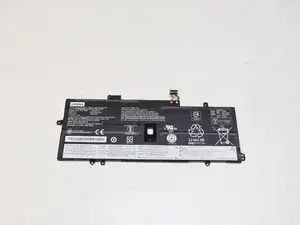
¿La batería de tu Lenovo ThinkPad X1 Carbon 7th Gen (número de modelo: 20R1000RUS) no funciona como antes? Utiliza esta guía para reemplazar la batería y poder utilizar tu portátil durante más horas.
La batería permite que tu portátil funcione sin un cable de alimentación. Consulta nuestra página de solución de problemas para determinar si tu batería se ha estropeado. Si tu batería está hinchada, toma las precauciones adecuadas.
Una vez instalada la batería, calibra tu nueva batería para obtener el mejor rendimiento.


Partes

-
-
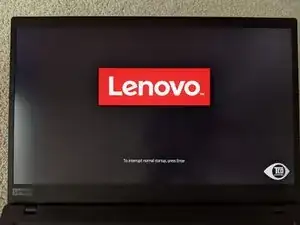
Reinicia la computadora. Cuando aparezca el logotipo de Lenovo, pulsa inmediatamente Enter y, a continuación, pulsa F1 para acceder a la utilidad de configuración del BIOS
-
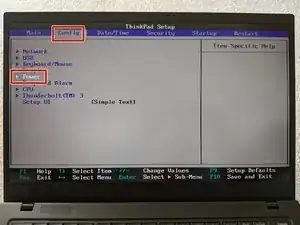
Utiliza las teclas de flecha para seleccionar Config→Power.
-
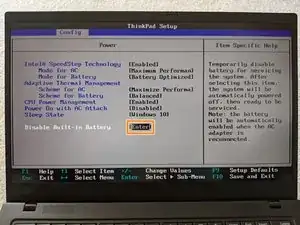
Selecciona "Desactivar la batería integrada".
-
La batería se volverá a habilitar cuando se conecte el cargador.
-
-
-
Da la vuelta a la computadora portátil en una superficie plana con el panel trasero hacia arriba.
-
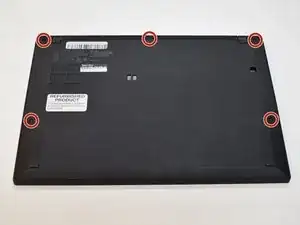
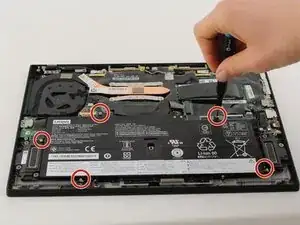
Retira los cinco tornillos Phillips #0 de 5 mm del borde del panel trasero.
-
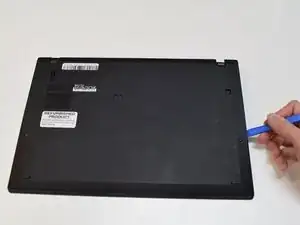
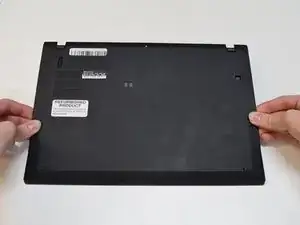
Inserta una herramienta de apertura entre el panel trasero y el borde. Maneja la herramienta alrededor del panel, desconectando los clips que sujetan el panel en su lugar.
-
-
-
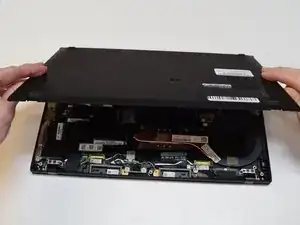
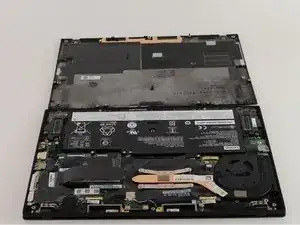
Levanta el panel trasero para separarlo del dispositivo, dejando al descubierto las partes internas.
-
-
-
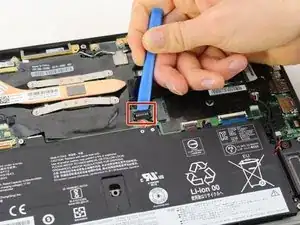
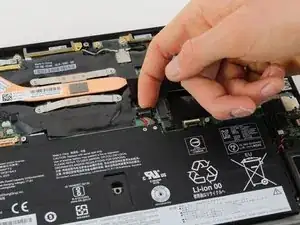
Utiliza una herramienta de apertura para levantar suavemente el conector de la batería de su zócalo de la placa madre.
-
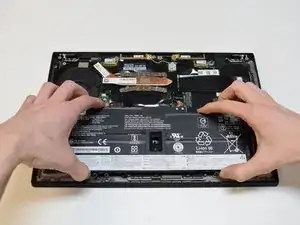
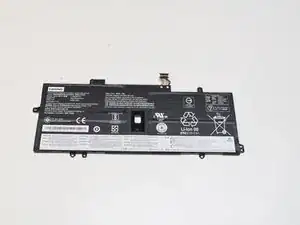
Para volver a ensamblar tu dispositivo, sigue estas instrucciones en orden inverso.

6 comentarios
Thank you for the post! My laptop battery is totally dead, not charging at all at 0%, so I cannot disable the built-in battery. Since it immediately dies if unplugged, the built-in battery is automatically enabled while it’s turned on and plugged. Can I just let it unplugged and proceed?
Soo J -
You should still be able to access BIOS with the laptop plugged into its charger to disable the battery before unplugging it and removing it. However, if that does not work, just be careful not to bridge any of the pins the battery connects to on the motherboard and everything should still be fine.
The X1 g.7 has a known bug where internal battery stops working (won’t charge, or says battery not detected in windows). I have personally solved this problem on 4-5 laptops by disconnecting the battery (follow this guide until step 4) and then plugging it back in after ten seconds. In 90% of the cases this has solved the problem without battery replacement.
cesepan -
Yeah it's a hardware connection issue at least in my case. A light kick to the back of the laptop also works usually.
After replacing battery in X1 Gen 7 battery indicator shows 100% (laptop plugged-in) and Lenovo recalibration function stays forever in Step 2 (drain battery down). If I unplug laptop, it immediately goes dark as if it has no battery and won’t boot. Plugging it in again and powering up everything works fine. In short, works when plugged in and doesn’t work when unplugged despite diagnostic saying battery is good. Any suggestions? Thanks.