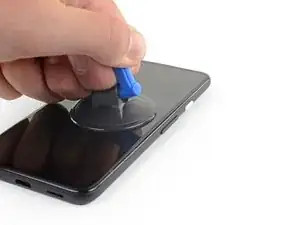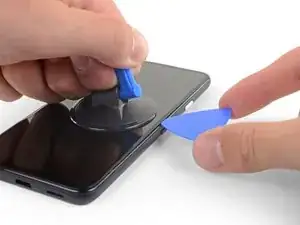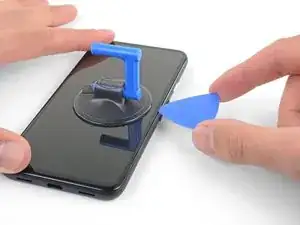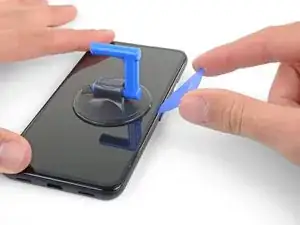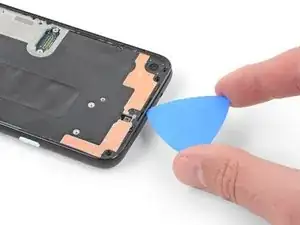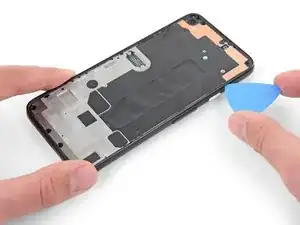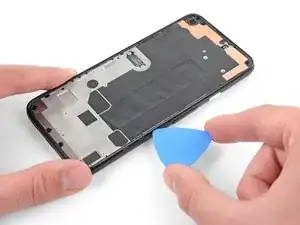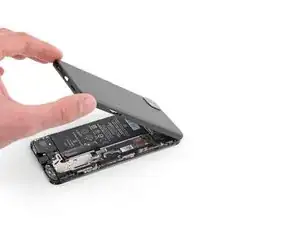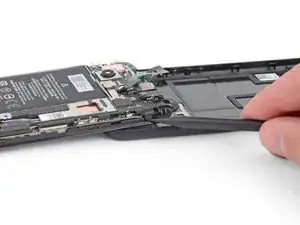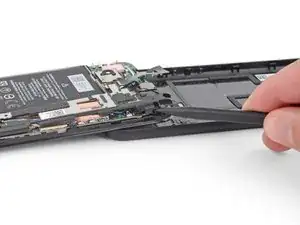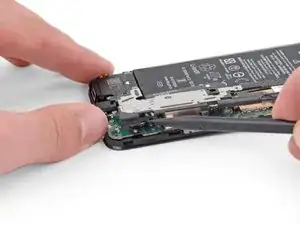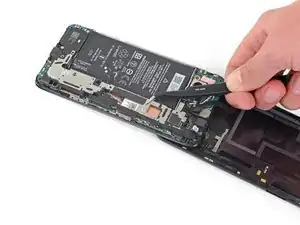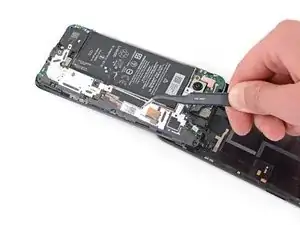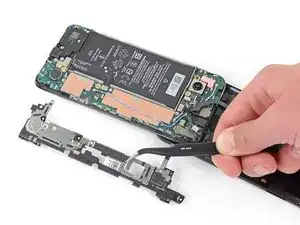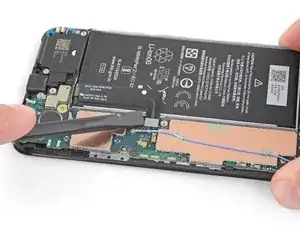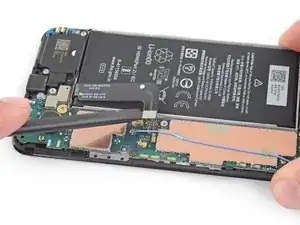
Introducción

Esta guía de reparación fue creada por el personal de iFixit y no ha sido respaldada por Google. Obtén más información sobre nuestras guías de reparación [enlace|Ensuring Quality Repair Information on iFixit|aquí|new_window=true].

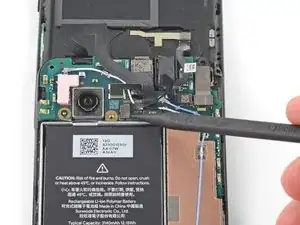
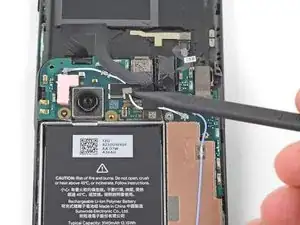
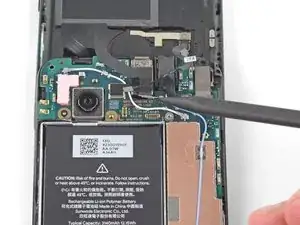
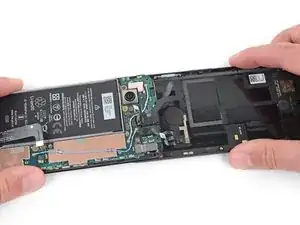
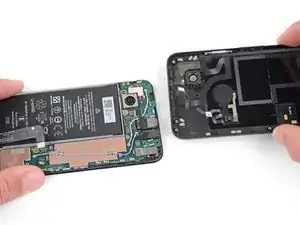
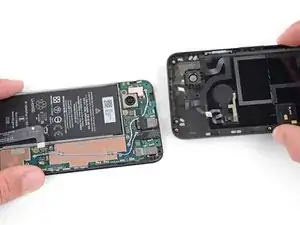
Sigue esta guía para reemplazar la tapa trasera de un Google Pixel 4a.

El panel de visualización no reforzado del Google Pixel 4a es frágil. Presta especial atención a las advertencias en el procedimiento de apertura si estás reutilizando la pantalla.

  1. JLpOVyZrGLQNNFMq
    JLpOVyZrGLQNNFMq
    AXWTuOs4GKMF3EbL
    BKZZg1MeVIbDRlH2
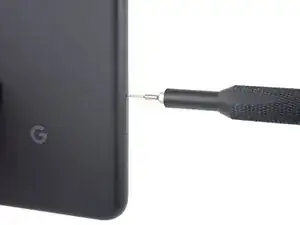
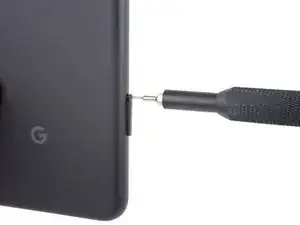
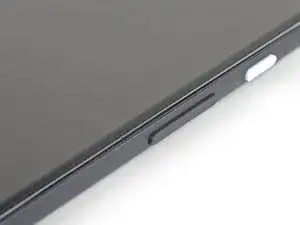
    • Introduce una herramienta de expulsión de SIM, una broca o un clip enderezado en el orificio de la bandeja SIM.

    • Presiona directamente en el orificio para expulsar la bandeja de la tarjeta SIM.

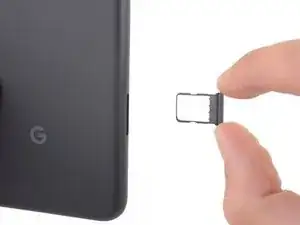
    • Retira la bandeja de la tarjeta SIM.

  2. GAtKSCpq6nOLFhJN
    GAtKSCpq6nOLFhJN
    yYyPALgQYGnCFA4X
    qbLJ5OYSRVHREJWu
    • Necesitarás separar la pantalla para separarla del teléfono. Lee las siguientes notas con cuidado antes de proceder.

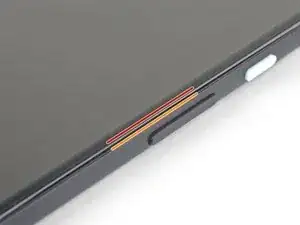
    • Fíjate en las dos juntas en el borde del teléfono:

    • Junta de la pantalla: Esta junta separa la pantalla del resto del teléfono. Por aquí es por dónde debes separar.

    • Junta del marco: Aquí es donde el marco se encuentra con la carcasa trasera. Está enganchada por tornillos. No separes por esta junta.

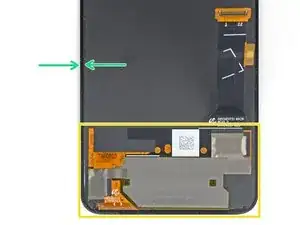
    • Antes de comenzar, fíjate en las siguientes áreas de la pantalla.

    • Cable flexible de la pantalla: No insertes la púa de separación más allá de lo indicado o corres el riesgo de dañar este cable.

    • Ten cuidado con el cable plano naranja que está bajo la esquina inferior derecha de la pantalla, ya que puedes dañarlo si presionas tu púa sobre él. Introduce la púa solo lo necesario para separar el adhesivo de la pantalla.

    • Perímetro adhesivo: Separar más allá de este estrecho perímetro sin poner la púa en ángulo dañará el panel OLED.

    Coll down guys and gals.

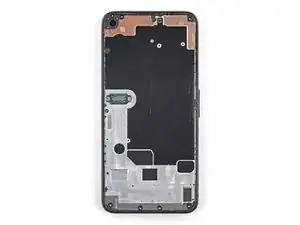
    1) go below the Display and not between the backcover/middle (see the other comments)

    2) just take care about the flex/display cable position (which is iirc about on the middle i.e. 2nd 3rd from the bottom ON THE LEFT side dear OP)

    Everything else is just separting the glued on Display from the Phone.

    See the other comments

    Aleksandar Dejanovic -
    Cool down guys and gals.

    1) go below the Display and not between the backcover/middle (see the other comments)

    2) just take care about the flex/display cable position (which is iirc about on the middle i.e. 2nd 3rd from the bottom ON THE LEFT side dear OP)

    Everything else is just separting the glued on Display from the Phone.

    See the other comments

    Aleksandar Dejanovic -
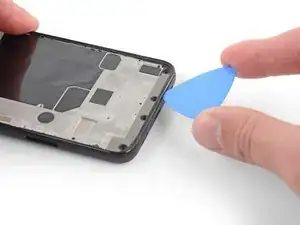
    I've measured it: The cable starts arround 1.4-1.6 cm from the lower half from the bottom on the left side.

    So You can cut the bottom left corner and of course the upper left one but for safety's sake, watch out for the camera.

    You can go up to 5cm down from the upper left side till You're near the cable.

    Aleksandar Dejanovic -

  3. q2iVFP1DNesqap1L
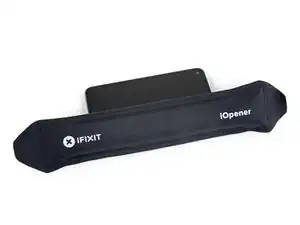
    • Aplique un iOpener caliente en el borde derecho de la pantalla durante un minuto para ablandar el adhesivo.

    • También se puede utilizar un secador de pelo, una pistola de calor o una placa caliente, pero ten cuidado de no sobrecalentar el teléfono, ya que tanto la pantalla como la batería son susceptibles de sufrir daños debido al calor.

  4. EJEIf4Z1AEo3AMWC
    EJEIf4Z1AEo3AMWC
    ScoSymvuqCnKNDcG
    QDwEliHCNFRvCaNt
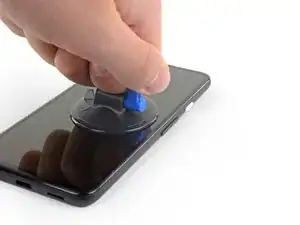
    • Si tu pantalla está muy agrietada, cubrirla con una capa de cinta de embalar transparente puede permitir que la ventosa se adhiera. También se puede utilizar cinta adhesiva muy resistente en lugar de la ventosa. Si todo lo demás falla, puedes pegar la ventosa a la pantalla rota.

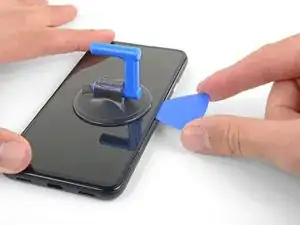
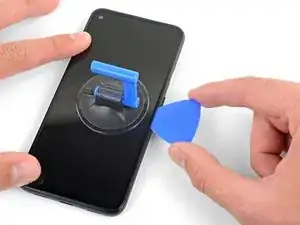
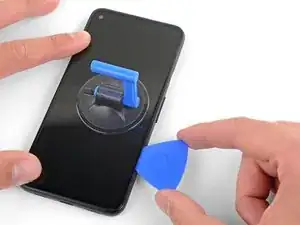
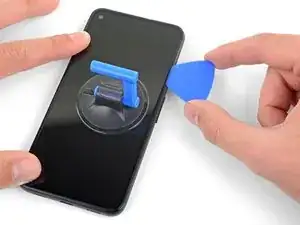
    • Coloca una ventosa lo más cerca posible del borde derecho de la pantalla.

    • Levanta la ventosa fuerte y firmemente.

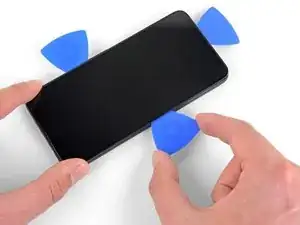
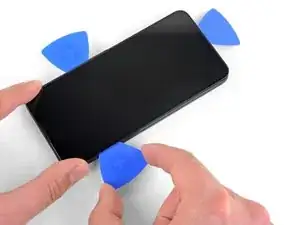
    • Introduce la punta de una herramienta de apertura en la junta entre la pantalla y el chasis no más de 1 mm.

    It's pretty easy. Insert it just below the screen between the Display and the Display “holder” or mold.

    Aleksandar Dejanovic -

  5. xDkhtvTPHTrBtHR6
    xDkhtvTPHTrBtHR6
    AgsUneGcTGB3PV2M
    sPMrxeVQOoANkv3i
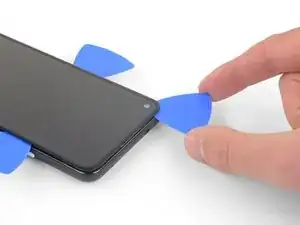
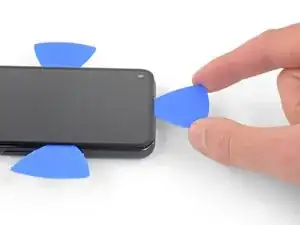
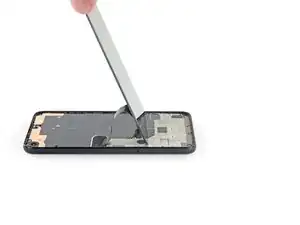
    • Este paso muestra cómo insertar la púa sin dañar el panel OLED. Haz esto antes de empezar a cortar el adhesivo.

    • Con la púa 1 mm dentro del hueco, gira la púa hacia arriba en un ángulo pronunciado.

    • Con un ángulo pronunciado, empuja con cuidado la púa en el hueco de unos 6 mm. La púa debe deslizarse por debajo del panel OLED.

    • Deténte si sientes que la punta de la púa golpea un borde. La púa puede estar presionando el borde del panel OLED. Inclina la púa e inténtalo de nuevo.

    This took me a while, I ended up sharpening the tip of the pick with a razor so I could push it through the seam and slicing a few times, heat->sharpen-> slice until I finally got it to move, and once it slid under carefully heated up areas and sliced with ~2mm of the pick.

    Alan Carlson -

    This sounds also harder than it is. Push it in 1mm and just lift the other end in a wider angle like 70° degree from the horinzontal position. There “shouldn't” be much you can do wrong. Because except for the Data cable (flex) at a certain position, I can't remeber anything important but isolating tapes that I have scratched.

    It's just the Screen glued to the mold. That's it.

    Aleksandar Dejanovic -

    Oh, and I wonder here where do You all get such thins plectrums? I have also the flat plastic version and the thin plastic cards but none of them were thin enough for this!!

    I ended up using the backside i.e. the dull side of a Razorblade. I didn't saw any alternatives to this. Did You hear this OP?

    Any!!

    Aleksandar Dejanovic -

  6. J4QMAiSkZffCSgBV
    J4QMAiSkZffCSgBV
    rCRAZWFOTKgxQUYs
    LeRcwOFGsOG2JHfX
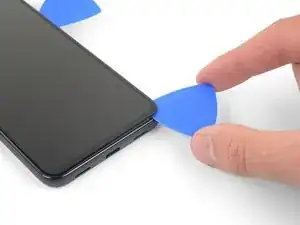
    • Desliza la púa por el borde derecho de la pantalla para cortar el adhesivo.

    • No introduzcas la púa más de 6 mm o podría dañar el cable flex de la pantalla.

    • Deja la púa en la esquina superior derecha para evitar que el adhesivo se vuelva a sellar.

  7. D42ibC2SikIjDNWv
    D42ibC2SikIjDNWv
    1UDYbsxrgPALt626
    JhcXfCMQ1xAfK4aK
    • El adhesivo de la pantalla es muy débil y no debería ser necesario volver a aplicar calor. Si la pantalla resulta difícil de cortar, aplica calor en esa zona durante un minuto y vuelve a intentarlo.

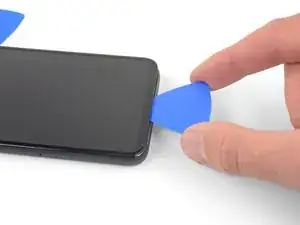
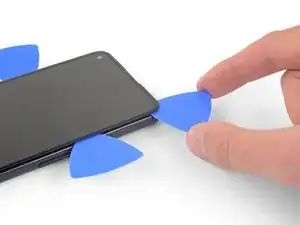
    • Introduce otra púa en el borde derecho del teléfono en un ángulo en el que ya se ha formado un hueco para evitar que se dañe el panel OLED.

    • Desliza la púa alrededor de la parte inferior del teléfono para cortar el adhesivo.

    • Hay un delicado cable bajo la esquina inferior derecha de la pantalla. Si notas que tu púa de apertura se engancha en algo, sácala y vuelve a intentarlo. Asegúrese de que la púa está inclinada hacia abajo y que sólo se introduce lo necesario para separar el adhesivo (no más de 3 mm de profundidad).

    • Deja la púa insertada a lo largo del borde inferior para evitar que el adhesivo se vuelva a sellar.

    Top and bottom edge adhesive were much stronger than this suggests. Corners were very hard to detach. I killed my screen b/c I cracked it at the top. Worked better with heating around whole perimeter like an iPhone.

    Erik Sorensen -

    WARNING: Be very careful prying the bottom left and right corners! In fact do not insert anything there because there is only a 0.8mm clearance between the screen and the edge, and there's a 0.5mm space between the screen and front glass where if you insert a pick between the screen will crack and break! I had to replace the screen after only doing a battery repair...

    bloc -

    Unfortunately I did not properly read the comments here. So for the unafraid people like me:

    DO NOT insert something into the bottom right! Especially not like it is shown in the image at this location!

    Instead I suggest start releasing the screen from right, then left side, then top and as the last step release the bottom, but start with the left corner. Do not pry too much and use a bit more heat as suggested.

    There is a small image of this critical right corner in Step 16 (the part at the top is the display and the left corner at the top is the critical right corner here). You'll see the orange cable in the corner which is easy to damage...

    Peter -

  8. iEnPlXUXUHTZJnpL
    iEnPlXUXUHTZJnpL
    UNTnxRjUZoDHXT4R
    YScDDT4gpOFJOE6j
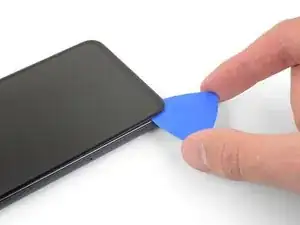
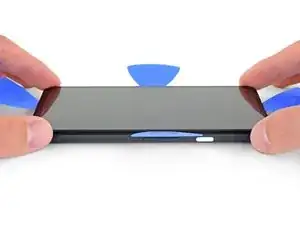
    • Introduce otra púa en el borde inferior en un ángulo en el que ya se ha formado un hueco para evitar que se dañe el panel OLED.

    • Usa la punta de la púa para cortar el borde izquierdo del teléfono.

    • Si resulta difícil cortar el adhesivo, calienta el borde izquierdo durante un minuto y vuelve a intentarlo.

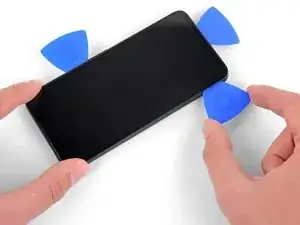
    • Deja la púa insertada a lo largo del borde izquierdo del teléfono para evitar que el adhesivo se vuelva a sellar.

  9. GXSjo5fueaLsoYd5
    GXSjo5fueaLsoYd5
    4mouCGVN3ej3XoXQ
    wLsO4lDvkSNucC6V
    • Hay una malla que cubre el altavoz del auricular en el borde superior de la pantalla. Si no tienes una malla de repuesto, ten cuidado de no dañar o perder este componente.

    • Introduce otra púa en el borde izquierdo del teléfono en un ángulo en el que ya se ha formado un hueco para evitar que se dañe el panel OLED.

    • Desliza la púa alrededor del borde superior del teléfono para cortar el adhesivo.

    • Si resulta difícil de cortar, calienta el borde superior durante un minuto y vuelve a intentarlo.

  10. BPFrToKqDD62NEeM
    BPFrToKqDD62NEeM
    GlHaHCFlb2AFZhlL
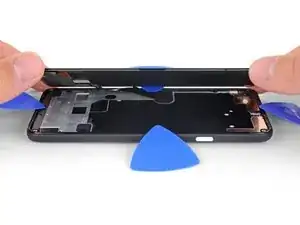
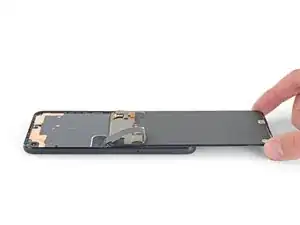
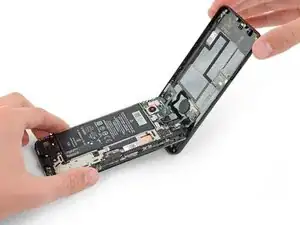
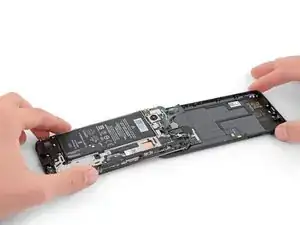
    • Una vez que haya cortado el perímetro del teléfono, levanta con cuidado el borde derecho de la pantalla, abriendo el teléfono como un libro.

    • No retires la pantalla todavía.

    • Utiliza una púa para cortar cuidadosamente los restos de adhesivo.

  11. oUNIGJd3OLSZrEwr
    oUNIGJd3OLSZrEwr
    mlcnfSNcaxRYbOAl
    5IuM1hZd6gUKkGSC
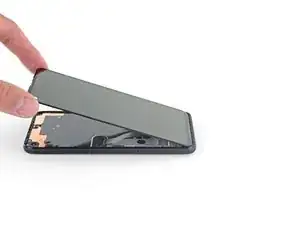
    • Levanta desde el borde superior y gira la pantalla sobre el borde inferior hasta que puedas apoyarla con el lado del cristal hacia abajo.

    • Ten cuidado de no someter a tensión el cable plano conectado.

  12. QDuLoSjuQaZgqGZP
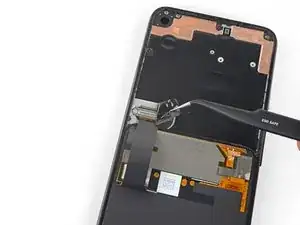
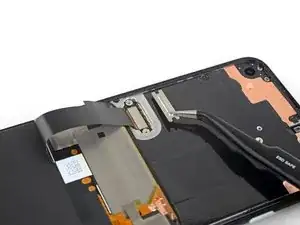
    • Utiliza unas pinzas para despegar con cuidado la cinta negra que cubre el soporte del conector de la pantalla.

    • Si está en buen estado, puedes reutilizar esta misma cinta durante el reensamblaje. En caso contrario, sustitúyela por un trozo de cinta aislante.

    How critical is the tape that covers this connector? I realized upon sealing back up my device that I forgot to re-install it. I imagine it mostly is there to prevent dust and moisture ingress?

    Alex Cook -

  13. 6x5ufTbvB5Q5XCb1
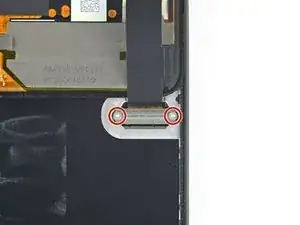
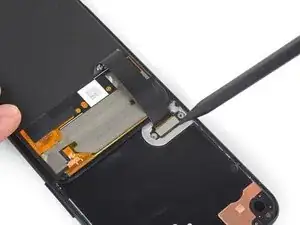
    • Utiliza un destornillador Torx T3 para retirar los dos tornillos de 2,1 mm que fijan el soporte del conector de la pantalla.

    • Durante este paso de la reparación, ten cuidado con todos los tornillos y asegúrate de que los colocas de nuevo en la posición en la que estaban.

    A T4 driver worked for me here.

    Gabe Maayan -

    It is definitely a T4.

    Jarl Friis -

  14. V1CYECKe4EvEHu1J
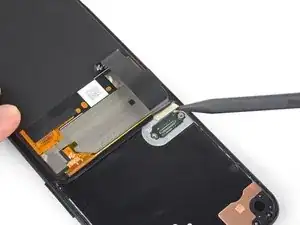
    • Utiliza unas pinzas para retirar el soporte del conector de la pantalla.

    • Asegúrate de guardar este componente para reinstalarlo cuando termines la reparación.

  15. eSlgWVRJgapeowxZ
    eSlgWVRJgapeowxZ
    LtTmQU1tTfjruuhd
    • Utiliza la punta de un spudger para hacer palanca y desconectar el cable flexible de la pantalla.

    • Para volver a colocar los conectores a presión como éste, alinea con cuidado y presiona hacia abajo en un lado hasta que encaje en su sitio, y luego repite en el otro lado. No presiones en el centro. Si el conector está mal alineado, las clavijas pueden doblarse y causar daños permanentes.

    No, why the tip? Use the other flat side that doesn't concetrate all the power on one point and Youre doing a propper job.

    Aleksandar Dejanovic -

  16. tOeTcJhTXCIkF2Q6
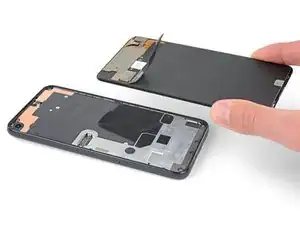
    • Quita la pantalla.

    • Compara la pantalla de sustitución con la original. Es posible que tengas que transferir componentes adicionales (como la malla del altavoz) a la nueva pieza.

    • Para instalar la pantalla nueva:

    • Raspa los restos de adhesivo del perímetro del marco.

    • Sigue esta guía si utilizas adhesivos cortado a medida.

    • Si utilizas cinta de doble cara, como cinta Tesa, sigue esta guía.

    • Si usas alcohol isopropílico para limpiar el adhesivo de la pantalla, asegúrate de no dejar que salpique ningún componente no deseado, ya que esto puede debilitar la unión adhesiva.

    • Durante el proceso de arranque después del reensamblaje, la pantalla pasará por una secuencia de calibración. No toques la pantalla durante este proceso, ya que podría sprovocar una calibración táctil incorrecta y crear problemas táctiles.

    This step seems to imply that a screen replacement is necessary when replacing the charging port. Is the charging port replaceable without replacing the screen? I understand great care must be taken not to damage the original screen in the procedure, but can it be reinstalled?

    David-Alexandre Tremblay -

    Yes, it can be reinstalled.

    Sam Omiotek -

    How long does the calibration process typically take? What does this process look like?

    phelpsbc -

    Just a heads up: If you are like me and you have accidentally turned on your Pixel 4a at some point while trying to pry the screen, don't worry too much. I was able to just connect my display with the device on. Nothing will happen until you reboot, and then the screen will initialize.

    Alex Cook -

  17. MUThkCHXP1YOjvTO
    MUThkCHXP1YOjvTO
    sqkNnIBQYWorWeJJ
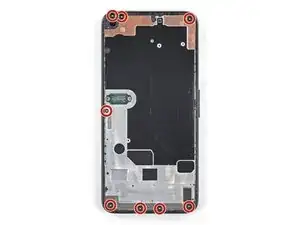
    • Usa un destornillador Torx T3 para quitar los ocho tornillos de 4,3 mm que sujetan la cubierta posterior al marco medio.

  18. WlP2DuWIIuwaviZC
    WlP2DuWIIuwaviZC
    ANVOUjTrn1dWyUdi
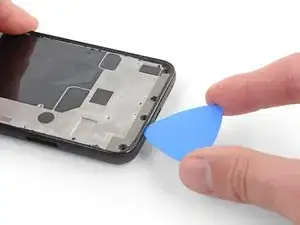
    • Inserta una púa de apertura en la costura entre el marco medio y la tapa trasera.

    • Desliza la púa de apertura a lo largo del borde inferior del teléfono para liberar los clips de plástico que sujetan la tapa trasera al marco medio.

  19. PVWCcCnXgIsp4JJa
    PVWCcCnXgIsp4JJa
    GCfIwDIjE6BjWYoe
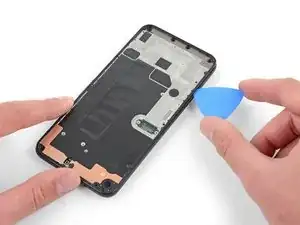
    • Desliza la púa de apertura alrededor del borde izquierdo del teléfono para liberar los clips de plástico que sujetan la tapa trasera al marco medio.

  20. mU4CLMhfFknuPl5n
    mU4CLMhfFknuPl5n
    RTIMpbsbyoSe2Asy
    fWvmYQjydvs5PYN5
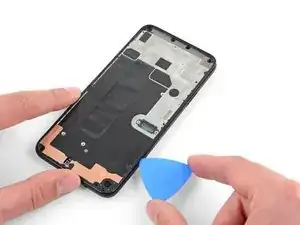
    • Desliza la púa de apertura alrededor de los bordes superior y derecho del teléfono para liberar el resto de los clips.

  21. MdboONmZoQ2iEelX
    MdboONmZoQ2iEelX
    g6BT63mabF3ZYWF1
    p1BgRe1I2kektn43
    • Gira con cuidado la cubierta trasera desde la parte inferior del teléfono sobre la parte superior y alrededor de la parte posterior.

    • Coloca la cubierta posterior sobre la superficie de trabajo y descansa ligeramente el marco medio sobre la cubierta posterior, teniendo cuidado de no ejercer presión sobre los cables planos conectados.

  22. f2OM6kEyPrhaWyuj
    f2OM6kEyPrhaWyuj
    NASStAIlBwtiLIcK
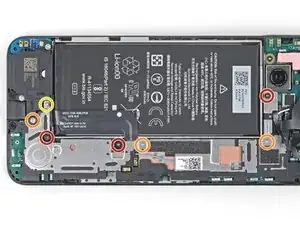
    • Utiliza un destornillador Torx T3 para quitar los siete tornillos que sujetan el soporte de la placa base:

    • Tres tornillos negros de 2,9 mm de largo

    • Tres tornillos de 2 mm de largo

    • Un tornillo de 4,1 mm de largo

  23. DegASyYRvxWHvR4I
    DegASyYRvxWHvR4I
    uLZFNBvv3Wah3QHw
    C3ytMmW5sIktGCKx
    • Usa la punta de un spudger para soltar el soporte de la placa base de las esquinas superior derecha e inferior derecha de la placa base.

    on mine, the fingerprint sensor cable was lightly adherent to the bracket and I almost tore it when the bracket popped up. may want to add something about freeing this up before removing the bracket.

    Erik Sorensen -

    Similar to Erik, my fingerprint sensor cable was adhered to the bracket and mine did tear. I didn't use the fingerprint sensor, so hopefully this doesn't affect anything else with the phone. Now I know to read the comments! X_X

    Jason Birchard -

  24. I42ZwXCYPXHynfaW
    I42ZwXCYPXHynfaW
    qnwPLChOx3ADH6Nx
    vFJtFHFQmbfCFAgU
    • Usa un par de pinzas para quitar el soporte de la placa base.

  25. xWvhsg16pjLhCOr3
    xWvhsg16pjLhCOr3
    Ac2MJU2Ts1AinPlR
    • Usa el extremo plano de un spudger para levantar y desconectar el cable de la batería.

  26. FZCfLU2ekp6a4HDg
    FZCfLU2ekp6a4HDg
    JxHVsxWLi5yjolHa
    oNkWrdsydTCtCwuE
    • Usa la punta de un spudger para desconectar los dos cables flexibles que conectan el sensor de huellas dactilares y los botones a la placa base.

  27. oXJHddDDPSyW5R4T
    oXJHddDDPSyW5R4T
    D4pvawZMLXxCQTRh
    • Retira la tapa trasera.

Conclusión

Compara tu nueva pieza de repuesto con la pieza original; es posible que debas transferir los componentes restantes de la pieza nueva antes de instalarla.

Para volver a armar tu dispositivo, sigue los pasos anteriores en orden inverso.

Lleva tus desechos electrónicos a un Reciclador certificado R2 o e-Stewards.

¿La reparación no salió según lo planeado? Prueba algunas soluciones de problemas básicos, o solicita ayuda a nuestra Comunidad de respuestas.

Sam Omiotek

Miembro Desde 25/02/19

59803 Reputación

3 comentarios

T3 driver is too small. T4 driver fits all screws perfectly.

leehall -

(T3 worked for me)

The back cover I bought didn't include the sensors (fingerprint and camera flash) and a grommet thing over one of the speaker holes, that are attached to the back cover. So I had to transfer those pieces myself. I needed to use heat from the iOpener to soften glue that was holding them on to the old back. The replacement back seemed to have replacement glue in place under peel tape. I didn't replace the glue holding the screen, instead heated everything up with the iOpener when replacing the screen in the hope that the old glue will still work, fingers crossed.

I suggest following this other guide instead, to replace the fingerprint sensor, is the same with two extra steps (but still need to swap the flash and ‘speaker grommet thingy' as well as the fingerprint sensor):

Google Pixel 4a Fingerprint Sensor Replacement

Don Barthel -

How remove that tape with the metal frame from the camera? Next to a fingerprit. I need remove and place to new back cover

Maciej Kozicki -