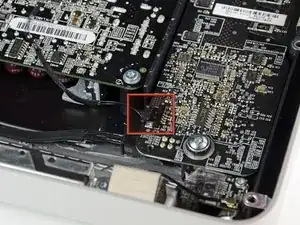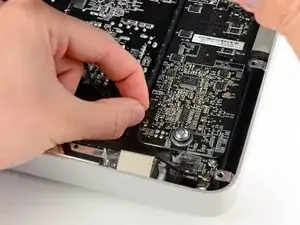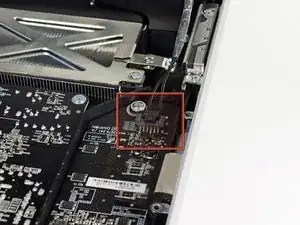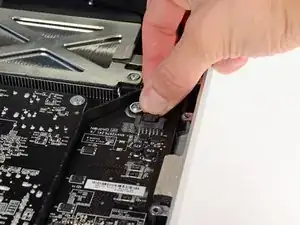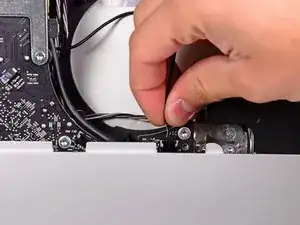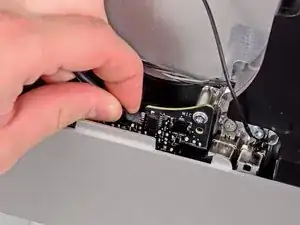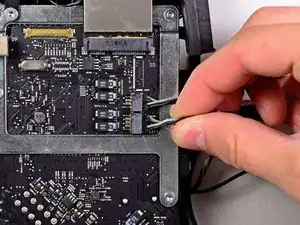
Introducción

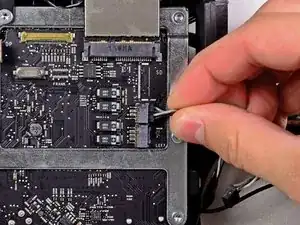
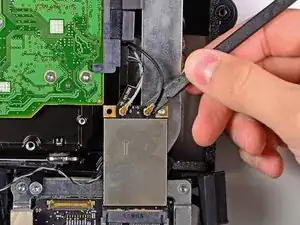
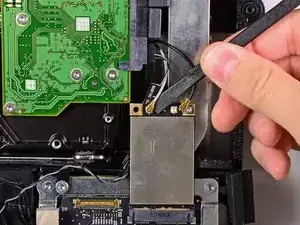
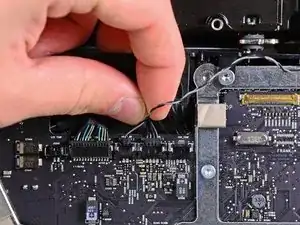
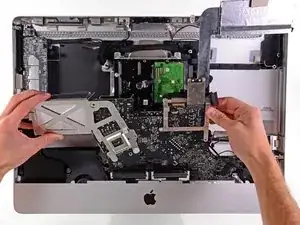
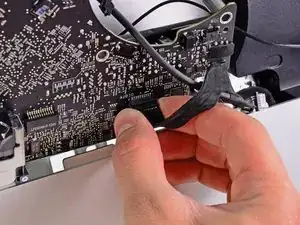
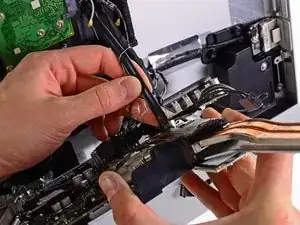
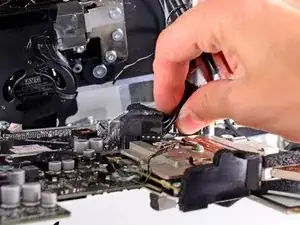
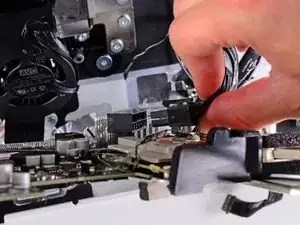
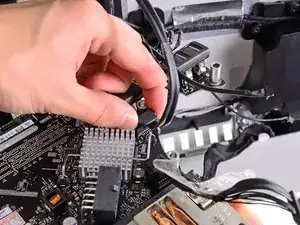
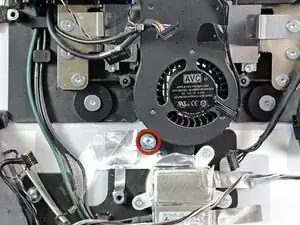
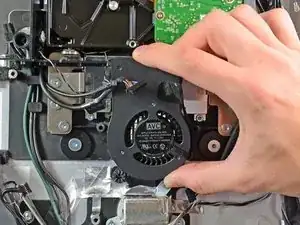
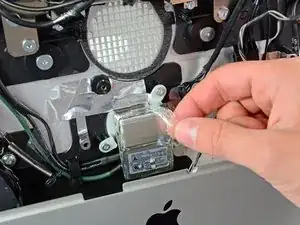
Utiliza esta guía para reemplazar una entrada de CA rota.

  1. T2LC3fppSadG5TQm
    T2LC3fppSadG5TQm
    1TINlTUGUAWyyTQH
    • Desenchufa el cable CA de tu iMac junto con cualquier otro dispositivo periférico.

    • Coloca su iMac boca abajo sobre una superficie suave y limpia como se muestra.

    • Asegúrate de que no haya suciedad o residuos en su superficie de trabajo, ya que puede rayar el panel de vidrio en la parte frontal de su iMac. Recomendamos colocar una toalla entre el iMac y la superficie de trabajo.

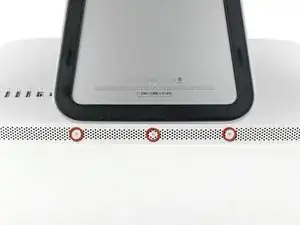
    • Afloja los tres tornillos Phillips que sujetan la puerta de acceso al borde inferior de su iMac.

    • Los tres tornillos permanecerán cautivos en la puerta de acceso.

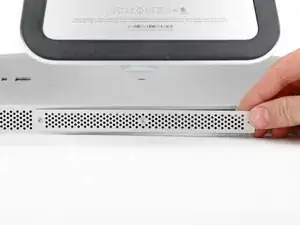
    • Retira la puerta de acceso.

    Before beginning unplug your iMac.

    Henry Barnett -
    The screws are not phillips #1 as implied above. My phillips#2 bit fit.

    John McWilliams -
    Yes phillips #2 is the correct Bit

    Heath -

    Whenever I go this “deep” into any computer that has a motherboard battery, like the CR2032 for this iMac, I’ll add a new battery to my workflow. I’m in the “neighborhood” anyway.

    The battery is in a spring-loaded compartment, which requires patience and persistence.

    I make sure to test the new battery before installation. (The “3-2-1 Rule” applies: 3 of something means 2, 2 means 1, and 1 means none - I keep spare batteries on hand.)

    When I took part in my dual-drive adventure, I also added a thorough dusting (outside/outdoors) - phew!

    Carrick -

  2. 6Q2NEUXKZVcfN1XK
    6Q2NEUXKZVcfN1XK
    TqcocHbsKGnfFujG
    MMy23aIONs454MXJ
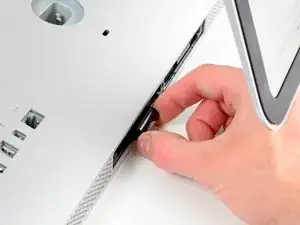
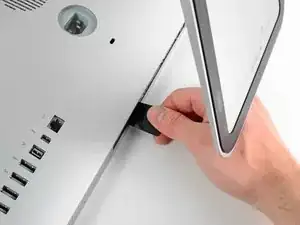
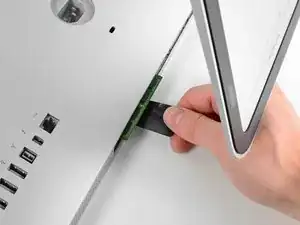
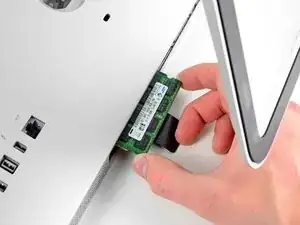
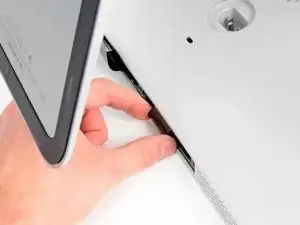
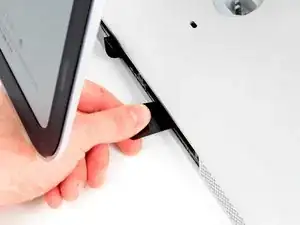
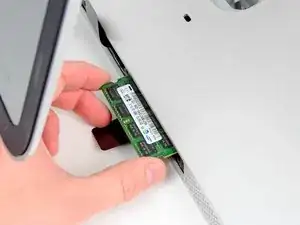
    • Desliza suavemente la lengüeta extraíble de plástico negro de la RAM hacia afuera de la ranura de RAM.

    • Tira de la lengüeta de plástico negro del borde inferior del iMac para expulsar los módulos en ese lado del compartimiento de RAM.

    • Esto puede requerir un poco de fuerza.

    It is far harder than I thought you have to pull REALLY hard and then there will be a little click and than you can gently pull out the RAM.

    Alison Newton -

    Press really hard, to the point you think you’ll cut your thumb, you’ll hear a slight ‘click’. If it’s not properly installed, the iMac will ‘beep, beep, beep’ In protest upon booting…

    Brian -

    I found it best to make use of the factory ‘pull tabs’. Much much easier than trying to pull the ram out by hand. It may seem like a good idea but, don’t be tempted to use pliers.

    Brian -

    Just FYI you can install 32GB’s of RAM in this machine. I have been using it this way for over 2 years now.

    Heath -

    Thanks for your Useful guide …. iMac Intel 21.5" EMC 2428 RAM Replacement was performed step by step on my Imac and every thing is perfect right now.

    Jaime Salazar -

    I was able to remove one side of the ram, but the other side would not budge. I was afraid that I was going to rip the plastic tab out of the computer. Any suggestions?

    Paula McCaulla -

    Do you know if 3 ram modules installed would work ? or if it should only be 1, 2 or 4 ?

    I currently have 2x2gb installed, but I only want to add 1x4gb to have 8gb in total.

    Thanks!

    Nikokow -

    Only install 1, 2, or 4. And preferably with the same gb for each module.

    Snuf Box -

  3. ausPCmV1yGbZA5L2
    • Desliza el (los) módulo (s) RAM anterior (s) de sus ranuras en la bahía de RAM y déjalos a un lado.

    would this be a good time to increase the size of the RAM too? Would it be as simple as slipping the new RAM in when redoing the steps? Thanks

    timreespt -

  4. OJCMcKYpmsPkSQDx
    OJCMcKYpmsPkSQDx
    eRZJmkuNntfCKEXl
    4FoCqcHqfs4KLHTK
    • Repite el proceso en los pasos anteriores para eliminar los módulos de RAM del otro lado de la bahía de RAM.

  5. dpCmaoqiUSpL1UDy
    dpCmaoqiUSpL1UDy
    MSEtvJqANxwgZxVB
    jrh5rWHixF6uDJyJ
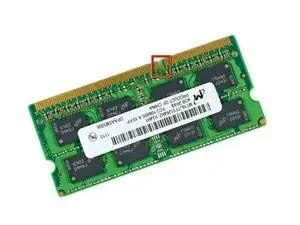
    • Al instalar nuevos módulos de RAM, es importante orientarlos correctamente.

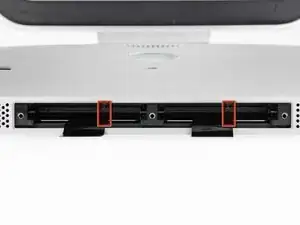
    • Asegúrate de que la pequeña muesca cortada en cada módulo de RAM (que se muestra en la primera imagen) coincida con la protuberancia en cada ranura de RAM (que se muestra en la segunda imagen).

    • Tu iMac tiene cuatro ranuras de memoria RAM. Asegúrate de deslizar cada módulo de RAM en su ranura horizontalmente. Esto evitará que los módulos queden atrapados entre dos de las ranuras adyacentes.

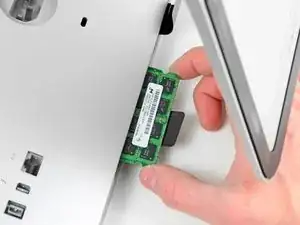
    • Una vez que haya orientado los nuevos módulos de RAM correctamente, deslízalos suavemente por completo en el iMac y usa tus pulgares para asentarlos firmemente en sus zócalos.

    When reinstalling RAM in this machine or any iMac with upgradable RAM slots push hard to get them to go in (Apple really did make this one harder than it needed to be). If you don't push hard it won't go in and your computer won't work. (trust me on this learned the hard way)

    Robert Wacker -

    I am having trouble with bottom 2 slots. As I get beeping sounds when using them. When removed it boots properly. I tried & tried to push the 2 , 2GB ram modules into the bottom slots BUT all get is beeping. Guess I have to settle for 4GB Rather than 8 unless someone has a suggestion.

    Doug -

    Try swapping the to the other slots & don’t forget to press really hard until you hear the ‘click’.

    Brian -

    Is there an expirience to settle 1600 MgH Ram instead 1333 MgH manual required?

    Mikhail B. Bryanskiy -

    The Memory Maxxer RAM upgrade kit for the iMac 12,1 EMC 2428 suggests the machine can run 32 gb but Apple’s website says it can run a maximum of 16 gb.

    Are we sure 32 gb can run on this machine?

    Paul

    steedz -

    Added 16GB for a total of 20GB, runs great, do make sure of the “click”, the beep is disturbing

    Butt Muffins -

    2x2 GB 1333 MHz RAM were installed as delivered. I couldn’t manage to get those two out of their slots. I don’t want to damage anything. So, I put 2x8 GB RAM 1333 MHz RAM bars in the other two empty spare slots to have 20 GB RAM in total. The iMac runs fine with it. As described above, make sure to push RAM until they ‘click’ in completely.

    Matthias Brandl -

    Why are we taking out the RAM modules just to put them back in on the next step ?

    Jesse Fenton -

    Why do we need the spudger?

    Ross -

  6. S6gQ2HIHlQuHu5Sy
    S6gQ2HIHlQuHu5Sy
    EucNhvfCJRsBRgOY
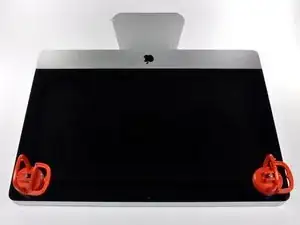
    • Antes de empezar, desconecte su iMac y recuestela sobre una superficie suave.

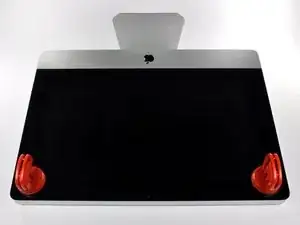
    • Adhiera una ventosa en los 2 angulos superiores del panel de vidrio.

    • Para pegar las ventosas primero posicione sus manijas paralelas al borde del panel de vidrio. Presione suavemente las ventosas contra el vidrio y gire las manijas de vacio hacia el panel de vidrio.

    • Si sus ventosas no se pegan, limpie la superficie del vidrio y la goma de sus ventosas con un solvente liviano.

    • Insertar traducción aquí

    • Insertar traducción aquí

    Very easy to lift the glass out. Don't jerk too hard.

    kctipton -

    Another comment on DATA & LCD Temp. Sensor cables: I had to remove the vertical sync, and the backlight cable, however, if you have an assistant or/can carefully rotate the screen clockwise/and then have it held up about 5" to 6" at a slight angle, you do not need to remove LCD data cable or LCD thermal cable, however - IMPORTANT: you must have a second pair of hands/or way to securely prop up the LCD. Also, don't rotate too much, since then you will pull out LCD data cable, and it renders the whole exercise moot, or can damage the cable or connector.

    MaximBorzov -

    You don't need suction cups. The screen, held by magnets, can simply be pried off using a very thin blade such as a screw driver and fingers.

    Deepsurvival -

    That's a bad idea. using a metal tool to pry off glass is likely to end with an expensive broken front glass.

    Suction cups are common. Find a couple and do it the safe way. I use some cheap ones that came with iPhone repair kit.

    max damage -

    No need for suction cups, I just stuck my nails (short like guys usually have) between the top part of the screen and body, and it came off easily. I've never done it before, so it seems to be very easy.

    Nikolas Lintulaakso -

    Nails worked for me too

    Rob Dale -

    Just completed the replacement of the optical drive with an SSD using an OWC Data Doubler kit. Attempted to remove the optical drive without disconnecting any cables but found it a bit fiddly to orient the screen for good access. I bit the bullet and disconnected them and found the process less daunting than I imagined. Reconnecting them was similarly straightforward if you're careful.

    Tip: you can skip the step for removing the optical drive thermal sensor connector from the motherboard. Still need to remove the sensor from the optical drive but you can leave that hanging and reattach it to the SSD later.

    osienna -

    I use Garmin GPS suction cup. Work very well

    jc3Dcx -

    I’ve just successfully installed a 1TB SSD in place of my optical drive thanks to the information here- thank you to everyone who has contributed!

    3 comments- the procedure described here seems to vary between HD replacement and dual HD/optical drive replacement. This can be confusing at times.

    Expect there to be minor differences between the layout described and what you find when you open up your iMac. There are also, surprisingly, differences between the HD enclosure description, and the article provided by ifixit.

    I was able to replace the DVD/HD enclosure single-handedly without fully removing the LCD, or deconnecting any of the cables (steps 5-11). It’s a bit cramped, and fiddly, but I was not happy removing any of the cables despite watching videos, etc., since they all seemed to involve applying more force than I was comfortable with. A more detailed description of how to release them might have helped, but even here, there may be minor variations even within the 2389 model.

    Good luck!

    ivan birks -

    I did it several times with one suction cup at the end of a kitchen brush. Once with the blade of a swiss army knive, also ok. And i’m pretty sure it works with fingernails too

    Tai -

    Fingernails are all you need to free the glass from its magnetic hold. If you don’t have them, slip something thin and plastic, like a spudger, at a top corner.

    Max Powers -

    Minha dúvida é a seguinte: após o técnico trocar o HD do meu iMac de 21,5 polegadas, a câmera parou de funcionar. Seria por causa da troca do HD? Tem solução?

    Claudio -

    Creio que o cabo da camera não foi plugado ou deu mau contato… ou até danificado.

    glecyo@gmail.com

    glecyo medeiros -

    I can’t get my glass to budge. I’m replacing a cracked one and now it’s about to shatter.

    jamboxmitchell -

    I know that I'm replying really late but I advise to use clear tape over any cracks so the cracks don't get bigger

    Jace Holmes -

    Check for chips in the glass BEFORE you do this step. If there is a chip when you pull up with the suction cups you will wind up with a jagged mess. If you do have a chip I would advise covering the screen near the chip with clear tape of some kind before lifting out. Mine shattered right at the chip and the resulting glass dust cloud got all over. My solution was buying a new glass screen.

    BCam -

  7. dEfYFtAGakgNBgPI
    dEfYFtAGakgNBgPI
    TRYClBF1GnTXMyiU
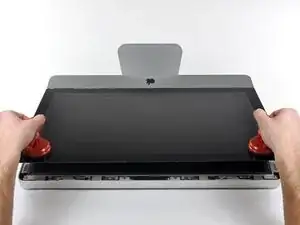
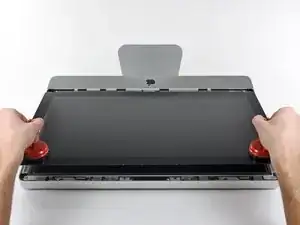
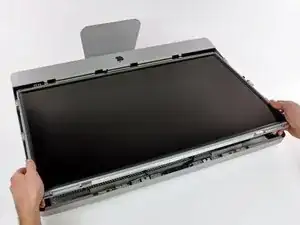
    • Tire despacio el panel de vidrio perpendicular a la cara del LCD con cuidado ya que hay pestañas de metal en la parte inferior del panel de vidrio.

    • Remueva el panel de vidrio hacia arriba sacando cuidadosamente las pestañas de acero y coloque sobre una superficie limpia.

    • Durante la reinstalación, asegurese que la cara interior del panel de vidrio esta perfectamente limpia y que no haya quedado suciedad ni impresiones de dedos sobre el LCD ya que seria visibles al encender el iMac.

    What's the best product to clean the face of the LCD?

    Steve Speirs -

    Microfiber Cloth

    Leonardo Fournier -

    Try your best not touch it in the first place

    Brian -

    Wearing Nitrile or regular surgical gloves helps prevent finger prints if you accidentally touch the glass.

    amiller770 -

  8. FsUjQtJgaeqcNgE1
    FsUjQtJgaeqcNgE1
    txKZRpCYCaCgrtPs
    IZhsMLKJnWRLXJNs
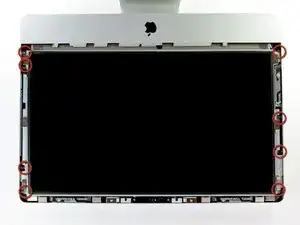
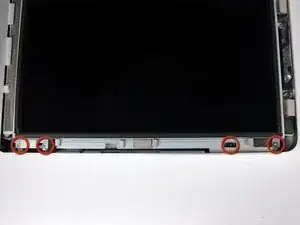
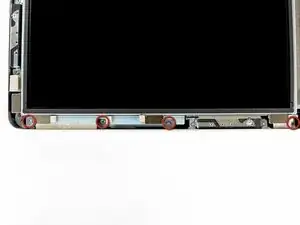
    • Remueva los ocho tornillos de 8 mm T10 Torx que aseguran el display a la carcasa exterior.

    • Las últimas dos fotos son imágenes detalladas de cada lado de la pantalla.

    Replacing the screws , especially the two uppermost ones , is awkward due to the magnets attracting the screws off the Torx driver

    Anoop Sahal -

    I’ve done an HDD replacement on an A1174 (and I’m about to do this model), which is nightmarish, but by far the best solution I found was to use a bit of Blu Tack or the equivalent on the driver.

    Boris -

    I’ve just replaced the screws by making a little tube from paper and wrapping it round each screw to keep it contained. A cut-down straw would be perfect for job.

    Guy Whittaker -

    I second this but use a tube of cardboard instead, then its quite easy.

    jeank75 -

  9. JJrCWMp1gZN1UT4k
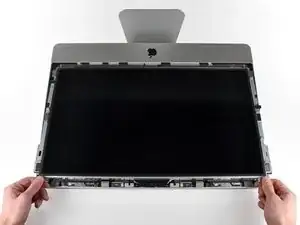
    • De manera cuidadosa levanta el borde superior de la pantalla fuera de la carcasa exterior.

    • No levantes mucho. Hay varios cables unidos de la pantalla a la tarjeta lógica.

    After sliding the display slightly towards the top edge, enough for the bottom edge to clear the retainers, an alternative is to raise the bottom edge out. Then unplug the LED backlight power cable (this step + 2), unplug the LCD thermal sensor cable (this step + 4), unplug the display data cable (this step + 3), and the display may be rotated over the top edge while leaving the vertical sync cable attached (this step + 1).

    Jerry -

  10. snjtGbXS21FTSBMO
    snjtGbXS21FTSBMO
    xdAUxEVSgd5dQSHy
    • Saca el conector del cable de sincronización vertical de su enchufe en la placa de controladores LED, cerca de la esquina superior izquierda del iMac.

    Do not try to pull the plug off the circuit board as it's soldered. Pull the cable sideways out of the socket.

    Alex Campbell -

    Skipped step 5-10. I used two 5-6" chopsticks to prop up the display, this gave me more than enough room to complete the rest of the steps. I only had to disconnect the 3 cables are directly connected to the hard drive. Replacing the Seagate hard drive with another Seagate hard drive eliminated any cable issues. Now I have 2TB SSDH

    jaime martinez -

    I was also able to skip steps 5 thru 10, which meant no messing with any cables except for the two for the HD (steps 13+14). Used a credit card to start the removal of glass panel (step 2) - much easier than I imagined. After removing display screws (step 3) I simply had a friend hold up the display's bottom edge as far as the cables would allow (careful not to stress at connection to logic board) and this provided enough room to remove the HD bracket screws (step 11), detach the HD cables, and remove the HD. Was replacing a failed 1TB Seagate with a 3TB Seagate so no problems with compatibility when reattaching the HD cables and everything worked fine when I restored the OS and data to the new HD. No fan issues. I did take great care to not get fingerprints on the inside of the glass panel and to blow off any dust specks before reinstalling it. It was a bit tricky to get the new HD back in without letting the magnets get a hold of it, so thanks for the warning posted here about that!

    Chuckles McBunny -

    On my mid 2010 Imac I found it was not necessary to disconnect any cables (except of course those attached to the drive). Simply angle the monitor away from the case to a safe distance without stressing any cables and secure with tape. With a stubby screw driver it was easy to access and remove the drive.

    Michael Husselbee -

    Skipped steps 6-10; did step 5 so could lift top of display higher, then propped up. A photo of whole interior here would help (hard disk is top center). Used pliers holding T10 bit at right angle to unscrew hard disk holder. SSD installed loose (macOS and fan control app already loaded).

    David Menges -

  11. iMBFDuJiaisDPeFC
    iMBFDuJiaisDPeFC
    5yr44v46WOxDbGkx
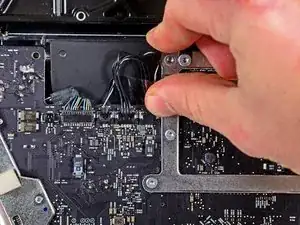
    • Gira la pantalla fuera de la carcasa exterior lo suficiente para desconectar el cable de alimentación de la retroiluminación LED de la placa del controlador LED.

    • Desconecta el cable de alimentación de la retroiluminación LED presionando el mecanismo de bloqueo mientras tiras del conector para sacarlo de su zócalo (hacia el borde inferior del iMac).

    This is real tricky it is fragile and you have to pull it along the logic board.

    John -

    First push down on the edge of the connector closest to bottom edge of the iMac. This unlatches the locking mechanism at the top edge of the connector. Then gently wiggle the connector away from its socket.

    Oshoma Momoh -

  12. v1k3LXRGKXpV6j6l
    v1k3LXRGKXpV6j6l
    dcjmwaavKSaIn1pO
    • El enchufe del cable de datos de la pantalla tiene un bloqueo de alambre. Desengancha el bloqueo del enchufe girando la lengüeta de plástico para que apunte hacia arriba. (No es una lengüeta de extracción).

    • Saca el cable de datos de la pantalla de su zócalo en la placa lógica.

    • No levantes el cable de datos de la pantalla, ya que su enchufe es muy frágil. Tira del cable paralelo a la cara de la placa lógica.

    This cable is very short, I would remove it before any of the others. First time I did this, I didn't realize this and this cable just popped out of it's socket. Luckily, the board wasn't damaged.

    maccentric -

    i damaged my (step7) cable, and my iMac screen won't work, how to fix this?

    Ersan Rasubala -

    I did the same thing. The pins are VERY easy to bend. I replaced it with a new cable from this company.

    http://www.macpalace.com/922-9497-cable-...

    Waiting for it to arrive.

    Michael -

    I wish this step was listed as a warning before lifting the monitor and as the first cable to undo. I broke it as it popped up and out, had to trash my Mac and I am stuck with a new hard drive.

    Frank1701a -

    I followed the directions to a T and everything worked going back together. That cable in step 7 is delicate so one must be very careful.

    dustynnelson -

    Same problem for me. I damaged this cable and am ordering one now.

    This is a tough step so I would also suggest removing this cable first.

    lyleberman -

    Yes, damaged mine too. It is better to take it out of the LCD and install it carefully on the logic board, then install it to the LCD.

    asle -

    Ok finally got the cable and was able to successfully finish the project.

    That video cable is ROUGH to install.

    lyleberman -

    The same thing happened for me. That cable was by far the shortest and a slight pull of the display up caused the connector to come free. Luckily it wasn't damaged by this. It was pretty unclear to me how that connector fit in as well. It slides in and out parallel to the surface of the mother board, up towards the top of the iMac to unplug and down towards the bottom to plug in. I agree, if I were to do this repair again that is the first interior cable I would disconnect. Maybe a closeup of the cable plugged in and unplugged to show exactly how it engages and disengages would be good as well.

    danieljseta -

    It is fine to remove the cable from the logic board when when you remove the screen. But when when assembling back together I found it better to take the LVDS cable out of the LCD and install it carefully on the logic board. Then connect it to the top of the LCD. Also the connector to the LCD is much more solid and not so easy to bend.

    asle -

    This is by far the best way round to do this as trying to refit the cable to the logic board is a complete nightmare.

    Russ -

    I agree with asle, manipulating the display end of the cable would be easier - at least it cannot be any harder then manipulating the motherboard end.

    Jerry -

    well I did all t these steps and now the iMac won't turn on at all. I guess the big cable is not connected to the board as it used to... Mac is out of warranty so it's going out the door. RIP

    Gilbert Palau -

    this thing is super fragile. i had to order a new one. i'd recommend removing the other end at the top of the display.

    m Burm -

    this part is not complicated if you understand at first how the lock works.. remove the lock is easy, reassemble the cable and connect it is very problematic because the space to work is very tiny, but if you are carefully, it should be not a problem . try to see some videos from youtube first!

    Cristian Pizarro -

    This totally blows.. If you want to do this correctly and not destroy your computer over this step, - OWC’s video will show you EXACTLy what to do with the display cable ..

    https://www.youtube.com/watch?annotation...

    Luis Garcia -

    Don’t raise the display more than 3-4 inches. Pull the tape off the back of the display and unhook the cable from the display, instead of trying to remove it from the motherboard. As soon as I raised the display, the cable snapped loose. Ordered a new cable from Amazon. Am waiting to see if works ok.

    john -

    The worst thing about the whole tear-down procedure, was the display data ribbon cable in this step. As others have noted, It popped out of its socket on the mother board while disconnecting the lcd. I didn’t get a chance to see exactly how it connected on to the moboard . I damaged the dainty and minute ribbon end while trying to re-connect it to the wrong side of the receptacle. Duh! I feel so stupid. :(

    I had to order a new ribbon cable ($14) . Luckily, i was able to plug new ribbon into the fragile moboard connector adequately, and then the lcd end, during re-assembly. This re-assembly step is made for a very small person with extremely small hands and big eyes (like someone out of Gulliver’s travels).

    Dan Packard -

    2010 iMac SSD kit from OWC. Their video does not adequately explain the difficulty of re-installing the display port ribbon cable into the logic board. The best procedure would be to follow asle (see prior comment 8/11/15). The problem is exasperated by the fact that the plug into the LCD is covered in tape.

    Devere -

    Why is this not step 5? By the time I lifted display, the cable had already come out. I think it damaged it.

    Greg Cox -

    Got VERY lucky with my SSD replacement. Just leaning the display back popped the cable off the logic board, and I had a very difficult time reinstalling the screen. It might be that the wire bail wasn’t secured in the first place, or the machine has been opened up prior to my obtaining it. I eventually used a parts box to rest the LCD high enough to reinstall the cable. Agree that this should be the first cable to be disconnected and last to be reconnected. Perhaps disconnecting it from the LCD should be considered as a first step?

    phantom -

  13. BTiYLEbf35GsJli1
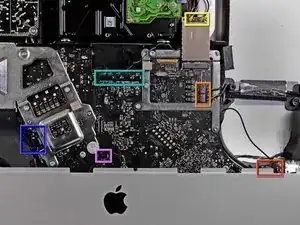
    BTiYLEbf35GsJli1
    TfFCJGU561MPwbxJ
    • Desconecta el conector del cable del sensor térmico LCD de su zócalo en la placa lógica.

    • Si tu ventilador gira a toda velocidad después de completarse, verifica esta conexión o el cable del sensor térmico del disco duro.

    Be very careful - this connector very difficult to disconnect, and you have a high risk of pulling the cable pins out of the connect. If you have disconnected the 3 other cables, you can have a helper rotate the screen out of the way while you remove the hard drive.

    Brian Tsai -

    I found this connector impossible to remove

    Anoop Sahal -

    I also found this extremely difficult to remove. Tiny cable with a death grip. I tried using two spudgers, my fingernails, and walking it out. In the end, I used two spudgers and pried it up, using leverage from the clip to the right.

    Also, i recommend setting the iMac upright for this. I rested the screen on my chest while I dual wielded my spudgers.

    Alex Grayson -

    eer ist zerbrochen! hoffe krieg ihn dann trotzdem wieder rein

    Peter Pawlowicz -

    This was connector was impossible to remove. Like a previous commenter, I did this with the machine upright and with the LCD Panel resting on my upper chest. Ultimately, the pins pulled out of the socket! Once they were out, it was relatively easy to remove the socket. I completed the drive replacement, (installed a 1 TB SSD) and then replaced the pins in the socket and reassembled the machine. One mental error I made was I couldn’t remember the correct orientation for the Black and White wires in the socket. In looking at the photos here on iFixIt, it looks like I reversed their orientation. However, the machine seems to be running fine. I installed macos High Sierra and migrated my data from my old HD and the machine has been running for two days now. I would hate to have to go back in and remove the socket and reverse the wire orientation. Anyone have advise on this?

    jmaher -

    In followup to my previous post, I launched TechTool Pro 9.6.1 and ran the Sensors Test. All Sensors tests were passed. These included:

    LCD Proximity, LCD Thermal Compensation 2, LCD Proximity, Thermal Compensation. Machine seems to be running fine.

    jmaher -

  14. QcxFhTVxIJaFC3PF
    • Tira con cuidado de la pantalla hacia el borde superior de su iMac y sácala de la carcasa exterior, prestando atención a los cables que puedan quedar atrapados.

  15. W2HnnXkZIR6pR4XO
    • Retira los siguientes cuatro tornillos:

    • Un tornillo Torx T10 de 9,3 mm con cabeza grande

    • Tres tornillos Torx T10 de 9,3 mm con cabeza de tamaño normal

    The 4 srews are equal

    hybanibienen -

  16. HAGGY2uvcgBFnouq
    HAGGY2uvcgBFnouq
    ksARRyrLEb23C1yO
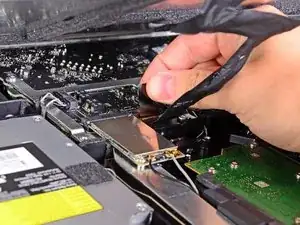
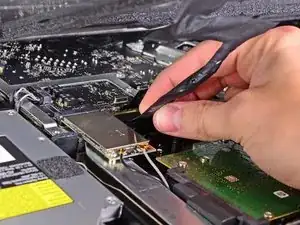
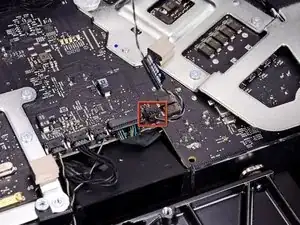
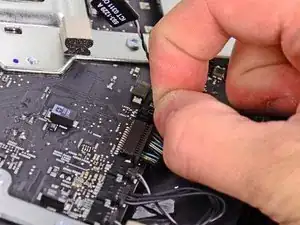
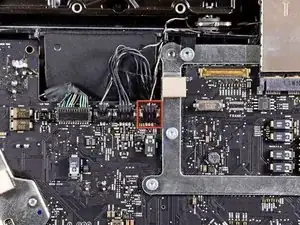
    • Tira del conector del sensor térmico de la unidad óptica hacia el borde superior del iMac para desconectarlo de su zócalo en la placa lógica.

    No need to do this! Just gently pull up the felt-pad sticky on top of the thermal sensor (looks like a tiny circuit board), then (again gently) peel the thermal sensor off the ODD. Leave it hanging while you remove the ODD and replace it with the SSD, then just put the thermal sensor covered by the protective felt-pad back onto the SSD enclosure.

    cdansmith1 -

    I agree with cdansmith1, above.

    I had removed the sensor completely. Booted up and the fan was like a jet engine - 4200rpm! I opened up the mac again to check the LCD thermal sensor cable was connected properly (as warned in Step 8). It was.

    So, I simply used the spudger to peel off the felt sticky pad from and then the optical drive sensor too from the drive I'd taken out. Stuck the sensor onto the SSD using the same sticky pad, plugged it back into the original socket. Bingo. Booted up and everything was back to normal.

    Monkeyrebirth -

  17. SLLZA2rOC2L1QekO
    SLLZA2rOC2L1QekO
    hgqZm4hp1yuxvlvV
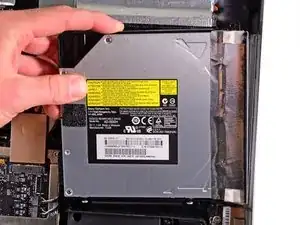
    • Levanta el borde interior de la unidad óptica y maniobra tu conector más allá del marco de la GPU conectado a la placa lógica.

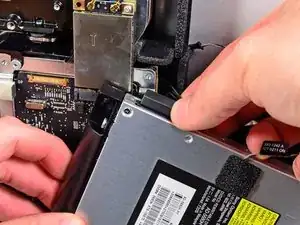
    • Retira con cuidado la unidad óptica de sus clavijas de montaje en el lado derecho de la carcasa exterior para tener espacio para desconectar el cable de la unidad óptica.

    • Deja que la unidad óptica cuelgue mientras desvías el conector del sensor térmico de la unidad óptica de detrás del disipador de calor de la GPU.

    this part is complicated because the wire is very delicate. when you try to extract it passing through the others elements this wire trap it very easily on the other elements of the logic board

    Cristian Pizarro -

  18. B1o1YbuPD3G5QU4d
    • Desconecta el cable de la unidad óptica tirando de su conector para sacarlo de la unidad óptica.

    • Retira la unidad óptica del iMac.

    • No olvides mover también el sensor térmico de la unidad óptica a la carcasa cuando instales la segunda unidad de disco duro.

  19. 1NncFI4xTmcbJPWd
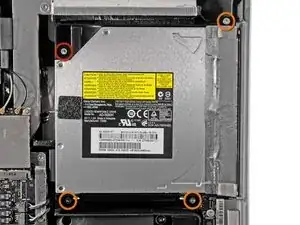
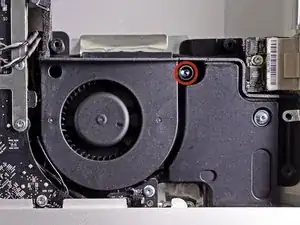
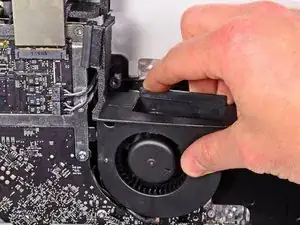
    • Retira el único tornillo Torx T10 de 13 mm que sujeta el ventilador de la unidad óptica a la carcasa exterior.

    This is the one with a large head.

    hybanibienen -

  20. NaW5CAfDaKwLOHDB
    • Extrae el ventilador de la unidad óptica de las clavijas unidas a la carcasa exterior.

  21. xEHCOxcNvj6MGwSv
    • Extrae el conector del ventilador de la unidad óptica de su zócalo en la placa lógica.

    • Retira el ventilador de la unidad óptica del iMac.

    If you need to clean it watch here how to easily open it: '''https://youtu.be/MWHcPpSL4O0'''

    jeank75 -

  22. dtoGWFIRdQikljnA
    • En el procedimiento, desconectaras los siguientes cables:

    • Tarjeta SD y micrófono

    • Altavoz Izquierda/Derecho

    • Antena WiFi

    • Bluetooth/Sensor de Luz Ambiental/Cámara/Sensor de Temperatura Izquierdo/Sensor de Temperatura del Disco Duro y ventilador del Disco Duro.

    • Ventilador del CPU/Temperatura Ambiente y Botón de encendido

    • Sensor IR

    Be careful, reinstalling the logic board, some of these cables stand under the card and you have to remove the card again to get them… :((

    pascal ESNAULT -

  23. NHNeUGSC1fe2VmuH
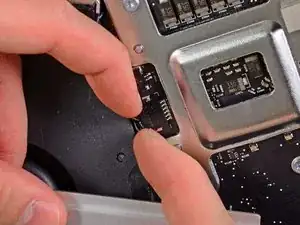
    • Jala el conector del cable del micrófono hacia el borde superior de la iMac para desconectarlo de la tarjeta lógica.

  24. Y3oXKBmcBxeMyFpG
    • Saca el cable de la placa SD de su zócalo en la placa lógica.

    When replacing it, copper points down.

    agigante -

  25. BcfOFg1TxoxbXCr3
    BcfOFg1TxoxbXCr3
    ijcuIA3qU3wdRiVY
    • Desconecta los cables del altavoz izquierdo y derecho tirando de sus conectores hacia el lado derecho del iMac.

  26. HNFB4Hcxa5YSDxbd
    HNFB4Hcxa5YSDxbd
    pdf5EYimw2JwjeQ3
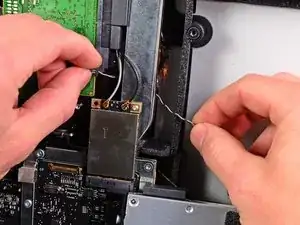
    • Usa el extremo plano de un spudger para levantar ambos conectores de antena AirPort de sus zócalos en la placa AirPort.

    • La antena gris se conecta al enchufe de la izquierda y la antena negra se conecta al enchufe de la derecha.

    Be super careful here. I spudged the sockets completely off the airport card when I was pulling apart mine.

    Cary B -

    I as well. These are delicate connectors...

    Brett Williams -

  27. AAdDjPC65eFlSRRV
    • Desconecta el ventilador del disco duro tirando de su conector hacia el borde superior del iMac.

  28. iLWF2IJlsXMRJ1EM
    • Saca el cable del sensor térmico del disco duro de su zócalo y hacia el borde superior del iMac para desconectarlo de la placa lógica.

  29. BHfrFGnpIRGDhZUA
    • Usa tus uñas en ambos lados del conector Bluetooth/sensor de luz ambiental/cámara/temperatura izquierda para empujarlo hacia el borde superior del iMac y sacarlo de su zócalo en la placa lógica.

  30. CplXVmLEyKEEwPPl
    CplXVmLEyKEEwPPl
    GU2v2mOuxVBOoCC2
    GAHKigBBlMyEUgSD
    • Tira del conector del sensor de temperatura ambiente/ventilador de la CPU hacia el borde inferior izquierdo de la iMac y sácalo de su zócalo en la placa lógica.

    • Tira del conector del botón de encendido hacia la esquina inferior izquierda del iMac para desconectarlo de su zócalo en la placa lógica.

  31. EdnHDFKRZALHikbD
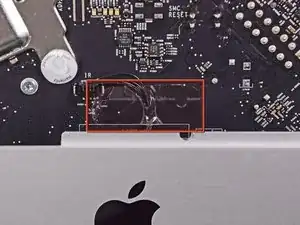
    • Retira el trozo de cinta que cubre el cable del sensor IR.

  32. usSSNNPcG6u5EiXn
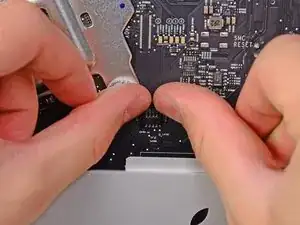
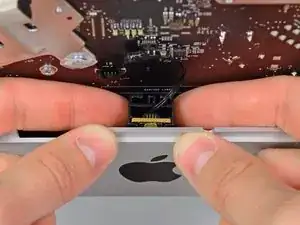
    • Usa sus pulgares para empujar el conector del sensor IR fuera de su zócalo y hacia el borde superior del iMac.

  33. otWpRwr4cR2O3Nio
    • Tira de la placa del sensor IR hacia arriba desde detrás de la cara frontal de la carcasa exterior.

    • Retira el sensor IR y déjalo a un lado.

  34. L6UYLk4YEmJBK2sm
    • Retira los siete tornillos siguientes:

    • Dos tornillos torx T10 de 7 mm

    • Un tornillo Torx T10 de 30 mm

    • Dos tornillos Torx T10 de 25 mm

    • Dos tornillos Torx T10 de 21 mm

    Don't forget the red one in the top corner!

    Rob Dale -

  35. DPkoxdlAPKKaEyJ5
    DPkoxdlAPKKaEyJ5
    nfXXZZGrvFGJqCqj
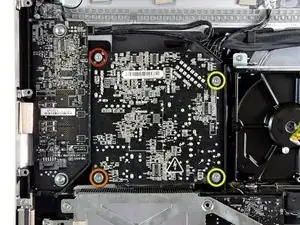
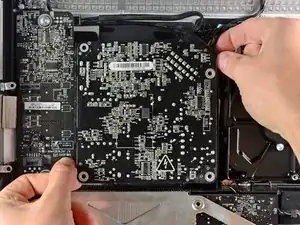
    • Ten cuidado de no tocar las juntas de soldadura en la parte posterior de la fuente de alimentación. Los condensadores pueden estar lo suficientemente cargados como para darle una descarga eléctrica peligrosa.

    • Retira los siguientes cuatro tornillos:

    • Un tornillo de rosca gruesa T10 de 9,3 mm

    • Un tornillo de rosca gruesa T10 de 25 mm

    • Dos tornillos de rosca fina de 22 mm

    • Tira de las esquinas superior derecha e inferior izquierda de la fuente de alimentación alejándolas de la carcasa trasera para desalojar los postes de montaje unidos a las esquinas de la fuente de alimentación.

    Make sure the system has been powered off for a while. The capacitors on the power supply can still hold a charge for roughly 15 mins and will electrocute you if not handled properly

    Dennis M -

    No need to do this if you’re just going to pull out the logic board for GPU replacement.

    František Žiačik -

    it's possible to change the HDD fan without completely removing either the main board or the power supply. After removing the 4 screws on the PS board, I only had to pull it outward a few mm to remove the plastic wall on the HDD side, which is the part which holds the heat sink (attached to the main board) in place, Once the wires were unplugged from the main board's edges, and the IR board detached from the case front, I was able (with some delicate wiggling) to tilt the board out at the top enough (without unplugging anything from the back side of the board!) to remove the fan. The only tricky bit was getting that one fan screw out, which I managed with a T10 bit fastened to a 1/4" open-end wrench with some masking tape. A little awkward, but it saved a whole lot of disassembly. Somebody probably makes a skinny little ratchet that takes 1/4 hex bits directly, which would have made it easy.

    Dan Gellert -

  36. kXLf5unVYSbMD1RT
    kXLf5unVYSbMD1RT
    bv2UU3UGR2XnIwkO
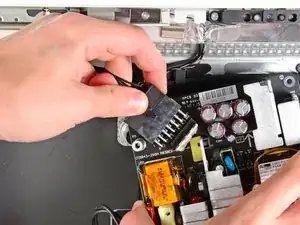
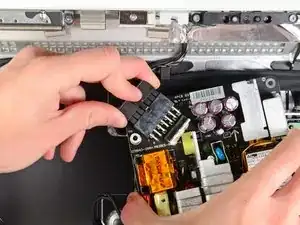
    • Levanta con cuidado la fuente de alimentación para sacarla de la carcasa exterior y gírala para exponer el bloqueo del cable como se muestra, prestando atención a los cables de salida de CC y de entrada de CA que aún están conectados al iMac.

    • Desconecta el cable de salida de CC presionando el mecanismo de bloqueo del conector mientras retiras el conector de su enchufe en la fuente de alimentación.

    • Una vez que el mecanismo de bloqueo haya liberado el zócalo, extrae el conector de entrada de CC de la fuente de alimentación.

  37. BY2NAbsklDKsZHXG
    • Desconecta el cable de entrada de CA presionando el mecanismo de bloqueo mientras tiras del conector para sacarlo de su zócalo.

    • Retira la fuente de alimentación de la carcasa exterior.

  38. BZacTmV61wWBq1Fl
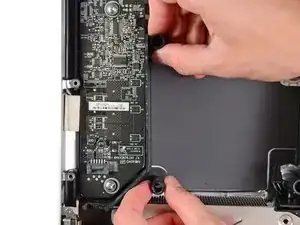
    • Retira la pared de plástico que está instalada directamente a la derecha de la placa del controlador LED.

  39. gIDaabHkHpkK1Kem
    • Retira la pared de presión de plástico instalada junto al disco duro.

    Last step needed. Once board is free and you can see the battery hidden in the back, very easy to remove. Great guide!

    chris -

  40. L4fjJpWvHpLbb1Ik
    L4fjJpWvHpLbb1Ik
    PusfiqiDZnhMC1iF
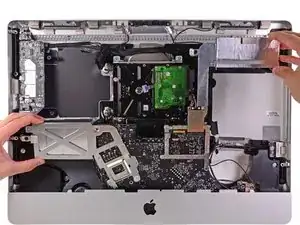
    • Separa ligeramente la placa lógica de la parte posterior de la carcasa exterior, luego levántala hacia arriba para despejar la cara frontal inferior de la carcasa exterior.

    Stopped here, once the logic board was free, I could just simply get to the battery

    chris -

    I noticed here that I had forgotten the top screw of step 34

    Rob Dale -

  41. ieBCo4oXcOrMo6ea
    • Desconecta el cable del puerto de audio tirando de su conector lejos de la cara frontal de la placa lógica.

  42. apNwTSEqOwGUDVmo
    • Si está presente, retira la cinta que sujeta el cable SATA del disco duro a la placa lógica.

  43. SbmbISSbGaKmSF5H
    SbmbISSbGaKmSF5H
    FOHG4UWAMhQRI6m4
    • Presiona el mecanismo de bloqueo y tira con cuidado del cable de entrada de CC para sacarlo de su zócalo en la parte posterior de la placa lógica.

    didn't need to do this

    chris -

    Step 44 Instruction is confusing. Why?

    Because you suddenly mention a "mini display port cable" and "a USB cable" that up until now have never been mentioned. I'm not trying to be horsey, truly I'm not, but if you mean "plug in THE mini display port cable and THE USB cable" then I can assume both of these have previously been removed, although in scrolling back over all steps before step 44, I see no mention of either. So I remain confused about this instruction. All the rest of the steps are wonderfully clear and amazing. Apple itself cannot have provided a more perfect instruction (nor would they!). Well I'll leave this comment, although in re-reading Instruction 44, I now understand that these two cables are to be plugged in on the FRAME of the iMAC, OUTSIDE, so as to make sure the logic board INSIDE ends up properly aligned when reinstalled. My initial bad. Thank you.

    James Lacey -

  44. 3YCp6JOjDIcsYB6U
    • Con cuidado de no dañar el zócalo de la placa lógica, extrae con cuidado el cable de datos SATA del disco duro de su zócalo en la placa lógica.

    • Retira la placa lógica, teniendo cuidado con los cables que puedan quedar atrapados.

    • Al reinstalar la placa lógica, conecta un cable de mini puerto de pantalla y un cable USB en el puerto USB externo antes de apretar los tornillos de la placa lógica para garantizar una alineación adecuada.

  45. j44QqaIUpFFi2JW2
    • Retira el único tornillo Torx T10 de 13 mm que sujeta el ventilador del disco duro a la carcasa exterior.

  46. kJdwYVRgso6weK1O
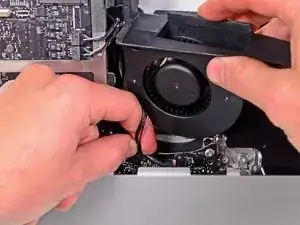
    • Saca el ventilador del disco duro de la parte posterior de la carcasa exterior y retíralo del iMac.

    it's possible to change the HDD fan without completely removing either the main board or the power supply. After removing the 4 screws on the PS board, I only had to pull it outward a few mm to remove the plastic wall on the HDD side, which is the part which holds the heat sink (attached to the main board) in place, Once the wires were unplugged from the main board's edges, and the IR board detached from the case front, I was able (with some delicate wiggling) to tilt the board out at the top enough (without unplugging anything from the back side of the board!) to remove the fan. The only tricky bit was getting that one fan screw out, which I managed with a T10 bit fastened to a 1/4" open-end wrench with some masking tape. A little awkward, but it saved a whole lot of disassembly. Somebody probably makes a skinny little ratchet that takes 1/4 hex bits directly, which would have made it easy.

    Dan Gellert -

  47. FpBVGepTbnbAShDE
    • Retira el trozo de cinta transparente que cubre el cuerpo de la entrada de CA.

  48. 5iTWC5ZeXLZiPjcP
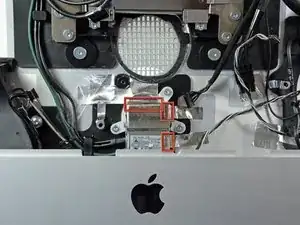
    • Despega las tres piezas de cinta de aluminio del cuerpo de la entrada de CA.

    • No es necesario quitar completamente la cinta del cuerpo del iMac.

  49. vXrbbmQEPqKBCDyh
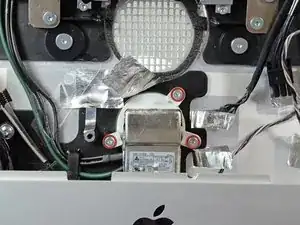
    • Retira los tres tornillos Torx T10 de 9,3 mm que sujetan la entrada de CA a la carcasa exterior.

  50. udlKkXgHAWEWWDBP
    • Sigue este paso si la pared de presión de tu disco duro todavía está instalada.

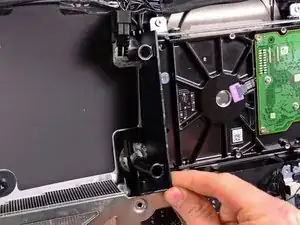
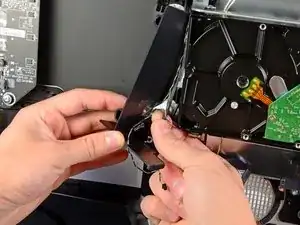
    • Tira de la pared de plástico instalada justo a la izquierda del disco duro para alejarla de la carcasa exterior.

    • Retira el trozo de cinta que sujeta los cables del sensor térmico y retira la pared de plástico del iMac.

  51. P6NtWWEcymMZMLch
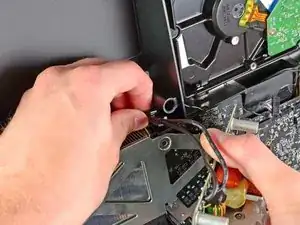
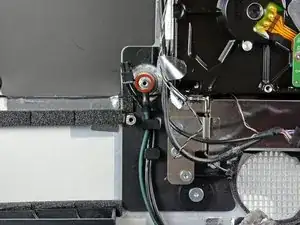
    • Utiliza una llave de tuercas de 5 mm para quitar el separador de 15,7 mm de largo que sujeta el bucle de conexión a tierra de la entrada de CA a la carcasa exterior.

  52. MXSLJ2pmGDHihS5n
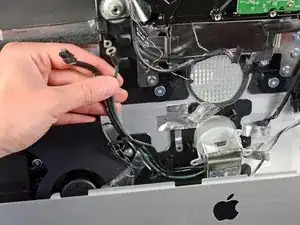
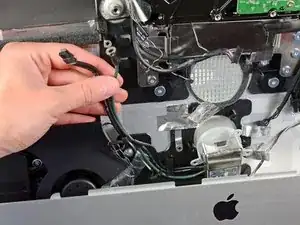
    • Desconecta la entrada de CA y los cables de tierra de sus retenedores en la carcasa exterior y retira el conjunto de entrada de CA del iMac.

Conclusión

Para volver a armar tu dispositivo, sigue estas instrucciones en orden inverso.

Andrew Bookholt

578639 Reputación

0 comentarios