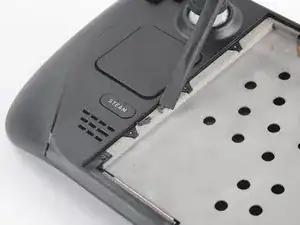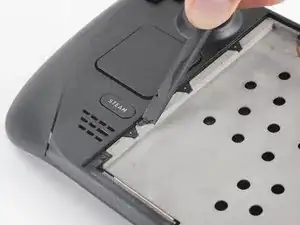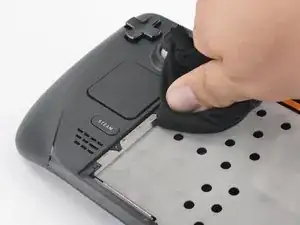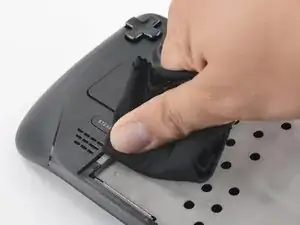
Introducción

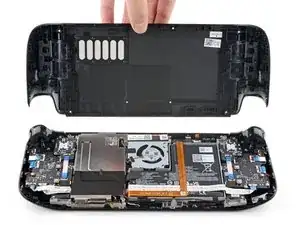
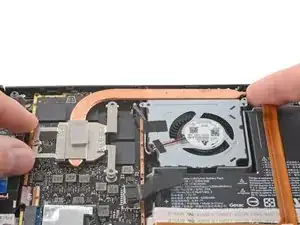
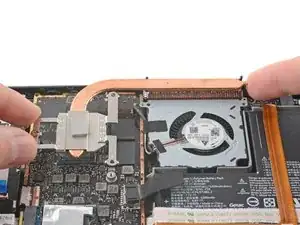
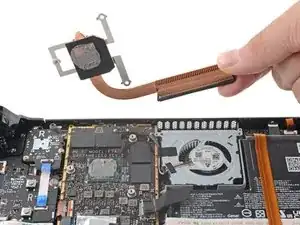
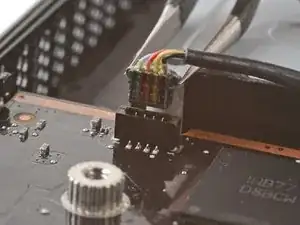
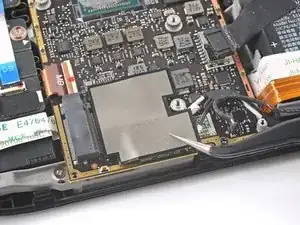
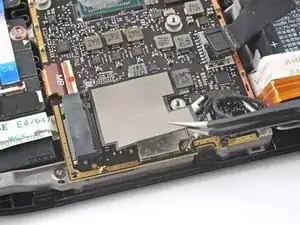
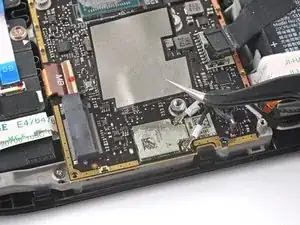
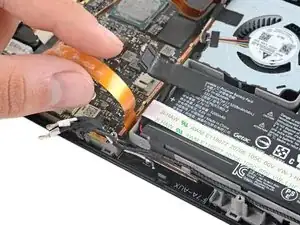
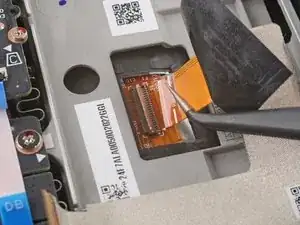
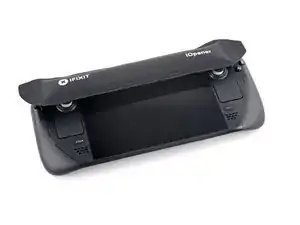
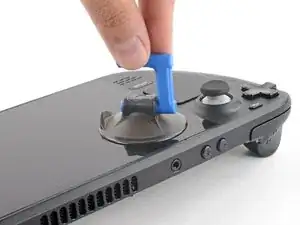
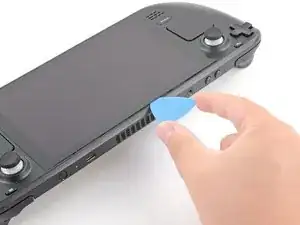
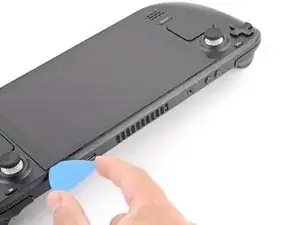
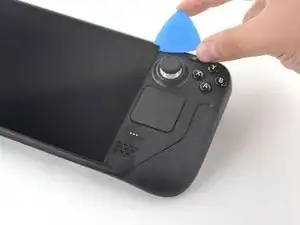
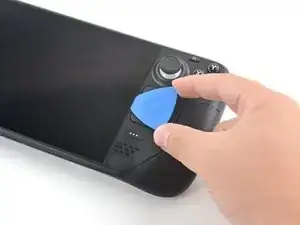
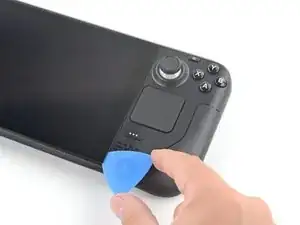
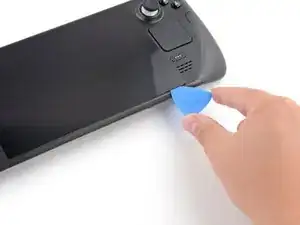
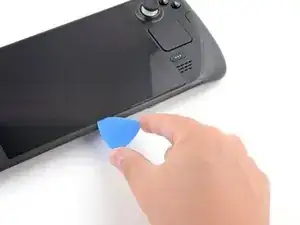
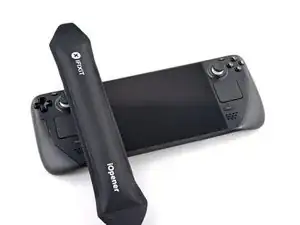
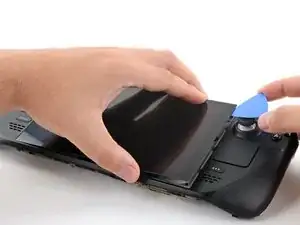
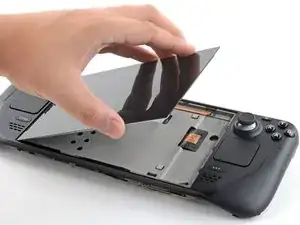
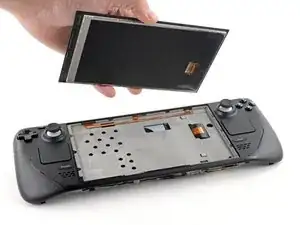
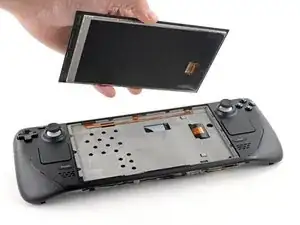
Usa esta guía para sustituir la pantalla de tu Steam Deck. El procedimiento es el mismo para las pantallas de cristal grabado estándar y antideslumbrante.

Recuerda: seguir los procedimientos de seguridad contra descargas electrostáticas (ESD) generales mientras reparas tu dispositivo.

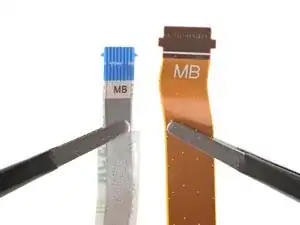
Nota: Si instalas un modelo de pantalla de 512 GB en un dispositivo de 64 / 256 GB o viceversa, deberás asegurarte de que también se instala un cable flexible de pantalla adecuado. Ambos tipos de pantallas llegan con sus cables flexibles específicos.

  1. vQyR3PAE4HOMSLAZ
    vQyR3PAE4HOMSLAZ
    aIKAs5r3P3bY2iTE
    hD1USYJCkAbkluud
    • Enciende tu Steam Deck y deja que la batería se descargue por debajo del 25 % antes de comenzar las reparaciones, ya que una batería de polímero de iones de litio cargada puede ser peligrosa si se perfora accidentalmente.

    • Como precaución adicional, Valve recomienda poner tu Steam Deck en modo de almacenamiento de batería dentro de la BIOS antes de comenzar cualquier reparación interna. Lee cómo hacerlo aquí.

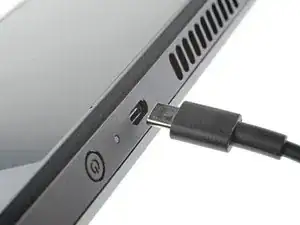
    • Apaga tu Steam Deck y desconecta todos los cables.

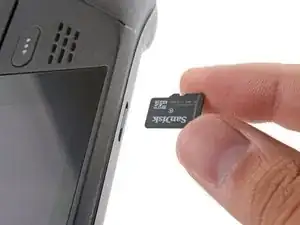
    • Si tienes una tarjeta microSD instalada, asegúrate de quitarla antes de abrir Steam Deck. Si intentas quitar la cubierta posterior con ella aún instalada, podría romperse por la mitad.

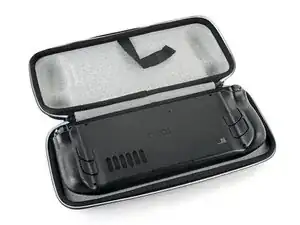
    • Durante la reparación, a veces puede ser útil colocar el Steam Deck boca abajo en tu estuche para proteger las palancas de control y evitar que se tambalee.

  2. bpUGGPG32OkLXnC4
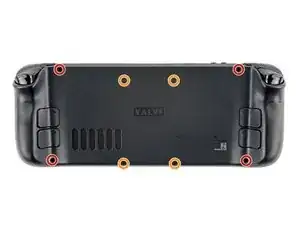
    • Utiliza un destornillador Phillips para retirar los ocho tornillos que sujetan la tapa trasera:

    • Cuatro tornillos de 9,5 mm

    • Cuatro tornillos de 5,8 mm

    • A pesar de los estándares, los destornilladores Phillips pueden variar en tamaño y forma: dos destornilladores etiquetados como del mismo tamaño pueden encajar de manera diferente en el mismo tornillo. Utiliza el tamaño que se ajuste mejor a la cabeza del tornillo.

    • A lo largo de esta reparación, realice un seguimiento de cada tornillo y asegúrese de que vuelva exactamente al lugar de donde vino para evitar dañar su Steam Deck.

    there should be a picture of the SD card slot at the start of every Steam Deck teardown. i know the note is there but i generally use the pictures to guide me and forgetting to remove the SD card is a very critical step

    Nathan Barrow -
    I agree, I just broke mine...

    Camille B -
    What is the the #1 philips used for? Only the #0 is mentioned in the instructions.

    Christopher Martin -

    I wish they would specify which size to use for which screws.

    Mark D -

    I found it easiest to use a PH1 for the red screws, and PH0 for the rest (including the internals.)

    Chris Clawson -

    Be careful you can strip the screws take your time

    I use PH00 bit

    jaybush74 -

    I used the PH1 bit for this. You can use smaller bits but ideally there should be no play of the bit in the screw head.

    Charles Semple -

    are there playstation replacements (circle,square,cross,triangle)

    Deór -

    I used the ifixit tools and used the 00 size for the screws on the back.

    Luis B -

    I've completed the guide and found it very helpful!

    I think somewhere in this part it would be helpful to name the size of the correct Phillips driver to use:

    Use a Phillips driver to remove the eight screws securing the back cover:

    Four 9.5 mm screws

    Four 5.8 mm screws

    Maynard -

    I used the PH1 for the 9.5mm screws and PH00 for the 5.8mm screws. The PH0 wanted to strip one of the small ones.

    Pol Llovet -

  3. 6jtVcFtMGa5ZMqcF
    6jtVcFtMGa5ZMqcF
    Ux5LEj3JfJlkmQMQ
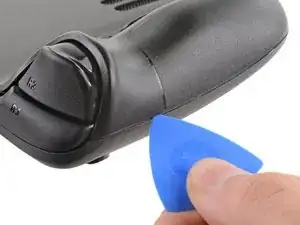
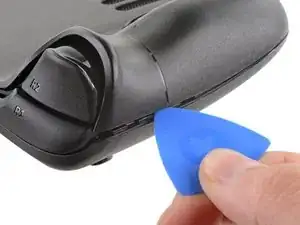
    • Inserta una púa de apertura en el delgado hueco entre la tapa trasera y la carcasa delantera, a lo largo del borde de la empuñadura derecha.

    • Si tienes problemas para insertar la púa en la costura de la empuñadura, intenta comenzar primero por los bordes largos superior o inferior y luego desliza la púa hacia la empuñadura.

    • Haz palanca en la tapa trasera para liberarla de los clips de bloqueo.

    I found it easiest to start this process at the top of the device near the fan exit.

    Peter Lindberg -

    second that and inserting the pick in the bottom middle and sliding the pick to each side

    Sub -

    I also found the top near the fan exit to be easier

    Travis Patton -

    Thank you for this tip, it definitely was easy starting at the top instead of by the bumper/triggers. After I opened the top I did the bottom and then it was way easier to gently open the sides. be very careful and go slowly to make sure that none of the clips are damaged

    Luis B -

    this as suggested above:

    1. open the top

    2. open the bottom

    3.gently open the sides

    austrasier -

    same; i pried from the top of the screen area. I was unable to find an opening on the side

    Dennis Wu -

    I also started from the middle of the deck and worked my way out since I couldn't get a grip with the pick on the deck's side grips. Since this is a common step for pretty much all guides for opening the deck I think it's also worth noting that you should be careful not to bend the trims/seams where the front and back covers meet with the pick. When I first opened my deck you can definitely see where I nudged the pick in between the covers since I was probably using too much force on the pick itself.

    Kaleb McKone -

    It would be useful to note here that if you want to insert the little blue triangular iFixit opening picks into the right side along the edge, there isn't actually a gap as the directions say, at least not on newer Decks. You'll be making the initial gap using the pick. Brace it on something because you will need to use enough downward force that you're flexing the pick a bit and it'll probably be digging into the skin of a bare hand. With enough force suddenly it will make a click and go in just a bit, and then you're in business.

    CaptFrost -

    plastic picks didnt work for me but finger males did the job on prying this open

    jacobbagsic -

    I found it easiest to open starting with R1 or L1 buttons and proceeding to the center of the top edge

    Karol Gro -

  4. 6IvIWWqEXPTqW1XB
    6IvIWWqEXPTqW1XB
    1FxwYDjIGOAOCZT2
    KpIx4YIAZrDH1b5T
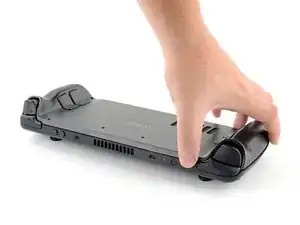
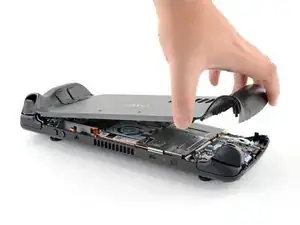
    • Una vez desconectados los clips de un borde, el resto se desconecta fácilmente.

    • Agarra la tapa trasera por la abertura que acabas de crear y tira de ella hacia arriba y lejos del dispositivo para desenganchar los bordes largos.

    • Retira la tapa trasera.

    If you have an SD card, you will want to take it out. I followed the guide and didn't think about the SD card I had inside. When I went to snap the case back on it clapped shut on the exposed SD card, shearing it in half and leaving the bottom half stuck in the SD card slot. I am still endeavoring to get it out.

    Novice -

  5. WuMbLgtJF5JwQtjF
    WuMbLgtJF5JwQtjF
    I6pEKNGEKEDbNymT
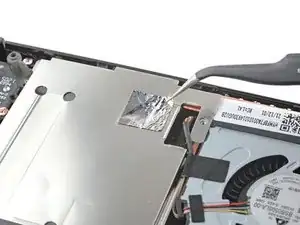
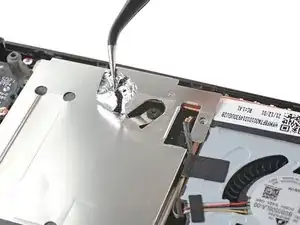
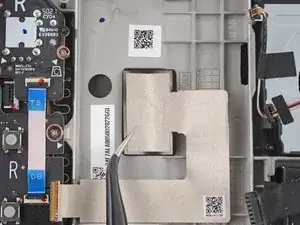
    • Utiliza unas pinzas para retirar el trozo de cinta adhesiva que cubre el tornillo oculto del escudo de la placa.

    • Si es posible, trata de no rasgar o romper esta pegatina (sticker) para poder reutilizarla.

    Use some heat here from a hairdryer to make this part easier.

    If you screw up here you can replace the little aluminium square with some aluminium tape from Amazon. No less than 50 microns thick, slightly thicker is fine. and the square is 13mm both ways.

    Matt S -

  6. fpjCmGxopRvFvGbm
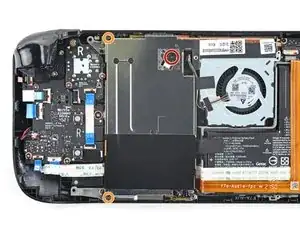
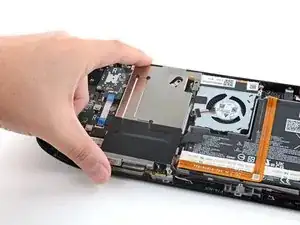
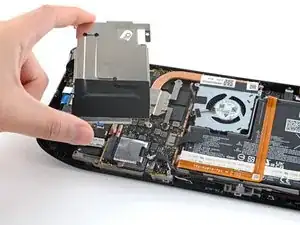
    • Usa el destornillador Phillips para retirar los tres tornillos que sujetan el escudo de la placa.

    • Un tornillo de 3.4 mm

    • Dos tornillos de 3.7 mm

    The procedure ended here for me, used an ifixit PH 00 bit on the screw behind the aluminium tape, bit wouldnt bite too great, one wrong twist and the screw was stripped. Not sure who or what initially screwed in that particular screw as the rest of the screws on the shield were fine, but boy is it in there tight. So now i have a stripped screw and a botched ssd replacement, don't think valve will let me RMA for this, but i'll give it a try and update accordingly.

    Y. van S -

    Any updates? Did they let you RMA?

    Emanuel Gjoni -

    I found one screw to be ridiculously tight too, managed to undo it without stripping thanks to reading your comment beforehand and going extra careful. Not going to lie, it was a tense moment :D

    Andy HL -

    I think the tendency is to go too small on the screwdriver bits because you're working on small electronics.

    I used the PH1 bit on the screw under the foil and the PH0 bit for the two remaining screws without any problems.

    Charles Semple -

    What does this shield actually do? Some kind of magnetic protection?

    Corey Cleric -

    if I had to replace the key (R2) and that's it, can I directly remove it or do I have to act here on the motherboard too?

    pujattidanny -

    have you gotten an answer yet? trying to change mines as well but dont wanna do too much to the deck

    briaNN -

    button Not key, i’m sorry

    pujattidanny -

    I used the ifixit tools and used the 00 PH for these screws with no issue

    Luis B -

    If only swapping the SSD, it is not necessary to remove the top left 3.7mm screw. The heat shield is flexible enough that you can move it out of the way to access the SSD screw. For me this was necessary as the 3.7mm screw was completely unmovable and quickly stripped.

    Scott A -

    FYI there is a little pin on the cover that slots into the board. It is located near the top screw. I needed that to be inserted for the cover to go back down properly.

    Seth Robinson -

    For anyone who may have stripped a 3.7mm screw, Steam Support states it's M1.6 diameter with a 0.35 thread pitch and a 3mm length. Hopefully that'll help anyone trying to locate a replacement screw. Hoping iFixIt can make an internal screws kit as they're kinda hard to find the right one online.

    Michael Dyer -

  7. JXePTdtVUbrOvVJT
    JXePTdtVUbrOvVJT
    QqjInaZugM3yJK1q

    When putting back on, run a pick along the edge of the shield between the wires to make sure nothing is pinching and the wires are clear of the shield before screwing down.

    Matt S -

  8. XjI1homB4a5VNhbV
    XjI1homB4a5VNhbV
    qvcjxPUTxawsUUMB
    qa3R33nVHlO1SOpy
    • Agarra el cable de la batería por su lengüeta y tira de él directamente hacia fuera de la placa madre para desconectarlo.

    • Alternativamente, usa la punta de una spudger o una uña para empujar gentilmente el conector fuera de su socket, luego desconéctalo completamente a mano.

    After fully reassembling my device I found that my battery was not showing any stats anymore. I couldn't start the device without being plugged in, however if I restarted it would stay on even if my power cable was detached. Battery showed 0%. It turns out I had not fully reinserted the battery cable at this stage during reassembly. MAKE SURE YOU PUSH IT ALL THE WAY BACK IN!

    Michael Hoffmann -

    Awesome thanks for this tip!

    petergeranio -

    It is helpful to lift up gently with a the tapered end of a spudger underneath the tucked-in portion of the battery cable, creating a bit of flex in the cable before pulling on the pull tab. I found that without doing so, the fabric pull-tab simply tore off of the cable under light-to-moderate force (the fabric itself ripped cleanly across, like a paper towel). Careful, gentle pressure with a spudger can be used to remove the plug by prying gently on the rear ridge of the plastic plug (not the wire!) if this happens.

    Gene Eckser -

    This is exactly what happened to me. Maybe it was a pull tab previously, mine was a ribbon cable that tore - captured the image here: https://www.ianwootten.co.uk/2022/11/22/...

    Ian Wootten -

    I found it less scary and easier to remove the battery connection by using a fingernail on the ridge and pushing it off the connector. I felt like pulling on the battery cable was too harsh.

    montgomery mchargue -

    Upon plugging the battery back in, I found it easy to use two spudgers- one on each side- to pull/push the connector back into it's port. Be careful to not put any pressure on the battery wires themselves.

    montgomery mchargue -

    When reconnecting the battery cable, you'll know when it's inserted and power is restored, because the white LED will illuminate at the top of the Deck near the power button. You should be able to see it while you're reconnecting the battery cable

    Michael Davis -

    Why not just let the battery discharge completely and then not have to disconnect it?

    Jeffrey Martin -

    Completely discharging a battery reduces its lifespan. It's completely unnecessary.

    Stefan Camporese (CENTER) -

    Because no lipo battery is ever completely discharged -- you would not be able to recharge it if it was. There will always be enough power left in it to cause damage if shorted even if it isn't charged enough to power up the device it's connected to.

    David Cameron -

    I would personally not recommend pulling the tab. It doesn’t apply force at the correct angle. You should revise these instructions to advise using a combination of pulling on the tab, and careful pressure on the connector towards the right of the mainboard to carefully work it out.

    Using the pull tab alone could cause problems if not done extremely carefully.

    William Winborne -

    This part was wayyyyy easier than I anticipated and I worried for nothing because I used the ifixit spudger to push it out a bit and then I literally used my finger nail and was able to slide it right off. Dont be afraid, its not that difficult and its not that delicate to break if you do it patiently

    Luis B -

    I inserted the cable very firmly with a spunger, being careful not to press down too hard on the cables, and even tried redoing it, but I don't see any LED illumination. I am now unable to boot the deck into the boot manager. Any additional tips?

    junefish -

  9. Wb1NxBPPT1PSBhGc
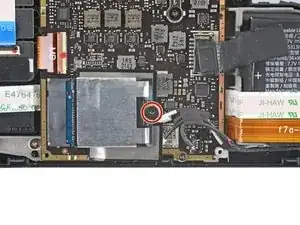
    • Usa un destornillador Phillips para retirar el tornillo que sujeta la SSD.

  10. kqxseNHvcfLUVJ6f
    kqxseNHvcfLUVJ6f
    meWZB2YOQ3H6FFlF
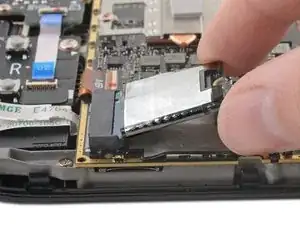
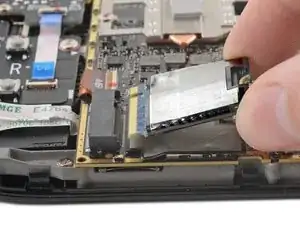
    • Una vez retirado el tornillo de la SSD, ésta saldrá hacia arriba en un ángulo poco pronunciado.

    • Sujeta el extremo de la unidad SSD y tira de ella para sacarla de su conector de placa M.2.

    • Al volver a montarla, inserta la unidad SSD en un ángulo poco pronunciado en su conector de placa y fíjala de nuevo en su posición horizontal con el tornillo de la SSD.

  11. 4KYHMASkPWuBgLsb
    4KYHMASkPWuBgLsb
    v3awsxt21JOONI25
    nFSu2fKNDSTMEhRG
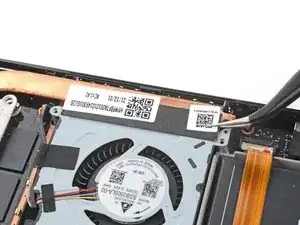
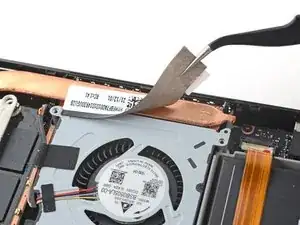
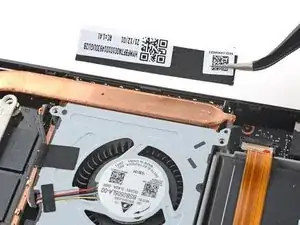
    • Utiliza unas pinzas para retirar el adhesivo del borde superior del ventilador.

    • Si es posible, intenta no rasgar o romper esta pegatina para poder reutilizarla. Utiliza un poco de calor si es necesario para ablandar el adhesivo.

    • Si sientes que la pegatina se va a romper, usa pinzas para despegar un borde hasta que puedas sujetarla con los dedos y luego quita el resto con la mano.

    It's not super clear from the pictures but you're aiming to remove the black strip, not just the small white square sticker. Use heat and go slowly.

    Matt S -

    I didnt like using the tweezers for this part because the sticker was so stuck that it felt like using the tweezers was going to rip it. I used the tweezers to lift it a bit and used my finger to gently lift the rest.

    Luis B -

    You don't need to remove the sticker entirely from the heat sink, just the side where it sticks to the fan. At least on mine, the black sticker was 80% on the heat sink, so it was much easier to just peel off the thin strip from the fan

    jamesmiglietta -

  12. gY3xLKZClleZl5E1
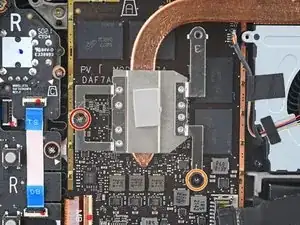
    • Utiliza un destornillador Phillips para aflojar y retirar los dos tornillos que fijan el disipador a la placa madre:

    • Un tornillo cautivo de 3.5 mm

    • Un tornillo de 3.4 mm

    • ¡No, tus ojos no te engañan! El tercer tornillo del disipador se ha retirado antes en el desmontaje: sirve de tornillo oculto del escudo de la placa.

  13. IJVMpPZxyKXYxycU
    IJVMpPZxyKXYxycU
    wPADiEDDdwgoHY1B
    gHCDRt1kBBeBV5lx
    • Levanta y retira el disipador de calor.

    • Antes de volver a instalar el disipador, sigue esta guía para limpiar el disipador y la APU y volver a aplicar la pasta térmica.

    Where i can buy this heatsink?

    Savatium -

  14. OvORxayh4RiWnAZN
    OvORxayh4RiWnAZN
    EhNZsRDjhxmxFZSt
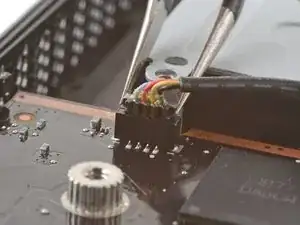
    • Usa unas pinzas para agarrar los bordes del conector del ventilador y tira hacia arriba para desconectarlo de la placa madre.

    • Tira del cable del ventilador por su conector, no por los propios cables.

  15. DnwyiGY2AVoOYPKi
    DnwyiGY2AVoOYPKi
    TaJSIHBqFfQeEkYA
    nq2SHFSPjDBduMUO
    • Usa unas pinzas para despegar y retirar la cinta de protección Wi-Fi.

    • Si es posible, intenta no rasgar o romper esta pegatina para poder reutilizarla. Utiliza un poco de calor si es necesario para ablandar el adhesivo.

    The steam deck looks to be shipping now with an additional plastic sheet adhered to the wifi module meant to better retain the connectors in place, that will have to be removed.

    Stephen Micheals -

  16. TTxtBvaYgmXmfATn
    TTxtBvaYgmXmfATn
    XfVrKYPd32E3bI5x
    • Utiliza unas pinzas para agarrar los bordes del conector del altavoz y tire hacia arriba para desconectarlo de la placa madre.

    • Tira del cable del altavoz por su conector, no de los propios cables.

  17. h364fIg4JEiN2A5e
    h364fIg4JEiN2A5e
    2NLPHTCGwlkCsTgk
    tMUWXkFbQbAJ3Pho
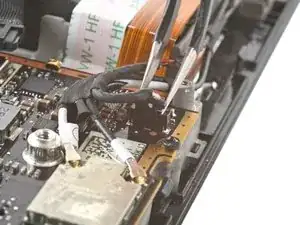
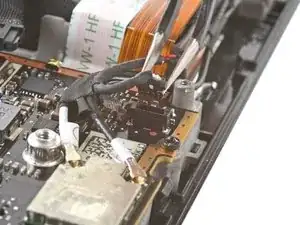
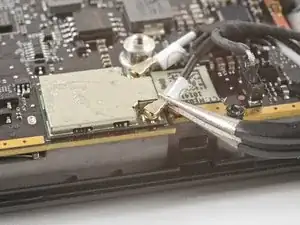
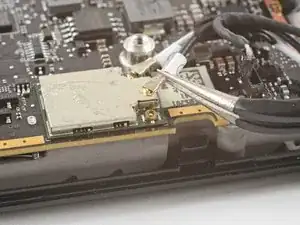
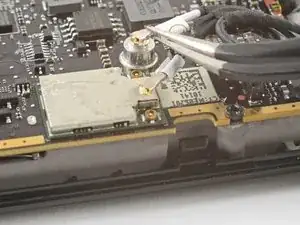
    • Utiliza unas pinzas para agarrar el conector de la antena cerca de su base.

    • Tira hacia arriba para desconectar el cable.

    • Repite la operación con el segundo cable de antena.

    • Durante el montaje, asegúrate de que los dos cables de antena están conectados de nuevo en sus conectores correspondientes. Las etiquetas de los cables coinciden con las marcas del módulo Wi-Fi.

    • Para volver a conectar cada cable, alinea el conector directamente sobre su toma, y luego presiona hacia abajo para que encaje en su lugar.

  18. wipsSoHZIAFacUnU
    wipsSoHZIAFacUnU
    3QrRocRn5pQpncgo
    fcBR1JXIrcaZbo3P
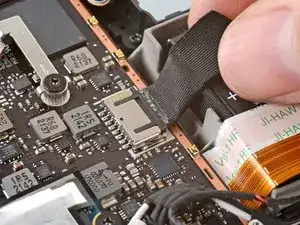
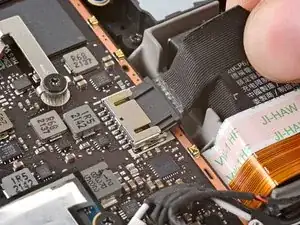
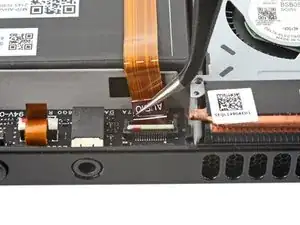
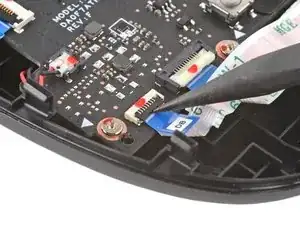
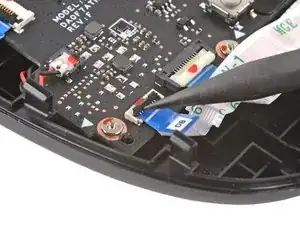
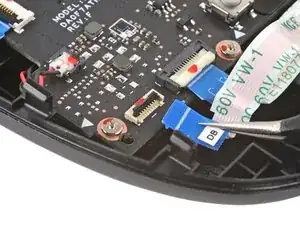
    • Utiliza el extremo puntiagudo de un spudger para levantar la pequeña solapa de bloqueo del conector ZIF del cable de la pantalla.

    • Utiliza un par de pinzas para deslizar el cable fuera de su conector.

    • Sujeta el cable por la lengüeta, no por el propio cable.

  19. 6DQuNR5Y6rsaLQjZ
    6DQuNR5Y6rsaLQjZ
    HH6aIJQsNHPiGCLn
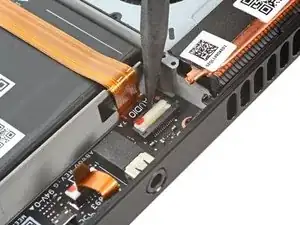
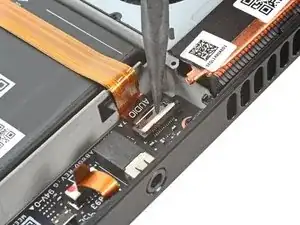
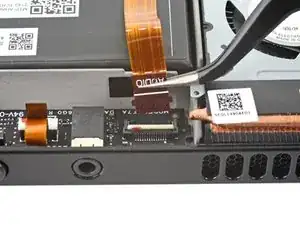
    • Utiliza el extremo puntiagudo de un spudger para levantar la pequeña solapa de cierre del conector ZIF del cable de audio.

    FYI the locking flap was not white, but black on my model.

    David VanWormer -

  20. R1yZ43JZRvyinp3e
    R1yZ43JZRvyinp3e
    ToKZe3vl1l5LcKkZ
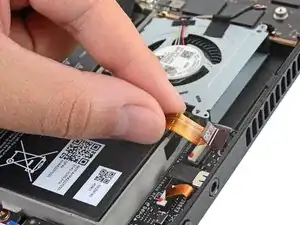
    • Utiliza unas pinzas para sacar el cable de su conector.

    • Sujeta el cable por su lengüeta de tracción, no por el propio cable.

  21. KhaG3LgcGMPBx23A
    KhaG3LgcGMPBx23A
    KoLE1DNtjjNbH11o
    itQjy6SQXGCsmFcH
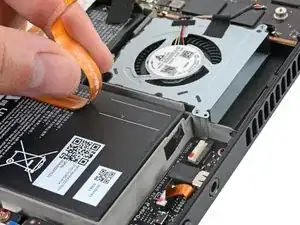
    • Retira con cuidado el cable de audio de la batería.

    • El cable de audio está fijado a la batería con un ligero adhesivo.

    • Si el adhesivo es resistente, no fuerces el cable. Calienta ligeramente el cable de audio con un iOpener o un secador de pelo para ablandar el adhesivo.

  22. kYSvKNUtoMKW1Y52
    kYSvKNUtoMKW1Y52
    MQPeMMWRLhmlbXK1
    nBqwGC62TGpBgPpA
    • Utiliza el extremo puntiagudo de un spudger para levantar la pequeña solapa de cierre del conector ZIF del cable de la botonera.

    • Utiliza un par de pinzas para deslizar el cable fuera de su conector.

    • Sujeta el cable por la lengüeta azul, no por el propio cable.

    Please note, when replacing the button board cable, and when removing the motherboard, there may be adhesive that sticks the DB cable to the ribbon cable underneath it, which is the Interconnect Cable, to the right of the image above.

    Since the adhesive will stick that cable to the Interconnect Cable, the DB cable that connects to the BOTTOM of the motherboard may disconnect from its zif connection. You will have to connect the DB cable that connects to the underside of the Steam Deck's motherboard first to ensure the connection from the DB to the button board is established. This can be tested in the BiOS as basic directional pad and A and B buttons should be functional in the BiOS or Recovery Menu.

    Opz Sigma -

  23. UHBoaExoNLL1SisX
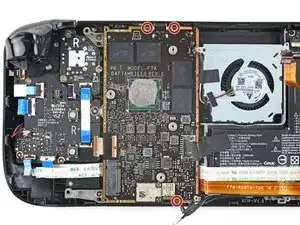
    • Utiliza un destornillador Phillips para retirar los tres tornillos de 3.7 mm que fijan la placa madre.

  24. RMPjNALMnObtFSYG
    RMPjNALMnObtFSYG
    wpyiINS4QdZm41rq
    twpyRfSXp5JJPaft
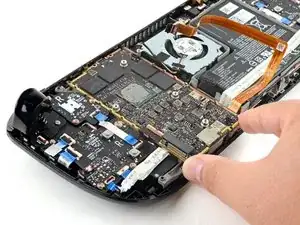
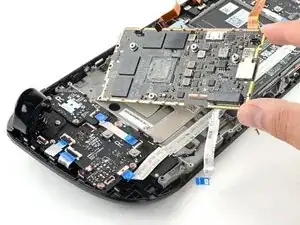
    • Retira la placa madre.

    • Los cables de audio y de la placa del botón se unen a la parte inferior de la placa madre con conectores ZIF.

    On replacement, check all the way around the motherboard for trapped cables!

    Mark H -

    Second the above, the DB cable is usually attached to the underside of the motherboard, however due to adhesive that the DB cable is ontop of, when removing the motherboard it can disconnect the DB cable from the motherboard.

    Also this is important to make sure that the following aren't inaccessible when re-installing the motherboard:

    Heatsink Fan near top-right
    MB cable to display near bottom left
    Speaker and Wi-Fi cables near bottom right
    DB cable that connects underneath Motherboard near bottom left
    HD Audio cable underneath Motherboard near bottom right

    Opz Sigma -

    Peux ton changer le lecteur sd ??

    Il est défectueux

    d.karimali -

  25. cYnFCMsvPOo5WOEg
    cYnFCMsvPOo5WOEg
    sUfHjsAJf21owXxL
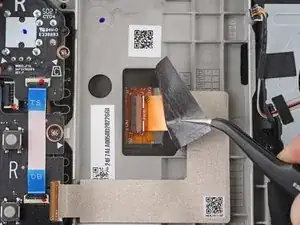
    • Utiliza unas pinzas para despegar el adhesivo que cubre el conector de la pantalla.

    • Si es posible, trata de no rasgar o romper esta pegatina para poder reutilizarla. Utiliza un poco de calor si es necesario para ablandar el adhesivo.

  26. YonEpIZKct6GAGCe
    YonEpIZKct6GAGCe
    o1ktxYTdqJOqfQpF
    QRILfND2JaF6XooU
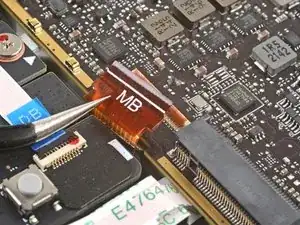
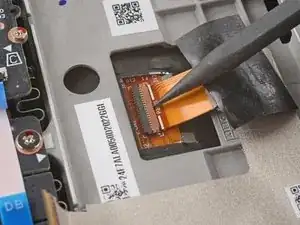
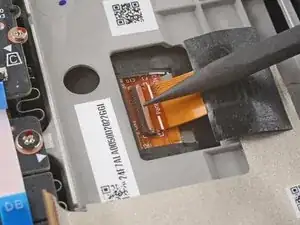
    • Utiliza el extremo puntiagudo de un spudger para levantar la pequeña solapa de bloqueo del conector ZIF del cable de la pantalla.

    • Utiliza un par de pinzas para deslizar el cable fuera de su conector.

    If the screen is glowing after turning it back on after re assembly but it’s showing blank, did I not reconnect the display correctly or is it something else?

    Noah Buller -

  27. rXaMWSCVrQomEZJT
    • Prepara un iOpener y aplícalo al borde superior de la pantalla durante un minuto.

    • También se puede utilizar un secador de pelo o una pistola de calor, pero tenga cuidado de no sobrecalentar el Steam Deck, ya que tanto las pantallas como las baterías internas son susceptibles de sufrir daños por el calor.

  28. 6QvN3mrFwqLKCYjY
    6QvN3mrFwqLKCYjY
    FJkHVYcMD3CBHFdi
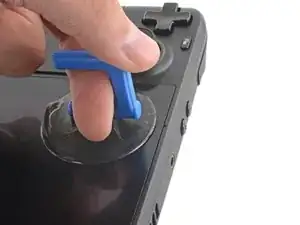
    • Aplica una ventosa en la esquina superior izquierda de la pantalla presionándola para crear succión, lo más cerca posible del borde.

    • Si tu pantalla está muy agrietada, cubrirla con una capa de cinta de embalar transparente puede permitir que la ventosa se adhiera. También se puede utilizar cinta adhesiva muy resistente en lugar de la ventosa. Si todo lo demás falla, puedes pegar la ventosa al cristal roto.

  29. B3lJZSmYJPafMgs6
    B3lJZSmYJPafMgs6
    KLIJDLqPkMmUFBh1
    Cg3cxCQBdCguUXkB
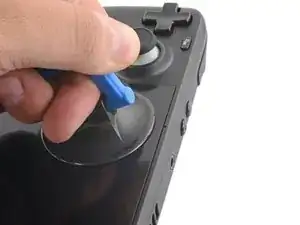
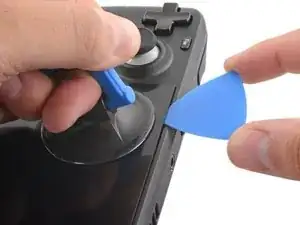
    • Tira hacia arriba de la ventosa con una fuerza fuerte y constante para crear un hueco entre la pantalla y el marco.

    • Introduce la punta de una púa de apertura en el hueco.

    • No introduzcas la púa más de 3 mm o corres el riesgo de dañar el panel de la pantalla, el sensor de luz ambiental o el frágil cable que hay debajo.

    The suction cup simply does not lift up the screen enough to insert the pick - there is no gap. No matter how much heat.

    Ebben -

  30. BLjseWEKCXJN2y6R
    BLjseWEKCXJN2y6R
    y5ESCln2LrNpHMwD
    GseATLllxX4c1Qy1
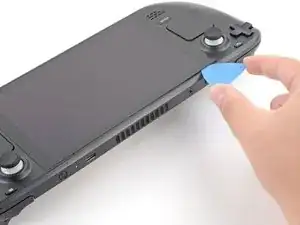
    • Desliza la púa de apertura por el borde superior para cortar el adhesivo.

  31. 31knYnAjEQoWbwkk
    • Calienta el borde derecho de la pantalla durante un minuto.

  32. jhRqLsbxO4jHXPqQ
    jhRqLsbxO4jHXPqQ
    BPNMbWkVZxFVFLXE
    BXYG2DjhI2RcK3d1
    • Desliza la púa de apertura por el borde derecho para cortar el adhesivo.

  33. lc2JJaQbUuxRi3d3
    • Calienta el borde inferior de la pantalla durante un minuto.

  34. MrQUNrkGNLQH3SBO
    MrQUNrkGNLQH3SBO
    wHNYW6PFxJouQ6Rq
    • Desliza la púa de apertura por el borde inferior para cortar el adhesivo.

  35. jPpbRalwMhRRokWX
    • Calienta el borde izquierdo de la pantalla durante un minuto.

    • Desliza la púa de apertura por el borde izquierdo para cortar el adhesivo.

  36. PgrPrAkaDKe12Gy2
    PgrPrAkaDKe12Gy2
    3PNaNiUYnMYEViIC
    2ynLpaCpW1qGto36
    • Una vez que hayas cortado el perímetro de la pantalla, levanta con cuidado el borde derecho, abriéndolo como un libro.

    • Retira la pantalla.

  37. lEuDDqNOQcdmaoYW
    lEuDDqNOQcdmaoYW
    RilvDrKSSYM5ZFiy
    kJlXiTElISKc6HdR
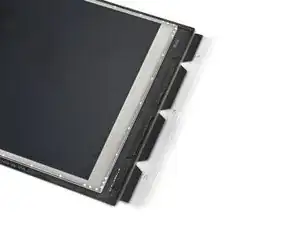
    • Durante el reensamblaje:

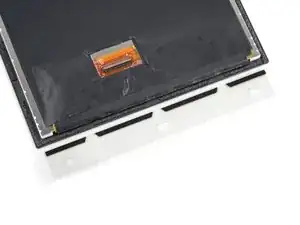
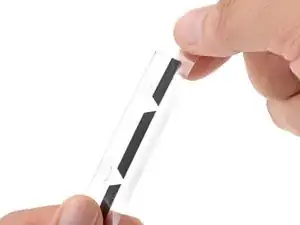
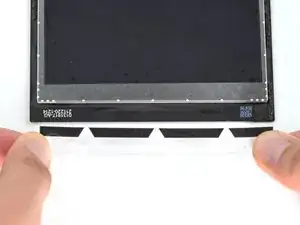
    • Revisa el nuevo adhesivo de la pantalla y haz coincidir cada tira con su respectivo lado de la pantalla.

  38. jjk6LmO3ySpCHanP
    jjk6LmO3ySpCHanP
    H6P3sbIQHckQvWXD
    • Para garantizar una buena unión del adhesivo, limpia a fondo todas las superficies de adhesión.

    • Elimina los trozos grandes de adhesivo con el extremo plano de un spudger o una herramienta de apertura de plástico.

    • No utilices herramientas metálicas, ya que pueden rayar la superficie.

  39. OdsiRiulQpAscUW2
    OdsiRiulQpAscUW2
    UC5wUnG1xBRVI1fA
    • Utiliza removedor de adhesivo o alcohol isopropílico (>90%) para eliminar cualquier residuo restante. Limpia en una dirección con un paño sin pelusa o un filtro de café hasta que desaparezcan todos los residuos de adhesivo.

    • Aunque el alcohol isopropílico es generalmente seguro para usar en la electrónica, disolverá ciertos adhesivos de espuma. Ten cuidado de contener el alcohol cuando limpias, no uses demasiado.

    • Deja que el alcohol isopropílico sobrante se evapore por completo antes de volver a utilizarlo.

  40. bUKLRBVmXV6fQumC
    bUKLRBVmXV6fQumC
    CYIDChWBgHJRJTtd
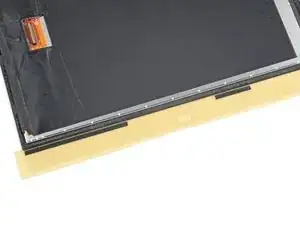
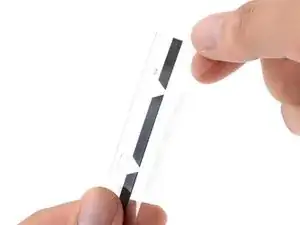
    • Antes de despegar cualquier revestimiento, localiza la superficie a la que debe adherirse la parte adhesiva.

    • Una vez que tengas una buena idea de dónde va la tira adhesiva, despega y desecha el revestimiento, dejando al descubierto el adhesivo que hay debajo.

    • Ten cuidado con los adhesivos expuestos. La mayoría de las veces, no puedes despegar y volver a aplicar las tiras adhesivas si están pegadas en el lugar equivocado.

  41. yX5xOxvaAsFQOBuo
    yX5xOxvaAsFQOBuo
    SjlIDkvQXD5MU2yA
    oSC6gY4XDoKDUQTy
    • Sujeta la tira expuesta por sus lengüetas y alinea cuidadosamente el borde del adhesivo con el borde exterior de la pantalla.

    • Utiliza tu antigua pantalla como referencia para saber dónde deben aplicarse las nuevas tiras adhesivas en los bordes de la nueva pantalla.

    • Ten cuidado con la alineación. La mayoría de las veces, no podrás despegar y volver a aplicar las tiras adhesivas si se pegan mal alineadas.

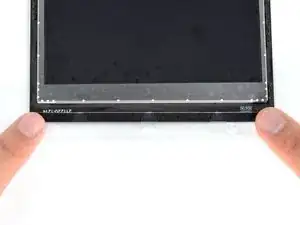
    • Coloca el adhesivo sobre la superficie y presiona firmemente con los dedos para fijarlo.

    • Repita los dos pasos anteriores para las otras tres tiras adhesivas del expositor.

  42. HH2TyS6xnna5Bexi
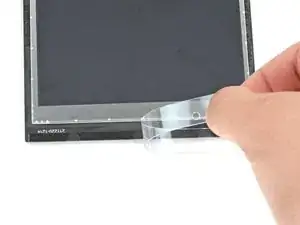
    • Despega y desecha los revestimientos de plástico restantes en las cuatro tiras, dejando al descubierto el adhesivo que hay debajo.

    • Repite la operación con las cuatro tiras adhesivas de la pantalla, teniendo cuidado de no tocar los adhesivos expuestos.

  43. 5mZR6DpoPGIMDsbs
    5mZR6DpoPGIMDsbs
    h1ZYblF35lKRKIdr
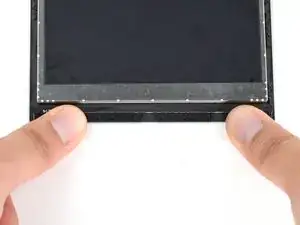
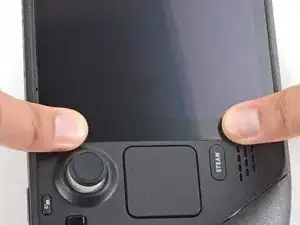
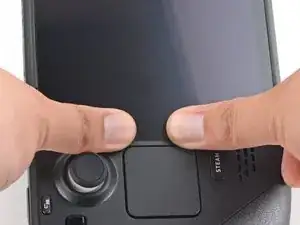
    • Coloca la nueva pantalla en su lugar en el marco intermedio y presiona firmemente a lo largo de los bordes durante 20-30 segundos para asegurar una buena unión adhesiva.

Conclusión

***Para volver a montar el dispositivo, sigue estas instrucciones en orden inverso.

Lleva tus residuos electrónicos a un centro de reciclaje certificado.

¿La reparación no ha ido como estaba previsto? Intenta con algunas soluciones básicas de problemas, o pide ayuda a nuestra Comunidad de respuestas de Steam Deck.

Carsten Frauenheim

Miembro Desde 10/03/20

88878 Reputación

8 comentarios

Attempted this tonight after smashing the screen on my deck. Easy to follow and worked flawlessly first time. Thank you

Matt Willis -

On peut mettre un autre ecran OLED ou autre ?

lapartdesanges50 -

This guide is gold standard. Not once did I think “why didn’t they mention this?”

Lenny Zappa -

Woop Woop Fixed my screen after my anker powerbank fell on it

trevor.davis.1990 -

Thanks for the guide! I just replaced my Steam deck screen. Guide was simple and straight forward

Manni Live -

I did the tutorial to the exact way explained and it’s working perfectly. Thank you kind souls.

Dallas Hall -

Clear and concise. Worked first time with little to no experience working on electronics. Thank you very much!

James Butler -

Super easy to follow, thanks so much! The comments on each step were also super helpful. <3

Jeff Larsh -