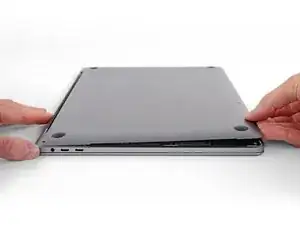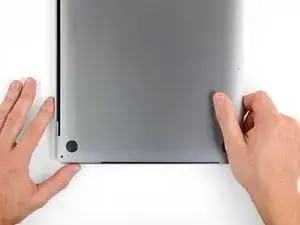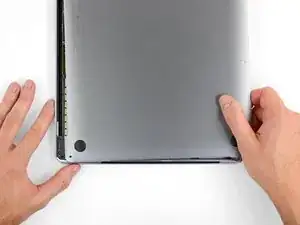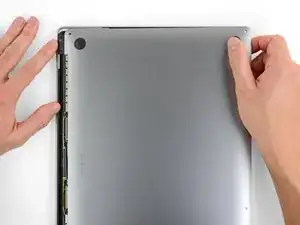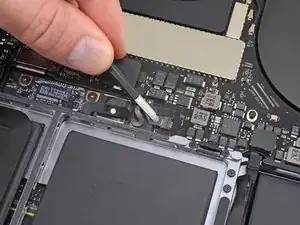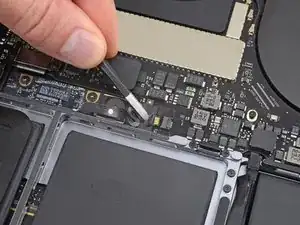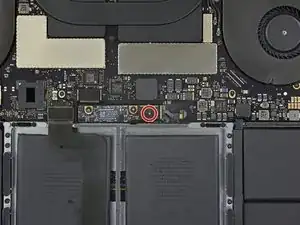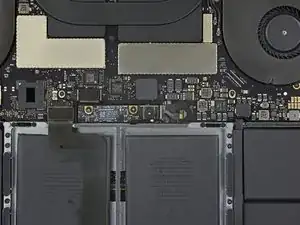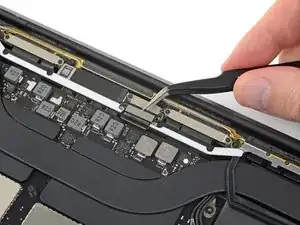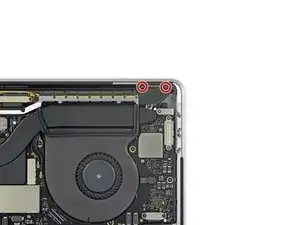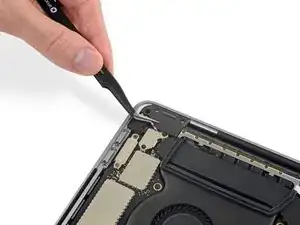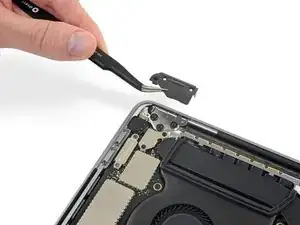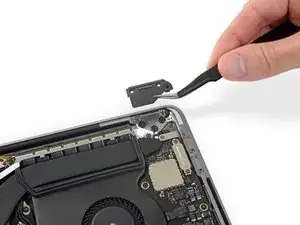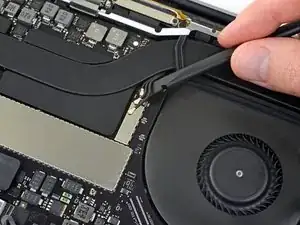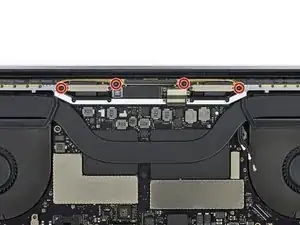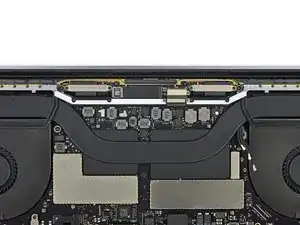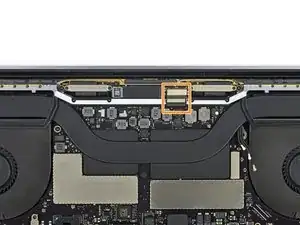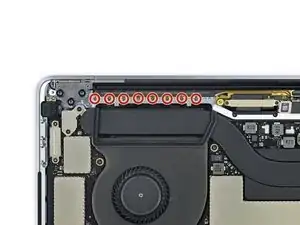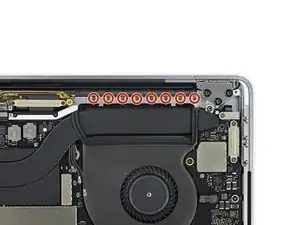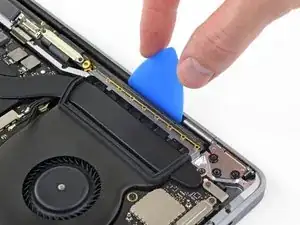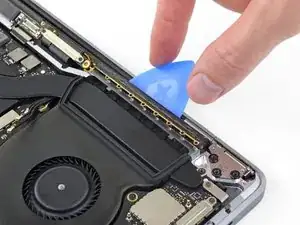
Introducción

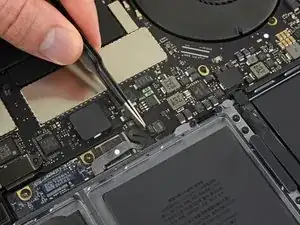
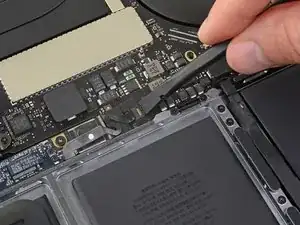
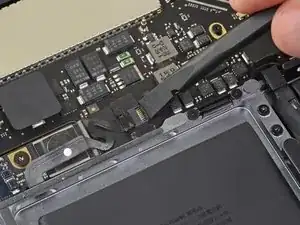
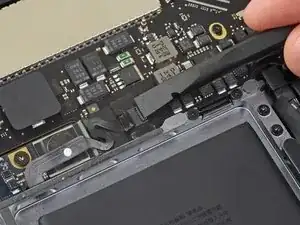
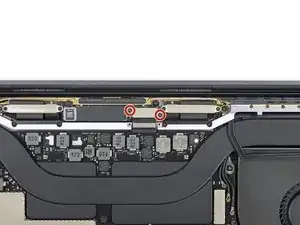
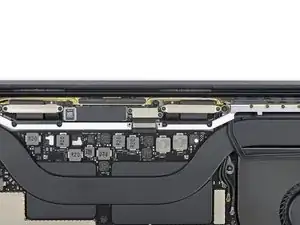
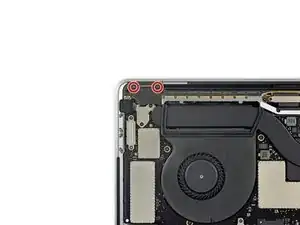
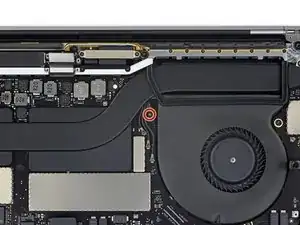
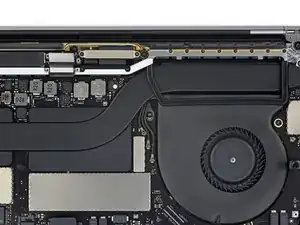
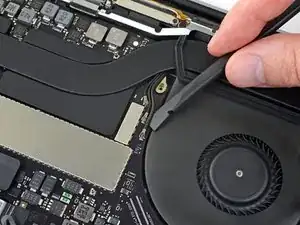
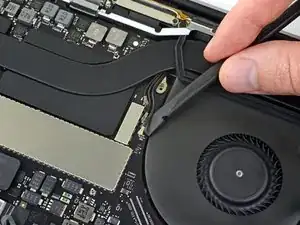
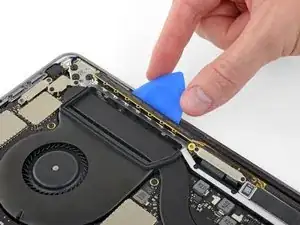
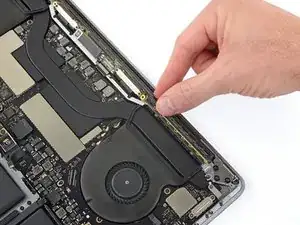
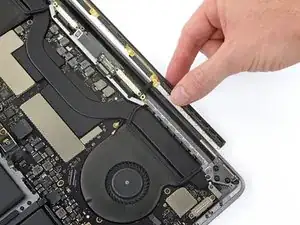
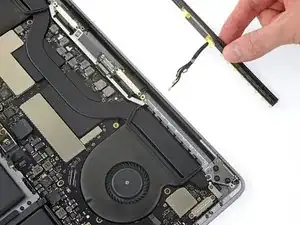
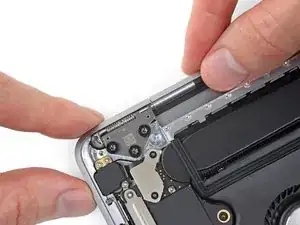
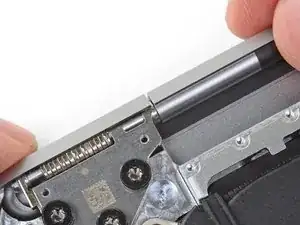
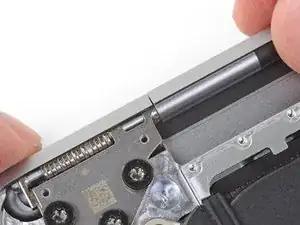
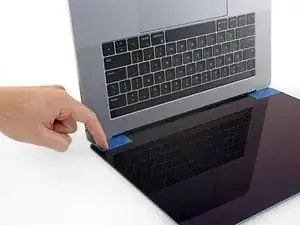
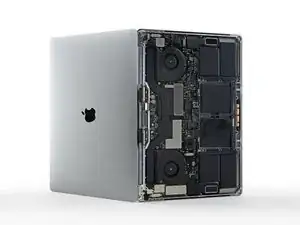
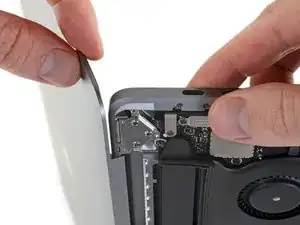
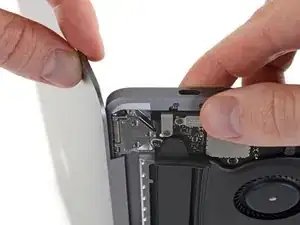
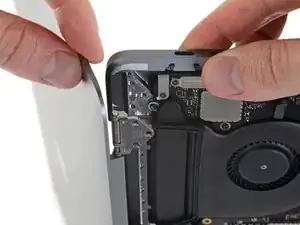
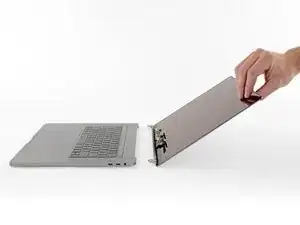
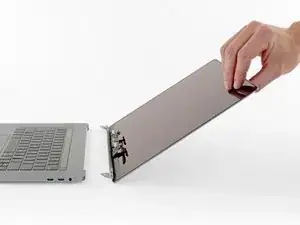
Usa esta guía para reemplazar el ensamblaje de pantalla completo en tu MacBook Pro para reparar una pantalla rota o defectuosa. Este ensamblaje también incluye los cables planos que fallan como parte del defecto, así que reemplazarla también resolverá el efecto "luces de escenario" y otros problemas que causa el daño de los cables planos.

Para tu seguridad, descarga tu batería del MacBook Pro por debajo de 25% antes de comenzar''' Una batería de iones de litio puede generar un incendio peligroso e incontrolable si se la perfora accidentalmente.

  1. dLTjRC36EADiCFBK
    dLTjRC36EADiCFBK
    FZYKkYtpGq1QwBO2
    YAOsWGKtCtOGVFRy
    • Antes de comenzar, debes desactivar la función de arranque automático de tu Mac. Auto Boot se enciende en tu Mac cuando abres la tapa y puede activarse accidentalmente durante el desmontaje. Usa esta guía o sigue las instrucciones abreviadas a continuación para deshabilitar el inicio automático. Este comando podría no funcionar en todas las Macs

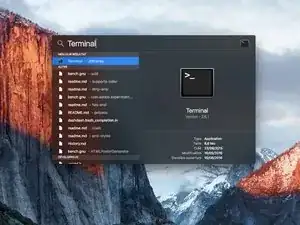
    • Enciende tu Mac y ejecuta Terminal.

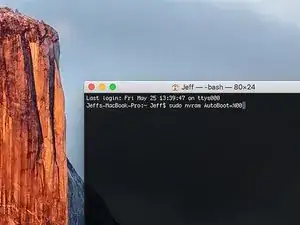
    • Copia y pega el siguiente comando (o escríbelo exactamente) en la Terminal:

    • sudo nvram AutoBoot=%00

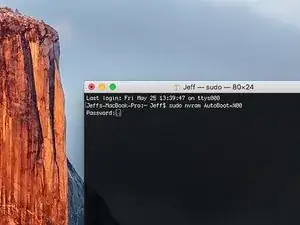
    • Presiona [return]. Si se te solicita, introduce tu contraseña de administrador y vuelve a pulsar [return]. Nota: La tecla de retorno también puede estar etiquetada como ⏎ o "enter".

    • Ahora puedes apagar con seguridad su Mac y abrir la carcasa inferior, sin que se encienda accidentalmente.

    • Cuando hayas finalizado la reparación y se haya vuelto a ensamblar su Mac, vuelve a habilitar el inicio automático con el siguiente comando:

    • sudo nvram AutoBoot=%03

    Is this step necessary? I can’t perform this step as I am attempting to repair water damage and need to remove logic board & most likely replace the battery.

    Macrepair SF -

    @mac_medic You definitely don’t want the power coming on while the board is wet. In your case, I think powering on the machine to disable Auto Boot would do more damage than it prevents. I agree, skip this step and be prepared to disconnect the battery quickly if the laptop automatically powers on. Good luck!

    Jeff Suovanen -

    Thats right! You don't want power running while working on your logic board.

    Dan -

    This did not work when running High Sierra.

    Kyle B -

    Tried this on a 2018 MBP 13” Touchbar (there’s no iFixit guide for this model yet). Need to replace a broken screen.

    Luckily I managed to connect to an external screen (Cmd-Down Brightness to switch displays) and enter above command. Seems to work, but there’s another problem with this model - it powers up as soon as any key is pressed……. ffs <gnashes teeth>

    Cool_Breeze -

    I unscrew the battery first and wrap electrical tape over the logic board battery connector before attempting any repairs to the board. Haven’t had any problems yet and I’ve worked on about 10 of these models already. Also when you open the bottom case use a suction cup at the bottom and pull up then run a plastic spudger along the edges to disconnect the clips. Also only use a plastic spudger on the board. Saw a youtube video from a repair shop and he did not disconnect the power and used all metal tools during the entire process of removing the board. His last step was to disconnect the battery terminal.

    Brian -

    Is this step necessary if my mac can turn on? Battery fully dead(

    Nursat b -

    BEFORE YOU START: The included torx head stripped off before I was done (and you might need an additional T4) so stop now and go buy a good one. Also they fail to warn you above to get some blue threadlocker ahead of time.

    Jason Sherron -

    This command did not work for me and I read that sometime in later 2020 Apple stopped this command from working…any ideas on a work around?

    Patrick Machacek -

    Not able to do that with damaged screen

    richardjgreen -

    If you have a damaged screen you can still use a converter from thunderbolt (USB 3) to HDMI and plug your Macbook Pro to your TV as monitor display. Just make sure to chose the right Source (HDMI IN) in your TV. I did it and to make it work I unplug and plug again in my Macbook and so I could disable the Auto boot

    Roberto Sanchez Bustos -

    Hi. This does not work on 2018 13” MacBook Pro with Touch Bar. I did exactly this to disable auto boot. But when I check by using nvram -p it says: auto-boot true. Am I doing something incorrectly? I did everything step by step. Copied and pasted the sudo command, pressed enter and then entered my password. I have Big Sur 11.1 installed. Is there any other way since I need to replace the screen. Thank you. Adrian

    Adrian Vizik -

    Hi everyone. This is also a little pointless if you can’t see anything on the screen, and you don’t have a display adapter to USB C to display it. I agree with Brian about removing the back and disconnecting the battery cable before you even think about opening the lid of the MacBook. Applying the insulation tape is also a handy little tip that just makes sure there is no way to discharge from either the board or battery.

    Roberto Enrieu -

    running `nvram -p | grep 'AutoBoot'` in terminal verifies that it was accepted

    result: `AutoBoot %00`

    Marek Polák -

    Running Big Sur 11.6.7 on a 2019 16" MBP, it's "auto-boot". So it's: nvram -p | grep 'auto-boot' to display the current state, the default is true - and then to change it, sudo nvram auto-boot=false which turns it off.

    Ed Mechem -

    This step is completely unnecessary if you follow the guide to disconnect the battery properly. Just put some tape between the battery and logic board connection to prevent it from accidentally touching and therefore powering on the laptop.

    Grant Ormsby -

    It took me a few tries to make this command work, as I was able to copy and paste the command into Terminal, but could not type in my laptop’s password. I finally typed my password into a text document, copied it (command C), and then pasted it into Terminal and it worked.

    tommy404 -

    I didn’t do this. Mine never auto-booted before I replaced the battery. Now it does.

    hatuxka -

    BEFORE YOU DO ANYTHING - CHECK THE BATTERY!

    I-fixit sent me a bad battery, which I didn’t realize until it was already install. They sent me a new one, but I wasted hours uninstalling and reinstalled.

    Get a volt meter and measure the voltage on the output of the battery pack. If it reads 0 V, SEND IT BACK. It should read over 2 V.

    bcardanha -

    When I did this from Terminal.app within Recovery Mode, the “sudo” was not recognized but I could invoke it without the sudo part. It seems to have been accepted when looking at “nvram -p”

    johann beda -

    When in Recovery Mode, you already have superuser powers. So you don't need to prefix commands with the sudo command to invoke them with root privileges; you already have them. Do a pwd (print working directory) after opening Terminal in Recovery Mode, and you'll see that you're in the root user's directory.

    Ed Mechem -

    I received the battery kit for my 2018 MacBook Pro and as per the above comment from bcardanha - Oct 12, 2021, I checked the voltage on the pads marked + and - . It was zero volts so I panicked a bit.

    I sent a message on the iFixiT Facebook page and I got no reply. I finally found the customer service email for Ifixit Europe and sent them an email voicing my concern as I was not keen to work for couple of hours just to discover that the battery is faulty. I had an almost instant reply on the email (kudos to them) and they adviced me to go ahead and install the new battery as the voltage measured when battery is not connected is not relevant.

    I took a leap of faith and after two hours… the new battery showed 50% charge and everything seems to be working just fine. I am happy it worked.

    Mircea Comanici -

    After removing the old battery and installing the new battery I powered up the MBP before screwing the bottom on. I discovered the my keyboard would not function. It took a few hours of investigation and frustration that I discovered the track pad power ribbon had become partially dislodged from the trackpad. I was able to see that this through the little machined slot where the battery sat. I had to remove the trackpad to reinsert the power ribbon back into the connector in the trackpad. after reassembling and reinstalling the battery etc the keyboard worked. Just food for thought if your run into the keyboard issue.

    Ed Mease -

    This should be the default. IMO I tell you to power on - not the lid.

    G Sena -

    Est ce que cela fonctionne sur un macbook pro 2017 sans touchbar ?

    maël muzelet -

    Bonjour Maël, oui, ce tutoriel concerne "les MacBook Pro 2016 (et plus récents) et les MacBook Retina 12" 2017 (et plus récents)"

    Claire Miesch -

    Excellent instructions. I was able to follow and install the new screen. I recommend that you get a good set of tools before you begin. I started with an inexpensive repair kit bought online. The Penta and torx bits failed. I bought an IFIXIT kit with quality bits and I was able to do everything I needed.

    Tom Markham -

    If you're not running an admin account the sudo command won't work (which honestly, you should not be running admin). Rather than logging in to your admin amount via the OS, in the terminal type "login [admin username]," then the password and you'll be able to do the sudo command as described above. Once you're complete, type "logout [admin username]" and you'll be good to go. Obviously replace [admin username] with whatever the account name for your admin user is.

    arichard2401 -

  2. B2dyIeZ13jMyq4oN
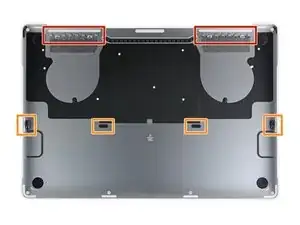
    • Apaga completamente y desenchufa tu MacBook Pro antes de comenzar. Cierra la pantalla y da vuelta la computadora portátil boca abajo.

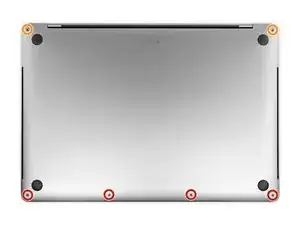
    • Usa un destornillador Pentalobe P5 para remover lo seis tornillos que sujetan la caja inferior:

    • Cuatro tornillos de 4.7 mm

    • Dos tornillos de 6.6 mm

    • Ten en cuenta la orientación de los tornillos a medida que los retires; es necesario reinstalarlos con un ligero ángulo.

    • A lo largo de esta reparación,haz un seguimiento de cada tornillo y asegúrate de que vuelva exactamente de donde salió para evitar dañar tu dispositivo.

    These screws are TINY and different lengths. I highly recommend purchasing the recommended magnetic project mat.

    Steve -

    So this need to replace each and every screw in its exact former position explains exactly the excruciating difficulty I am having in getting the set of four shorter screws screws back in after everything else having gone successfully. Wanna scream at the top of my lungs. Maybe this point needed to be made in all ALL CAPS and BOLD for me. So can I still just start over trying each screw in each hole or have I messed up the threads in trying to screw in screws mismatched to their holes?

    hatuxka -

    The front screws are at a slight angle, pay attention when putting them back!

    Cristian Caprar -

    I did not have the magnetic project mat, but instead I stuck loops of blue painter's tape on the table, wrote the step number on them in sharpie, and stuck the screws/covers for the corresponding step on them.

    dunhamsteve -

    If the battery you are replacing is swollen and you do not know it is - swollen, Watch out!

    You may strip threads on some of the screws. Rotate the unscrewing as in a clockwise - counterclockwise manner if some of them start to feel tight.

    G Sena -

  3. VZFA1MgVRKCoIZlv
    VZFA1MgVRKCoIZlv
    QWPIB6vDdZCBEspJ
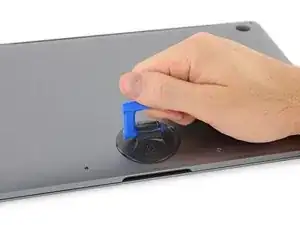
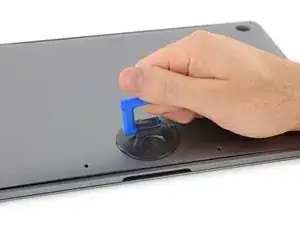
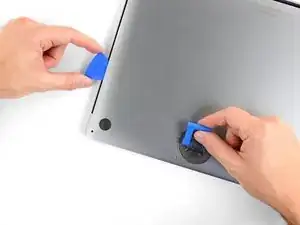
    • Presiona una ventosa en su lugar cerca del borde frontal de la caja inferior entre los orificios de los tornillos.

    • Levanta la ventosa lo suficiente como para abrir una pequeña grieta debajo de la caja trasera.

    You can probably just skip to step 6 if battery is swollen. These steps will likely be taken care of for you.

    G Sena -

  4. CIMWfGuyrYGngcBl
    CIMWfGuyrYGngcBl
    D2IKRLqXgXXTOlRy
    Min2sZEd15jYUULk
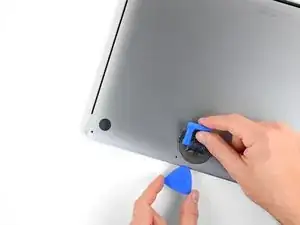
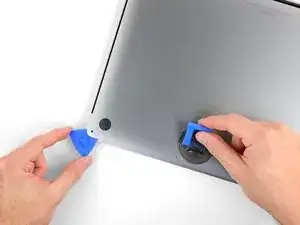
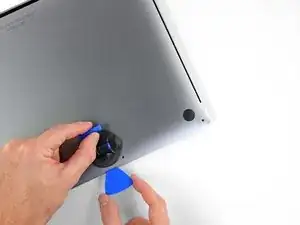
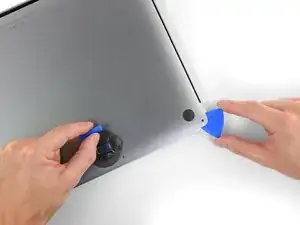
    • Desliza la esquina de una púa de apertura en la grieta que creaste por debajo de la caja inferior.

    • Desliza la púa de apertura alrededor de la esquina más cercana y luego hasta la mitad del lado de la MacBook Pro.

    • Esto libera el primero de los clips escondidos que sujetan la caja inferior. Deberás sentir y escuchar que el clip se libera.

  5. 6khJa1nYdTCtVhyh
    6khJa1nYdTCtVhyh
    YPy6HHqhj6xPiCK4
    RiRVxkVMFGVYdUbQ
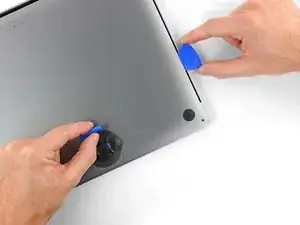
    • Repite el paso anterior en el lado opuesto, usando tu púa de apertura para soltar el segundo clip.

  6. SUXHrYyCaAOVvcMN
    • Levanta el borde frontal de la caja inferior (el lado opuesto de la bisagra de la pantalla) lo suficiente como para deslizar tus dedos por debajo y conseguir una buena sujeción.

    • Hay dos clips adicionales escondidos en la mitad de la tapa que podría liberarse en este momento, si no lo han hecho todavía.

    • No levantes demasiado y no intentes remover la caja inferior aun.

  7. FJ1XaUFTMZqVZmfu
    FJ1XaUFTMZqVZmfu
    566NJvVaErMxyUHm
    kUdSXd5WqbZIsEkn
    • Tira de la caja inferior firmemente hacia la parte frontal de la MacBook (lejos del área de la bisagra) para separar el último de los clips que sujeta la caja inferior

    • Tira primero de una esquina, luego de la otra.

    • Tira hacia un lado, no hacia arriba.

    • Esto puede requerir mucha fuerza.

    This step drew blood. Darn you Apple!

    Kyle B -

    I found it easier to insert a screwdriver through the hole (not too far down), and use that to pull sideways, as it was hard to get a strong grip with my fingers.

    Athanassios Diacakis -

    If you have a black stick, or a nylon probe tool, you can insert it at the back at the point closest to the screw holes, and use that to push the lower case forward. I’ve seen this help me quite a few times, and it makes it quite easier.

    Adrian Brown -

    I like adrianbrown's suggestion. Spot on!

    wmetzgerusa -

    Its difficult if the side catches arent released properly, check them again if it seems too much.

    tonygreenfield -

    I snapped one of the spring loaded logic board grounding pins. Take your time. Leverage from the back in order to push it out versus pulling on it.

    stevanuscg -

    Take the opening pick and stick the edge down behind the hinge all the way to one side, so it is perpendicular to the case, and give it a twist. That end should pop free. Do the same on the other side and there you go.

    Indawg Wetrust -

    Thanks Indawg Wetrust, Made it very easy!

    Louis C -

    They, iFixit, are not kidding. Quite a bit of force needed.

    Norm Hils -

    This step requires a lot of force to slide the back cover away. Make sure you get a good grip of the mac body and of the back panel.

    Cristian Caprar -

  8. 2jJJSwavVeNYqoh1
    2jJJSwavVeNYqoh1
    cViDJDVLBOjuCf1f
    • Remueve la caja inferior.

    • Para volver a instalar la caja inferior:

    • Colócala en su lugar y alinea los clips deslizantes cerca de la bisagra de la pantalla. Presiona y desliza la tapa hacia la bisagra. Debe dejar de deslizarse cuando los clips se enganchan.

    • Cuando los clips deslizantes están completamente enganchados y la caja inferior se ve correctamente alineada, presiona firmemente la caja inferior para enganchar los cuatro clips ocultos. Deberías sentirlos y oírlos encajar en su lugar.

    I am doing a battery replacement for a client on this model. The battery has swollen more than I have ever seen before on a Mac! Roughly a ½” higher, once cover removed. Cover was so tight that one screw stripped and had to drill out one screw after trying everything else! Fortunately, I’m an exmechanic/machinist and I own a full size drill press! None of the screw extraction tools sold by ifixit worked or were applicable until I finally got the cover off. Then the small screw pliers from Japan were easier to use than anything else I own. My tools are mostly for larger nuts, bolts and screw extraction. Possibly a mini hammer driver screwdriver would work if one could be made small enough for tiny screws! Ross

    Ross Elkins -

  9. ocQPFYqHXXonU4nL
    ocQPFYqHXXonU4nL
    RI2KP5bTSZKNllCp
    • Despega y remueve la tapa grande y rectangular de la placa de la batería en el borde de la placa lógica más cerca de la batería.

    • Si la tapa no se despega fácilmente, aplica un poco de calor con un iOpener, secador de pelo o pistola de calor para ablandar el adhesivo e intenta nuevamente.

    • Si la tapa no encaja de forma segura cuando vuelves a ensamblar el dispositivo, intenta rotarla 180 grados. Debe estar orientada correctamente para que las almohadillas adhesivas hagan contacto con los tornillos de la placa.

    What is the though behind this step? I have replace my trackpad before, and I did not do this step. At the time, there was no guide. As a result, I’m wondering how this changes/or if it is necessary for the repair process.

    Anthony Bleyer -

    It’s necessary in order to disconnect the battery. Always disconnect the battery before making repairs.

    Jeff Suovanen -

    I found my one of my fan making some noise, when open the bottom of my Mac I see this piece floating over the fan. Trying to put it back where it goes but don’t seem to stick anymore and move around. Does this piece is really necessary or I can simply remove it or order a new one from you?

    Alexandre Bolduc -

    It should be pretty easy to reattach. Put a dab of rubber cement or a bit of double-sided tape on top of each of the screws underneath the cover, press the cover down, and close up your MacBook. It should stay put. Don’t use superglue or anything else that will harden over the screw heads and make it impossible to fit a driver in there later.

    Jeff Suovanen -

    Do you know if this piece is necessary. I lost mine.

    scoop scoop -

    My Macbook doesn’t appear to even have this piece.

    Nate Bartlett -

    This cover is not attached to anything critical underneath, so do not be afraid that you can break anything like pulling anything from the mainboard. Just pull it out. To reattach, I removed the old double side adhesive tape and replaced with fresh one.

    Cristian Caprar -

  10. vRqKmn1U3o1IsD3b
    vRqKmn1U3o1IsD3b
    ANm5rACotO4gVLIa
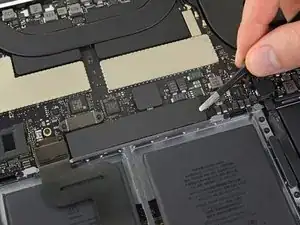
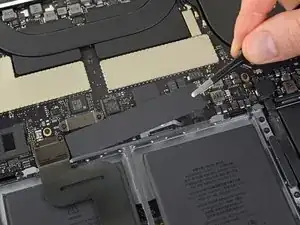
    • Despega la cinta que cubre el conector de cable de datos de la placa de la batería.

    • La cinta podría no separarse por completo. Despégala lo suficiente como para tener acceso al conector.

    Wow, mine peeled up from the board. Now I have some board level soldering. Any part number on the connector for this cable on the board.

    Mark Mata -

    I second that; does anybody know where this battery board data cable connector can be purchased?

    Tim -

    The replacement battery did not come with the “tape” in this cable so it was very difficult to reinsert the cable into the zif socket. Now I can’t get the replacement battery to charge.

    J D -

    I have the same issue, My battery is not charging. Did you figure out how to get your battery to charge?

    Jeremy Smith -

    In my case, the original replacement was faulty. iFixIt sent an RMA without hesitation, and I am happy to report that the new one works fine. But also recheck this step and steps 13/14.

    J D -

    Note that the tape covering that comes on the OEM battery is not included in the battery sent from iFixIt. I removed it from the old and attached it to the new, but it does not “re-stick” very well, so it’s rather difficult to re-insert. Be careful, the ribbon is fragile.

    J D -

    I broke the locking flap! Also, my original tape lost its stickiness as well. I cut out a small piece of electrical tape to keep the cable snug in place. Also will work to keep it secure since I broke the locking flap.

    Edward Pascua -

    I was able to reinsert the cable easily a number of times with the nice Ifixit angled tweezers as the ziff connectors tiny latch came off! I ended up using a bit of Pliobond 25, contact cement to mke sure the data cable doesn’t move. A future repair will just pull off or at most need an xacato blade knife to slit the rubbery cement. Ross

    Ross Elkins -

    REALLY important. You need to really pull this back in snug for things to work when you reassemble.

    Michael Stelzner -

    I didn’t seem to have any tape covering it, I just proceeded to the next step

    Nathan Skene -

    My battery board connecter is broken. Let me know where can I get these cables.?

    Lalitha Prasad -

    I recommend to just lift a little the right end (end of the cable side), then keep the socket in place with a spudger while removing this adhesive tape, to avoid any accident like ripping off your socket. With a little care, it is safe and easy to remove completely.

    Cristian Caprar -

  11. fElQdCLEnZnaiBFq
    fElQdCLEnZnaiBFq
    44R2VIDnFbPQbhAL
    XhXMsoTWa6WNOw1R
    • Usa un spudger para levantar suavemente la pestaña de bloqueo del conector ZIF para el cable de datos de la placa de la batería.

    Mein Sicherungsbügel ist abgebrochen, oder zumindest nicht mehr auf dem ZIF-Stecker. Ist dieser Sicherungsbügel sehr wichtig, oder kann ich das Kabel dennoch zurück stecken?

    Fabio Jock -

    Hallo Fabio, wahrscheinlich wird das Kabel ohne den Bügel nicht mehr halten. Das Zurückstecken geht, aber es bleibt nur sehr fragil drin.

    Fabian Neidhardt -

    Sie sollten in der Lage sein, das Kabel wieder anzuschließen und mit einem guten Klebeband abzudichten.

    mark -

    My zif connector was already open. It apparently never got closed during manufacture. Being so tiny this made it difficult to see why there was nothing to pry up with the spudger. Once I put my finger on top of it I realized the flap was already verticle.

    Ian Simmons -

    lock flap broke when I was about to close it, is there any way to fix it? The computer can't find the battery

    Gabriel -

    I had no issue here but I recommend to use a second spudger to keep the rest of the socket in place while GENTLY lifting the lock. It should lift without effort.

    Cristian Caprar -

    When putting it back, be careful, there might be a little piece of transparent adhesive foil on top of the socket, gently lift it up on the side of the cable. The cable should slide in easily, but do not force it. About 0.5mm of the cable contacts will be VISIBLE on the left side, when the cable is fully it, do not force it more than that.

    Cristian Caprar -

  12. bYh4tpPaCJVg6hic
    bYh4tpPaCJVg6hic
    mwTmXl1p2hKDi65r
    • Desconecta el cable de datos de la placa de la batería deslizándolo fuera de su zócalo.

    • Desliza en paralelo a la placa lógica, en la dirección del cable.

    If this breaks, what’s the risk to the computer?

    Jose Lopez -

    I tried powering mine on after my zif connector socket broke. It made bad electrical noises. I had water damage at one point and cleaned the unit very well but never replaced the battery. Through excesive, a hot and bad battery, or water damaged weakening the area mine came right off with the tape when i peeled it up. Im working on finding the part and will attempt to solder it back. Of course i still need a battery which ours was swollen. After water damage it worked great for over a year though.

    Mark Mata -

    Mine broke and now the Macbook will not power on, this was after a battery replacement, the Macbook powered up afterwards, but after transporting it, it would not power up. I removed the back cover and noticed the battery board cover was missing and the zif gate for the battery data connector was half off.

    Charles Braxton -

    Same here, I broke the cable which was soldered on the mainboard. I tried to hold it on place with a tape, but I couldn‘t charge my macbook though. Then I tried to solder it and I also failed. I wish I had read the comments before :/

    Sebastian Fritsch -

    I couldn‘t find the fpc 6 pin connector with 0,5 mm grid. However I managed to connect the flex cable directly on the mother board with 0,3 mm isolation filament! It was tough but I‘m so happy that it works again :)

    Sebastian Fritsch -

    Would you be able to give a little instruction on how you were able to make this work? I’m super curious and need a solution to the same issue.

    Tim -

    Anybody know where this connected can be purchased? Mine completely snapped to pieces the moment I touched it.

    Tim -

    Surprised by the tolerance of this little connector to my mistake of not flipping up the not very noticeable clamping element on side opposite to where the contact tip is inserted. The contact tip pulled right out without having done that. Saw in a video I should have done that before pulling the contact tip out. Remembered when reinstalling it.

    hatuxka -

    The cable is stuck on the board underneath with adhesive, so it is best to first work it a little from left under (as the picture is oriented) in order to break the adhesive, and then pull it sideways. At all times, I kept the socket safe with a spudger to avoid ripping it off the board. The cable will come out with a little effort. Remember, it is the socket you need to take care of, not the cable (the cable will be thrown away with the old battery).

    Cristian Caprar -

    I had issues in reassembly - the lever for the ZIF socket was missing. I think it came off with the tape. I found the lever, but it was way too small for me to reattach (I couldn't hold it well enough with the tweezers and wasn't sure where the hinge pins went).

    The computer did not recognize the battery or recognized it with errors (if I got the cable just right) without the lever.

    My solution was to cut a tiny bit of electrical tape and put it on the back of the ribbon cable to make it thicker. This gave it enough traction to stay in the socket and pushed the ribbon onto the contacts.

    dunhamsteve -

  13. 2RCPAZQTvLp6UKBM
    2RCPAZQTvLp6UKBM
    jsHVbVRGC4ON2bw5
    • Usa un destornillador T5 Torx para remover el tornillo panqueque de 3.7 mm que sujeta el conector de alimentación de la batería.

    It was actually T6 in my case

    Fedor Pudeyan -

  14. tfv4QHe4U26merGN
    tfv4QHe4U26merGN
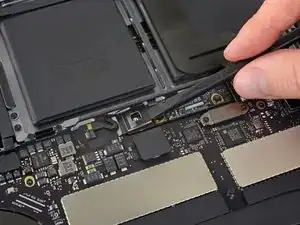
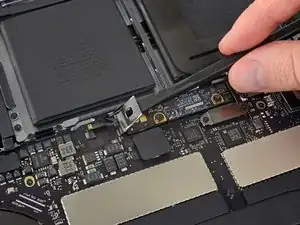
    OmlTFWsMAoC5fdek
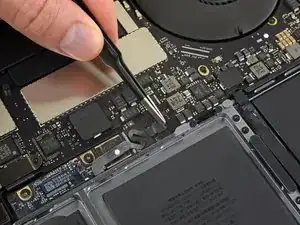
    • Usa un spudger para levantar suavemente el conector de alimentación de la batería, desconectando la batería.

    • Levanta el conector lo suficientemente alto para mantenerlo separado de su zócalo mientras trabajas. Si hace contacto accidentalmente, podría dañar tu MacBook Pro.

    I tossed a piece of tape on the connector just to be safe.

    Kyle B -

    wondering if i didn’t heed this warning close enough. mac not powering on. only black screen with battery and lightning bolt beneath it. What happens if this connector makes contact?

    ONYCHA HAZEL -

    im in the exact same boat right now.

    Was everything okay in your case?

    Anthony Gasbarro -

    Same here until I realized that I never reconnected the tiny power button/Touch ID connector in step 31! It’s underneath the headphone cable jack from step 30. Mine was hiding under the board and I carefully fished it out with a tweezers.

    ajm0824 -

    I have the same issue. Followed Instructions to theT. Battery is connected properly as it fully charged however, it will not power on. If i disconnect the battery and connect the power adaptor, it powers on. How did you resolve your issue?

    Ian Duff -

    Mine will power on, but will not charge.

    J D -

    Hi, did you manage to fix this? Ive got the same issue sadly.

    Cooldude2222 -

    Same problem, any solution?

    federico.cirillo -

    Lifting up to about 75 degrees is more that enough and safe, and I did also use some electrical tape to block the contact. When this goes back, there is no socket in place, it is just the screw that keeps it there.

    Cristian Caprar -

    I put electrical tape on this as well. Glad I did. "Being careful" during the whole process gets lost when you're focusing on other parts.

    Jay -

  15. Y2EM2kOmxsVVxGsK
    Y2EM2kOmxsVVxGsK
    kB6hbJPWBVJSRWje
    NNw1Zy2KoAHfugHK
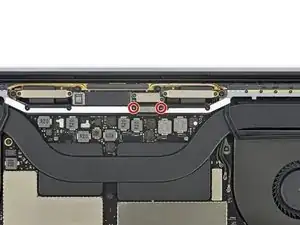
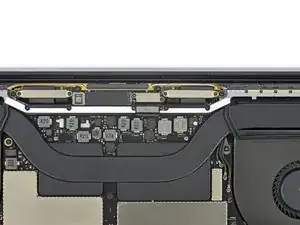
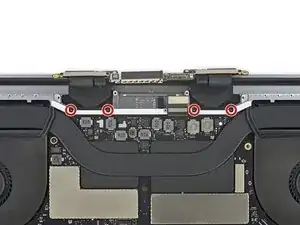
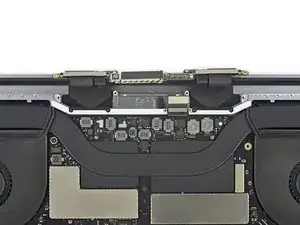
    • Usa un destornillador T3 Torx para remover los dos tornillos de 3.5 mm que sujetan la cubierta del cable flexible de la pantalla.

    • Remueve la cubierta del cable flexible de la pantalla.

    I have T4 sized here. Same with a lot of the other ones. Make sure your driver fits snugly!

    Mac Daddy -

    Its a t4! Not a t3!

    Gary Esser -

    Which one is the back light? Anybody know?

    Gary Esser -

    T3 worked for me, the T4 I have was too big.

    Louis C -

  16. HmbljlJIx3DDSv6L
    HmbljlJIx3DDSv6L
    x1YFPV12ulq5KVk3
    NeQ2ZYYqktkHIMYt
    • Utiliza un destornillador Torx T3 para quitar los dos tornillos de 1.7 mm que sujetan el soporte para el conector del cable de la placa de la pantalla.

    • Remueve el soporte del conector de cable de la placa de la pantalla.

    I had a problem with the display and I managed to solve it by disconnecting the display board flex cable and connecting it back. It worked for a while, until the first restart of the laptop, again display became inoperable.

    When I tried to do the same thing, I realized that this bracket is missing. Most likely I lost it when I first worked on it.

    Could be this piece the reason why the display stopped working after the restart?

    I ask because I try to eliminate every step in finding the source that is causing this problem at the moment.

    Thank you!

    Lei Mi -

    A lot of these are actually T4, not T3, so be sure to use the right bit. It should fit snugly.

    Mac Daddy -

    ******* WARNING ******* T4 not T3!!!!

    Chris Tessaglia-Hymes -

  17. OeO2aNQZY2Wqhaso
    OeO2aNQZY2Wqhaso
    pxcIkgq4YMaByHDl
    • Levanta directamente con tu spudger para desconectar el cable flexible de la placa de pantalla.

    Are parts (cover and bracket) from Step 15 and 16 required in order the display to work?

    MiniMe -

  18. tuGG4HFvESIwv6Ma
    tuGG4HFvESIwv6Ma
    pFxNHrjUBdBVU31T
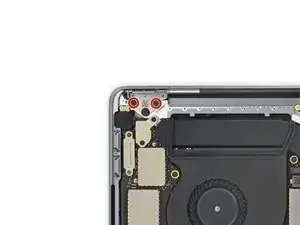
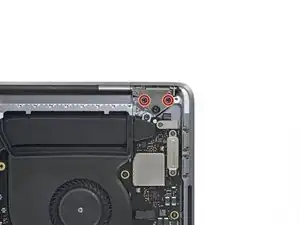
    • Usa un destornillador T3 Torx para remover los dos tornillos 2.0 que sujetan la tapa de cada bisagra (cuatro en total).

    Thanks for sharing. Emus4u app is the best app, I love this app. Emus4u easy to download all game chats app and emulators apps. This app has advantages to download the free cost of app and quality and quantity apps. Emus4u apps design for PC, ISO devices, and Android. All the apps including the paid ones that you see in the official app stores are available for free using Emus4u. There is a lot to explore in the app store. I really enjoy this app Click more information Emus4u

    jinn dev -

    ^ Clearly there needs to be a report button on comments because of shithead spammers like jinn dev

    John M -

    It’s actually a T4

    Fedor Pudeyan -

  19. XFJVVFDWSPBHkrJq
    XFJVVFDWSPBHkrJq
    5STUQubjsL3FvTaX
    5SihubqR3wtCYTyt
    • Remueve ambas tapas de bisagra.

  20. ojRDoKENfIZytoHv
    ojRDoKENfIZytoHv
    emuNyrhpNAGffFHD
    • Usa un destornillador T5 Torx para remover el único tornillo de 2.9 mm del paquete de cable de antena.

  21. ahM12UuepvcDrVAZ
    ahM12UuepvcDrVAZ
    A3p1tKOwwa3yxwfX
    DWVHE5vyOOQIfHmD
    • Desconecta los tres cables de la antena levantando cada uno directamente desde su zócalo.

    • Desliza tus pinzas o el extremo plano de tu spudger debajo de cada cable hasta que esté cerca del zócalo, y luego gíralo o levántalo suavemente para desconectarlo.

    • Para volver a conectar cada cable, alinea el conector directamente sobre su zócalo y luego presiona hacia abajo para que encaje en su lugar.

  22. lmD2ZSC3pqSNeL3p
    lmD2ZSC3pqSNeL3p
    vRUPusyYUbaTouKd
    u5lyTdktGOEVWspj
    • Utiliza un destornillador Torx T5 para quitar los cuatro tornillos de 3.3 mm que sujetan la placa de la pantalla

    • Antes de instalar estos tornillos:

    • Asegúrate de que el cable flexible de la placa de pantalla se ubique sobre la placa, no por debajo.

    My model uses T3 screws here, not T5. FYI if this is a typo. Thanks for the great guide!

    enricolimcaco -

    IF when you are putting your new screen in, and it looks different than this picture, make sure you routed the cable properly, with respect to the antenna you just reinstalled. Its very easy to route the display cable around the antenna the wrong way and have a bit of extra cable flapping around when you are done. It should look nice and tight like this pic shows.

    Mac Daddy -

    Also, enricolimcaco is right. These screws are T3, not T5

    Mac Daddy -

    Make sure you pay attention to which screws you remove here! I removed the 2 next to these 2 that hold in that metal plate and then couldn’t figure out why my antenna would not come out!

    Christopher Meats -

    VERY IMPORTANT to pay attention to the screws in the is step if you don't want to struggle or even damage the antenna

    Eddie Ali -

  23. BNvbUJHdNRVmorBu
    BNvbUJHdNRVmorBu
    Lx5sbvvJM3hVmHwB
    • Usa un destornillador Pentalobe P2 para remover 16 tornillos de 1.5 mm que sujetan el ensamblaje de la antena.

    Same problem. All but the very last one. Which now makes me think I should’ve left a few of the other ones in and taking it out first. Maybe it’s causing too much torque on that last screw. ?

    Chris Leeds -

    I made the mistake of buying a cheap ebay P2 Pentalobe. It stripped out after the first screw, even though I was slow and careful. 2nd time bought the iFixit brand from Germany and a little WD40 to easily get all 16.

    Jimmy D -

    I had to be VERY careful with these. More than any other screws. The first 4 wanted to strip out on my. Started to be WAY more careful, and apply way more pressure and was able to get them all out. A combination of not being careful enough on the first ones and having a cheap toolkit almost got me in big trouble!

    Christopher Meats -

    The secret to these is to lightly twist the P2 to make sure it’s fully engaged. Once it is, then push straight down (very very) firmly on the screw as you turn it counter clockwise and it will come right out.

    Do the same but clockwise when you reinstall and you won’t strip a thing.

    Corey Mack -

    The secret to this is, don’t buy the iFixIt toolkit. Most of it’s alright but the P2 bit is too brittle and stripped itself after removing only two screws. Borrowed my brother’s Tekton set and had ZERO issues.

    Sean Zubrickas -

    Sorry to hear this—for whatever it’s worth, this is the exception rather than the rule! iFixit bits carry a lifetime warranty. Reach out to customer service and they can ship you a replacement bit, free of charge. I’ve done hundreds of repairs with the same set of bits; haven’t yet had any of them strip or break. Better luck on your next repair!

    Jeff Suovanen -

    I had a problem using the ifixit tool kit to remove the 16 antenna screws (striped one badly) so i ordered the Wiha drivers from Germany and found the ONLY bit that would fit and thus remove (press down firmly while rotating driver) the pentalobe screws was the 1PLx40 driver, not the 2PL as many have said here. 2PL was just too big to even fit in the screw head.

    Robert DiIorio

    robert -

    I had some real issues with these screws. It was because the P2 bit was stripped somehow. iFixit was super helpful!!! They replaced the bit and the new bit worked perfectly. Only stripped one screw. Thanks iFixit!

    KeithMelara -

    Oops — deleted my old thread. Posting to leave this link to replacement P2 Vent/Antenna screws: https://beetstech.com/product/vent-anten...

    enricolimcaco -

    This is a very tough step.

    Louis C -

    Used the IFIXIT toolkit and applied significant pressure, as recommended in the comments. However, the P2 bit was too weak to move the screws, and ended up twisting itself (how?!) before stripping itself and the screws. Repair is on halt until my order of a different P2 bit arrives (praying that the screws aren’t too stripped…)

    Niklas Bastuck -

    Ah! You need a bit of heat and/or solvent to loosen the sealed screw.

    Dan -

    I know well the effective technique to remove these, but occasionally that’s not enough. I found myself in this situation recently. While I do plan to avail myself of iFixit’s lifetime warranty, I also purchased a small set of Wiha pentalobe screwdrivers. The 1PL is the equivalent and the fit is glove-perfect; if you look at the tip under a microscope you’ll understand why. As happy as I’ve generally been with iFixit parts/tools, their P2 *never* fit like Wiha’s 1PL, and you don’t need to push down on these screws to release them with very little effort.

    Michael Fleming -

    Same problem here. 13 screws came right out, 3 were stuck. I tried WD40 and a little heat with increasing levels of force. My iFixit P2 bit was a good fit for the screws but it eventually twisted and the tip broke off (thanks iFixit team for already sending a free replacement). I bought a Wiha 1PL screwdriver (model 26761, same tip as P2) for $9 on Amazon and that worked like a charm. Back on my way to dealing with the real problem: Flexgate.

    Jason Smith -

  24. Jr4ErSg43xIDvWTZ
    Jr4ErSg43xIDvWTZ
    hnwNSOv5AX1acQCS
    xnlQG4QOrhicM6jc
    • Utiliza una púa de apertura para levantar el ensamblaje de la antena y separarlo del MacBook Pro.

    • Cuidado con los delicados cables planos en la sección central. Evita deslizar la púa de lado a lado para no dañar los cables.

    How do I properly reinstall the antenna assembly during reinstallation?

    ase310 -

    This did not need much prying for me. Could almost lift it out by hand once all the proper screws were removed. Make sure to remove the correct 4 middle screws from step 22 or you will be prying trying to figure out why it wont come out!

    Christopher Meats -

  25. VCWUbDWpFIFRrM5Q
    VCWUbDWpFIFRrM5Q
    DUR5sQjDhxjk1adE
    uhcaFK66HatbOmHT
    • Retira con cuidado el ensamblaje de la antena, mientras que simultáneamente saca el manojo de cables de la antena desde debajo del disipador de calor.

    • Durante el reensamblaje, aprieta suavemente el manojo de cables y guíalo debajo del disipador de calor hasta la posición correcta en la placa. Si es necesario, usa tus herramientas para guiarlo, pero no lo fuerces.

    I took a short piece of scotch tape and “bundled” the 3 cables together. I kept The screw loop out of the taped bundle. I was able to push the bundle thru the hole including the loop. Using tweezers helped grab the bunch and pull them thru.

    Macrepair SF -

    Watch out when re-assembling to get the ribbon cables back under the antenna.

    tonygreenfield -

    PLEASE Consider Tonygreenfield’s comment. I ended up having to take the whole computer a part because I reassembled the laptop with cables on the wrong side of the antenna!

    Corey Mack -

  26. D4Ij6wvYJCZPIlsJ
    D4Ij6wvYJCZPIlsJ
    Pe3TsHgZQGUKmPQA
    • Usa un destornillador T3 Torx para remover los cuatro tornillos de 3.9 mm que sujetan los resortes de la tapa del cable de la pantalla.

    Mine are T4. Make sure your bit fits snugly!

    Mac Daddy -

    Take care to replace these correctly. It is easy to put the film over the top of the black hinge holder.

    Geoff Kayum -

  27. WKErKJXafMOVGCJD
    WKErKJXafMOVGCJD
    QVXj4o5BKbpeWLDD
    • Utiliza un destornillador Torx T8 para quitar dos tornillos de 4.9 mm de cada bisagra (cuatro tornillos en total).

    • Cada bisagra tiene un tercer tornillo, que debe dejar en su lugar por ahora.

    TR8 if you have the pro tech toolkit

    stmfwc -

  28. FFurIukVoWdf2TJt
    FFurIukVoWdf2TJt
    3kevwnqrkbdkVnNy
    vR3NUceBBFX6UZTQ
    • Durante el ensamblaje, primero instala los tornillos de la bisagra sin apretarlos. Luego ajusta la pantalla hasta que esté correctamente centrada y alineada en cada lado. Finalmente, aprieta los tornillos.

    • Si la pantalla hace clic o se cierra de golpe al abrirla, afloja los tornillos de la bisagra y ajusta la alineación. Asegúrate de que la pantalla no se coloque demasiado hacia adelante, o puede engancharse en el cuerpo al abrir y cerrar.

    • Si lo deseas, agrega un poco de fijatornillos azul a las roscas de los tornillos para evitar que se aflojen con el tiempo.

  29. GwOXrYXxxeHPYPgS
    GwOXrYXxxeHPYPgS
    OcAWHnOGgNj6ASIX
    • Si planeas reutilizar tu pantalla, ábrela y aplica un trozo de cinta al vidrio directamente encima de cada bisagra. Esto ayuda a proteger el vidrio para que no se raye en el siguiente paso.

    • Abre la pantalla completamente y levanta tu MacBook en un lado.

  30. 4AJDIuAZYrELRNfE
    4AJDIuAZYrELRNfE
    V1CGFSshGA16PvPq
    vehyViymtMA5jcUE
    • Utiliza un destornillador Torx T8 para quitar los dos tornillos de 4.9 mm restantes de la bisagra d (uno de cada bisagra).

    • Quita el último tornillo por última vez, usando una mano para sujetar ambas mitades del MacBook Pro para asegurarse de que no se separen y caigan inesperadamente.

  31. rWcwPe1YVXGyQ1Co
    rWcwPe1YVXGyQ1Co
    KlMyZGUfXD3LodWS
    rKCLFii4lxANNv24
    • Sujeta firmemente tanto la pantalla como el cuerpo principal de la MacBook Pro. Cualquiera de las dos puede caer inesperadamente durante este paso.

    • Empuja las dos mitades del MacBook Pro para que las bisagras puedan levantarse de sus recesos en el chasis.

    • Empuja el cuerpo principal de la MacBook Pro alejándolo de ti mientras tiras de la pantalla hacia ti para separarla.

  32. 5SWtACbc33uoFHJv
    • Remueve la pantalla.

    Hi, great guide! I followed along to replace the screen assembly on my orange stained MBP!

    Only one minor correction, on step 16, the screws inside my unit (owned since new) were T4, not T3.

    Thanks!

    Mitch Stephenson -

    Swapping out the lid outer shell as well as the uppercase is really not possible as the display and TouchBar are glued in (liked damaged in the process). In the end it’s just easier replacing the full assembly.

    Dan -

    È possibile cambiare solo la scocca in alluminio?

    marcello.paolucci60 -

    Se è come gli altri MacBook Pro della simile generazione, cambiare la sola scocca significa “scollare” il pannello LCD dalla scocca.

    Buona fortuna…

    Luca Ciminelli -

    Very good instructions

    Louis C -

Conclusión

Compara tu parte nueva de reemplazo con la parte original: podrías tener que transferir los componentes restantes o remover los respaldos adhesivos de la parte nueva antes de instalarla.

Para volver a ensamblar tu dispositivo, sigue los pasos anteriores en orden inverso.

Lleva tus desechos electrónicos a un centro de reciclaje certificado.

¿La reparación no salió como la planificaste? Consulta nuestra comunidad de respuestas para ayuda en la resolución de problemas.

Jeff Suovanen

Miembro Desde 06/08/13

407920 Reputación

15 comentarios

Many thanks for this excellent guide, Jeff.

I completed this two months ago and it went very well - fitted a new screen to replace a smashed one and it worked perfectly… until this week. Now I need some advice please!

The new screen has developed strange ghosting and freezing and vertical lines. It started gradually and has become unusable now. I know the installation was good because it worked. I’ve checked the connections and ribbon cables - all is well, undamaged and correctly-routed. The video chip & logic board seem good because an exrternal monitor displays fine and allows me to carry on working even when the MacBook screen is frozen.

Anyone ever come across this before? I suspect it’s a faulty screen, but the sypmtoms are strange so before sending it back and finding the replacement does the same thing, I want to explore any avenues I may have missed.

Many thanks,

Mousematt

Mousematt -

Ouch! Your troubleshooting steps sound right to me—bad display would be my guess as well. Best of luck getting it sorted out!

Jeff Suovanen -

Thanks for sharing. Emus4u app is the best app, I love this app. Emus4u easy to download all game chats app and emulators apps. This app has advantages to download the free cost of app and quality and quantity apps. Emus4u apps design for PC, ISO devices, and Android. All the apps including the paid ones that you see in the official app stores are available for free using Emus4u. There is a lot to explore in the app store. I really enjoy this app Click more information

Emus4u

jinn dev -

Great Guide! Thanks!!!

tyamashita -

I completed the replacement by following this amazing guide about two months ago. The new display has been working great since then. However, last week I realised that my keyboard doesn’t have backlight anymore! Trying to adjust the backlight brightness gives the icon that there is no backlight.

Is there any possibility I disconnected something relating to the keyboard backlight during this display replacement?

Thanks!

Arne -

A breeze until you get to the display cables and sliding them through the tiny hole that leads the cables under the heat sink and onto the logic board. We gently pry the heat sink up (be careful not to bend too far as it could cause heat sink issues) then use iFixit tweezers to pull the 3 cables through the tiny hole and onto the logic board.

Ted Teske -

Thanks for this excellent guide. I would never have believed I could do something this complicated, but your clear pictures and instructions guided me through it. There was just one problem - I had to stop and send off for a T3 screwdriver in the middle of the job. I should have checked the list of tools against what I had more carefully!

Paul Boocock -

I just replace on 2016 15” screen from another MBP 2016 with motherboard damage, the computer starts well but after introducing a password ask for an update on software, and it will not finish the update and it will not start up completely. if I reattach the old one the computer starts normally. I have talked to apple and nothing. I have installed the system form cero, I have done all the pram, etc. I have started from an external hard drive and still the same ask me for internet connection and it will try to download something but without any luck.

I have to reattach the old one and stay with the broken screen.

I believe it is the serial number of the screen, so I am going to actively read the serial number and paste it on the other screen. I am waiting for the device to do it.

if anyone has any insight let me know.

sergiocb -

Thank you so much for this excellent guide. It feels like I have a brand new laptop now. Buying the iFixit Pro tool kit was worth every penny too.

daithisound -

Great guide; thanks Jeff.

I have not yet begun the replacement of the screen for my MBP as I would like to explore other options than the “nuclear'“ one.

In my case the hinges on my MBP are loose and the screen won’t stay upright unless I use a foreign object to keep it in place.

Recently Apple replaced the faulty keyboard on my MBP. While they did so, I asked them to look at the hinges and tighten them if possible. When I got the MBP back, Apple told me that the hinges were tightened but defective because of wear and tear.

So here my question: do you know if it is possible to replace the screen hinges only or is the only option to replace the entire screen? Do you know of (or can you think of) any other ‘elegant’ solution to provide resistance to the screen for it to remain in place when open?

Any and all insight/ guidance is much appreciated.

- G
Gregory -
Thank you so very much for the guide! You guys are Awesome! I would ask that you mention something about those 16 1mm P2 screws ahead of step 23. My P2 bit was stripped and it stopped me dead in my tracks for the repair. Thank you again!

KeithMelara -
Thank you! Thank you! Thank you! And to anyone who's wondering if they can do it - you can! These instructions made it so easy and saved me several hundred dollars!

Jason Thorpe -

This is great and all, but how does one go about replacing the display gasket?

glen.sg -

Sorry, you can’t ;-{

Apple doesn’t offer it as a replaceable part. Apples direction on many parts spares is focused at an assembly level. So here the full display assembly would need to be replaced. Some people have managed to find a broken system to salvage a needed part vs replacing the full assembly. The rubber gasket is especially hard to even get out without damaging things.

Dan -

Thanks, this guide was very helpful!

My computer had classic Flexgate symptoms. I repaired it using iFixit flex cables (Item # IF123-139-1) and Master Liu's repair method on Youtube (https://www.youtube.com/watch?v=5nBiN8Uu...). At first I wasn't sure which flex cable failed as they were both kinked. When I examined the cables with a microscope I found a crack that went all the way through the cable, so I repaired that one. If you try Liu's method, try to borrow a microscope or a 10x lens because the copper traces you have to expose and solder are very fine. It looks like a flat iron tip would be helpful for removing excess solder before combining the old and new cables (but I didn't have one).

Jason Smith -