Introducción
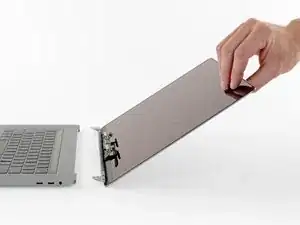
Utiliza esta guía para sustituir todo el ensamblaje de pantalla de tu MacBook Pro, con el fin de arreglar una pantalla agrietada o defectuosa. Este ensamblaje también incluye los cables planos integrados para la pantalla y la retroiluminación.
A pesar de que hemos probado con éxito este procedimiento utilizando pantallas de sustitución originales de Apple, el chip T2 de Apple puede impedir que las pantallas del mercado de accesorios funcionen correctamente, y es posible que tu MacBook Pro no arranque como consecuencia de ello.
Para tu seguridad, descarga la batería de tu MacBook Pro por debajo del 25% antes de empezar. Una batería de iones de litio cargada puede crear un fuego peligroso e incontrolable si se perfora accidentalmente.


-
-
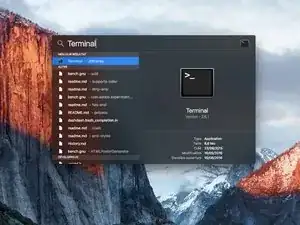
Enciende tu Mac y ejecuta Terminal.
-
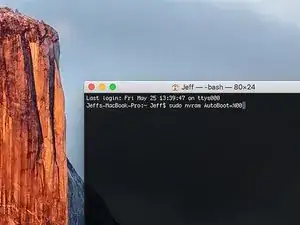
Copia y pega el siguiente comando (o escríbelo exactamente) en la Terminal:
-
sudo nvram AutoBoot=%00
-
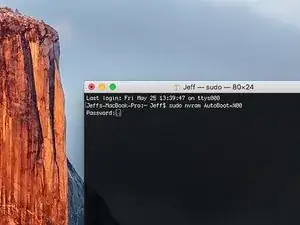
Presiona [return]. Si se te solicita, introduce tu contraseña de administrador y vuelve a pulsar [return]. Nota: La tecla de retorno también puede estar etiquetada como ⏎ o "enter".
-
sudo nvram AutoBoot=%03
-
-
-
Usa un destornillador P5 Pentalobe para quitar seis tornillos que aseguran la caja inferior:
-
Cuatro tornillos de 3.7 mm
-
Dos tornillos de 7.3 mm
-
-
-
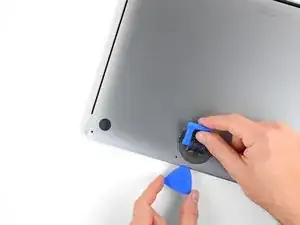
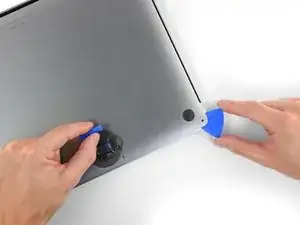
Presiona una ventosa cerca del borde frontal de la caja inferior, entre los agujeros de los tornillos.
-
Tire de la ventosa lo suficiente para abrir un pequeño hueco debajo de la caja inferior.
-
-
-
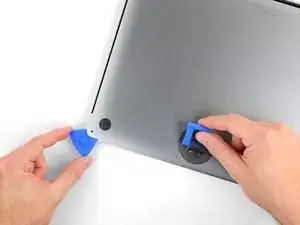
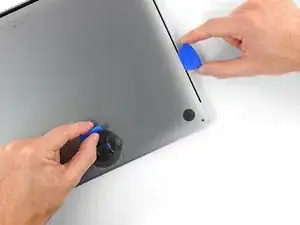
Desliza la esquina de una púa de apertura en el hueco que acabas de crear debajo de la caja inferior.
-
Desliza la esquina de una púa de apertura en el hueco que acabas de crear debajo de la caja inferior.
-
-
-
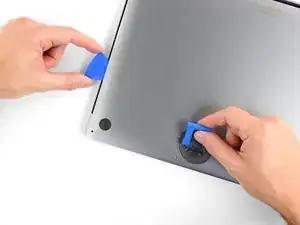
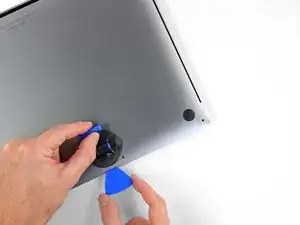
Repite el paso anterior en el otro lado, usando una púa de apertura para liberar el segundo clip.
-
-
-
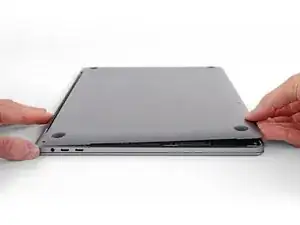
Levanta el borde frontal de la caja inferior (el lado opuesto a la bisagra de la pantalla) lo suficiente como para deslizar las puntas de los dedos por debajo y conseguir un buen agarre.
-
-
-
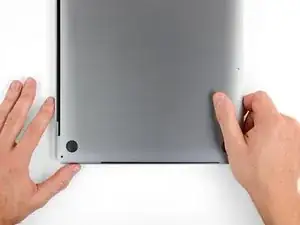
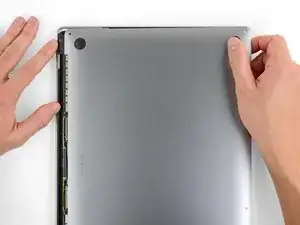
Tira con firmeza para deslizar la caja inferior hacia el borde delantero del MacBook (lejos del área de la bisagra) para separar el último de los clips que aseguran la caja inferior.
-
Tira primero en una esquina, luego en la otra.
-
-
-
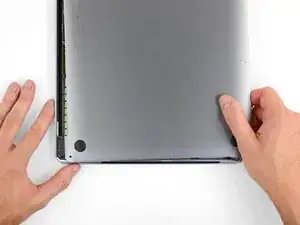
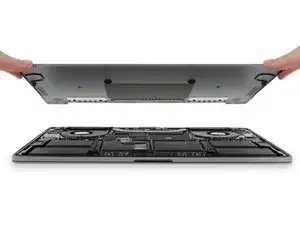
Remueve la caja inferior.
-
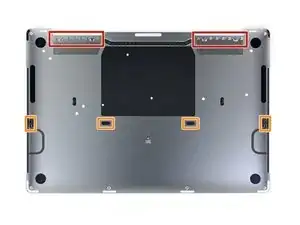
Colócalo en su lugar y alinea los clips deslizantes cerca de la bisagra de la pantalla. Presiona hacia abajo y desliza la cubierta hacia la bisagra. Debería dejar de deslizarse cuando los clips se enganchen.
-
Cuando los clips deslizantes estén totalmente encajados y la caja inferior parezca estar correctamente alineada, presiona firmemente sobre la caja inferior para que encajen los cuatro clips ocultos que hay debajo. Debería sentir y oír cómo se encajan en su lugar
-
-
-
Despega y remueve la etiqueta adhesiva aislante de la placa de la batería en el borde de la placa lógica más cerca de la batería.
-
Si la tapa no se despega fácilmente, aplica un poco de calor con un iOpener, secador de pelo o pistola de calor para ablandar el adhesivo e intenta nuevamente.
-
-
-
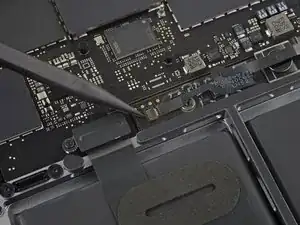
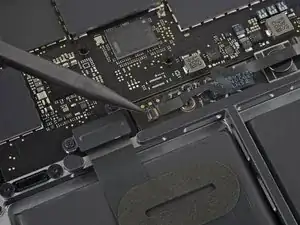
Usa un spudger para levantar suavemente la tapa de bloqueo del conector ZIF para el cable de datos de la placa de la batería.
-
-
-
Desconecta el cable de datos de la placa de la batería deslizándolo fuera de su zócalo en la placa lógica.
-
-
-
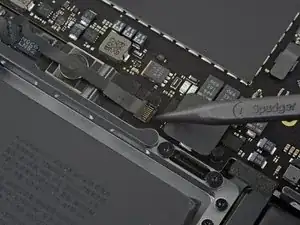
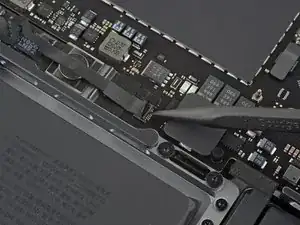
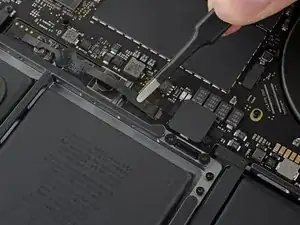
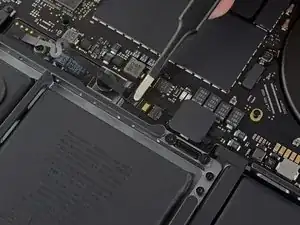
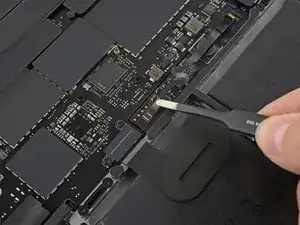
Despega la cinta que cubre el conector de cable de datos de la placa de la batería.
-
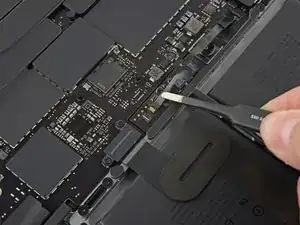
Levanta y desconecta la tapa de bloqueo en el conector en el extremo opuesto del cable de datos de la placa de la batería.
-
-
-
Desliza el cable de datos de la placa de la batería de su zócalo en la placa de la batería y remuévelo completamente.
-
-
-
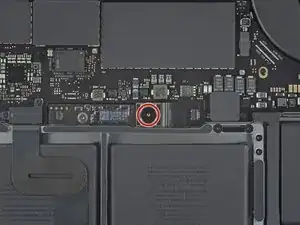
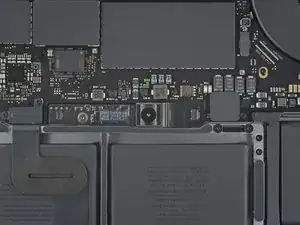
Usa un destornillador T5 Torx para remover el tornillo panqueque de 6.7 mm que sujeta el conector de alimentación de la batería.
-
-
-
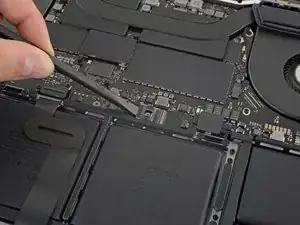
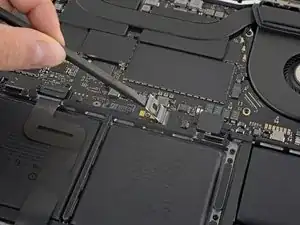
Usa un spudger para levantar suavemente el conector de alimentación de la batería, desconectando la batería.
-
-
-
Usa un destornillador Torx T3 para quitar los dos tornillos de 3.5 mm que aseguran la cubierta del cable flexible de la placa de la pantalla.
-
Remueve la cubierta del cable flexible de la pantalla.
-
-
-
Usa un destornillador Torx T3 para retirar los dos tornillos de 1.7 mm que fijan el soporte para el conector del cable de la placa de la pantalla.
-
Retira el soporte del conector del cable de la tarjeta de pantalla.
-
-
-
Saca el cable flexible de la pantalla directamente de su zócalo para desconectarlo de la pantalla.
-
-
-
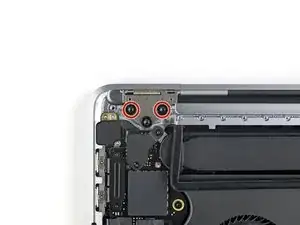
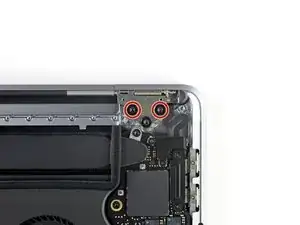
Utiliza un destornillador T3 Torx para quitar los cuatro tornillos de 2 mm de las tapas de las bisagras (dos tornillos en cada lado).
-
-
-
Usa un destornillador Torx T5 para quitar el único tornillo de 2.9 mm que asegura el conjunto de cables de la antena.
-
-
-
Desconecta los tres cables de la antena haciendo palanca en cada uno de ellos.
-
Desliza tus pinzas o el extremo plano de tu spudger debajo de cada cable hasta que esté cerca del zócalo, y luego gíralo suavemente o haz una palanca para desconectarlo.
-
-
-
Usa un destornillador Torx T5 para quitar los cuatro tornillos de 3.3 mm que aseguran la placa de la pantalla.
-
Asegúrate de que el cable flexible de la placa de la pantalla esté en la parte superior de la placa, no atrapado debajo.
-
-
-
Usa un destornillador P2 Pentalobe para quitar los dieciséis tornillos de 1.5 mm que aseguran el conjunto de la antena (ocho en cada lado).
-
-
-
Utiliza una púa de apertura para levantar el ensamblaje de la antena y separarlo del MacBook Pro.
-
-
-
Retira cuidadosamente el ensamblaje de la antena, mientras que simultáneamente extraes el paquete de cables de la antena de debajo del disipador de calor.
-
-
-
Utiliza un destornillador T3 Torx para quitar los cuatro tornillos de 3.9 mm que aseguran los muelles de la tapa del cable de la pantalla.
-
-
-
Usa un destornillador T8 Torx para quitar dos tornillos de 5.0 mm de cada bisagra (cuatro tornillos en total).
-
-
-
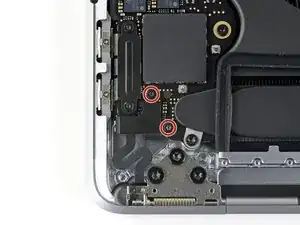
Utiliza un destornillador Torx T3, para retirar los dos tornillos de 1.5 mm que aseguran el soporte de la tapa para el digitalizador de la Barra Táctil y los conectores del sensor de ángulo de la tapa.
-
-
-
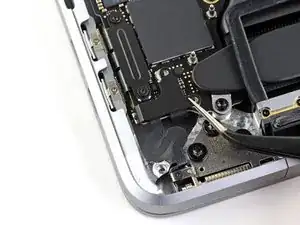
Con tus pinzas, desliza el soporte hacia el borde lateral del MacBook Pro hasta que se despeje la pestaña de retención de la placa lógica.
-
Remueve el soporte.
-
-
-
Usa un destornillador Pentalobe P2 para quitar el tornillo de 1,9 mm de largo que sujeta el sensor de ángulo de la tapa.
-
-
-
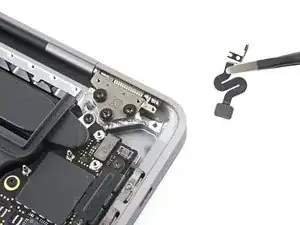
Usa pinzas, o tus dedos, para sacar el sensor de ángulo de la tapa del marco y soltarlo de su clavija de metal.
-
Retire el sensor de ángulo de la tapa.
-
-
-
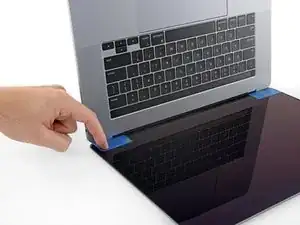
Si planeas reutilizar tu pantalla, ábrela y aplica un trozo de cinta adhesiva al vidrio directamente sobre cada bisagra. Esto ayuda a proteger el vidrio de ser rayado en el siguiente paso.
-
Abra completamente la pantalla y coloque su MacBook Pro en un lado.
-
-
-
Usa un destornillador T8 Torx para quitar los dos tornillos restantes de 5.0 mm de la bisagra (uno de cada bisagra).
-
Quita el último tornillo de la parte superior, usando una mano para sujetar ambas mitades del MacBook Pro para asegurarte de que no se separen y caigan de forma inesperada.
-
-
-
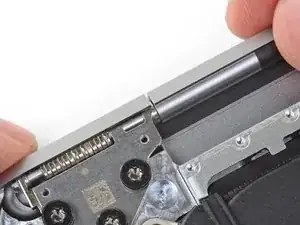
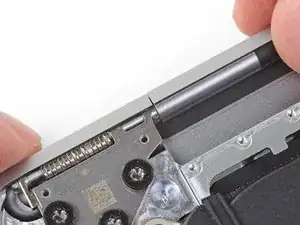
Empuje ambas mitades del MacBook Pro juntas para que las bisagras se puedan levantar y queden libres de sus huecos en el chasis.
-
Empuja la carcasa principal del MacBook Pro hacia ti mientras tiras de la pantalla hacia ti para separarla.
-
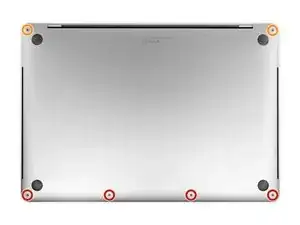
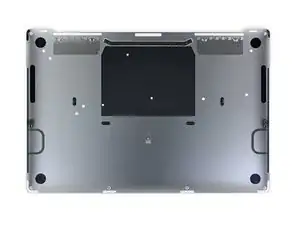
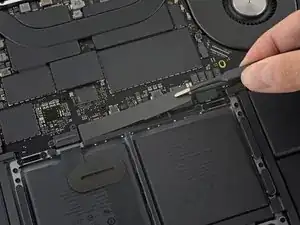
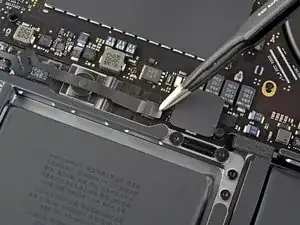
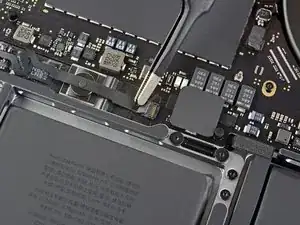
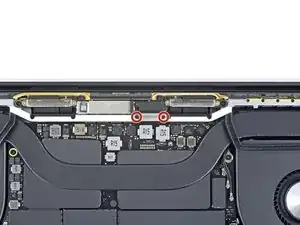
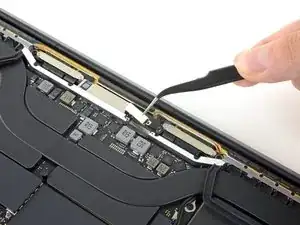
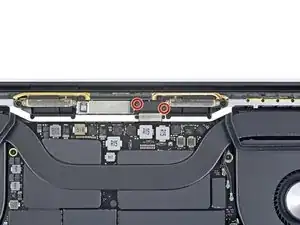
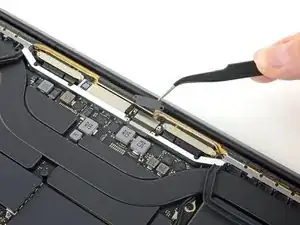
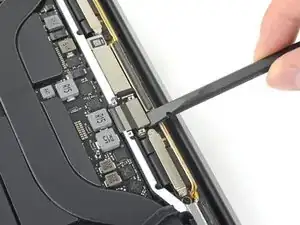
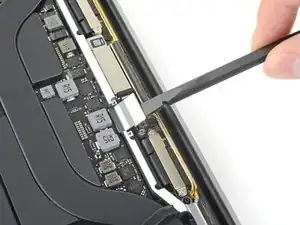
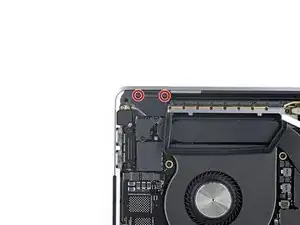
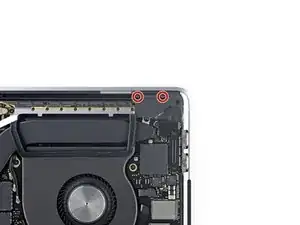
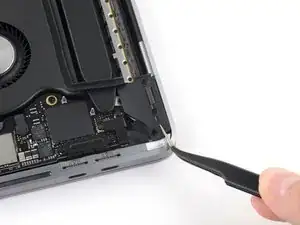
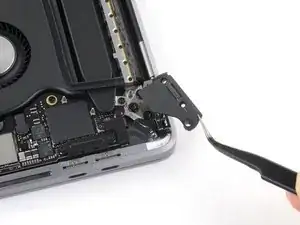
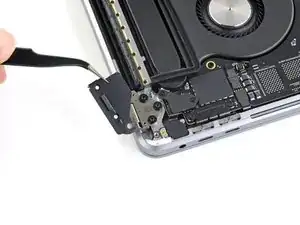
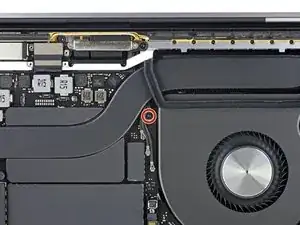
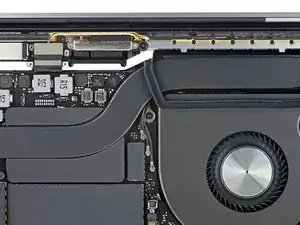
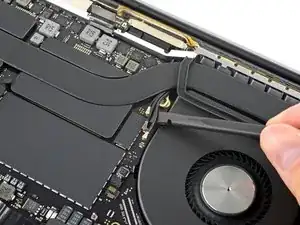
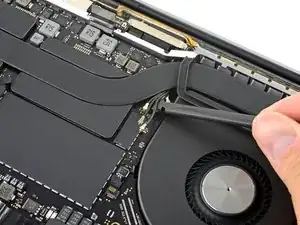
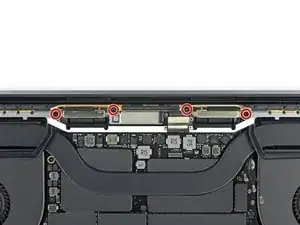
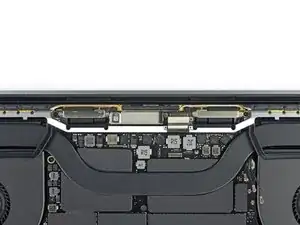
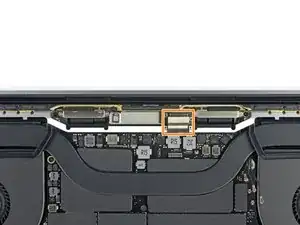
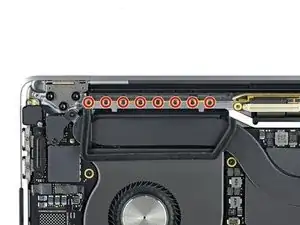
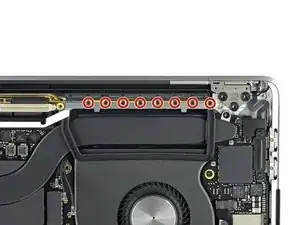
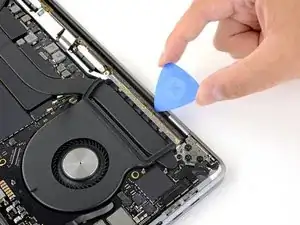
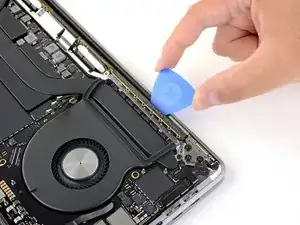
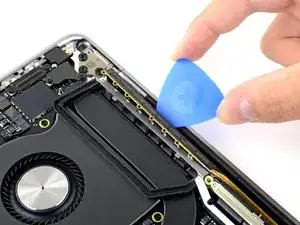
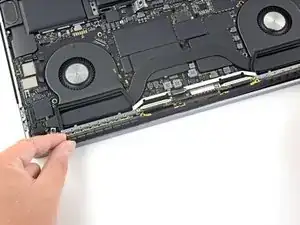
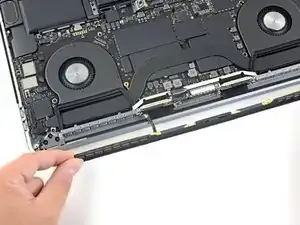
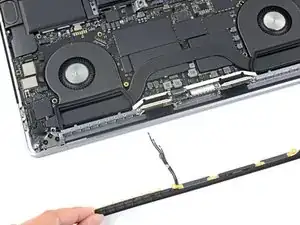
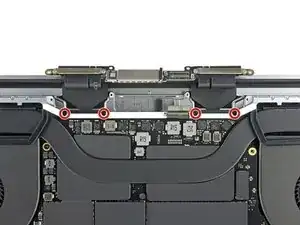
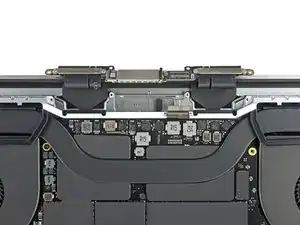
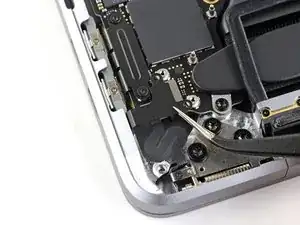
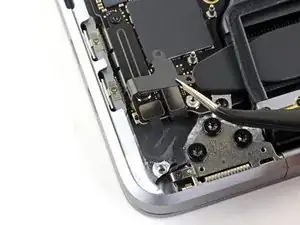
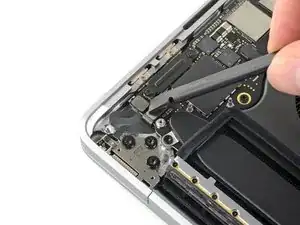
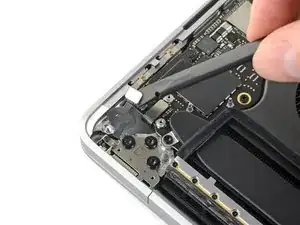
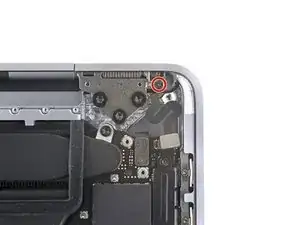
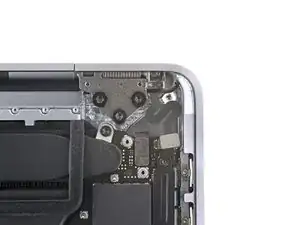
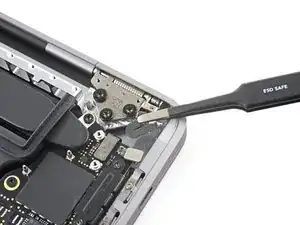
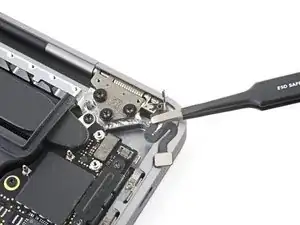
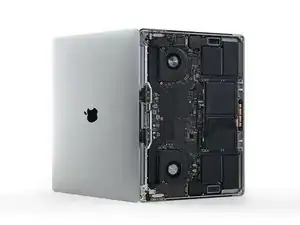
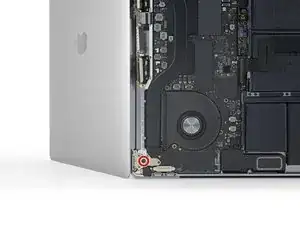
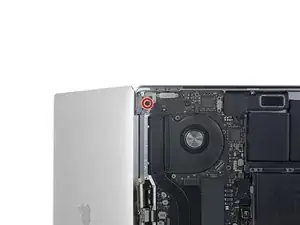
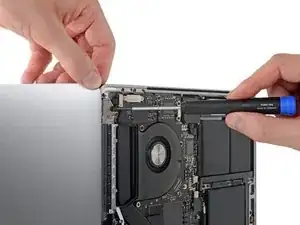
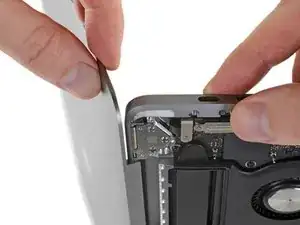
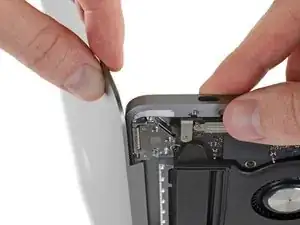
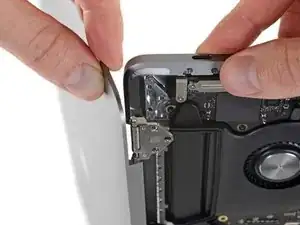
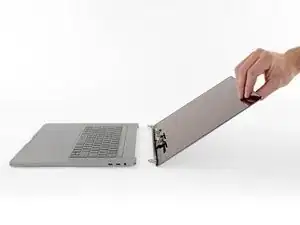
Compara la nueva pieza de repuesto con la original. Es posible que tengas que transferir los componentes restantes o retirar los respaldos adhesivos de la nueva pieza antes de instalarla.
Para volver a montar el dispositivo, sigue los pasos anteriores en orden inverso.
Lleva tus desechos electrónicos a un centro de reciclaje certificado.
¿La reparación no salió como planeaste? Echa un vistazo a nuestra comunidad de respuestas para ayuda en la resolución de problemas.

12 comentarios
Anybody know the screen part# or where to find it?
Ou est ce qu’on trouve l’écran ?
Ou est ce qu’on trouve l’écran ?
Is this step necessary? I can’t perform this step as I am attempting to repair water damage and need to remove logic board & most likely replace the battery.
Macrepair SF -
@mac_medic You definitely don’t want the power coming on while the board is wet. In your case, I think powering on the machine to disable Auto Boot would do more damage than it prevents. I agree, skip this step and be prepared to disconnect the battery quickly if the laptop automatically powers on. Good luck!
Jeff Suovanen -
Thats right! You don't want power running while working on your logic board.
Dan -
This did not work when running High Sierra.
Kyle B -
Tried this on a 2018 MBP 13” Touchbar (there’s no iFixit guide for this model yet). Need to replace a broken screen.
Luckily I managed to connect to an external screen (Cmd-Down Brightness to switch displays) and enter above command. Seems to work, but there’s another problem with this model - it powers up as soon as any key is pressed……. ffs <gnashes teeth>
Cool_Breeze -
I unscrew the battery first and wrap electrical tape over the logic board battery connector before attempting any repairs to the board. Haven’t had any problems yet and I’ve worked on about 10 of these models already. Also when you open the bottom case use a suction cup at the bottom and pull up then run a plastic spudger along the edges to disconnect the clips. Also only use a plastic spudger on the board. Saw a youtube video from a repair shop and he did not disconnect the power and used all metal tools during the entire process of removing the board. His last step was to disconnect the battery terminal.
Brian -
Is this step necessary if my mac can turn on? Battery fully dead(
Nursat b -
BEFORE YOU START: The included torx head stripped off before I was done (and you might need an additional T4) so stop now and go buy a good one. Also they fail to warn you above to get some blue threadlocker ahead of time.
Jason Sherron -
This command did not work for me and I read that sometime in later 2020 Apple stopped this command from working…any ideas on a work around?
Patrick Machacek -
Not able to do that with damaged screen
richardjgreen -
If you have a damaged screen you can still use a converter from thunderbolt (USB 3) to HDMI and plug your Macbook Pro to your TV as monitor display. Just make sure to chose the right Source (HDMI IN) in your TV. I did it and to make it work I unplug and plug again in my Macbook and so I could disable the Auto boot
Roberto Sanchez Bustos -
Hi. This does not work on 2018 13” MacBook Pro with Touch Bar. I did exactly this to disable auto boot. But when I check by using nvram -p it says: auto-boot true. Am I doing something incorrectly? I did everything step by step. Copied and pasted the sudo command, pressed enter and then entered my password. I have Big Sur 11.1 installed. Is there any other way since I need to replace the screen. Thank you. Adrian
Adrian Vizik -
Hi everyone. This is also a little pointless if you can’t see anything on the screen, and you don’t have a display adapter to USB C to display it. I agree with Brian about removing the back and disconnecting the battery cable before you even think about opening the lid of the MacBook. Applying the insulation tape is also a handy little tip that just makes sure there is no way to discharge from either the board or battery.
Roberto Enrieu -
running `nvram -p | grep 'AutoBoot'` in terminal verifies that it was accepted
result: `AutoBoot %00`
Marek Polák -
Running Big Sur 11.6.7 on a 2019 16" MBP, it's "auto-boot". So it's:
nvram -p | grep 'auto-boot'to display the current state, the default istrue- and then to change it,sudo nvram auto-boot=falsewhich turns it off.Ed Mechem -
This step is completely unnecessary if you follow the guide to disconnect the battery properly. Just put some tape between the battery and logic board connection to prevent it from accidentally touching and therefore powering on the laptop.
Grant Ormsby -
It took me a few tries to make this command work, as I was able to copy and paste the command into Terminal, but could not type in my laptop’s password. I finally typed my password into a text document, copied it (command C), and then pasted it into Terminal and it worked.
tommy404 -
I didn’t do this. Mine never auto-booted before I replaced the battery. Now it does.
hatuxka -
BEFORE YOU DO ANYTHING - CHECK THE BATTERY!
I-fixit sent me a bad battery, which I didn’t realize until it was already install. They sent me a new one, but I wasted hours uninstalling and reinstalled.
Get a volt meter and measure the voltage on the output of the battery pack. If it reads 0 V, SEND IT BACK. It should read over 2 V.
bcardanha -
When I did this from Terminal.app within Recovery Mode, the “sudo” was not recognized but I could invoke it without the sudo part. It seems to have been accepted when looking at “nvram -p”
johann beda -
When in Recovery Mode, you already have superuser powers. So you don't need to prefix commands with the sudo command to invoke them with root privileges; you already have them. Do a
pwd(print working directory) after opening Terminal in Recovery Mode, and you'll see that you're in the root user's directory.Ed Mechem -
I received the battery kit for my 2018 MacBook Pro and as per the above comment from bcardanha - Oct 12, 2021, I checked the voltage on the pads marked + and - . It was zero volts so I panicked a bit.
I sent a message on the iFixiT Facebook page and I got no reply. I finally found the customer service email for Ifixit Europe and sent them an email voicing my concern as I was not keen to work for couple of hours just to discover that the battery is faulty. I had an almost instant reply on the email (kudos to them) and they adviced me to go ahead and install the new battery as the voltage measured when battery is not connected is not relevant.
I took a leap of faith and after two hours… the new battery showed 50% charge and everything seems to be working just fine. I am happy it worked.
Mircea Comanici -
After removing the old battery and installing the new battery I powered up the MBP before screwing the bottom on. I discovered the my keyboard would not function. It took a few hours of investigation and frustration that I discovered the track pad power ribbon had become partially dislodged from the trackpad. I was able to see that this through the little machined slot where the battery sat. I had to remove the trackpad to reinsert the power ribbon back into the connector in the trackpad. after reassembling and reinstalling the battery etc the keyboard worked. Just food for thought if your run into the keyboard issue.
Ed Mease -
This should be the default. IMO I tell you to power on - not the lid.
G Sena -
Est ce que cela fonctionne sur un macbook pro 2017 sans touchbar ?
maël muzelet -
Bonjour Maël, oui, ce tutoriel concerne "les MacBook Pro 2016 (et plus récents) et les MacBook Retina 12" 2017 (et plus récents)"
Claire Miesch -
Excellent instructions. I was able to follow and install the new screen. I recommend that you get a good set of tools before you begin. I started with an inexpensive repair kit bought online. The Penta and torx bits failed. I bought an IFIXIT kit with quality bits and I was able to do everything I needed.
Tom Markham -
If you're not running an admin account the sudo command won't work (which honestly, you should not be running admin). Rather than logging in to your admin amount via the OS, in the terminal type "login [admin username]," then the password and you'll be able to do the sudo command as described above. Once you're complete, type "logout [admin username]" and you'll be good to go. Obviously replace [admin username] with whatever the account name for your admin user is.
arichard2401 -