Introducción
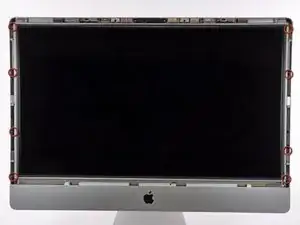
Quita la pantalla para reemplazarla o acceder a los componentes internos del ordenador.


Partes
-
-
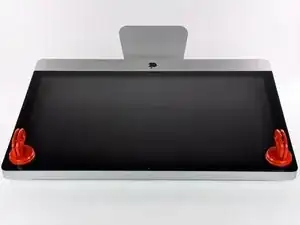
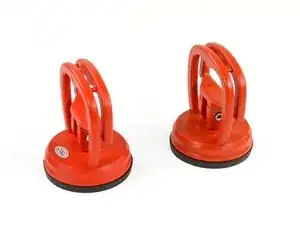
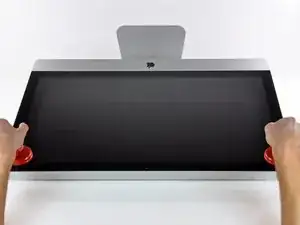
Coloca una ventosa para trabajos pesados cerca de cada una de las dos esquinas superiores del panel de vidrio.
-
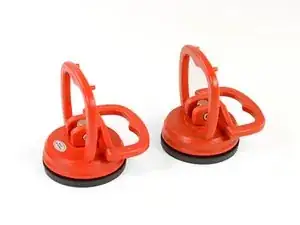
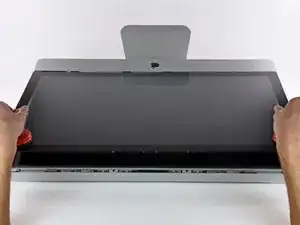
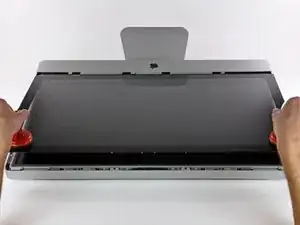
Mientras sujetas ligeramente la ventosa contra el vidrio, levanta la manija móvil hasta que quede paralela con la otra manija (como se indica en la tercera imagen).
-
-
-
Levanta suavemente el panel de vidrio perpendicular a la cara de la pantalla LCD, lo suficiente para despejar las clavijas de montaje de acero unidas a lo largo de la parte inferior del borde superior del panel de vidrio.
-
Tira del panel de vidrio desde el borde inferior del iMac y cuidadosamente déjelo a un lado.
-
-
-
Cuidadosamente coloca el iMac boca abajo sobre una superficie plana.
-
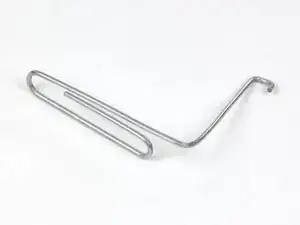
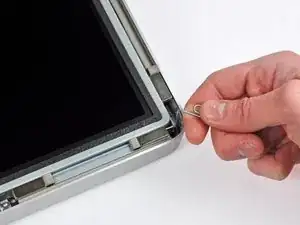
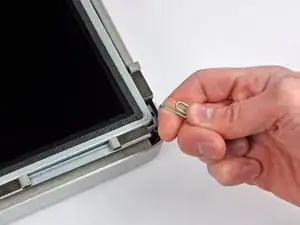
Usa una herramienta delgada con gancho para levantar un lado del borde superior de la pantalla por su marco exterior de acero.
-
Levanta y sostén la pantalla lo suficientemente alto como para acceder a los cables.
-
-
-
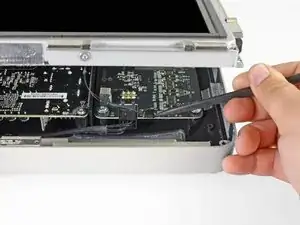
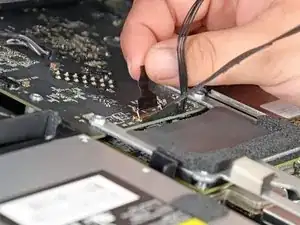
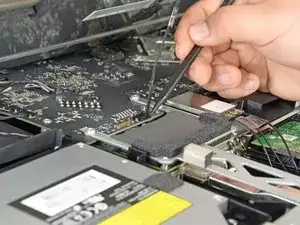
Desconecta el cable de sincronización vertical en la esquina superior izquierda de la pantalla. Usa la punta de un spudger para empujar las pestañas laterales del conector y sácalo suavemente de su zócalo.
-
-
-
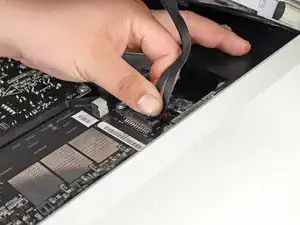
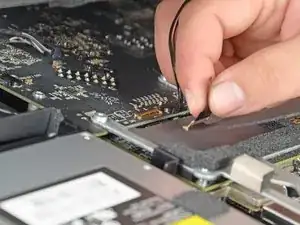
Desconecta el cable del controlador de retroiluminación LED con la mano presionando la pestaña hacia abajo y deslizándola hacia la parte inferior de la pantalla.
-
-
-
Tira de la pestaña negra hacia arriba para desconectar el pestillo del conector ZIF del cable de datos de la pantalla.
-
Continúa tirando de la pestaña negra hacia la parte superior del dispositivo para desconectar el cable de datos de la pantalla.
-
-
-
Usa la punta de un spudger para desconectar el cable de alimentación de la pantalla junto al cable de datos de la pantalla.
-
-
-
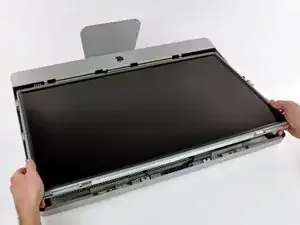
Tira con cuidado de la pantalla hacia el borde superior de su iMac y sácala de la carcasa del iMac.
-
-
-
Coloca la pantalla boca abajo sobre una superficie plana y suave.
-
Si hay un cable o cable debajo de la cinta adhesiva, siempre retira la cinta primero. No tires del cable directamente.
-
Si el cable está pegado al chasis, usa un iOpener calentado o un secador de pelo para suavizar primero el adhesivo. Luego puedes deslizar una púa de apertura debajo del cable para aflojarlo. Nunca tires de los conectores delicados.
-
Desliza una púa de apertura debajo de las piezas del cojín de espuma para separarlas de la pantalla y retíralas suavemente. Es posible que necesites cinta adhesiva de doble cara para volver a colocarlos en la nueva pantalla.
-
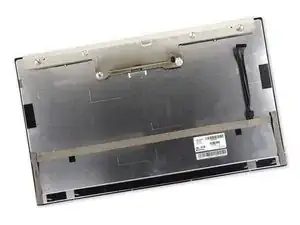
Para volver a armar tu dispositivo, sigue estas instrucciones en orden inverso.

12 comentarios
For starters, thanks for this great tutorial!
I have a small question though.
What is meant by "Carefully lay the iMac stand-side down on a flat surface."
If I lay the iMac on my desk, the mount is preventing it from going completely flat.
I find the 27" quite heavy to lift and was wondering if I was doing something wrong.
Anybody have any tricks to lift the LCD without too much lifting?
Thanks!
Where to buy a replacement lcd panel for a 2011 imac. Or jul.st the led with the conectors
Juanc -
BUYER BEWARE!!
Good review if you were provided all the necessary connector cables on your replacement part. I bought the replacement LCD online from ifixit.com and it’s missing all connectors except the LED Backdriver cable.
This is what I pulled off my iMac.

This is what I was shipped by ifixit.

Even missing foam cushioning that protects inside components from the back of the LCD. If you’re not going to include those connectors in shipped parts, then you need to include how to remove them from your old LCD and transfer them to the new one. Thanks for having me tear down my iMac for nothing. At least I could use it previously with an external monitor. Now I have to put it back together just to be able to do that again.
cdowney -
Hi cdowney! I’m sorry to hear about your experience. We try to let you know on the product page which components our parts come with, as stated in the product description: “The LVDS cable and temperature sensor are not included in the assembly and will need to be transferred from your original display.” This guide may not be 100% complete for the specific part we sell right now, parts often change based on source and time after original release, and can vary between providers. We try to keep up with changes but aren’t always successful.
That said, the cables on the old display are removable and can be fairly easily transferred to your new display. Simply peel up the black tape and disconnect the cables, and plug them into the new display. The foam pieces are not critical, but can also be transferred to the new display, the adhesive should enable re-sticking with no issue. If you have trouble, don’t hesitate to reach out to us!
here, have some wine
altomic -
You can easily lift the glass panel off the magnets with only your fingernails (or something thin like a credit card or a guitar pick). No need to buy suction cups you will only use once.
Nick Caron -
Yes, you don't need the specific suction cups to remove the display cover - it's held on by magnets, and if you start at the center by the iSight you can work out to the edges and remove it. I had an iPhone screen suction cup around and it helped with balancing the screen when you pull it out fully, but by no ways is it required.
jtowner -
Great guide and pretty straight forward the only thing that took me ages and I didn't manage to undo were the power btn cable (step 28) and the thermal sensor (step 25) Seemed like they were glued on! Very difficult to remove and obviously conscious so I didn't break anything!
Eddie -
Thanks!!! Worked excellently.
I used a plunger (clean first ;-) to get the screen off, and http://exirion.net/ssdfanctrl/ for fan control.
Then, i did not take out the whole display and left it in the hinges on the bottom side and held it up with two small cardboard boxes. Easy enough to disconnect the hdd then.
I replaced with an ssd, put that into a ssd enclosure. Had to drill an extra hole in it to fasten the pins that hold it in place.
Used Carbon Copy Cloner to make an image from the old hdd, with the sad connected via usb. Checked it of it booted via System Preferences > Startup Disk. It worked so the took the imac apart and replaced the disk. Booted, everything was working as always, only faster!
Frank303 -
I'm replacing my optical drive too. what exactly needs to be plugged into the SSD? I don't have the kit - as I am not sure one is required if I buy something like this: http://www.amazon.com/gp/product/B0056OB...
Can you please advise? Can I do it with this piece, or do I need to get the entire bracket kit?
Allen Borza -
My display data cable forks, with a smaller section going up near the camera board. Where it forks, it is attached to the aluminum plate that attaches around the cpu board. I haven't seen any images that look similar, and I'm stumped at how to remove this second section of the cable. 2010 i7 build to order
Awolf -
Agree with the other comments here. Despite buying suction cups, not sure they were necessary as the screen removed very easily. A sat nav suction cup would do the job fine.
Stuart Bloomfield -
I can confirm that it is possible to remove the front glass using fingernails rather than suction cups. It isn’t easy, but if you try you should be able to pry off the glass.
I did this twice: once at the beginning of the procedure and once again at the end, when I realized that a big pice of lint was trapped under the glass.
gordonhamachi -
Don’t use suction cups. totally unnecessary. screen pops off with fingernails.
Kieran Hobbs -
The reason for caution about suction cups tends to be making sure you don’t apply uneven pressure on the edges of the glass and crack it in the process of removal. I do agree however that some pretty small suction cups would do fine. These suction cups can be had at your local princess auto (Harbor freight) for a few bucks and are useful elsewhere as well. if you use your fingernails or other items just try and do it evenly :)
Abirinder Brar -
good duct tape or gaffer tape wrapped around your hands makes an excellent glass removal 'tool'. Even clear packing tape works a charm.
Stu Blair -
A great first step that minimizes that first gust of dust migration when the glass is lifted is to clean the glass, sides *and the back* before lifting the glass, and then lift SLOWLY. Most of that dust is already trapped inside and pulled up as the screen lifts, but with care you can keep it there (or gently vacuum out with a micro vac…).
John -
before starting any of this…there is a device that you can use that comes with the IFixit kit to format and either clone or restore your hard drive to the new drive…it will save you a lot of headaches..it is a SSD enclosure that you can plug into your existing computer …
Tom Richter -
Thanks for the instructions. Before doing this the first time, suggest to everyone, read through at least twice. This is the easiest step, as you’ll soon see. As for removing the glass, USE suction cups, either the ones the sell here, or others. DON’T skimp. Also wear gloves when handling the glass. Don’t take chances.
ECJohansen -
Duct tape works too!
Dani -