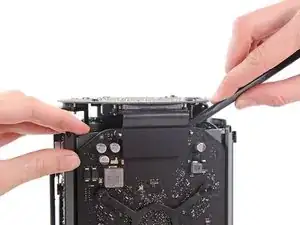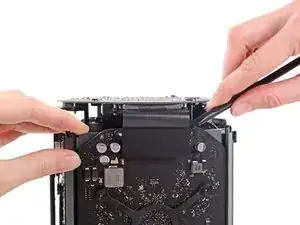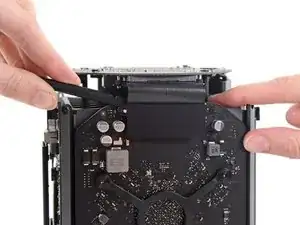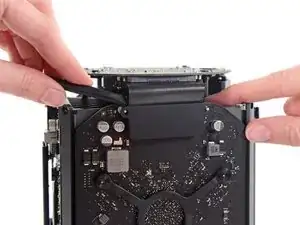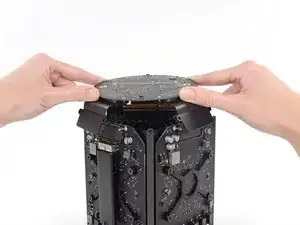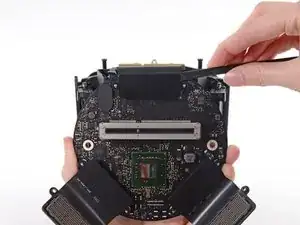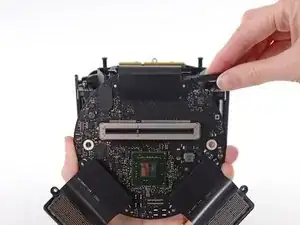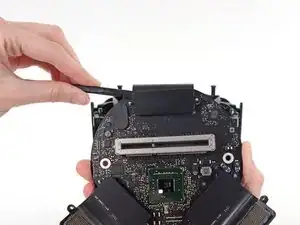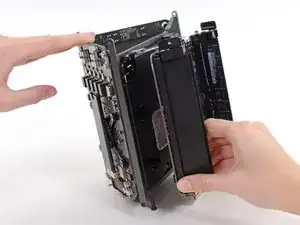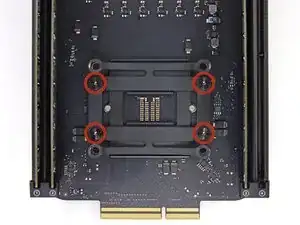
Introducción

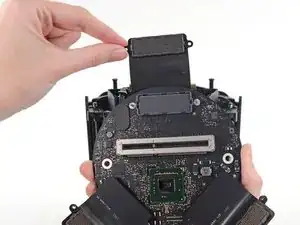
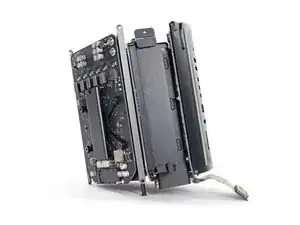
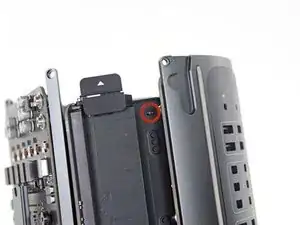
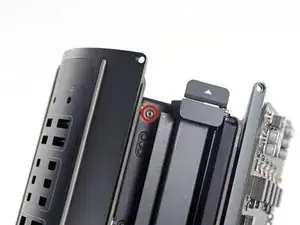
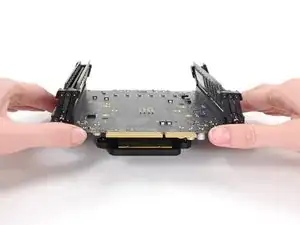
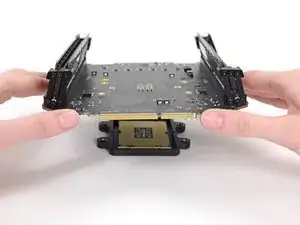
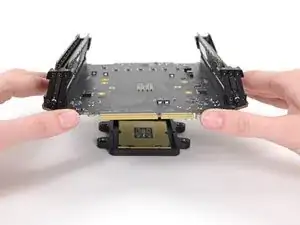
Utiliza esta guía para reemplazar la placa lógica.

La eliminación de la placa lógica significa que necesitarás [guía|744|volver a aplicar una capa de compuesto térmico].

Antes de comenzar cualquier trabajo en su Mac Pro: Desenchufa la computadora y mantén pulsado el botón de encendido durante diez segundos para descargar los capacitores de la fuente de alimentación.

Ten mucho cuidado de no tocar los conductores de capacitores o cualquier junta de soldadura expuesta en la parte posterior de la fuente de alimentación. Solo maneja el tablero por los bordes.

  1. UvUDEeuAGOcSyZ6Y
    UvUDEeuAGOcSyZ6Y
    6E4dVROBn2KCRitH
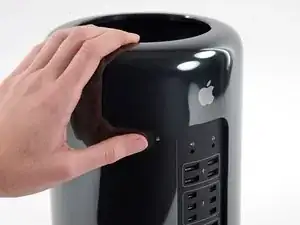
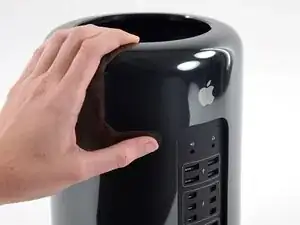
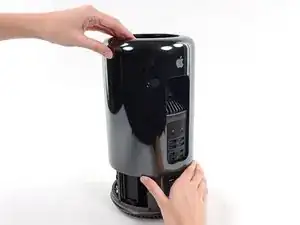
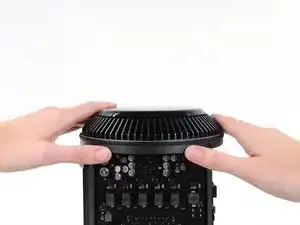
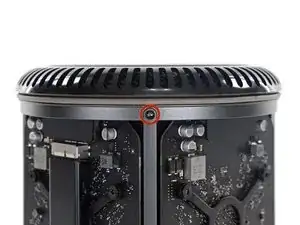
    • Desliza el interruptor de bloqueo hacia la derecha, hasta la posición de desbloqueo.

  2. 1T6FWnrfHWRH2PIX
    1T6FWnrfHWRH2PIX
    LZUjZMT1W2HyocfY
    qEZURvNGfsFRhn15
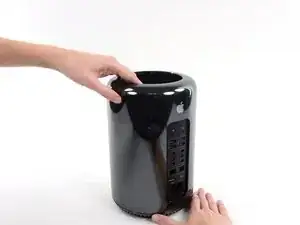
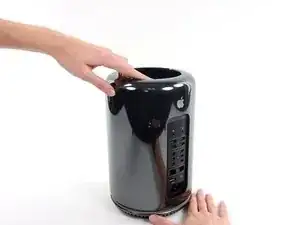
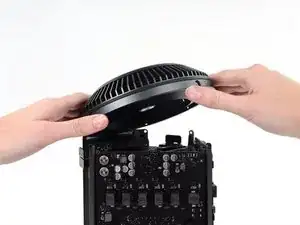
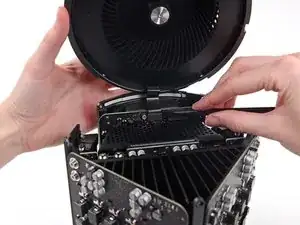
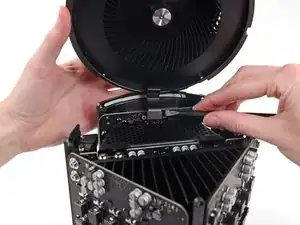
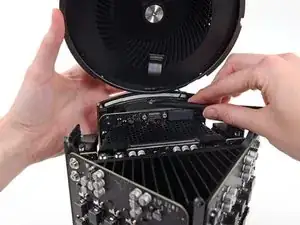
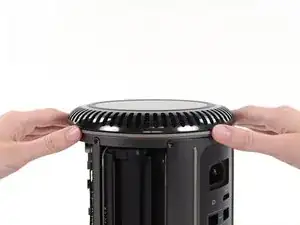
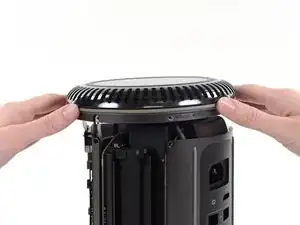
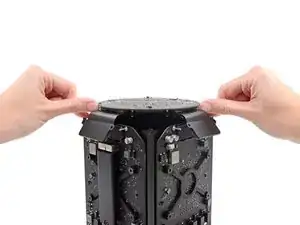
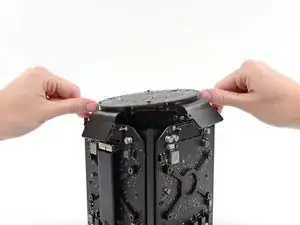
    • Levanta la caja exterior directamente hacia arriba del Mac Pro.

    • Puede ayudar empujar hacia abajo el centro del ventilador mientras levanta la caja.

  3. thx2PRFESOcKGAcF
    thx2PRFESOcKGAcF
    fowEwJDQUHt5gRvN
    YkicYtjklAO35ERL
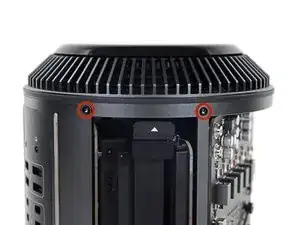
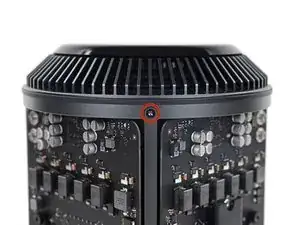
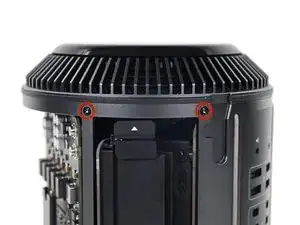
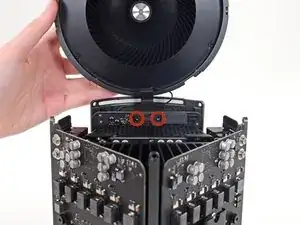
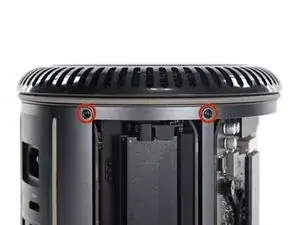
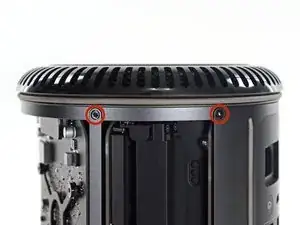
    • Quita los cinco tornillos Torx T10 de 5.1 mm de todo el perímetro exterior del ensamblaje del ventilador.

    You don't have to remove the fan assy to get to the wifi board & card. It can be done with the fan assy still attached.

    Fat Mango -
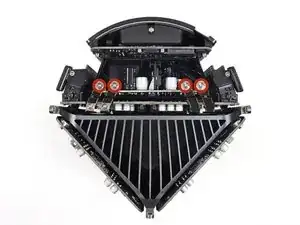
    Fat Mango is correct. That said. If you do pull the fan assembly note that the screws are all held in with blue Permatex and breaking them free takes a fair amount of effort. Getting a good set of Torx screwdrivers is a must.

    Jim WIlson -
    Hey guys, what would happen if you only replace one card.. I have a D300 but the plan is to upgrade to D500 or D600. So If I can afford and install one instead of the pair would it increase something? or will it cause any conflict? I guess I don’t understand if I the Mac Pro has 2 D300 graphic cards that means each has 1GB? Same as If I would Install 1 D600 that would increase 3GB only? Thanks.

    marcotamayo -

    D300 = 2GB each card. Very few apps uses two cards at the same time.

    Gio Cas -

    The (5) Screws are Apple part number 923-0713

    Steven Gier -

  4. fEANTTnYS4TS3pQD
    fEANTTnYS4TS3pQD
    V2ArmlpPcrPPbGTB
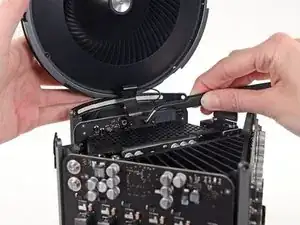
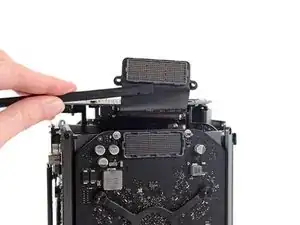
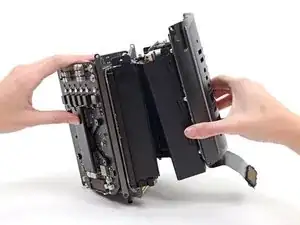
    • El ensamblaje del ventilador está conectado al resto de la computadora mediante dos cables en el lado de la placa de E/S.

    • Incline el ensamblaje hacia arriba alejándolo de la placa de E/S.

    • No intentes extraer el ensamblaje del ventilador todavía, ya que aún está conectado por dos cables.

  5. lceQ6InRYFH5qg2f
    • Mientras sostienes el ensamblaje del ventilador con una mano, afloja los dos tornillos cautivos T8 en el soporte del cable del ventilador.

    • Estos tornillos están atrapados en la Mac Pro. No intentes quitar estos tornillos de tu Mac Pro.

    On my Mac Pro (assembled mid-2017) these are T8 screws. In fact, there were no T7 screws anywhere in my machine.

    mark33 -

    There was no bracket on top of the cable at all, so I got a bit confused, so I had to skip step 5 and 6.

    Rakesh -

    On my machine, a TR7 worked to remove them due to the weird angle.

    Wilson Gaberino -

  6. Y6MKDVBUdIumVZuf
    • Usa un par de pinzas para tirar del soporte del cable del ventilador y alejarlo del ensamblaje del ventilador.

  7. JUE2RPF2GwjcP2kr
    JUE2RPF2GwjcP2kr
    oW6DugeJyYrgKGD4
    • Utiliza el extremo plano de un spudger para desconectar el cable plano del ensamblaje del ventilador de la placa de E/S.

  8. wMMmqDsn3NjCMRWu
    • Desconecte el cable de la antena del ensamblaje del ventilador de la placa E/S.

    • Retira el ensamblaje del ventilador del Mac Pro.

    You don't have to remove the fan assy to do the steps below. They can be done with the fan assy still attached.

    Fat Mango -

  9. vKqMwE5sukJabGM4
    vKqMwE5sukJabGM4
    qJXAGFixb3ENKTgb
    GNaKkVSLqlDibNES
    • Coloca la Mac Pro boca abajo, a 180 grados.

    • Retira los cinco tornillos Torx T10 de 5.1 mm del perímetro exterior de la caja inferior.

  10. P5MoWdnj3fbvZkkd
    P5MoWdnj3fbvZkkd
    VQJFPWMcmQVgLTEG
    • Levanta con cuidado la caja inferior y retírala del Mac Pro.

  11. P26PH6LWUoxtfsJ3
    P26PH6LWUoxtfsJ3
    jNkEW6LyVuvBsMZS
    • Utiliza el extremo plano de un spudger y un movimiento de giro para separar suavemente un lado de la conexión de datos de la tarjeta gráfica.

  12. PJrKJyftNASnUXSA
    PJrKJyftNASnUXSA
    Jw2C4FPaOaAdrj6k
    6GUEKSVQRhxEWYhV
    • Separa suavemente el otro lado también.

    • Levanta el conector hacia arriba y hacia afuera de la tarjeta gráfica.

    • Repite este procedimiento en la otra tarjeta gráfica.

  13. Cu6PK1pT52qF4udy
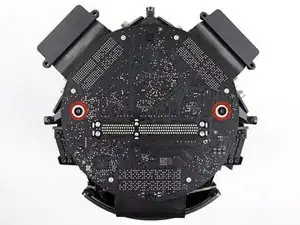
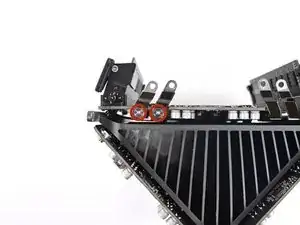
    • Retira los dos tornillos Torx T7 de 6,0 mm que sujetan la placa de interconexión al disipador de calor.

    These are actually 6.0mm T8 Torx Screws. 12/07/2016.

    Todd -

    Ended up being T9 screws for me.

    Nathaniel Wilson -

    On my Mac Pro (assembled mid-2017) these are T8 screws. In fact, there were no T7 screws anywhere in my machine.

    mark33 -

    These are T8 screws in my 2013 Mac Pro.

    Sangers -

    T8 screws for me, i did and edit to this step

    Steve McGinn -

    Ended up being T15 screws on my machine

    Spencer Curtis -

  14. O52qwUGYoQiBDHeZ
    O52qwUGYoQiBDHeZ
    QjgFCxvjHxKjXDot
    LvLEqihWBecwUyeZ
    • Desliza suavemente la placa de interconexión hacia arriba para sacarla de la conexión de la ranura de la placa lógica.

    • Se recomienda levantar un lado y luego el otro.

    • No intentes remover la placa de interconexión del Mac Pro todavía, ya que todavía está conectada a la placa de E / S.

  15. WFugbomjqUuOLuxF
    WFugbomjqUuOLuxF
    ZGheI5XnSQEcetch
    • Gira la placa de interconexión hacia arriba y otra vez, exponiendo el cable de datos de la placa E/S

    • Haz el mismo tipo de movimiento de giro y extensión con el extremo plano de un spudger para separar un lado del cable de datos de la placa E/S.

  16. f5Wqjgl2hHjpkrZF
    f5Wqjgl2hHjpkrZF
    XJDSillpOTXBiqqD
    • Usa el extremo plano de un spudger para separar el otro lado del cable de datos de la placa E/S.

    • Dobla el cable y retira la placa de interconexión de la Mac Pro.

  17. UshNodOHDMceXpFZ
    • Da la vuelta al Mac Pro y colócalo suavemente sobre una superficie plana.

    • Recomendamos colocar el Mac Pro en la esquina del disipador de calor y los dos postes de tornillo de separación que se unen a la placa de interconexión.

  18. DQHQqK22DDBykevM
    DQHQqK22DDBykevM
    OVnch6rGY1LfEWaj
    • Retira los dos tornillos Torx T5 de 3.6 mm de los lados de la caja de la fuente de alimentación (uno en cada lado).

    those are t4 screws in my mac

    Andrzej Kiryluk -

    T4s on mine, as well

    rwcinmsp -

  19. vF6SluHbFoM1FfJJ
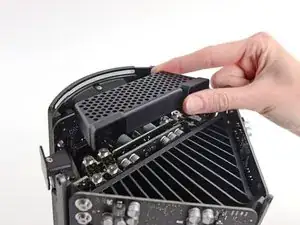
    • Retira la caja de la fuente de alimentación de la parte superior de la fuente de alimentación.

    • Al retirar esta caja, estás exponiendo los componentes internos de la fuente de alimentación. Ten mucho cuidado de no tocar ninguno de los componentes o circuitos de la fuente de alimentación.

    • Ten cuidado de no dejar caer ningún tornillo o herramienta en la fuente de alimentación, ya que esto puede dañar la fuente de alimentación.

  20. LUW6dka1INJTMWM4
    • Retira los cuatro tornillos Torx T8 de 5.5 mm que sujetan el ensamblaje de la fuente de alimentación al Mac Pro.

  21. k435bScZ2IVpLdyI
    • Retira el ensamblaje de la fuente de alimentación del Mac Pro.

  22. iHBTMPxhhFbBXncB
    • Retira los dos tornillos Torx T8 de 5.5 mm.

    Il est possible de les retirer aussi des le début une fois le “fond” rond du Mac pro retiré

    Chris -

  23. rEVBCFY1yXBOSEtU
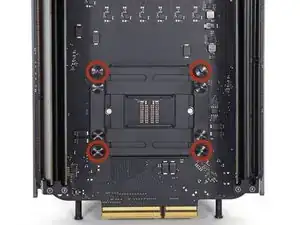
    • Retira los cuatro tornillos Torx T10 de 12,8 mm del soporte del disipador de calor de la CPU.

    • Retira solo los cuatro exteriores de los ocho tornillos.

    I cannot unscrew one of those because I appears that one of the elements in wich it is screwd underneath is loose and moving along with the screw, making this operation impossible. Anyone had this issue ?? Any solution ??

    benjaminmonnoyeur -

    I had the same problem. These screws go into threaded inserts, which in turn are screwed into the heatsink. Both have threadlocker compound applied. So the threaded insert’s threadlocker gives up first, and the threaded insert unscrews from the heatsink. Remove all 4 screws, then with a pair of needle nose pliers, hemostat, or thin 7mm wrench, hold the insert steady and unscrew the screw from it.

    Chuck Fry -

    Could I remove these screws and re-screw? I worry that remove them but I can’t re-use them?

    timmy123 -

    I had that problem, too, and I did it like Chuck Fry, with a thin wrench. Unfortunately one threaded insert was so tight that I slipped and a capacitor broke off. Can someone tell me what kind of capacitor I need? I can't find anything under the name listed above the capacitor. Thank you.

    Steph -

    A way to avoid this situation is to ease the tension on the spring slowly and rotate the loosening of four screws a few turns at a time – when the tension is released equally the threaded inserts are more likely to stay in place.

    Steve Esser -

  24. F3yXPALcEAUmlIFO
    F3yXPALcEAUmlIFO
    ZkRLcnYdNGVVOMqH
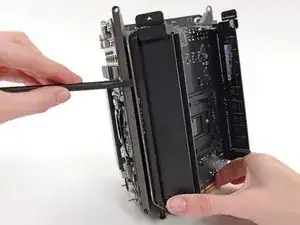
    • En este punto, la placa lógica está sujeta al disipador de calor mediante un compuesto térmico.

    • Es posible que debas hacer palanca suavemente con un spudger para separar la placa lógica del disipador de calor.

    • Ten mucho cuidado de no doblar y romper la placa lógica.

    • Retira la placa lógica del disipador de calor.

  25. jNreTWMapQYdsSCR
    jNreTWMapQYdsSCR
    EBuNkeZwx6KgHCwB
    • Retira los cuatro tornillos internos Torx T10 de 12.8 mm del soporte del disipador de calor de la CPU.

    • Retira el soporte del disipador de calor de la CPU.

    On my Mac Pro (assembled mid-2017) these screws are covered with a black sticker presumably to indicate tampering. If you did not know they were screws it would not be obvious. You have to just put the T10 driver right in the center and start turning; it quickly breaks through the sticker.

    mark33 -

    Oh man. Thanks so much for that comment! I would have tried to use pliers!

    Trevor Standley -

    Also remember to support the CPU (On the other side) while removing these screws. Mine CPU fell out from the other side while loosening.

    Daniel Wood -

    On my MacPro there are no screws here. On the backside the place where the back of the screws should be are covered with stickers, but removing the stickers simply reveals a rivet. There’s no screw and seemingly no way to remove the CPU.

    rsproductions -

    Je confirme, un sceau plastique noir protège les 4 vis. Il faut percer et dévisser au centre avec t9 pour moi

    Chris -

    Wow, glad I clicked comments. I had no clue about the sticker. I was about to use some kind of something to get them out 😂

    Marc Kinnear -

  26. FhluJMcpqFMOFUMy
    • Retira el segundo soporte del disipador de calor.

  27. yQPKGiFuA1YxeDQB
    yQPKGiFuA1YxeDQB
    vBGNBDHj6sPxQdpx
    • Levanta y retira la placa lógica de la CPU y el soporte.

    • Durante el reensamble, asegúrate de limpiar y reemplazar el compuesto térmico en la CPU.

    • Tenemos una guía de pasta térmica que facilita el reemplazo del compuesto térmico.

    There is one import piece of information when replacing or upgrading these processors. There are two possible orientations and only one is correct (correct me if I’m wrong!). There’s a small arrow on one corner of the processor that needs to be aligned to the correct side. Just match the orientation of the original processor - this can be difficult or easy to overlook since the tiny alignment arrow is usually covered with thermal paste. Clean the Thermal paste off the old processor before you remove it to see the correct alignment.

    Steve Esser -

Conclusión

Para volver a ensamblar tu dispositivo, sigue estas instrucciones en orden inverso

Andrew Optimus Goldheart

Miembro Desde 17/10/09

494144 Reputación

Un comentario

The RAM/CPU board is only attached to the thermal core around the processor area. This means seating RAM modules can flex the board (which has no support under the RAM sockets) so take extra care seating RAM modules.

john gilchrist -