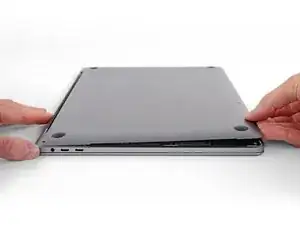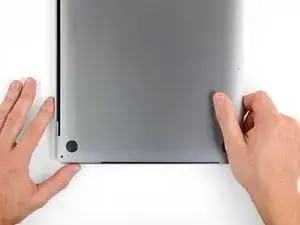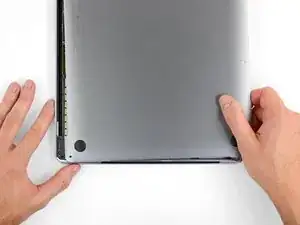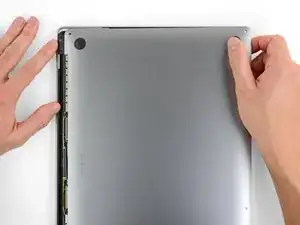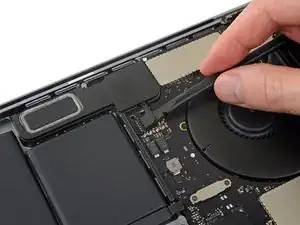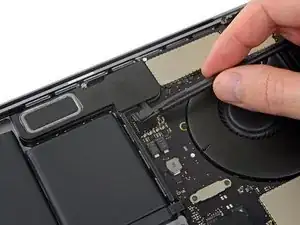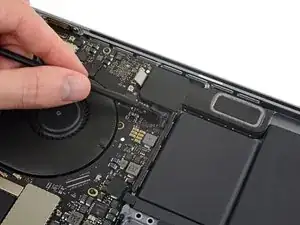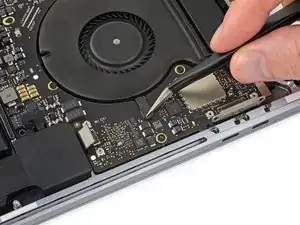
Introducción

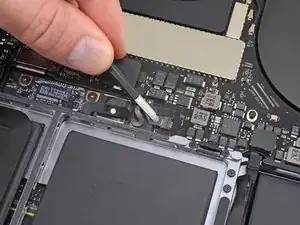
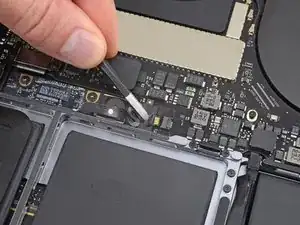
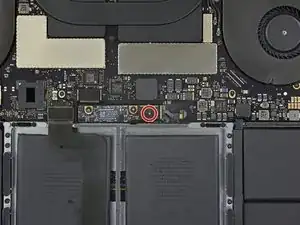
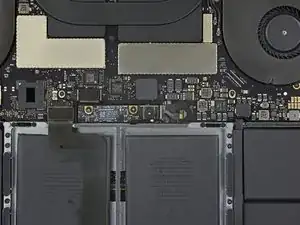
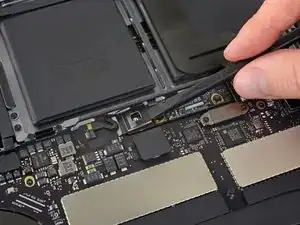
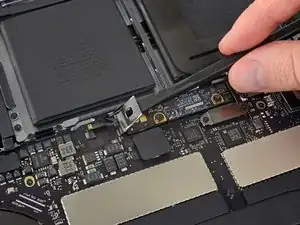
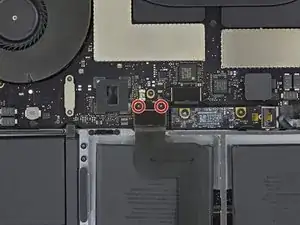
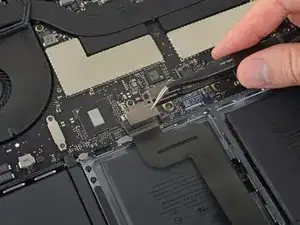
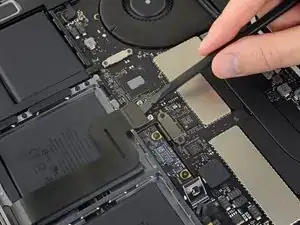
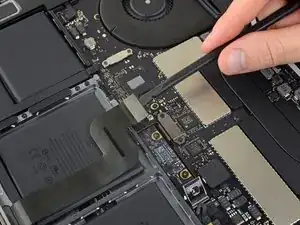
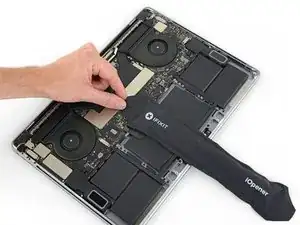
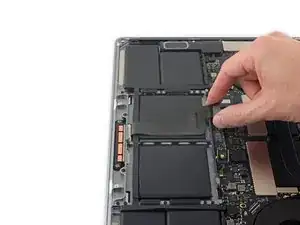
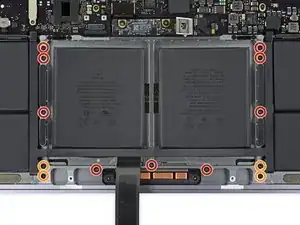
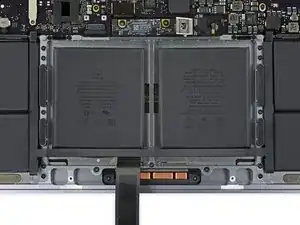
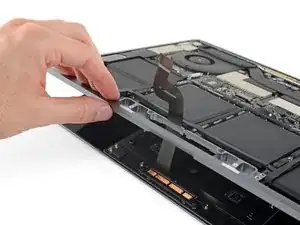
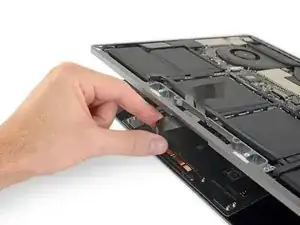
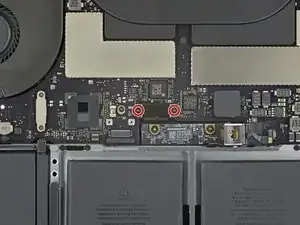
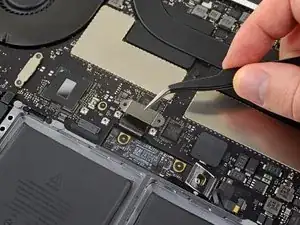
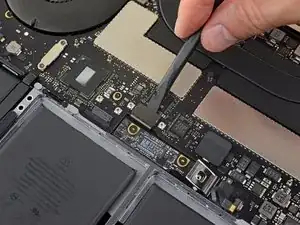
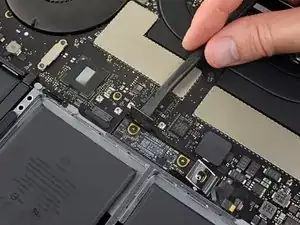
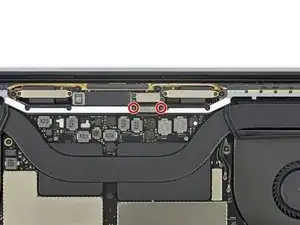
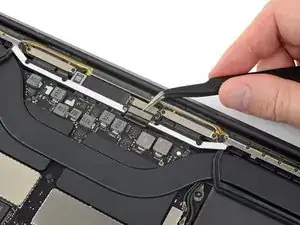
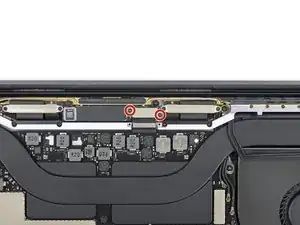
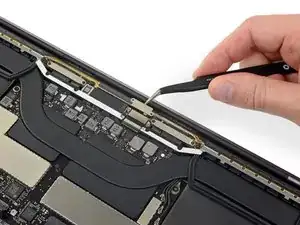
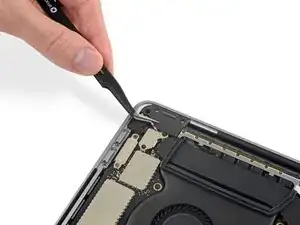
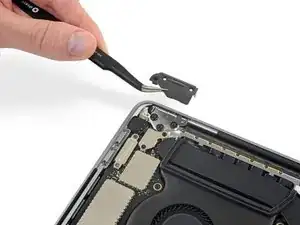
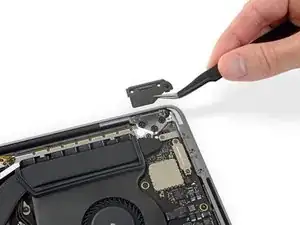
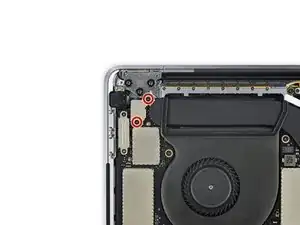
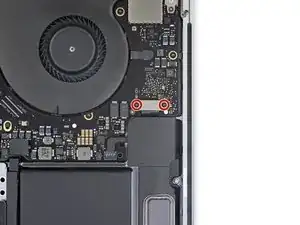
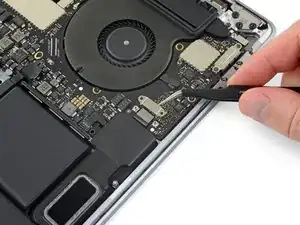
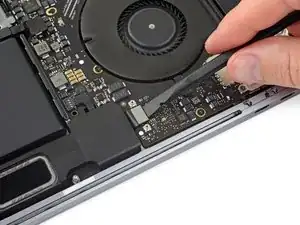
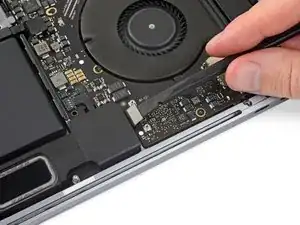
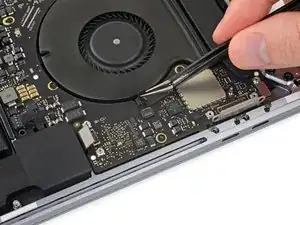
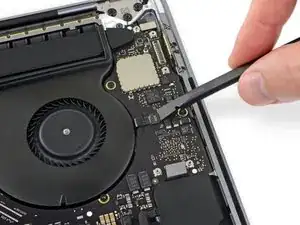
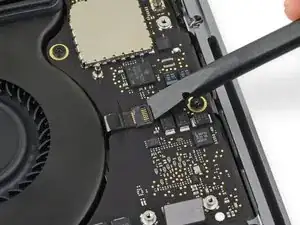
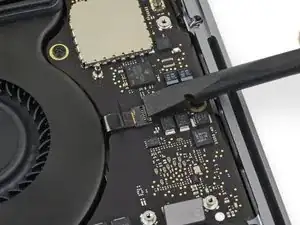
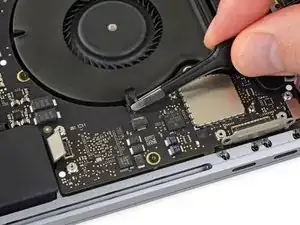
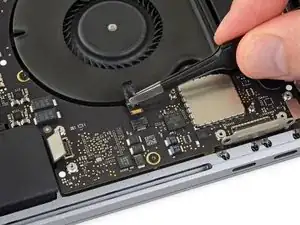
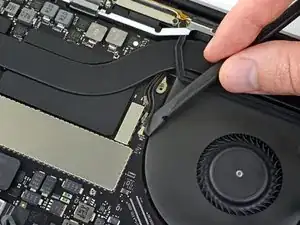
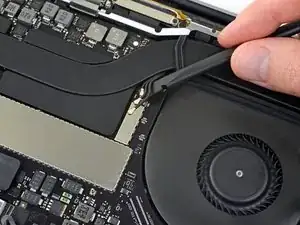
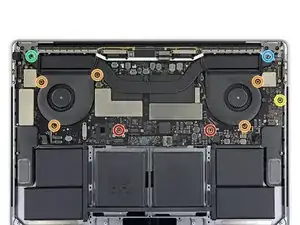
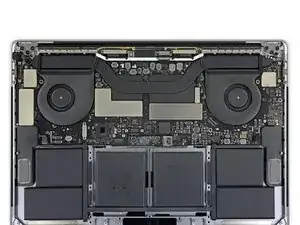
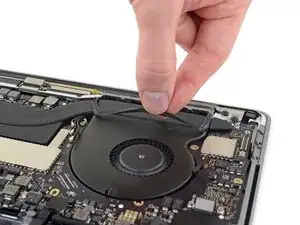
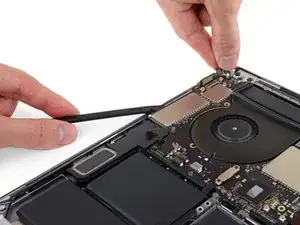
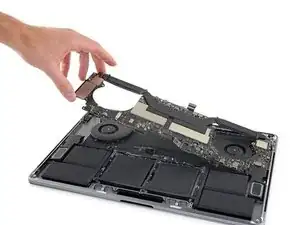
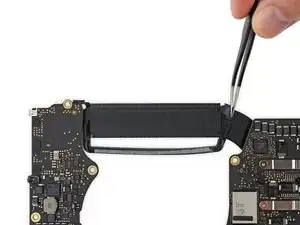
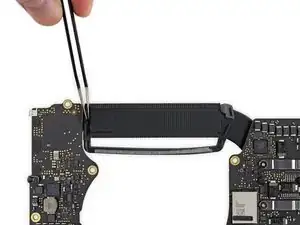
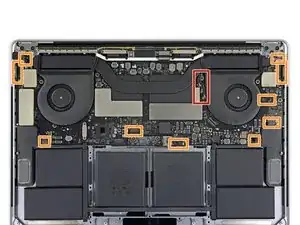
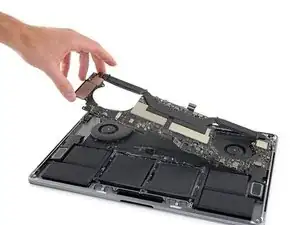
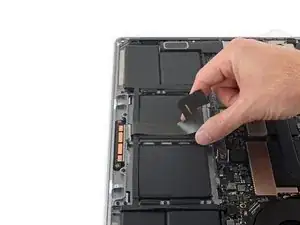
Solo prerrequisito. Sigue esta guía para remover juntos la placa lógica y disipador de calor como un único ensamblaje para más desmontaje o simplemente para apartarlo.

  1. dLTjRC36EADiCFBK
    dLTjRC36EADiCFBK
    FZYKkYtpGq1QwBO2
    YAOsWGKtCtOGVFRy
    • Antes de comenzar, debes desactivar la función de arranque automático de tu Mac. Auto Boot se enciende en tu Mac cuando abres la tapa y puede activarse accidentalmente durante el desmontaje. Usa esta guía o sigue las instrucciones abreviadas a continuación para deshabilitar el inicio automático. Este comando podría no funcionar en todas las Macs

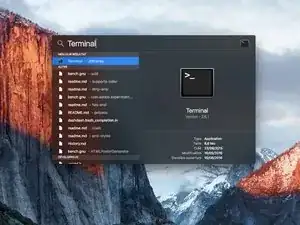
    • Enciende tu Mac y ejecuta Terminal.

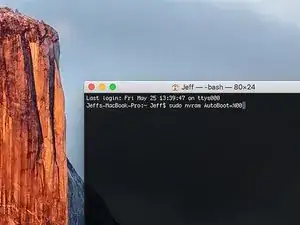
    • Copia y pega el siguiente comando (o escríbelo exactamente) en la Terminal:

    • sudo nvram AutoBoot=%00

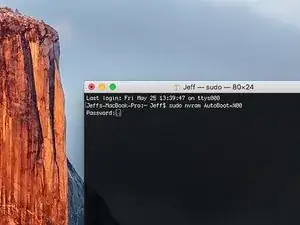
    • Presiona [return]. Si se te solicita, introduce tu contraseña de administrador y vuelve a pulsar [return]. Nota: La tecla de retorno también puede estar etiquetada como ⏎ o "enter".

    • Ahora puedes apagar con seguridad su Mac y abrir la carcasa inferior, sin que se encienda accidentalmente.

    • Cuando hayas finalizado la reparación y se haya vuelto a ensamblar su Mac, vuelve a habilitar el inicio automático con el siguiente comando:

    • sudo nvram AutoBoot=%03

    Is this step necessary? I can’t perform this step as I am attempting to repair water damage and need to remove logic board & most likely replace the battery.

    Macrepair SF -
    @mac_medic You definitely don’t want the power coming on while the board is wet. In your case, I think powering on the machine to disable Auto Boot would do more damage than it prevents. I agree, skip this step and be prepared to disconnect the battery quickly if the laptop automatically powers on. Good luck!

    Jeff Suovanen -
    Thats right! You don't want power running while working on your logic board.

    Dan -
    This did not work when running High Sierra.

    Kyle B -
    Tried this on a 2018 MBP 13” Touchbar (there’s no iFixit guide for this model yet). Need to replace a broken screen.

    Luckily I managed to connect to an external screen (Cmd-Down Brightness to switch displays) and enter above command. Seems to work, but there’s another problem with this model - it powers up as soon as any key is pressed……. ffs <gnashes teeth>

    Cool_Breeze -

    I unscrew the battery first and wrap electrical tape over the logic board battery connector before attempting any repairs to the board. Haven’t had any problems yet and I’ve worked on about 10 of these models already. Also when you open the bottom case use a suction cup at the bottom and pull up then run a plastic spudger along the edges to disconnect the clips. Also only use a plastic spudger on the board. Saw a youtube video from a repair shop and he did not disconnect the power and used all metal tools during the entire process of removing the board. His last step was to disconnect the battery terminal.

    Brian -

    Is this step necessary if my mac can turn on? Battery fully dead(

    Nursat b -

    BEFORE YOU START: The included torx head stripped off before I was done (and you might need an additional T4) so stop now and go buy a good one. Also they fail to warn you above to get some blue threadlocker ahead of time.

    Jason Sherron -

    This command did not work for me and I read that sometime in later 2020 Apple stopped this command from working…any ideas on a work around?

    Patrick Machacek -

    Not able to do that with damaged screen

    richardjgreen -

    If you have a damaged screen you can still use a converter from thunderbolt (USB 3) to HDMI and plug your Macbook Pro to your TV as monitor display. Just make sure to chose the right Source (HDMI IN) in your TV. I did it and to make it work I unplug and plug again in my Macbook and so I could disable the Auto boot

    Roberto Sanchez Bustos -

    Hi. This does not work on 2018 13” MacBook Pro with Touch Bar. I did exactly this to disable auto boot. But when I check by using nvram -p it says: auto-boot true. Am I doing something incorrectly? I did everything step by step. Copied and pasted the sudo command, pressed enter and then entered my password. I have Big Sur 11.1 installed. Is there any other way since I need to replace the screen. Thank you. Adrian

    Adrian Vizik -

    Hi everyone. This is also a little pointless if you can’t see anything on the screen, and you don’t have a display adapter to USB C to display it. I agree with Brian about removing the back and disconnecting the battery cable before you even think about opening the lid of the MacBook. Applying the insulation tape is also a handy little tip that just makes sure there is no way to discharge from either the board or battery.

    Roberto Enrieu -

    running `nvram -p | grep 'AutoBoot'` in terminal verifies that it was accepted

    result: `AutoBoot %00`

    Marek Polák -

    Running Big Sur 11.6.7 on a 2019 16" MBP, it's "auto-boot". So it's: nvram -p | grep 'auto-boot' to display the current state, the default is true - and then to change it, sudo nvram auto-boot=false which turns it off.

    Ed Mechem -

    This step is completely unnecessary if you follow the guide to disconnect the battery properly. Just put some tape between the battery and logic board connection to prevent it from accidentally touching and therefore powering on the laptop.

    Grant Ormsby -

    It took me a few tries to make this command work, as I was able to copy and paste the command into Terminal, but could not type in my laptop’s password. I finally typed my password into a text document, copied it (command C), and then pasted it into Terminal and it worked.

    tommy404 -

    I didn’t do this. Mine never auto-booted before I replaced the battery. Now it does.

    hatuxka -

    BEFORE YOU DO ANYTHING - CHECK THE BATTERY!

    I-fixit sent me a bad battery, which I didn’t realize until it was already install. They sent me a new one, but I wasted hours uninstalling and reinstalled.

    Get a volt meter and measure the voltage on the output of the battery pack. If it reads 0 V, SEND IT BACK. It should read over 2 V.

    bcardanha -

    When I did this from Terminal.app within Recovery Mode, the “sudo” was not recognized but I could invoke it without the sudo part. It seems to have been accepted when looking at “nvram -p”

    johann beda -

    When in Recovery Mode, you already have superuser powers. So you don't need to prefix commands with the sudo command to invoke them with root privileges; you already have them. Do a pwd (print working directory) after opening Terminal in Recovery Mode, and you'll see that you're in the root user's directory.

    Ed Mechem -

    I received the battery kit for my 2018 MacBook Pro and as per the above comment from bcardanha - Oct 12, 2021, I checked the voltage on the pads marked + and - . It was zero volts so I panicked a bit.

    I sent a message on the iFixiT Facebook page and I got no reply. I finally found the customer service email for Ifixit Europe and sent them an email voicing my concern as I was not keen to work for couple of hours just to discover that the battery is faulty. I had an almost instant reply on the email (kudos to them) and they adviced me to go ahead and install the new battery as the voltage measured when battery is not connected is not relevant.

    I took a leap of faith and after two hours… the new battery showed 50% charge and everything seems to be working just fine. I am happy it worked.

    Mircea Comanici -

    After removing the old battery and installing the new battery I powered up the MBP before screwing the bottom on. I discovered the my keyboard would not function. It took a few hours of investigation and frustration that I discovered the track pad power ribbon had become partially dislodged from the trackpad. I was able to see that this through the little machined slot where the battery sat. I had to remove the trackpad to reinsert the power ribbon back into the connector in the trackpad. after reassembling and reinstalling the battery etc the keyboard worked. Just food for thought if your run into the keyboard issue.

    Ed Mease -

    This should be the default. IMO I tell you to power on - not the lid.

    G Sena -

    Est ce que cela fonctionne sur un macbook pro 2017 sans touchbar ?

    maël muzelet -

    Bonjour Maël, oui, ce tutoriel concerne "les MacBook Pro 2016 (et plus récents) et les MacBook Retina 12" 2017 (et plus récents)"

    Claire Miesch -

    Excellent instructions. I was able to follow and install the new screen. I recommend that you get a good set of tools before you begin. I started with an inexpensive repair kit bought online. The Penta and torx bits failed. I bought an IFIXIT kit with quality bits and I was able to do everything I needed.

    Tom Markham -

    If you're not running an admin account the sudo command won't work (which honestly, you should not be running admin). Rather than logging in to your admin amount via the OS, in the terminal type "login [admin username]," then the password and you'll be able to do the sudo command as described above. Once you're complete, type "logout [admin username]" and you'll be good to go. Obviously replace [admin username] with whatever the account name for your admin user is.

    arichard2401 -

  2. B2dyIeZ13jMyq4oN
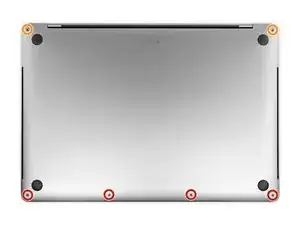
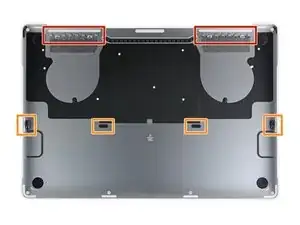
    • Apaga completamente y desenchufa tu MacBook Pro antes de comenzar. Cierra la pantalla y da vuelta la computadora portátil boca abajo.

    • Usa un destornillador Pentalobe P5 para remover lo seis tornillos que sujetan la caja inferior:

    • Cuatro tornillos de 4.7 mm

    • Dos tornillos de 6.6 mm

    • Ten en cuenta la orientación de los tornillos a medida que los retires; es necesario reinstalarlos con un ligero ángulo.

    • A lo largo de esta reparación,haz un seguimiento de cada tornillo y asegúrate de que vuelva exactamente de donde salió para evitar dañar tu dispositivo.

    These screws are TINY and different lengths. I highly recommend purchasing the recommended magnetic project mat.

    Steve -

    So this need to replace each and every screw in its exact former position explains exactly the excruciating difficulty I am having in getting the set of four shorter screws screws back in after everything else having gone successfully. Wanna scream at the top of my lungs. Maybe this point needed to be made in all ALL CAPS and BOLD for me. So can I still just start over trying each screw in each hole or have I messed up the threads in trying to screw in screws mismatched to their holes?

    hatuxka -

    The front screws are at a slight angle, pay attention when putting them back!

    Cristian Caprar -

    I did not have the magnetic project mat, but instead I stuck loops of blue painter's tape on the table, wrote the step number on them in sharpie, and stuck the screws/covers for the corresponding step on them.

    dunhamsteve -

    If the battery you are replacing is swollen and you do not know it is - swollen, Watch out!

    You may strip threads on some of the screws. Rotate the unscrewing as in a clockwise - counterclockwise manner if some of them start to feel tight.

    G Sena -

  3. VZFA1MgVRKCoIZlv
    VZFA1MgVRKCoIZlv
    QWPIB6vDdZCBEspJ
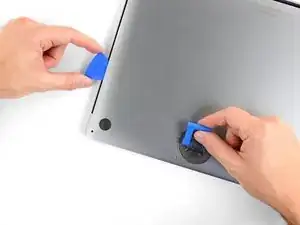
    • Presiona una ventosa en su lugar cerca del borde frontal de la caja inferior entre los orificios de los tornillos.

    • Levanta la ventosa lo suficiente como para abrir una pequeña grieta debajo de la caja trasera.

    You can probably just skip to step 6 if battery is swollen. These steps will likely be taken care of for you.

    G Sena -

  4. CIMWfGuyrYGngcBl
    CIMWfGuyrYGngcBl
    D2IKRLqXgXXTOlRy
    Min2sZEd15jYUULk
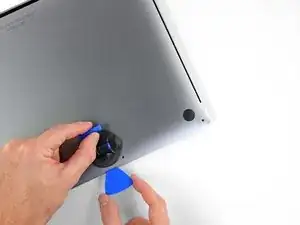
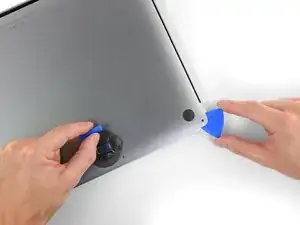
    • Desliza la esquina de una púa de apertura en la grieta que creaste por debajo de la caja inferior.

    • Desliza la púa de apertura alrededor de la esquina más cercana y luego hasta la mitad del lado de la MacBook Pro.

    • Esto libera el primero de los clips escondidos que sujetan la caja inferior. Deberás sentir y escuchar que el clip se libera.

  5. 6khJa1nYdTCtVhyh
    6khJa1nYdTCtVhyh
    YPy6HHqhj6xPiCK4
    RiRVxkVMFGVYdUbQ
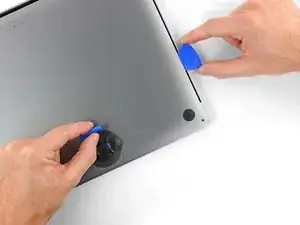
    • Repite el paso anterior en el lado opuesto, usando tu púa de apertura para soltar el segundo clip.

  6. SUXHrYyCaAOVvcMN
    • Levanta el borde frontal de la caja inferior (el lado opuesto de la bisagra de la pantalla) lo suficiente como para deslizar tus dedos por debajo y conseguir una buena sujeción.

    • Hay dos clips adicionales escondidos en la mitad de la tapa que podría liberarse en este momento, si no lo han hecho todavía.

    • No levantes demasiado y no intentes remover la caja inferior aun.

  7. FJ1XaUFTMZqVZmfu
    FJ1XaUFTMZqVZmfu
    566NJvVaErMxyUHm
    kUdSXd5WqbZIsEkn
    • Tira de la caja inferior firmemente hacia la parte frontal de la MacBook (lejos del área de la bisagra) para separar el último de los clips que sujeta la caja inferior

    • Tira primero de una esquina, luego de la otra.

    • Tira hacia un lado, no hacia arriba.

    • Esto puede requerir mucha fuerza.

    This step drew blood. Darn you Apple!

    Kyle B -

    I found it easier to insert a screwdriver through the hole (not too far down), and use that to pull sideways, as it was hard to get a strong grip with my fingers.

    Athanassios Diacakis -

    If you have a black stick, or a nylon probe tool, you can insert it at the back at the point closest to the screw holes, and use that to push the lower case forward. I’ve seen this help me quite a few times, and it makes it quite easier.

    Adrian Brown -

    I like adrianbrown's suggestion. Spot on!

    wmetzgerusa -

    Its difficult if the side catches arent released properly, check them again if it seems too much.

    tonygreenfield -

    I snapped one of the spring loaded logic board grounding pins. Take your time. Leverage from the back in order to push it out versus pulling on it.

    stevanuscg -

    Take the opening pick and stick the edge down behind the hinge all the way to one side, so it is perpendicular to the case, and give it a twist. That end should pop free. Do the same on the other side and there you go.

    Indawg Wetrust -

    Thanks Indawg Wetrust, Made it very easy!

    Louis C -

    They, iFixit, are not kidding. Quite a bit of force needed.

    Norm Hils -

    This step requires a lot of force to slide the back cover away. Make sure you get a good grip of the mac body and of the back panel.

    Cristian Caprar -

  8. 2jJJSwavVeNYqoh1
    2jJJSwavVeNYqoh1
    cViDJDVLBOjuCf1f
    • Remueve la caja inferior.

    • Para volver a instalar la caja inferior:

    • Colócala en su lugar y alinea los clips deslizantes cerca de la bisagra de la pantalla. Presiona y desliza la tapa hacia la bisagra. Debe dejar de deslizarse cuando los clips se enganchan.

    • Cuando los clips deslizantes están completamente enganchados y la caja inferior se ve correctamente alineada, presiona firmemente la caja inferior para enganchar los cuatro clips ocultos. Deberías sentirlos y oírlos encajar en su lugar.

    I am doing a battery replacement for a client on this model. The battery has swollen more than I have ever seen before on a Mac! Roughly a ½” higher, once cover removed. Cover was so tight that one screw stripped and had to drill out one screw after trying everything else! Fortunately, I’m an exmechanic/machinist and I own a full size drill press! None of the screw extraction tools sold by ifixit worked or were applicable until I finally got the cover off. Then the small screw pliers from Japan were easier to use than anything else I own. My tools are mostly for larger nuts, bolts and screw extraction. Possibly a mini hammer driver screwdriver would work if one could be made small enough for tiny screws! Ross

    Ross Elkins -

  9. ocQPFYqHXXonU4nL
    ocQPFYqHXXonU4nL
    RI2KP5bTSZKNllCp
    • Despega y remueve la tapa grande y rectangular de la placa de la batería en el borde de la placa lógica más cerca de la batería.

    • Si la tapa no se despega fácilmente, aplica un poco de calor con un iOpener, secador de pelo o pistola de calor para ablandar el adhesivo e intenta nuevamente.

    • Si la tapa no encaja de forma segura cuando vuelves a ensamblar el dispositivo, intenta rotarla 180 grados. Debe estar orientada correctamente para que las almohadillas adhesivas hagan contacto con los tornillos de la placa.

    What is the though behind this step? I have replace my trackpad before, and I did not do this step. At the time, there was no guide. As a result, I’m wondering how this changes/or if it is necessary for the repair process.

    Anthony Bleyer -

    It’s necessary in order to disconnect the battery. Always disconnect the battery before making repairs.

    Jeff Suovanen -

    I found my one of my fan making some noise, when open the bottom of my Mac I see this piece floating over the fan. Trying to put it back where it goes but don’t seem to stick anymore and move around. Does this piece is really necessary or I can simply remove it or order a new one from you?

    Alexandre Bolduc -

    It should be pretty easy to reattach. Put a dab of rubber cement or a bit of double-sided tape on top of each of the screws underneath the cover, press the cover down, and close up your MacBook. It should stay put. Don’t use superglue or anything else that will harden over the screw heads and make it impossible to fit a driver in there later.

    Jeff Suovanen -

    Do you know if this piece is necessary. I lost mine.

    scoop scoop -

    My Macbook doesn’t appear to even have this piece.

    Nate Bartlett -

    This cover is not attached to anything critical underneath, so do not be afraid that you can break anything like pulling anything from the mainboard. Just pull it out. To reattach, I removed the old double side adhesive tape and replaced with fresh one.

    Cristian Caprar -

  10. vRqKmn1U3o1IsD3b
    vRqKmn1U3o1IsD3b
    ANm5rACotO4gVLIa
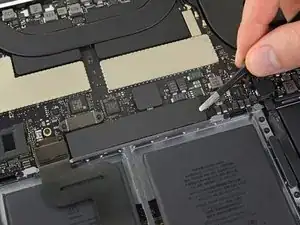
    • Despega la cinta que cubre el conector de cable de datos de la placa de la batería.

    • La cinta podría no separarse por completo. Despégala lo suficiente como para tener acceso al conector.

    Wow, mine peeled up from the board. Now I have some board level soldering. Any part number on the connector for this cable on the board.

    Mark Mata -

    I second that; does anybody know where this battery board data cable connector can be purchased?

    Tim -

    The replacement battery did not come with the “tape” in this cable so it was very difficult to reinsert the cable into the zif socket. Now I can’t get the replacement battery to charge.

    J D -

    I have the same issue, My battery is not charging. Did you figure out how to get your battery to charge?

    Jeremy Smith -

    In my case, the original replacement was faulty. iFixIt sent an RMA without hesitation, and I am happy to report that the new one works fine. But also recheck this step and steps 13/14.

    J D -

    Note that the tape covering that comes on the OEM battery is not included in the battery sent from iFixIt. I removed it from the old and attached it to the new, but it does not “re-stick” very well, so it’s rather difficult to re-insert. Be careful, the ribbon is fragile.

    J D -

    I broke the locking flap! Also, my original tape lost its stickiness as well. I cut out a small piece of electrical tape to keep the cable snug in place. Also will work to keep it secure since I broke the locking flap.

    Edward Pascua -

    I was able to reinsert the cable easily a number of times with the nice Ifixit angled tweezers as the ziff connectors tiny latch came off! I ended up using a bit of Pliobond 25, contact cement to mke sure the data cable doesn’t move. A future repair will just pull off or at most need an xacato blade knife to slit the rubbery cement. Ross

    Ross Elkins -

    REALLY important. You need to really pull this back in snug for things to work when you reassemble.

    Michael Stelzner -

    I didn’t seem to have any tape covering it, I just proceeded to the next step

    Nathan Skene -

    My battery board connecter is broken. Let me know where can I get these cables.?

    Lalitha Prasad -

    I recommend to just lift a little the right end (end of the cable side), then keep the socket in place with a spudger while removing this adhesive tape, to avoid any accident like ripping off your socket. With a little care, it is safe and easy to remove completely.

    Cristian Caprar -

  11. fElQdCLEnZnaiBFq
    fElQdCLEnZnaiBFq
    44R2VIDnFbPQbhAL
    XhXMsoTWa6WNOw1R
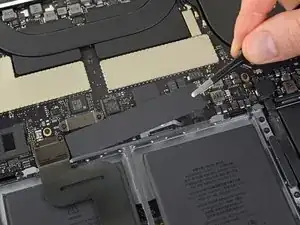
    • Usa un spudger para levantar suavemente la pestaña de bloqueo del conector ZIF para el cable de datos de la placa de la batería.

    Mein Sicherungsbügel ist abgebrochen, oder zumindest nicht mehr auf dem ZIF-Stecker. Ist dieser Sicherungsbügel sehr wichtig, oder kann ich das Kabel dennoch zurück stecken?

    Fabio Jock -

    Hallo Fabio, wahrscheinlich wird das Kabel ohne den Bügel nicht mehr halten. Das Zurückstecken geht, aber es bleibt nur sehr fragil drin.

    Fabian Neidhardt -

    Sie sollten in der Lage sein, das Kabel wieder anzuschließen und mit einem guten Klebeband abzudichten.

    mark -

    My zif connector was already open. It apparently never got closed during manufacture. Being so tiny this made it difficult to see why there was nothing to pry up with the spudger. Once I put my finger on top of it I realized the flap was already verticle.

    Ian Simmons -

    lock flap broke when I was about to close it, is there any way to fix it? The computer can't find the battery

    Gabriel -

    I had no issue here but I recommend to use a second spudger to keep the rest of the socket in place while GENTLY lifting the lock. It should lift without effort.

    Cristian Caprar -

    When putting it back, be careful, there might be a little piece of transparent adhesive foil on top of the socket, gently lift it up on the side of the cable. The cable should slide in easily, but do not force it. About 0.5mm of the cable contacts will be VISIBLE on the left side, when the cable is fully it, do not force it more than that.

    Cristian Caprar -

  12. bYh4tpPaCJVg6hic
    bYh4tpPaCJVg6hic
    mwTmXl1p2hKDi65r
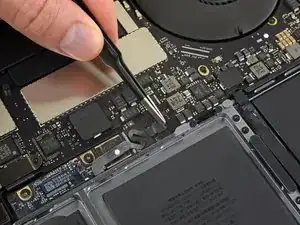
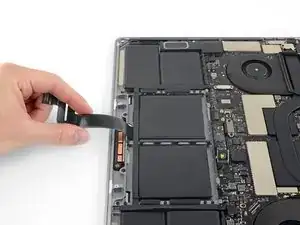
    • Desconecta el cable de datos de la placa de la batería deslizándolo fuera de su zócalo.

    • Desliza en paralelo a la placa lógica, en la dirección del cable.

    If this breaks, what’s the risk to the computer?

    Jose Lopez -

    I tried powering mine on after my zif connector socket broke. It made bad electrical noises. I had water damage at one point and cleaned the unit very well but never replaced the battery. Through excesive, a hot and bad battery, or water damaged weakening the area mine came right off with the tape when i peeled it up. Im working on finding the part and will attempt to solder it back. Of course i still need a battery which ours was swollen. After water damage it worked great for over a year though.

    Mark Mata -

    Mine broke and now the Macbook will not power on, this was after a battery replacement, the Macbook powered up afterwards, but after transporting it, it would not power up. I removed the back cover and noticed the battery board cover was missing and the zif gate for the battery data connector was half off.

    Charles Braxton -

    Same here, I broke the cable which was soldered on the mainboard. I tried to hold it on place with a tape, but I couldn‘t charge my macbook though. Then I tried to solder it and I also failed. I wish I had read the comments before :/

    Sebastian Fritsch -

    I couldn‘t find the fpc 6 pin connector with 0,5 mm grid. However I managed to connect the flex cable directly on the mother board with 0,3 mm isolation filament! It was tough but I‘m so happy that it works again :)

    Sebastian Fritsch -

    Would you be able to give a little instruction on how you were able to make this work? I’m super curious and need a solution to the same issue.

    Tim -

    Anybody know where this connected can be purchased? Mine completely snapped to pieces the moment I touched it.

    Tim -

    Surprised by the tolerance of this little connector to my mistake of not flipping up the not very noticeable clamping element on side opposite to where the contact tip is inserted. The contact tip pulled right out without having done that. Saw in a video I should have done that before pulling the contact tip out. Remembered when reinstalling it.

    hatuxka -

    The cable is stuck on the board underneath with adhesive, so it is best to first work it a little from left under (as the picture is oriented) in order to break the adhesive, and then pull it sideways. At all times, I kept the socket safe with a spudger to avoid ripping it off the board. The cable will come out with a little effort. Remember, it is the socket you need to take care of, not the cable (the cable will be thrown away with the old battery).

    Cristian Caprar -

    I had issues in reassembly - the lever for the ZIF socket was missing. I think it came off with the tape. I found the lever, but it was way too small for me to reattach (I couldn't hold it well enough with the tweezers and wasn't sure where the hinge pins went).

    The computer did not recognize the battery or recognized it with errors (if I got the cable just right) without the lever.

    My solution was to cut a tiny bit of electrical tape and put it on the back of the ribbon cable to make it thicker. This gave it enough traction to stay in the socket and pushed the ribbon onto the contacts.

    dunhamsteve -

  13. 2RCPAZQTvLp6UKBM
    2RCPAZQTvLp6UKBM
    jsHVbVRGC4ON2bw5
    • Usa un destornillador T5 Torx para remover el tornillo panqueque de 3.7 mm que sujeta el conector de alimentación de la batería.

    It was actually T6 in my case

    Fedor Pudeyan -

  14. tfv4QHe4U26merGN
    tfv4QHe4U26merGN
    OmlTFWsMAoC5fdek
    • Usa un spudger para levantar suavemente el conector de alimentación de la batería, desconectando la batería.

    • Levanta el conector lo suficientemente alto para mantenerlo separado de su zócalo mientras trabajas. Si hace contacto accidentalmente, podría dañar tu MacBook Pro.

    I tossed a piece of tape on the connector just to be safe.

    Kyle B -

    wondering if i didn’t heed this warning close enough. mac not powering on. only black screen with battery and lightning bolt beneath it. What happens if this connector makes contact?

    ONYCHA HAZEL -

    im in the exact same boat right now.

    Was everything okay in your case?

    Anthony Gasbarro -

    Same here until I realized that I never reconnected the tiny power button/Touch ID connector in step 31! It’s underneath the headphone cable jack from step 30. Mine was hiding under the board and I carefully fished it out with a tweezers.

    ajm0824 -

    I have the same issue. Followed Instructions to theT. Battery is connected properly as it fully charged however, it will not power on. If i disconnect the battery and connect the power adaptor, it powers on. How did you resolve your issue?

    Ian Duff -

    Mine will power on, but will not charge.

    J D -

    Hi, did you manage to fix this? Ive got the same issue sadly.

    Cooldude2222 -

    Same problem, any solution?

    federico.cirillo -

    Lifting up to about 75 degrees is more that enough and safe, and I did also use some electrical tape to block the contact. When this goes back, there is no socket in place, it is just the screw that keeps it there.

    Cristian Caprar -

    I put electrical tape on this as well. Glad I did. "Being careful" during the whole process gets lost when you're focusing on other parts.

    Jay -

  15. riGibRD5sClWpQhG
    riGibRD5sClWpQhG
    iSrOZCxAVDhTNGEv
    • Utiliza un destornillador Torx T3 para quitar los dos tornillos de 1.9 mm que sujetan el soporte de la cubierta del cable del trackpad.

    • Remueve el soporte.

    T3 doesn’t seem to fit, somehow on my a1707 the driver doesn’t grip and it just slips on the screw.

    What am I doing wrong?

    I don’t have a T2 to try, what can I do?

    Luciano Colosio -

    I managed to get a holt of a T2, but still no luck: there are a bunch of screws that seem to be T2 but everything I stick inside them just spins around and doesn’t grip :(

    Luciano Colosio -

    T4 worked perfectly

    DonPanchito -

    Indeed, a T4 worked for me, also.

    Roy Vanegas -

  16. uuOyaWIViVOiJBfE
    uuOyaWIViVOiJBfE
    YYLRvNZEiFCnBaRm
    • Usa un spudger para desconectar el cable del trackpad levantando su conector directamente de la placa lógica.

    I managed to pry the metal bit with screw holes off first. Whoops.

    Nathan Skene -

    Make sure the spudger goes under the entire plastic connector, not just the surface metal place, as you risk damaging it like the comment above.

    Cristian Caprar -

  17. QQTQsqurSpuHxJnA
    • Aplica calor moderado al cable plano del trackpad para suavizar el adhesivo que lo sujeta a la batería.

    • Puedes usar un iOpener, un secador de pelo o una pistola de calor, pero ten cuidado de no sobrecalentar la batería. El cable debe estar caliente, pero no demasiado caliente para tocarlo.

    I used a hairdrier. Barely needed to hold it there for 20 seconds before I could peel it off.

    Nathan Skene -

    This cable can be carefully peeled off the battery by hand by those deft of hand. Gradually and inching along its length.

    hatuxka -

    Just warming it gently made it easy to peel off. Work with care starting from the free end, lift a little, move your grip, etc. Do not lift it all at once, there is a risk of breaking it. It is safe to then move it at 180 degrees angle, completely on the other side.

    Cristian Caprar -

    All my battery packs were swollen. The trackpad ribbon cable was barely adhered to this battery pack. No heating necessary.

    Richard Schletty -

    Rubbing with your finger and heat the ribbon. Works also.

    Schwoegi -

  18. CqoeEGSBCH6oHVMp
    CqoeEGSBCH6oHVMp
    api3BaNvflAteNIu
    ar1EfaiawZrtwMLG
    • Retira con cuidado el cable del trackpad de la batería y empújalo.

    • No dobles ni rasgues el cable. Si tienes problemas, no lo fuerces, aplica más calor e intenta nuevamente

    thin ifixit pick opener sliding gently/slowly underneath ribbon cable towards the front edge of mbp did the trick for me. no need for heat.

    Macrepair SF -

    In my case the sticky part of the track pad ribbon remained on the battery. So after replacement the trackpad ribbon does not have a sticker to stay on the battery.

    Neil Robinson -

    Did it work all right without the adhesive there?

    That happened to me too! I thought that was what was supposed to happen, until I read your comment. I managed to peel it off the battery, but before I could catch it it rolled up into a tight ball. I got about half of it unrolled and onto the ribbon.

    rileybk -

    Since this step you can skip the part with removing the trackpad and logic board and just remove 7 screws (step 47, except green and blue) holding the logic board so you can lift it for a few millimetres just to take off the battery. You can find a YouTube videos where a guy is replacing the battery very easily. So waste of time and a lot of places to screw up you MacBook doing it this way.

    durmstrang -

  19. S4VQWHksHQG2kBsu
    S4VQWHksHQG2kBsu
    lM1ZxjrQ6fYp4Eru
    • Utiliza un destornillador Torx T5 para quitar los 13 tornillos que sujetan el ensamblaje del trackpad:

    • Nueve tornillos de 5.8 mm.

    • Cuatro tornillos de 4.9 mm.

    • Estos tornillos se ven muy similares, así que no los mezcles.

    • Estos tornillos pueden aflojarse con el tiempo debido a la acción de hacer clic en el panel táctil de Force Touch. Agregar un pequeño fijatornillos azul al instalarlos puede ayudar a mantenerlos seguros.

    • Instala los tornillos sin apretar y verifica la alineación del trackpad antes de apretarlos.

    Using a piece of cellophane tape can help hold the trackpad in place with with proper clearance all around.

    Russell Johnson -

  20. WlgPUK6WYdJruGHZ
    WlgPUK6WYdJruGHZ
    kWLELr33BUacXPRY
    hrJwicIKNGrwKx2n
    • Abre la pantalla ligeramente, pero mantén el MacBook al revés. El conjunto del trackpad debe separarse y quedar plano en la pantalla.

    • Pasa suavemente el cable plano del trackpad a través de su ranura en el chasis.

    • Observa con cuidado la ranura correcta para el cable del trackpad durante el reensamblaje: atraviesa la ranura estrecha junto a la batería, no la ranura más grande cerca del borde frontal de la MacBook Pro.

    WARNING - READ THE NEXT STEP NOW OR YOU WILL LOSE THE WASHERS. Please update this with BIG RED LETTERS in the step to indicate what is about to happen, or you’ll skip forward and the washers will fly everywhere. I’m really upset right now.

    Jason Sherron -

    I would add step 21 to step 20. The warning about potentially losing the washers should be part of this step, not a separate one.

    fippolito -

    this step is BS, I didn’t remove the touch bar, you just need to remove enough screws on the upper board to be able to pull the battery plastic frame and put it gain…

    what a loss of time!

    a m -

  21. HdfIJVNdthwxB3tM
    HdfIJVNdthwxB3tM
    aqNskc3o11FDkThD
    KMofN1OuLGMRGvcZ
    • Cuando retires el conjunto del trackpad, ten mucho cuidado de no perder las nueve arandelas metálicas pequeñas que se apoyan en los postes de los tornillos. (Volarán y se perderán con muy poca provocación).

    • Remueve el ensamblaje del trackpad.

    They are not kidding about the jumping washers.

    Kent Folsom -

    Pro Tip: put your magnetic mat under the trackpad as you slide it out to catch the tiny washers. Alternatively, a magnetic tool bowl, or a terry cloth towel so the lighter guys can’t get far if they fall.

    Kent Folsom -

    Mine are made of aluminum or stainless or something that magnets don't attract. Flypaper, maybe? :-D

    dgatwood -

    Can I change the battery with out removing the trackpad and logic board?

    Mateo Munoz -

    yes

    I did it, you just have you remove enough screws on the board to bend it upwards in order to pull the battery frame that’s it…

    my mac is working fine

    a m -

    yep lost a washer in the process

    Jason Sherron -

    My trackpad underside was dusty. Without thinking, I tried to blow off some of the dust. One washer and one double washer were finally found thanks to a bright flashlight and the contrasting color of the wood floor.

    hatuxka -

    One of the washer remained stuck on the body, luckily I observed it on the working table when I cleaned the dust from the trackpad casing area. Be VERY careful to not loose these tiny metal pieces!

    Cristian Caprar -

    Without the washers the clicking and moving mouse around doenst work well. very important

    Herbie Computer Service -

    Ok, I have all but 1 round washer. I found the rest. Not knowing a source (not even in my extensive parts collection) I will reassemble with the middle one without a washer. If anyone knows of a parts source (other than buying a trackpad assembly) please post here, Thanks.

    Carl Schultz -

    When you put the trackpad to the side, write a note and put it on top so you don’t forget about the washers when you come to reassemble it.

    Robert Such -

    Followed the advice on disassembly but did not on re-assembly. Lost one of the larger ones.

    Recommend changing text to RED (They will fly off and get lost with very little provocation.)

    *also agree with Robert Such but I was in a bit of a hurry to finish. Take your time.

    G Sena -

    I agree. An obvious warning at or right after the removal of the trackpad screws should be added. The trackpad washers can be easily dislodged and go missing if you are not prepared to protect against that from happening.

    mmorder -

    I used a clean paint brush to dust off the back of the trackpad and internals. One of the round washers flew out of the assembly and got lost. The washers are super easy to lift off the posts. BE VERY GENTLE WITH THE TRACKPAD REMOVAL AND HANDLING!

    Justin Lopez -

    This needs to be moved WAY up higher. You are 100% guaranteed to lose one by the time you start the previous step, because the trackpad will fall the microsecond you start to open the case. Really, you shouldn't remove the last screw until you're holding the trackpad from underneath.

    Also, the battery replacement kit should really come with at least one extra washer, because I can pretty much guarantee nobody will ever do this without losing one. It is darn near impossible to deal with something that lightweight. Even putting the trackpad down on the counter is enough to lose one, much less having it drop out of the bottom while you're cracking open the laptop.

    dgatwood -

    I found it, and it wasn't in a place you might expect. There's a bit of metal trim on the back of the trackpad itself, and the washer was underneath that. I actually had to dump all the washers out onto the bottom case, and suddenly it peeked out from under the metal rim. Worse, these things are aluminum (or maybe metallized mylar), so you can't pick them up with magnets....

    It might be a good idea to put some masking tape on the trackpad to hold it in place so that it doesn't drop out when you open the lid. Then very carefully press it down from the underside with a spudger after you have opened the lid fully and have your hand under it to catch the trackpad so that it doesn't suddenly drop.

    dgatwood -

    Pro tip: During reassembly, put the plastic backing from the battery down on top of your display, put the trackpad upside-down on top of that, and slowly close the top case down onto it, working the cable through the slot. Then, when it is almost fully closed, use the plastic backing to maneuver the trackpad into position so that the pins line up.

    dgatwood -

    Be careful when you remove this touchpad! I followed every step from the instructions provided here and also checked some video tutorials on YouTube from time to time. Everything went well after swapping the battery, at least that's what I thought. When I started the computer, unfortunately, my keyboard and touchpad didn't work, and the fans were very loud. I used an external keyboard and mouse, searched online for the problem, and tried some solutions such as PRAM reset, but nothing worked. Anyway, I opened the computer again and found that the end of the cable attached to the touchpad was loose. After putting it back in place, everything worked flawlessly.

    Mercan -

  22. X3ZbxDoUvWBnWDYJ
    X3ZbxDoUvWBnWDYJ
    BsXlLd1vQuknOBgV
    • Usa un destornillador T3 Torx para remover los dos tornillos que sujetan el soporte de la tapa del conector del teclado.

    • Remueve el soporte.

    I’m just curious - why did the entire logic board have to come out in order the replace the battery? It seems like after the trackpad you could skip to battery removal. Is it to protect the board? Thanks!

    Todd Wood -

    I am also wondering if it is necessary to remove the logic board. I’m just looking to remove a leaking battery from my macbook pro and safely discard of it while I get a replacement as it is releasing some chemical smell which I assume must NOT be good for one’s health.

    Jean Lescure -

    Sehr geehrtes IFIXIT Team, bitte um Info warum für den Ausbau des Akkus auch das Bord ausgebaut werden muss? Danke für Ihre Antwort!

    Josef Lix -

    As far as I can tell there is a part of the battery that is below the logic board. It’s the thin black stripes next to the battery pcb on either side. You can see it after the logic board is removed on step 50.

    Bhav -

    Absolutely correct. No way to skip the steps.

    Cristian Caprar -

    Please, elaborate.

    Because the one small cable to the right is the battery data cable, it's been disconnected in step 10 and then presumably comes out with the battery (there's no indication it is glued nor instructions to unglue it by heating it and it doesn't look like it is UNDER the logic board) and the only cable that is UNDER the logic board is the keyboard cable, whose connector gets disconnected in next step but needs not being further removed.

    I can't imagine all these risky actions (both when disassembling and reassembling are actually needed!

    Luca Ciminelli -

    Actually, a T4 Torx driver works perfectly.

    DonPanchito -

    T3 stripped mine, should have used T4. Screw Extracting Pliers to the rescue.

    Peter Eltgroth -

    Hands up everyone that’s never buying an apple product again?

    Nathan Skene -

    I can confirm that the logic board removal is mandatory, because two battery connection cords are under the logic board and cannot be removed otherwise. Even if that would be possible by cutting them, it is not possible to install the new battery anyway.

    Cristian Caprar -

    Thanks for your hands-on feedback Cristian.

    Would you please elaborate? Which "two battery connection cords?" What I see in step 50 are the keyboard cable (which needs not removing) and the battery board cable, whose connector has already been disconnected (step 10) and comes out with the battery, because new battery shows the cable (and the board).

    Luca Ciminelli -

  23. bN2dDSYxq2LOmKQE
    bN2dDSYxq2LOmKQE
    LdYJlKlDTqvIaKw6
    • Usa tu spudger para desconectar el teclado levantando su conector directamente de la placa lógica.

    Again, make sure you pry from underneath, not only the metal plate. Goes off easily and then it also gets back easily when putting it back.

    Cristian Caprar -

    Don't do what I did :( When I reinstalled the logic board and bolted down everything, I realized I didn't pull keyboard cable connector through and was stuck underneath the board. Rather than taking the time to disconnect all the cables and unbolt everything to carefully pull the cable back through, I unbolted only left side and attempted to pull cable through using tweezers. I tore the cable which is very fragile. This ultimately disabled my keyboard. Hopefully, people will read this and will not happen to anyone. If it does, the cable can easily be purchase from Amazon for $6. The cable that worked for me is part #821-00612-04.

    Edward Pascua -

  24. fTkaYsij2KK2DEjy
    fTkaYsij2KK2DEjy
    PfYIvX3uXO4xEBtd
    • Usa un destornillador T3 Torx para remover los dos tornillos de 3.5 mm que sujetan la tapa del cable flexible de la placa de la pantalla.

    • Remueve la tapa del cable flexible de la placa de la pantalla.

  25. 1LohV6QwCJanfOVh
    1LohV6QwCJanfOVh
    C22HCOJFykAmVsiZ
    • Usa un destornillador T3 Torx para remover dos tornillos de 1.7 mm que sujetan el soporte para el conector del cable de la placa de la pantalla.

    • Remueve el soporte del conector del cable de la placa d e la pantalla.

    This appears to be a T4 not a T3

    Rich Murfitt -

    They are definitely T3 ;) But not all driver kits are created equal. If your T4 works better for you, go with that.

    Jeff Suovanen -

    I concur the the T3 didn’t work, T4 worked great.

    David Balogh -

    't4'나사에 전해 맞습니다.

    jinwoo KIM -

    The bracket of the display board connector in my case is glued. So wasnt able to remove it.

    Neil Robinson -

    I also found a T3 to be too small and T4 too large. I skipped this step and was able to complete the installation by using this connector (still secured by the screws I couldn’t take out) as a hinge to carefully lift the logic board up when needed. I ended up not requiring any of the adhesive remover liquid to remove the battery; just heat from a hairdryer and elbow grease to slide the cards under each cell. Laptop working perfectly again now with this new battery.

    Martin -

    I used my T3 on my 2017 but I had to press a bit harder to get these to unscrew.

    tomasponce -

  26. enUF3M21TZsFfKXL
    enUF3M21TZsFfKXL
    3EZV6HUqTofEUUYs
    • Levanta con tu spudger para desconectar el cable flexible de la placa de la pantalla.

    When putting it back, I did not notice any “click”, but it was definitely secured in place. Just do not overpress it expecting the “click”. It fits back easily.

    Cristian Caprar -

  27. 3UJI2PCduGNlPeE2
    3UJI2PCduGNlPeE2
    FsceoqX3KZkcW2vK
    • Utilice un destornillador Torx T3 para quitar los dos tornillos de 2.0 mm que sujetan cada tapa de la bisagra (cuatro tornillos en total).

  28. 2cHIGZtdWDwK1O4I
    2cHIGZtdWDwK1O4I
    GDhq1W2SDFV4OgkR
    aOfNELouaXQJlT2V
    • Remueve ambas tapas de bisagra.

    My hinge covers seemed to be "aged" and cracked upon reinstall, so do not over-tighten upon reinstall. Was not detrimental overall.

    Jay -

    Mine were aged and cracked, too.

    Richard Schletty -

  29. nhoTkLOQidPELV5t
    nhoTkLOQidPELV5t
    vObLQhGbARlrTrAX
    keIElJhFUQqZSyly
    • Utilice un controlador Torx T3 para quitar los dos tornillos de 2.4 mm que sujetan el soporte de la cubierta para los conectores de cable de la toma de auriculares y Touch ID.

    • Remueve el soporte.

    Again, a T4 worked here, not T3.

    David Balogh -

    't4'나사에 전해 맞습니다.

    jinwoo KIM -

    it’s a T4, not T3. Correct this mistake.

    erwancompes -

    T3 worked for me. MBP 2016.

    Gustavo Guida -

    I only had the bottom screw of this pair to remove. The other is missing,

    Jonathan B -

    The top screw of the cover bracket screws into a larger bottom screw. You need to keep that bottom one separate from the others as it is the only one that has a hole for the top screw.

    Bob Donovan -

    Thank you Bob Donovan! I got already confused

    Dennis Doerrich -

  30. J1mcIObmdYadVZZk
    J1mcIObmdYadVZZk
    XdUN1PfTMDPnDdQD
    • Desconecta el cable de la toma de auriculares levantando su conector de la placa lógica.

    Be very careful with this connector, pry from the bottom of the body, not from the side of the fan, as there is the next connector under it. Just be gentle and patient. Lifting it up to about 100 degrees is safe.

    Cristian Caprar -

  31. NujTENCPJ3xGLLuD
    NujTENCPJ3xGLLuD
    rdTA6kRRAUoGtLru
    • Desconecta el botón de inicio y sensor de Touch ID levantando su conector de la placa lógica.

    Pry this from the fan side (right side of the body) and be VERY careful, the cable is extremely thin. Lift it up gently under the previous cable. When putting it back, just work gently, it will snap easily into place if positioned correctly. Do not force it back.

    Cristian Caprar -

  32. 1fjbOKYAopVswqSa
    • Usa un destornillador Torx T3 para quitar el tornillo de 1.3 mm que sujeta el soporte de la tapa del conector del digitalizador Touch Bar.

    Screw was stipped. I had to cut a flathead slot in the head with a Dremel cutting disk. It then came out OK.

    Nick Rhind -

  33. UCKQMu4FFbG1AHit
    UCKQMu4FFbG1AHit
    iEj36TVgbkuEL3SM
    OqUHXtgD42PQYjsv
    • Usando tus pinzas, desliza el soporte hacia el borde lateral de la MacBook Pro hasta que la pestaña de retención ranurada en la placa lógica se libere.

    • Remueve el soporte.

    When replacing the bracket make sure to loop it through the metal flange so it stays secure.

    Daniel Moravec -

    Lift it gently on the left, 10 degrees, then slide it to the right so that it is freed from the metal strip holding it from under the logic board. It will be obvious how to put it back once you have it out, it has a small cut on the right that has to go first in the metal strip from under the board, then let the left side down.

    Cristian Caprar -

    Who would have thought that reversing this step would be the hardest part of the process? Man, that's hard to hook. :-D

    dgatwood -

  34. kAy4kdyyOMTDcl5R
    kAy4kdyyOMTDcl5R
    KWosyR2kuPZFKkmw
    • Desconecta el cable del digitalizador del Touch Bar levantándola de la placa lógica.

  35. xnpZXjPETOCgaUmt
    xnpZXjPETOCgaUmt
    OgHuFR5fowOSJblY
    • Usa un destornillador T3 Torx para remover dos tornillos de 1.9 mm que sujetan el soporte para el conector de cable de la pantalla del Touch Bar.

    • Remueve el soporte.

    It’s T4, not T3.

    erwancompes -

    Completely stripped the screws on this one - T3 seemed too small, but T4 was too big.. Any way to get replacement screws for this step?

    Benjamin Schemmel -

    T4 worked better for me than the T3. I would suggest trying both lightly as the T3 might strip the screw for you. be careful here… T3 almost stripped the screw.

    Hung Nguyen -

    T3 from the kit I bought here works fine for all the steps where they call for T3. So far!

    rileybk -

    T3 from the ifixit kit works fine for me

    Nathan Skene -

    I used my T3 on my 2017 but I had to press a bit harder to get these to unscrew.

    tomasponce -

    It is a very tight T3 - I stripped the head on one of these screws so be very careful here. (T4 wouldn't fit) I think this screw was welded in!

    Tim Lightfoot -

  36. bex55QmYqj2E2iRY
    bex55QmYqj2E2iRY
    My5khMkSHvUYPbxC
    • Desconecta el cable de la pantalla de Touch bar levantando su conectar de la placa lógica.

    100 degrees lift is safe

    Cristian Caprar -

  37. wbCC5jP6QPFyoAfU
    wbCC5jP6QPFyoAfU
    1BLCWVempyZ1Q1qM
    • Usa un destornillador T3 Torx para remover los cuatro tornillos de 2.3 que sujetan las tapas del cable flexible de Thunderbolt.

    • Dos tornillos en la izquierda

    • Dos más en la derecha.

    Amazingly, the top right screw here was not a T3 at all but a T4.

    tomputnam7 -

    Top screw head seems to be stripped. Tried various other sizes to no avail.

    Les Hartzman -

    Top screw stripped for me. Stuck here. Can’t progress.

    Jason Sherron -

    Noticed the screws of left bracket of the thunderbolt connector didnt tighten into place (after it goes in and tightens it freely rotates). The right one did. Although both are scecured and working.

    Neil Robinson -

    When reassembling you need to push down snug to make sure the thunderbolt ports work.

    Michael Stelzner -

    I stripped the same screw here too, but I was able to very gently fold the connector up (being extremely careful to not damage the connector or the board

    Kris -

  38. NCFAe2NDKC43n4lt
    NCFAe2NDKC43n4lt
    ZpGQqP5E1WXwSQW3
    gob1dCsQn4GHNE4y
    • Desconecta el cable flexible Thunderbolt del lado izquierdo levantándolo de la placa lógica.

    • Levanta del borde interior, más cercano al ventilador.

    • Con cuidado empuja el conector del cable flexible a un lado para que no interfiera con la extracción de la placa lógica.

    Pry on the middle of the connector, not the sides, as it is pretty long. Be careful to position it correctly when putting it back and do not force it back.

    Cristian Caprar -

  39. 2TXdcQuENUYf1I3X
    2TXdcQuENUYf1I3X
    6HoPZ1HgMLKuQNXg
    VPcJe4wuBQomyUw1
    • Repite para desconectar el conector del cable flexible Thunderbolt en el lado opuesto.

    • Empuja con cuidado el conector del cable flexible a un lado para que quede espacio para que la placa lógica salga sin engancharse.

    One speaker had some adhesive. Careful prying!

    Dylan James -

  40. cZZsVAXVqWMKJeV5
    cZZsVAXVqWMKJeV5
    y4K3ueUlAe4SiTbx
    411BDPuODFw6nRqy
    • Desconecta los dos conectores de altavoces deslizando el extremo plano de tu spudger por debajo de cada cable cerca de su conector.

    • Gira o levanta suavemente para desconectar ambos altavoces.

    BE VERY CAREFULL WITH THE SMALLER SPEAKER CONNECTOR!

    The instructions say “TWIST”… DO NOT &&^&^$^ TWIST IT!!!

    I broke the connector off the PCB.. now the left speaker is gone forever!

    robert -

    DO NOT TWIST

    The connectors are very delicate, you must use the spudger as a lever to lift the cable.

    May be the worst part of the whole procedure

    Paolo Zangheri -

    Both of the connector cables were secured with adhesive for me. Had to take my time and work gently to loosen.

    Alfred Haas -

    Which ended up screwing me when reinstalling. The adhesive made it really tough to slide connector in. I ended up breaking the socket connection to board. No more left speaker!!! Argh!

    Alfred Haas -

    I broke off the left speaker connector. I wonder if I can solder it back on. Anyone know??

    Michael Stelzner -

    When putting these back, these seem to just be pushed down from above, rather than slotting in from the back

    Nathan Skene -

    Add me to the Broken Connector club ?. No right speaker for me. Have to think how I can soldier some pins on to fix the connector, or just leave it alone so I don’t make it worse. I should have read thru the instructions and all the comments. Oh well. Shoulda wouldas

    Robert Lee -

    By far the most delicate step. I suggest SLOWLY peeling away the adhesive until gone, then CAREFULLY pull the cable away from the connector.

    The connector is NOT secured well, and you WILL break it off if you don’t proceed with extreme patience in this step. The cable pulls toward the sky. I held the connector down while I gently lifted the cable.

    Daniel Moravec -

    Very easy to snap back into place if you didn’t muck up the connector while removing it. Just finger press directly from the top and they snap right into place.

    Daniel Moravec -

    I used tweezers to carefully hold the sides of the connector as I slowly worked the cable out. Work under the adhesive by rocking the spudger forward and backward (not twisting). As you work toward the connector, gently pull the spudger out every so often and slide back under the cable till you eventually reach the connector. If you do it this way, have steady hands and patience! A magnifying glass helps too.

    Chris Hiepler -

    I heated a little bit the area and then used a spludger to keep the entire socket + connector in place, then SLOWLY and GENTLY introduced a spludger from the top under the cable to break the adhesive. Once the cable was free from the adhesive (3-5 degrees lift, not more!), then I used a spludger to keep the socket in place (it is a U shape with the bottom near the battery cell, I introduced another spludger under the cable from the opposite direction (from UP of the body if the battery is DOWN) and then pried UP the connector. It does not slide, it just pops out of the socket. Putting it back is very easy, just press it gently down and it will get in the socket with a small click sound.

    Same on the other connector.

    DO NOT rush the part where the cable is freed from the adhesive, that makes the operation much safer and simpler!

    Cristian Caprar -

    You update your guide:

    Use the hairdryer to loosen the adhesive for both of the speaker connections, as this will prevent undue stress of the connector and prevent it from snapping the cable or breaking the connector.

    wayne -

    I used Dental floss threaded under and around the speaker cable to cut through the adhesive (really easy) and then one spudger on the circuit board and another to lift the connector out of the socket. Took me a while to workout what to do and the comments above really helped.

    Robert Brace -

    Mint flavor or just regular?

    Tim -

    哈哈哈哈,我直接把整个底座给撬下来了,这些两个扬声器彻底报废,哈哈哈哈

    DpX -

    I use a blow dryer to heat it up and a thin string/floss to cut the glue. It worked well.

    Volvo Truck -

    Anybody have a solution on how to resolder this connector now that mine no longer works?

    Chris Champeau -

  41. eEGI3BIqgPRfyW6J
    eEGI3BIqgPRfyW6J
    AiKfmiISBSPHaZ2y
    • Despega cualquier cinta que cubre el zócalo del conector del cable del micrófono.

    Again I kept the entire socket in place while peeling up.

    Cristian Caprar -

  42. Q6eDQFEp656EJXLp
    Q6eDQFEp656EJXLp
    iv1Bp3ZBYsbynN4p
    WReLejVmRZfkXIFB
    • Abre la solapa de bloqueo en el conector ZIF del cable del micrófono levantándolo hacia arriba desde la placa lógica.

    I broke off the locking tab upon reinstall, so be careful. Hoping the tape helps hold things together!

    Jay -

  43. O42Mn6R2QD65RvDu
    O42Mn6R2QD65RvDu
    hZjteVlgKkVtfEFU
    • Desconecta el micrófono tirando de su cable hacia el ventilador hasta que se suelte de su zócalo.

    • Si es posible, tira de la cinta adherida al cable, en lugar del cable en sí, para reducir el riesgo de daños.

    Be VERY careful fishing that circuit/cable back into the socket. I was using regular tweezers that have a sharp edge. It scratched the circuit under the black plastic sleeve (which is thin). That cable kills your internal mic (which Ifixit does sell a replacement for).

    Jerod Waggoner -

  44. kjiJrTunFFeur5V6
    • Utiliza un destornillador Torx T5 para quitar el tornillo único de 2.9 mm que sujeta el manojo de cables de la antena.

    might be easier to do 45 first if the cables are getting too much in the way of the screw

    Kris -

  45. PNhUdePfuCQfCgHq
    PNhUdePfuCQfCgHq
    GPDv5IBbQUqjhMEB
    bhdBAaAshWPAySUR
    • Desconecta los tres cables de la antena levantando cada uno directamente desde su zócalo.

    • Desliza tus pinzas o el extremo plano de tu spudger debajo de cada cable hasta que esté cerca del zócalo, y luego gíralo o levántalo suavemente para desconectarlo.

    • Para volver a conectar cada cable, alinea el conector directamente sobre su zócalo y luego presiona hacia abajo para que encaje en su lugar.

    That is the hardest part. Can’t get one of the three plugs back into position.

    Stefan Scholtz -

    Stefan is right. Mine proved impossible and I think I smashed (yes, smashed) the “sockets” they are supposed to “snap” back into (they didn’t for me). For now, they are taped down (and wifi works well), but looking into soldering these if it won’t ruin the connection.

    Jerod Waggoner -

    Use microscope and fine tweezers.

    Jo Luyckx -

    Do not force them. they snap on with little effort when they are aligned just right. Be patient.

    J D -

    Takes quite a bit of realigntment repositioning to place these back.

    Neil Robinson -

    These are VERY tricky to reconnect. ADVICE: Push down on these at and angle and then snap them in and slowly rotate them to get them to stick. It took me FOREVER to figure this out.

    Michael Stelzner -

    I had no problem getting these on. The trick is to come from just above the connector and pull back on the cable a little bit at the same time. A fully stretched cable will overshoot the connector so that’s why I pulled it back. I used the black spudger to snap it in place. Everything seems fine. There definitely is a slight snap.

    Daniel Moravec -

    I always worked from the cable towards the connector to pry it up, and then when putting it back, it can seem tricky, but I used to push the connector back a little (towards the cable side) before trying to gently press it down. This seems to align it better to the socket. DO NOT force it, but it needs a little force to hear the “click” if it connects properly.

    Correct positioning before pressing down is the key here and it can get very frustrating, so be patient. A microscope /optical zoom would help.

    Also, I advise to start with the longest cable, the one you disconnect first, as it is easier to maneuvre, to get a feeling of how the connector is positioned correctly. The move to the shorter cables.

    Cristian Caprar -

    After a frustrating 20 minutes, I tried with the longest one as suggested. Made a re-affirming click. The other two were a wresting match and just eased into place when it happened.

    This was the hardest part of the entire process for me. I'd say I probably spent an hour on these. Have patience.

    Jay -

    I think it would help if there was a close-up photo directly above the connectors so you can see how much of the solder on the board is visible. That would help with the positioning of the plug.

    tomasponce -

  46. Y1HMKCDvmGOvLdUD
    Y1HMKCDvmGOvLdUD
    S2KcqXfpbTnQlyqI
    • Remueve los diez tornillos que sujetan el ensamblaje de la placa lógica.

    • Dos tornillos T3 Torx de 2.8 mm

    • Cinco tornillos T5 Torx de 2.9 mm

    • Un tornillo T5 Torx de 3.7 mm

    • Un tornillo T8 Torx de 3.9 mm

    • Un tornillo T8 Torx de 3.8 mm

    • Durante el ensamblaje, instala estos tornillos sin apretarlos. Ajusta la posición de la placa si es necesario hasta que todos los conectores se alineen y luego ajusta los tornillos.

    I needed a T9 for the green 3.9 mm “T8” Torx screw

    Nicholas Waller -

    My 3.9mm upper left screw (green) is T8 Torx, while the upper right 3.8mm (blue) screw is a T9 Torx. Note that both are not included in the kit sold by iFixit for this repair @jeffsu

    Alessandro Di Clemente -

    EDIT: actually the T8 is included in the kit description but was not inside the one I got

    Alessandro Di Clemente -

    I had 4 bits in my driver set that I got. One was the T8 that others seemed to have been missing. Maybe they realized this and added to the new kits.

    Scott Shore -

    No T8 in my kit. Now I have a half disassembled macbook pro I can’t finish. Sweet.

    Jamie Wilkinson -

    On my A1707, the Green and Blue are T10 (although T8 and T9 do ‘fit’ but with slack).

    Shawn Marston -

    Don’t confuse the 3.9 torx8 (green) with the 3.8 torx8 (blue): the green one has a tapped hole for one of the two torx3 of step 29.

    Robert Cailliau -

    I have now discovered that an apple technician cross threaded one of the 2.9mm screws and lost another screw earlier -_-.

    Ben Gove -

    Are these T8 screws security versions? If not, why does iFixit include a TR8 security driver in the kit?

    matt -

    Reinstalling Note: I learned the hardway - Count (12 by my method) the number of connectors:
    5 on the right edge.
    4 on the left edge (I count 2 at the very top left, on under the other).
    2 on the bottom edge near the center (NOTE: if you change a keyboard you will need the keyboard ribbon connector from the old case/keyboard).
    1 cluster for antenna (3 wires & 1 ground screw)

    david -

  47. yKQSfsrjjeryl2xE
    yKQSfsrjjeryl2xE
    KnQLrITRiNhSuTE5
    TqyqUUgaoLPOCccp
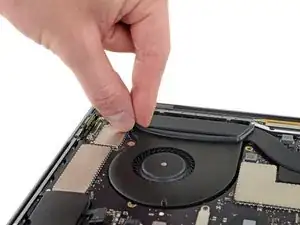
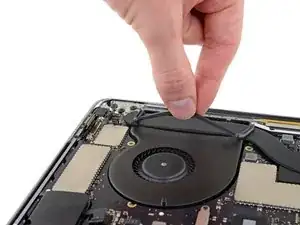
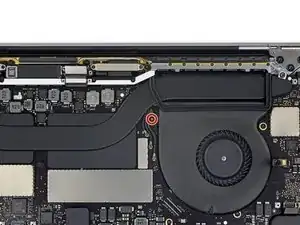
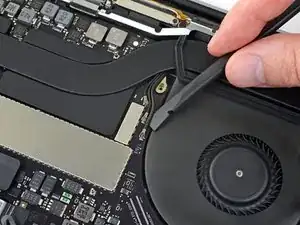
    • Despega (pero no quites) las dos bandas de goma que amortiguan las vibraciones del adhesivo que las sujeta a los ventiladores.

    • Si es necesario, aplica un poco de calor con un iOpener, un secador de pelo o una pistola de calor para suavizar el adhesivo y hacer que los amortiguadores sean más fáciles de separar.

    Only needs to be lifted from the fan, not from the heat pipe, and gently. If the rubber “end connector” comes out from underneath the heap pipe, do not worry, it can be easily positioned back in place when the logic board is out! Do not spend time trying to push it back now.

    Cristian Caprar -

    The damping strips came off completely. May try electricians tape.

    Spot -

  48. bcluJR2UCXLJxgfb
    bcluJR2UCXLJxgfb
    hnbaWOydCOXmkDeL
    • El ensamblaje de la placa lógica tiene un espacio muy justo, pero puedes facilitar la extracción insertando un spudger debajo del borde izquierdo y levantándolo ligeramente.

    • No debe haber resistencia al retirar la placa lógica. Revisa todos los cables con cuidado y manténgalos fuera del camino si es necesario para que no se enganchen en el tablero.

    • Levantando desde el lado izquierdo, remueva la placa lógica.

    A headcount for all the connectors that need to be exposed when reassembling would be really useful here. I count 15. If you have less you’ve missed something.

    Dom -

    This connection is VERY easy to forget when you reassemble. If you go to startup your computer and you see the battery icon but the computer will not start with the power button, this is the connection you missed when reassembly. Drove me nuts until I figured that one out!

    deancuebas -

    Absolutely DO NOT lift the board by the cables as the picture might lead you to think!

    Also, when lifting up the board, if you feel any resistence, make sure that:

    - all the screws were removed!!

    - move cables and connectors gently away in the area where you are lifting, they can easily catch the logic board and it feels immediately resisting the lift

    After lifting the left side to be able to keep it between your fingers, work toward the middle and then the right, moving the connectors and cables away to free the board for lifting.

    Cristian Caprar -

  49. eaE1LcKyeGlRX5Lg
    eaE1LcKyeGlRX5Lg
    MCXjqeVth1oGdxRB
    nY5quQ14lguHLevW
    • Al reinstalar el ensamblaje de la placa lógica:

    • Verifica la alineación de los amortiguadores de vibración de goma y ajústalos según sea necesario.

    • Pasa el manojo de cables de la antena a través de la grieta entre la placa lógica y el disipador de calor, y asegúrate de que se alinee correctamente al colocar la placa en su lugar.

    • Verifica que no haya cables atrapados debajo de la placa cuando la instales. Revisa cada lugar marcado con cuidado.

    Start from the right, position it down in place and make sure the cables are not under the board, then get the antenna cables from beneath with tweezers, then work to the left, paying attention to get the cables away so the board can go down in place.

    Cristian Caprar -

Conclusión

Para volver a ensamblar tu dispositivo, sigue estas instrucciones en orden inverso.

Jeff Suovanen

Miembro Desde 06/08/13

407920 Reputación

0 comentarios