Introducción

Si el ventilador en tu iMac de 21.5" Retina 4K de 2017 (EMC 3069) está dañado, fallando o tapado completamente de polvo, usa esta guía para reemplazarlo y que tu iMac regrese a una operación fría y silenciosa.

Algunas imágenes de esta guía usan un iMac de 2015, que tiene diferencias visuales menores. Estas diferencias no afectan el proceso de reparación.

  1. SrDNTSYqyhGMRNDC
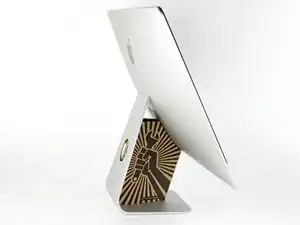
    • Con la bisagra libre para moverse, el iMac estará desequilibrado y será difícil de trabajar. Las reparaciones son rápidas y fáciles con una cuña iMac, pero se pueden completar sin una.

    • Si estás usando la cuña de servicio iFixit, sigue estas instrucciones de ensamble para armarlo.

    • Antes de comenzar el trabajo en su iMac: Desenchufe la computadora y mantenga presionado el botón de encendido durante diez segundos para vaciar los condensadores de alimentación de energía.

    • Sea muy cuidadoso de no tocar los cables del condensador ni las juntas de soldadura expuestas en la parte posterior de la fuente de alimentación. Solo toque la tabla por los bordes.

    The wedge is an extremely tight fit for this model. I was worried that the amount of force needed to use it as shown might damage the stand, so I used it with the long side down instead. It worked fine that way and didn’t need anywhere near as much force to insert.

    roberttrevellyan -

    Here’s a good YouTube vid on upgrading the RAM: Can a Normal Person Upgrade the RAM in the 2017 21.5" iMac?

    Dan -

    Here are a couple tips from me:

    1) Expose the adhesive to extreme temperatures. I did this by transporting my iMac in my car, screen-down on a piece of cardboard on a cold February morning (in Chicago). When I went to pick up the iMac, the screen practically fell off the chassis. I would have been distraught by this if I hadn’t already planned this replacement. So it was a happy accident.

    2) Remember to expell the residual power from the power supply by pushing the power button while the iMac is unplugged. This does NOT guarantee it’s safe to touch, but when I accidentally brushed the solder and exposed capacitors, I didn’t get shocked.

    jerrid_foiles -

    Instead of using the wedge, I placed the iMac faced up with the top side (web cam) facing me while I ran the pizza roller around. It worked out great!

    Sam Fung -

    “All iMacs also come with a traditional hard drive” mine doesn’t!! it’s HDD bay is completely empty, no SATA cable or anything. I guess I’ll have to upgrade the PCIe SSD instead.

    Chris Hughes -

    There is no replacement glass for this model, it is part of the LCD and impossible to remove or replace- the entire LCD has to be replaced unfortunately if the glass is cracked or damaged. You will have to Google search for a replacement. Also be careful with some of the lock tight tork screws as I broke one of my screw mounts taking one out.

    Phil Tesone -

    I used this service wedge but also found it a very tight fit. The same stabilization can be achieved by using a big rolled up towel.

    Ernst -

    While this is a good instruction guide, I recommend to also look at OWC’s instruction video about drive installation, before starting the exercise. Those install videos are very detailed and useful.

    Ernst -

    Main advice: TAKE YOUR TIME with the pizza roller.

    Make several passes, until you really feel like there's no more sticker in the way. Stay away from the camera though (approx. 1inch / 2.5cm on both sides). This will reduce the work left with the plastic card. Adhesive is really on the edge of the screen so there is absolutely no need to go any further than the recommended 1cm / 3/8inch depth.

    Where are the sensitive parts?

    Facing your iMac, imagine you're looking at a watch. There are antennas on 1, 2 and 4 o'clock. Do not insert any metal piece there (nor anywhere else, btw). Other than that AND the screen cables underneath the camera, not much danger.

    Froggy Manny -

  2. QPZ14vf5mNSObPx1
    QPZ14vf5mNSObPx1
    1KAQXZNy65Y1ferW
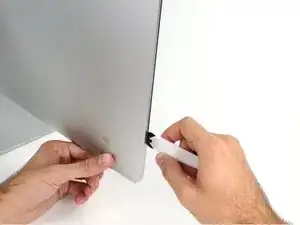
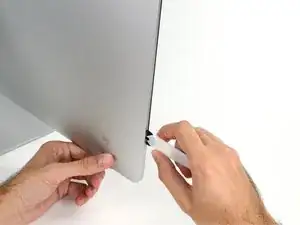
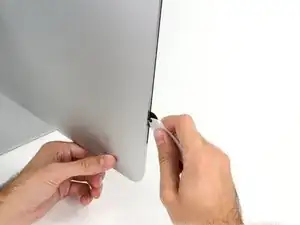
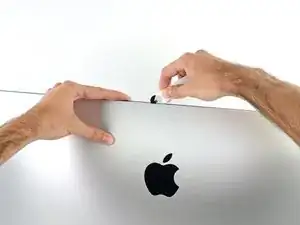
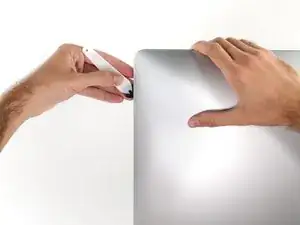
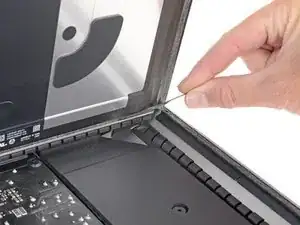
    • Comenzando a la izquierda de la pantalla, cerca del botón de encendido, inserte la herramienta de apertura iMac en el espacio entre el panel de vidrio y la carcasa trasera.

    • El centro de la herramienta de apertura iMac evitará que empuje demasiado la rueda. Si usa una herramienta diferente, inserte no más de 3/8 "en la pantalla. De lo contrario, corre el riesgo de cortar los cables de la antena y causar daños graves.

    Don’t get too worried about starting exactly where the picture says. The glue is stronger in some parts so just start wherever is easier and then work slowly and patiently around in the direction shown.

    Richard Cook -

    As this guide doesn’t cover replacing the adhesive strips, I found referring to the following was useful (noting that it’s not for the same model of iMac, so the modification they mention wasn’t necessary): Reemplazo de tiras adhesivas de la pantalla de iMac Intel 21.5"

    Alan Digby -

    It is very easy to crack the glass in front of the LCD during this step. I used the guitar pick, maybe it was too thick… crack is just on the frame but anyway it is disappointing :(

    Nikolay -

    This part of the exercise should be done with extreme patience. I took my sweet time with the opening tool, rolling it through the entire panel and enclosure gap over and over again, until I was very sure no parts were sticking together anymore. And when I thought I was I done, I decided to do it over again.

    Ernst -

    You can "warm up" the adhesive before try to cut it with the tool using a hair dryer. Heat the edges for about a minute, keep moving it so you don't cause stress in the glass. Also the above note.. use the tool and then the cards. Do not use a guitar pick or other objects as the thickness will cause you to break the front glass, which is a bonded part of the display (expensive).

    Carl Schultz -

  3. SdaoaCo1EmiD4NqV
    SdaoaCo1EmiD4NqV
    eOsvYmvle2iDrZvZ
    LS2Bi6uDXDmSSIOJ
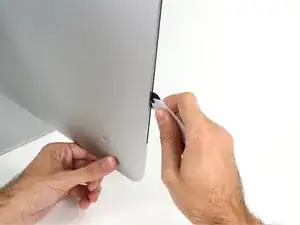
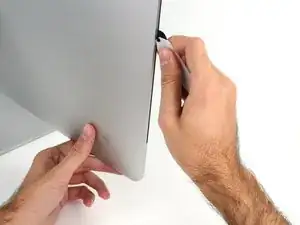
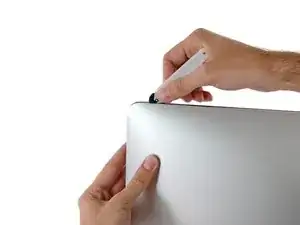
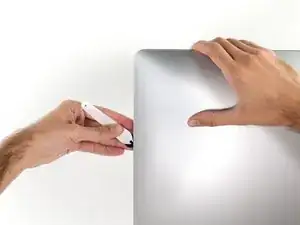
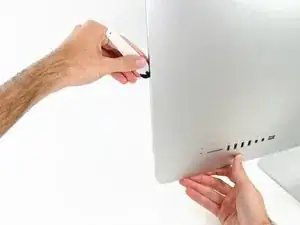
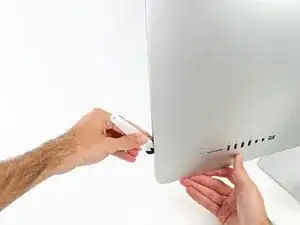
    • Use la herramienta parecido a un cortador de pizza: gírelo a lo largo de la abertura para cortar el adhesivo de espuma por el centro.

    • Asegúrese de empujar siempre con la manija detrás de la rueda de corte. Si tira, la rueda podría salirse del mango.

    • Mueva la herramienta hacia arriba a lo largo del lado izquierdo de la pantalla.

    Erreur de traduction: "de bas en haut" et non de" haut en bas" sur le côté gauche de l'écran

    Moreau -

    If re-opening a screen that was opened and re-attached using iFixit’s adhesive strips, I would strongly recommend heating it first with an iOpener, heat gun or hair dryer. 20 minutes after attaching with the iFixit adhesive I tried to open it again with the pizza slicer to fix something and cracked the screen on the left-hand side.

    plasticpool -

  4. r1eMkSSjJdpmWr1B
    r1eMkSSjJdpmWr1B
    d6iAMVdqVUdnvYnD
    PsnDnjYNWucTLycx
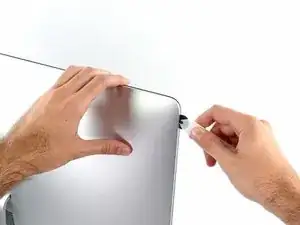
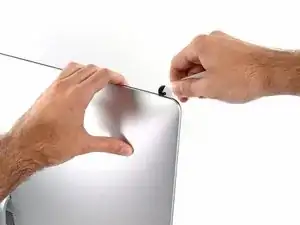
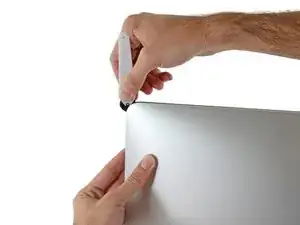
    • Siga moviendo la herramienta hacia arriba alrededor de la esquina superior izquierda

    Ne pincez pas l’écran avec l’autre main. Vous exercez une pression inutile sur le verre et empêchez la roulette de couper le joint.

    phfoglia -

  5. sZNVaGR3f2vruyLS
    sZNVaGR3f2vruyLS
    HDO3QbYuc4krqwHX
    • Corte el adhesivo a lo largo de la esquina superior izquierda de la pantalla.

  6. vSKcLcMFSZoPp6Gp
    vSKcLcMFSZoPp6Gp
    uiuQPD3lViaQODlB
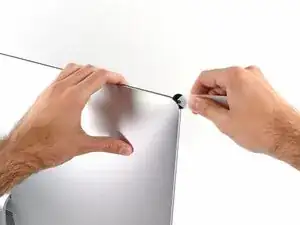
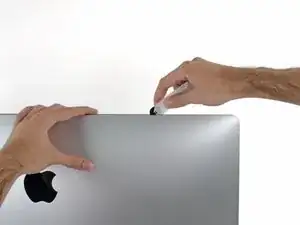
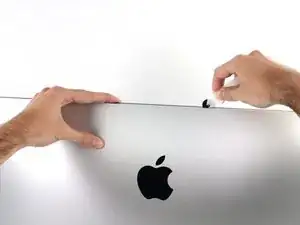
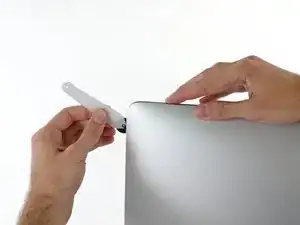
    • Continúa por la parte superior de la pantalla.

    • Es posible que desee mover la herramienta hacia adelante y hacia atrás a través de lo que ya ha cortado varias veces, para asegurarse de retirar la mayor cantidad de adhesivo como sea posible.

    In this step can I cut along the display without make any damage to the front camera?

    arisnordico -

    Hi! Actually - there is no need to cut the tape around the camera area - there is no tape to cut at all! And so, the way go is easy - just pass 10 mm to the left and to the right from camera and start cutting!

    P.S. Just did the whole procedure to replace a RAM and to add SSD on PSIe an hour ago! Seems to be different reading the instructions... you know - 2/10 and so on. But it's really not that hard, trust me. I'll give it 5/10.

    P.P.S. By the way there is one trick to pass the difficult steps. Any action which requires pulling smth (motherboard, speaker, power supply unit) from the narrow crack (or should i say - slit?) at the bottom of your Imac is really not so easy.

    And the trick is to first remove a thin metal stripe with some kind of insulation on it which held by 5 small (very small!!) screws at the bottom of your Imac. After you done it - it's easy to pull everything! Pay attention to the fact that one of this 5 screws at the center are more shortly than others.

    dv1977 -

    I did all steps like this manuell but now the Display wont work only some colered strips are to see! Whats happend??

    Can anybody help me ? Maybe the connector cable is broken?

    djfanta -

    Check both connectors, probably one of them not seated well

    pzhivulin -

    You can add a SATA SSD if you already have a PCIe SSD Factory?

    kaserlik -

    If you're changing cracked EMC 2638 display to new assembly, there's two more steps:

    Step 24: Use the tip of a spudger to flip up the metal retaining bracket on the display data cable.

    Carefully pull the display data cable from its socket on the display assembly.

    Step 25: Use the tip of a spudger to unplug bracket of the thermal sensor small cable near display data cable.

    Carefully remove scotch tape covering thermal sensor. Using iSesamo or flat tip of the spudger carefully peel the thermal sensor away.

    pzhivulin -

    omg - forgot to switch the termal sensor from the old display...

    now fan runs like crazy...

    Andrei Balotescu -

    The key thing is to never put any force on the opening tool when working through the tape. Just roll it back and forth with ease.

    Ernst -

  7. eDPbRqQfKjS4oUnZ
    eDPbRqQfKjS4oUnZ
    qm5g46NqRXJjxaVm
    krs4wdofACqDD6Ju
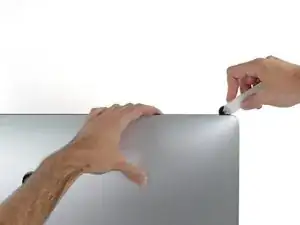
    • Empuje la herramienta alrededor de la esquina superior derecha de la pantalla.

  8. 3c3b2XusJDWQekW6
    3c3b2XusJDWQekW6
    NGOHPeVZ52OQCRWQ
    • Mueva la herramienta hacia abajo a lo largo del lado derecho de la pantalla.

  9. SAgRGwk3lGGO3ZCH
    SAgRGwk3lGGO3ZCH
    1DLPSpBELT2mxJok
    • Finalice empujando la herramienta de apertura hacia la parte inferior del lado derecho de la pantalla.

    • En este punto, se recomienda volver a pasar la herramienta en toda la pantalla para asegurarse de cortar la mayor cantidad de adhesivo posible.

    Yes, do it many times to loosen the adhesive.

    Noah Ralston -

    Would be good data to show the 3 areas (wifi antennas where the "tape" is larger and covers them. The rest of the "tape" is 1.4" and easy. Also after removing the display, be sure to remove the old "tape" from both the display and the rubber parts of the case. Use the spudger to start an end and it should pull off easily. Careful on the baackside of the display as you can scratch off the black paint/covering.

    Carl Schultz -

  10. HVK2HNgts1D53wOs
    HVK2HNgts1D53wOs
    QrZMXcap4the5yXk
    hZXQgXJhIoKTxBwH
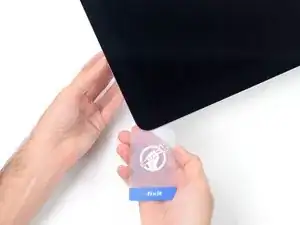
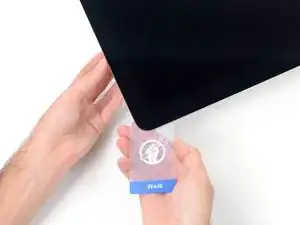
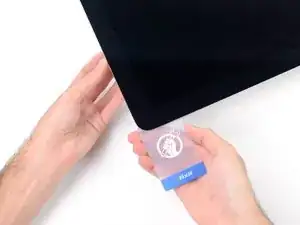
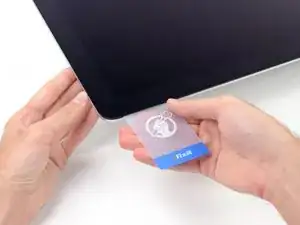
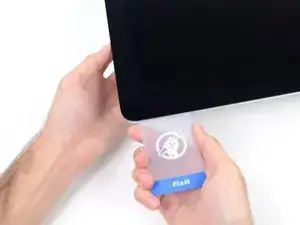
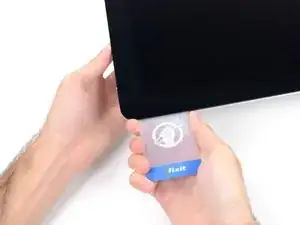
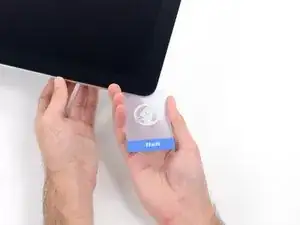
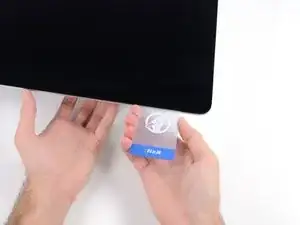
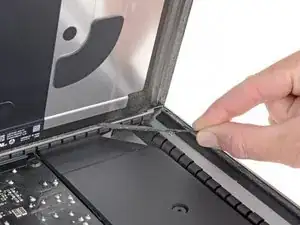
    • Mientras que la herramienta de apertura corta la mayor parte del adhesivo, la pantalla aún estará ligeramente adherida a la caja. Se necesitará una tarjeta de plástico para liberar el último adhesivo.

    • Coloque el iMac boca arriba en una mesa.

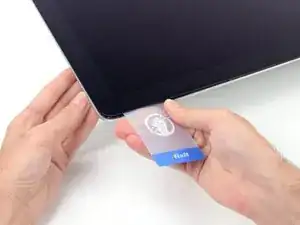
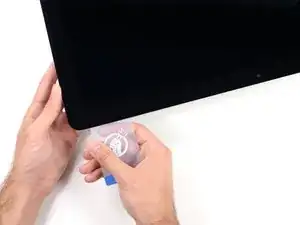
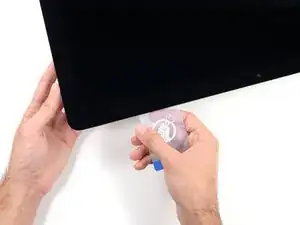
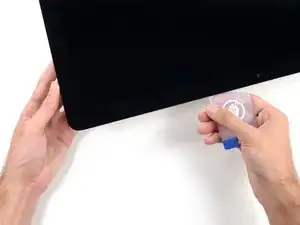
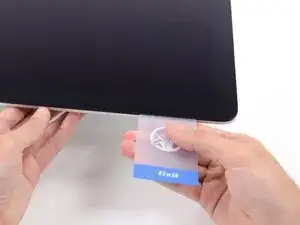
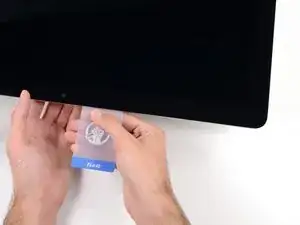
    • Comenzando desde la esquina superior derecha del iMac, coloque una tarjeta de plástico entre la pantalla y el marco.

    • Tenga cuidado de NO insertar la tarjeta de plástico más de 3/8 ", o puede dañar los componentes internos.

    this step is extremely important NOT to stick in the cards too far….. doing so, you risk a 600 euro replacement as I experienced………

    Edgar Broekema -

    I drew a 3/8” line on my cards with a marker first.

    Max Romano -

    I’m reading this on the EU store, please change all measurements to cm/mm.

    Morgana Devina -

    @ifixit The next batch of cards you create should have a line printed on the card 3/8” in from the edges. Would make a nice reference.

    Richard Giratd -

    Here’s where OWC provides glass removal suction cups, which is a better solution than plastic cards.

    The suction cups help to easily lift the glass panel, without risking the damaging of any internal wiring that the plastic cards could cause.

    Ernst -

    Better to remove stand wedge at this point? Can’t see from pics

    derekrobinson -

  11. wUjiMGtv2IpkNB5p
    wUjiMGtv2IpkNB5p
    LncJQeQQOAvg3CMA
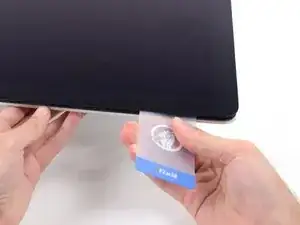
    • Gire suavemente la tarjeta de plástico hacia los lados para crear un espacio entre la pantalla y el marco.

    • Muévase despacio y tenga cuidado de no estresar demasiado el cristal de la pantalla; solo necesita hacer un espacio de aproximadamente 1/4 ".

    This part must be done very carefully or you can damage the flat cable from display, despite it was under a iron cover.

    Cassio Machado -

  12. qmVJHqIxctiuCbE5
    qmVJHqIxctiuCbE5
    6PF3COgq44osRMSX
    1nZLqZWsCa1xRTOR
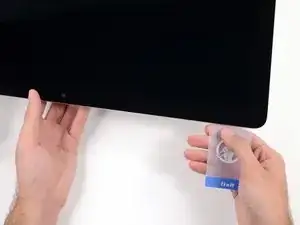
    • Deslice la tarjeta hacia el centro de la pantalla para cortar el resto del adhesivo a lo largo de la esquina superior derecha del iMac.

    • Asegúrese de detenerse antes de la cámara iSight, o puede dañarla.

    You don't need to do it like this, simply open the iMac bendidng the LCD completely and use the pizza cutter to remove the adhesive.

    Felix -

    Using glass removal suction cups will avoid running this risk of damaging the camera (or any wiring).

    Ernst -

  13. pwG3JFqqfxxQXLID
    pwG3JFqqfxxQXLID
    wKv4nNrdklsj61AD
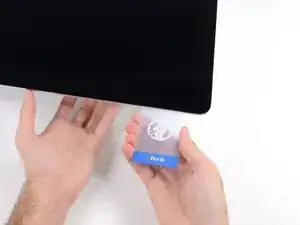
    • Vuelva a acuñar la tarjeta de plástico en la esquina superior derecha y déjela allí para evitar que el adhesivo se mueva.

  14. B1l4C4H1WK3CwfsH
    B1l4C4H1WK3CwfsH
    5gnKwfWW1K2gnkAY
    dU3V1S5PiPpZoiRX
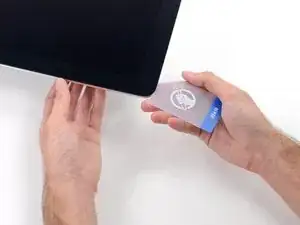
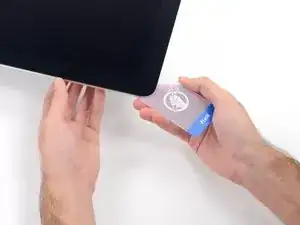
    • Inserta una segunda tarjeta de plástico en el espacio entre la pantalla y el marco cerca de la esquina superior izquierda del iMac.

  15. 1eeYyLOXUgoVdMcU
    1eeYyLOXUgoVdMcU
    XNwnBG1I3otkGVaj
    • Gire suavemente la tarjeta hacia arriba, aumentando ligeramente el espacio entre la pantalla y el marco.

    • Al igual que con el otro lado, gírelo lentamente para permitir que el tiempo del adhesivo se separe, y tenga cuidado de no sobre tensar el vidrio de la pantalla.

  16. 1AtMSKY35dfSoyov
    1AtMSKY35dfSoyov
    eYI56QJhkhMLdtyx
    oVDneBvJQXNCvQpC
    • Deslice la tarjeta de plástico hacia el centro, deteniéndose de nuevo justo antes de la cámara iSight.

  17. KlhOFUANthUfPZrW
    KlhOFUANthUfPZrW
    KGDDBwLWXguRGlso
    • Cuña la tarjeta de plástico en la esquina superior izquierda.

  18. xXVPepFcNBfFlYLm
    xXVPepFcNBfFlYLm
    mJWDXXcMCnL6OwqX
    lGcKi3n1DVFdANJw
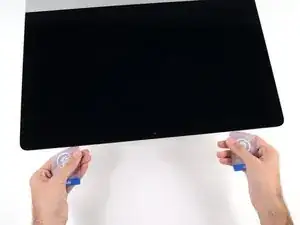
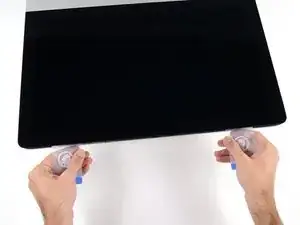
    • Con ambas tarjetas de plástico insertadas como se muestra cerca de las esquinas, gire suavemente las tarjetas hacia los lados para aumentar el espacio entre la pantalla y la carcasa.

    • Si hay secciones que parecen adherirse y no se separan, deje de girar y use una de las tarjetas para cortar el adhesivo restante.

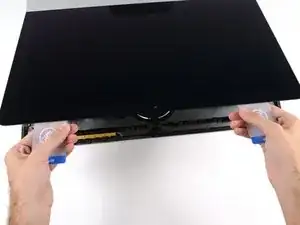
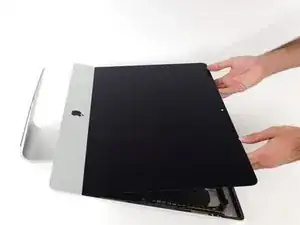
    • Comience a levantar la parte superior de la pantalla desde el marco.

    • Solo levante la pantalla unas pulgadas: los datos de la pantalla y los cables de alimentación todavía están conectados a la placa lógica.

  19. 2CYaRvZMKD1MHJWF
    2CYaRvZMKD1MHJWF
    fHCLPYQIpP4EVOLZ
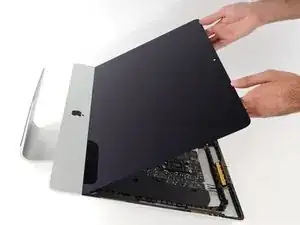
    • Levanta la pantalla lo suficiente para tener un acceso fácil al conector, pero no demasiado, ya que estirarías los cables y forzarías sus conexiones (levántalo menos de 20 cm.)

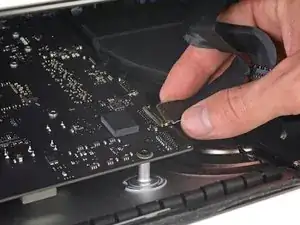
    • Sostén la pantalla con una mano, mientras usas la otra para desconectar el cable de energía de la pantalla.

    It was difficult to remove this connection. I ended up having to gently pull-up vertically a little on the wire side to unsnap it about 1mm and then horizontally wiggle it out.

    delacrj2 -

    I had a difficult time removing this connection. I had to lift the wire-side about 1mm before it unsnapped and then carefully wiggle it out horizontally.

    delacrj2 -

    Can this cable be replaced? I am worried mine is damaged. I have no display after the screen fell and stressed the display flex cables following an SSD upgrade.

    Jeremy Brainard -

    This step should be done with extreme caution and care, as this step 19 is not described in great detail (sorry, author).

    The first (most outward) cable will slide out by gently pulling it by its tabs. The second (inner) cable is more tricky, as the locking lever must be moved backward first, before gently pulling backward on the cable connector. The angled tweezers are useful here, to help lift that locking lever, because fingers are too big for this.

    Ernst -

    be VERY careful and SLOW...take your time. These displays crack VERY easily when removing and they'll spider web on you. I've done probably 20 or so of these and cracked 3 being super careful.....ugh.

    Faslane -

    I found the best way to unplug this display power cable was to use my right hand, and the fingernails of my index finger and thumb to grab the ends of the tabs on either side of the connector, squeeze, and pull the connector out gently.

    Phil McInnis -

  20. Zh56FQPLtH1qJkBF
    Zh56FQPLtH1qJkBF
    RuoSZ5iXxQqvKfcF
    MuEuntgC4FjFNuDJ
    • Continúa sosteniendo la pantalla con una mano, mientras muevas hacia arriba el soporte de metal en el cable de datos de la pantalla.

    • Con cuidado tira el cable de datos de su zócalo en la placa lógica.

    • Asegúrate de quitar el conector del cable hacia arriba, manteniéndolo paralelo a la placa base, para evitar dañarlo.

    Cannot seem to find a replacement cable for this, as I suspect mine is damaged. Can’t even find a part number. Anyone know what it might be?

    Jeremy Brainard -

    https://www.amazon.com/gp/product/B08TTL...

    That's the part I ordered for mine and it seems to work ok. I did make a point of contacting the seller and advising them of my requirement and they ensured I got the right part and it matches the description of the link. Bear in mind I bear no responsibility if yours does not work since I am just sharing what I did and what I ordered. Thanks.

    Jim Stanford -

    I also need that cable.

    cameronjpu -

    It's a little difficult to tell... but looking at the connection to the logic board on the video data cable, are the pins faced up or down?

    On the display, same question since it appears you have to "twist" the cable during the reconnection step.

    Jim Stanford -

    For this particular cable, take a good look before pulling on anything. Plug is locked on its socket with a bracket. You can lift this bracket by holding the small, flat black plastic handle that is attached to it. If you're struggling to grab it, use the end of the pizza roller handle to lift it, or the tweezers. Cable then comes off by pulling parallel to the main board.

    Froggy Manny -

  21. faYLZCcUqNgfLImh
    faYLZCcUqNgfLImh
    fTsCL5NUphoD5vbV
    • Levanta la pantalla en una posición casi vertical.

    • En este punto todavía hay una tira adhesiva en la parte inferior de la pantalla que mantendrá la pantalla al marco como una bisagra. Puedes deshacerte de él subiendo y bajando la pantalla varias veces.

    The best way to remove the chin adhesive is to use the tabs at either end (there are two strips that run from each outside corner to near the centre). Carefully pull the tabs up and the strips should peel off.

    Advance Technical Service -

  22. EyrkeRmWKhVr6PQL
    EyrkeRmWKhVr6PQL
    V3KWORppGRpxkZl5
    EEJDoH3W6oKg6nHd
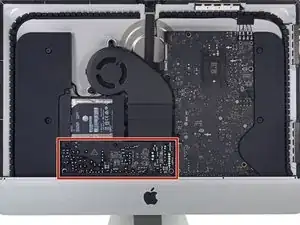
    • Tenga cuidado y no toque ningun capacitor o alguna soldadura expuesta en la parte trasera de la fuente de energía (caja roja)

    • Agarre la pequeña pestaña en el final de uno de las tiras adhesivas de la pantalla del abajo y tire el adhesivo hacia el tope de la iMac para quitarlo

    • Repita este paso con la otra tira adhesiva y retirelo.

    • Si tanto la tira adhesiva se rompe antes de se quite, use una tarjeta plástica para cortar el adhesivo restante.

    At step 21-22, releasing the adhesive strips from the bottom of the display, I noticed a tab on the outer end of each strip. Pull the tab to remove the whole strip, no need to mess around with the plastic cards!

    roberttrevellyan -

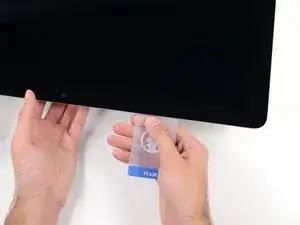
    Instead of the plastic cards, use the flat end of a spudger. Use it as scraper. Be careful as there are antennas mounted on the inside edge of the frame on the right side (facing you), and the top right (facing you). The original adhesive strips are on those as well. - ECJ
    ECJohansen -
    A little bit of hot air (eg. hair dryer) will help soften the adhesive. Use a piece of cardboard or equivalent if you want to avoid blowing hot air towards the electronics.

    Be careful to remove absolutely everything - any remainder will create a bump and prevent your screen from sticking back to the frame when reassembling.
    Froggy Manny -

    A little bit of hot air (eg. hair dryer) will help soften the adhesive. Use a piece of cardboard or equivalent if you want to avoid blowing hot air towards the electronics.

    Be careful to remove absolutely everything - any remainder will create a bump and prevent your screen from sticking back to the frame when reassembling.

    Froggy Manny -

  23. W11PURO2LYnqVMEL
    W11PURO2LYnqVMEL
    4x45fNhvlBjfqU3f
    WstuEbNDdOlFKIns
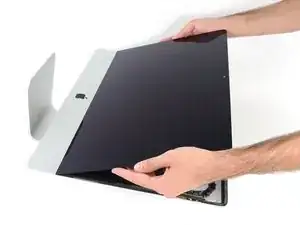
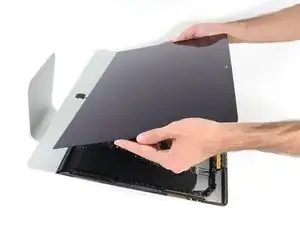
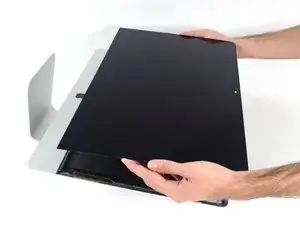
    • Levanta la pantalla hacia arriba del marco y quítala del iMac.

    • Podría ser necesario levantarla lentamente de un lado para pelar el adhesivo restante.

    • Ten cuidado manejando la pantalla; es grande, pesada, y está hecha de vidrio.

    • Después de que el pegamento es cortado, no se puede volver a usar para colocar la pantalla en su lugar. Sigue esta guía para reemplazar las tiras adhesivas que aseguran la pantalla al marco.

  24. IBchvnpx6554SHJh
    IBchvnpx6554SHJh
    jLqgVF2XZOkqBAdw
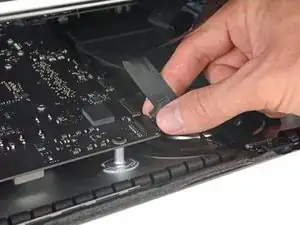
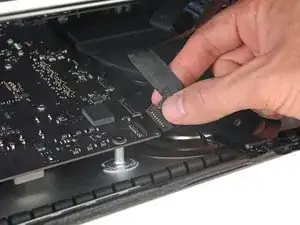
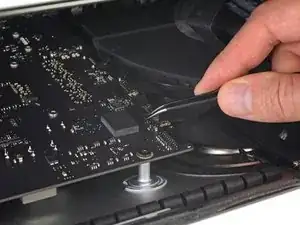
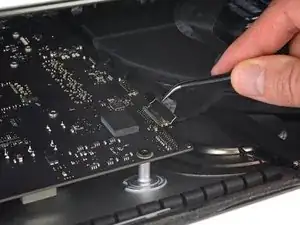
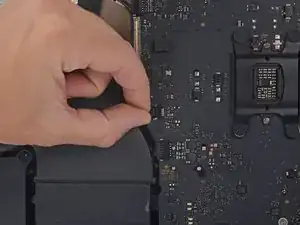
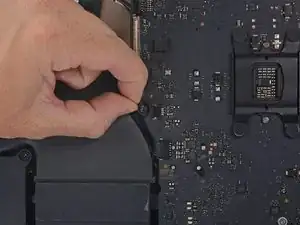
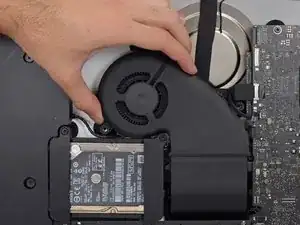
    • Tira suavemente del conector del cable del ventilador directamente desde su zócalo en la placa lógica.

  25. 1gYVUM6CGnCxNNJN
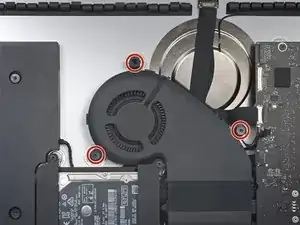
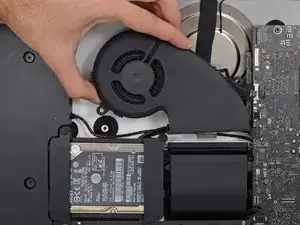
    • Retira los tres tornillos Torx T10 de 10 mm que sujetan el ventilador a la carcasa trasera.

    • El tornillo superior tiene un separador de goma adherido a su cabeza para soportar la pantalla; déjelo en su lugar.

    In this photo the hard drive brackets and tray are fully assembled. But, you’ve just dismantled about half of it already in early steps. This photo is apt to confuse you a bit when you’re doing everything in reverse order.

    Timothy Reynolds -

    Another way to say what Tim said above:

    For reassembly, this picture, showing the hard drive brackets back in place, is misleading. Leave them off still.

    IF, at this stage, you reinstall the hard drive brackets, when you get to the time to reinstall the power supply, you will have to backtrack and take the brackets off.

    Tech Medic -

  26. wnVqqqD5gF6xqW2a
    wnVqqqD5gF6xqW2a
    X5QHlckCAJJWfZJv
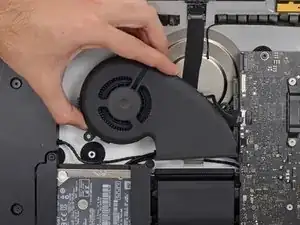
    • Retira el ventilador del iMac.

    For reassembly, this picture, showing the hard drive brackets back in place, is misleading. Leave them off still.

    IF, at this stage, you reinstall the hard drive brackets, when you get to the time to reinstall the power supply, you will have to backtrack and take the brackets off.

    Tech Medic -

Conclusión

Para volver a armar tu dispositivo, sigue estas instrucciones en orden inverso.

Adam O'Camb

Miembro Desde 11/04/15

179519 Reputación

0 comentarios