Introducción

Utiliza esta guía para reemplazar el altavoz derecho en un MacBook Air 2019. Este es el altavoz en el lado de la toma de auriculares de la caja.

  1. 4a1VSQBgdQXAZah2
    • Antes de iniciar este procedimiento, debes desactivar la función de arranque automático de tu Mac. El arranque automático se enciende en tu Mac cuando abres la tapa y puede activarse accidentalmente durante el desmontaje. Utiliza esta guía para desactivar el arranque automático.

    • Si tu MacBook está ejecutando Big Sur v11.1 o posterior, puede que no funcione la desactivación del arranque automático. Puedes proceder normalmente, pero asegúrate de desconectar la batería en cuanto estés dentro.

    • Apaga completamente y desenchufa tu MacBook Air antes de empezar. Cierra la pantalla y pon toda la portátil boca abajo.

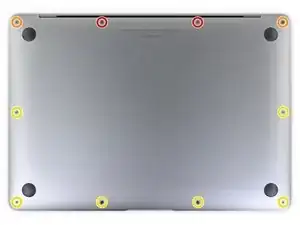
    • Usa un destornillador P5 Pentalobe para quitar los siguientes seis tornillos :

    • Dos tornillos de 7.9 mm

    • Dos tornillos de 7.1 mm

    • Seis tornillos de 2.6 mm

    If the first thing you do is disconnect the battery, is it really an issue if you don’t (or can’t) disable auto-boot?

    maccentric -

    I agree, why disable Auto-Boot when the lid is closed and the battery is disconnected immediately? – I've never had an issue since 2016 when the feature was introduced.

    stevebsiegel -

    On my machine, the longest two screws were in the corners, while the other two long screws were in the middle. Perhaps previous service in the past had them replaced into the wrong place? In any case, the longest screws do seem to fit in either place. I guess 0.8mm is not very much of a difference. Seems like poor design if they could have used one size of screw.

    johann beda -

  2. 4Kra6VLGEa3eGmd6
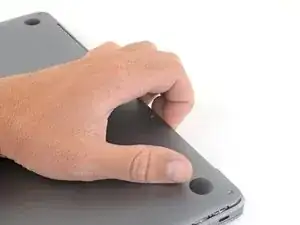
    • Pon tus dedos entre la pantalla y la caja inferior y tira hacia arriba para sacar la caja inferior de la computadora.

    • Remueve la caja inferior.

    Das geht etwas schwer, da das Unterteil mittig noch von 2 Druckverschlüssen gehalten wird.

    facebook -

  3. xVJrmDjjKX3L1VEp
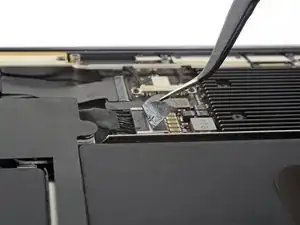
    • Quita la cinta que cubre el conector de la batería lo suficiente como para revelar el conector que hay debajo.

  4. NZT3TL4hoGyeLE6L
    NZT3TL4hoGyeLE6L
    XZ2jGZmJoO1c5OHn
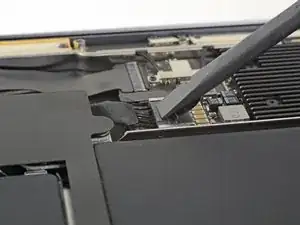
    • Utiliza un spudger para deslizar el conector de la batería en paralelo a la placa lógica y sacarlo de su zócalo en la placa lógica.

    Before the battery can be fully disconnected, the battery disconnect button needs to be held down. There is a gold button just above the battery socket, along with a small LED much like the 12” machines. Once this has been held down and the LED has switched off it is safe to remove the battery.

    Aaron Dalziel -

    This seems like an important step?

    maccentric -

    Also, seems like this should be done after the battery is disconnected, not before? Otherwise, wouldn’t the battery re-charge it?

    maccentric -

    What if the white LED dosent light up after pressing the yellow button again?

    Iron05 -

    I just performed this repair on my late 2018 mac air. I did click the gold button but saw no LED illuminated or otherwise. Question- after reassembly does the button get pressed again to connect the battery? Please clarify if this button is to be pressed and if it needs pressing again after the repair.

    All said - I pressed again after the battery connector clicked, assembled the back and all worked perfectly. The original issue was one dead port (no charge, no communication). The battery charge lightening bold icon was acting funny too. Genuis bar guy in Naperville said it was likely a logic board too. But it was not. The port was apparently confusing the logic board with regards to the charge function. Thanks Adam for saving me $440 and sending my computer back to Apple. I am 71 yrs young - who says an old dog can’t learn new tricks with good training!!

    William Lane -

    I didn't see Aaron's comment before completing the battery replacement. Afterwards, the computer would not turn on despite multiple SMC reset procedures. Upon double-checking the comments I see the importance of pressing the gold button. I pressed the gold button before disconnecting the new battery, then pressed it again after reconnecting for good measure. Computer booted!

    It would be good of iFixit to add this important step as most people probably don't open up every single comment on (seemingly) simple steps.

    Corey Matsumoto -

    Seconding Corey's comment. If paid more attention to the comment section, I would have avoided 15-30 minutes of panic. (BTW I did not notice any LED, but the golden button was easy to find).

    Lorenzo Sorbo -

  5. M5NuVWwtbuMHsrKA
    M5NuVWwtbuMHsrKA
    yUTHlqkZXgWacT5P
    WsoLMMHa2GehHOfO
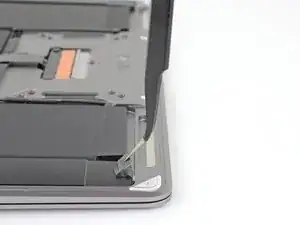
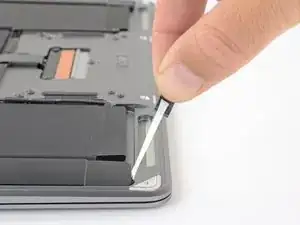
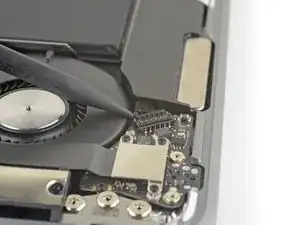
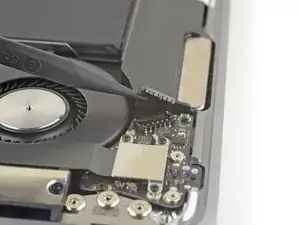
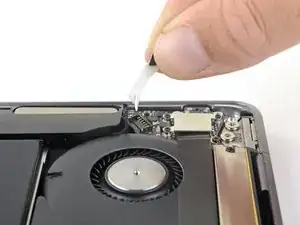
    • Usa un par de pinzas para levantar la lengüeta adhesiva negra de la parte inferior del altavoz derecho, lo suficiente para que puedas agarrarla con los dedos.

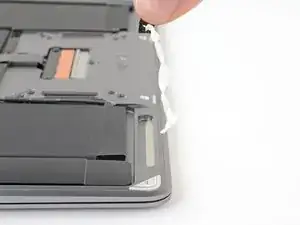
    • Agarra la lengüeta de la tira adhesiva y tira lenta y cautelosamente la tira adhesiva de debajo del altavoz.

    • Mantén el ángulo de la tira adhesiva lo más paralelo posible al portátil. Trata de no arrastrarla por el interior de la caja.

    • Si la tira adhesiva se rompe, déjala dentro y procede al siguiente paso.

    What do you do to get the speaker to stick once you put things back together? Are these adhesive strips reusable? If not, where can we get new ones?

    Ryan -

    The strips will tend to remain edhesive in some cases but if not just use some thin double sided adhesive tape of a similar width. I will not link because I am in Australia but it isn’t hard to find. I used some heat (100°C) and a plastic spudger to aid removal or a hair dryer on lower heat. Slow and steady, it’s not hard. The strips will almost certainly break.

    Peter Newman -

  6. tk6HDG1MsKIfjLsa
    tk6HDG1MsKIfjLsa
    aWUlmkcaWdQyoVaj
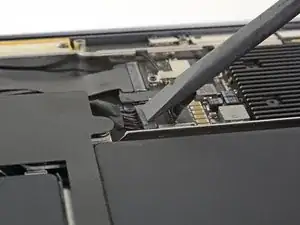
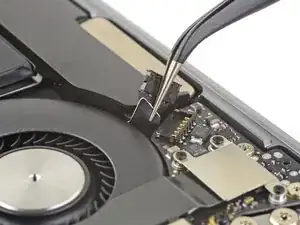
    • Desliza la punta de un spudger debajo del cable del altavoz derecho y haz una palanca hacia arriba para desconectar el altavoz.

  7. suhU4gimGu6fGkrr
    suhU4gimGu6fGkrr
    FeZYC14TEMXb6POp
    nIVk5kJaUjyEN2fH
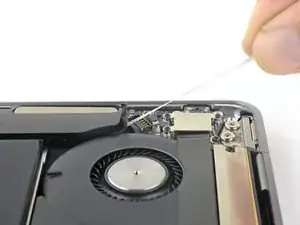
    • Usa pinzas para levantar la lengüeta adhesiva en la parte superior del altavoz derecho lo suficiente como para que puedas agarrarlo con los dedos.

    • Agarra la lengüeta de la tira adhesiva y tira lenta y cuidadosamente la tira adhesiva de debajo del altavoz.

    • Mantén el ángulo de la tira adhesiva tan paralela a la computadora como puedas. Intenta evitar arrastrarla por el interior de la caja.

    • Si la tira adhesiva se rompe, o si la primera tira adhesiva se rompe, usa un iOpener caliente o una pistola de calor para ayudar a quitar el adhesivo:

    • Aplica calor al altavoz para ablandar el adhesivo de debajo.

    • Desliza con cuidado una púa de apertura debajo del altavoz para separar el adhesivo.

  8. wZp4MKOqSyvmEVEk
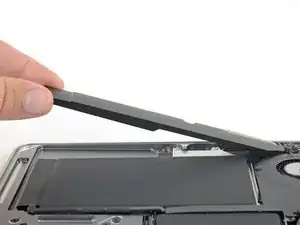
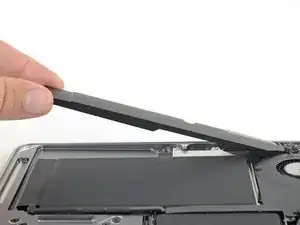
    • Levanta el altavoz derecho desde abajo y retíralo.

    Step 5 the right speaker adhesive broken while removing, other end adhesive slipped out ok. But it's extremely hard to now lift up the battery, feels like I break something if I try harder.

    handsonmac -

Conclusión

Compara la nueva pieza de repuesto con la original. Es posible que tengas que transferir los componentes restantes o retirar los respaldos adhesivos de la nueva pieza antes de instalarla.

Para volver a montar el dispositivo, sigue los pasos anteriores en orden inverso.

Lleva tus desechos electrónicos a un centro de reciclaje certificado.

¿La reparación no salió como planeaste? Echa un vistazo a nuestra comunidad de respuestas para ayuda en la resolución de problemas.

Adam O'Camb

Miembro Desde 11/04/15

179525 Reputación

0 comentarios