Introducción
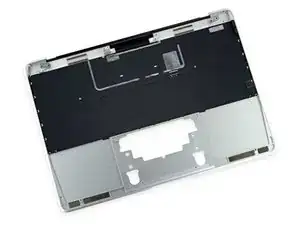
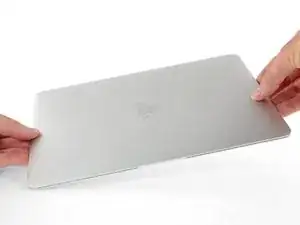
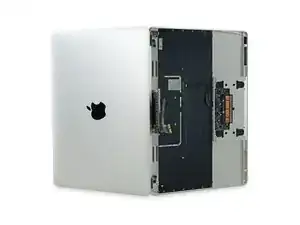
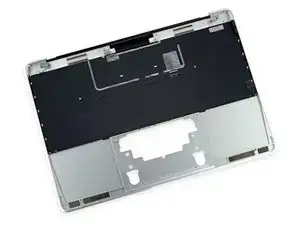
El ensamblaje de la caja superior incluye el teclado. Utiliza esta guía para reemplazar todo el conjunto de teclado/carcasa como una sola unidad.


-
-
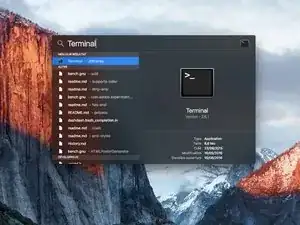
Enciende tu Mac y ejecuta Terminal.
-
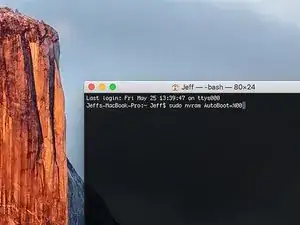
Copia y pega el siguiente comando (o escríbelo exactamente) en la Terminal:
-
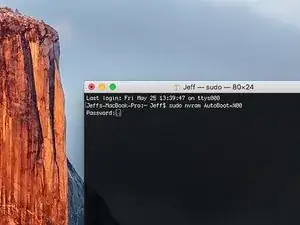
sudo nvram AutoBoot=%00
-
Presiona [return]. Si se te solicita, introduce tu contraseña de administrador y vuelve a pulsar [return]. Nota: La tecla de retorno también puede estar etiquetada como ⏎ o "enter".
-
sudo nvram AutoBoot=%03
-
-
-
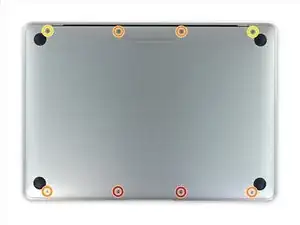
Retira los siguientes 8 tornillos que aseguran el carcasa inferior.
-
Dos 1.8 mm P5 tornillos pentalobulado
-
Cuatro 2.9 mm P5 tornillos pentalobulado
-
Dos 6.1 mm P5 tornillos pentalobulado
-
-
-
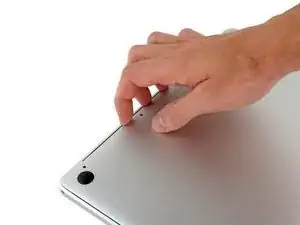
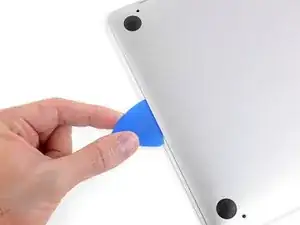
Usa tus dedos como palancas entre la carcasa superior e inferior, empezando por la parte de atrás de la MacBook entre las bisagras.
-
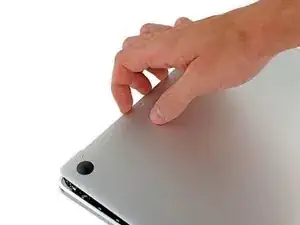
Manten un agarre firme, levanta con firmeza hasta que la carcasa inferior se separe levemente de la carcasa superior
-
-
-
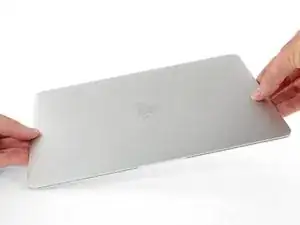
Mientras mantienes la carcasa inferior en su lugar, con cuidado voltea la MacBook para que el logo de Apple quede arriba.
-
-
-
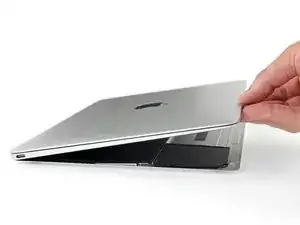
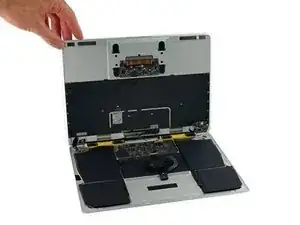
Levanta la carcasa superior y la pantalla juntos desde el borde frontal y levanta a unos 45˚ grados aproximadamente.
-
-
-
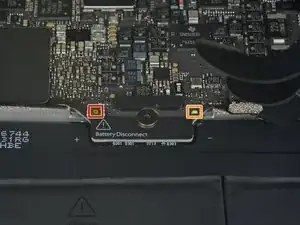
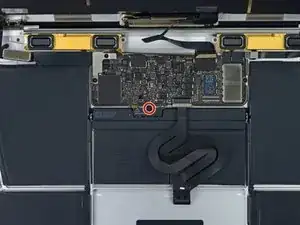
Usa la parte plana de la spudger para presionar y mantener el pequeño botón dorado 'desconectar batería'.
-
Si el LED de poder está encendido, continua presionando el botón hasta que el LED se apague por completo, y luego suelta el botón. Esto puede tomar unos 10 segundos.
-
Si el LED no se ilumina, suelta el botón después de 5 a 10 segundos. Presiona y mantén otra vez por 5 a 10 segundos, luego sueltas. Finalmente, presiona y mantén por tercera vez de 5 a 10 segundos, y suelta.
-
-
-
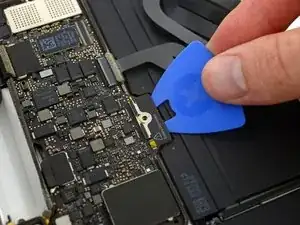
Usa el spudger para levantar cuidadosamente la solapa en el cable del trackpad con conector ZIF.
-
-
-
Desconecta el cable plano del trackpad tirando levemente a través de la ranura de la estructura.
-
-
-
Con cuidado cierra la MacBook y voltea una vez más, para que el logo de Apple quede arriba.
-
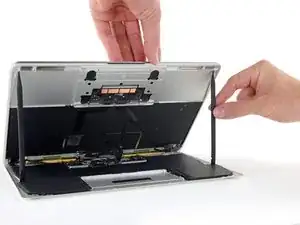
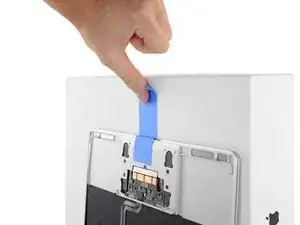
Levantando desde el borde delantero, eleva la carcasa superior/pantalla a unos 90° grados de ángulo, y apóyalo contra algo rígido para que no tengas qué sostenerlo.
-
Agrega una pieza de cinta cerca del trackpad para asegurar la carcasa superior y prevenir movimiento accidentales.
-
-
-
Quita el único tornillo de 2.9 mm T5 Torx asegurando el conector de la batería de la tarjeta lógica.
-
-
-
Como una precaución adicional, puedes desconectar físicamente la batería insertando la púa aisladora de batería entre la tarjeta lógica y el conector de la batería.
-
-
-
Quita los dos tornillos asegurando el soporte del cable del puerto USB-C.
-
Tornillo 1.1 mm Phillips #00
-
Tornillo 3.5 mm T5 Torx
-
-
-
Usa el lado plano de la spudger para desconectar el soporte del cable del puerto USB-C aplicando palanca hacia arriba de la tarjeta lógica.
-
-
-
Desconecta el cable plano de la tarjeta del Jack de Audio tirando su parte plana trasera del conector ZIF.
-
-
-
Si es así, usa el extremo plano de una pinza para sujetar la solapa de retención mientras despegas la cinta con las pinzas.
-
-
-
Utiliza el extremo plano de un spudger para abrir la solapa de retención del conector del cable de la pantalla.
-
Trata de mantenerla libre de la cinta adhesiva, o puede volver a adherirse y dificultar la extracción del cable.
-
-
-
Desliza con cuidado el extremo plano de un spudger por debajo del cable de la pantalla para separar el adhesivo que lo sujeta a la caja inferior.
-
-
-
Usa un spudger para abrir la solapa de retención del conector ZIF para el cable plano del ensamblaje del micrófono dual.
-
-
-
Desconecta el cable plano del conjunto del micrófono tirando de él directamente para sacarlo de su conector.
-
-
-
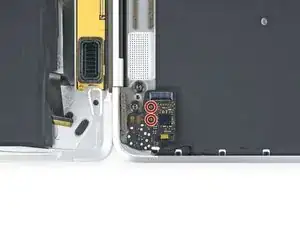
Retira los dos tornillos Torx T5 de 3,2 mm que sujetan la placa del conector de audio a la caja.
-
-
-
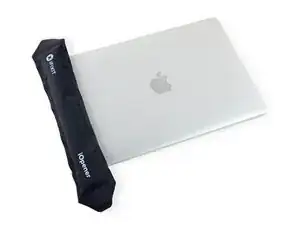
Prepara un iOpener y aplique calor a la carcasa superior directamente detrás del ensamblaje del micrófono.
-
-
-
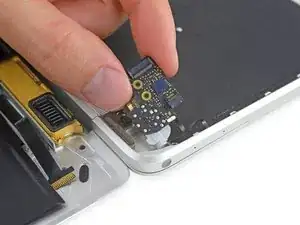
Utiliza una sonda de punta fina o una púa para despegar con cuidado el conjunto de micrófono doble de la carcasa.
-
-
-
Usa la pinzas para levantar el puerto USB-C justo por encima de los tornillos de las bisagras.
-
Desliza el puerto hacia afuera y arriba por encima de la bisagra de la pantalla para quitarlo.
-
-
-
Retira los dos tornillos Torx T5 de 3,3 mm que sujetan el ensamblaje del cable de la pantalla.
-
-
-
Abre completamente la pantalla.
-
Coloca la MacBook sobre su borde derecho con la pantalla de espaldas a ti, como se muestra.
-
-
-
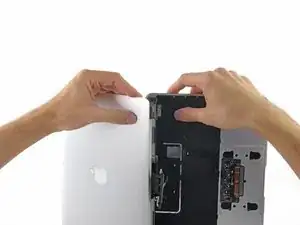
Sujetando el ensamblaje de la pantalla con una mano y la carcasa superior con la otra, júntalos ligeramente para sacar las bisagras de sus huecos en la carcasa superior.
-
Empuja la carcasa superior hacia adelante mientras tiras suavemente hacia atrás de la pantalla.
-
Una vez que las dos bisagras de la pantalla hayan salido de la carcasa superior, retira la pantalla y déjala a un lado.
-
-
-
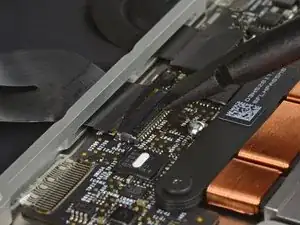
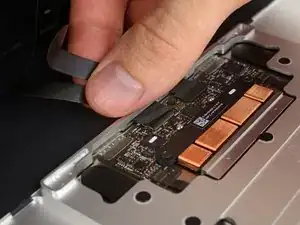
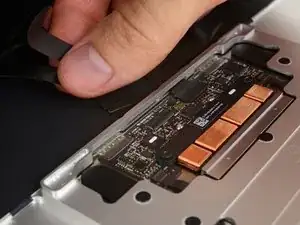
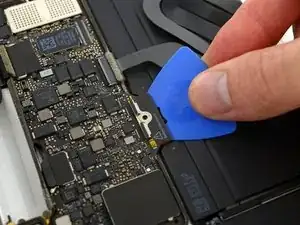
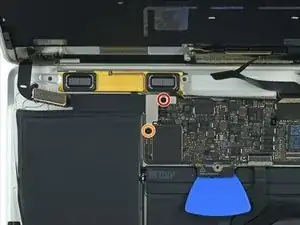
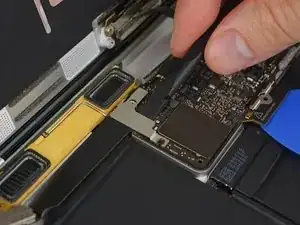
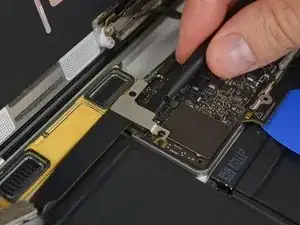
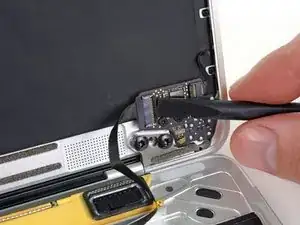
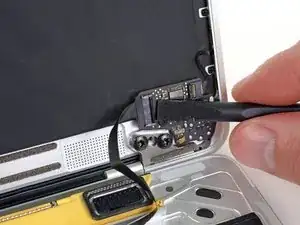
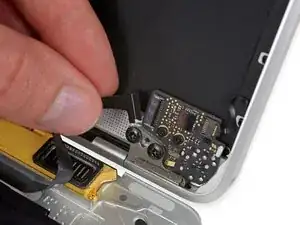
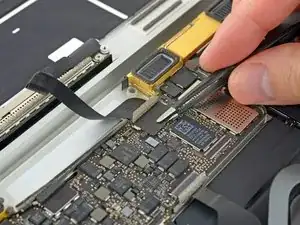
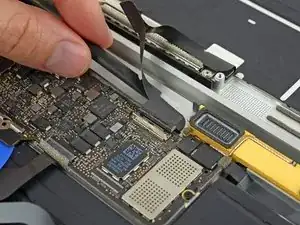
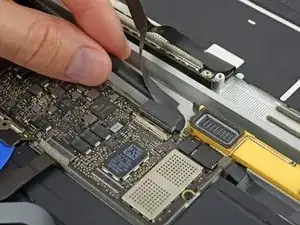
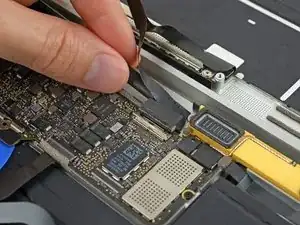
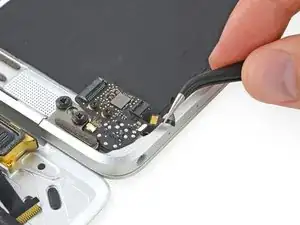
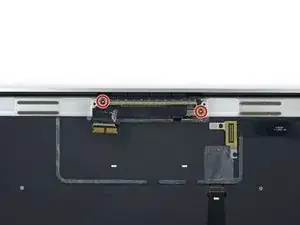
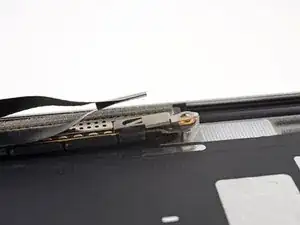
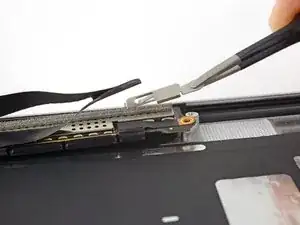
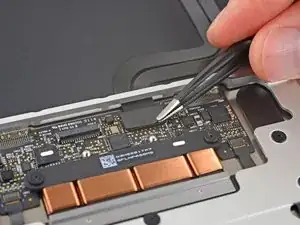
Usa un par de pinzas para quitar la cinta que cubre el conector del cable plano del teclado en el panel táctil.
-
-
-
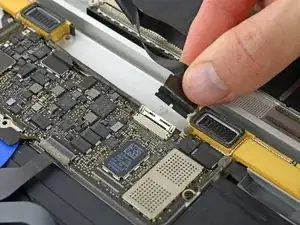
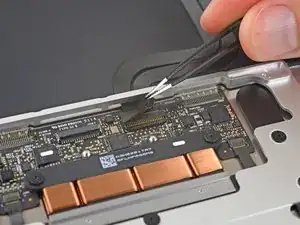
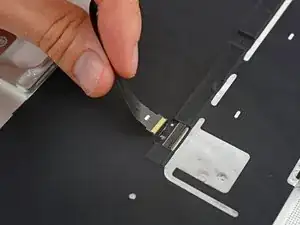
Usando un spudger, abre la solapa de retención en el conector ZIF del cable plano del teclado.
-
-
-
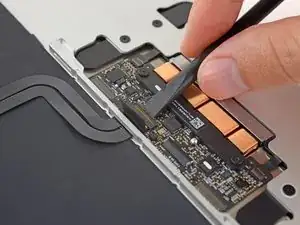
Usa un spudger para levantar la solapa de retención del conector ZIF del cable plano del teclado.
-
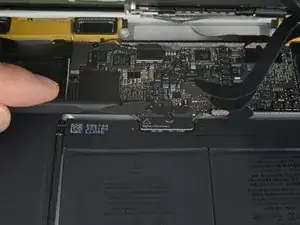
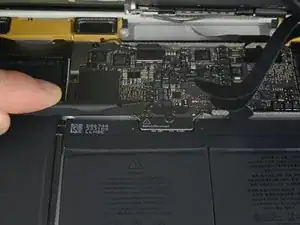
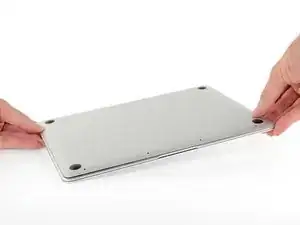
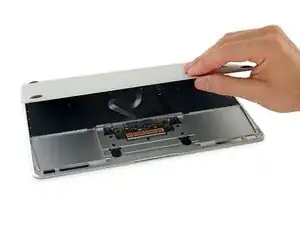
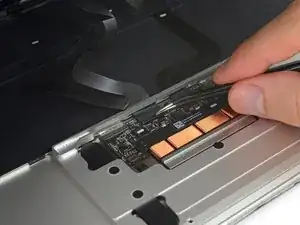
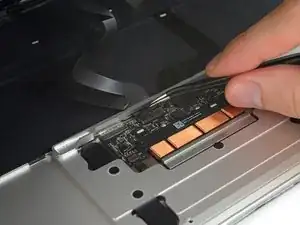
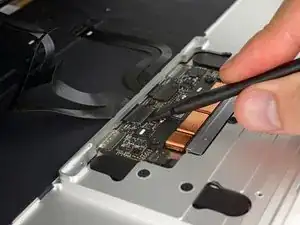
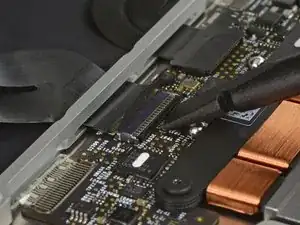
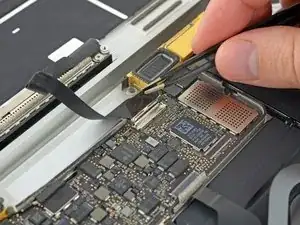
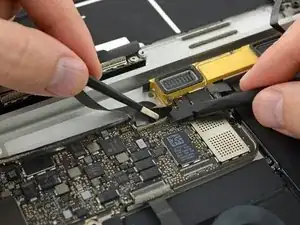
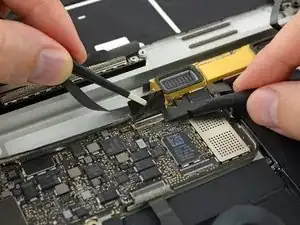
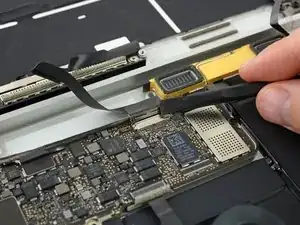
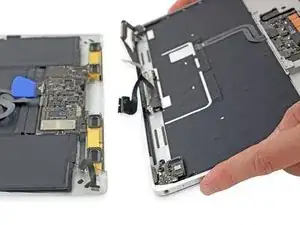
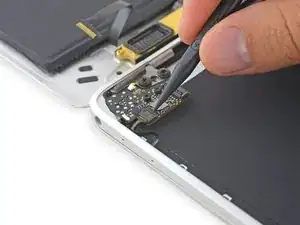
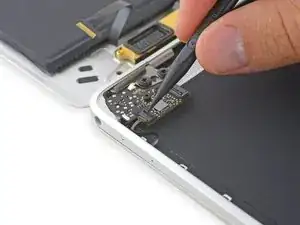
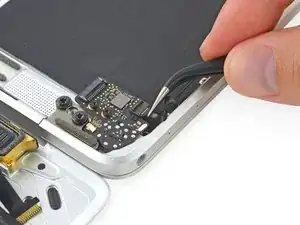
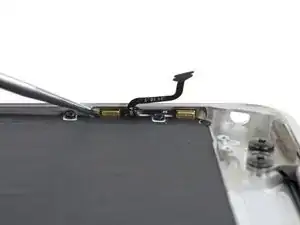
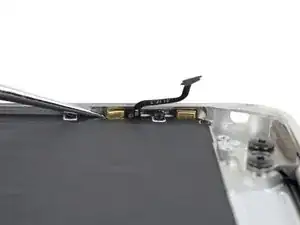
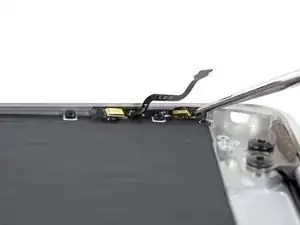
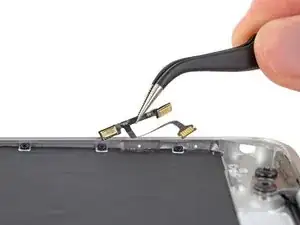
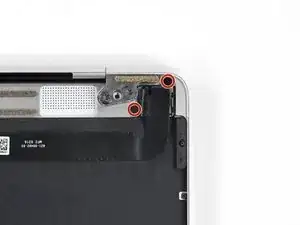
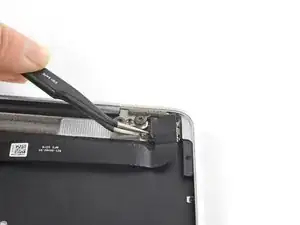
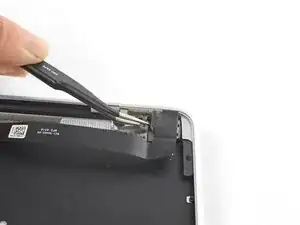
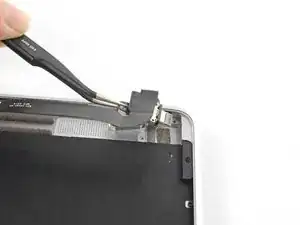
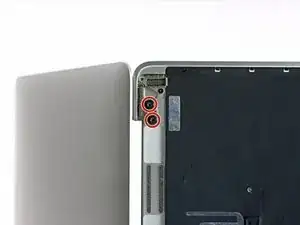
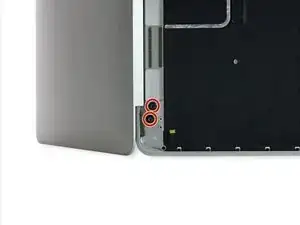
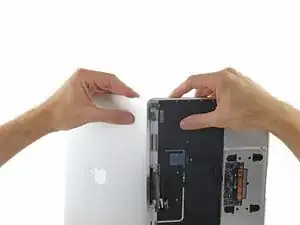
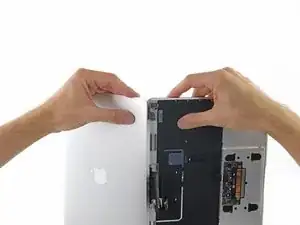
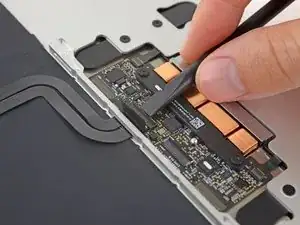
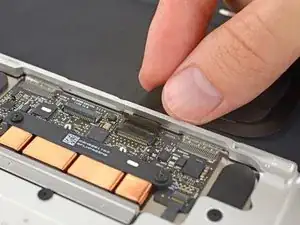
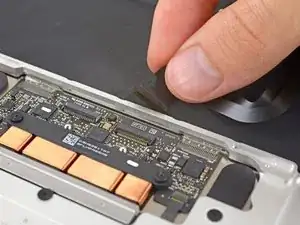
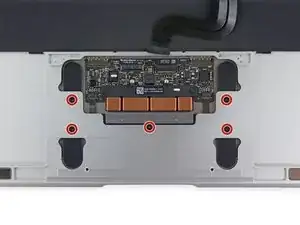
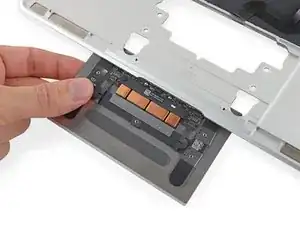
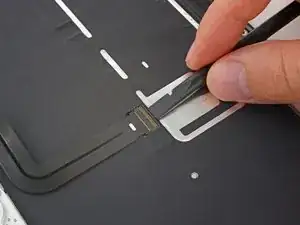
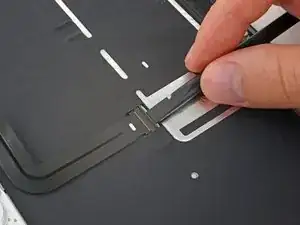

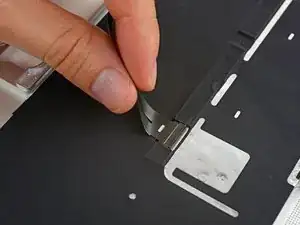
Para volver a armar tu dispositivo, sigue estas instrucciones en orden inverso.

3 comentarios
kann ich mein deutsches Topcase mit einem z.B. UK Topcase austauschen
diese sind leichter zu kaufen und das andere Tastaturlayout wäre auch nicht das Problem
Hallo benny.joos98, es ist sehr wahrscheinlich möglich ein UK Topcase zu verwenden. Frage aber sicherheitshalber noch mal im Forum nach; eventuell hat bereits schon jemand diese Art von Tausch gemacht und kann mehr/genaueres darüber sagen: https://www.ifixit.com/Answers/Device/Re...
Thanks for the guide! Is there any reason I couldn’t change my EU keyboard top case with a US keyboard top case for this model?
Thomas -
Is this step necessary? I can’t perform this step as I am attempting to repair water damage and need to remove logic board & most likely replace the battery.
Macrepair SF -
@mac_medic You definitely don’t want the power coming on while the board is wet. In your case, I think powering on the machine to disable Auto Boot would do more damage than it prevents. I agree, skip this step and be prepared to disconnect the battery quickly if the laptop automatically powers on. Good luck!
Jeff Suovanen -
Thats right! You don't want power running while working on your logic board.
Dan -
This did not work when running High Sierra.
Kyle B -
Tried this on a 2018 MBP 13” Touchbar (there’s no iFixit guide for this model yet). Need to replace a broken screen.
Luckily I managed to connect to an external screen (Cmd-Down Brightness to switch displays) and enter above command. Seems to work, but there’s another problem with this model - it powers up as soon as any key is pressed……. ffs <gnashes teeth>
Cool_Breeze -
I unscrew the battery first and wrap electrical tape over the logic board battery connector before attempting any repairs to the board. Haven’t had any problems yet and I’ve worked on about 10 of these models already. Also when you open the bottom case use a suction cup at the bottom and pull up then run a plastic spudger along the edges to disconnect the clips. Also only use a plastic spudger on the board. Saw a youtube video from a repair shop and he did not disconnect the power and used all metal tools during the entire process of removing the board. His last step was to disconnect the battery terminal.
Brian -
Is this step necessary if my mac can turn on? Battery fully dead(
Nursat b -
BEFORE YOU START: The included torx head stripped off before I was done (and you might need an additional T4) so stop now and go buy a good one. Also they fail to warn you above to get some blue threadlocker ahead of time.
Jason Sherron -
This command did not work for me and I read that sometime in later 2020 Apple stopped this command from working…any ideas on a work around?
Patrick Machacek -
Not able to do that with damaged screen
richardjgreen -
If you have a damaged screen you can still use a converter from thunderbolt (USB 3) to HDMI and plug your Macbook Pro to your TV as monitor display. Just make sure to chose the right Source (HDMI IN) in your TV. I did it and to make it work I unplug and plug again in my Macbook and so I could disable the Auto boot
Roberto Sanchez Bustos -
Hi. This does not work on 2018 13” MacBook Pro with Touch Bar. I did exactly this to disable auto boot. But when I check by using nvram -p it says: auto-boot true. Am I doing something incorrectly? I did everything step by step. Copied and pasted the sudo command, pressed enter and then entered my password. I have Big Sur 11.1 installed. Is there any other way since I need to replace the screen. Thank you. Adrian
Adrian Vizik -
Hi everyone. This is also a little pointless if you can’t see anything on the screen, and you don’t have a display adapter to USB C to display it. I agree with Brian about removing the back and disconnecting the battery cable before you even think about opening the lid of the MacBook. Applying the insulation tape is also a handy little tip that just makes sure there is no way to discharge from either the board or battery.
Roberto Enrieu -
running `nvram -p | grep 'AutoBoot'` in terminal verifies that it was accepted
result: `AutoBoot %00`
Marek Polák -
Running Big Sur 11.6.7 on a 2019 16" MBP, it's "auto-boot". So it's:
nvram -p | grep 'auto-boot'to display the current state, the default istrue- and then to change it,sudo nvram auto-boot=falsewhich turns it off.Ed Mechem -
This step is completely unnecessary if you follow the guide to disconnect the battery properly. Just put some tape between the battery and logic board connection to prevent it from accidentally touching and therefore powering on the laptop.
Grant Ormsby -
It took me a few tries to make this command work, as I was able to copy and paste the command into Terminal, but could not type in my laptop’s password. I finally typed my password into a text document, copied it (command C), and then pasted it into Terminal and it worked.
tommy404 -
I didn’t do this. Mine never auto-booted before I replaced the battery. Now it does.
hatuxka -
BEFORE YOU DO ANYTHING - CHECK THE BATTERY!
I-fixit sent me a bad battery, which I didn’t realize until it was already install. They sent me a new one, but I wasted hours uninstalling and reinstalled.
Get a volt meter and measure the voltage on the output of the battery pack. If it reads 0 V, SEND IT BACK. It should read over 2 V.
bcardanha -
When I did this from Terminal.app within Recovery Mode, the “sudo” was not recognized but I could invoke it without the sudo part. It seems to have been accepted when looking at “nvram -p”
johann beda -
When in Recovery Mode, you already have superuser powers. So you don't need to prefix commands with the sudo command to invoke them with root privileges; you already have them. Do a
pwd(print working directory) after opening Terminal in Recovery Mode, and you'll see that you're in the root user's directory.Ed Mechem -
I received the battery kit for my 2018 MacBook Pro and as per the above comment from bcardanha - Oct 12, 2021, I checked the voltage on the pads marked + and - . It was zero volts so I panicked a bit.
I sent a message on the iFixiT Facebook page and I got no reply. I finally found the customer service email for Ifixit Europe and sent them an email voicing my concern as I was not keen to work for couple of hours just to discover that the battery is faulty. I had an almost instant reply on the email (kudos to them) and they adviced me to go ahead and install the new battery as the voltage measured when battery is not connected is not relevant.
I took a leap of faith and after two hours… the new battery showed 50% charge and everything seems to be working just fine. I am happy it worked.
Mircea Comanici -
After removing the old battery and installing the new battery I powered up the MBP before screwing the bottom on. I discovered the my keyboard would not function. It took a few hours of investigation and frustration that I discovered the track pad power ribbon had become partially dislodged from the trackpad. I was able to see that this through the little machined slot where the battery sat. I had to remove the trackpad to reinsert the power ribbon back into the connector in the trackpad. after reassembling and reinstalling the battery etc the keyboard worked. Just food for thought if your run into the keyboard issue.
Ed Mease -
This should be the default. IMO I tell you to power on - not the lid.
G Sena -
Est ce que cela fonctionne sur un macbook pro 2017 sans touchbar ?
maël muzelet -
Bonjour Maël, oui, ce tutoriel concerne "les MacBook Pro 2016 (et plus récents) et les MacBook Retina 12" 2017 (et plus récents)"
Claire Miesch -
Excellent instructions. I was able to follow and install the new screen. I recommend that you get a good set of tools before you begin. I started with an inexpensive repair kit bought online. The Penta and torx bits failed. I bought an IFIXIT kit with quality bits and I was able to do everything I needed.
Tom Markham -
If you're not running an admin account the sudo command won't work (which honestly, you should not be running admin). Rather than logging in to your admin amount via the OS, in the terminal type "login [admin username]," then the password and you'll be able to do the sudo command as described above. Once you're complete, type "logout [admin username]" and you'll be good to go. Obviously replace [admin username] with whatever the account name for your admin user is.
arichard2401 -