Introducción
Usa esta guía para reemplazar el conjunto de panel frontal.


-
-
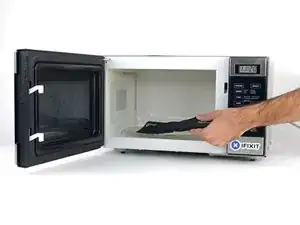
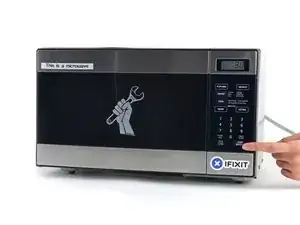
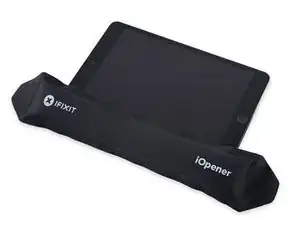
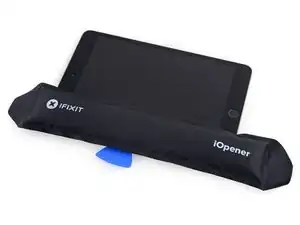
Calienta el iOpener durante treinta segundos.
-
A lo largo del procedimiento de reparación, en cuanto el iOpener se enfríe, vuelve a calentarlo en el microondas treinta segundos más cada vez.
-
-
-
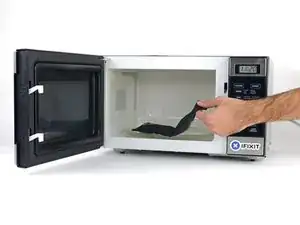
Saca el iOpener del microondas, tomándolo por una de las esquinas planas para evitar el centro caliente.
-
-
-
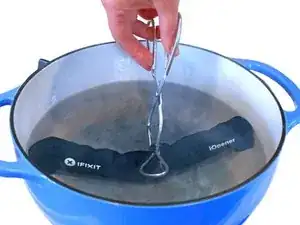
Llena una olla o cacerola con suficiente agua para sumergir completamente el iOpener.
-
Calienta el agua hasta que hierva. Apaga el fuego.
-
Coloca un iOpener en el agua caliente durante 2-3 minutos. Asegúrate de que el iOpener esté completamente sumergido en el agua.
-
Utiliza unas pinzas para extraer el iOpener calentado del agua caliente.
-
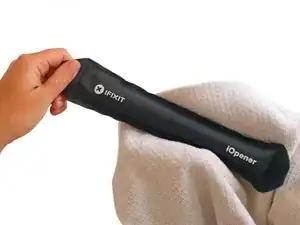
Seca bien el iOpener con una toalla.
-
Tu iOpener está listo para ser utilizado. Si necesita recalentar el iOpener, calienta el agua hasta que hierva, apaga el fuego y coloca el iOpener en el agua durante 2-3 minutos.
-
-
-
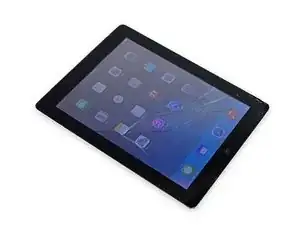
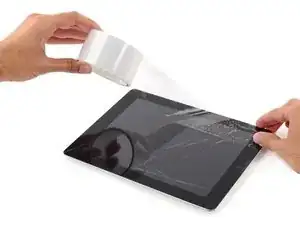
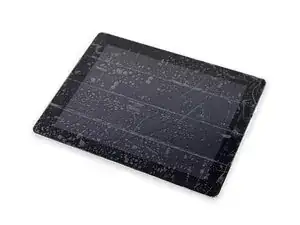
Si el vidrio de tu pantalla está agrietado, mantén la rotura contenida y evita daños corporales durante la reparación pegando el vidrio con cinta adhesiva.
-
Coloca tiras superpuestas de cinta transparente de embalaje sobre la pantalla del iPad hasta cubrir toda la cara.
-
Haz tu mejor esfuerzo para seguir el resto de la guía como se describe. Sin embargo, una vez que se rompe el vidrio, es probable que continúe agrietándose a medida que trabajas, y es posible que necesites utilizar una herramienta de palanca de metal para sacar el cristal.
-
-
-
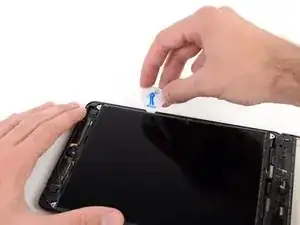
Manipulándolo por la pestaña, coloca el iOpener calentado en el lateral del iPad a la izquierda del ensamblaje del botón de inicio.
-
Deja que el iOpener repose durante aproximadamente cinco minutos para ablandar el adhesivo debajo del vidrio.
-
-
-
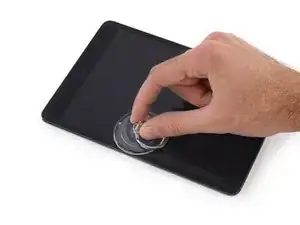
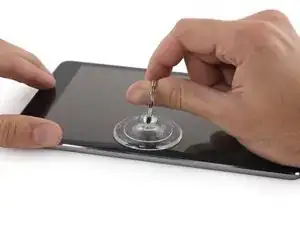
Coloca con cuidado una ventosa hasta la mitad del lado calentado.
-
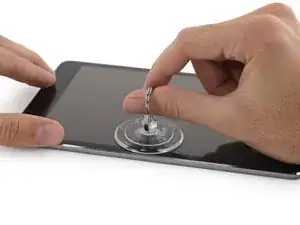
Asegúrate de que la ventosa esté completamente plana en la pantalla para obtener un sello hermético.
-
Mientras sostienes el iPad hacia abajo con una mano, jala hacia arriba la ventosa para separar ligeramente el vidrio del panel frontal de la caja trasera.
-
-
-
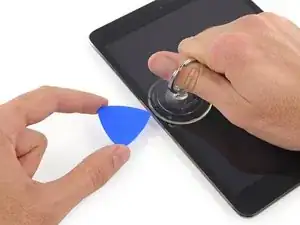
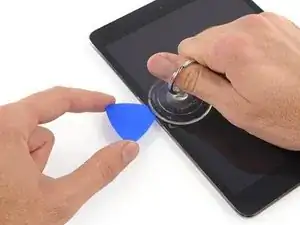
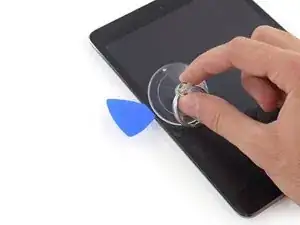
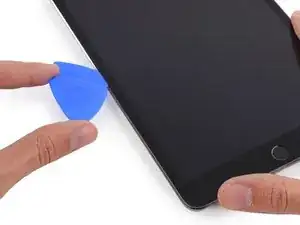
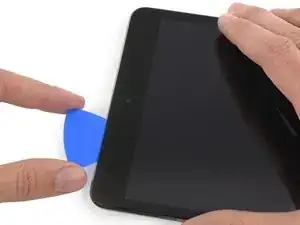
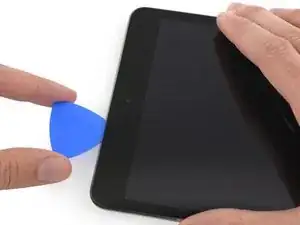
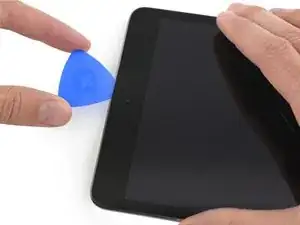
Mientras sostienes el vidrio con la ventosa, desliza la punta de una púa de apertura en el espacio entre el vidrio y el cuerpo del iPad.
-
Tira de la protuberancia de plástico de la ventosa para liberar el sello de vacío y retira la ventosa del ensamblaje de la pantalla.
-
-
-
Vuelve a calentar y vuelve a aplicar el iOpener.
-
Déjalo reposar durante unos minutos para recalentar el borde izquierdo del iPad.
-
-
-
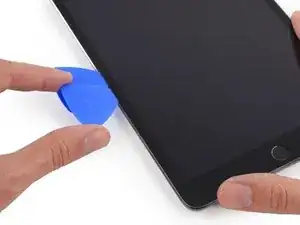
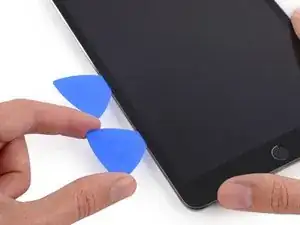
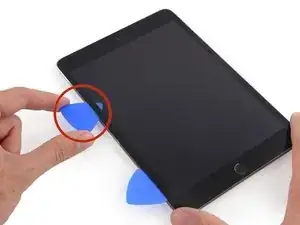
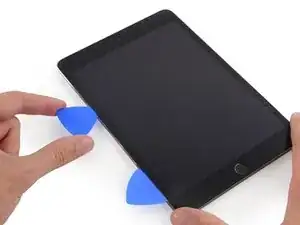
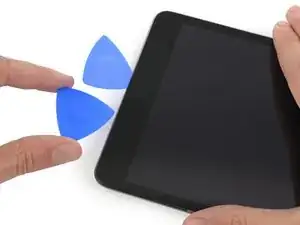
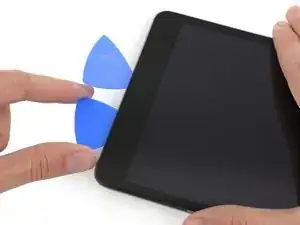
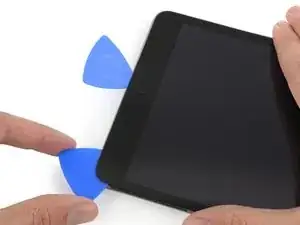
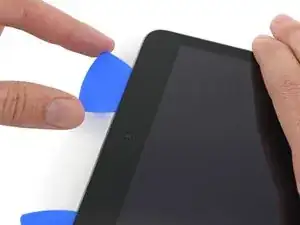
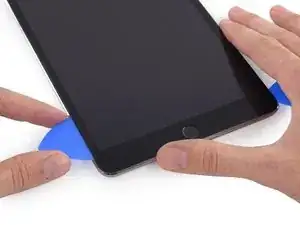
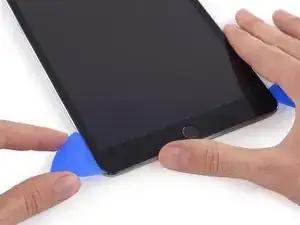
Coloque una segunda apertura junto con la primera y deslice la selección hacia abajo a lo largo del borde del iPad, liberando el adhesivo sobre la marcha.
-
-
-
Continúa moviendo la palanca de apertura por el lateral de la pantalla para liberar el adhesivo.
-
Si la púa de apertura se atasca en el adhesivo, "enrolla" la púa a lo largo del lateral del iPad, y continúa soltando el adhesivo.
-
-
-
Toma la primera púa que insertaste y deslízala hacia arriba en dirección a la esquina superior del iPad.
-
Si puedes ver la punta de la púa de apertura a través del vidrio frontal, no te asustes, simplemente tira de la púa un poco. Lo más probable es que todo esté bien, pero trata de evitar esto ya que puede depositar adhesivo en la parte frontal de la pantalla LCD que es difícil de limpiar.
-
-
-
Vuelve a calentar el iOpener y colócalo en el borde superior del iPad, sobre la cámara frontal.
-
-
-
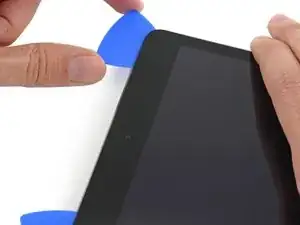
Desliza la púa de apertura alrededor de la esquina superior izquierda del iPad para separar el adhesivo.
-
-
-
Desliza el púa de apertura a lo largo del borde superior del iPad, deteniéndote justo antes de llegar a la cámara.
-
-
-
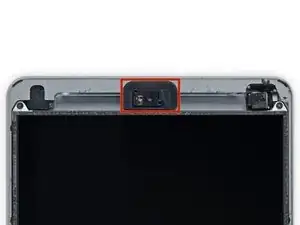
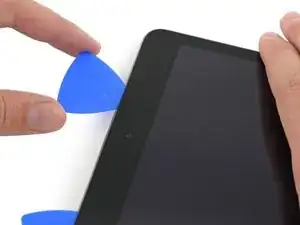
Tira ligeramente de la púa y desliza la punta suavemente a lo largo de la parte superior de la sección de la cámara frontal del borde superior.
-
-
-
Deja la púa de apertura en el iPad un poco más allá de la cámara frontal.
-
Deja la segunda púa en su lugar para evitar que el adhesivo de esquina vuelva a sellarse a medida que se enfría.
-
-
-
Inserta la púa anterior más profundamente en el iPad y deslízala lejos de la cámara hacia la esquina.
-
-
-
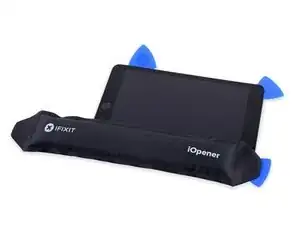
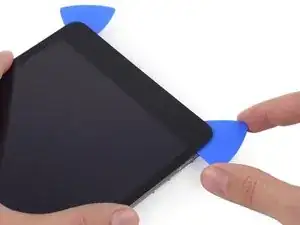
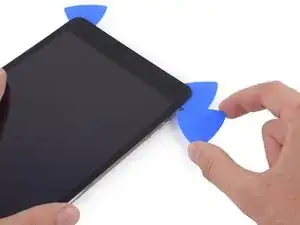
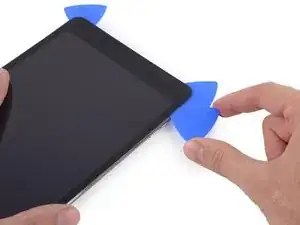
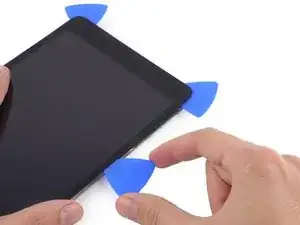
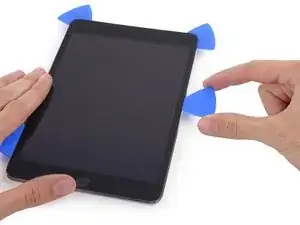
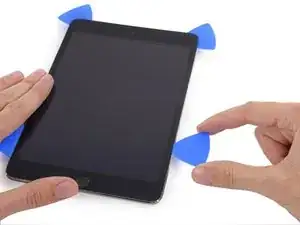
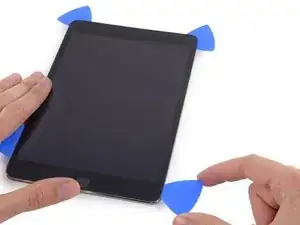
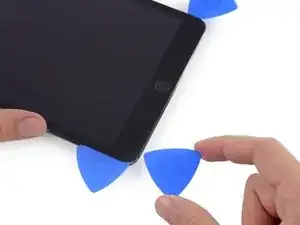
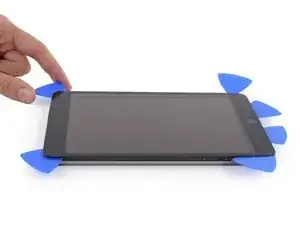
Deja las tres púas en las esquinas del iPad para evitar volver a adherir el adhesivo del panel frontal.
-
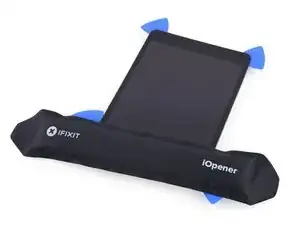
Vuelve a calentar el iOpener y colócalo en el lado largo restante del iPad, a lo largo de los botones de volumen y bloqueo.
-
-
-
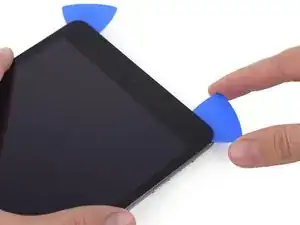
Desliza la púa de apertura superior derecha alrededor de la esquina para liberar completamente el borde superior del vidrio.
-
Deja esta púa en su lugar para evitar que el adhesivo vuelva a sellarse, y toma una nueva púa para el siguiente paso.
-
-
-
Inserta una nueva púa de apertura y deslízala al medio del borde derecho del iPad, liberando el adhesivo sobre la marcha.
-
-
-
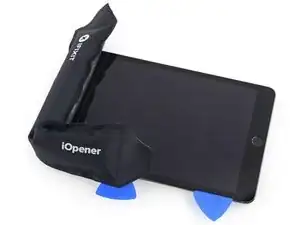
Deja las púas de apertura en su lugar y recalienta el iOpener.
-
Coloca el iOpener recalentado en el extremo del botón de inicio del iPad y déjalo reposar durante unos minutos para suavizar el adhesivo debajo del cristal.
-
-
-
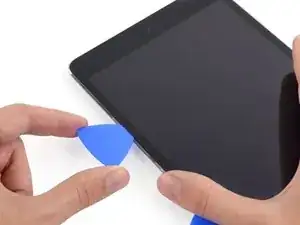
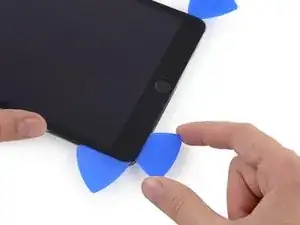
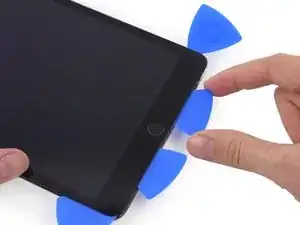
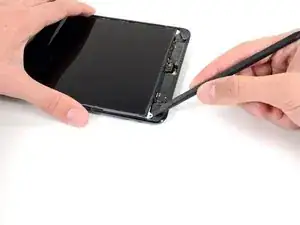
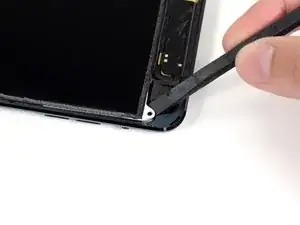
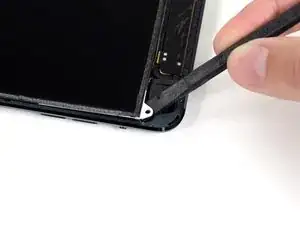
Desliza la púa inferior izquierda a la esquina inferior izquierda para cortar el adhesivo en esa esquina.
-
Deja la púa en la esquina. No te entrometas más y no retires la púa del iPad.
-
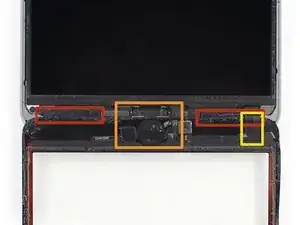
Antenas
-
Cavidad del botón de inicio
-
Cable digitalizador
-
Los siguientes pasos le indicarán dónde debes hacer palanca para evitar daños en estos componentes. Sólo aplica calor y haz palanca donde se te indique.
-
-
-
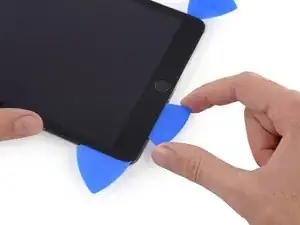
Con una nueva púa, corta suavemente sobre la antena izquierda, deteniéndote antes del botón de inicio.
-
Deja la púa en su sitio antes de seguir adelante.
-
-
-
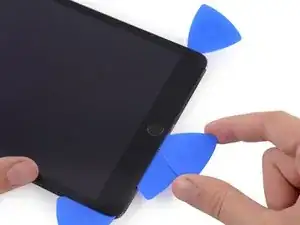
Inserta la punta de una última selección junto a la púa del paso anterior y deslízala debajo del botón de inicio.
-
Inserta la púa un poco más profunda y trabaja de nuevo hacia el botón de inicio.
-
-
-
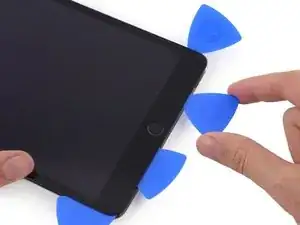
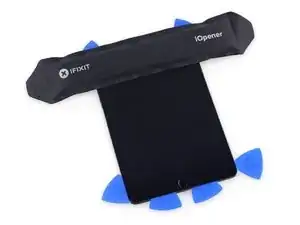
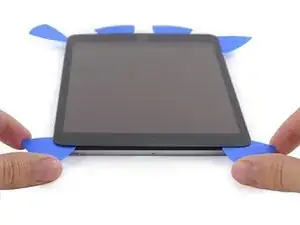
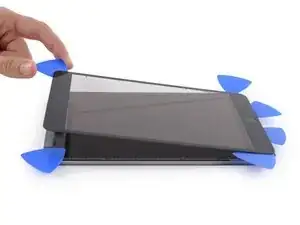
En la parte superior del iPad, opuesta al botón de inicio, deberías tener una púa alojada en cada esquina. Gira las púas para levantar ligeramente el vidrio, separando el último adhesivo a lo largo de los cuatro bordes.
-
-
-
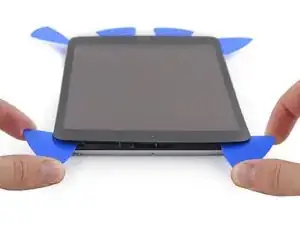
Levanta lentamente y con cuidado para separar aún más el adhesivo a lo largo del borde inferior.
-
-
-
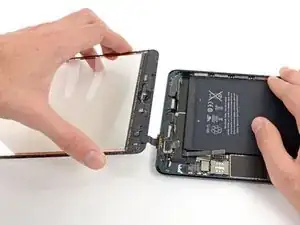
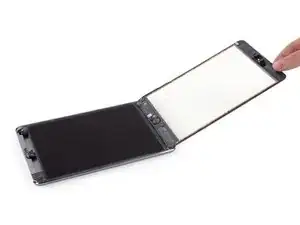
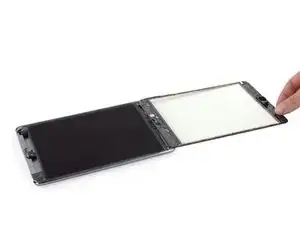
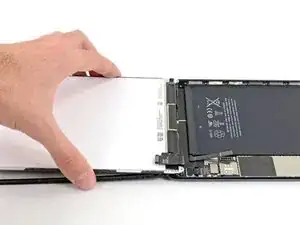
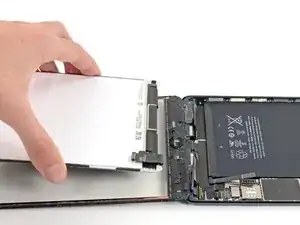
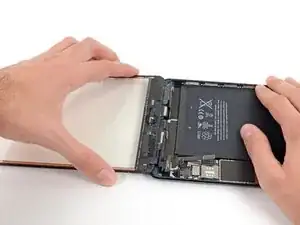
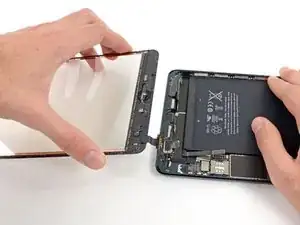
Una vez separado todo el adhesivo, abre el cristal frontal como si fuera una página de un libro y apóyalo en tu espacio de trabajo.
-
-
-
La carcasa de la cámara frontal puede pegarse al panel frontal; despega la carcasa y colócala de nuevo sobre la cámara para protegerla.
-
Mueve la carcasa de la cámara hacia arriba en un borde para liberarla del adhesivo y retírala del panel frontal.
-
Vuelve a colocar la carcasa de la cámara frontal delante en su hueco en la carcasa trasera.
-
-
-
Usa pinzas para despegar y remover la pieza rectangular de cinta de pieza de espuma que cubre los tornillos del LCD.
-
Remueve la cubierta triangular de cinta que cubre los tornillos del LCD.
-
-
-
Si hay cinta presente, usa la punta de una espátula para retirar la cinta, exponiendo así el tornillo del LCD por debajo.
-
-
-
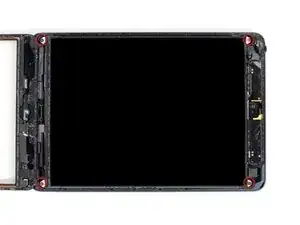
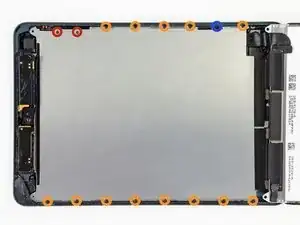
Remueve los cuatro tornillos Phillips #000 de 3.9 mm que aseguran el LCD a la carcasa trasera.
-
-
-
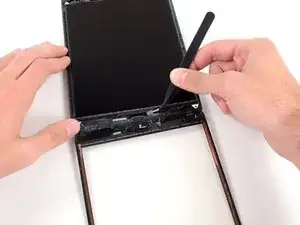
Usa un par de pinzas para despegar la pieza pequeña de cinta que conecta el marco del LCD a la bocina derecha.
-
-
-
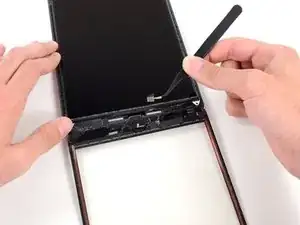
Usa un par de pinzas para jalar la parte superior de la cinta de espuma que cubre el LCD.
-
Usa las pinzas para despegar la cinta de espuma para exponer la parte superior del LCD.
-
-
-
Inserte la punta de un spudger entre el marco del LCD y la cinta en el superior del LCD.
-
Desliza el spudger a lo largo del espacio entre el marco del LCD y la cinta, separando la cinta del marco del LCD.
-
-
-
Inserte una plumilla en el hueco entre el LCD y la carcasa trasera, cerca del lado izquierdo superior de la LCD.
-
Dobla la púa un poco, lo suficiente para hacer el hueco entre el LCD y la carcasa trasera más grande.
-
-
-
Inserta la plumilla en tres lugares más en el lado izquierdo del LCD y dóblalas en cada lugar, para deslizar el LCD sobre el lado derecho de la carcasa trasera.
-
-
-
Ahora cambia a el lado derecho del LCD, y palanquea con la plumilla en varios lugares a lo largo de este lado para mover el LCD de vuelta al lado izquierdo.
-
-
-
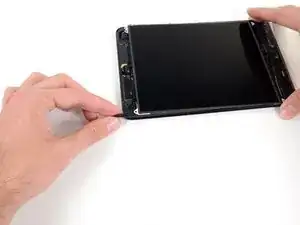
Empezando en el superior derecho del dispositivo, desliza el spudger entre el marco del LCD y la placa de metal, lo que va a separas el adhesivo conforme empujamos.
-
-
-
Repite el procedimiento anterior a lo largo de la parte superior del LCD.
-
Inserta la punta de una espátula entre el marco del LCD y la placa de metal y gentilmente empuja el spudger hacia adentro a través del superior del dispositivo, separando el adhesivo.
-
-
-
Continua con el lado izquierdo del LCD, inserta la punta de un spudger entre el LCD y la placa de protección e inserta el spudger tan profundo como se pueda.
-
-
-
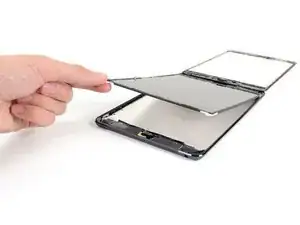
Levanta el LCD unas pulgadas de la carcasa trasera para asegurarse que esta libre del adhesivo.
-
-
-
Mientras sostienes el LCD con una mano, inserta la punta de un spudger en el hueco entre esta cinta y la bocina izquierda.
-
Gentilmente jala el LCD de las bocinas mientras rotas el spudger hacia afuera para separar la cinta de la bocina.
-
-
-
Inserta la punta de una espátula en el hueco entre la bocina derecha y la cinta del LCD.
-
Mientras jalas el LCD de las bocinas, rota la espátula hacia afuera, abriendo el hueco y soltando la cinta de la bocina.
-
-
-
Remueve los siguientes tornillos que aseguran la placa de protección del LCD a la carcasa trasera del iPad:
-
Dos Phillips #00 de 2.6 mm
-
Trece Phillips #00 de 1.7 mm
-
Uno adicional Phillips #00 de 1.7 mm en algunos dispositivos.
-
-
-
Inserta la punta de un spudger debajo del centro de la placa protectora del LCD desde el inferior del iPad.
-
Palanquea con el spudger para liberar la placa de los lados de la carcasa trasera.
-
-
-
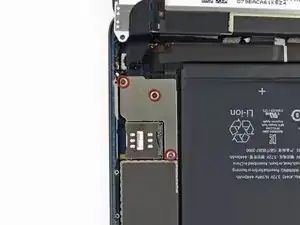
Remueve los tres tornillos Phillips #00 de 1.3 mm que aseguran la protección del conector a la tarjeta lógica.
-
-
-
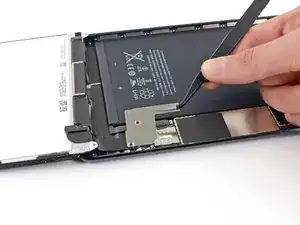
Usa una herramienta de apertura de plástico para gentilmente hacer palanca a el conector de la batería de su socket en la tarjeta lógica.
-
-
-
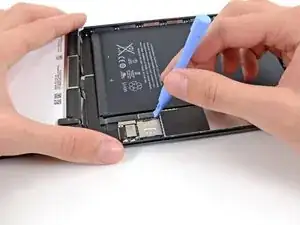
Usa una herramienta de apertura de plástico para hacer palanca en el conector del LCD de su socket en la tarjeta lógica.
-
-
-
Mientras sostienes el LCD con una mano, inserta la punta de un spudger entre el LCD y la cinta en el lado derecho del iPad.
-
Desliza el spudger hacia afuera, separando la cinta, mientras gentilmente levantas el LCD para jalarlo de la cinta.
-
-
-
Mientras aún sostienes el LCD con una mano, muévete al lado izquierdo del iPad y repite el procedimiento anterior para separar la segunda pieza de cinta.
-
Inserte la punta de una espátula entre el marco del LCD y la cinta, y deslice hacia afuera mientras levanta el LCD gentilmente.
-
-
-
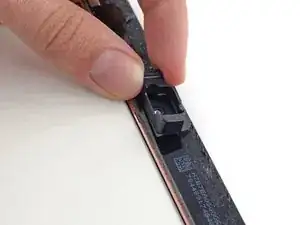
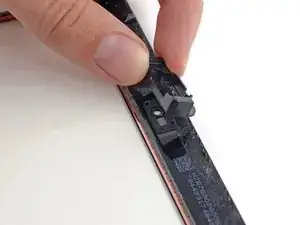
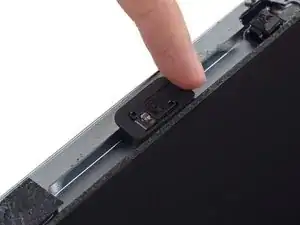
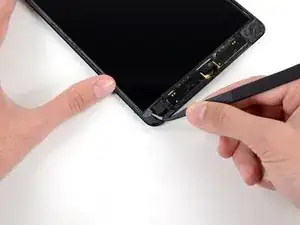
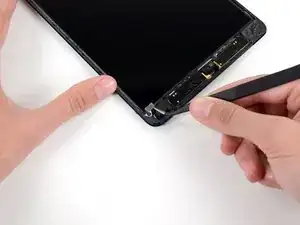
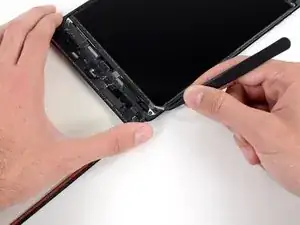
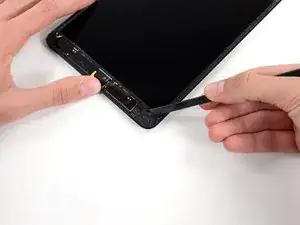
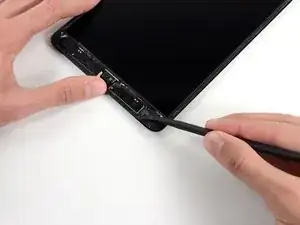
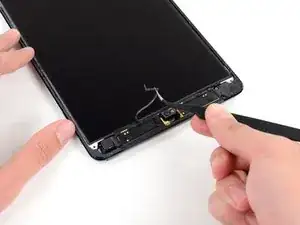
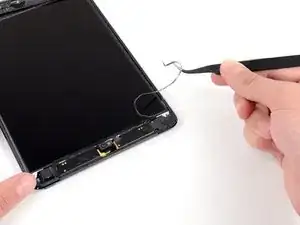
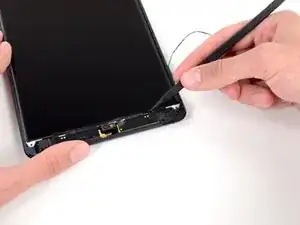
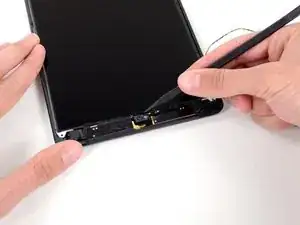
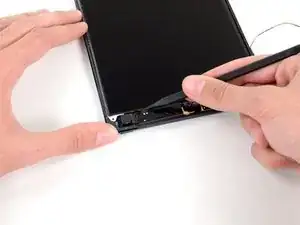
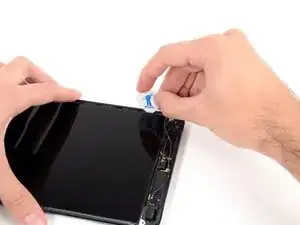
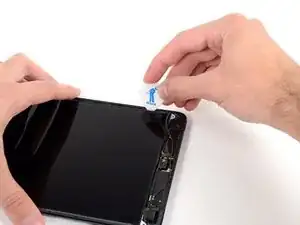
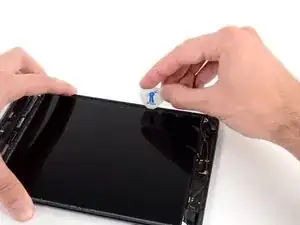
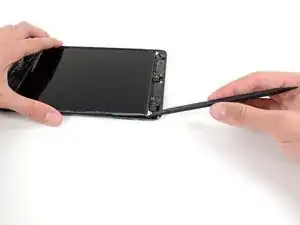
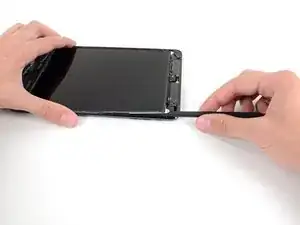
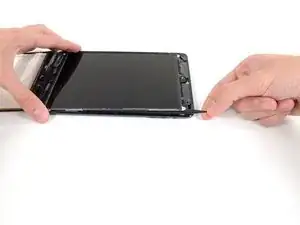
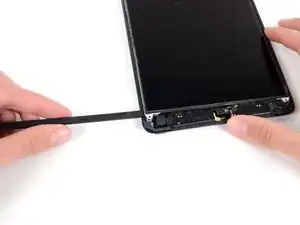
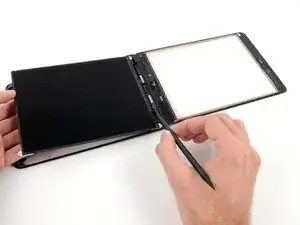
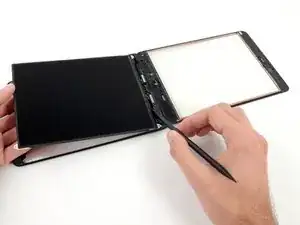
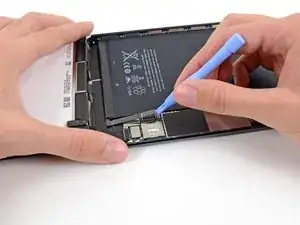
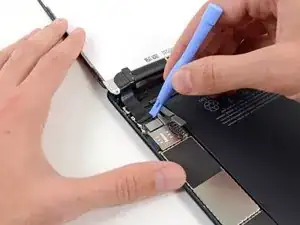
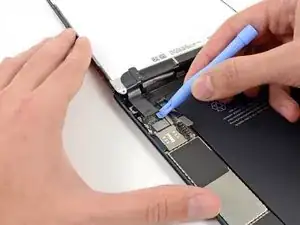
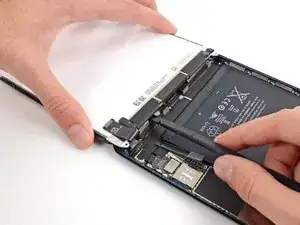
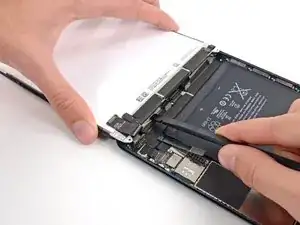
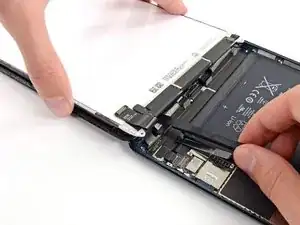
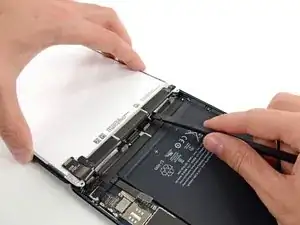
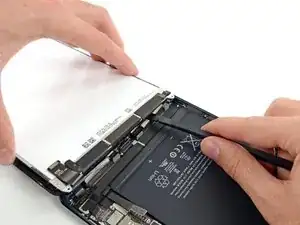
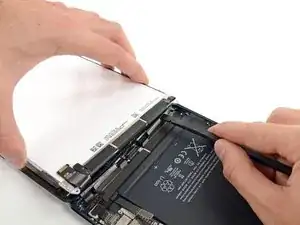
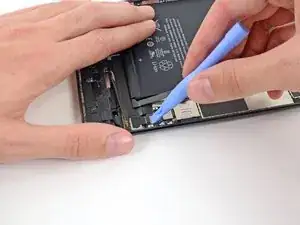
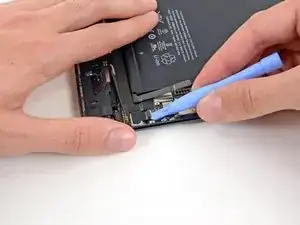
Para minimizar la fuerza en el socket, intenta hacer palanca debajo del borde pequeño en el conector, en vez de en el borde largo el cual es mostrado en estas imágenes.
-
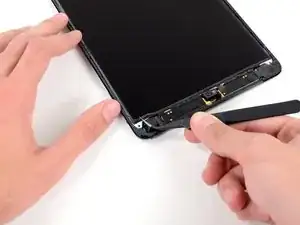
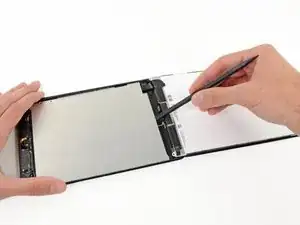
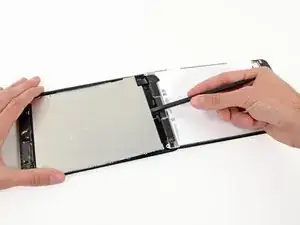
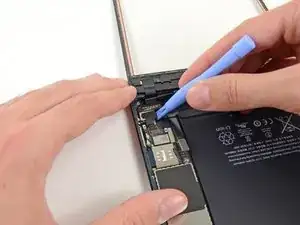
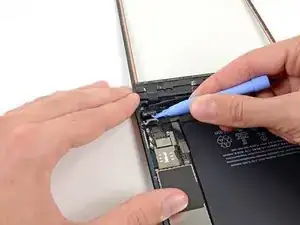
Gentilmente haz palanca en el conector digitalizador de su socket en la tarjeta lógica.
-

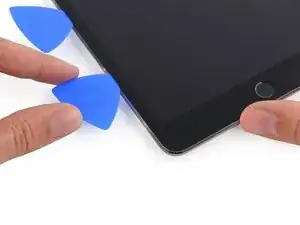
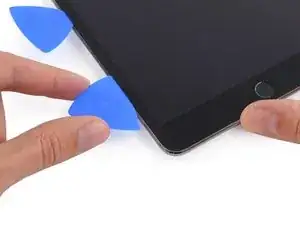
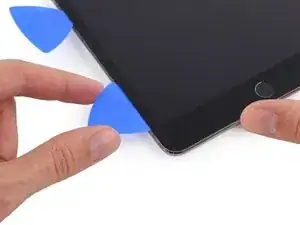
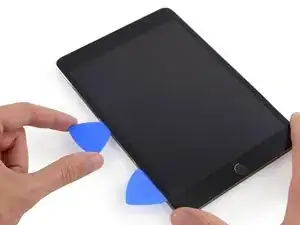
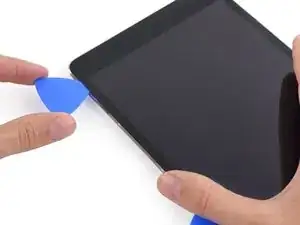
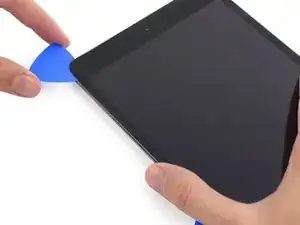
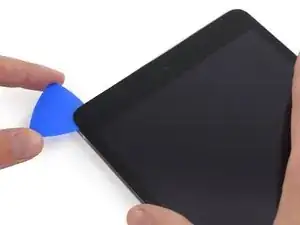
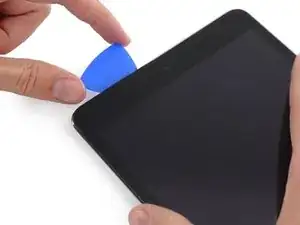
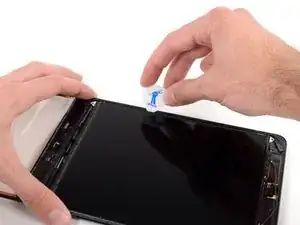
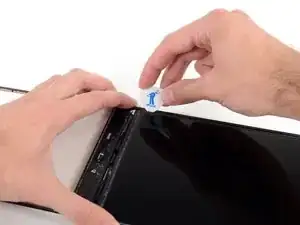
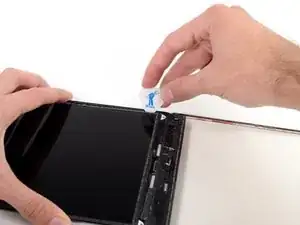
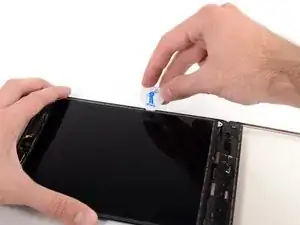
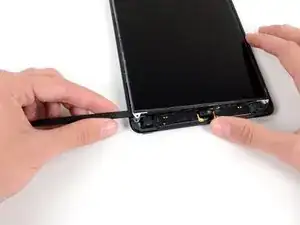
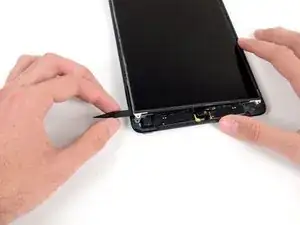
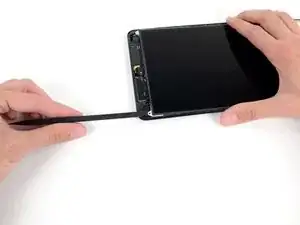
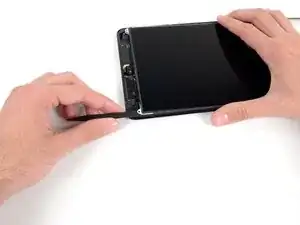
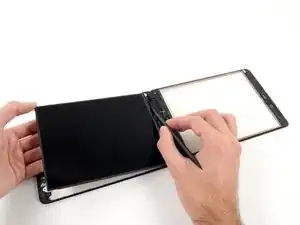
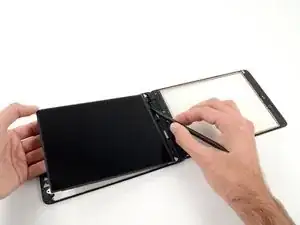
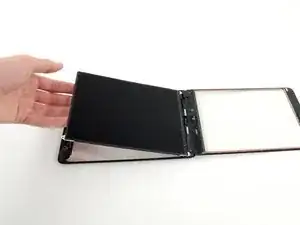
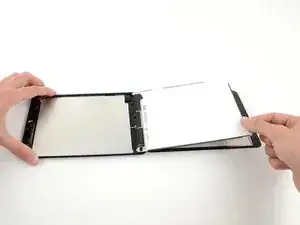
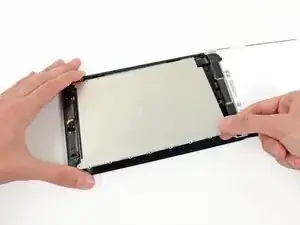
Para reensamblar tu dispositivo, sigue estas instrucciones en orden inverso.

2 comentarios
I would recommend that in cases of replacing shattered screens, that you tape the front panel glass with clear packing tape using overlapping strips, before you begin. This helps to ensure that the panel stays intact, and reduces the chances of puncturing the digitizing layer, and damaging the LCD upon removal.
You want to use clear tape so that you are able to see how any of the glass remnants are shifting during removal.
dcorsivo -
In addition to the packing tape, I would recommend a blow dryer (or heat gun) to loosen the glue.
I didn't find this to be as hard as I had built it up in my mind to be; HOWEVER, saying that I need to say years ago I was the local Nokia service center in my town. But many years ago right after they got rid of analog times. Yeah. A classic installer/repairer mistake when starting something they haven't fixed or installed before is picking up the instructions, flipping through them; maybe even reading a section that is new-then tossing the instructions over the shoulder. "I got this." This usually comes right before something major gets broke. And I can tell you when you try to do it yourself and then mess it up horribly then take it to the repair shop. Well we called that "I can do it myself" syndrome and charged extra to put back together what they brought in in the box. Now knowing all this - I can't stress this enough because I am stupid, stupid, stupid. COVER YOUR SCREEN IN CLEAR BOXING TAPE AND READ ALL THE INSTRUCTION BELOW THROUGH TO THE END BEFORE EVEN ATTEMPTING THIS FIX. Take my advise.
windizy -
I didn't have an iOpener, so I used a wheat type heat bag. If you do this though, make sure you put a layer of plastic between your Mac and the bag, or you'll get condensation in places you don't want it.
Martin Gray -
I started out using the iOpener but switched to my wife's hairdryer. A heat gun or hair dryer proved to be much more convenient and is a time saviour. You can heat more and the glue becomes more fluid make the next steps with the opening picks much easier
Jan Van Puymbroeck -
I know this is obvious, but backup your iPad with iTunes before you start. I'd also turn off your passcode if you have one.
Laurie Higgins -
Ther first time you heat up the iOpener for this repair when its room temperature I had to heat it up for more than 30 seconds. I remember I had to heat it up for around 45 seconds. However, after that when you need to reheat it again during the repair 30 seconds will be enough.
Yousef Ghalib -
I used the wheat bag in a sensor microwave heating up to 65-70 deg C (155 def F).
ian cheong -
Get yourself a cherry pit bean bag the size of your iPad. Heat it, put the iPad on it for 3 to 5 minutes or so, reheat the cherry pit bean bag, again put your iPad on it. Then heat the iOpener and start working. The cherry pit bean bag will have to be reheated several times, but it will soften the adhesive so you have less problems with the iOpener
Tim Feyaerts -
The heating can be done very effectively (and quickly) with 3d printer heated bed. Make sure the bed is clean. Set the temperature to 60c, (130f ) and put the ipad face down for +/- 10 minutes. Repeat as needed throughout the “gentle prying” stages.
polleyphony -
The iOpener did not work at all for me.
I had to use a heat gun and bring the edges of the case up to ~200 degrees (used an infrared thermometer to measure) before the glue would weaken. This obviously superheated the metal frame, so I also had to wear gloves to handle the phone while prying the back off with the included picks.
Mike Jeanette -
Repair instructions worked like a charm. Had to be patient with the iOpener and getting the screen off. I tried repeatedly without success until shifting the suction cup a bit to the left side where perhaps the glue had loosened up a bit more.
Kyle -
The iOpener, in my opinion, is of no help. Many warnings to say “don’t warm it too much”, but the glue doesn’t melt if not warm enough. As a result, a complete waste of time and energy. In addition, too much liquid in it, so it doesn’t lay on the device on a sufficient surface. I took a hairdryer and it worked much much better.
laurentvidu -
I used an immersion bath to heat this to 180F and applied it to the device until the outside temperature of the opener read 150F with an IR thermometer. Removing the screen took very little force with this method.
breadandbits -
My experience. I was replacing the screen which had been cracked and a little shattered in some places. The iopener is pretty much useless, so was the suction cup. The suction cup would probably be more useful if I was doing something besides the screen. Also you probably want the clean the screen before using it so it can get good suction. I used a hair dryer on high for a couple of minutes at a time (someone on this tread suggested that). I used my exacto knife and a razor blade to get into the adhesive. First the exacto to get the initial cut, then the razor blade to go a little deeper. Could have probably just used the razor blade, but the exacto has a little more finesse. I got the razor blade in and a little under the glass then I used the picks to wedge in. I didn’t want to risk anything using the razor blade too much. Used tape to keep the shattered glass together.
trebor65 -
My experience pt2
Fortunately the shattering was mostly on the edges and most of it had adhesive on the back so it stuck together. Just take your time and work your way around following the guide to get the screen off. Have some goof off or goo be gone to clean the frame when putting the new glass on or putting the existing one back. (someone suggested that also, very good idea). Be careful of the LCD (you should know that). The cable on my LCD was pretty tight, so I propped it up while taking the cable cover off and when I put it back on I did the same thing. I just put a bottle on the battery and leaned the back of the LCD on that while attaching the cables and putting the screws back on the cover. Also be careful with the home button and the bracket on the back of it. I had enough old adhesive on left on the bracket that it stuck back to the new glass fine. So far only 12 hours in, so we will see how that holds up when the kids get at it.
trebor65 -
Another alternative if you do not have the iopener is to use a bed time hotwater bottle. Do not over fill it though. Just put enough hot water in to support the phone while you work around the adhesive.
I use both the hot water bottle and iopener together on Samsung's. It makes life easier
gazza667 -
I followed the directions and heated my iOpener for 30 seconds in a 1000 watt microwave, and it came out at 160 degrees F, as verified by a infrared thermometer. This allowed me to separate the last bit of the back of my Samsung S8, which was already coming off due to a swollen battery (hence the reason for the repair).
Dennis -
Hallo,habe den Akku erfolgreich getauscht.Doch seitdem gibt es bei Telefonaten eine Rückkopplung für den anrufenden.Bei mir ist alles normal.Woran liegt das?Mfg
Manu R -
If you follow these instructions, you will crack your screen like I did. Heating the iOpener for 30 seconds, using it to melt glue, then waiting 10 minutes to reheat is useless. The iOpener can be used to maybe warm the glue on whatever side you aren’t working on. You need a hairdryer and/or a heat gun to melt the glue and separate the glass from the iPad.
Anyone want to buy an old iPad with broken glass and a dead battery?
mpulliam -
Not everybody has a microwave. You should provide a target temperature for the iOpener and instructions for a conventional oven, or pot of warm water, or whatever. Although I will probably use a heat gun …
Esmond Pitt -
Three times heating opener and no luck. Tried pressing down gently on opener with a towel, and the opener broke. Wondering if I now replace table mats, fancy table cloth, etc. or will this stuff wash out.
Not impressed so far. Maybe the hair dryer next.
doug -
I support the comments about the iOpener. Everyone has a hair drier, FHS, so get a cheap IR thermometer (£18) and blow heat until the area is 60+ deg C. Still takes w while, and getting the screen off is v scary, but just add more heat if you feel resistance.
The rest of the kit is good, esp the magnetic screwdrivers.
Richard O'Brien -
No, everyone does not have a hairdryer. Some of us don’t even have hair. Thank goodness I already had an IR thermometer, though.
nin10doh -
#### WARNUNG WENN MINIMALSTER SPRUNG IM DISPLAY IST FUNKTIONERT DAS NICHT!!! ######
Hatte einen winzigen, minimalen Sprung im Display. Ich dachte es könnte gehen, weil der Sprung “abgeschlossen” war. Er hat in einer Ecke ein winzige Glasteil rausgeschnitten. NEIN! Geht nicht. Habe alles mit viel Geduld dem iOpener und einem Föhn erhitzt. Es ist trotzdem sofort über das komplette Display zersprungen…
T z -
I’ve started with iOpener but changed very quickly to a heatgun. That was more efficient.
Mizzoo, s.r.o. -
I could not get the iOpener hot enough to melt the glue on my ipad 6. I heated for 45 seconds once and it was boiling and it still never worked. Thank goodness contributors mentioned using a hair dryer. Using an 1700w hair dryer on high did the trick to get the screen off. Still took some time and the case got pretty hot but be patient. It took twice as long and a lot more patience to get the battery out.
Randal Haufler -
I have an Ipad with touch screen issue, if i replace this part it should be Ok?
janderson martin -
WARNING - DO NOT MICROWAVE ON A METAL MICROWAVE RACK
The metal microwave rack can heat up and melt through the iOpener cover letting the contents leak out.
Not a big issue for me as I have a heat gun and used that instead.
Run Up A Tree -
I opened my iPad with the iOpener. Be patient! It may take quite a bit longer to it the iOpener in the microwave than it says in the guide. My microwave can only do 800W and I had to put the iOpener in several times (maybe a total of 90-120 seconds). I recommend that you have the transparent side up an watch the bag carefully. As long a the bag doesn't bloat up and the liquid doesn't start bubbling you should be fine. But I recommend to take the iO out from time to time to check it. (More comments in Step 6.)
marcelflueeler -
I gave upon the I opener and used a hairdryer. (Fixed an iPad 6)
Tom Weber -
iPad mini gen5. I used the iOpener. My microwave is 1200w with carousel. 30 sec got the iOpener to 155ºF. For the 2nd heating, after 10 minutes sitting, the temp was still around 125º so I only cooked it for 15 sec. Not enough increase so +5 sec more which me to 165-170ºF. This should be considered ballpark info because who knows the real output of the various microwaves and the quality of the IR tool used to determine temp.
To successfully open my iPad mini I applied the iOpener twice to the left edge and twice to bottom. & once to R edge. Using the suction cup was difficult for me (I'm in my 70's so my hands don't work too well anymore). I had trouble holding the guitar pick and slipping them in (at an downward angle). In the end, sliding my thumbnail along the edge opened it very slightly and allowed the pick to get into the gap. I marked the ends of all my picks with a sharpie pen for the recommended 2mm insertion to avoid going in too deep. To get the screen open it took me approx 1 hour.
jharrison -