Introducción
¿iMac no lee discos? Utiliza esta guía para reemplazar una unidad óptica que no funcione.


-
-
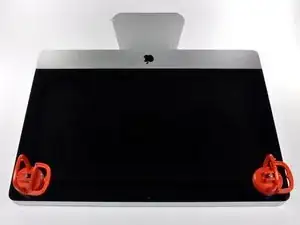
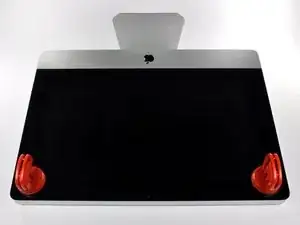
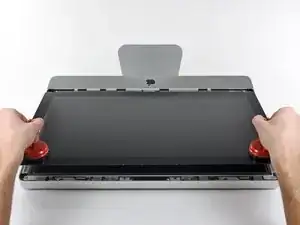
Adhiera una ventosa en los 2 angulos superiores del panel de vidrio.
-
Si sus ventosas no se pegan, limpie la superficie del vidrio y la goma de sus ventosas con un solvente liviano.
-
Insertar traducción aquí
-
-
-
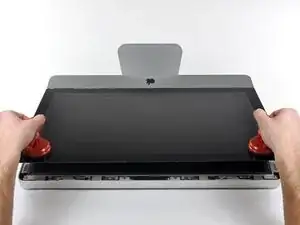
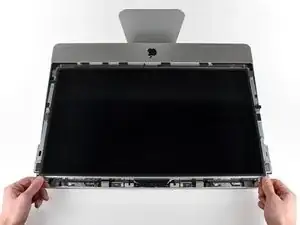
Tire despacio el panel de vidrio perpendicular a la cara del LCD con cuidado ya que hay pestañas de metal en la parte inferior del panel de vidrio.
-
Remueva el panel de vidrio hacia arriba sacando cuidadosamente las pestañas de acero y coloque sobre una superficie limpia.
-
-
-
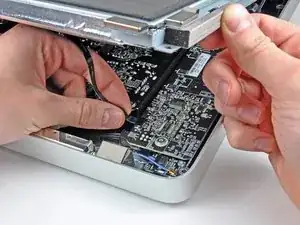
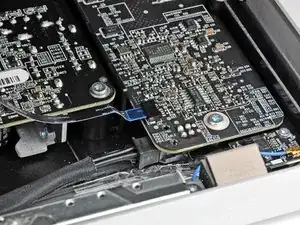
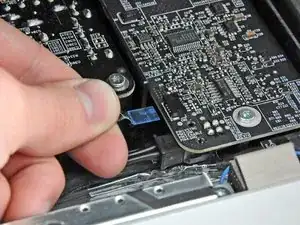
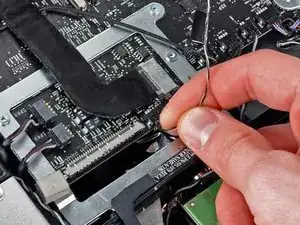
Saca el cable plano de sincronización vertical de su zócalo en la placa del controlador LED cerca de la esquina superior izquierda de tu iMac.
-
-
-
Gira la pantalla fuera de la carcasa exterior lo suficiente para desconectar el cable de alimentación de la retroiluminación LED de la placa del controlador LED.
-
-
-
Aprieta los dos brazos del conector del cable de datos de la pantalla para desbloquearlo de su zócalo en la placa lógica.
-
Saca el conector del cable de datos de la pantalla de su zócalo en la placa lógica.
-
-
-
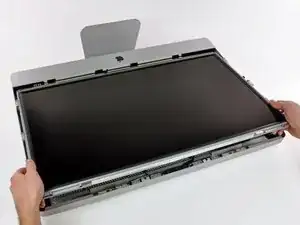
Tira con cuidado de la pantalla hacia el borde superior de tu iMac y sácala de la carcasa exterior, prestando atención a los cables que puedan quedar atrapados.
-
-
-
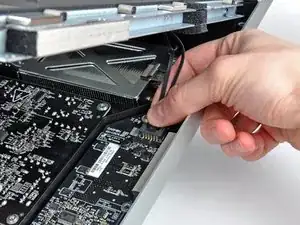
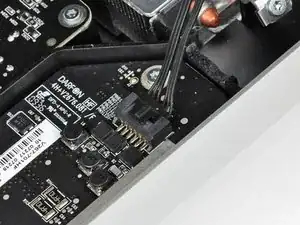
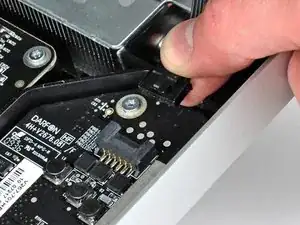
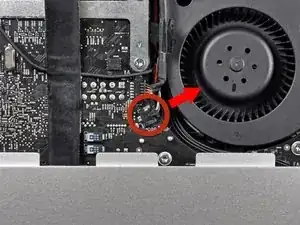
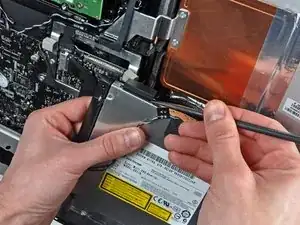
Saca el conector del sensor térmico de la unidad óptica directamente de su zócalo en la placa lógica.
-
-
-
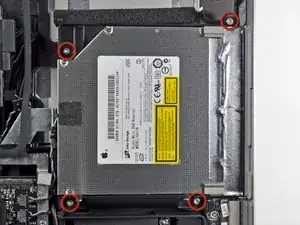
Retira los cuatro tornillos Torx T10 de 9 mm que sujetan la unidad óptica a la carcasa exterior.
-
-
-
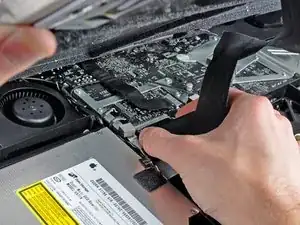
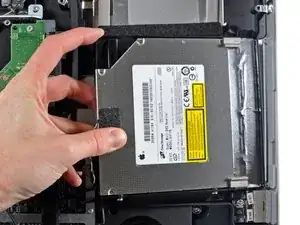
Levanta el borde interior de la unidad óptica y maniobra su conector más allá del marco conectado a la placa lógica.
-
Retira con cuidado la unidad óptica de sus clavijas de montaje en el borde de la carcasa exterior para tener espacio para desconectar el cable de la unidad óptica.
-
-
-
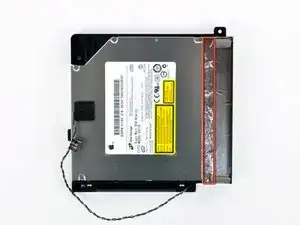
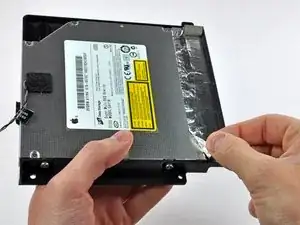
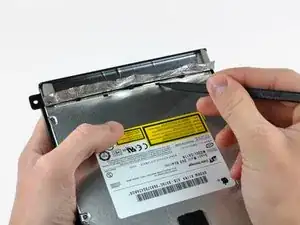
Retira la parte de la cinta de aluminio resaltada en rojo y deja el resto adherido al soporte de la unidad óptica de plástico negro.
-
-
-
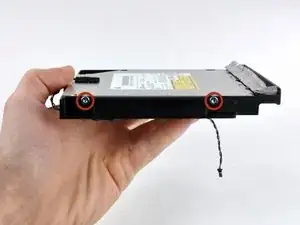
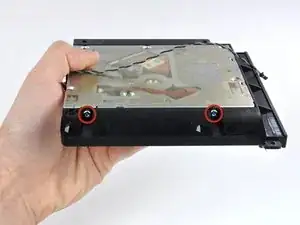
Retira los dos tornillos Torx T10 de ambos lados de la unidad óptica (cuatro tornillos en total).
-
-
-
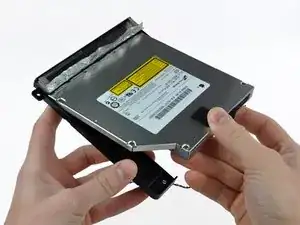
Gira el soporte de la unidad óptica ligeramente hacia afuera de la unidad óptica.
-
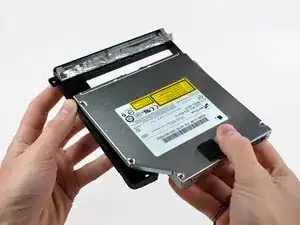
Retira el soporte de la unidad óptica del extremo abierto de la unidad óptica y ten cuidado con las pestañas que puedan quedar atrapadas.
-
-
-
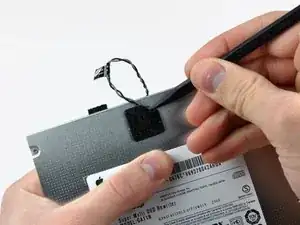
Usa la punta de un spudger para retirar el trozo de cinta de espuma que cubre el sensor térmico de la unidad óptica.
-
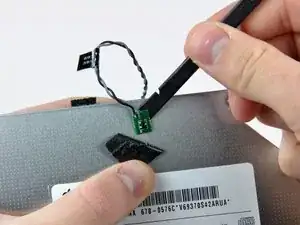
Usa el extremo plano de un spudger para levantar con cuidado el sensor térmico del adhesivo que lo sujeta a la unidad óptica.
-
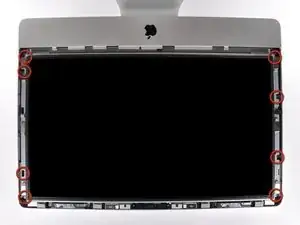
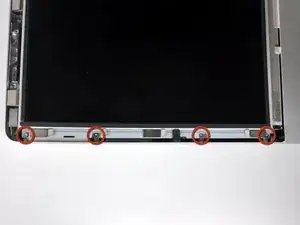
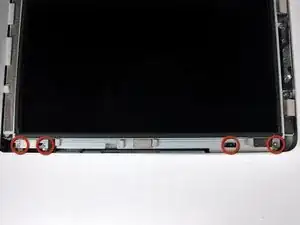

Para volver a armar tu dispositivo, sigue estas instrucciones en orden inverso.

3 comentarios
A word of caution when reassembling. Be sure to replace the LCD thermal sensor connector and the optical drive thermal sensor connector with the contacts facing down. They are both very small and easy to overlook the contact points. If either or both are reinstalled wrong the iMac will not power up. You will get a white screen momentarily and then it will go black. I made that mistake and had to go back in and correctly insert them which solved the power up problem.
cwrd -
I successfully put an SSD (mounted in OWC data doubler) into the optical drive slot.
I got slightly thrown for a moment that at step 10, the iMac was apparently rotated 180 degrees. I didn't really want to change my work position, so I turned my iPad upside down to follow the pictures correctly. Not sure why the perspective changed at that point in the manual.
The other "interesting" task was reattaching the LCD, what with the nearby rare earth magnets trying to steal the screws. Having a heavily magnetized torx screwdriver was a big help; I just took a magnet of my own and stuck it on the handle end of the shaft, and then it held the screw enough to make the job possible.
I was quite relieved when my iMac booted after all this. :)
Per error se'm va introduir una targeta portadora de microSD tipus SD a traves de la ranura del lector de CD-DVD.
Seguint aquesta guia perfectament bé explicada i amb les eines adequades, T10 Torx, tornavís de rellotger tipus estrella o philips i en el meu cas dues ventoses solidaries tipus mànec d'enganxar a la paret de la dutxa per no caure; he aconseguit recuperar la microSD, el lector de CD-DVD i el iMAC continua sencer.
Mil gràcies Andrew Bookholt, ets un crack e indubtablement molt bona persona.
Very easy to lift the glass out. Don't jerk too hard.
kctipton -
Another comment on DATA & LCD Temp. Sensor cables: I had to remove the vertical sync, and the backlight cable, however, if you have an assistant or/can carefully rotate the screen clockwise/and then have it held up about 5" to 6" at a slight angle, you do not need to remove LCD data cable or LCD thermal cable, however - IMPORTANT: you must have a second pair of hands/or way to securely prop up the LCD. Also, don't rotate too much, since then you will pull out LCD data cable, and it renders the whole exercise moot, or can damage the cable or connector.
MaximBorzov -
You don't need suction cups. The screen, held by magnets, can simply be pried off using a very thin blade such as a screw driver and fingers.
Deepsurvival -
That's a bad idea. using a metal tool to pry off glass is likely to end with an expensive broken front glass.
Suction cups are common. Find a couple and do it the safe way. I use some cheap ones that came with iPhone repair kit.
max damage -
No need for suction cups, I just stuck my nails (short like guys usually have) between the top part of the screen and body, and it came off easily. I've never done it before, so it seems to be very easy.
Nikolas Lintulaakso -
Nails worked for me too
Rob Dale -
Just completed the replacement of the optical drive with an SSD using an OWC Data Doubler kit. Attempted to remove the optical drive without disconnecting any cables but found it a bit fiddly to orient the screen for good access. I bit the bullet and disconnected them and found the process less daunting than I imagined. Reconnecting them was similarly straightforward if you're careful.
Tip: you can skip the step for removing the optical drive thermal sensor connector from the motherboard. Still need to remove the sensor from the optical drive but you can leave that hanging and reattach it to the SSD later.
osienna -
I use Garmin GPS suction cup. Work very well
jc3Dcx -
I’ve just successfully installed a 1TB SSD in place of my optical drive thanks to the information here- thank you to everyone who has contributed!
3 comments- the procedure described here seems to vary between HD replacement and dual HD/optical drive replacement. This can be confusing at times.
Expect there to be minor differences between the layout described and what you find when you open up your iMac. There are also, surprisingly, differences between the HD enclosure description, and the article provided by ifixit.
I was able to replace the DVD/HD enclosure single-handedly without fully removing the LCD, or deconnecting any of the cables (steps 5-11). It’s a bit cramped, and fiddly, but I was not happy removing any of the cables despite watching videos, etc., since they all seemed to involve applying more force than I was comfortable with. A more detailed description of how to release them might have helped, but even here, there may be minor variations even within the 2389 model.
Good luck!
ivan birks -
I did it several times with one suction cup at the end of a kitchen brush. Once with the blade of a swiss army knive, also ok. And i’m pretty sure it works with fingernails too
Tai -
Fingernails are all you need to free the glass from its magnetic hold. If you don’t have them, slip something thin and plastic, like a spudger, at a top corner.
Max Powers -
Minha dúvida é a seguinte: após o técnico trocar o HD do meu iMac de 21,5 polegadas, a câmera parou de funcionar. Seria por causa da troca do HD? Tem solução?
Claudio -
Creio que o cabo da camera não foi plugado ou deu mau contato… ou até danificado.
glecyo@gmail.com
glecyo medeiros -
I can’t get my glass to budge. I’m replacing a cracked one and now it’s about to shatter.
jamboxmitchell -
I know that I'm replying really late but I advise to use clear tape over any cracks so the cracks don't get bigger
Jace Holmes -
Check for chips in the glass BEFORE you do this step. If there is a chip when you pull up with the suction cups you will wind up with a jagged mess. If you do have a chip I would advise covering the screen near the chip with clear tape of some kind before lifting out. Mine shattered right at the chip and the resulting glass dust cloud got all over. My solution was buying a new glass screen.
BCam -