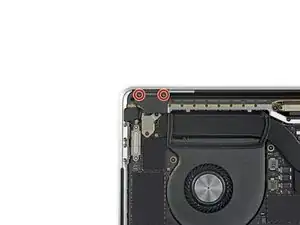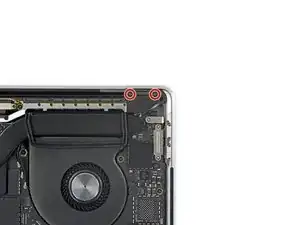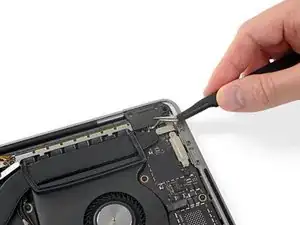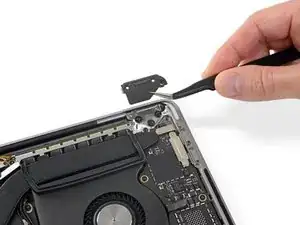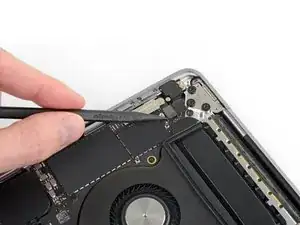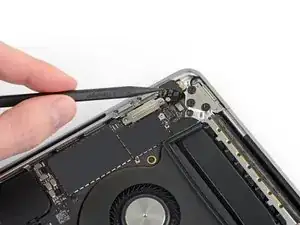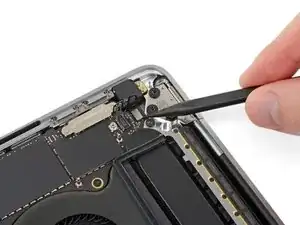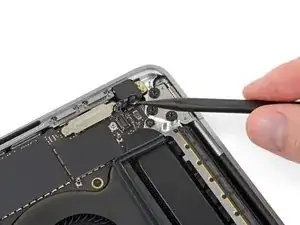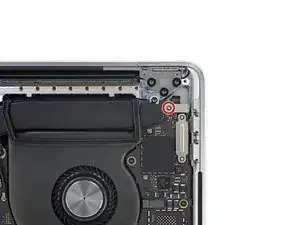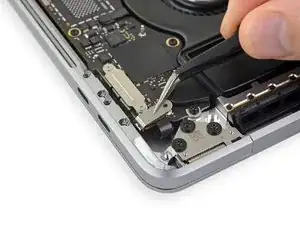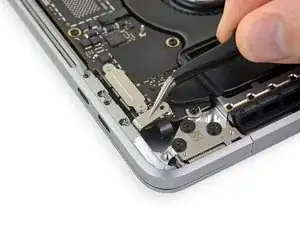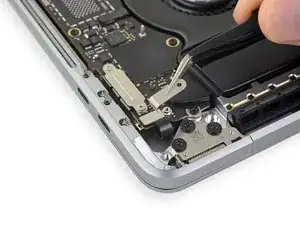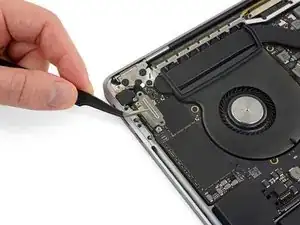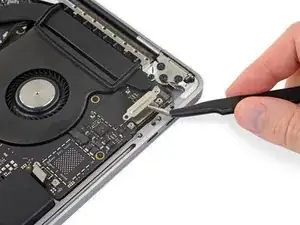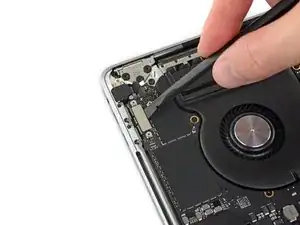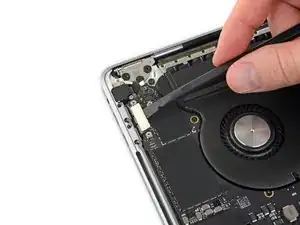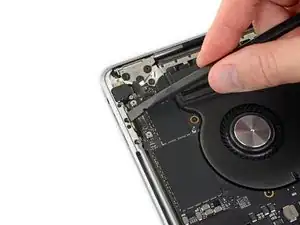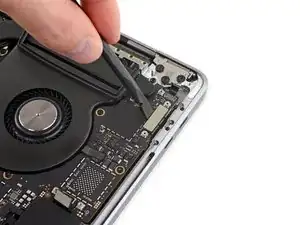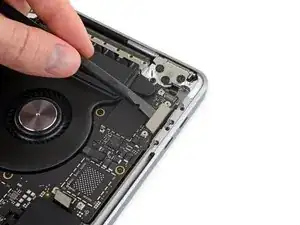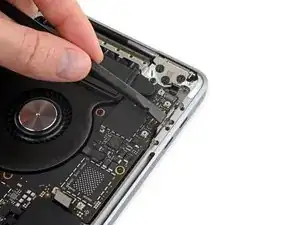
Introducción

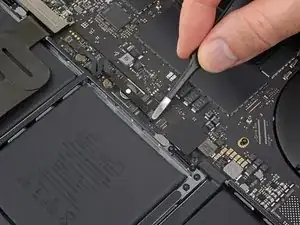
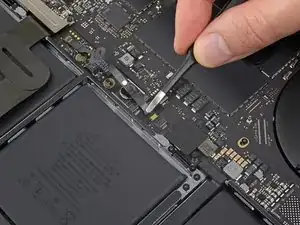
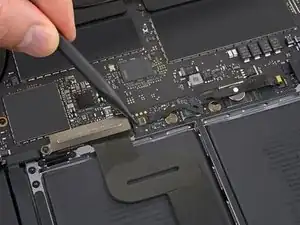
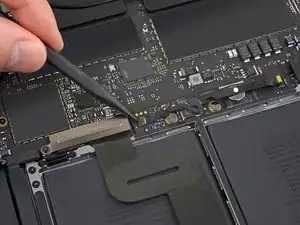
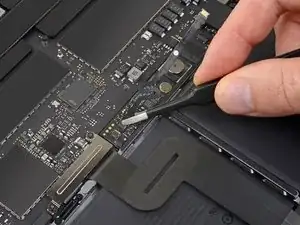
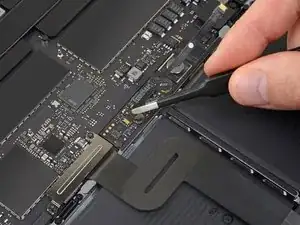
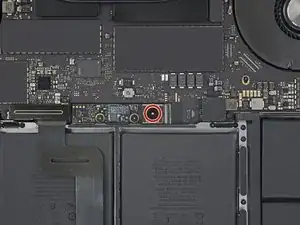
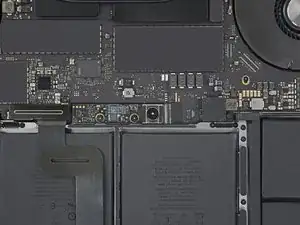
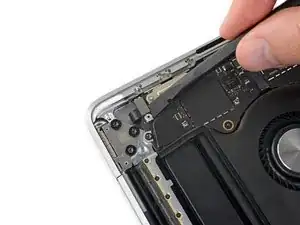
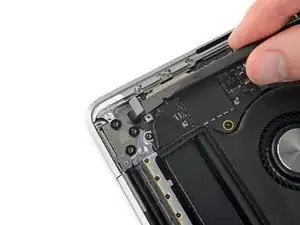
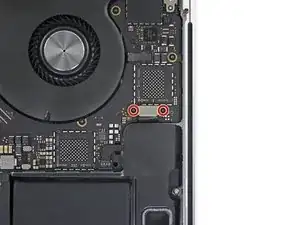
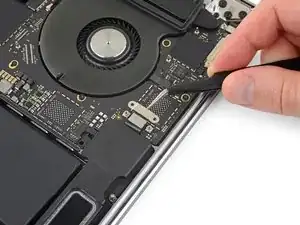
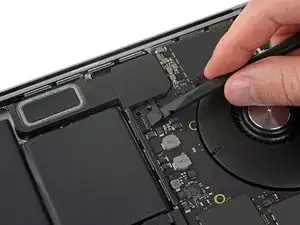
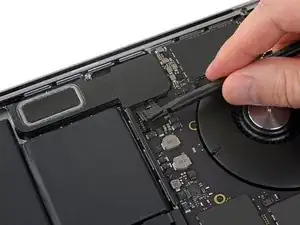
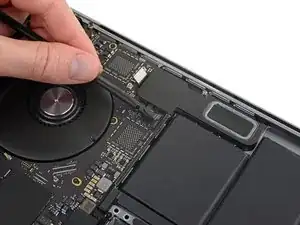
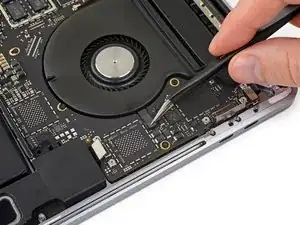
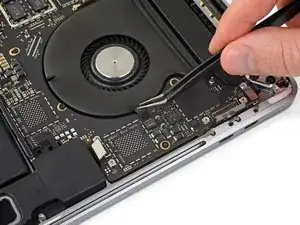
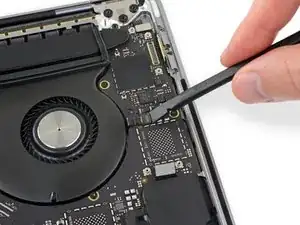
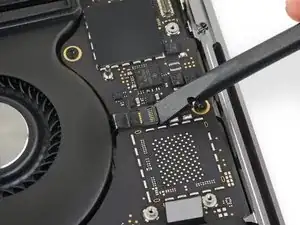
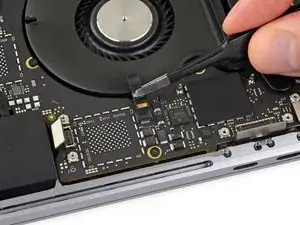
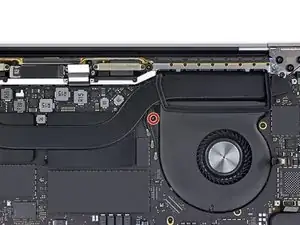
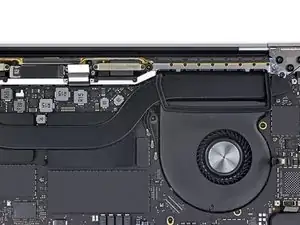
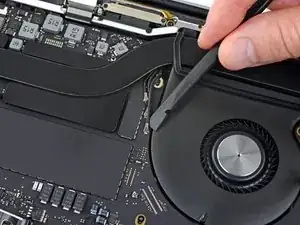
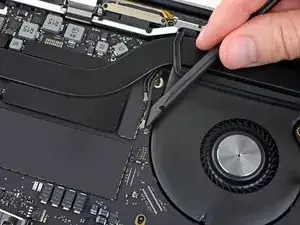
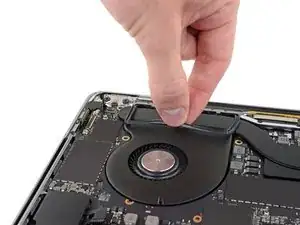
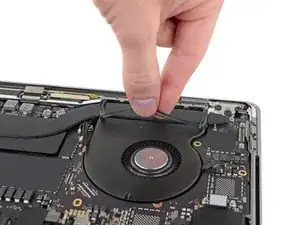
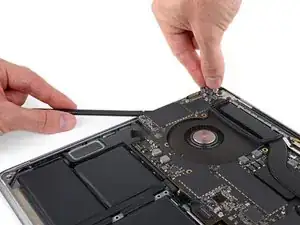
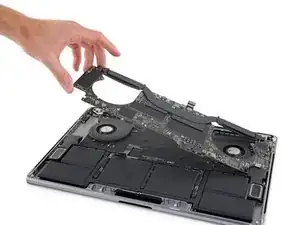
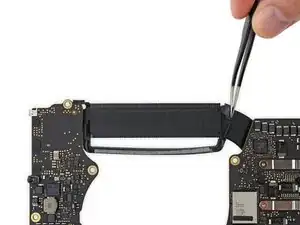
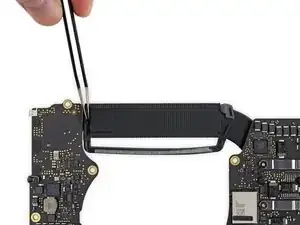
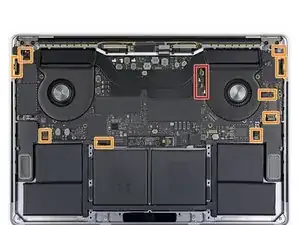
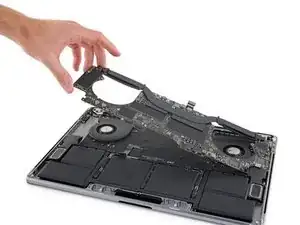
Solo prerrequisito. Sigue esta guía para remover juntos la placa lógica y disipador de calor como un único ensamblaje para más desmontaje o simplemente para apartarlo.

  1. dLTjRC36EADiCFBK
    dLTjRC36EADiCFBK
    FZYKkYtpGq1QwBO2
    YAOsWGKtCtOGVFRy
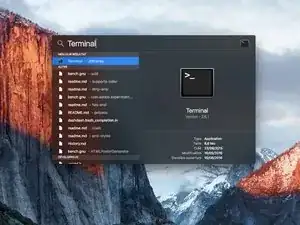
    • Antes de comenzar, debes desactivar la función de arranque automático de tu Mac. Auto Boot se enciende en tu Mac cuando abres la tapa y puede activarse accidentalmente durante el desmontaje. Usa esta guía o sigue las instrucciones abreviadas a continuación para deshabilitar el inicio automático. Este comando podría no funcionar en todas las Macs

    • Enciende tu Mac y ejecuta Terminal.

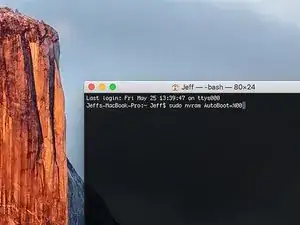
    • Copia y pega el siguiente comando (o escríbelo exactamente) en la Terminal:

    • sudo nvram AutoBoot=%00

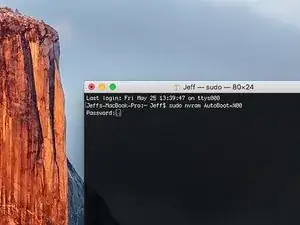
    • Presiona [return]. Si se te solicita, introduce tu contraseña de administrador y vuelve a pulsar [return]. Nota: La tecla de retorno también puede estar etiquetada como ⏎ o "enter".

    • Ahora puedes apagar con seguridad su Mac y abrir la carcasa inferior, sin que se encienda accidentalmente.

    • Cuando hayas finalizado la reparación y se haya vuelto a ensamblar su Mac, vuelve a habilitar el inicio automático con el siguiente comando:

    • sudo nvram AutoBoot=%03

    Is this step necessary? I can’t perform this step as I am attempting to repair water damage and need to remove logic board & most likely replace the battery.

    Macrepair SF -
    @mac_medic You definitely don’t want the power coming on while the board is wet. In your case, I think powering on the machine to disable Auto Boot would do more damage than it prevents. I agree, skip this step and be prepared to disconnect the battery quickly if the laptop automatically powers on. Good luck!

    Jeff Suovanen -
    Thats right! You don't want power running while working on your logic board.

    Dan -
    This did not work when running High Sierra.

    Kyle B -
    Tried this on a 2018 MBP 13” Touchbar (there’s no iFixit guide for this model yet). Need to replace a broken screen.

    Luckily I managed to connect to an external screen (Cmd-Down Brightness to switch displays) and enter above command. Seems to work, but there’s another problem with this model - it powers up as soon as any key is pressed……. ffs <gnashes teeth>

    Cool_Breeze -

    I unscrew the battery first and wrap electrical tape over the logic board battery connector before attempting any repairs to the board. Haven’t had any problems yet and I’ve worked on about 10 of these models already. Also when you open the bottom case use a suction cup at the bottom and pull up then run a plastic spudger along the edges to disconnect the clips. Also only use a plastic spudger on the board. Saw a youtube video from a repair shop and he did not disconnect the power and used all metal tools during the entire process of removing the board. His last step was to disconnect the battery terminal.

    Brian -

    Is this step necessary if my mac can turn on? Battery fully dead(

    Nursat b -

    BEFORE YOU START: The included torx head stripped off before I was done (and you might need an additional T4) so stop now and go buy a good one. Also they fail to warn you above to get some blue threadlocker ahead of time.

    Jason Sherron -

    This command did not work for me and I read that sometime in later 2020 Apple stopped this command from working…any ideas on a work around?

    Patrick Machacek -

    Not able to do that with damaged screen

    richardjgreen -

    If you have a damaged screen you can still use a converter from thunderbolt (USB 3) to HDMI and plug your Macbook Pro to your TV as monitor display. Just make sure to chose the right Source (HDMI IN) in your TV. I did it and to make it work I unplug and plug again in my Macbook and so I could disable the Auto boot

    Roberto Sanchez Bustos -

    Hi. This does not work on 2018 13” MacBook Pro with Touch Bar. I did exactly this to disable auto boot. But when I check by using nvram -p it says: auto-boot true. Am I doing something incorrectly? I did everything step by step. Copied and pasted the sudo command, pressed enter and then entered my password. I have Big Sur 11.1 installed. Is there any other way since I need to replace the screen. Thank you. Adrian

    Adrian Vizik -

    Hi everyone. This is also a little pointless if you can’t see anything on the screen, and you don’t have a display adapter to USB C to display it. I agree with Brian about removing the back and disconnecting the battery cable before you even think about opening the lid of the MacBook. Applying the insulation tape is also a handy little tip that just makes sure there is no way to discharge from either the board or battery.

    Roberto Enrieu -

    running `nvram -p | grep 'AutoBoot'` in terminal verifies that it was accepted

    result: `AutoBoot %00`

    Marek Polák -

    Running Big Sur 11.6.7 on a 2019 16" MBP, it's "auto-boot". So it's: nvram -p | grep 'auto-boot' to display the current state, the default is true - and then to change it, sudo nvram auto-boot=false which turns it off.

    Ed Mechem -

    This step is completely unnecessary if you follow the guide to disconnect the battery properly. Just put some tape between the battery and logic board connection to prevent it from accidentally touching and therefore powering on the laptop.

    Grant Ormsby -

    It took me a few tries to make this command work, as I was able to copy and paste the command into Terminal, but could not type in my laptop’s password. I finally typed my password into a text document, copied it (command C), and then pasted it into Terminal and it worked.

    tommy404 -

    I didn’t do this. Mine never auto-booted before I replaced the battery. Now it does.

    hatuxka -

    BEFORE YOU DO ANYTHING - CHECK THE BATTERY!

    I-fixit sent me a bad battery, which I didn’t realize until it was already install. They sent me a new one, but I wasted hours uninstalling and reinstalled.

    Get a volt meter and measure the voltage on the output of the battery pack. If it reads 0 V, SEND IT BACK. It should read over 2 V.

    bcardanha -

    When I did this from Terminal.app within Recovery Mode, the “sudo” was not recognized but I could invoke it without the sudo part. It seems to have been accepted when looking at “nvram -p”

    johann beda -

    When in Recovery Mode, you already have superuser powers. So you don't need to prefix commands with the sudo command to invoke them with root privileges; you already have them. Do a pwd (print working directory) after opening Terminal in Recovery Mode, and you'll see that you're in the root user's directory.

    Ed Mechem -

    I received the battery kit for my 2018 MacBook Pro and as per the above comment from bcardanha - Oct 12, 2021, I checked the voltage on the pads marked + and - . It was zero volts so I panicked a bit.

    I sent a message on the iFixiT Facebook page and I got no reply. I finally found the customer service email for Ifixit Europe and sent them an email voicing my concern as I was not keen to work for couple of hours just to discover that the battery is faulty. I had an almost instant reply on the email (kudos to them) and they adviced me to go ahead and install the new battery as the voltage measured when battery is not connected is not relevant.

    I took a leap of faith and after two hours… the new battery showed 50% charge and everything seems to be working just fine. I am happy it worked.

    Mircea Comanici -

    After removing the old battery and installing the new battery I powered up the MBP before screwing the bottom on. I discovered the my keyboard would not function. It took a few hours of investigation and frustration that I discovered the track pad power ribbon had become partially dislodged from the trackpad. I was able to see that this through the little machined slot where the battery sat. I had to remove the trackpad to reinsert the power ribbon back into the connector in the trackpad. after reassembling and reinstalling the battery etc the keyboard worked. Just food for thought if your run into the keyboard issue.

    Ed Mease -

    This should be the default. IMO I tell you to power on - not the lid.

    G Sena -

    Est ce que cela fonctionne sur un macbook pro 2017 sans touchbar ?

    maël muzelet -

    Bonjour Maël, oui, ce tutoriel concerne "les MacBook Pro 2016 (et plus récents) et les MacBook Retina 12" 2017 (et plus récents)"

    Claire Miesch -

    Excellent instructions. I was able to follow and install the new screen. I recommend that you get a good set of tools before you begin. I started with an inexpensive repair kit bought online. The Penta and torx bits failed. I bought an IFIXIT kit with quality bits and I was able to do everything I needed.

    Tom Markham -

    If you're not running an admin account the sudo command won't work (which honestly, you should not be running admin). Rather than logging in to your admin amount via the OS, in the terminal type "login [admin username]," then the password and you'll be able to do the sudo command as described above. Once you're complete, type "logout [admin username]" and you'll be good to go. Obviously replace [admin username] with whatever the account name for your admin user is.

    arichard2401 -

  2. 5iYIgSZgIU6hkP1B
    5iYIgSZgIU6hkP1B
    UVKOsGSvaL1OsSL3
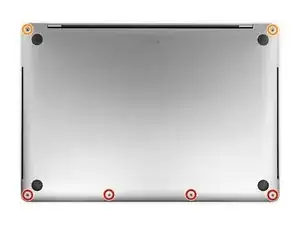
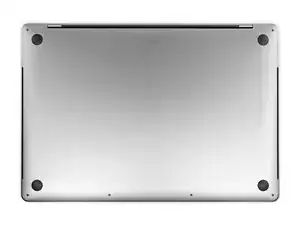
    • Apaga completamente y desenchufa tu MacBook Pro antes de comenzar. Cierra la pantalla y da vuelta la computadora portátil boca abajo.

    • Usa un destornillador Pentalobe P5 para remover lo seis tornillos que sujetan la caja inferior:

    • Cuatro tornillos de 4.7 mm

    • Dos tornillos de 6.6 mm

    • Ten en cuenta la orientación de los tornillos a medida que los retires; es necesario reinstalarlos con un ligero ángulo.

    • A lo largo de esta reparación,haz un seguimiento de cada tornillo y asegúrate de que vuelva exactamente de donde salió para evitar dañar tu dispositivo.

    I miss a printable template to leave the screws and removed parts on it for future identification when reassembly, linked maybe with the location in the Macbook, or with the number of the step.

    Juan Ignacio Fernández García -

  3. ijkfCfPMSRX2ALo2
    ijkfCfPMSRX2ALo2
    5CkAq3GH4yfvDTM5
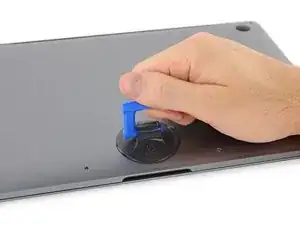
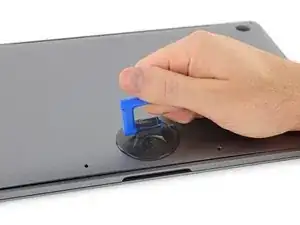
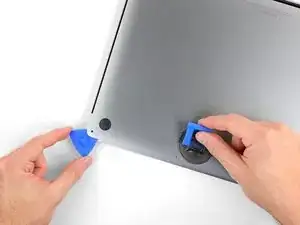
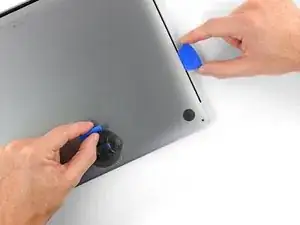
    • Presiona una ventosa en su lugar cerca del borde frontal de la caja inferior entre los orificios de los tornillos.

    • Levanta la ventosa lo suficiente como para abrir una pequeña grieta debajo de la caja trasera.

  4. 3tccyXXDSgVUfV5r
    3tccyXXDSgVUfV5r
    dGSZtjC2B25WfTqZ
    LkbLcUdZnPtyUlDZ
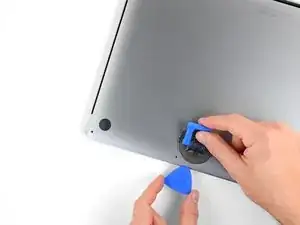
    • Desliza la esquina de una púa de apertura en la grieta que creaste por debajo de la caja inferior.

    • Desliza la púa de apertura alrededor de la esquina más cercana y luego hasta la mitad del lado de la MacBook Pro.

    • Esto libera el primero de los clips escondidos que sujetan la caja inferior. Deberás sentir y escuchar que el clip se libera.

  5. HOVvMHuquXdBar2x
    HOVvMHuquXdBar2x
    oFJCHJDsnpdUHHUU
    ODWHnoCuXGXGKJla
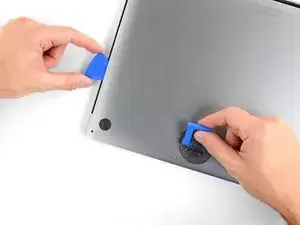
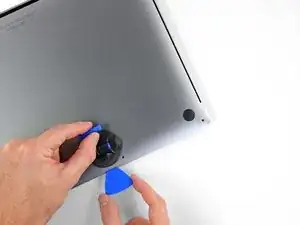
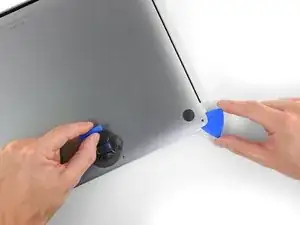
    • Repite el paso previo en el lado opuesto utilizando tu púa de apertura para liberar el segundo clip.

  6. cuTtNQlkiufuESrG
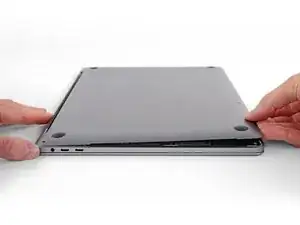
    • Levanta el borde frontal de la caja inferior (el lado opuesto de la bisagra de la pantalla) justo lo suficiente como para deslizar tus dedos por debajo y conseguir una buena sujeción.

    • Hay dos clips adicionales escondidos en la mitad de la tapa que podrían liberarse en este momento, si no lo han hecho todavía.

    • No levantes demasiado y no intentes remover la caja inferior aun.

  7. rXaRTOtGXtFtIpF5
    rXaRTOtGXtFtIpF5
    AlvVmxKf6DlNLakh
    WJMFC2MdulDBxoXv
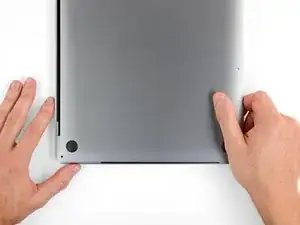
    • Tira de la caja inferior firmemente hacia el borde frontal de la MacBook (lejos del área de la bisagra) para separar el último de los clips que sujeta la caja inferior

    • Tira primero de una esquina, luego de la otra.

    • Tira hacia un lado, no hacia arriba.

    • Esto podría requerir mucha fuerza.

    With the amount of force needed to carefully pull the back panel out, this caused the back panel to scratch the battery. I don't see or hear any expansion, but this still has me concerned.

    gladgura -

    this step must require a lot of force. I tried to pull it with the plastic hookie thing from the ifixit set by hooking it in one of the screw holes — the tip of the hookie thing broke.

    Oleksii Toldaiev -

    The amount of force required for removing the bottom cover is absolutely ridiculous. Almost feels like i'm about to push my MacBook towards the wall the second it comes off.

    Be careful, I ended up breaking 2 grounding pins on the motherboard last time I tried opening my computer up.

    techtalkf -

    PLEASE DON'T PULL!!!

    Instead just gently push with plastic pick from the other side (where vents outputs are) towards the center... Cover will very easily open that way.

    I hope iFixit will correct this step.

    Kamil Roman -

    Came here to share exactly this.

    Robert -

    That's definitely how this step should be done. Thanks!

    VovS -

    I used a screwdriver at 45 degrees angle and pushed the cover from the hinges, it worked really smooth. I had it close to the corners.

    Martin Lundgren -

  8. 1eexZLVG2E3kwXhw
    1eexZLVG2E3kwXhw
    Koax55WG2pDjZ1MC
    WUXJn5rl13iOX11X
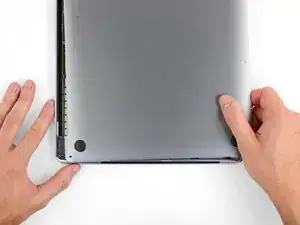
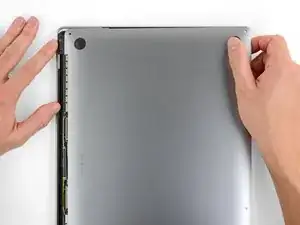
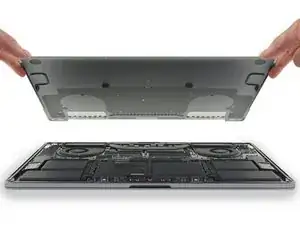
    • Remueve la caja inferior.

    • Para volver a instalar la caja inferior:

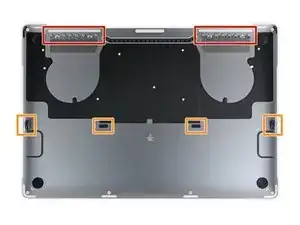
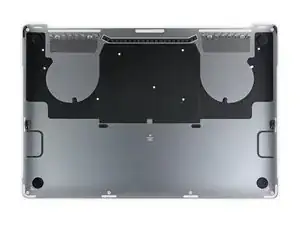
    • Colócala en su lugar y alinea los clips deslizantes cerca de la bisagra de la pantalla. Presiona y desliza la tapa hacia la bisagra. Debe dejar de deslizarse cuando los clips se enganchan.

    • Cuando los clips deslizantes están completamente enganchados y la caja inferior se ve correctamente alineada, presiona firmemente la caja inferior para enganchar los cuatro clips ocultos. Deberías sentirlos y oírlos encajar en su lugar.

    If I had it all to do over, again, I would blow out the dust with compressed air at this point. During the disassembly, I kept encountering little dust bunnies, and I was very worried that one would get caught in one of the connectors when I plugged everything back up (which wouldn’t get discovered until I put it all back together and tried out all of the components).

    Joe Emenaker -

  9. PTIZqDdpESIEg6iK
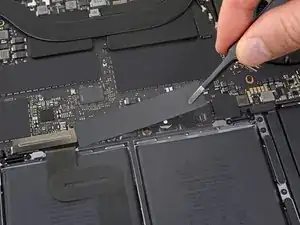
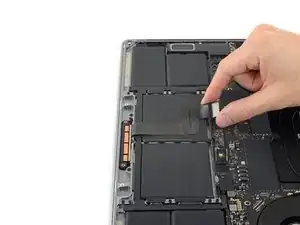
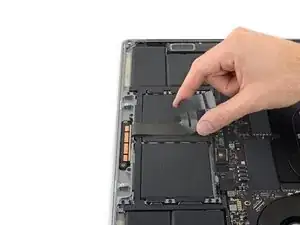
    • Despega y remueve la etiqueta adhesiva aislante de la placa de la batería en el borde de la placa lógica más cerca de la batería.

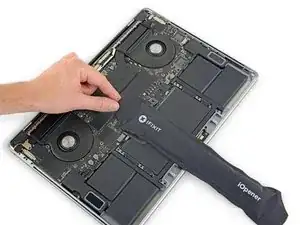
    • Si la tapa no se despega fácilmente, aplica un poco de calor con un iOpener, secador de pelo o pistola de calor para ablandar el adhesivo e intenta nuevamente.

    • Si la tapa no encaja de forma segura cuando vuelves a ensamblar el dispositivo, intenta rotarla 180 grados. Debe estar orientada correctamente para que las almohadillas adhesivas hagan contacto con los tornillos de la placa.

  10. MZhqvhivJc6ltuBI
    MZhqvhivJc6ltuBI
    a5jICxWI6SwpreQK
    ur1oBPkypLAwkAay
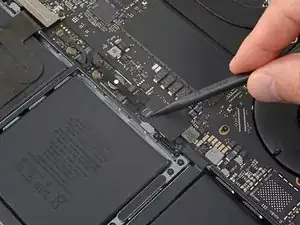
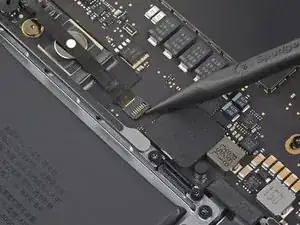
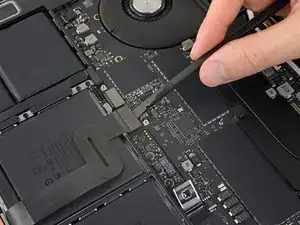
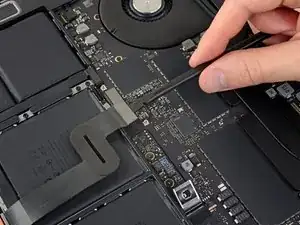
    • Despega la cinta que cubre el conector de cable de datos de la placa de la batería.

    • Usa un spudger para levantar suavemente la pestaña de bloqueo del conector ZIF para el cable de datos de la placa de la batería.

  11. SBuNWrrEsnEHWE5U
    SBuNWrrEsnEHWE5U
    WSVYglC4kJSVXbLA
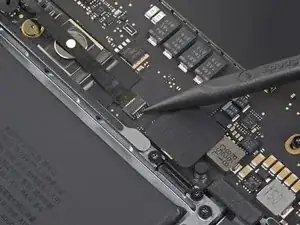
    • Desconecta el cable de datos de la placa de la batería deslizándolo fuera de su zócalo en la placa lógica.

    • Desliza en paralelo a la placa lógica, en la dirección del cable.

  12. 3QMLTKDDDaOIEXZk
    3QMLTKDDDaOIEXZk
    QJeqYMjSJObGSxLc
    • Levanta y desconecta la solapa de bloqueo en el conector en el extremo opuesto del cable de datos de la placa de la batería.

  13. doyrMkF4Ol2fsUCf
    doyrMkF4Ol2fsUCf
    FlF4ZwiPrAxEkwSi
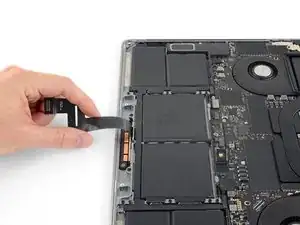
    • Desliza el cable de datos de la placa de la batería de su zócalo en la placa de la batería y remuévelo completamente.

    • Ten cuidado de no instalar este cable al revés. Cuando lo instales correctamente. el autoadhesivo blanco indicador de líquido debe estar mirando hacia arriba, posicionado directamente sobre el tornillo del conector de alimentación de la batería.

    Bonjour, super Tuto, petite question elle sert a quoi cette nappe , et quesqui se passe si elle est pas branché ?

    Jorgio -aigleBrun- -

  14. YCrvX4dDTLFRo2He
    YCrvX4dDTLFRo2He
    REFmgM15LSgj5I14
    • Usa un destornillador T5 Torx para remover el tornillo panqueque de 3.7 mm que sujeta el conector de alimentación de la batería.

  15. rmLuSU2NmsUdQIQp
    rmLuSU2NmsUdQIQp
    aMGREyB4myE324Ug
    • Usa un spudger para levantar suavemente el conector de alimentación de la batería, desconectando la batería.

    • Levanta el conector lo suficientemente alto para mantenerlo separado de su zócalo mientras trabajas. Si hace contacto accidentalmente, podría dañar tu MacBook Pro.

    Put a little bit of insulating tape over the terminal to be safe.

    Brian Tibbels -

  16. sK4lqBHxryavnDid
    sK4lqBHxryavnDid
    oF22XSHRWEFwHmoR
    • Utiliza un destornillador Torx T3 para quitar los dos tornillos de 1.9 mm que sujetan el soporte de la tapa para los conectores del cable del teclado y el trackpad.

    • Remueve el soporte.

    I didn’t have T3 but T4 worked ;)

    Martin Lundgren -

  17. ncIQWCHpRGO1fSb2
    ncIQWCHpRGO1fSb2
    yKukLfBQSF5SR1va
    • Usa un spudger para desconectar el cable del trackpad levantando su conector directamente de la placa lógica.

  18. noPvQ2CLs1jptX2p
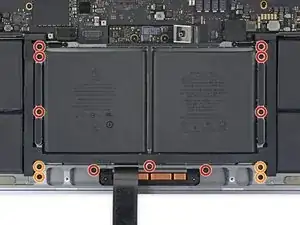
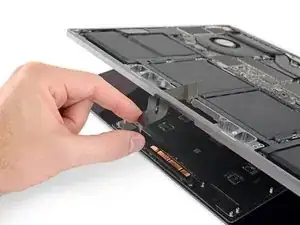
    • Aplica calor moderado al cable plano del trackpad para suavizar el adhesivo que lo sujeta a la batería.

    • Puedes usar un iOpener, un secador de pelo o una pistola de calor, pero ten cuidado de no sobrecalentar la batería. El cable debe estar caliente, pero no demasiado caliente para tocarlo.

  19. bRNYL1JeZ2MUeBe2
    bRNYL1JeZ2MUeBe2
    XJTjmkOpAHj1XPso
    irj3TcmYrfGAxaAU
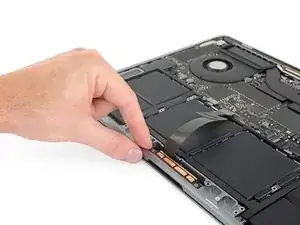
    • Retira con cuidado el cable del trackpad de la batería y empújalo.

    • No dobles ni rasgues el cable. Si tienes problemas, no lo fuerces, aplica más calor e intenta nuevamente

  20. JDrgfAWr1UO6RLKu
    JDrgfAWr1UO6RLKu
    tCIssjKYVvECMJsB
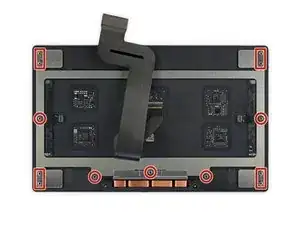
    • Utiliza un destornillador Torx T5 para quitar los 13 tornillos que sujetan el ensamblaje del trackpad:

    • Nueve tornillos de 5.8 mm.

    • Cuatro tornillos de 4.9 mm.

    • Estos tornillos se ven muy similares, así que no los mezcles.

    • Estos tornillos pueden aflojarse con el tiempo debido a la acción de hacer clic en el panel táctil de Force Touch. Agregar un pequeño fijatornillos azul al instalarlos puede ayudar a mantenerlos seguros.

    • Instala los tornillos sin apretar y verifica la alineación del trackpad antes de apretarlos.

    I dont have the “clicky” feedback from my trackpad anymore - please advise how to fix this

    Shadi Saif -

    (MacBook Pro 2019 15” 2 years old) There are 4 screws (2 on the left and 2 on the right, each pair held down by a black metal piece) next to the uppermost 5.8mm screws. What is the size/kind of screw are these? I’d like to purchase these missing items? Please help. A suspicious technician tried to scam me out of money. I asked for my computer back before they could charge me. I decided to do the repairs myself. When I received my laptop back and followed Ifixit instructions I found 2 screws missing and they replaced the original with an unrecognizable rusty screw on the farthest left screw hole, and the black metal pieces were missing as well.

    Alathia Kaye -

  21. dbGJfyNAFLmgI6OQ
    dbGJfyNAFLmgI6OQ
    d31aHAXyDOBZbn6q
    WVy1FAO3B2SbT1ie
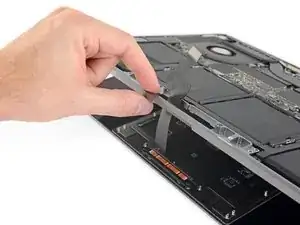
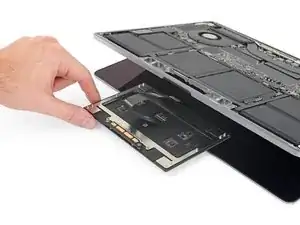
    • Abre la pantalla ligeramente, pero mantén el MacBook al revés. El conjunto del trackpad debe separarse y quedar plano en la pantalla.

    • Pasa suavemente el cable plano del trackpad a través de su ranura en el chasis.

    do not turn the touchpad over, as there are 4+5 very thin spacers/washers, and you might lose them. only the next step warns you about this. dont be me!

    George Kiss -

  22. yIm1JNUtPSAhyjoc
    yIm1JNUtPSAhyjoc
    AqeMok2AxKKOdhLZ
    NHbfjLZpScjEKpF5
    • Cuando retires el conjunto del trackpad, ten mucho cuidado de no perder las nueve arandelas metálicas pequeñas que se apoyan en los postes de los tornillos. (Volarán y se perderán con muy poca provocación).

    • Remueve el ensamblaje del trackpad.

  23. ZWY2wWJIA2sohYJR
    ZWY2wWJIA2sohYJR
    VOv2slGFGMLOQBFe
    • Usa tu spudger para desconectar el teclado levantando su conector directamente de la placa lógica.

  24. 2ACOrmEBuVLGGMxV
    2ACOrmEBuVLGGMxV
    ESJgAWhAIByUZn5u
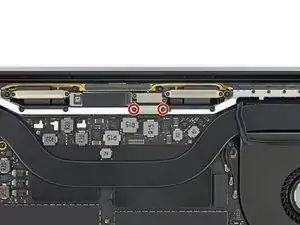
    • Usa un destornillador T3 Torx para remover los dos tornillos de 3.5 mm que sujetan la tapa del cable flexible de la placa de la pantalla.

    • Remueve la tapa del cable flexible de la placa de la pantalla.

    I was able to complete this procedure successfully without removing the logic board. I don’t use any liquid adhesive remover. I employ A rubber type silicon rubber-semi stiff spatula used for putting icing on cakes. Use careful leveraged prying, sliding under battery to break the adhesive seal. Also careful application of heat with a heat gun being careful to not damage the speakers. I remove all logic board screws, disconnect all service cables including USB C caps on both sides. The goal is to be able to carefully ”lift” The lower edge of logic board most proximal to the battery enough to allow the ribbon cable to clear the “ridge” that is on rear edge of the battery compartment, Thus allowing you to pull the battery back horizontally towards The front edge laptop and out. I use popsicle sticks to keep the logic board lifted. Careful not to bend the board or break it! You need about 1/8” of clearance. 99% isopropyl alcohol libera dabbed on with a Q-tip to adhesive residue will clean it off.

    Macrepair SF -

    I had some issues using my T3 bit for most of these screws. Had to use a T4. Strange because I do not use either of those bits often, so I would assume they are still in good shape. Using a T3 felt like I was going to round out each of the screws. Wonder if anyone else experienced this same thing? I'm using the 'Pro Tech Toolkit' by iFixit.

    Michael Stein -

  25. h3LUEOUmG1Qa4FHB
    h3LUEOUmG1Qa4FHB
    jTMKbKYBPoyAAij6
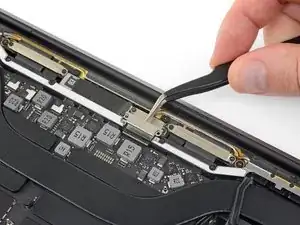
    • Usa un destornillador T3 Torx, remueve los dos tornillos de 1.7 mm que sujetan el soporte para el conector del cable de la placa de la pantalla.

    • Remueve el soporte del conector del cable de la placa de la pantalla.

    Help! I stripped the T3 Screw!! ?

    J S -

    I also did this

    jerryrobsonjr -

    Both of these screws also stripped for me. I’m not sure taking extra care would have helped: they stripped almost instantly and felt corroded. I basically continued by carefully manually turning out the right screw head using a regular, (slightly larger than T3) philips driver (and other small tools) until the head popped off the screw and one side of the bracket released. Then the bracket can be lifted and the other screw can be loosened using upward pressure. Upon replacement I basically used a small amount of high viscosity “gel” super glue (or epoxy) to reattach the right side of the bracket.

    capecodnative -

    Ok, I stripped it too. Feels like it isn't a t3 screw... Using the t3 bit from ifixit kit. Have a bite when turning clockwise but won't bite counter clockwise

    Chi Wang -

    Tried with another T3 bit (was using the T3 bit from ifix battery kit) and manage to remove one screw. The other one stripped too much but followed the recommendation from above comment about lifting the bracket

    Chi Wang -

    And now? It's definitely not T3. What the hell do I do now...

    Marina Llopis -

  26. hWNUVuXxYGkOQLuW
    hWNUVuXxYGkOQLuW
    3lW4x2iOsthCyeb2
    • Levanta el cable flexible de la placa de la pantalla directamente de su zócalo para desconectarlo de la placa de la pantalla.

  27. NGFfbbntTcLfE6AN
    NGFfbbntTcLfE6AN
    TLBZSWgTQu1TCaxo
    • Utilice un destornillador Torx T3 para quitar los dos tornillos de 2.0 mm que sujetan cada tapa de la bisagra (dos tornillos en cada lado).

  28. WESQjibowRGIOB4y
    WESQjibowRGIOB4y
    VQnIDOppIXlPfvOS
    dIZRRRhATdIGluks
    • Remueve las dos tapas de bisagra.

  29. qxkZlsQjNTiqcykg
    qxkZlsQjNTiqcykg
    xxSD5pgXaB5CtOjl
    qEuLVDOGNShUMJU4
    • Utilice un controlador Torx T3 para quitar los dos tornillos de 2.4 mm que sujetan el soporte de la cubierta para los conectores de cable de la toma de auriculares y Touch ID.

    • Remueve el soporte.

    Here is a first! I did not notice this when disassembling but spent a bit of time validating I had reassembled things correctly. After 35 years of this stuff, you don’t see much new - just smaller. !

    —->The 2.4 mm screw closest to the hinge screws into the logic board screw circled in green T8 (larger head)at step 47.

    Try finding that screw in your bucket of spares!

    Brian Eustis -

  30. K5fPx6JlRJOUXRMt
    K5fPx6JlRJOUXRMt
    k4hHBkxVZcreXFY6
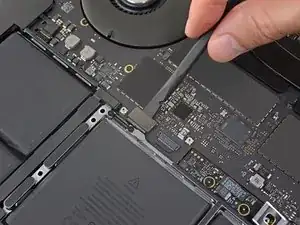
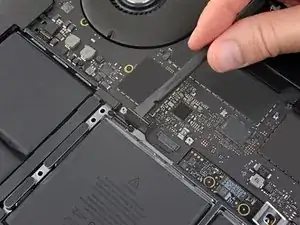
    • Desconecta el conector flexible de la toma de auriculares levantando su conector de la placa lógica.

  31. LAcQL4JQvGZYGWGU
    LAcQL4JQvGZYGWGU
    GWgliFUh24bmRuLB
    • Desconecta el botón de inicio y sensor de Touch ID levantando su conector de la placa lógica.

    This smaller connector cable of the touch ID sensor that sits underneath the power sensor connector is easy to overlook when replacing the logic board. It is small & short and can easily hide. Make sure you account for it when placing the LB in and before screwing it down.

    Macrepair SF -

  32. JxwuAZXOHeF3CfYO
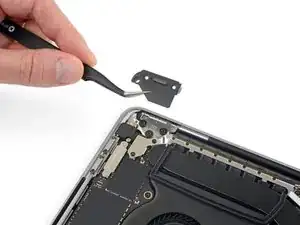
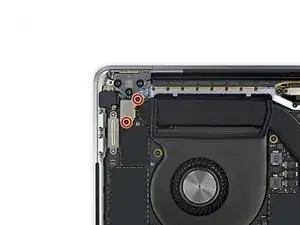
    • Usa un destornillador Torx T3 para quitar el tornillo de 1.3 mm que sujeta el soporte de la tapa del conector del digitalizador Touch Bar.

  33. gjGOmxTJPlV5Pcoi
    gjGOmxTJPlV5Pcoi
    ajmGXYArtoeYfTZx
    BQ33qY5wqiop1X2p
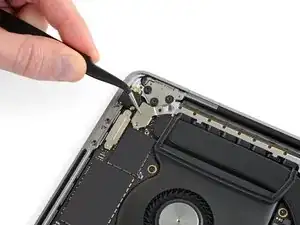
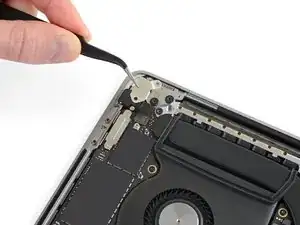
    • Usando tus pinzas, desliza el soporte hacia el borde lateral de la MacBook Pro hasta que la pestaña de retención ranurada en la placa lógica se libere.

    • Remueve el soporte.

  34. OLEyZERLrZmuCWOc
    OLEyZERLrZmuCWOc
    YtBrywD3Z46KJOeH
    • Desconecta el cable del digitalizador del Touch Bar levantándola de la placa lógica.

  35. Z4WLmC4Af1MgSPwC
    Z4WLmC4Af1MgSPwC
    TBEkxgCdmTZxTq3D
    • Usa un destornillador T3 Torx para remover dos tornillos de 1.9 mm que sujetan el soporte para el conector de cable de la pantalla del Touch Bar.

    • Remueve el soporte.

  36. rdtc2HfFhemuFkP5
    rdtc2HfFhemuFkP5
    V1lJDfNAwoMJh5VT
    • Desconecta el cable de la pantalla de Touch bar levantando su conectar de la placa lógica.

    Right above the connector, there might be a chip attached instead of an empty space as shown in the photos. The connector will be close to the part but they are separate, and the connector can be safely removed.

    yqy980210 -

  37. Zg64coNjUyXMTLDc
    Zg64coNjUyXMTLDc
    sfFumwaPW4PM65rF
    • Usa un destornillador T3 Torx para:

    • remover los dos tornillos de 1.3 mm que sujetan la tapa del cable flexible del Thunderbolt que se encuentra a la izquierda.

    • remover los dos tornillos de 1.3 mm de la tapa del cable Thunderbolt a la derecha.

  38. 3knbjJPAymkOLNCS
    3knbjJPAymkOLNCS
    y3lqPE4HW5nqZoLc
    • Remueve los soportes de la tapa de ambos zócalos del cable Thunderbolt.

  39. exkgTpYLnlrp4ZZQ
    exkgTpYLnlrp4ZZQ
    AjPJJxTGA5lLBtP5
    EMn4AYmTfpTaIJEl
    • Usa un spudger para desconectar el cable flexible Thunderbolt del lado izquierdo levantándolo de la placa lógica.

    • Levanta del borde interior, más cercano al ventilador.

    • Con cuidado empuja el conector del cable flexible a un lado para que no interfiera con la extracción de la placa lógica.

  40. LLsCNB1DthkUlIUN
    LLsCNB1DthkUlIUN
    pQTUTCUHTKgBFrqY
    JcyNSZmtHhshuhtq
    • Repite para desconectar el conector del cable flexible Thunderbolt en el lado opuesto.

    • Empuja con cuidado el conector del cable flexible a un lado para que quede espacio para que la placa lógica salga sin engancharse.

  41. JGtZy3HuTUAeBoS3
    JGtZy3HuTUAeBoS3
    dRMCKLupNlCc3a52
    RODaAEUfwKQAvROr
    • Desconecta los dos conectores de altavoces deslizando el extremo plano de tu spudger por debajo de cada cable cerca de su conector.

    • Gira o levanta suavemente para desconectar ambos altavoces.

    Both had a dab of glue underneath. I used heat gun to loosen.

    Macrepair SF -

    On this step, it helped to use the tip of sharp tweezers to open the small metal tab of the connector to the side.

    Rodrigo Damazio Bovendorp -

    After disconnecting the speaker connector, does the speaker just come out, or is it glued or screwed in place? All I need is to Replace the Right Speaker with a New one. This guide gets me to this point but doesn’t address replacing the speaker. Would like to know if it’s more complicated than that before I get started… Thanks

    Would be nice to have a guide just for Speaker Replacement. Thanks

    Chad Gagnon -

    My right speaker doesn't work now because the cable and connector disconnected from the logic board. From one problem to another now... What should I do?

    Blake Johnson -

  42. rpggR1BSd2ivkpCK
    rpggR1BSd2ivkpCK
    Uvg1Erp6vCnduApZ
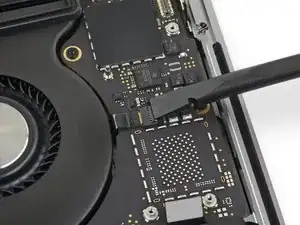
    • Despega cualquier cinta que cubre el zócalo del conector del cable del micrófono.

    Wenn möglich das Klebeband nicht abziehen! Zwei Schritte weiter bist Du froh darum.

    Stephan Zenger -

  43. jjBThQOLxxBKWtSw
    jjBThQOLxxBKWtSw
    e2dCqFryAVygfQOT
    cZSamwZeQZBWJkFL
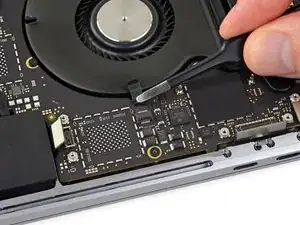
    • Abre la solapa de bloqueo en el conector ZIF del cable del micrófono levantándolo hacia arriba desde la placa lógica.

  44. TBowkAlrNvEIkWWt
    TBowkAlrNvEIkWWt
    kbuC4BITFsryhKqX
    • Desconecta el micrófono tirando de su cable hacia el ventilador hasta que se suelte de su zócalo.

    • Si es posible, tira de la cinta adherida al cable, en lugar del cable en sí, para reducir el riesgo de daños.

  45. 3P3EHShbtOjwWNJh
    3P3EHShbtOjwWNJh
    VHL2DsARcfi1pSAC
    • Utiliza un destornillador Torx T5 para quitar el tornillo único de 2.9 mm que sujeta el manojo de cables de la antena.

  46. IxDlbVhlHngl4Cxd
    IxDlbVhlHngl4Cxd
    CKA1yXuOSnccWLUF
    mjRiQRjFyFmNqOS2
    • Desconecta los tres cables de la antena levantando cada uno directamente desde su zócalo.

    • Desliza tus pinzas o el extremo plano de tu spudger debajo de cada cable hasta que esté cerca del zócalo, y luego gíralo o levántalo suavemente para desconectarlo.

    • Para volver a conectar cada cable, alinea el conector directamente sobre su zócalo y luego presiona hacia abajo para que encaje en su lugar.

  47. mdXPZEvBWOLGqRA2
    mdXPZEvBWOLGqRA2
    eMnIAYVCqpZXJAha
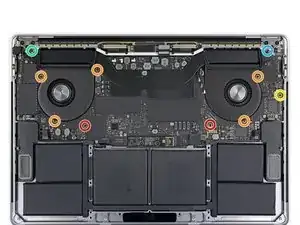
    • Remueve los diez tornillos que sujetan el ensamblaje de la placa lógica.

    • Dos tornillos T3 Torx de 2.6 mm

    • Cinco tornillos T5 Torx de 2.9 mm

    • Un tornillo T5 Torx de 3.7 mm

    • Un tornillo T8 Torx de 3.9 mm

    • Un tornillo T8 Torx de 4.1 mm

    • Durante el ensamblaje, instala estos tornillos sin apretarlos. Ajusta la posición de la placa si es necesario hasta que todos los conectores se alineen y luego ajusta los tornillos.

  48. rCxHE2kgOHPDxy1D
    rCxHE2kgOHPDxy1D
    fkOuMFLayRPhvTCB
    CRooRPymdyPD4OUW
    • Despega (pero no quites) las dos bandas de goma que amortiguan las vibraciones del adhesivo que las sujeta a los ventiladores.

    • Si es necesario, aplica un poco de calor con un iOpener, un secador de pelo o una pistola de calor para suavizar el adhesivo y hacer que los amortiguadores sean más fáciles de separar.

    When replacing the battery, you can leave these, and just lift the logic board, enough so the battery slides out.

    nbeijer -

  49. HpH1yUNwHgwRUfvE
    HpH1yUNwHgwRUfvE
    KbBxQ5UMk2J23kAl
    • El ensamblaje de la placa lógica tiene un espacio muy justo, pero puedes facilitar la extracción insertando un spudger debajo del borde izquierdo y levantándolo ligeramente.

    • No debe haber resistencia al retirar la placa lógica. Revisa todos los cables con cuidado y manténgalos fuera del camino si es necesario para que no se enganchen en el tablero.

    • Levantando desde el lado izquierdo, remueva la placa lógica.

    To ease logic board removal (and especially later for reinstallation), I choose to gently bend each connector away from the logic board & use a little tape to hold them out of the way.

    Tech Medic -

    Is there new adhesive for fans? I’m into deep . 50/50 shot.. I get his back together ..😩

    Gerald Rappaport -

    For me, I didn’t have to remove the MOBO. To be honest i didn’t need to follow the steps that require you to remove certain plugs. It may help to remove the speakers and what not, but other than that you don’t have to remove the whole thing. Also this is from my experience. So don’t get mad at me if it doesn’t work. Goodluck!

    Neo -

  50. xWQpLjChkSyWJpL2
    xWQpLjChkSyWJpL2
    NPkZy33WDRtgefPW
    Aonio6YmPc6dyrSi
    • Al reinstalar el ensamblaje de la placa lógica:

    • Verifica la alineación de los amortiguadores de vibración de goma y ajústalos según sea necesario.

    • Pasa el manojo de cables de la antena a través de la grieta entre la placa lógica y el disipador de calor, y asegúrate de que se alinee correctamente al colocar la placa en su lugar.

    • Verifica que no haya cables atrapados debajo de la placa cuando la instales. Revisa cada lugar marcado con cuidado.

    Would be good to mention (at the end of instructions here) to pay special attention on reassembly that the Touch ID and power button cable does not slip under the logic board at the last moment7

    Wolf Naegeli -

Conclusión

Para volver a ensamblar tu dispositivo, sigue estas instrucciones en orden inverso.

Jeff Suovanen

Miembro Desde 06/08/13

407920 Reputación

0 comentarios