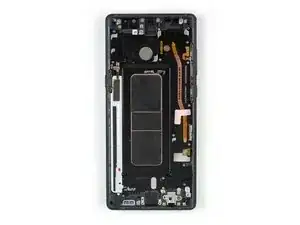
Introducción

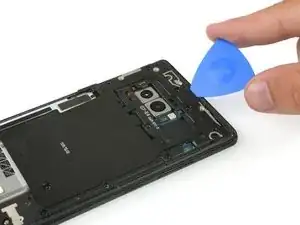
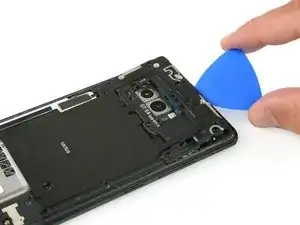
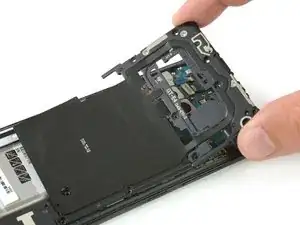
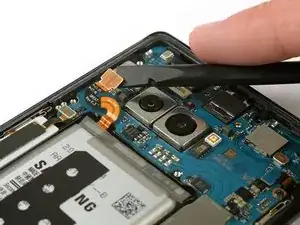
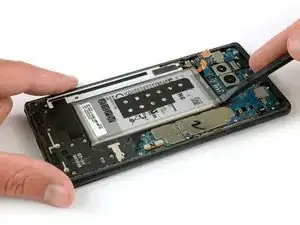
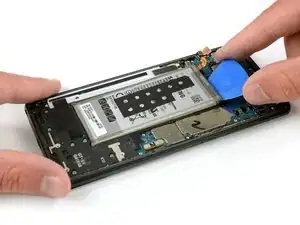
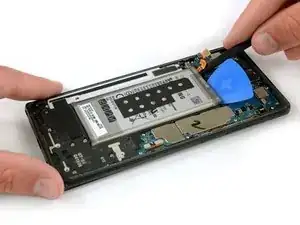
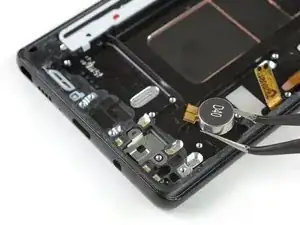
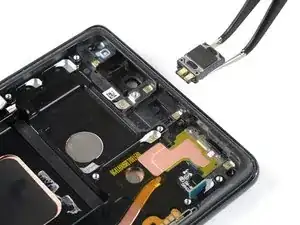
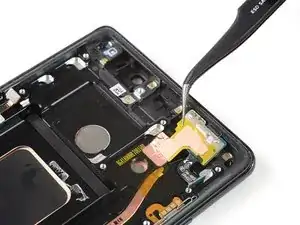
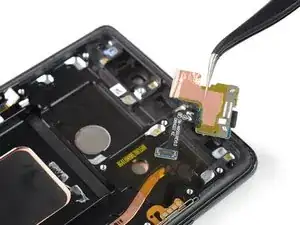
Utiliza esta guía para reemplazar el ensamblaje de pantalla en tu Samsung Galaxy Note8.

Antes de desarmar tu teléfono, descarga la batería por debajo del 25%. La batería podría incendiarse y/o explotar si es perforada accidentalmente, pero las posibilidades de que esto ocurra soy mucho más bajas si se encuentra descargada.

Esta guía involucra quitar la tapa trasera de vidrio, necesitarás reemplazar el adhesivo para colocar nuevamente la tapa trasera al teléfono.

Abrir el Samsung Galaxy Note8 dañará el sello resistente al agua en el dispositivo. Si no reemplazas los sellos adhesivos, tu teléfono funcionará normalmente, pero perderá toda protección contra agua.

  1. NL6mFMekMgZyS5GW
    • Apaga tu teléfono.

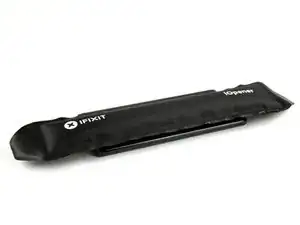
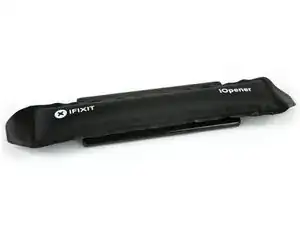
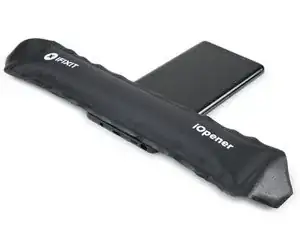
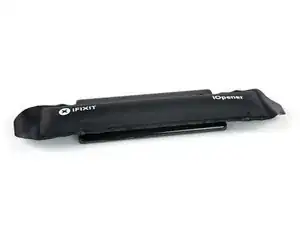
    • Prepara un iOpener para suavizar el adhesivo en la parte trasera de la Note8.

    • Aplica el iOpener atrás de la Note8 a lo largo del lado con el botón de encendido.

    I used a heat gun to soften the glue - worked it around the edges, moving the heat gun quickly. As this is my first attempt, I’m still calibrating on this - but other guides mention getting the back cover hot enough so as it’s just too hot to touch. I also have a temp probe on my multi-meter, and I measured appx. 75 deg. C.

    One of the other guides showed using a electronics hot plate set to 105 deg C for 60 sec.

    Phil Brooks -

  2. SGkLVwYb6ppAAHgN
    SGkLVwYb6ppAAHgN
    4mhJcBy1fZ4akNqD
    MESslCDbHbGpJa4J
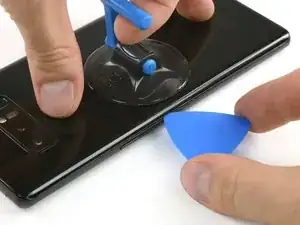
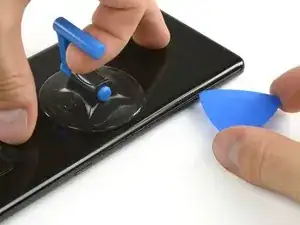
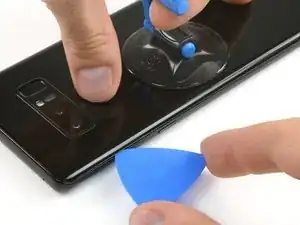
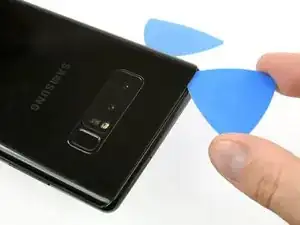
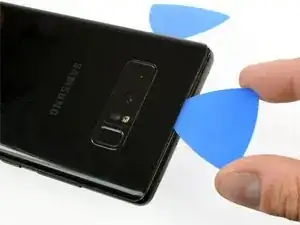
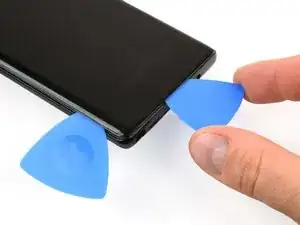
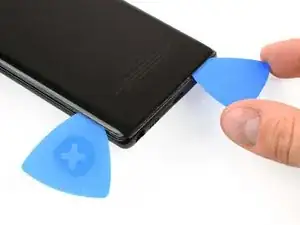
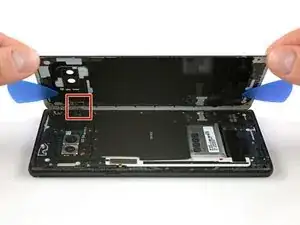
    • Usa una ventosa de succión para levantar la cubierta trasera y un lengüeta o punzón plástico para entrar en la abertura.

    • Dado que la cubierta trasera también está ligeramente curvada en los bordes, debes insertar la lengüeta o punzón plástico en un ángulo inferior desde abajo.

    • Empieza en la parte media de lado y corte el adhesivo mientras levanta la cubierta con la ventosa de succión.

    • Ten cuidado de no presionar demasiado con la lengüeta o punzón plástico para evitar quebrar la cubierta trasera. En vez de eso, jala con la ventosa de succión y usa la lengüeta o punzón para cortar el adhesivo.

    • Mueve la lengüeta o punzón hacia la esquina inferior y déjela allí para evitar que el adhesivo vuelva a sellarse en la carcasa.

    • Utiliza otra lengüeta o punzón y deslízalo hacia la esquina superior.

    • Si al deslizar la legüeta o punzón se vuelve más difícil podrías necesitar calentar el iOpener y aplicarlo nuevamente a la cubierta trasera.

    I used an X-acto knife with the flat blade to get it started. I tried using the suction cup - but it’s difficult to get good leverage. Once I got the cover started - I used the metal pry tool (sharpened with a dremel file) and a business card to work it open.

    This is definitely the hardest part.

    Phil Brooks -

    Once off I see all the glue on the curved part of the chassis NOTON THE BACK. Apply heat to curved edges.

    Lyle Walsh -

  3. sSqDWoFHObK56xJp
    sSqDWoFHObK56xJp
    nxncMfYm2KUVYrl1
    diuWRRAFYKVkyLBY
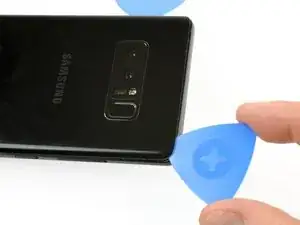
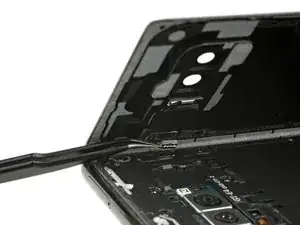
    • Nuevamente toma otra lengüeta o punzón plástico y cuidadosamente muévelo hacia la esquina y a lo largo del borde.

    • Recalienta la cubierta trasera con un iOpener de ser necesario.

    • Deja la lengüeta o punzón plástico en la esquina superior para que el adhesivo no se adhiera nuevamente.

  4. edGFZZXkGbZcYJvY
    edGFZZXkGbZcYJvY
    BQgRHIcKCAqUZM3w
    onhvVuYXi4gs2DqJ
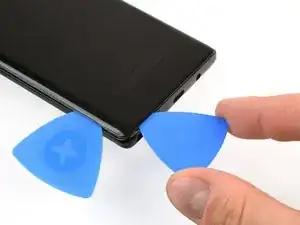
    • Rota el dispositivo y comienza a separar el adhesivo de la parte inferior con otra lengüeta o punzón plástico.

    • Deja una lengüeta o punzón plástico en la esquina inferior derecha para evitar que el adhesivo se adhiera nuevamente.

  5. ecHSbxpCmtaISrbQ
    ecHSbxpCmtaISrbQ
    XjG3DFTqN2VORed2
    lUAISUsw5llMA1N2
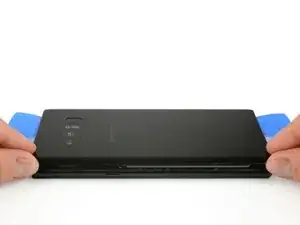
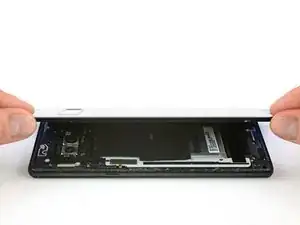
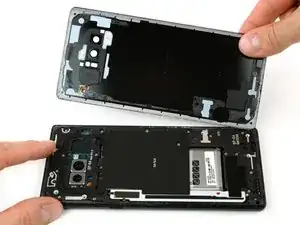
    • Cuando el adhesivo ha sido separado apropiadamente en tres lados podrás levantar lentamente la cubierta trasera.

    • No fuerces la apertura. Utilice un iOpener nuevamente para suavizar el adhesivo si la cubierta trasera no se desprende o empieza a doblarse.

    • Presta atención al conector del sensor de la huella dactilar al abrir la cubierta trasera. Necesitarás desconectarlo como se describe en el siguiente paso.

    I broke the back camera cover for the NUT 8 and then I bought a commercial cover and installed it but the quality of the picture became very bad and my question is, do you know where to get the original cover at a reasonable price?

    Loord Mohammad -

  6. DDdOIeW2OV56XhYh
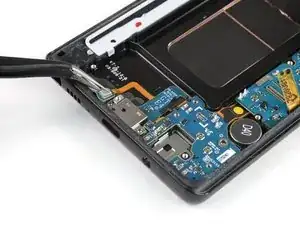
    • Utiliza un par de pinzas para desconectar el sensor de la huella dactilar.

    • Es posible que el conector se haya desconectado al abrir la cubierta trasera.

    don't skip disconnecting the sensor, even if isn't still glued to the case. it has to move away from the NFC/charging coil assembly in order to free the latter so it can be lifted away from the battery.

    a nonni mouse -

  7. cvElNvbILNsVRWGV
    • Remueve la tapa trasera.

    • Para preparar el re-ensamblaje remueve cualquier resto de adhesivo del teléfono y limpia las áreas con pegamento con alcohol isopropílico y un paño sin pelusa.

    How do you swap the fingerprint sensor

    Lukus Carr -

    You can use a tweezer to swap the fingerprint sensor, you might be careful when doing the step 6, additionally, a tweezer will be helpful when reassemble the fingerprint sensor. please note that your new back cover needs to have the fingerprint adhesive on. most of the product did not have. i have get a LUVSS brand from amazon which came with all OEM adhesive and full set tools, even a B6000 glue, best option to go for replacing the note 8 back glass

    ggmall -

  8. oYxXTk3numBwPCKL
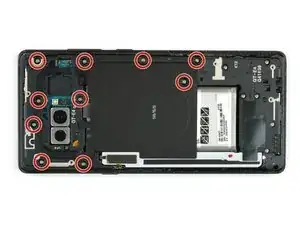
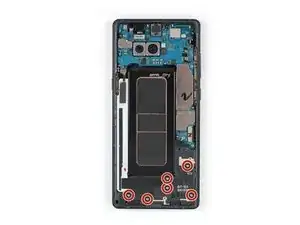
    • Remueve los diez tornillos Phillips #00.

  9. m4tPAKEExvAdTYeh
    m4tPAKEExvAdTYeh
    NAkZSOfuSsQSI5tB
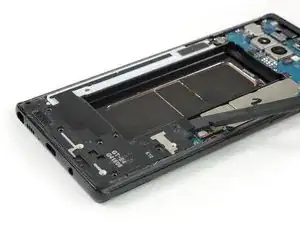
    • Ingresa una púa de apertura en el borde superior entre el ensamblaje de la bobina de carga y la antena NFC y la caja.

    • Levanta la parte superior del ensamblaje de la caja.

    Solve the problem of moisture during charging

    moaed aljnapy -

  10. NKVr2Lr1A2oxkNV3
    • Con cuidado saca el ensamblaje completo de la antena NFC y bobina de carga.

    • La parte izquierda inferior del ensamblaje está pegado ligeramente al marco.

  11. PVIpNYP1kJOKKYFX
    • Usa el extremo plano de un spudger para desconectar el conector de la batería.

  12. XkTcXArPMNFDXJpf
    • Prepara un iOpener y coloca sobre la pantalla por al menos dos minutos para soltar el adhesivo debajo de la batería. Recaliente y coloque nuevamente el iOpener las veces que sea necesario.

    • Alternativamente o cuando la batería esté inflada, puedes aplicar un poco de alcohol isopropílico bajo cada una de las esquinas de la batería y permita que el alcohol penetre durante varios minutos para ayudar a debilitar el adhesivo.

    Isopropyl alcohol worked great but flooded the main board and took all night to dry out

    Lyle Walsh -

  13. jVbAyEJXiTsIbO2b
    jVbAyEJXiTsIbO2b
    hSJiJkGRcjoSZAlA
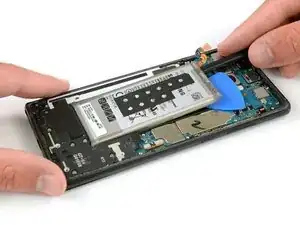
    • Usa la parte plana de un spudger para levantar la batería desde la esquina superior derecha.

    • Estarás haciendo palanca contra la carcasa, directamente sobre la tarjeta principal. Levanta cuidadosamente para evitar dañar algún componente cercano.

    • Podrías necesitar recalentar y reaplicar el iOpener repetidamente para suavizar aún más el adhesivo. El adhesivo es resistente y podría tomar algunos intentos para que el calibrador logre entrar bajo la batería.

    • Usa el calibrador para levantar la batería hasta que puedas insertar una lengüeta plástica para evitar que el adhesivo se adhiera nuevamente.

    • Trata en lo posible de no deformar la batería durante este proceso. Las baterías de cubierta-suave de iones de litio podrían gotear químicos peligrosos, prenderse fuego o inclusive explotar si se daña. No utilices fuerza excesiva o realices palanca a la batería con objetos metálicos.

    I really think this is much less risky if you just take out the motherboard. There is much less risk to heat the other components when you are loosening the battery adhesive and you can be more rough when getting the battery out. Especially (but not exclusively) if you are changing the screen anyway. Should be after step 29.

    Additionally, I went at the battery from the side with a credit card and prying out the battery evenly across the length of the battery. I was even able to make a ‘ridge-peek’ from the card and screen and heat it from above while pushing down on the card and prying at eh same time. I got it out without any battery deformation. I would get one of those flat credit card shaped tools if I did it again because the credit card deformed and I had to keep flipping it.

    tobinmckenna -

    Didn’t need to heat or use alcohol to get the battery out - just gently kept prying. I used the metal pry tool that came with the battery replacement tool kit. But very careful not to puncture the old battery.

    Phil Brooks -

  14. G6AKUTtuVUIyElrZ
    G6AKUTtuVUIyElrZ
    iJWYKMGGJJoInGXD
    ZSHHpEhL5gFmt4Un
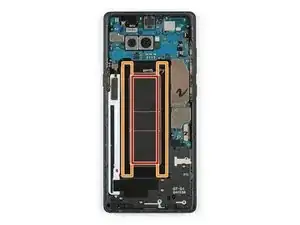
    • Utiliza la parte plana del spudger para generar palanca sobre la esquina superior izquierda de la batería donde el cable flexible se encuentra.

    • Desliza el spudger a lo largo del lateral de la batería para cortar el adhesivo restante.

    • Cuando hagas palanca procura mantenerse en las áreas naranjas. Evita el área roja en el medio se encuentra la parte trasera de la pantalla.

  15. TDqkBeRePDKKGwjr
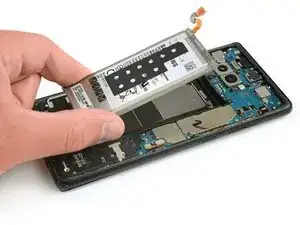
    • Retira la batería fuera de la carcasa.

    • No reutilices una batería después de haber sido removida, hacer esto representa un peligro potencial a su seguridad. Reemplaza con una batería nueva.

    • Retira cualquier residuo de adhesivo del teléfono y limpia las áreas con pegamento con alcohol isopropílico y un paño libre de pelusas.

    • Consulta esta guía para colocar adhesivos nuevos para la batería.

    • Consulta esta guía para colocar adhesivos nuevos y cortados a medida.

    do you mean when replacing display the battery should also be replaced?

    John Kenneth -

    Hi John,

    Since you can replace the display without removing the battery, you do not need to replace the battery.

    Arthur Shi -

    Great guide!

    Quick note. If you are changing out the back cover or cant get touch ID reconnected Warm it up some on the back cover. It should pop right off with a spudger. Then reattach it inside the phone. Make sure the adhesive on back cover is sticky enough to hold it in place. Then set back cover on top!

    jake765111 -

  16. YJbY5iBiEsphWKZN
    YJbY5iBiEsphWKZN
    dLeDmMuklCDUvDFj
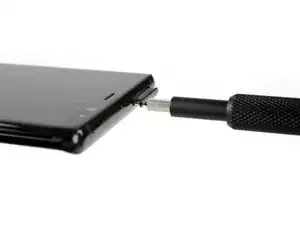
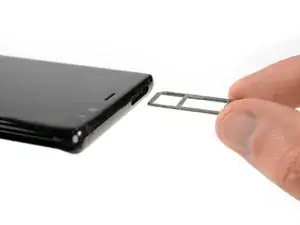
    • Inserta una herramienta de apertura de tarjeta SIM en el pequeño orificio en el lado izquierdo del borde superior del teléfono.

    • Presiona para expulsar la bandeja.

    • Remueve la bandeja de tarjeta SIM del teléfono.

  17. hnbRJAGbDOqNd3cb
    • Remueve los seis tornillos Phillips #00 en el ensamblaje de altavoz en la parte inferior del teléfono.

  18. pjTaCPhxiJgTKBMT
    pjTaCPhxiJgTKBMT
    3KTOBSymhaigZIWs
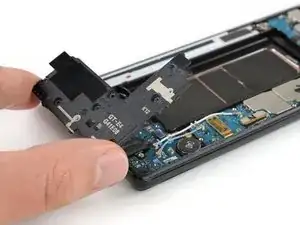
    • Usa el extremo plano de un spudger para levantar el ensamblaje de altavoz.

    • Estarás haciendo palanca por arriba de la placa madre y el cable de antena. Levanta con cuidado para evitar dañar cualquier componente cercano.

    • Remueve el ensamblaje de pantalla.

  19. VyEPZjHuSIPDZ3v4
    VyEPZjHuSIPDZ3v4
    NsNd51gqfygmVnDP
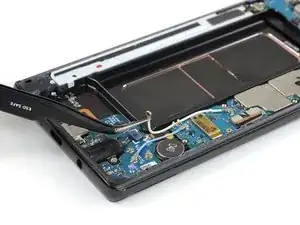
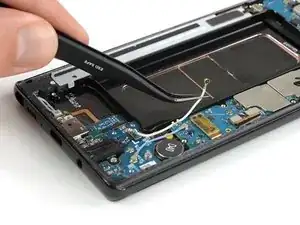
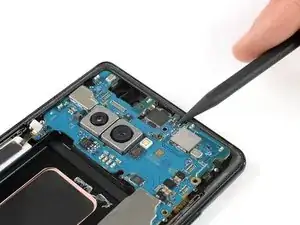
    • Remueve los dos cables coaxiales que van desde la placa hija a la placa madre.

    • Si quieres reemplazar tu ensamblaje de pantalla con marco, no es absolutamente necesario remover los cables coaxiales. Sin embargo, te recomendamos que evitar dañarlos o tensionarlos.

    • Usa un par de pinzas para desconectar ambos extremos del cable coaxial blanco y removerlo.

  20. VlEqPhANJqDJbImK
    VlEqPhANJqDJbImK
    IT2JEqKDQvsyG62H
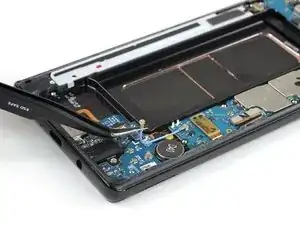
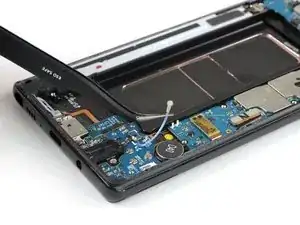
    • Usa un par de pinzas para desconectar con cuidado ambos extremos del cable coaxial azul y removerlo.

  21. ck2rX6WnEKnMIFH3
    ck2rX6WnEKnMIFH3
    XR2gQR2HqZcD3jSe
    • Usa el extremo plano de un spudger para desconectar ambos cables de pantalla y de pantalla táctil.

  22. jgiNvkxXqBkp6l5C
    jgiNvkxXqBkp6l5C
    AQKnrQbAT4VqbXKM
    • Usa el extremo plano de un spudger para desconectar el cable flexible de botón de encendido.

    • Desconectar el cable de flash y de sensor de proximidad.

  23. FUcW1fSYMdZYEprY
    FUcW1fSYMdZYEprY
    1qnOmSsIrECaLkST
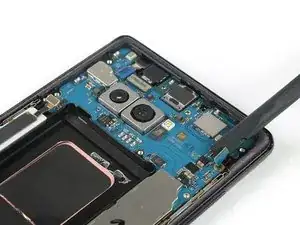
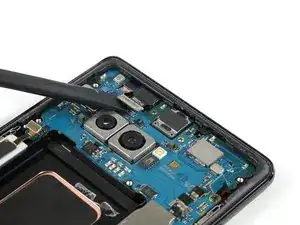
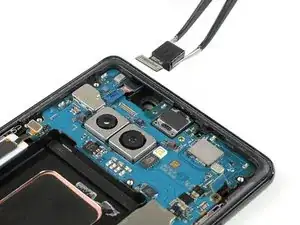
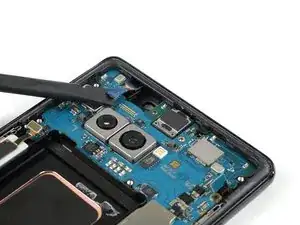
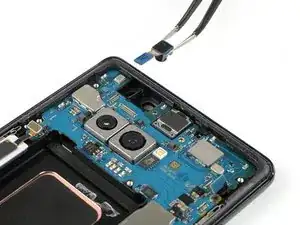
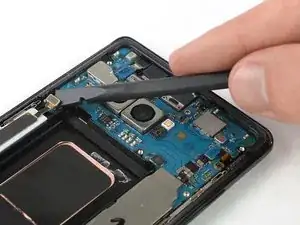
    • Usa el extremo plano de un spudger para desconectar el conector flexible de la cámara frontal.

    • Con cuidado remueve la cámara frontal con un par de pinzas.

  24. tpARijNsD2NEYKEF
    tpARijNsD2NEYKEF
    Ph6kQPNxVFdXDhLG
    • Usa el extremo plano de un spudger para desconectar el conector flexible del escáner de iris.

    • Con cuidado remueve el escáner de iris con un par de pinzas.

  25. P5RvDaUMJfNYAlll
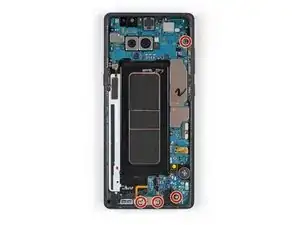
    • Remueve los cuatro tornillos Phillips #00 que sujetan la placa madre, la toma de auriculares y el puerto de carga.

  26. fIDE4ZPbZhDMsZhH
    fIDE4ZPbZhDMsZhH
    WUiCqXQtFwOExywd
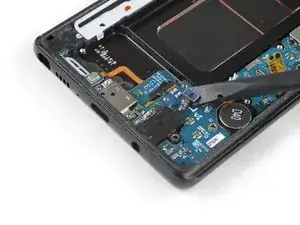
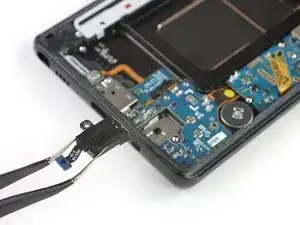
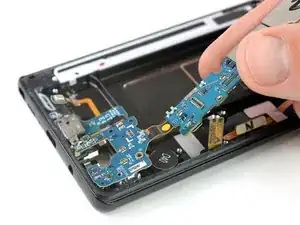
    • Usa el extremo plano de un spudger para desconectar el conector flexible de la toma de auriculares.

    • Con cuidado remueve la toma de auriculares con un par de pinzas.

  27. B1Um1jdUVQP6d2Lf
    B1Um1jdUVQP6d2Lf
    LYjEOo2KcVs1fRYm
    • Prepara un iOpener y aplícalo a la parte inferior del teléfono para ablandar el adhesivo por debajo del cable flexible del micrófono.

    • Usa un par de pinzas para levantar con cuidado el micrófono de su zócalo y suéltalo del marco medio.

    • No remuevas el micrófono. Está todavía sujeta a la placa hija.

  28. rIcZkVTIiunmaOQK
    rIcZkVTIiunmaOQK
    Qn56JTejpaGF36Jj
    • Es posible remover la placa madre y mantener la placa hija en su lugar. Sin embargo, el conector flexible de la placa hija está asentado en la parte trasera de la placa madre y es un poco complicado desconectarlo mientras mantengas la placa madre con la mano.

    • En caso que planifiques remover la placa madre sin la placa hija, ten cuidado de no dañar ningún componente circundante mientras desconectas el cable flexible.

    • Usa el extremo puntiagudo de un spudger para hacer palanca la placa madre hasta que tengas un buen agarre.

    • La placa madre se asienta holgadamente en el marco medio así que hay posiciones diferentes para colocar el spudger y levantarlo. Evita dañar cualquier componente circundante.

  29. PB2P1uaUIIPh3ID5
    PB2P1uaUIIPh3ID5
    ymmRaIbUWdjTYex6
    LNNMtppSFo5jLrIN
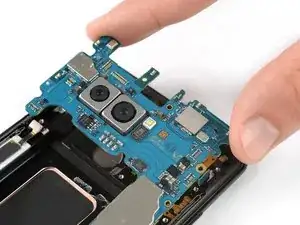
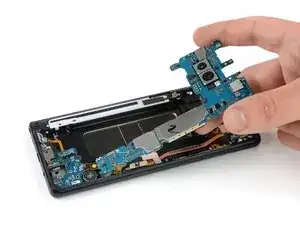
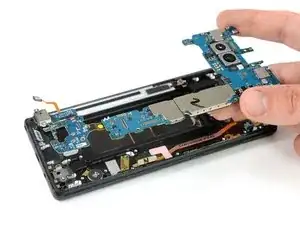
    • Con cuidado levanta la placa madre.

    • Para levantar la placa hija de su zócalo, jala ambos componentes despacio hacia el extremo superior del teléfono mientras la levantas.

  30. jcMiUpoXgmrsZvfw
    • Prepara un iOpener y aplica en todo el teléfono para ablandar el adhesivo debajo del motor de vibración en la parte inferior y el altavoz auricular en la parte superior.

  31. YB2O4fTC43mhxouf
    YB2O4fTC43mhxouf
    uxoZZiIG2Nbme4XZ
    • Con cuidado remueve el motor de vibración con un par de pinzas. Vigila el cable para no arrancarlo accidentalmente.

    • Remueve el altavoz auricular con un par de pinzas.

    • Verifica que tu ensamblaje de pantalla de repuesto venga con un altavoz auricular ya conectado. Si es así, no hay necesidad de removerlo, pero quizá lo quieras guardar como una parte de repuesto extra.

  32. 26mNiYmUTq5RMkA2
    26mNiYmUTq5RMkA2
    YipTPATEBZJPOsM1
    • Usa un par de pinzas para levantar el cable de sensor de proximidad y flash con cuidado afloja la cinta que lo sujetan al marco medio.

    • Remueve el ensamblaje de flash y sensor de proximidad.

  33. uHJ4foN4IXXcDKBe
    • Para volver a ensamblar tu teléfono, transfiere todos los componentes que has removido al ensamblaje nuevo de pantalla con marco. Vuelve a aplicar adhesivo donde sea necesario.

Conclusión

Si es posible, enciende tu teléfono y prueba tu reparación antes de instalar adhesivo nuevo y resellar el teléfono.

Sigue estas instrucciones en orden inverso para volver a ensamblar tu dispositivo. Aplica adhesivo nuevo donde sea necesario.

Dominik Schnabelrauch

Miembro Desde 23/11/16

169012 Reputación

10 comentarios

i would like to suggest a time of (52) Minutes and (36) Seconds plus thanks for the guide

Jesse Looney -

check, plus you’re welcome :)

Tobias Isakeit -

great guide!

Bryan Cruse -

Very excellent guide. Great pictures. Pictures must have been done in some sorta studio setting or edited for only what is needed for the illustration of every step. This was my first attempt at self repair on a cellphone, but I’m no slouch. I repair and refurbish all sorts of electromechanical devices and was once employed to do brain surgery on massive water cooled mainframe computers. Some of the same rules apply; have proven procedures, follow instructions, control your work space, and invest in the best tools. Since this was my first, I was not in a hurry. It took me all of 6 hours, but I was meticulous, repeated many steps to increase my confidence, and had all the time needed to do what I needed to do. Grateful for no longer being a slave to phone repair/insurance scams!! DIY forever!

Rex Burrus -

Thanks for the great guide. Unfortunately, ifixit does not stock Note 8 parts in Australia. When I went to purchase the display assembly with frame from a parts supplier, they refused to sell me the part as they said that a number of customers have experienced the LCD not working on the new assembly after repairing their phone. The wholesaler would not honour the warranty as all screens are tested before dispatch, therefore, the LCD must have been damaged in the repair process. I could understand if the repair included installing a new screen into an existing frame but because all parts are being transferred into the new assembly and the parts available for sale all come with adhesive, is there any step where it is likely that the LCD could be damaged even if extremely careful?

Ian Bishop -

Hello Ifixit team, regardind note 8, I have the Corean model SM-N950N, can you tell if it has the same display assembly as SM-N950F?

What I mean is does all the connectors of a 950F display fit perfectly to a 950N board and frame and everything, reason is the 950N board I have is a 256gb storage and I don’t want to switch to 950F board with only 64gb storage, thanks in advance, Adrian

Adrian -

You may want to check the compatibility list of the spare part here: Galaxy Note8 Screen

Unfortunately, the Korean model (905n) is not listed separately but the part seems to fit every other model. So my guess is that the Korean version won’t be any different and the part will fit. Google searching for a spare motherboard might shed some light on different dimensions if they are some due to the difference in storage.

Tobias Isakeit -

Thanks for the amazing guide! Really clear and worked well for my phone.

Here are a few notable things from my attempt:

- It would be very nice to know that a new battery might be required in the “necessary parts” in the very beginning. I only found out this on step 15 and I was already at removing the battery. At the end, i used my original one and don’t think there’s really an issue.

- Step 31 was by far the hardest - if you’re considering / attempting to perform the fix, pay extra attention to removing the vibration motor and earpiece speaker. They aren’t really easy to pull off with the tweezers as the pictures suggest, even after heating up the other side.
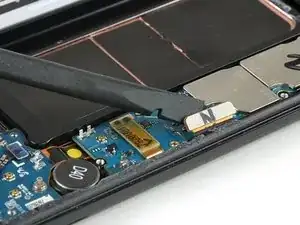
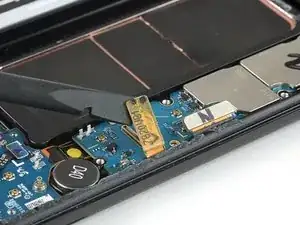
I ended up breaking the earpiece speaker in half and exposed the copper coil there..which i almost tore from some pulling. Luckily, it still works, but the quality is a little bit worse than it was.

Overall, though…very happy that this comprehensive guide exists! My phone looks brand new right now…save for the very slightly misplaced back panel.

Thanks!

Kidney Fluffmonster -
Salve,il mio display ha già il frame però non ci sono i pulsanti in alluminio Come faccio a rimuovere i pulsanti cortesemente Grazie

Martina Lochis -

@isakrittl of course I have checked the compatibility on the site before I asked, but still not confirmed, it’s not so easy and convenient to “try” and buy the part in hope it works, thats the reason I asked here where you guys dissasemble a lot of devices and my note 8 among them, this is the reason I asked thinking you guys know about all its variants, even technicians from repair shops I went to have different oppinions some say it’s a single display for all note 8 variants some say it’s different for 950N at least, so I want to know for sure before I order, thanks

Adrian -