Introducción


-
-
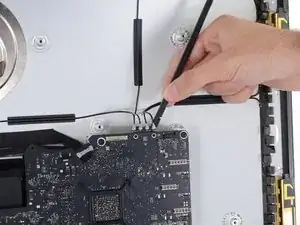
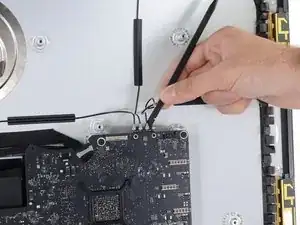
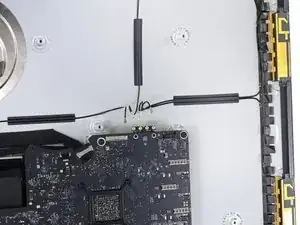
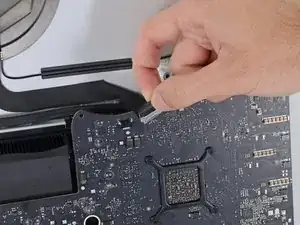
Usa el extremo plano de un spudger para desconectar cada uno de los cuatro conectores de antena de la tarjeta AirPort / Bluetooth.
-
Lo más a la izquierda
-
Arriba
-
Arriba a la derecha
-
Abajo a la derecha
-
-
-
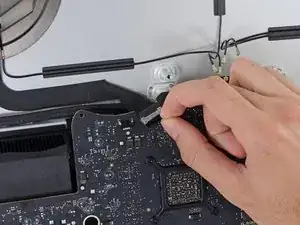
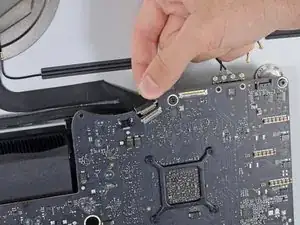
Voltea hacia arriba el soporte de retención de metal en el cable de la cámara iSight.
-
Tira del conector del cable de la cámara hacia fuera de su zócalo, hacia la parte superior del iMac.
-
-
-
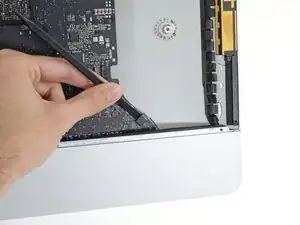
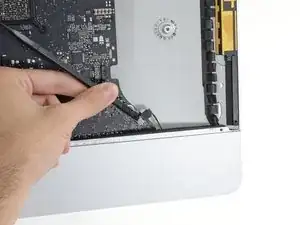
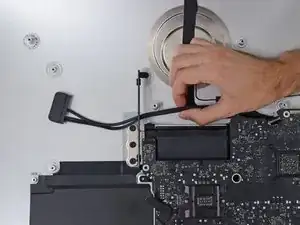
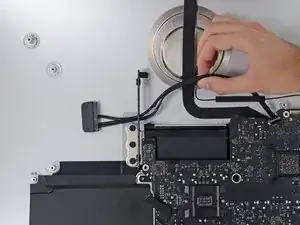
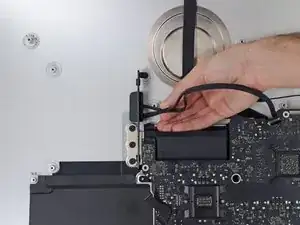
Usa el extremo plano de un spudger para desconectar el conector del cable del conector de auriculares de su zócalo en la placa lógica.
-
Aparta suavemente el cable fuera del camino.
-
-
-
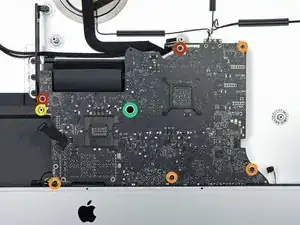
Quita los siguientes tornillos de la parte frontal de la placa lógica:
-
Dos tornillos T10 de 23.7 mm
-
Cuatro tornillos T10 de 7.4 mm
-
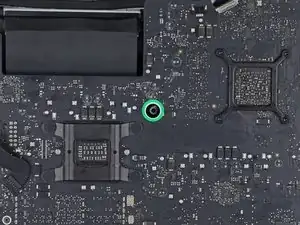
Un tornillo T25 de 20.8 mm
-
Un tornillo cautivo T10
-
-
-
Tira del cable y el conector a través del soporte derecho del disco duro. Mueve el cable al lado derecho del iMac, fuera del puerto de escape.
-
-
-
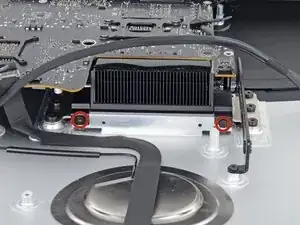
Quita los dos tornillos T10 de 5,7 mm de la parte superior del conducto de escape del disipador de calor.
-
-
-
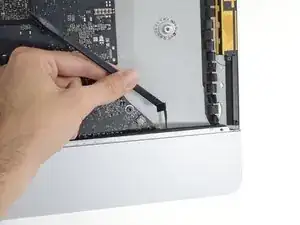
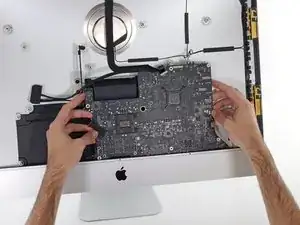
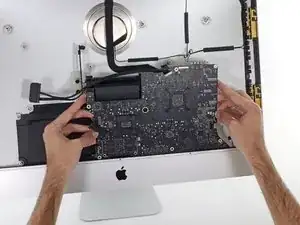
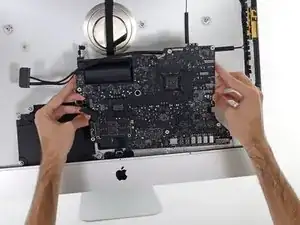
Inclina la placa lógica ligeramente hacia adelante.
-
Levanta la placa lógica hacia arriba y hacia afuera del iMac. Ten cuidado de no enganchar en ninguno de los postes de tornillo unidos al interior de la carcasa trasera.
-
-
-
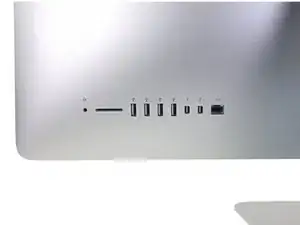
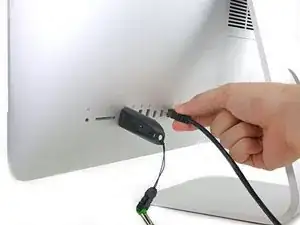
Cuando reensambles tu iMac, ten mucho cuidado de alinear los puertos de E / S exteriores correctamente. La placa lógica puede quedar torcida incluso cuando está asegurada con todos sus tornillos.
-
Puede usar una unidad flash USB o un cable de Ethernet para asegurarte de que la placa lógica esté asentada correctamente mientras la atornilla.
-
Para volver a ensamblar tu dispositivo, sigue las instrucciones en orden inverso.

My iMac has a slightly different assembly. There are 2 - T5 torx screws holding little clamps for each cable (2 clamps per screw). Certainly more secure but another size screw to deal with…
Greg Freeman -
My iMac also same with Greg mentioned. need to T5 torx driver. A1419. Late 2015, Korean Version.
Joseph Yang -
My 2017 has long WI-Fi card, It’s It’s a M.2, cuz no remove antenna. Undo WI-Fi card fix screws and pull out card. Easy one.
Tanya Chachanova -
Before I disconnect the cables, I use different color sharpies and draw a different color on each one’s head & then I take a picture of the cables connected to the board. Pic is my reference of which cable goes to what connector.
Macrepair SF -
I have a 2017 and I agree with Tanya. There are 2 T4 screws fastening the airport card to the motherboard. It’s easier to remove these and gently pull the airport card straight up out of the motherboard while leaving the 4 antenna wires fastened. You can’t see the connector or the airport card as it’s on the back side of the motherboard but just wiggle it side to side while pulling straight up and you’ll have no problem. I’ve broken off those tiny airport connectors in the past and it’s no fun replacing them.
Mike Jones -
same as Greg, did with the torx t5
Alejandro Piris Nino -
I have a 2019 iMac and we needed to use a T4 screw
Mike Manasewitsch -
My late 2015 has a Airport/Bluetooth card secured with two T5 screws. After removing them you can just wiggle and unplug it from the logic board, without needing to fiddle with the antenna connectors.
Robin Gottschalk -
Same as the other comments, in my iMac 27” retina 2015, the WiFi/Bluetooth board is a bit longer and the 4 coax cables are fixed by 2 T5 screws…
SURIN Dominique -
When reassembling a removed WiFi card keep 4 antenna leads attached as mentioned by poster (tanya et al) when reassembling as you replace logic board keeping it tilted forward helps in aligning the notch on card for easy reassembly and T3 screws replacingonce card is firmly seated.
robert -
When reassembling a removed WiFi card keep 4 antenna leads attached as mentioned by poster (tanya et al) when reassembling as you replace logic board keeping it tilted forward helps in aligning the notch on card for easy reassembly and T3 screws replacingonce card is firmly seated.
robert -
Can also confirm it for a Late 2015 iMac, there’s just 2 T3 screws to remove, simple move out the WiFi/Bluetooth board and let cable on place.
tomax -