Introducción

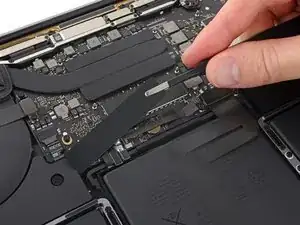
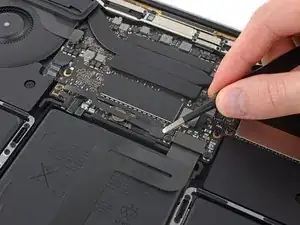
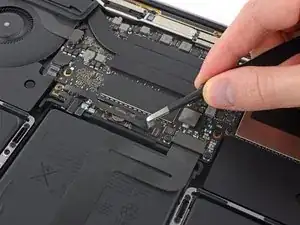
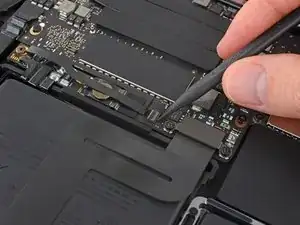
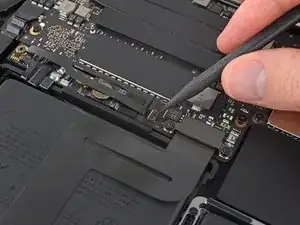
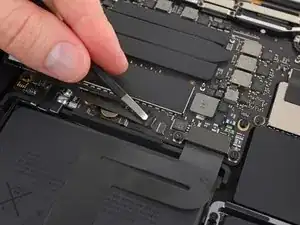
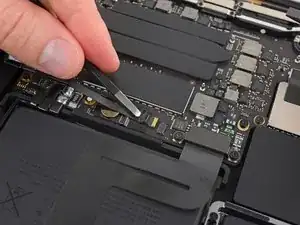
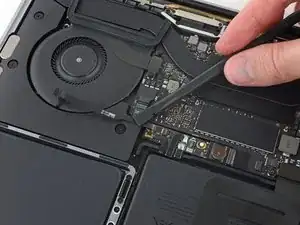
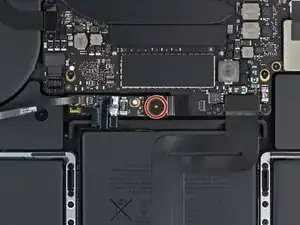
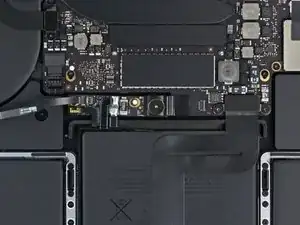
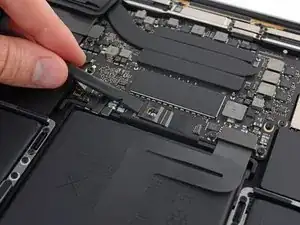
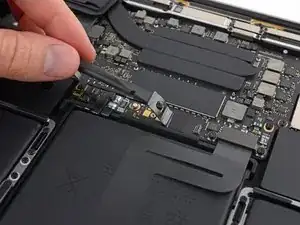
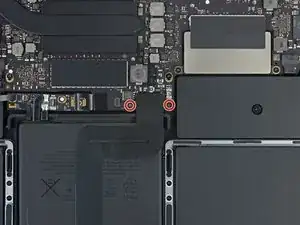
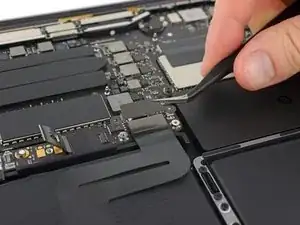
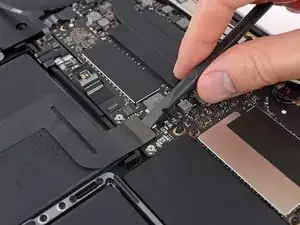
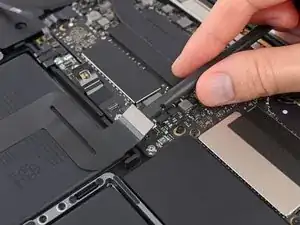
Si tu trackpad está defectuoso o necesita ser retirado para facilitar el acceso a la batería, sigue esta guía.

Por tu seguridad, descarga la batería de tu MacBook Pro antes de comenzar este procedimiento. Una batería de iones de litio cargada puede crear un incendio peligroso e incontrolable si se perfora accidentalmente.

  1. dLTjRC36EADiCFBK
    dLTjRC36EADiCFBK
    FZYKkYtpGq1QwBO2
    YAOsWGKtCtOGVFRy
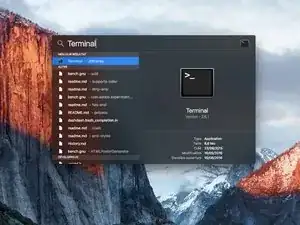
    • Antes de comenzar, debes desactivar la función de arranque automático de tu Mac. Auto Boot se enciende en tu Mac cuando abres la tapa y puede activarse accidentalmente durante el desmontaje. Usa esta guía o sigue las instrucciones abreviadas a continuación para deshabilitar el inicio automático. Este comando podría no funcionar en todas las Macs

    • Enciende tu Mac y ejecuta Terminal.

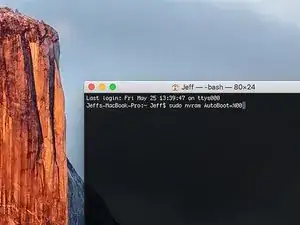
    • Copia y pega el siguiente comando (o escríbelo exactamente) en la Terminal:

    • sudo nvram AutoBoot=%00

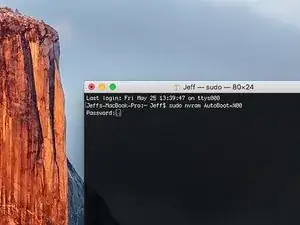
    • Presiona [return]. Si se te solicita, introduce tu contraseña de administrador y vuelve a pulsar [return]. Nota: La tecla de retorno también puede estar etiquetada como ⏎ o "enter".

    • Ahora puedes apagar con seguridad su Mac y abrir la carcasa inferior, sin que se encienda accidentalmente.

    • Cuando hayas finalizado la reparación y se haya vuelto a ensamblar su Mac, vuelve a habilitar el inicio automático con el siguiente comando:

    • sudo nvram AutoBoot=%03

    Is this step necessary? I can’t perform this step as I am attempting to repair water damage and need to remove logic board & most likely replace the battery.

    Macrepair SF -
    @mac_medic You definitely don’t want the power coming on while the board is wet. In your case, I think powering on the machine to disable Auto Boot would do more damage than it prevents. I agree, skip this step and be prepared to disconnect the battery quickly if the laptop automatically powers on. Good luck!

    Jeff Suovanen -
    Thats right! You don't want power running while working on your logic board.

    Dan -

    This did not work when running High Sierra.

    Kyle B -

    Tried this on a 2018 MBP 13” Touchbar (there’s no iFixit guide for this model yet). Need to replace a broken screen.

    Luckily I managed to connect to an external screen (Cmd-Down Brightness to switch displays) and enter above command. Seems to work, but there’s another problem with this model - it powers up as soon as any key is pressed……. ffs <gnashes teeth>

    Cool_Breeze -

    I unscrew the battery first and wrap electrical tape over the logic board battery connector before attempting any repairs to the board. Haven’t had any problems yet and I’ve worked on about 10 of these models already. Also when you open the bottom case use a suction cup at the bottom and pull up then run a plastic spudger along the edges to disconnect the clips. Also only use a plastic spudger on the board. Saw a youtube video from a repair shop and he did not disconnect the power and used all metal tools during the entire process of removing the board. His last step was to disconnect the battery terminal.

    Brian -

    Is this step necessary if my mac can turn on? Battery fully dead(

    Nursat b -

    BEFORE YOU START: The included torx head stripped off before I was done (and you might need an additional T4) so stop now and go buy a good one. Also they fail to warn you above to get some blue threadlocker ahead of time.

    Jason Sherron -

    This command did not work for me and I read that sometime in later 2020 Apple stopped this command from working…any ideas on a work around?

    Patrick Machacek -

    Not able to do that with damaged screen

    richardjgreen -

    If you have a damaged screen you can still use a converter from thunderbolt (USB 3) to HDMI and plug your Macbook Pro to your TV as monitor display. Just make sure to chose the right Source (HDMI IN) in your TV. I did it and to make it work I unplug and plug again in my Macbook and so I could disable the Auto boot

    Roberto Sanchez Bustos -

    Hi. This does not work on 2018 13” MacBook Pro with Touch Bar. I did exactly this to disable auto boot. But when I check by using nvram -p it says: auto-boot true. Am I doing something incorrectly? I did everything step by step. Copied and pasted the sudo command, pressed enter and then entered my password. I have Big Sur 11.1 installed. Is there any other way since I need to replace the screen. Thank you. Adrian

    Adrian Vizik -

    Hi everyone. This is also a little pointless if you can’t see anything on the screen, and you don’t have a display adapter to USB C to display it. I agree with Brian about removing the back and disconnecting the battery cable before you even think about opening the lid of the MacBook. Applying the insulation tape is also a handy little tip that just makes sure there is no way to discharge from either the board or battery.

    Roberto Enrieu -

    running `nvram -p | grep 'AutoBoot'` in terminal verifies that it was accepted

    result: `AutoBoot %00`

    Marek Polák -

    Running Big Sur 11.6.7 on a 2019 16" MBP, it's "auto-boot". So it's: nvram -p | grep 'auto-boot' to display the current state, the default is true - and then to change it, sudo nvram auto-boot=false which turns it off.

    Ed Mechem -

    This step is completely unnecessary if you follow the guide to disconnect the battery properly. Just put some tape between the battery and logic board connection to prevent it from accidentally touching and therefore powering on the laptop.

    Grant Ormsby -

    It took me a few tries to make this command work, as I was able to copy and paste the command into Terminal, but could not type in my laptop’s password. I finally typed my password into a text document, copied it (command C), and then pasted it into Terminal and it worked.

    tommy404 -

    I didn’t do this. Mine never auto-booted before I replaced the battery. Now it does.

    hatuxka -

    BEFORE YOU DO ANYTHING - CHECK THE BATTERY!

    I-fixit sent me a bad battery, which I didn’t realize until it was already install. They sent me a new one, but I wasted hours uninstalling and reinstalled.

    Get a volt meter and measure the voltage on the output of the battery pack. If it reads 0 V, SEND IT BACK. It should read over 2 V.

    bcardanha -

    When I did this from Terminal.app within Recovery Mode, the “sudo” was not recognized but I could invoke it without the sudo part. It seems to have been accepted when looking at “nvram -p”

    johann beda -

    When in Recovery Mode, you already have superuser powers. So you don't need to prefix commands with the sudo command to invoke them with root privileges; you already have them. Do a pwd (print working directory) after opening Terminal in Recovery Mode, and you'll see that you're in the root user's directory.

    Ed Mechem -

    I received the battery kit for my 2018 MacBook Pro and as per the above comment from bcardanha - Oct 12, 2021, I checked the voltage on the pads marked + and - . It was zero volts so I panicked a bit.

    I sent a message on the iFixiT Facebook page and I got no reply. I finally found the customer service email for Ifixit Europe and sent them an email voicing my concern as I was not keen to work for couple of hours just to discover that the battery is faulty. I had an almost instant reply on the email (kudos to them) and they adviced me to go ahead and install the new battery as the voltage measured when battery is not connected is not relevant.

    I took a leap of faith and after two hours… the new battery showed 50% charge and everything seems to be working just fine. I am happy it worked.

    Mircea Comanici -

    After removing the old battery and installing the new battery I powered up the MBP before screwing the bottom on. I discovered the my keyboard would not function. It took a few hours of investigation and frustration that I discovered the track pad power ribbon had become partially dislodged from the trackpad. I was able to see that this through the little machined slot where the battery sat. I had to remove the trackpad to reinsert the power ribbon back into the connector in the trackpad. after reassembling and reinstalling the battery etc the keyboard worked. Just food for thought if your run into the keyboard issue.

    Ed Mease -

    This should be the default. IMO I tell you to power on - not the lid.

    G Sena -

    Est ce que cela fonctionne sur un macbook pro 2017 sans touchbar ?

    maël muzelet -

    Bonjour Maël, oui, ce tutoriel concerne "les MacBook Pro 2016 (et plus récents) et les MacBook Retina 12" 2017 (et plus récents)"

    Claire Miesch -

    Excellent instructions. I was able to follow and install the new screen. I recommend that you get a good set of tools before you begin. I started with an inexpensive repair kit bought online. The Penta and torx bits failed. I bought an IFIXIT kit with quality bits and I was able to do everything I needed.

    Tom Markham -

    If you're not running an admin account the sudo command won't work (which honestly, you should not be running admin). Rather than logging in to your admin amount via the OS, in the terminal type "login [admin username]," then the password and you'll be able to do the sudo command as described above. Once you're complete, type "logout [admin username]" and you'll be good to go. Obviously replace [admin username] with whatever the account name for your admin user is.

    arichard2401 -

  2. HaV1NGBYhCNRNIAS
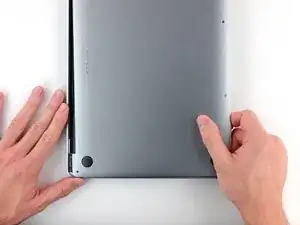
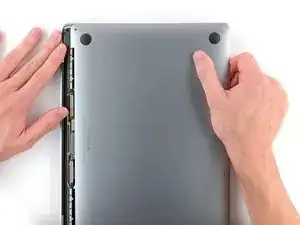
    • Antes de proceder, desenchufa y apaga tu MacBook. Cierra la pantalla y colócala en una superficie blanda, parte superior hacia abajo.

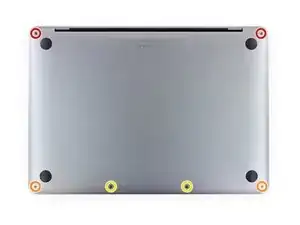
    • Usa el destornillador P5 Pentalobe para remover los seis tornillos que sujetan la caja inferior:

    • Dos tornillos de 6.2 mm

    • Dos tornillos de 5.3 mm

    • Dos tornillos de 3.4 mm

    • Durante esta reparación, lleva la cuenta de cada tornillo y asegúrate de que vuelvan exactamente de donde salieron para evitar dañar tu MacBook.

    Before any repair is carried out that involves removing the bottom case, the machines auto-boot function has be disabled. This can be disabled via the terminal command “sudo nvram AutoBoot=%00” once the repair has been completed the auto-boot function can be re-enabled via the vermin command “sudo nvram AutoBoot=%03”.

    Aaron Dalziel -

    I recommend that you have an organizer tray for all the small parts, and label it in advance with the numbered “step” associated with each removal of screws and other parts. It really helped me when I needed to put everything back in reverse order, after the new battery is glued in place.

    tommy404 -

    Finished the repair last week. Some key comments that helped me:

    - Step 12, Robert

    - Step 13, MikeG1

    - Step 13, Rick Jaffe (take a photo when disassembling)

    Also added some own comments on Steps 15, 18, 22

    Per Haglund -

  3. 2D2F4g6jfVQN5UFM
    2D2F4g6jfVQN5UFM
    4ubxAbemmWdpRQvQ
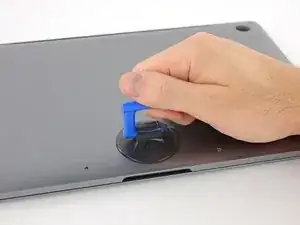
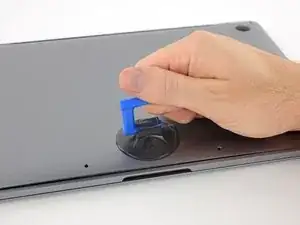
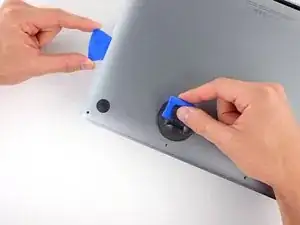
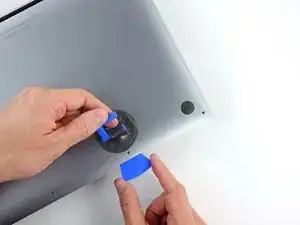
    • Coloca una ventosa en la caja inferior cerca del área frontal central de la MacBook Pro.

    • Levanta la ventosa para crear una ligera separación entre la caja inferior y el chasis.

    To replace the bottom just line it up just like it came from the factory. Make sure it clears the display connectors. And press firmly down until the clips connect to the bottom again.

    olivia drinkwine -

  4. ELdcSRREMfOxcv6U
    ELdcSRREMfOxcv6U
    VWG35wvVRoTWChfK
    ZmSNPLfF5MpqYlOA
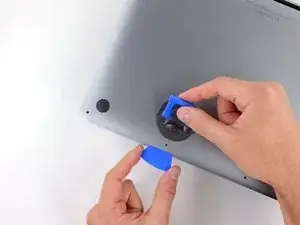
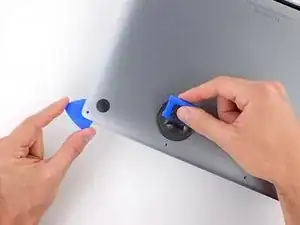
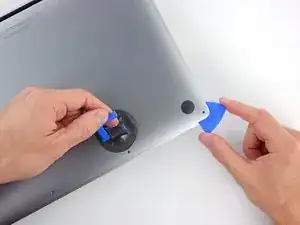
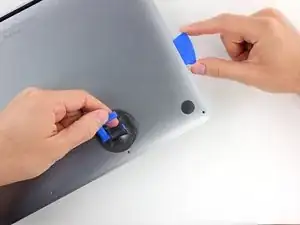
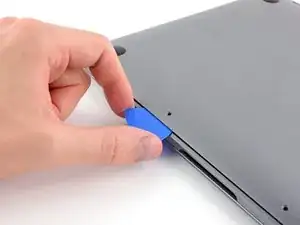
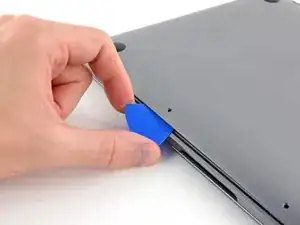
    • Inserta una esquina de una púa de apertura en el espacio entre la caja inferior y el chasis.

    • Desliza la púa de apertura alrededor de la esquina más cercana y por la mitad de un lado de la caja.

    • Esto libera el primer clip escondido que sujeta la caja inferior del chasis Escucharás y sentirás como el clip se libera.

  5. VZfGyDwUMCU2qBk5
    VZfGyDwUMCU2qBk5
    UeFvuggRrq4YQTxX
    mHPRNGBDdQmmDtDP
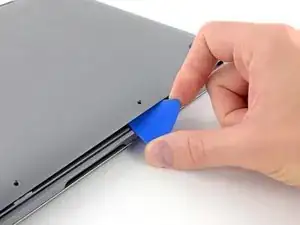
    • Repite el paso previo en el lado opuesto, deslizando tu púa de apertura por debajo de la caja inferior y tira hacia arriba de ese lado para que el segundo clip se libere.

  6. 1CTISLsLTrsJcIYL
    1CTISLsLTrsJcIYL
    OSARj41dkAMpUPrX
    rbs6NtxnCWNWbnSK
    • Inserta tu púa de apertura una vez más debajo del borde frontal de la caja inferior, cerca de uno de los dos orificios de tornillos más centrales.

    • Tuerce firmemente la púa para liberar el tercer clip que sujeta la caja inferior al chasis.

    • Repita el procedimiento cerca del otro de los dos orificios de tornillo más centrales liberando el cuarto clip.

    My 3rd and 4th clips released simultaneously with clip 1 and 2.

    Therefore I was looking to do something which had already been accomplished.

    David Hutzler -

    yeah be sure not to bend those clips by the display bottom. You pull towards yourself to get it off

    Grant Tyler -

  7. FKBXVGyU3kTdvPhQ
    FKBXVGyU3kTdvPhQ
    bKfmGyDq2iE4uOUe
    12IjuyZ1DGyUymk2
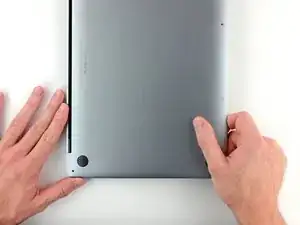
    • Tira de la caja inferior firmemente hacia la parte frontal del MacBook (hacia el lado contrario del área de la bisagra) para separar el último de los clips que sujetan la caja inferior.

    • Podría ayudar tirar primero de una esquina y luego de la otra.

    • Esto podría requerir bastante fuerza controlada.

    Difficult to explain clearly, but worked easily for me by gripping the adjacent bottom and top corners then pulling in opposite directions, rather than trying to grip the hinge corner which is too narrow to afford a strong grip.

    Andrew Gordon -

    This helped me. It needed more force than what I expected. Basically grab the corner with 6.2mm screw with one hand and the cover of that same corner with the other. Then pull the cover and push the laptop. Careful, it pops off with force!

    Javier De la Garza -

    I initially tried shifting the whole panel off the front after using the separating tool to make some space at the back where the hinges are. I only had luck when I pushed the panel back to it’s normal state and using the separating tool again to open the front, then getting my fingers underneath the slide it off the front was easy. I guess the lesson is to not use the separating tool to “push from the back“.

    Josh Brown -

    This step really through me through a loop. My last two MBP were a 2011 and 2013 and on those the bottom just lifted off when you removed the screws. The clips and this sliding lock design added in the 2017 model was frustrating the first time. I was following a youtube video first and he did not explain the sliding part at all. I should have come here first, this guide explains it pretty well. The second time I opened my 2017, I kept an “opening pick” between the bottom panel and the body on each side, and used my two smallest screwdrivers as levers in both “front” corner screw holes. Used the same method without the picks to put it back together at the end. Wayyy easier that trying to grip the panel or laptop body. Just make sure the screwdrivers/pins that you’re using as levers are small enough to be loose in the screw holes and have room to move

    Jambu Atchison -

    I used a pick underneath one of the back corners and nudge it (push down and towards the front - to get it off the hinge). This will make it easier to do the same for the other corner. The lower case will move off the middle plastic L-clips (which you will see after you inspect it.) Cheers! =)

    Gerard Padua -

    I have found that your iFixit blue pry tool is excellent at giving me leverage to slide the bottom case forward to release it from the internal clips.

    themacdoctor -

  8. tFYjRm6fPkjordk2
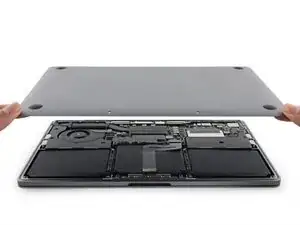
    • Remueve la caja inferior.

    I used the green prying tool in the air gap at the rear to nudge the bottom forward.

    That is far easier and more reliable.

    David Hutzler -

    David. I agree. I've found the blue iFixit prying tool most helpful. I place it with the curve of the tool around the hinge and move the bottom case towards the front to release it from the slide-in clips. I consider myself to have pretty good grip strength but I have had some bottom cases that just wouldn't budge until I used this method. Scott The Mac Doctor 

    themacdoctor -

  9. tQ1ZOGsjZM1kmWJ6
    tQ1ZOGsjZM1kmWJ6
    D4xZmUdhNXRfuBGK
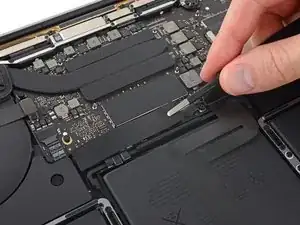
    • Con cuidado despega la parte grande de la cinta que cubre el conector de batería en el borde de la placa lógica más cerca de la batería.

    • Remueve la cinta.

    once the tape's back in place, it doesn't look tightly attached. not sure, did I do something wrong here or it should be so.

    Anton Monakhov -

    The tape will likely not adhere as well as when it came out of the factory. This isnt an issue! As long as the tape is in place when the lower cover is put back on the device you should be good to go.

    Tarun Thiruma -

    The underside of the tape is not uniform. Therefore, pay attention to which direction it is placed by looking at the underside when you remove it. Possibly mark one edge so that you can replace in the same direction during reassembly.

    Rick Jaffe -

    Be very careful to ensure you're pulling the large rectangular patch of tape and NOT the little black tab on the data cable that is below. At first glance they look like they're all one piece. I made this mistake and think that I ruined that cable.

    Brendan C -

  10. LXXyyoAGWUOdnJNi
    LXXyyoAGWUOdnJNi
    R4tq4QFSXNugFvep
    • Con cuidado despega la parte pequeña de la cinta que cubre el conector del cable de datos de la placa de la batería.

    • La cinta está integrada en el cable plano y no se despega completamente. Simplemente retíralo lo suficiente para acceder al conector.

    There is no replacement for this cable in the new battery, is this normal?

    Marin dcv -

  11. 3APZ5ZVRaFXGNCLW
    3APZ5ZVRaFXGNCLW
    4jnIaCiZBFvDHRxG
    • Usa la punta de un spudger para voltear hacia arriba la pequeña lengüeta negra de bloqueo que asegura el cable en su conector.

    If this ribbon comes off on both ends, how do you re-attach

    Gord Alder -

  12. YXYvfsuBlOPnF1XR
    YXYvfsuBlOPnF1XR
    WsqZSnxKwXehS6f5
    • Desconecta el cable de datos de la placa de la batería deslizándolo de su zócalo.

    • Desliza en forma paralela a la placa lógica en la dirección del cable.

    the cable connector (where the twizzer tip is) should be cleaned with alcohol or acetone before insertion because the cover (where the tip is holding it back) will have glue deposit smeared on top of the connector circuit traces. Glue will prevent a good connection with the BMS.

    tarex7 -

    The little tab that you pull back on, at least in my cable, was simple glued onto the rest of the cable. I tried to carefully remove the cable, and the tab came off. I did not have flat tweezers in the ifixit replacement kit and did not want to pinch the cable with sharp instruments. Therefore, be extremely careful when removing the tab as it is difficult to reattach the cable without it.

    Rick Jaffe -

    Same problem with the tape coming loose and the cable not coming out. Go further back along the cable and pull gently on the cable with your fingers and the connector will come out easily.

    Robert -

  13. 4st3fOg3YsUWn3Wf
    • Dobla el cable de datos de la tarjeta de la batería hacia atrás y quítalo del camino.

    • Si estás reemplazando la batería, es posible que tengas que quitarla por completo y transferir este cable a su nueva batería. Desconecta ambos extremos y retira cuidadosamente el cable. Durante la instalación, ten cuidado de no instalarlo al revés o hacia atrás - anota la orientación en las fotos.

    The new battery I received did not come with the battery board data cable, so I had to remove the existing one and transfer it. The lock at the smaller end is the same mechanism as the one at the end shown in steps 11 and 12, but smaller (and harder to see. It helps to gently straighten the left end of the cable before trying to insert it in the end of the replacement circuit board.

    MikeG1 -

    I can corroborate MikeG1’s comment. My battery came without the long data cable as well. I had to remove it from the fried battery. Plastic lock tab mechanism on the ZIF connector is smaller. My inspection microscope helped to transfer the cable to the new battery board. Thanks Mike!

    Macrepair SF -

    Likewise - the new battery came without a data cable. The cable was successfully removed from the old battery assembly and installed on the new battery, but it was tricky and nerve-racking (the cable is delicate and the connectors are very small) without instruction provided! The instructions should be updated to highlight the missing cable possibility, and provide information/illustration on transferring the cable.

    Marc -

    In step 13, notice the amount of the data cable that sticks out of the connector. When moving this cable to the new battery, it is difficult to tell how far to push the cable into the connector or when it is fully inserted because the cable is so bendable.

    Rick Jaffe -

    AMEN!! This was the hardest part of the ENTIRE process! Hard to know when the small end of the cable was “fully” inserted. Cable is SOOOOO delicate!

    Kevin McAda -

    If your laptop is showing the x where the battery icon is, this cable is at fault. This cable is referred to as the BMU (Battery Management Unit) flex cable. If it’s damaged, replacing it should solve your issue.

    Josh M -

    my old battery was working but could not hold a charge very long so I replaced the battery and now my mac does not recognize the new battery. Thought it was a bad battery at first but I purchased a new batter and still the same problem, My mac will work off power outlet but does not register it has a battery at all now. I tried putting my old battery back on but i damaged the very small clip when i slid out the flex cable so its gone now. Could this cable be at fault? I don/t know what else it could be, i only messed with the battery.

    Leo Ruiz -

    I have this same problem! Did you figure out what the issue was? Do I need a new flex cable?

    Jessica Mouland -

    I am having the same issue as Leo. After install. Is there a way to identify the fault?

    Nathan Jelinek -

  14. ZhM4nEISbNQ1tQLj
    ZhM4nEISbNQ1tQLj
    EFUTGD2SbokoP1dc
    • Usa un destornillador T5 Torx para remover el tornillo de 3.7 mm que sujeta el conector de alimentación de la batería.

    When the battery management “BMS” circuit board is re-installed, loosely install the two 3.7 mm screws, put a spudger on the left side of the BMS board to wedge theBMS board to the right then tighten the two 3.7 mm screws. The reason for doing this is that the two power traces on the board may not make physical contact with the battery connector (connector at where the spudger is on step 15). One clue that you didn’t have physical contact is if you reinstalled everything but there is no power unless the AC supply is plugged in (with battery meter on the top at 0%). This was what happened to me. The reason is that when you bend the battery connector in step 15, it’s no longer in alignment with the traces on the BMS board and hence, you have to shift the BMS board to the right to compensate. Once I did this, voila 64% power.

    tarex7 -

  15. FvGUpQZrXfcMaUeV
    FvGUpQZrXfcMaUeV
    BhM2nAuumNowEOiJ
    • Usa un spudger para levantar con cuidado el conector de alimentación de la batería, desconectando la batería.

    • Levanta el conector lo suficientemente alto para que permanezca separado de la toma de corriente. Si accidentalmente hace contacto durante el curso de la reparación, podría dañar tu MacBook Pro.

    On disassembly note the position of the connector before you lift. It has two gold-plated connections on the underside. On reassembly these need to make contact with the matching battery board connectors. Bending the connector out of the way deformed it a bit, and on reassembly I could see that the connectors didn't align well with the board's connectors. I needed to adjust the battery board position to the left a bit by loosening the 3.1 mm screws in step 23. Possibly this could be the reason why some people report that new battery is not detected.

    Per Haglund -

  16. SThbScECd5faI3gn
    • Utiliza un destornillador Torx T5 para quitar los dos tornillos de 2.1 mm que fijan el soporte del conector del cable del trackpad.

    When re-assembling do NOT tighten the screws of the trackpad to much. Otherwise the haptic feedback will be very less afterwards.

    Steve Gates -

  17. IOydW5KB2tmTFbLP
    • Remueve el soporte del conector del cable del trackpad.

  18. eVLswsgk3aEP1mZY
    eVLswsgk3aEP1mZY
    dQCZAgBL2toJwQVJ
    • Utiliza un spudger para desconectar el cable plano del trackpad, empujando suavemente su conector hacia arriba desde la tarjeta lógica.

    This step needs a warning on it. I somehow angled my spudger too low and it pried the connecting port loose which eventually broke off the logic board. It ruined my computer. BEWARE.

    JACOB HESTER -

    Be very careful while removing it. May be bend and see what is coming off. If need be insert the spudger side ways and remove the connector gently

    Shekhar Vaidya -

    I used two spudgers, one on either side, to evenly lever the ribbon cable out of the slot.

    Per Haglund -

  19. fKxvGmTePIcEcCs1
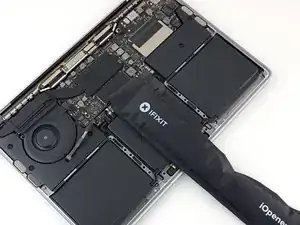
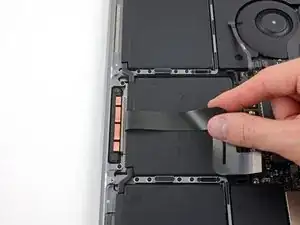
    • Prepara un iOpener y colócalo sobre el cable plano del trackpad durante aproximadamente un minuto, para ablandar el adhesivo que fija el cable plano del trackpad a la parte superior de la batería.

    • Si no tienes un iOpener, usa un secador de pelo para calentar el cable. El cable debe estar caliente, pero no demasiado caliente para tocarlo. Ten cuidado de no sobrecalentar la batería.

    If you don’t have the iOpener, use a dry heating pad (with rice inside) and heat for 2 minutes in the microwave.

    tarex7 -

    there's nothing in this manual about how to secure the cable while reassembling. I used insulating tape.

    Anton Monakhov -

    The air drier worked well for me, just need to be patient and and maintain a slight pull force to know when it's ready.

    I did not need to secure the cable, the glue on it was still effective, apparently.

    Adrien Bernede -

    I really think the repair kit should have helped prepare for this. I neither have a hair dryer nor an iOpener! Fortunately, one of the included “plastic cards”, carefully wedged under the cable, with gentle pulling on the cable, helped release the cable from the battery.

    Kevin McAda -

    para separar el cable del pegamente se puede humedecer yna tarjeta fina plastica con alcohol isopropilico y con eso separar despacio el flex del lugar donde eta pegado

    you can use isopropilic alcohol , humect slim card whit alcohol isopropilic for separate flex from grue

    karloz61 -

    Hair dryer worked well while I gently pulled on the cable.

    tommy404 -

    I was also able to do this without heating the ribbon. Just used a wide spudger device and maintained gentle upward pressure while sliding the spudger toward me.

    philstphns -

    I used a microwaveable pet heat pad, but equally could’ve used an iron (with steam turned OFF) with a folded tea towel in between.

    Josh Beckett -

    Kevin is correct. Use the plastic card. Lift the cable to about 45 degrees and the card to maybe 10 degrees. GENTLY pull up ribbon while wiggling the card left and right while simultaneously pushing under the cable. GENTLY!

    Richard Ness -

    Here don't need to warm up, specially if you are in a warm country like India

    Shekhar Vaidya -

    really minimal heat needed. i just used my breath

    Noal Balint -

    Mine came loose with gentle steady pulling. Held out of the way during the rest of the job with a pair of tweezers wedged on it...not clamped.

    Danno -

  20. YwSMYxrdWZpVOgZY
    YwSMYxrdWZpVOgZY
    GaY3oey31fwEffiA
    HaNr1KTA42TAUdWx
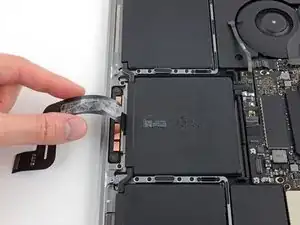
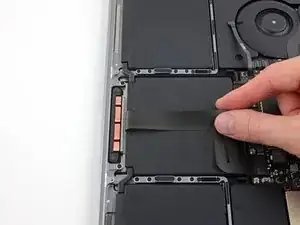
    • Retira con cuidado el cable de la cinta del trackpad de la batería y empújalo para quitarlo del camino.

    • No dobles ni rasgues el cable.

  21. yvbYMIHInsJBS5Is
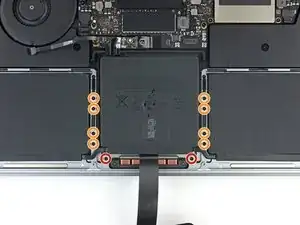
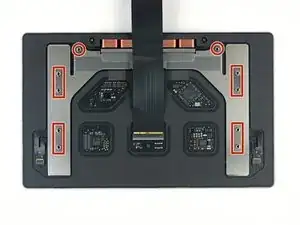
    • Usa un destornillador T5 Torx para remover los diez tornillos del ensamblaje del trackpad.

    • Dos tornillos de 4.3 mm

    • Ocho tornillos de 5.8 mm

    Important note when you’re putting your laptop back together: while you tighten the screws, verify that the trackpad is not crooked in its slot. I didn’t, and there’s a tiny but noticeable misalignment between left and right. It’s not critical, just a pain to fix once you’ve put the cover back on.

    David Chatenay -

    important!!! read this

    Noal Balint -

    Do not forget to unscrew the two 4.8 mm screws

    Shekhar Vaidya -

    Which 4.8mm screws are you referring to? Are they pictured here?

    maccentric -

    Must say that you can avoid all these next steps and go to battery removal IF you are patient. Using 3-4 of iFixit's nylon spudgers, you can simply pry upwards on the cells and get them loose. The glue strips will start to loosen and then you can use one spudgers flat edge to cut the remaining adhesive. Continuing to apply upwards pressure throughout and working slowly, it can be done. I have done half-a-dozen this way. Was just too afraid to risk the adhesive remover getting where it shouldn't. Once the battery is completely out, you can pull or scape off the remaining glue-strips. My last one came off so clean, there was only about 1% residue.

    Danno -

  22. 3jtjTJIFSAyKvxnT
    3jtjTJIFSAyKvxnT
    ooGOUPOl6NRPBxwf
    XsDolXEA4e36iQ4b
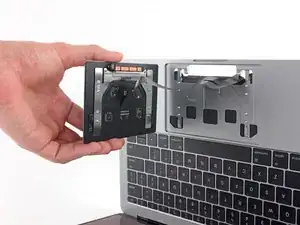
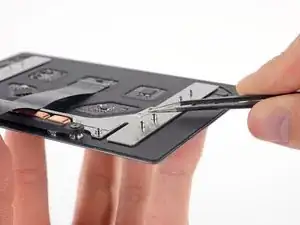
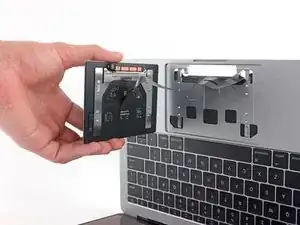
    • Remueve el ensamblaje del trackpad.

    • Tendrás que abrir ligeramente la pantalla para quitar el trackpad.

    • Ten cuidado de pasar el cable plano del trackpad por el marco del MacBook Pro sin engancharlo.

    • Asegúrate de no perder las seis arandelas pequeñas (dos circulares y cuatro rectangulares) que descansan en la parte inferior del trackpad.

    Well… I lost one :) Anyone know where I could get a spare round one?

    matic.klemenc -

    I don’t get why this is necessary to change the battery?

    Marvin -

    Hi Marvin, I expect you figured out why this is necessary as you continued. I seriously wondered the same. The center battery does not have a solid case beneath it. If you don’t remove the track-pad, you will get adhesive remover on the circuitry and possibly ruin the track-pad. :-)

    Kevin McAda -

    Is it possible to leave the trackpad installed if you don’t use the adhesive remover technique? I always use a bent piece of heavy plastic to separate the battery from the laptop on these newer machines. I can’t stand the thought of putting solvent in a client’s Mac!

    jiclark -

    When you screw the trackpad back, please remember that you are going to click on this thing. If you screw it so tight your trackpad will not be clickable anymore. If you screw it to lightly, it might fall off someday. I don't understand the balance between this. How do you screw the trackpad properly so you can still press on the trackpad and feel the click?

    Art Pablico -

    Sorry, I was wrong, the technology on this thing is superb. Once you turn on your Mac, the trackpad automatically transforms itself into a clickable aluminum pad. I don't know how that happens. But you can check it out yourself. If you shutdown your Mac, it is not clickable, turn it on, then it clicks!

    Art Pablico -

    The 4 copper wire coils you can see on the underside of the trackpad are responsible for the haptic feedback system Apple employ to provide the sensation of a "click" without the trackpad actually moving visibly. Obviously the coils need power to work, hence it only works when the machine is powered up.

    Cool_Breeze -

    I didn't lift the base as high as the photo, rather just enough to remove it while still almost flat (keeping washers in place)

    Per Haglund -

Conclusión

Compara la nueva pieza de repuesto con la original; es posible que tengas que transferir los componentes restantes o retirar los respaldos adhesivos de la nueva pieza antes de instalarla.

Para volver a ensamblar tu dispositivo, sigue los pasos arriba en orden inverso.

Lleva tus desechos electrónicos a un centro de reciclaje certificado.

¿Lareparación no salió según lo planeado? Consulta nuestra comunidad de respuestas para obtener ayuda en la resolución de problemas.

Jeff Suovanen

Miembro Desde 06/08/13

407896 Reputación

0 comentarios