Introducción
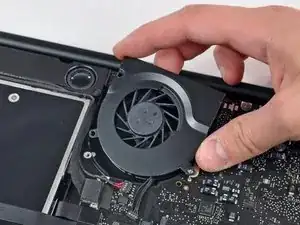
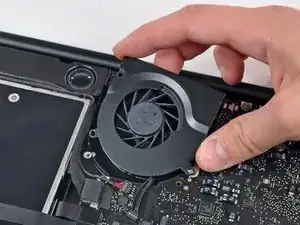
Utiliza esta guía para reemplazar un ventilador ruidoso o quemado.


-
-
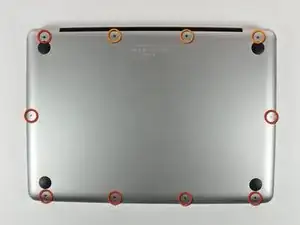
Retira los siguientes 10 tornillos que sujetan la tapa inferior del MacBook Pro 13 "Unibody:
-
Siete tornillos Phillips de 3 mm.
-
Tres tornillos Phillips de 13,5 mm.
-
-
-
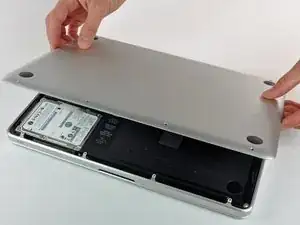
Levanta ligeramente la tapa inferior y empuja hacia la parte posterior para liberarlo de las pestañas que lo sujetan
-
-
-
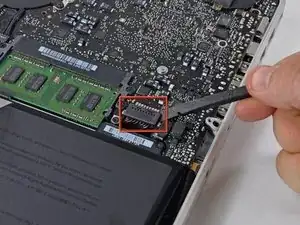
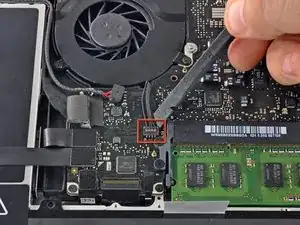
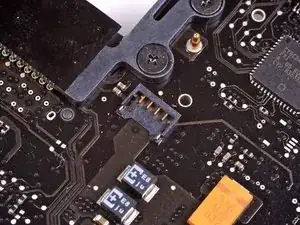
Utilice el extremo plano de un spudger para levantar el conector de la batería hacia arriba fuera de su toma en la placa lógica.
-
-
-
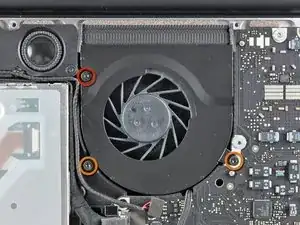
Retira los siguientes tres tornillos:
-
Un tornillo Torx T6 de 7 mm
-
Dos tornillos Torx T6 de 5,4 mm
-
Para volver a armar tu dispositivo, sigue estas instrucciones en orden inverso.

3 comentarios
Thanks Walter Galan for this guide its my first repair using fixit.
So I noticed MacBook Pro’s Fan is not working leaving the equipment very hot.
I bought a new part in Ifixit and repair my laptop.
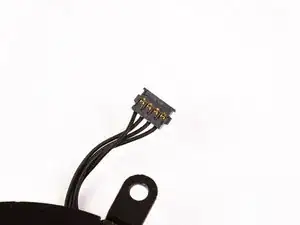
The trickiest part is removing the motherboard connector. I did this using spudger tool with success but spend some time with careful.
Just I noticed again before install new part that is noising when spinning. So I force a little the the metal case to put away propellers that was contacting with her.
Another suggestion is clean fan before with a hair dryer for example, same to the place where will put the new fan.
So repair made with sucess!!!
The repair was quick and simple with the use of an iFixit toolkit that I conveniently already had. The fan works well. Thank you to Walter Galan for this easy-to-follow guide and thank you to the guys at the iFixit store for the speedy shipment.
Image #4 is very misleading. This is why many people are breaking their connectors. Please correct this and make it VERY clear that one has to put the spudger straight behind the cables, NOT behind the connector, as shown in the pic.
Giunia -
Compare the short screws carefully before reinstalling them. The shouldered screws go in the holes on the front edge.
David Kilbridge -
Before I started removing any screws I took a piece of paper and drew the bottom of the laptop and put a piece of double-sided tape in the spot where each screw goes. That way when I took out the screws, I could put them on the tape so I knew exactly which screw went in which spot. I did the same thing for dismantling the inside on another sheet of paper, then a third sheet for the screen after getting the front glass off.
mastover -
I use a similar technique: I print out the iFixit manual for the job, and Scotch-tape down the screws/brackets/cables I remove at each step next to the component descriptions. That way, when I'm reassembling, the bits are taped right next to the photo of where they came from.
adlerpe -
That's exactly what I do for all my repairs! It's the best way to keep track of all of the parts ' original location and to make sure that you don't miss any parts during reassembly.
joyitsjennie -
Great idea and one I use often
Thomas Overstreet -
Excellent idea! Thanks for sharing it here.
Laura Sharkey -
I used a 00 that fit but the screws were very tight so I used a tiny paintbrush with some wd40 on it and put it around the edges of the screws. Worked like a charm
valentinedhdh -
I use a magnetic mat and place the screws in order on that :)
Cary B -