Introducción
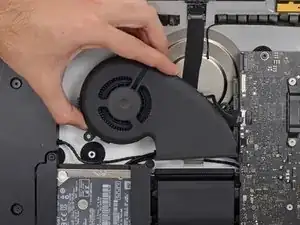
Si el ventilador de tu iMac Retina 4K de finales de 2015 de 21,5" (EMC 2833) está defectuoso, falla o está muy obstruido por el polvo, usa esta guía para reemplazarlo y hacer que tu iMac vuelva a funcionar en un lugar frío y silencioso.


-
-
Antes de comenzar el trabajo en su iMac: Desenchufe la computadora y mantenga presionado el botón de encendido durante diez segundos para vaciar los condensadores de alimentación de energía.
-
-
-
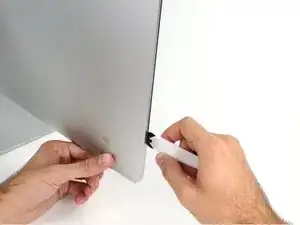
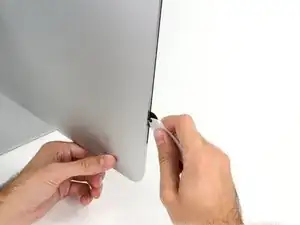
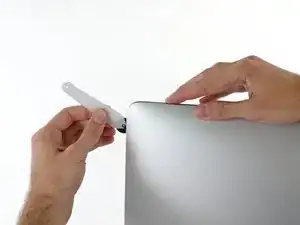
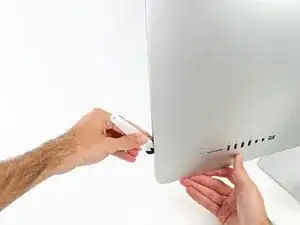
Comenzando a la izquierda de la pantalla, cerca del botón de encendido, inserte la herramienta de apertura iMac en el espacio entre el panel de vidrio y la carcasa trasera.
-
-
-
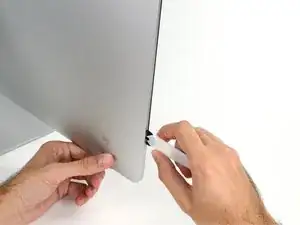
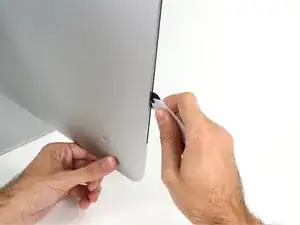
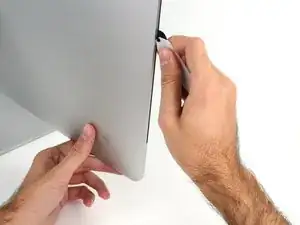
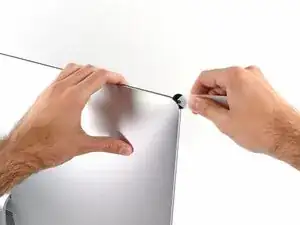
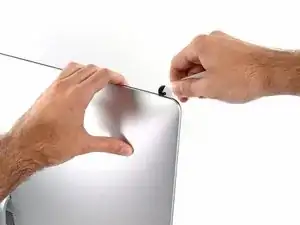
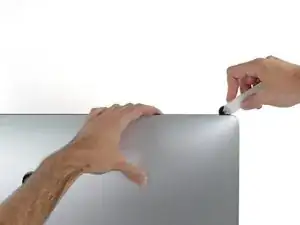
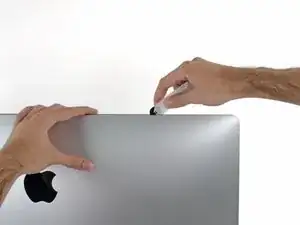
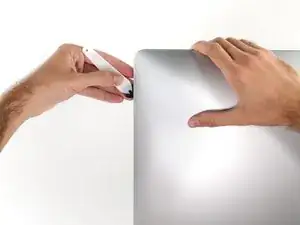
Use la herramienta parecido a un cortador de pizza: gírelo a lo largo de la abertura para cortar el adhesivo de espuma por el centro.
-
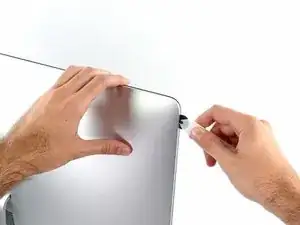
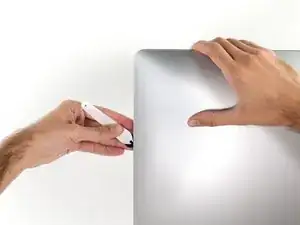
Mueva la herramienta hacia arriba a lo largo del lado izquierdo de la pantalla.
-
-
-
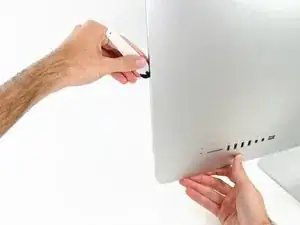
Finalice empujando la herramienta de apertura hacia la parte inferior del lado derecho de la pantalla.
-
-
-
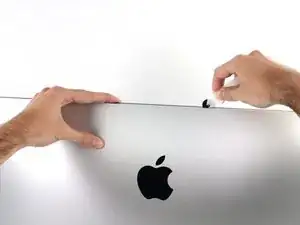
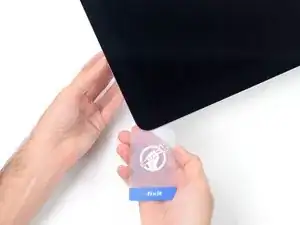
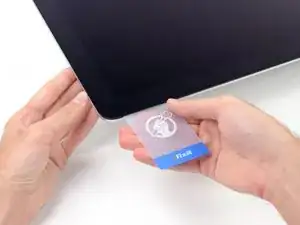
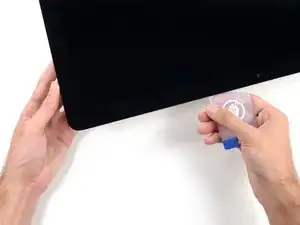
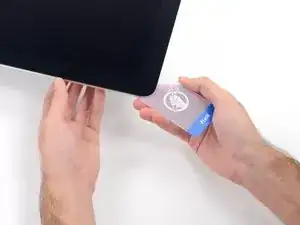
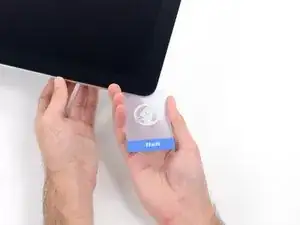
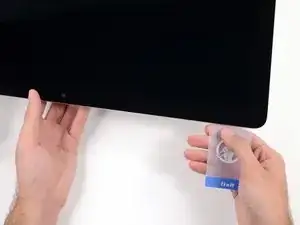
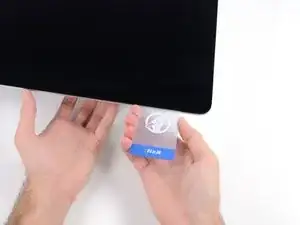
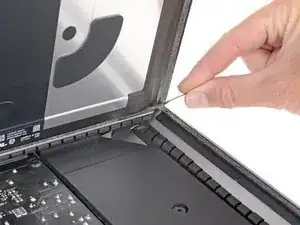
Comenzando desde la esquina superior derecha del iMac, coloque una tarjeta de plástico entre la pantalla y el marco.
-
-
-
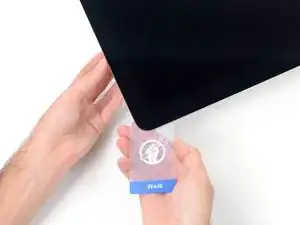
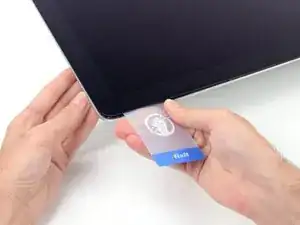
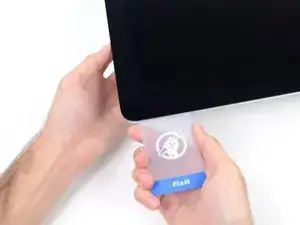
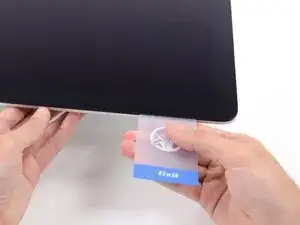
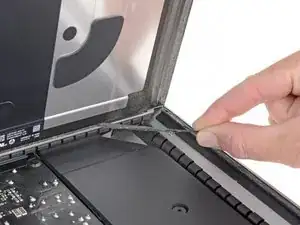
Gire suavemente la tarjeta de plástico hacia los lados para crear un espacio entre la pantalla y el marco.
-
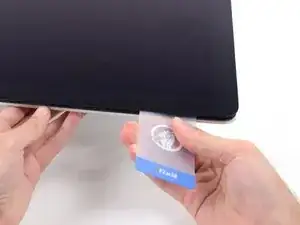
Muévase despacio y tenga cuidado de no estresar demasiado el cristal de la pantalla; solo necesita hacer un espacio de aproximadamente 1/4 ".
-
-
-
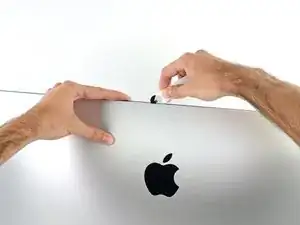
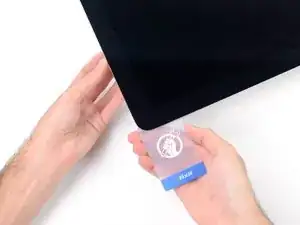
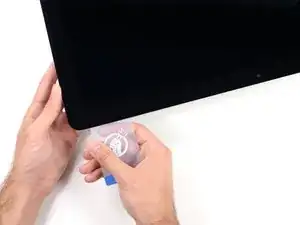
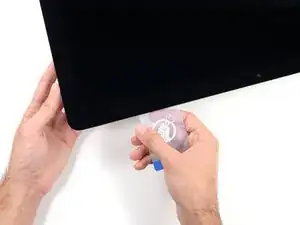
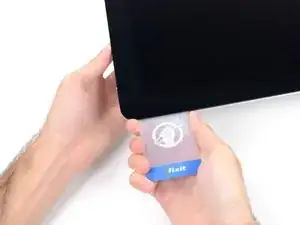
Deslice la tarjeta hacia el centro de la pantalla para cortar el resto del adhesivo a lo largo de la esquina superior derecha del iMac.
-
-
-
Vuelva a acuñar la tarjeta de plástico en la esquina superior derecha y déjela allí para evitar que el adhesivo se mueva.
-
-
-
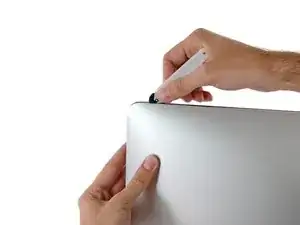
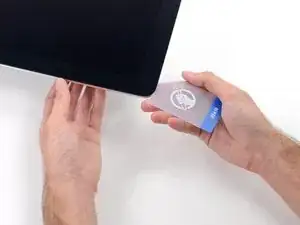
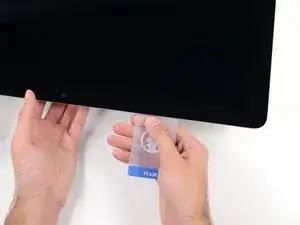
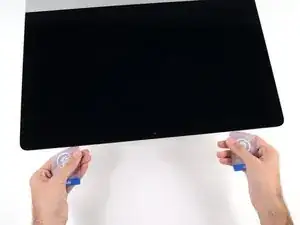
Inserta una segunda tarjeta de plástico en el espacio entre la pantalla y el marco cerca de la esquina superior izquierda del iMac.
-
-
-
Gire suavemente la tarjeta hacia arriba, aumentando ligeramente el espacio entre la pantalla y el marco.
-
-
-
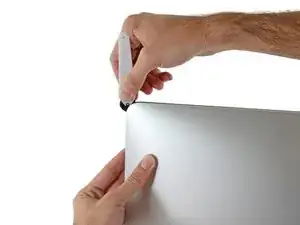
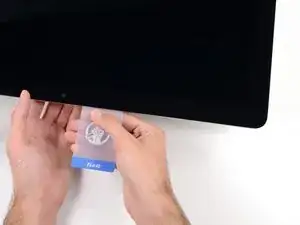
Deslice la tarjeta de plástico hacia el centro, deteniéndose de nuevo justo antes de la cámara iSight.
-
-
-
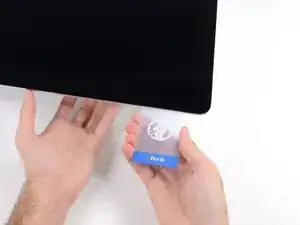
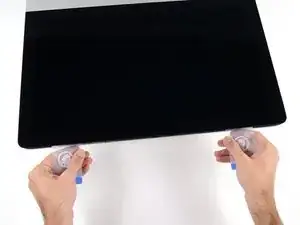
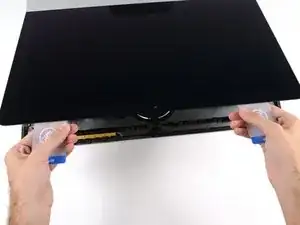
Con ambas tarjetas de plástico insertadas como se muestra cerca de las esquinas, gire suavemente las tarjetas hacia los lados para aumentar el espacio entre la pantalla y la carcasa.
-
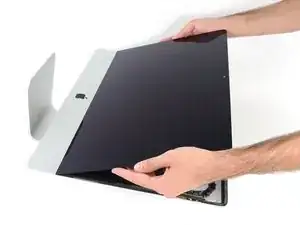
Comience a levantar la parte superior de la pantalla desde el marco.
-
-
-
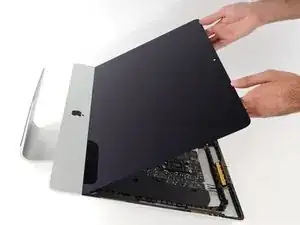
Sostén la pantalla con una mano, mientras usas la otra para desconectar el cable de energía de la pantalla.
-
-
-
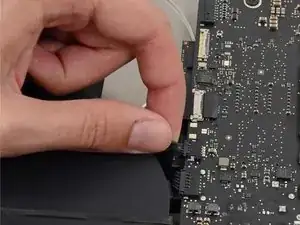
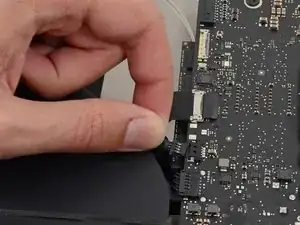
Continúa sosteniendo la pantalla con una mano, mientras muevas hacia arriba el soporte de metal en el cable de datos de la pantalla.
-
Con cuidado tira el cable de datos de su zócalo en la placa lógica.
-
-
-
Toma la lengüeta pequeña al final de una de las tiras adhesivas de la pantalla del borde inferior y tira del adhesivo hacia la parte superior del iMac para quitarlo.
-
Repite este paso con la otra tira adhesiva y retírala.
-
Si cualquiera de las tiras adhesivas se rompe antes de quitarla, usa una tarjeta de plástico para cortar el adhesivo restante.
-
-
-
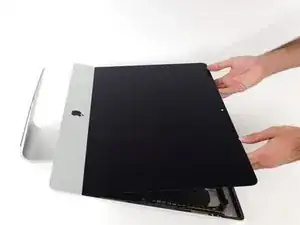
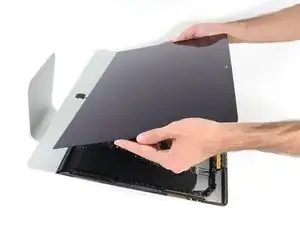
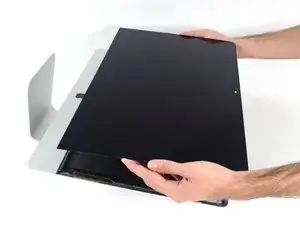
Levanta la pantalla fuera del marco y quítala del iMac.
-
Puede ser necesario levantarla lentamente de un lado, para despegar el adhesivo remanente.
-
-
-
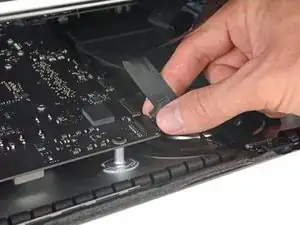
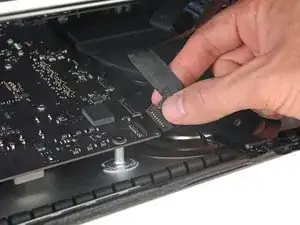
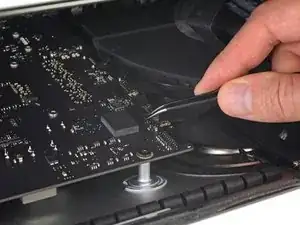
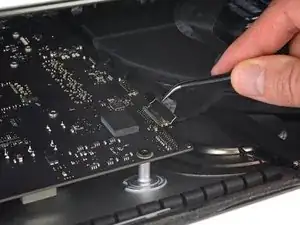
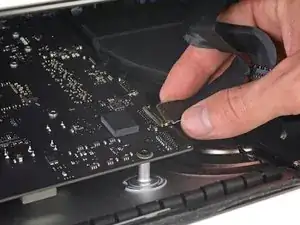
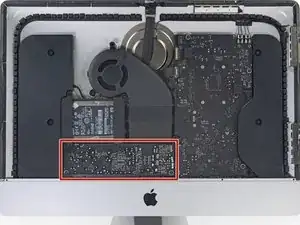
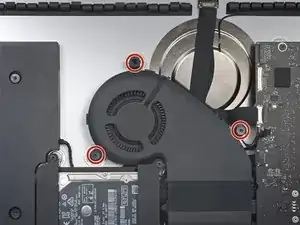
Tira con cuidado del conector del cable del ventilador para sacarlo de su zócalo en la placa lógica.
-
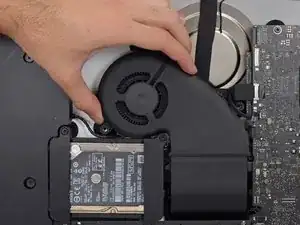
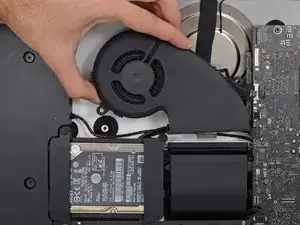
Para volver a armar tu dispositivo, sigue estas instrucciones en orden inverso.

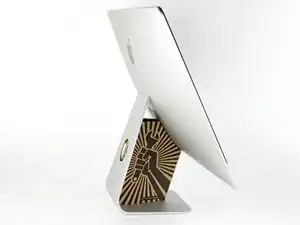
The wedge is an extremely tight fit for this model. I was worried that the amount of force needed to use it as shown might damage the stand, so I used it with the long side down instead. It worked fine that way and didn’t need anywhere near as much force to insert.
roberttrevellyan -
Here’s a good YouTube vid on upgrading the RAM: Can a Normal Person Upgrade the RAM in the 2017 21.5" iMac?
Dan -
Here are a couple tips from me:
1) Expose the adhesive to extreme temperatures. I did this by transporting my iMac in my car, screen-down on a piece of cardboard on a cold February morning (in Chicago). When I went to pick up the iMac, the screen practically fell off the chassis. I would have been distraught by this if I hadn’t already planned this replacement. So it was a happy accident.
2) Remember to expell the residual power from the power supply by pushing the power button while the iMac is unplugged. This does NOT guarantee it’s safe to touch, but when I accidentally brushed the solder and exposed capacitors, I didn’t get shocked.
jerrid_foiles -
Instead of using the wedge, I placed the iMac faced up with the top side (web cam) facing me while I ran the pizza roller around. It worked out great!
Sam Fung -
“All iMacs also come with a traditional hard drive” mine doesn’t!! it’s HDD bay is completely empty, no SATA cable or anything. I guess I’ll have to upgrade the PCIe SSD instead.
Chris Hughes -
There is no replacement glass for this model, it is part of the LCD and impossible to remove or replace- the entire LCD has to be replaced unfortunately if the glass is cracked or damaged. You will have to Google search for a replacement. Also be careful with some of the lock tight tork screws as I broke one of my screw mounts taking one out.
Phil Tesone -
I used this service wedge but also found it a very tight fit. The same stabilization can be achieved by using a big rolled up towel.
Ernst -
While this is a good instruction guide, I recommend to also look at OWC’s instruction video about drive installation, before starting the exercise. Those install videos are very detailed and useful.
Ernst -
Main advice: TAKE YOUR TIME with the pizza roller.
Make several passes, until you really feel like there's no more sticker in the way. Stay away from the camera though (approx. 1inch / 2.5cm on both sides). This will reduce the work left with the plastic card. Adhesive is really on the edge of the screen so there is absolutely no need to go any further than the recommended 1cm / 3/8inch depth.
Where are the sensitive parts?
Facing your iMac, imagine you're looking at a watch. There are antennas on 1, 2 and 4 o'clock. Do not insert any metal piece there (nor anywhere else, btw). Other than that AND the screen cables underneath the camera, not much danger.
Froggy Manny -