Introducción
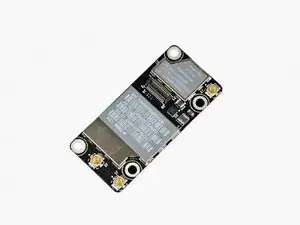
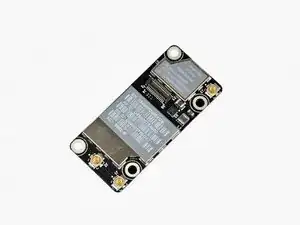
Problemas con la conectividad inalámbrica? Usa esta guía para remplazar una placa AirPort/Bluetooth inoperante.
Herramientas


Partes
-
-
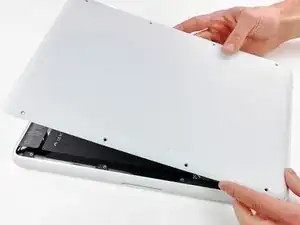
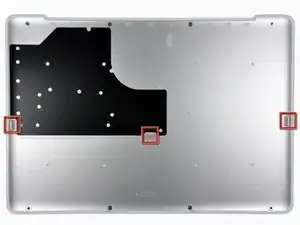
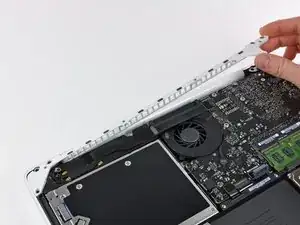
Levante ligeramente la tapa inferior cerca de la abertura de ventilación.
-
Continúa pasando los dedos entre la parte superior e inferior hasta que salgan los clips de retención.
-
-
-
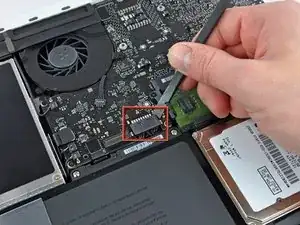
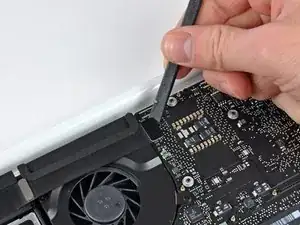
Usar la punta plana de una spudger para levantar el conector de la batería de su enchufe en la placa lógica.
-
-
-
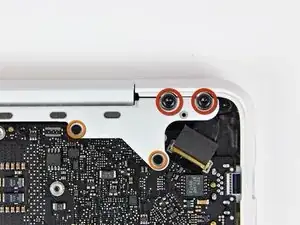
Remueve los siguientes tornillos del lado del disco óptico de la rejilla trasera:
-
Dos Torx T8 de 10mm
-
Dos Phillips de 5.2mm
-
-
-
Remueve los siguientes tornillos del lado de los puertos de la rejilla trasera:
-
Dos Torx T8 de 10mm
-
Dos Phillips de 5.2mm
-
-
-
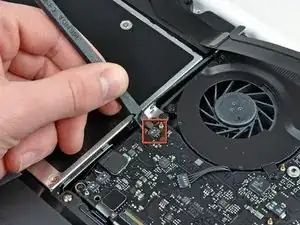
Usa el lado plano de un spudger para levantar el conector del cable AirPort/Bluetooth de la placa lógica.
-
-
-
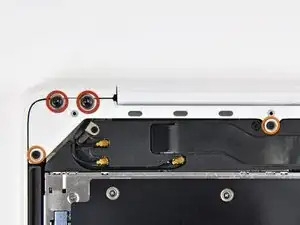
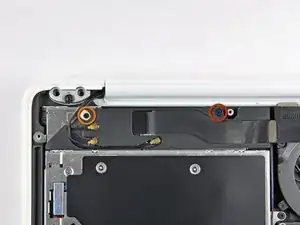
Remueve los siguientes tornillos asegurando el ensamblaje del altavoz derecha a la carcasa superior:
-
Un tornillo Phillips de 12mm.
-
Un tornillo Phillips de 3mm.
-
-
-
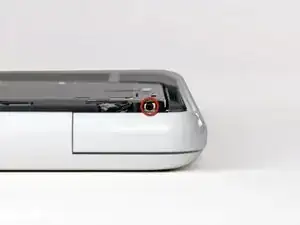
Remueve el único tornillo Phillips de 2.2mm insertado horizontalmente en el lado del disco óptico.
-
-
-
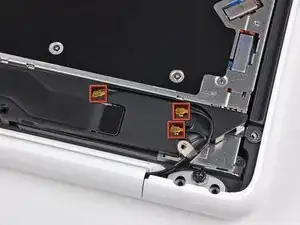
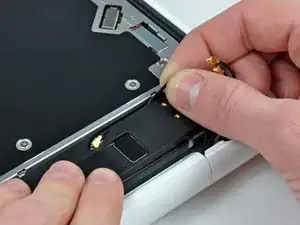
Levanta el conector de la antena AirPort y Bluetooth (3 en total) de la tarjeta AirPort/Bluetooth.
-
De-ruta la antena larga de su canal en el ensamblaje del altavoz trasero.
-
-
-
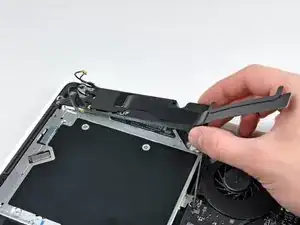
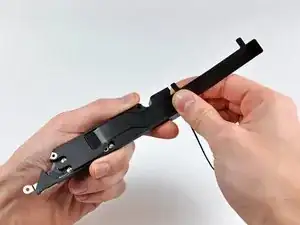
Cuidadosamente despega el cable del Airport/Bluetooth de su canal en el ensamble de la bocina trasera.
-
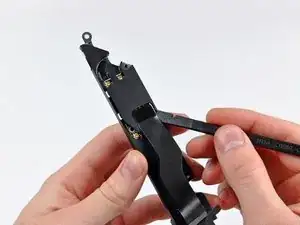
Usa el lado plano de un spudger para levantar el cable AirPort/Bluetooth de la bocina trasera.
-
-
-
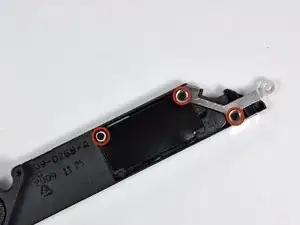
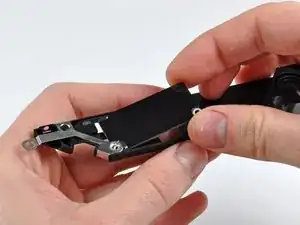
Remueve los tres tornillos Phillips de 3 mm que sujetan la placa AirPort/Bluetooth al ensamblaje del altavoz trasero.
-
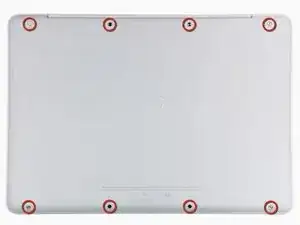
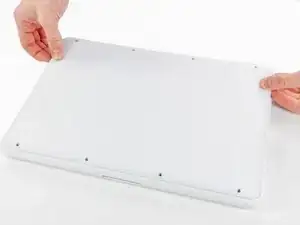
Para re-ensamblar tu dispositivo, sigue estas instrucciones en el orden inverso.

3 comentarios
Terrific guide; no problems, at all! Don't forget you need to add the Wi-Fi service back to the list of services:
1. Go to System Preferences → Network and click the + button to add a service.
2. Select Wi-Fi as the Interface and provide a service name.
For more info, please see http://apple.stackexchange.com/questions....
At Step 11 I accidently pulled the connector off the board incorrectly and it won't fit back on. What is the difficulty level of resoldering this back onto the logic board or should I take it to a professional?
gregpif -
Hello!
Does anyone know where I could find this bt card but with Bt 4.0 LE in order to get handoff and continuity to work on this A1342 Macbook?
Thanks!
According to this page http://support.apple.com/kb/HT1651?viewl..., the 8 screws are not identical.
Can anybody tell me where each kind of screw is supposed to go?
Gregoire -
They are all 100% Identical. You were probably looking at a different model, or Apple has entered the wrong information... Hey, It happens...
weeowey weeowey -
The screws on the Late 2009 are identical. The blue lock compound might make tightening some require a little more effort.
svenaustx -
Can I replace it with a SATA 3 cable?
nm -
A1342 macbook does not have the right controller to support sata III
weeowey weeowey -
hi, i just got back from the apple store and they are really keen for me to upgrade to a new laptop since my battery is old and the screen is cracked, so glad i found ifixit i would love to upgrade this puppy! gonna make it a real sleeper! styler hall wrote about sticking 16 gb of ram in his a 1342 ? is this a simply mather of ordering 3 4gb sticks ?aslo i currently have 4 gb and would like to upgrade to 8 ( or indeed 16) does that mean i need to buy all new sticks or can i continue to use the old one and stick a new one next to it ?
thanks again mick van aar, perth western aus.
michelvanaar -
The A1342 will take up to 16 GB of RAM, however, there are only two RAM slots, so use two 8-GB RAM modules. Other World Computing (OWC) is a great reference source for info on exactly which RAM to use with which model; prices are usually much better on EBay though. Add an SSD from OWC and your machine will really scream!
I hope that helps!
gdesbrisay -
Gregoire is right. The 8 screws are absolutely NOT identical, I’m looking at them right now, weeowey weeowey.
John Guzman -
I just wanted to say that, in 2020, i used these instructions to replace the magsafe socket on my A1286, mid-2012, pre-Retina MacBook Pro. The internal layout is not quite the same but close enough for me to do the job. I skipped the steps of fully disconnecting the fans and speakers because of what others had said about breaking the sockets. it just meant I had to be extremely careful when lifting up the main board so that I did not tear and break the connections. I was able to disconnect the old magsafe socket with the board flat and in situ, but there was no where near enough room to be able to aline and press home the new par home. Reluctantly i had to lever up the board. This was difficult as there is a tapped post that holds a screw in the way close to where the USB sockets are, that prevented the board lifting up and out. I had to be quite forceful to manouevre the sockets out from the edge of the case.
Paul Burridge -