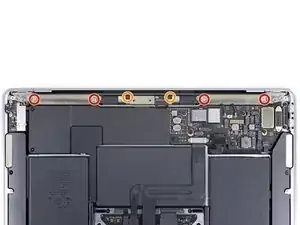
Introducción

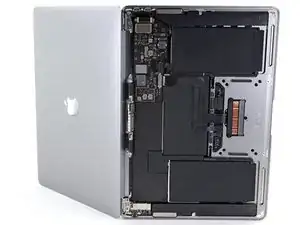
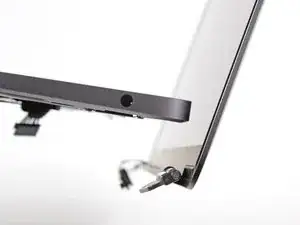
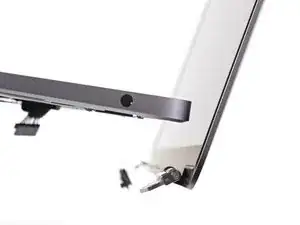
Usa esta guía para reemplazar la pantalla (también denominada "display") en una MacBook Air (M1) de finales de 2020.

  1. VPEGroiLj2rq1TsX
    • Antes de iniciar este procedimiento, debes desactivar la función de arranque automático de tu Mac. El arranque automático se enciende en tu Mac cuando abres la tapa y puede activarse accidentalmente durante el desmontaje. Utiliza esta guía para desactivar el arranque automático.

    • Si tu MacBook está ejecutando Big Sur v11.1 o posterior, puede que no funcione la desactivación del arranque automático. Puedes proceder normalmente, pero asegúrate de desconectar la batería en cuanto estés dentro.

    • Apaga completamente y desenchufa tu MacBook Air antes de empezar. Cierra la pantalla y pon toda la portátil boca abajo.

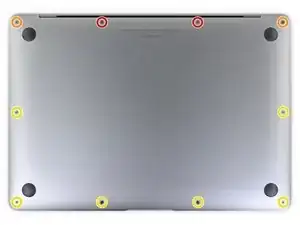
    • Usa un destornillador P5 Pentalobe para quitar los siguientes seis tornillos :

    • Dos tornillos de 7.9 mm

    • Dos tornillos de 7.1 mm

    • Seis tornillos de 2.6 mm

    • A lo largo de esta reparación, mantén un registro de cada tornillo y asegúrate de que vuelva exactamente al lugar de donde salió para evitar dañar tu MacBook

    ESD safe mat, plugged into ground, with a wrist strap, also grounded, are the best best to protect the logic board.

    Robin Ray -

  2. JM2r2fTloLj1HGHv
    JM2r2fTloLj1HGHv
    qWKL1OR1c1CmZJKh
    qfGXhnWu5SInbUHj
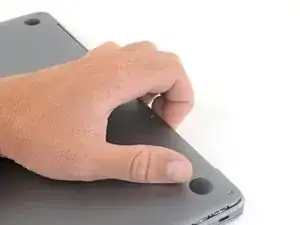
    • Pon tus dedos entre la pantalla y la caja inferior y tira hacia arriba para sacar la caja inferior de la computadora.

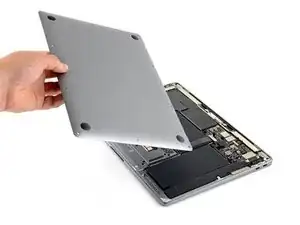
    • Remueve la caja inferior.

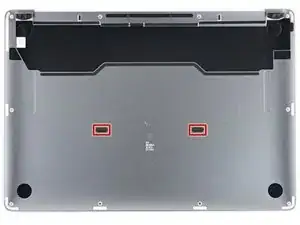
    • Para volver a instalar la caja inferior:

    • Pon tus dedos entre la pantalla y la caja inferior y tira hacia arriba para sacar la caja inferior de la computadora.

    Los tornillos se ruedan fácilmente :(

    Mishelle Cerón -

  3. NWhygZ3NuFfSLrCC
    NWhygZ3NuFfSLrCC
    kRYFRljHKcJHQMni
    VevmEYadgKPXgXRH
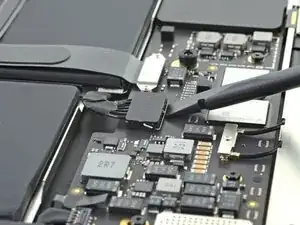
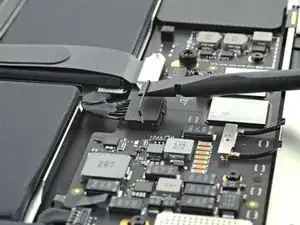
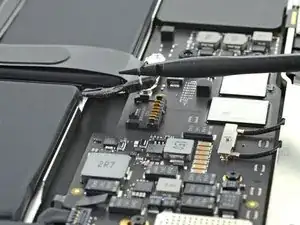
    • Utiliza el extremo plano de un spudger para hacer palanca y desenganchar el brazo metálico de bloqueo del conector de la batería.

    • Asegúrate de que el brazo metálico esté completamente libre de la lengüeta de bloqueo antes de levantar el conector de la batería. El brazo metálico de bloqueo debe desengancharse fácilmente.

    • Levanta el brazo metálico de bloqueo para sacar el conector de la batería de su alojamiento en la placa lógica.

    • Durante el montaje, presiona el conector de la batería hacia abajo en su zócalo, asegurándose de que se asienta en el zócalo.

  4. pMA6bFPjPuCcCuXw
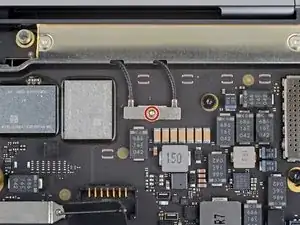
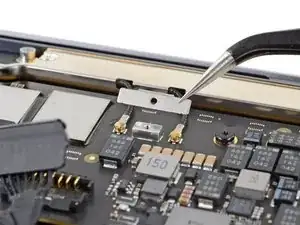
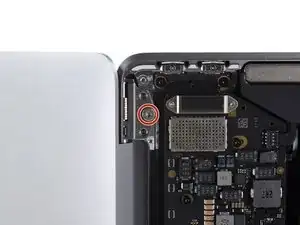
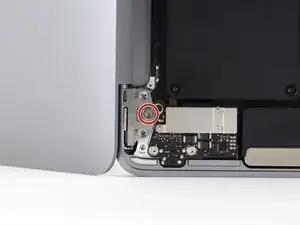
    • Usa un destornillador Torx T3 para retirar el tornillo de 1.4 mm que sujeta la cubierta del cable de la antena.

    • Si su punta T3 se siente un poco floja, puede que necesites utilizar un T4.

    I needed a T4 for this

    MaFt Morley -

    Wiha tools T3 fit perfectly.

    Robin Ray -

  5. DolxfCVyMJbuVaYK
    • Retira la tapa del cable de la antena.

    Make sure the 90 degree bend on the cover is towards the hinge when reassembling. It will fit in backwards, but will cause problems.

    Robin Ray -

  6. YjXHvrYawVQGdCsF
    YjXHvrYawVQGdCsF
    ghAw1ida5JywpKYy
    Gei2HaBBD4QLOChH
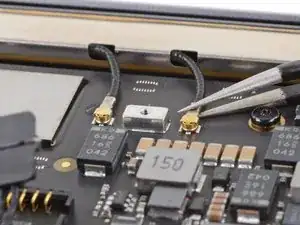
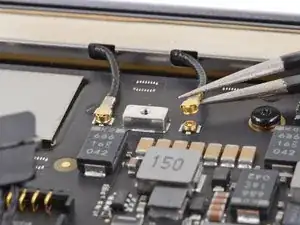
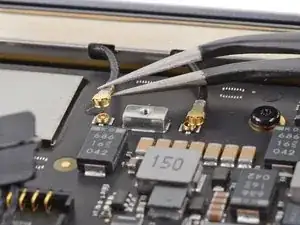
    • Usa unas pinzas para agarrar el conector de la antena cerca de su base.

    • Tira hacia arriba para desconectar el cable.

    • Repite la operación con el segundo cable de la antena.

    These are tiny, and hard to reconnect. The key was to position the cables so their ends are very close to the posts on the board.

    dexter -

  7. 1VJvIwAxTOJogU5w
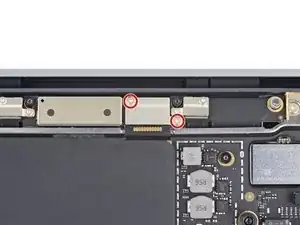
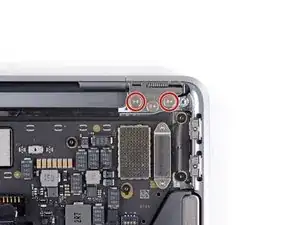
    • Usa un destornillador Torx T3 para retirar los dos tornillos de 1.5 mm que sujetan la tapa del conector del cable de la pantalla.

    None of the screws in this repair are T3. All the smaller ones are T4. Which is good, ‘cause my (cheap) repair tool kit doesn’t have a T3.

    dexter -

    The T3 screws called out were indeed T3, not T4 on the MacBook Air I replaced the display on.

    --Mac Ace, Inc.

    Robin Ray -

    I dropped one of these - can they be purchased? Or is there a matching screw in an older MacBook Air? I have a ton of those for parts... :-)

    Jimmy Anderson -

  8. 4LyTebwNMFNoFqJf
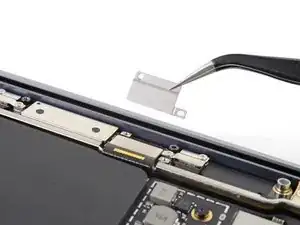
    • Retira la tapa del conector del cable de la pantalla.

  9. yGHHGP6i2yHfUM4N
    yGHHGP6i2yHfUM4N
    NCZ4EGyX5OgOcx4R
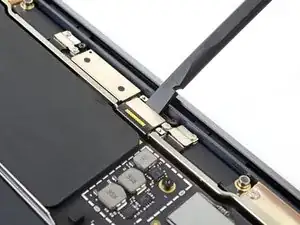
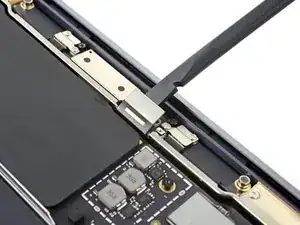
    • Utiliza el extremo plano de un spudger para separar el conector del cable de la pantalla de la placa de la antena y desconectarlo.

    • Para volver a colocar conectores de presión como este, alinea con cuidado y presiona hacia abajo en un lado hasta que encaje en su lugar, luego repítelo en el otro lado. No presiones hacia abajo en el medio. Si el conector está desalineado, las clavijas pueden doblarse y causar daños permanentes.

    Since this step is the most crucial in the reassembly process I suggest connecting the flat cable to the board BEFORE placing the board in to its cavity in the antenna bar. MUCH easier and SAFER to do.

    J Patrick Dowling -

  10. 2b1wYIiFCJDuN2s5
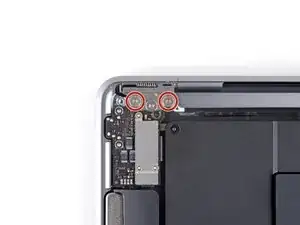
    • Utiliza un destornillador Torx T5 para retirar los seis tornillos que fijan la barra de la antena:

    • Cuatro tornillos plateados de 7,4 mm

    • Dos tornillos negros de 4.7 mm

    Mine here is T6 Torx not T5.

    David Jones -

    When putting it back together, make sure to get the display cable connector out from under the antenna board before screwing the antenna bar back down. The connector has to go behind the bar in the little notch as the board goes through the opening in the bar.

    Matthew Granger -

  11. SAEGGdfncZdeZYYm
    SAEGGdfncZdeZYYm
    BAsqqhw4iQ4CWtpH
    qeEvDZBflVmW4Nlw
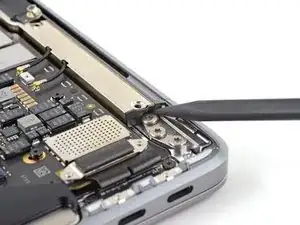
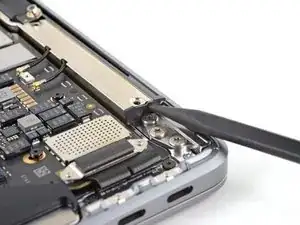
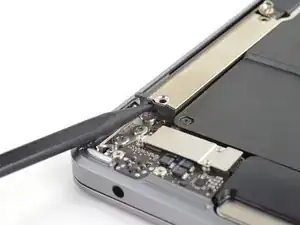
    • Gira el spudger contra la bisagra para levantar el extremo de la barra de la antena.

    • Gira el spudger contra la bisagra para levantar el extremo de la barra de la antena.

    • Repite la operación con el otro extremo de la barra de la antena.

  12. Iokx4fkJ45pYlhlf
    Iokx4fkJ45pYlhlf
    TFAUPiYpoxIFaihc
    AanhCNNBiMLVkvFG
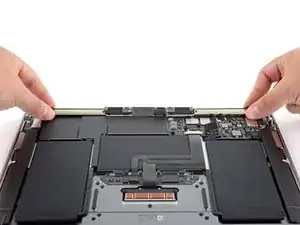
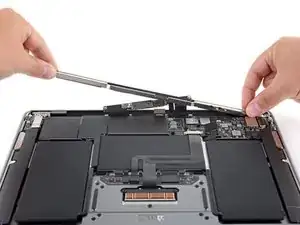
    • Utiliza los dedos para hacer palanca en la barra de la antena y separarla de la carcasa.

    • La barra de la antena está asegurada con algo de adhesivo y puede requerir algo de fuerza para desprenderse.

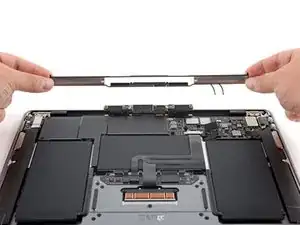
    • Pasa la placa de la antena a través de la abertura en el centro de la barra de la antena.

    • Ten cuidado de no tensar los cables planos de la barra de antena.

    • Remueve la barra de antena.

    Separating antennae bar from case after removing screws is challenging. Author’s directions are good but what needs to be addressed is a thin strip of adhesive on both sides of the bar that needs to be separated. the strips are located on the hinge edge of the logic board mount area. I used a metal, razor thin, wide, blade type spudger to gently “wedge” underneath the bar along both adhesive strips to loosen the bar and lift it up. Careful!

    Macrepair SF -

    Thanks for this hint!!

    Benjamin Bradshaw -

  13. kFLtAiCkArPE5OXq
    kFLtAiCkArPE5OXq
    HOBsvCEQI4wny2Mt
    • Usa un destornillador Torx T8 para quitar dos tornillos de 5.0 mm de cada bisagra (cuatro tornillos en total).

    • Cada bisagra tiene un tercer tornillo central, que debes dejar colocado por ahora.

    The Easiest Mac screen repair I've ever done! it was a pleasant surprise

    Kelly Legner -

    I found a T9 to be a better fit

    Luke Knight -

    Nothing is making these screws come out. Any advice on what to do

    ella sharman -

    Increase the diameter of the handle. That gives more torque to break the screww loose. You could wrap it with some material and then cover it with duct tape.

    Matthew Granger -

  14. MFbGZrGPmW4IavqF
    MFbGZrGPmW4IavqF
    IYnCAS2VhHxVhZre
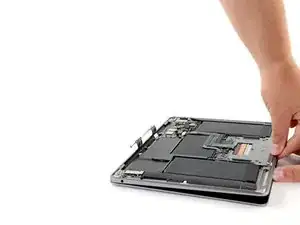
    • Con el MacBook todavía con la pantalla hacia abajo, levanta con cuidado la carcasa superior para abrir el MacBook lo máximo posible.

  15. 4k5dKNeQpOijClSq
    • Levanta la MacBook y colócalo de lado, con la pantalla en dirección contraria a ti.

  16. igUpU3dUFCTwuSrL
    igUpU3dUFCTwuSrL
    eUKF5RSJSJhImjgF
    • Utiliza un destornillador Torx T8 para retirar los dos tornillos restantes de 5.0 mm que sujetan la pantalla, uno de cada bisagra.

    • Una vez retirados estos tornillos, la pantalla dejará de estar conectada a la carcasa superior. Mantén ambas mitades firmes.

  17. J2JKaPQrFEfBdoga
    J2JKaPQrFEfBdoga
    XAnHXNltrsrvfXID
    OMEZHDTLKpUVQlAx
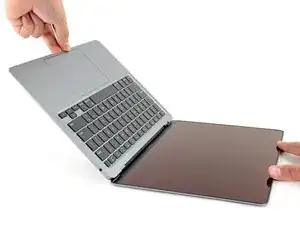
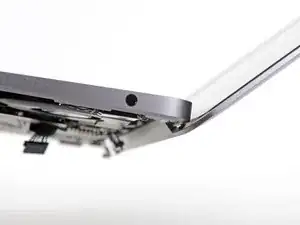
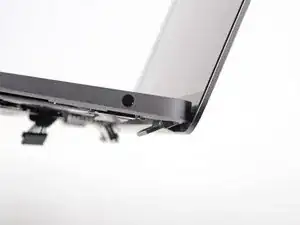
    • Comienza a cerrar la pantalla con cuidado hasta que forme un ángulo de unos 90 grados con la carcasa superior.

    • Las bisagras deberían salirse ligeramente de la carcasa a medida que la pantalla se acerque a la misma.

    • Manteniendo la pantalla en un ángulo de 90 grados con la carcasa, aleja la pantalla de la carcasa mientras la mantienes quieta, de modo que las bisagras se deslicen hacia fuera de la parte inferior de la carcasa.

    • Retira la pantalla.

    • Cuando hayas instalado la pantalla de reemplazo, es posible que la MacBook no arranque hasta que conecte la fuente de alimentación.

    I managed to try to fit the screen back to the body backwards, and wondered why the hinges didn't fit! Yes, stupid. I lost situational awareness. But just make the sure the correct side of the screen is facing the right way, to avoid my (temporary, but stressful) goofup.

    dexter -

    Me too until I read your comment. Remember that the screen was facing away from you in step 16. Then it fits easily.

    Matthew Granger -

    Nicely done guide, thank you Carsten!

    MotorMac -

    When you're all done with reassembly you have to plug the charger into the laptop in order for it to boot. It doesnt matter if the battery is charged it will not boot until the charger is reconnected. Took me a while to figure out why mine wasnt booting after the screen replacement

    Nelson Pun -

    Excellent guide. Concise, accurate, very nice!

    Robin Ray -

    I replace the screen and the computer is currently plugged into a power source, however I cannot get the computer to actually turn on. It just shows the charging display icon when I try to turn the computer on.

    Nicole -

    The true tone function will be lost even if you replace the display with a 100% compatible display.

    KazuhiroOshiyama -

    Even the display that is purchased through the Apple Parts store? I have one coming and will report back once I install it.

    Mike Hiteshew -

    Confirmed that all features function as new when using a display from Apple Parts - True Tone, Camera, Nightshift, etc.

    Mike Hiteshew -

    Perfect guide. I didn't encounter any issues and just worked carefully and gingerly.

    Toby Phillippe -

    Great guide - excellent photos and description. Very accurate. Thanks for creating!

    Mike Hiteshew -

    **************************** IMPORTANT SAFETY TIP************************

    I pulled another common mistake probably. Make sure that the screen cable is snaked through to the bottom when reattaching the new screen assembly. I didn't. I got all 6 screws on and closed the screen. I was up to step 12 when I realized there was no antenna board. Luckily it didn't break the screen again when I closed the cover on it!

    Matthew Granger -

    Excellent instructions. Did not take long at all. Every step is on point.

    Bayne Schulstad -

    Hey, great instructions - thanks! I'm pretty clumsy, and these screens are pretty fragile, which means I'm currently on my 4th screen! I have replaced them all myself following these instructions, and I've bought genuine parts AFAIK. However, for each replacement, I can never get the camera to work. It shows in System Information like so:

    ------

    Model ID: FaceTime HD Camera

    Unique ID: EAB7A68F-EC2B-4487-AADF-D8A91C1CB782

    ------

    But it just isn't recognised by any app, and whatever I try (killing all apps that might be using it, updating software etc) doesn't work, and hasn't worked with the two previous replacements either. I'm sure the connectors have been done properly on all of them. I read somewhere that running some system config software is necessary, but is that true? And if so where can I find it please?

    Thanks!

    Jeff G -

Conclusión

Compara tu nueva pieza de repuesto con la original: es posible que tengas que transferir los componentes restantes o retirar los adhesivos de la nueva pieza antes de instalarla.

Para volver a montar el dispositivo, sigue los pasos anteriores en orden inverso.

Lleva tus desechos electrónicos a uncentro de reciclaje certificado.

¿La reparación no salió como pensabas? Consulta nuestra [enlace|https://www.ifixit.com/Answers/Device/Ma...|comunidad de respuestas] para obtener ayuda en la resolución de problemas

Carsten Frauenheim

Miembro Desde 10/03/20

88878 Reputación

24 comentarios

How to make the True Tone working on the screen from another air?

William Kang -

Like iPhones does the display need to be programed to allow true tone to work?

Zuhayr Muse -

Just did the replacement! Was a breeze, just be careful not to over tighten any of the screws past a firm twist. Accident broke the head off a 1.5mm screw using a T3 bit. Didn’t affect the plates ability to cover or apply a firm press downwards, but a unfortunate thing nonetheless.

Caleb Stewart -

After Replacing the display, the new display is dim and the F2 does not brighten the screen. Any resolution to this issue?

Already reset NVRAM and PRAM.

Beto Beto -

same issue here. it looks more dim

Boy Named Kelly -

Step 4 and 7 were T4 Torx screws for me.

Thomas Anderson -

Install took about 30 min. and was pretty easy. I didn’t have trouble throughout the process. The adhesive on antenna plate was pretty strong, but with some gentle prying it came free.

shwinston -

I successfully installed the replacement screen, but now my 2.4 Ghz wifi / bluetooth antenna is not working. Any idea which connector cable connects to 2.4 Ghz antenna?

Lars -

Thanks made it easy

Papi -

Done. Works . Biggest chalange was with plugging in back the display cabel connector . Be sure to pre alling the Screen bar with cabel conector , becouse it cannot bend on sides.

Jakub Reginia -

I tried the replacement. Everything works except True Tone as expected. Probably special tool is needed for the True Tone.

Ryan Kojima -

I’ve got the display from an Intel 2018 Air. Can I test it with an M1 Mac? The process and connectors look the same.

Jon -

Did you try this? If so, was it successful?

Lee -

Just tried this - it doesn’t work. M1 MacBook refuses to power on when connected to a display from a 2018 MacBook Air a1932.

Robert Corlett -

Your instructions were amazing and to the T. Thank you so much for everything

willblakleycomputes -

Hi.

Would the display of a MacBook Air early (intel) 2020 work on this MacBook Air late 2020. Seems to be the same specifications.

Marc Machold -

I change my screen but the camera doesn’t work, I checked the hardware’s but MacBook doesn’t have any camera, I tried 3 different screens , all are same. i tried all resets but still not working, any ideas?

Erhan Engin -

hi i have the same Issue do you have a solution?

Philipp Kuhn -

same problem here!

Pomar Filmes -

Does this repair cause any feature issues? so, would the webcam not work or truetone not work? Even if i use genuine, donated apple parts?

Thank you!

Jubi Q -

Third-party screens may be missing the fat-L shaped shields and T3 screws flanking the display connector (visible in Step 9), if you bought one somewhere else be sure to transfer this hardware as well.

cressandy -

Certain parts like displays, cameras, and ambient light sensors have calibration values that are customized to each individual part during manufacturing. Transferring these values ensures maximum performance and quality after a repair.

A System Configuration step may be required at the end of your repair. System Configuration is a postrepair software tool that completes the repair for genuine Apple parts. Running System Configuration has a number of purposes that vary based on the part replaced.

Tony Fresquez -

I'd replaced replaced the display on a MBP 2012 before, so I didn't anticipate any problems replacing the display on my A2337. Everything seemed to go smoothly, but when I booted up (with power cord attached), I didn't get more than a faint glow from the screen. I tried all the usual, but still no luck. I went back and made sure everything was seated properly but I got the same results. So, I reinstalled my cracked screen, which worked perfectly, outside of the cracks. You think I can assume the part was defective? I bought it from eBay, and it at least claimed to be OEM.

Pia Vastatrix -

Is there a way to tighten the hinge? I would like to have my display tighter. It always flips back when I pick up my MacBook. That's not the case for my girlfriends MacBook which is the exact same model.

Marcel Braun -