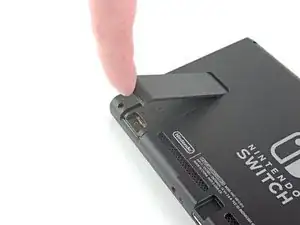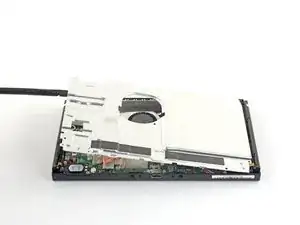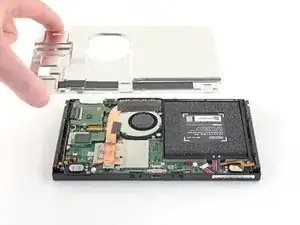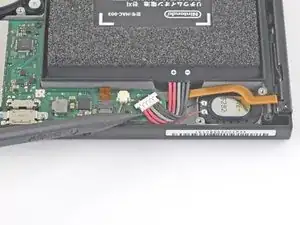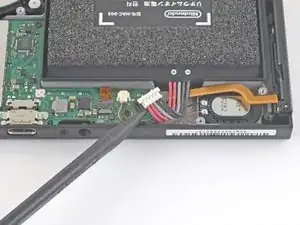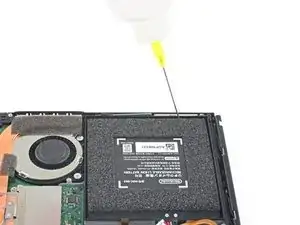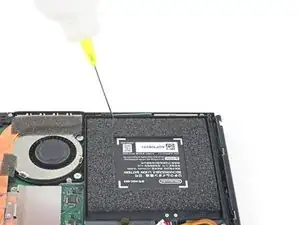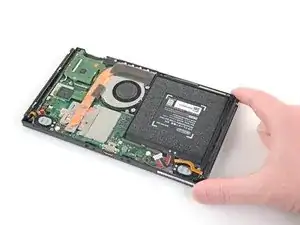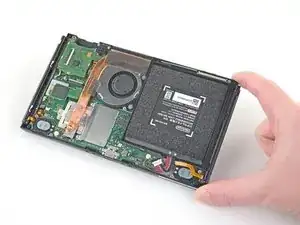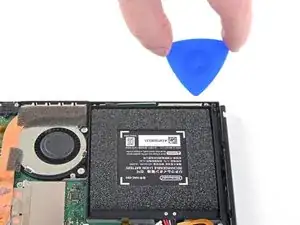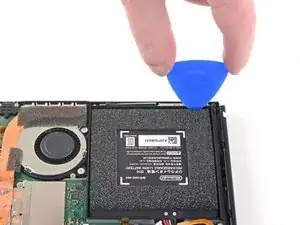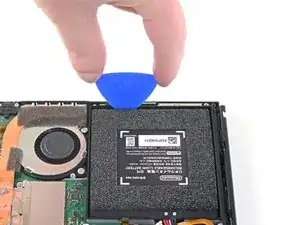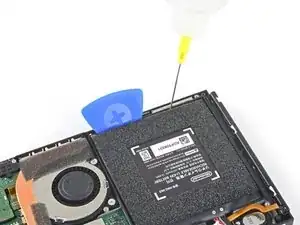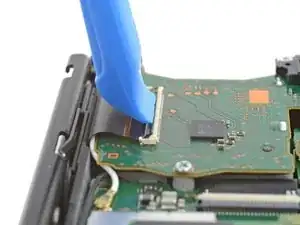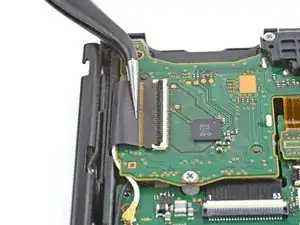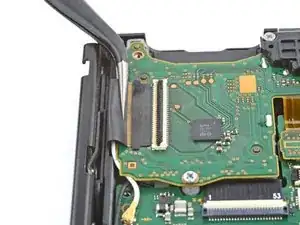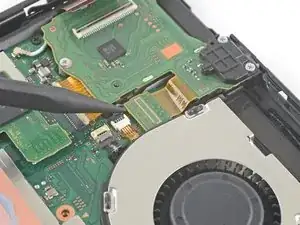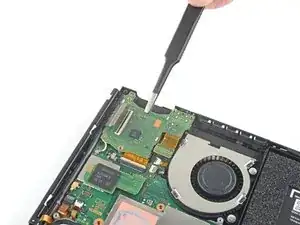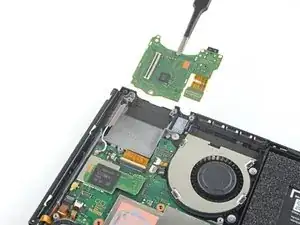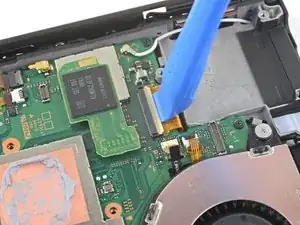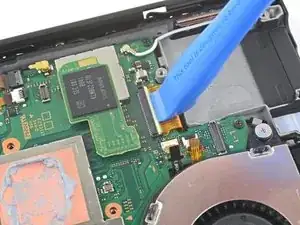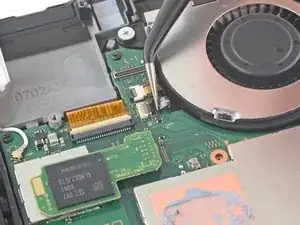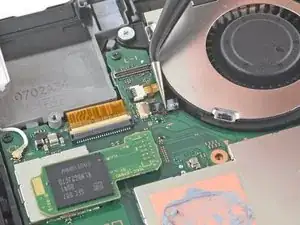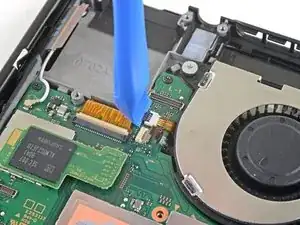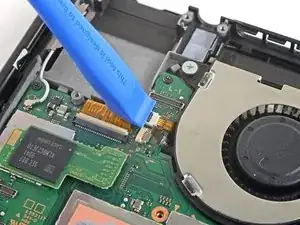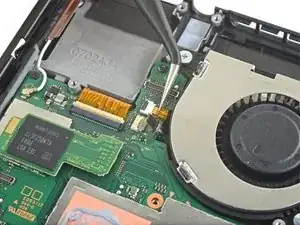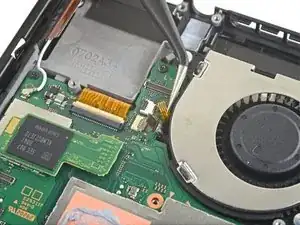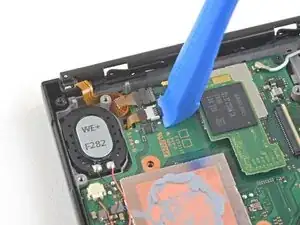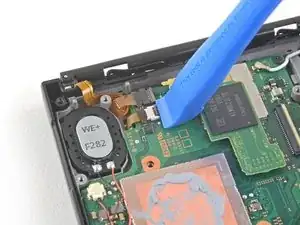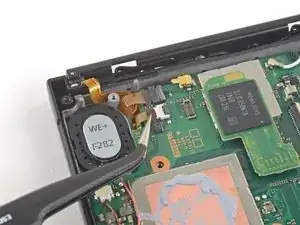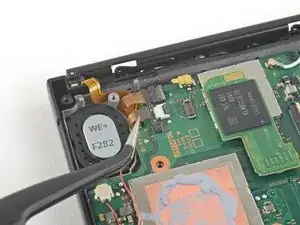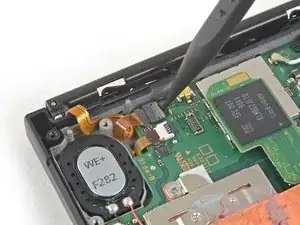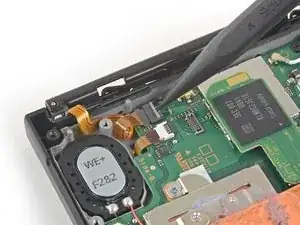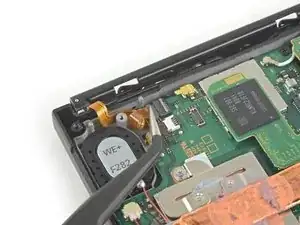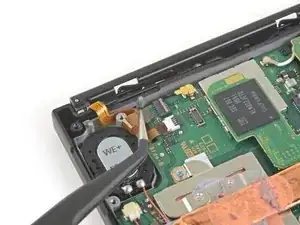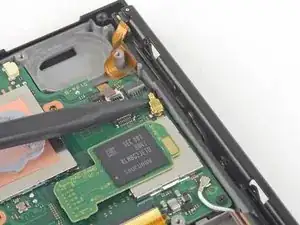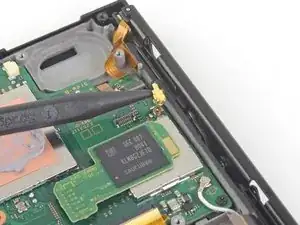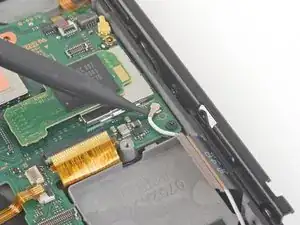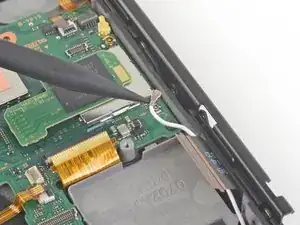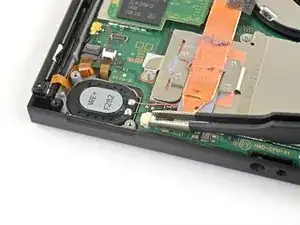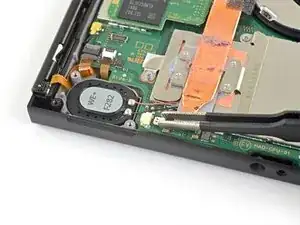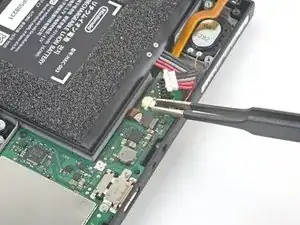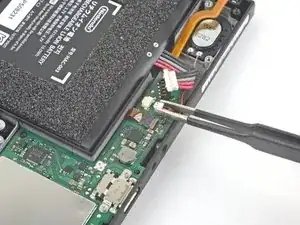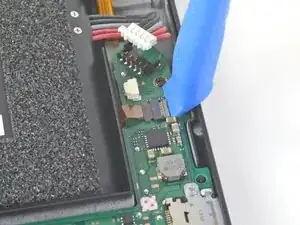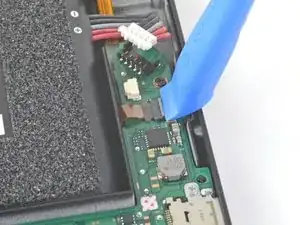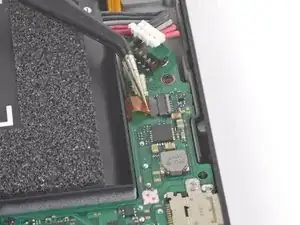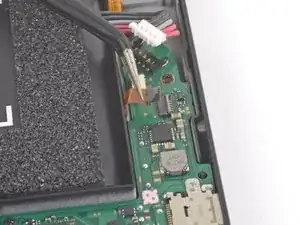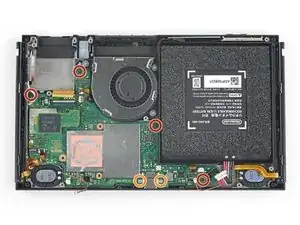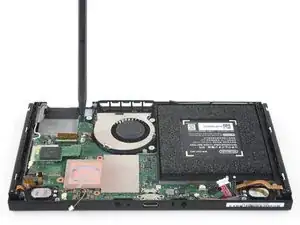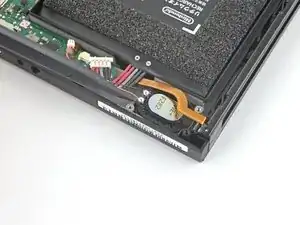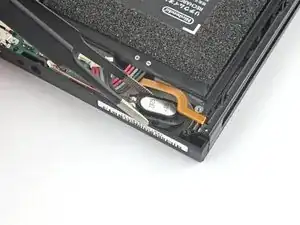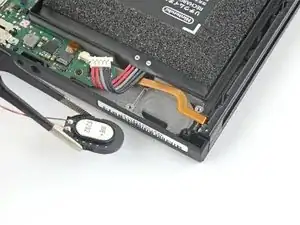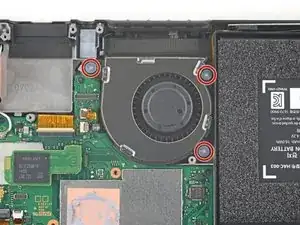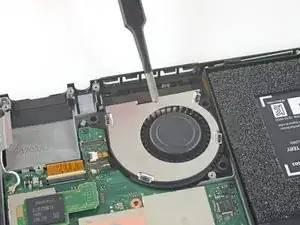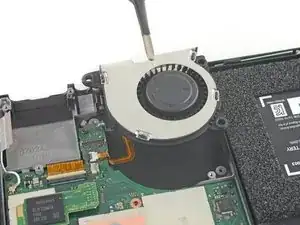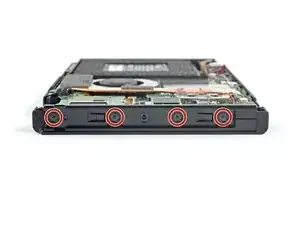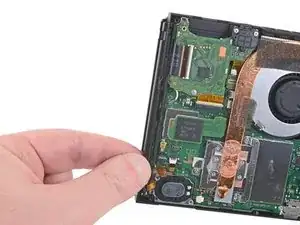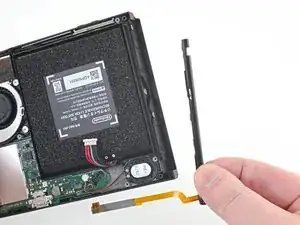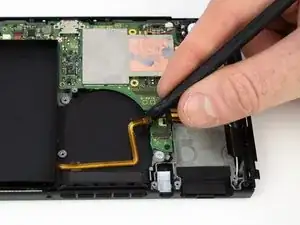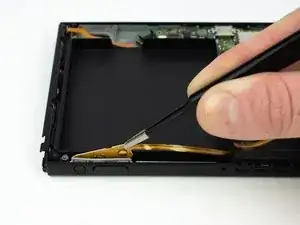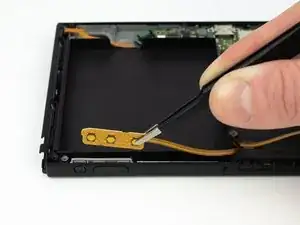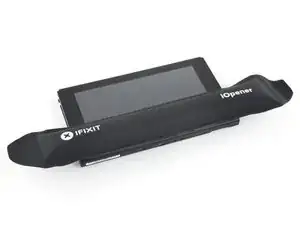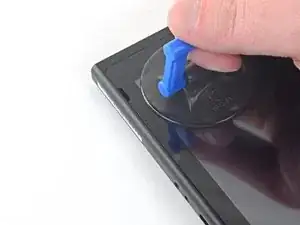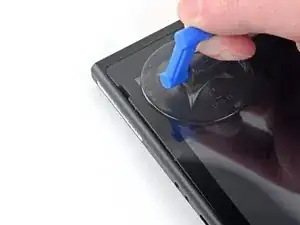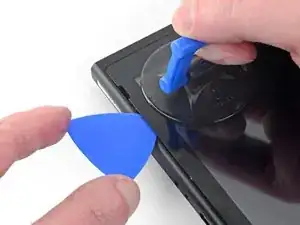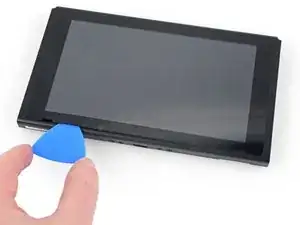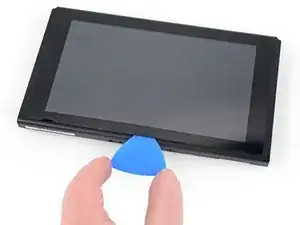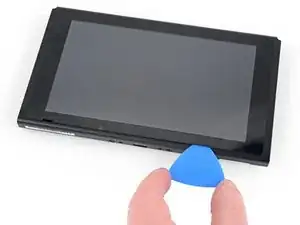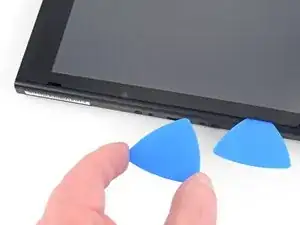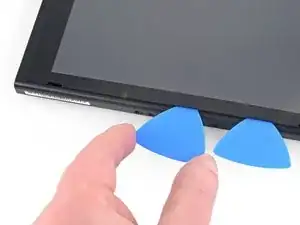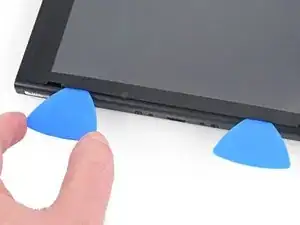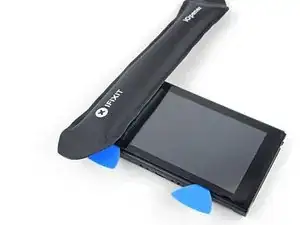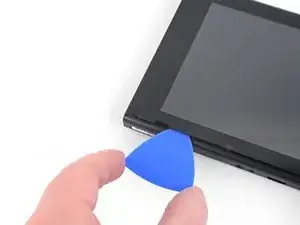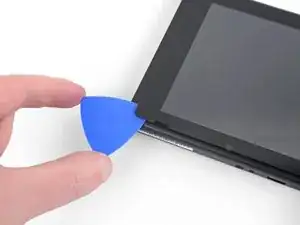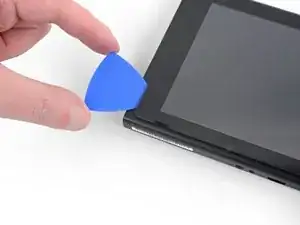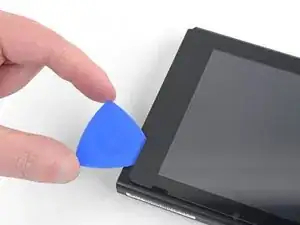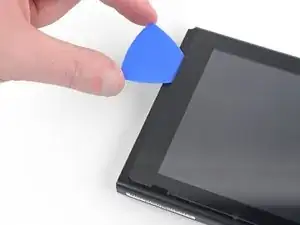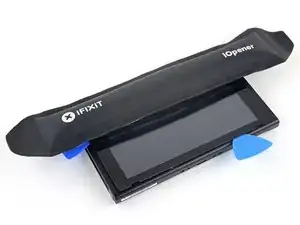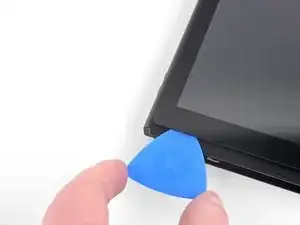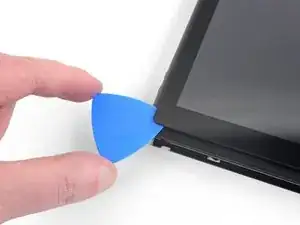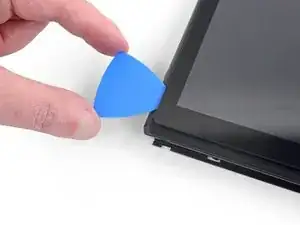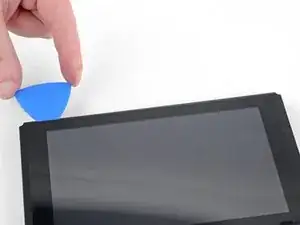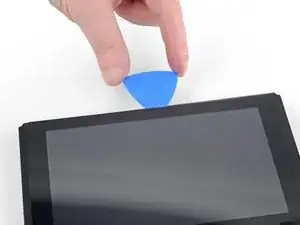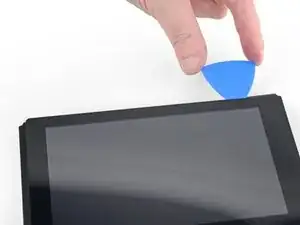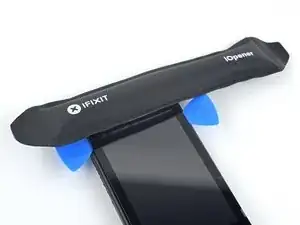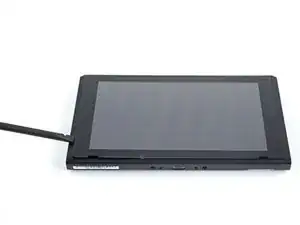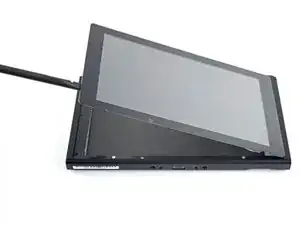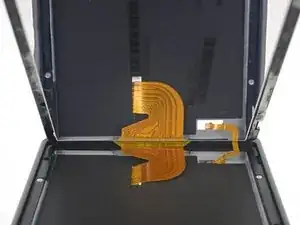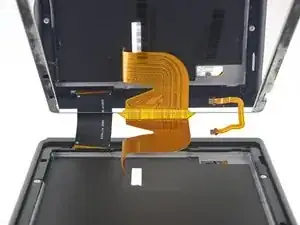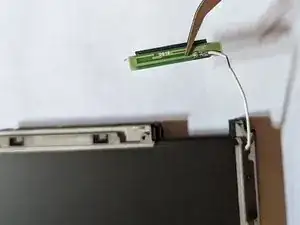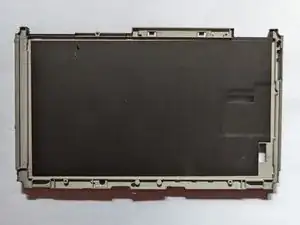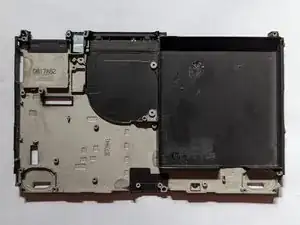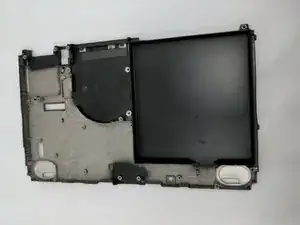
Introducción

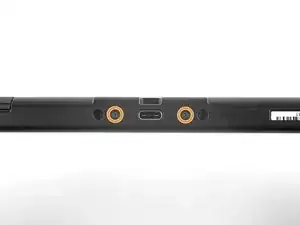
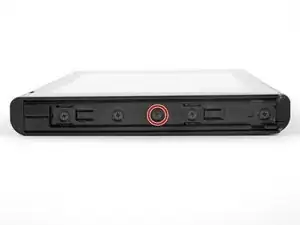
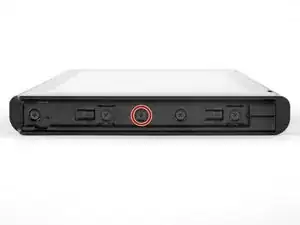
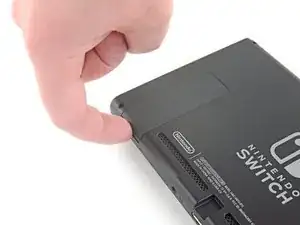
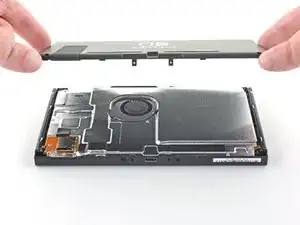
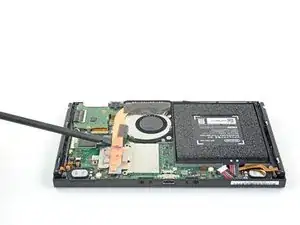
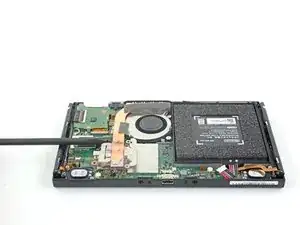
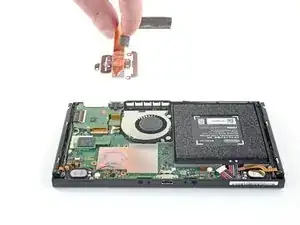
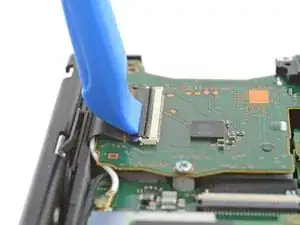
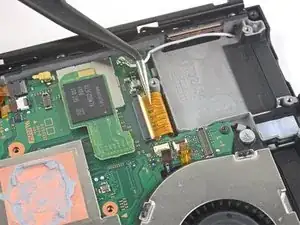
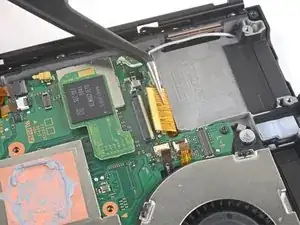
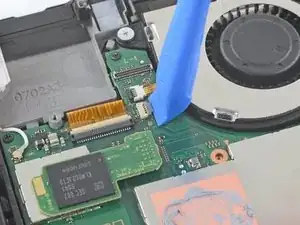
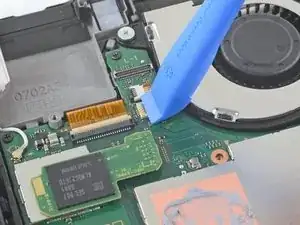
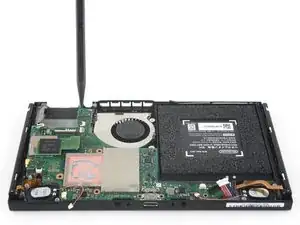
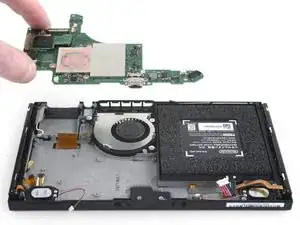
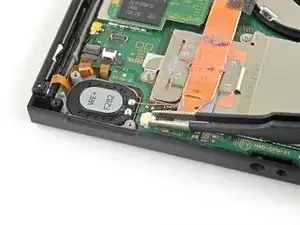
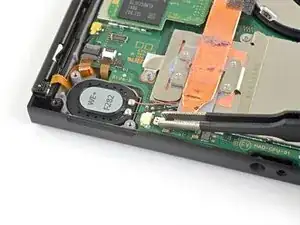
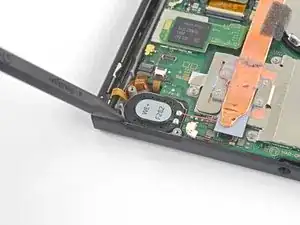
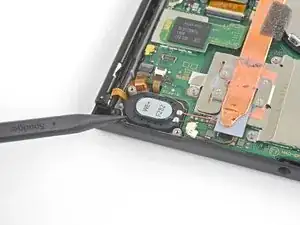
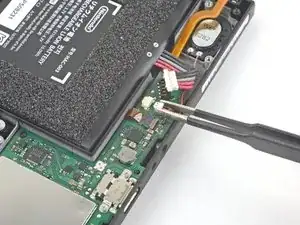
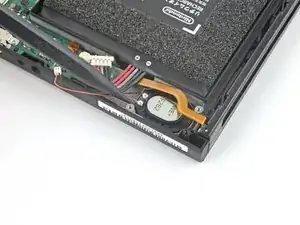
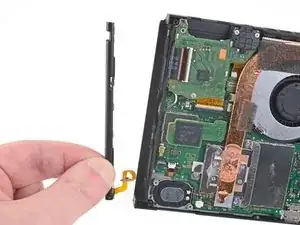
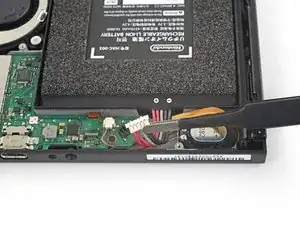
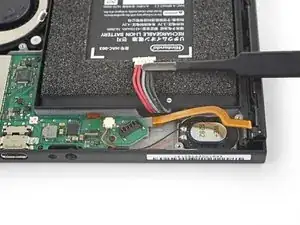
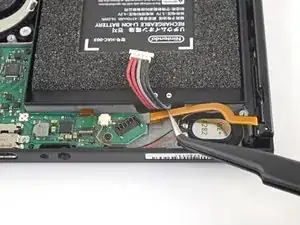
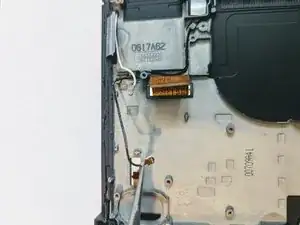
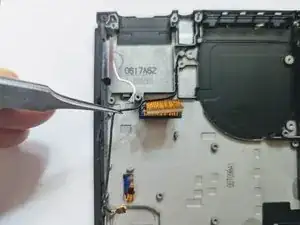
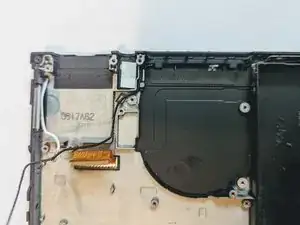
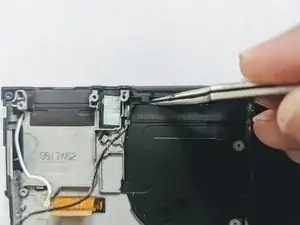
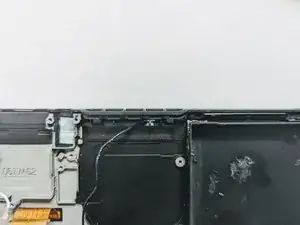
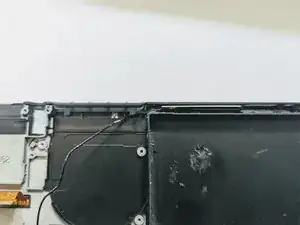
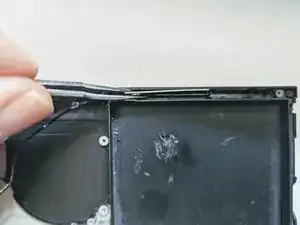
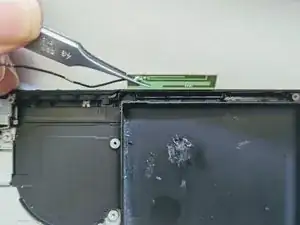
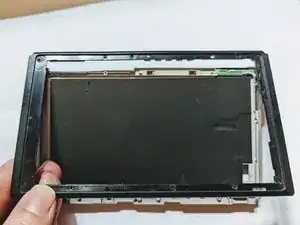
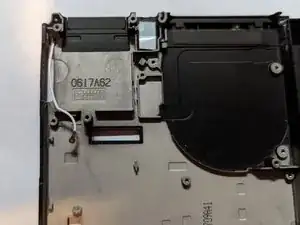
Aparte del daño por impacto catastrófico, la razón principal para reemplazar un marco medio en una Switch de Nintendo es porque el riel de montaje del joy-con se ha arrancado brutalmente del marco medio, sin dejar un montaje sólido para un riel de repuesto disponible.

Para restaurar la seguridad de la montura joy-con, es necesario reemplazar todo el marco medio, y esta guía te guiará a través del procedimiento.

Nota: Cuando retires la placa protectora, deberás reemplazar el compuesto térmico entre la placa y el disipador de calor. Dado que la pasta térmica normal no está diseñada para cerrar espacios grandes, el repuesto más parecido es la pasta térmica viscosa K5 Pro. Sin embargo, necesitarás pasta térmica de repuesto normal para la CPU.

  1. CNuHIy3TUQngv26I
    CNuHIy3TUQngv26I
    pJdtPCFBx3XUI5mL
    IEsgSQkEkZF6cpMS
    • Antes de comenzar esta reparación, asegúrate de que el dispositivo está completamente apagado.

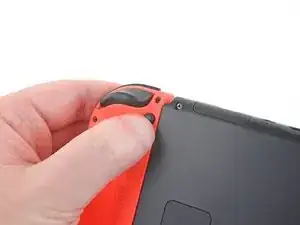
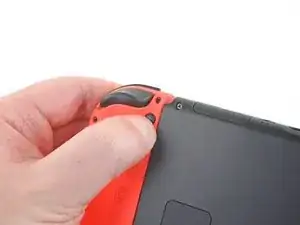
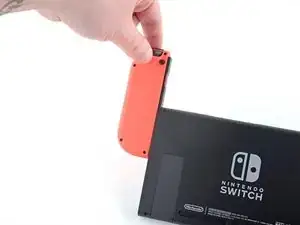
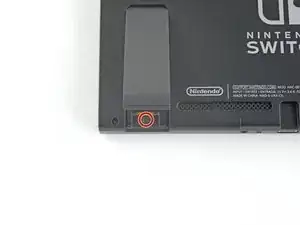
    • Mantén pulsado el pequeño botón redondo de la parte trasera del mando Joy Con.

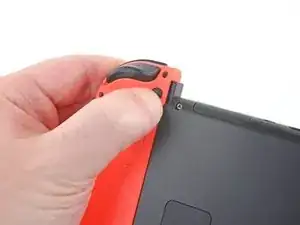
    • Mientras mantienes pulsado el botón, desliza el mando hacia arriba.

  2. PhLTKTPxlZnWR1oL
    PhLTKTPxlZnWR1oL
    FnrSoBPlnixMVSse
    DtwKbJIU1bRDF2mt
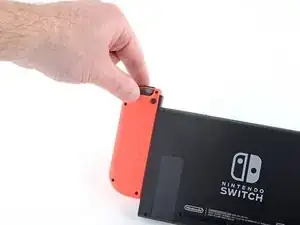
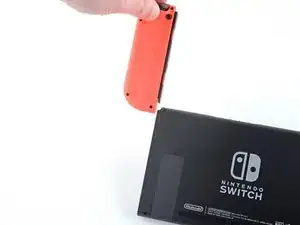
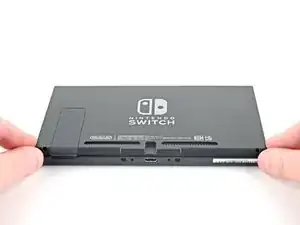
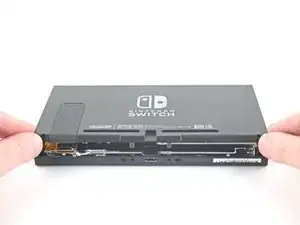
    • Continúa deslizando el control hacia arriba hasta sacarlo completamente de la consola.

    • Repite este mismo proceso para el otro control.

  3. UM4r1BOEJDYmMfpC
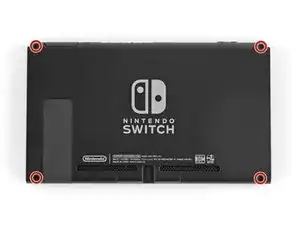
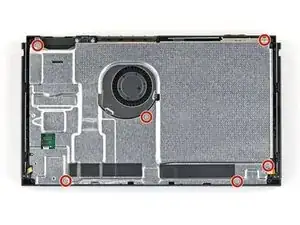
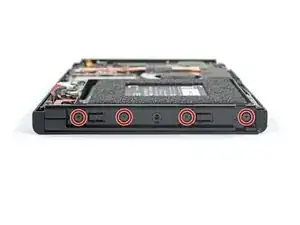
    • Utiliza un destornillador Y00 para retirar los cuatro tornillos de 6.3mm de longitud que sujetan el panel trasero.

    • A lo largo de esta reparación, mantén un registro de cada tornillo y asegúrate de que vuelve exactamente al mismo lugar de origen.

    Had to use a Y0 from my kit - the Y00 was too small to get a grip on the screw.

    cday -

    I also had a much easier time with Y0 versus Y00. Y00 felt like it was starting to strip the first screw I tried to remove.

    Joe -

    My screws took a little coaxing before they were all ready to come out of the back plate, but I remedied this by turning the screwdriver as little as possible with each turn. Use almost no pressure, except for at the very beginning of each screw’s first turn.

    nin10doh -

    I think my screws are stripped, any way to get them out?

    Banjomanperson -

    I hear that using a rubber band can help? Not 100% sure on that though.

    Pifase -

  4. hGXGnEoQjvBhX3wm
    hGXGnEoQjvBhX3wm
    vEpL4RZKItZCNJlV
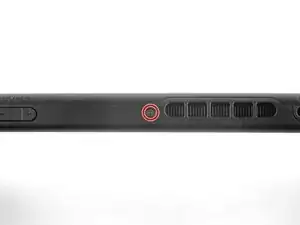
    • Utiliza un destornillador JIS 000 o un destornillador PH000 oficial de iFixit para retirar los siguientes tornillos que fijan el panel trasero:

    • Un tornillo de 2.5 mm de longitud en el borde superior del aparato.

    • Dos tornillos de 2.5 mm de longitud en el borde inferior del aparato

    • Para prevenir estos tornillos duros de barrerse, aplica presión firme hacia abajo, ve despacio y trata de usar un destornillador JIS 000 o PH 000 si los tornillos no salen.

    Hey guys, I tried removing the upper screw and it won't go out(neither will it go in) any tips how to fix this?

    Thanks

    Nemysis -

    The screw boss might be stripped out. Has the device been taken apart before? If you can unscrew it a little bit to get the screw to peek out, maybe try and grab it with some pliers as a last-ditch effort.

    Craig Lloyd -

    I have the same problem. The JIS 000 tool works great on the joy con rails per step 5 but refuses to turn the bottom two 2.5 mm screws as in step 4. These bottom screws are noticeably smaller than the screws as in step 5. The JIS 000 does not get down into these screws. Hopefully they haven’t been stripped by the wrong tool. So is there a JIS tool that is smaller than 000? I’m stuck at this point…

    david brown -

    We used the JIS 3.0mm screwdriver for both top and bottom screws and it worked

    Brooklyn Gardner -

    Used PH00 to get these out with no problem.

    cday -

    Fun fact: these screw into little plastic tabs that stick out of the rear panel. Apparently those tabs are fragile and easy to just break off…

    Benjamin Fritz -

    My screws came out fine. But they are easily stripped with too much pressure on reassmbly

    Jaxon Lee -

    this screws are way too fragile and way too small so be careful when taking them off dont use much force and unscrew also one of them fell somewhere and spent 30 mins searching for it

    Richard Aguirre -

    PH000 will work if you don’t have JIS000. The large IFIXIT kit has both and I lost JIS000. Just be very careful as you can strip the heads when removing or inserting easier.

    Shawn Spivey -

    One thing that worked pretty well for me with the screws not coming out is slightly prying on the back cover to put them under some tension

    Florian Kraupa -

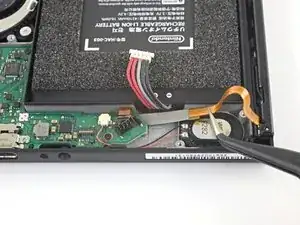
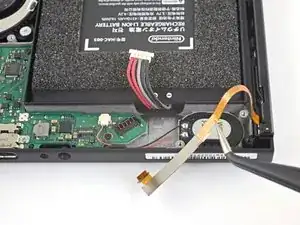
    Quick note, these screws are not magnetic. A magnetic screwdriver will hold onto any of the others safely, but you need to be careful not to drop these ones in particular.

    Jason Lane -

    These would just keep rotating and not come out. What worked was, as Florian Kraupa suggested, i slid a plastic pick just between the 2 shells near the screws to prise it open slightly, then unscrewed and out they came. They're the smallest screws I've ever almost not seen before, so be careful with them.

    Susannah Carter -

  5. aygPfTuAlccxJXvj
    aygPfTuAlccxJXvj
    DTFNZI2ONKRcbQjd
    • Usa un destornillador JIS 000 o un destornillador PH 000 oficial de iFixit para retirar los dos tornillos centrales de 3.8 mm situados en los laterales del aparato (uno en cada lado).

    I tried my JIS 000 on Step 5 and was unable to get the screw to budge. It’s partner from the other side came right out with no trouble. Don’t really want to narf up the screw, so I bailed out. Anyone else have this issue?

    mrhoyt -

    Could just be torqued down a bit more! I’d recommend making sure the driver bit seats nicely into the screw, apply some downward pressure, and slowly twist to try and back it out. Good luck!

    Craig Lloyd -

    Yeah I’m having this exact issue. Screw stripped and now I’m stuck. Wish I hadn’t even started.

    Ryan Quinn -

    I did finally get it out- one thing I noticed was some of the screws have blue Loctite on the threads. I guess they figure it’ll get tossed around. This underscores the importance of having the correct tools and making double darn sure you are using the correct size, etc.

    mrhoyt -

    What worked for me here was a Phillips 000, not a JIS 000

    Federico Zivolo -

    One of mine is totally stripped. Guess I can’t do anything now.

    Nick -

    My kit only has two screwdriver heads! The package was open when I received it!

    Cynthia Hyland -

    I had this issue as well. Screw was irreparably stripped. If you can get every other screw out, just keep applying pressure with a flat head screw driver right above the stripped screw and try to break the plastic piece holding onto the screw. It's a very minor invisible bit of damage that will allow you to continue the repair.

    Raymond Garrison -

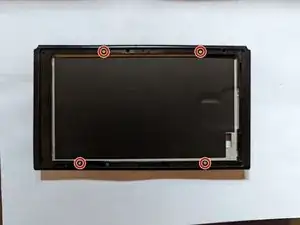
  6. JXApmLipodX5R25H
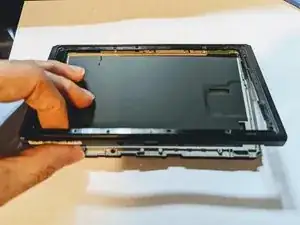
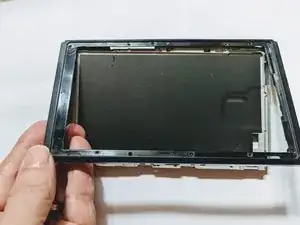
    JXApmLipodX5R25H
    RSjFHQEoWWAEbSCr
    • Usa tu dedo para levantar el soporte de la parte trasera del dispositivo.

    • Si hay una tarjeta microSD en la ranura para tarjetas microSD, sácala ahora antes de continuar con el siguiente paso.

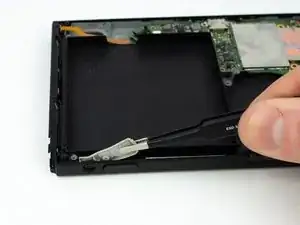
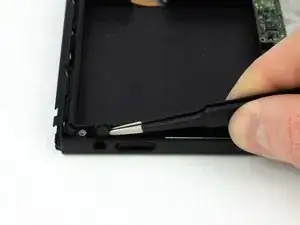
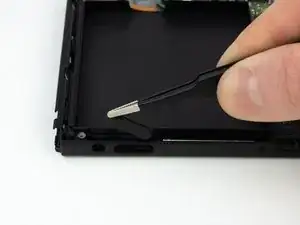
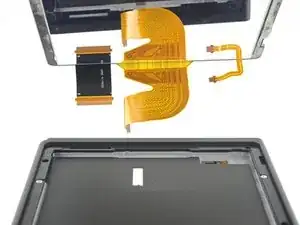
    Don't put your SD card on your magnetic mat.

    Chris Cotter -

  7. rJ4M2PBV1Z5gOaPS
    • Utiliza un destornillador JIS 000 o un destornillador PH 000 oficial de iFixit para retirar el tornillo de 1.6 mm en el pozo de la pata de cabra.

    • Cierra el soporte.

  8. sJlDUdVfVekGVHQU
    sJlDUdVfVekGVHQU
    4WialnXAlRWtwINs
    tMSpAvarIRbjmCpW
    • Abre la solapa del cartucho de tarjetas de juego.

    • La solapa del cartucho de la tarjeta de juego se adhiere a la otra mitad de la carcasa de plástico, lo que impide levantar completamente el panel trasero si está cerrado.

    • Levanta el panel trasero desde la parte inferior del dispositivo y retíralo.

    How to remove micro SD port?

    Pull straight up, press back into place when closing back up.

    Christopher Hernandez -

    This step is missing in this guide. Here are the steps from another guide:

    Step 9) Remplazo del Riel del sensor del Joy Con derecho del Nintendo Switch

    Step 10) Remplazo del Riel del sensor del Joy Con derecho del Nintendo Switch

    David -

  9. mLOsk2yjpDAHKFQJ
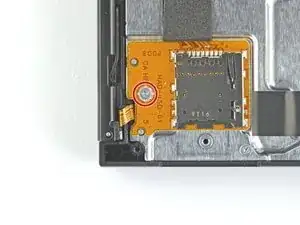
    • Utiliza un destornillador JIS 000 o un destornillador PH 000 oficial de iFixit para retirar el tornillo de 3.1 mm que fija el lector de tarjetas microSD al dispositivo.

  10. jlfUdiL4qMAqIyRa
    jlfUdiL4qMAqIyRa
    VGOrnHxPfWWlkXjs
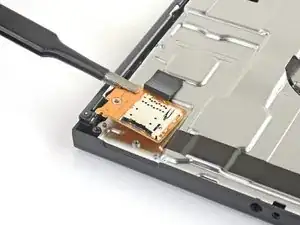
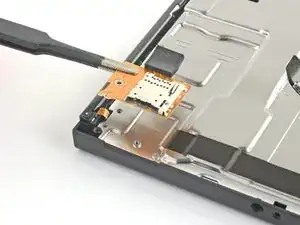
    • Utiliza tus dedos o unas pinzas para levantar el lector de tarjetas microSD directamente del dispositivo para desconectarlo y retirarlo.

    • Al volver a montarlo, asegúrate de que el conector a presión situado debajo de la almohadilla de espuma esté firmemente conectado a la placa base. Podría resultarte más fácil si retiras dicha almohadilla antes de reinstalar el lector de tarjetas.

    Yes. The reverse is not so simple- you can’t see what you’re doing when you attempt to reconnect and it only takes one small error to completely bend the contacts on the connector. Very delicate.

    if you very gently remove the foam pad sticker, you can at least see better how it lines up and can feel your way to a degree… then you can stick the pad back in. The pad seems pretty critical in keeping things in place once reassembled.

    holmzee -

    Definitely agree about not sticking the foam pad back on until the new SD card slot is connected. Saved a lot of headache. Great walkthrough and easy repair!

    Jonathan Stachewicz -

    Tried several times to replace this SD reader module. As mentioned above, the issue is aligning the connectors together. It appears the foam tape is being used to hold the connection in place. (assuming you can make a viable connection) I am rather surprised at this design. In my experience, mylar ribbon cables like this usually slide into a small PC mounted socket. It appears Nintendo went the cheap route here. This design is prone to failure since it does not enable a positive connection - at least from what I can see.

    Bill Little -

    Alors je suis en détresse total . Jai cassé les bouches en or sur le connecteur qui est soudé sur la carte mère.. comment changer cette toute petite pièces, oû la trouver . Cela fais 1 mois que je cherche partout. Sans remplacer la carte mère. Merci pour vos réponses

    Mike Snow -

    I found it easier to connect it without the black foam pad so I could see and than add the foam pad over it. It was super easy and I an I 33 Mom doing this for my son. Was well worth the money for the kit saved us almost 100 bucks

    Katherine Harrison -

    Had my son follow this guide to fix his own switch where the ad card reader didn't work. And he did. Great instructions!!!! Thanks a million!

    William Scott -

    The only difficult part of following this guide is connecting the new sd card reader into the poorly designed motherboard connector. Its quite possible the sd card reader that came in the console wasnt broken at all.

    The repair kit works just as advertised and even comes with stickers.

    Matthias_ Links -

    I’m still getting error 2002-2054 even after replacing memory card reader module. Thanks, Nintendo!

    Wes Stephenson -

    My switch won’t read my microSD card after I reassembled it (error 2016-0641) please help!

    Nate Topical -

    Tip: Keep the old SD reader piece loosely attached while you line up and gently press the new SD component into the connector on the motherboard. Once the new piece is snug, then carefully remove the old piece keeping the sticky foam in place.

    I am a middle-aged mom with absolutely no special tech skills and I easily followed the directions and successfully fixed the broken SD drive. ifixit is the best!

    Wende David -

    Ah good! i have more confidence now in doing it once you said you're a middle age mom with no experience

    Mohammad Hosein Yavari -

    I missed this bit about reconnecting the SD card reader under the foam pad and didn’t realise until my son pointed out a data storage problem?. All fixed in about 5 minutes taking advice from the replacing the SD card reader fix, especially removing the foam pad from the connector to better see and feel what you’re doing. All sorted!

    Stuart Farquharson-Roberts -

    Awesome guide! Very easy to do with the supplied kit

    cravenkeo khamone -

    Tank you very much, and by tank I mean M1 Abrams, jokes apart easy and simple to follow

    Elia Veschi -

    Thanks for the guide, I was struggling to find a solution, replaced more sd cards, before I stumbled upon this post. The Switch of my children works flawless again!

    Robert Morvai -

    Doesn’t work! I have spent 4 hours and $26 on a tiny screwdriver and some stickers.. I just gave up and replaced the Switch instead.

    I even contacted a local shop to have them fix it and they told me it really isn’t possible. Thanks for taking my money Ifixit!

    J.R. Wood -

    This helped me to reseat my SD card reader ribbon cable. I was getting the 2016-0641 error and no card work. A drop had dislodged the cable partially. And yes remove the foam pad gently to properly connect the cable. You can reuse the foam pad.

    Kris Morey -

    For anyone who ends up bending the pins like I did while trying to reseat the microSD card reader…

    I suggest gently placing very thin tweezers (like the curved ones in the Pro Tool Kit) in the gap and very, very gently pressing them back into alignment. Took a little effort but I was able to realign them enough to sit it in place and have it later working after reassembling the console.

    Yakarot Sennin -

    Anyone have a suggestion where I can purchase replacement foam for this sticker?

    Rob M -

    When reassembling, note the alignment pins in the left and bottom notches before tightening the screw

    Jason Lane -

    Super gemakkelijk te installeren met behulp van deze zeer duidelijke handleiding (met dank aan de vertalers!)

    Wel even goed opletten op de aansluiting op het moederbord is zeer fragiel.

    R de Bruijne -

    It is key to remember most out of the box issues with the SD card reader, do not require a replacement part and can be solved with disconnecting then re-connecting the reader at the motherboard.

    Only when a simple re-seating at the connector doesn't work should you buy the replacement part.

    Jonathon Sinclair -

    I bought the kit and followed the directions. I plucked the black rubber foam off with a pair of eyelash tweezers. Putting the tiny screws back in place also was made easier using the tweezers. As for placing the SD card in place I think I got a bit lucky. I lined it up and gently pressed until it simply went into place. I do believe being gentle is the key there. But it went in and I put it back together. The deconstructing and reconstructing is what took the longest for me at least. I turned it on to verify it worked and then unpowered the unit and inserted the card. The system recognized and update right away and did it and then recognized the card! Just what I need for 20 something dollars. Son is happy and back to gaming.

    Albert Baker -

    Thank you for postingthis fix. The original sd card reader had come unplugged from the motherboard, so replacement reader will be a spare.

    Anybody found a way to ensure the sd reader stays in place?

    Craig Thwaites -

    It was my first time repairing a Switch and the fan replacement wasn't too hard, but unfortunately I think there should be a better warning about the SD card connector because I damaged it while trying to put it back in. I couldn't hear any click and it didn't seem to stay put and I think I ended up applying to much force and damaging the pins.

    Serge Huber -

  11. jyDV4Ulh1HdvOuKh
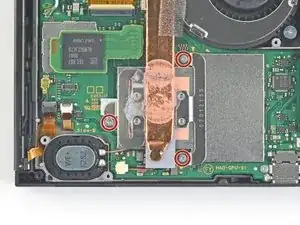
    • Usa un destornillador JIS 000 o un destornillador PH 000 oficial de iFixit para retirar los seis tornillos de 3 mm que fijan la placa de protección al aparato.

    Some models have a small board in the lower left beneath the kickstand which accepts SD cards. This will have to be carefully removed with its connections popped out, then replaced after.

    Draque Thompson -

    Yeah, that “small board” is the microSD Card reader chip, which was covered literally one step ago. All models have a microSD Card reader, that’s how game data is stored…

    nin10doh -

  12. IMXVmkMuqVNOdlEa
    IMXVmkMuqVNOdlEa
    TNBQoJEdW33uDjd1
    • Utiliza tus dedos o unas pinzas para despegar el trozo de espuma que hay en el borde superior del aparato, cerca del puerto de salida del ventilador.

    • Si la espuma no se pela fácilmente, no la forces porque puede rasgarse. Pela cuidadosamente en lugares diferentes para echar atrás la espuma.

    My Switch (bought about two weeks after launch) seems to be missing this foam piece… Was it added later, similar to the foam piece in the left joy-con (to improve connectivity)?

    firetech -

    It’s possible it was added to newer units! Nintendo slightly updated the internals of the Switch not too long ago.

    Craig Lloyd -

    My launch Switch also does not have this piece of foam, so it was most likely added later.

    Christoph -

    Also did not see this in my launch switch.

    matthew.raehl -

  13. yNv54Zsdts3dDN1W
    yNv54Zsdts3dDN1W
    qswmo2AiFSKqStHo
    IyyUGUVuCnI1DsTr
    • Inserta un spudger debajo de la placa de escudo a lo largo del borde del dispositivo.

    • Haz palanca para levantar la placa de escudo y removerla del dispositivo.

    • Es posible que sientas un poco de resistencia. Esto es normal, ya que la placa de escudo está ligeramente adherida al disipador de calor con pasta térmica.

    • Un compuesto térmico rosado espeso cierra el espacio entre la placa protectora y el disipador de calor de cobre debajo. Esto ayuda a evitar que el Switch se sobrecaliente.

    • Puedes reutilizar el compuesto térmico rosa si tienes cuidado. Mantén el compuesto limpio y asegúrate de que haces un contacto sólido entre el disipador de calor y el protector durante el montaje.

    • Si necesitas reemplazarlo, consulta nuestra guía de pasta térmica para quitar el compuesto térmico antiguo y reemplazarlo con un compuesto apropiado, como K5 Pro, durante el reensamblaje.

    How do you know if the thermal paste needs to be replaced?

    Youji Hong -

    Once you remove a heatsink you must always replace thermal paste even if you had just applied it ( or add a little more) . The reason is that once heat sink is fitted, paste splits around because of pressure and only needed amount will remain. If you remove the heatsink then some paste will move so when installed again there will be spots without paste. Hope this is clear enough. In any case cost of paste is very small compared to work time and value of your equipment…..

    MacTek -

    When your switch starts to lag and drop FPS, if you play breath of the wild and it starts to slow down in heavy areas like the forest where you get the master sword, can i use artic mx 4 insted of the pink compound?

    Diego Soto -

    I’d like to know as well if a cpu thermal compound like arctic mx-4 can be used to replace the pink compound

    Adam Stillman -

    No you shouldn't . It will spill around because it is not viscous enough and then there will be no heat transfer. As suggested by author K5 PRO is the most appropriate compound for such cases.

    MacTek -

    Arctic is generally only supposed to be used on bigger heat sinks like a personal computer. Its not nearly as thick or gummy compared to K5 PRO, and you should always use something that’s thicker for smaller project like a Switch/phone/tablet.

    Shawn Christensen -

    Why was this not included in the tools/equipment list? Getting to this step and now I will have to reverse and wait for yet another order to arrive. ? Very frustrated

    Amanda Nally -

    Hi Amanda,

    Thanks for bringing this up. Sorry! We inadvertently left that part out during the guide refresh. I’ll add the necessary info into the step.

    Arthur Shi -

    To apply new thermal paste, the directions state to use the application method recommended for your specific processor type—vertical line, horizontal line, middle dot, or surface spread.

    Which method should be used for the Nintendo Switch processor?

    Philip W -

    As stated in the comment above, is there a particular method to apply thermal paste to the Switch’s processor? Or as long as you distribute it evenly is enough?

    lievjorg -

  14. Q1SQvvZEIQ2S4TgP
    Q1SQvvZEIQ2S4TgP
    ehftLfyAdXyPuHas
    • Usa la punta de un spudger para hacer palanca en el conector de la batería hacia arriba y fuera de su zócalo en la placa madre.

    be careful not to pry it off the board entirely

    Nathan McKenna -

    This was an old switch and the entire thing with the black plastic came off.. Most of the pins aren't there anymore, too.. is there a solution to that? Does soldering work?

    Dawn Martin -

    it's probably possible, but unless you have experience with microsoldering, you'd probably be better off taking it to a local repair shop

    just some mango -

  15. FTGkpNq5CDj6yIFL
    FTGkpNq5CDj6yIFL
    MCQdjA2roxTueRyY
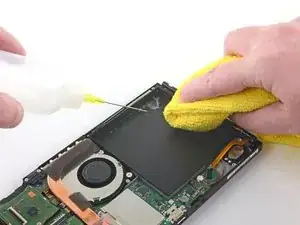
    • Aplicaunas cuantas gotas de removedor adhesivo ( removedor de adhesivo )concentración (90% o mas alto) de alcohol isopropilico a lo largo del borde superior para debilitar el adhesivo.

    • Si estás usando un removedor de adhesivo, siga estos pasos de preparación primero. (sigue estos pasos primero)

    you gqve me a rag with 70% or higher pad

    md cu -

    I found a better method of removing the battery:

    1. Get isopropyl in the battery groove. (I used 70%)

    2. Use the spudger to lift a corner slightly.

    3. Use dental floss to under the corner and carefully floss under the battery. This will remove the adhesive in a very clean and easy way because you allow the isopropyl to get further down!

    StankIntern -

    this is the way.

    Brian Duffy -

    Yes, floss is the way to go. Started getting the floss under upper right corner then after flossing some, I worked the floss under the upper left corner. More flossing and adding alcohol and battery came loose.

    John Coleman -

  16. ZQOfcjkgZ1NKoErC
    ZQOfcjkgZ1NKoErC
    MMeaT3iNVUEOi1ZY
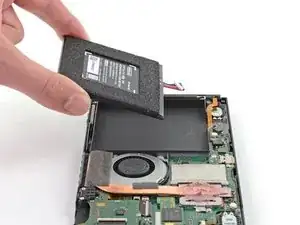
    • Inclina el borde superior del dispositivo hacia arriba para permitir que el alcohol isopropílico se abra paso por debajo de la batería.

    • Déjalo inclinado durante 1-2 minutos para permitir que el alcohol isopropílico debilite el adhesivo.

  17. FMbVvMqgfc4HxXFV
    FMbVvMqgfc4HxXFV
    hIwHTmiwQ1pRVVKX
    dKAXPrrWTSOvMmes
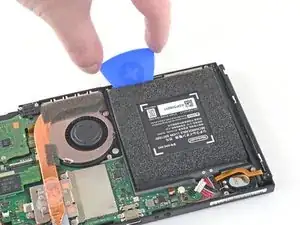
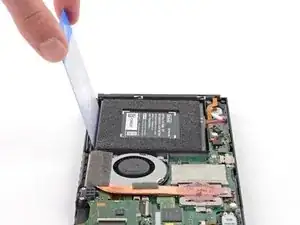
    • Inserta una púa de apertura en el espacio entre la batería y la pared del compartimento de la batería.

    • Introduce con cuidado la punta de la púa de apertura debajo de la batería y deslízala a lo largo del borde para comenzar a cortar el adhesivo.

    • Ten cuidado de no perforar o doblar la batería con su herramienta; una batería perforada o doblada puede derramar químicos peligrosos o causar un evento térmico.

    I'm sad to say, this kit did not work out for me. I must be one of the unlucky ones whose battery was glued to the case with the mother of all super adhesives, because despite following the instructions and using copious amounts of isopropyl alcohol, the battery absolutely refused to budge. The pictures show the blue pick wedged under the battery, but I was not able to get that far. Not even close.

    To add insult to injury, during the process of working the pick back and forth to get under the battery, the pick jumped the case housing and nicked one of the cables below the battery. So now I'm out $50 for the ifixit repair kit along with a broken Nintendo Switch.

    This is why I hate self repair: Because the attempt at self-repair always leaves me in a worse state than if I had simply taken the device to a professional. Wish I had listened to my instincts instead of giving self-repair a try.

    Kie Rhee -

    I struggled to remove the battery using 91% alcohol as well. In another guide I saw that a heat gun works better. I used my heat gun and it removed much much easier.

    James Covey -

  18. J2YOPbrJeWRCwkCW
    • Deja la púa de apertura en su lugar y aplica unas gotas más de removedor adhesivo o alcohol isopropílico dentro del compartimiento de la batería.

    • Inclina el borde superior del dispositivo hacia arriba y espere 1-2 minutos hasta que el alcohol isopropílico debilite el adhesivo.

  19. LU6ld6LfsOnAHjIv
    • Continúa deslizando la púa de apertura más profundamente a lo largo del borde superior de la batería, cortando más adhesivo debajo.

  20. F23a5HWZaGjXEEk1
    F23a5HWZaGjXEEk1
    GBer4bKJnylZPTvI
    YYUDPm2Bdt2oAJgD
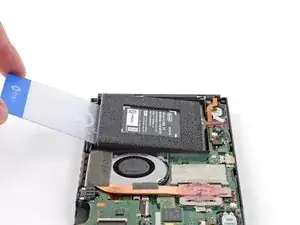
    • Una vez que haya suficiente espacio, inserta una tarjeta de plastico debajo de la batería y levante lentamente la batería.

    • Es posible que debas aplicar más alcohol isopropílico si tienes dificultades para hacer levantar la batería.

    • Ten cuidado de no doblar la batería mientras haces palanca.

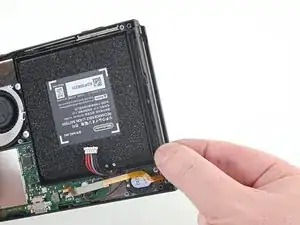
    • Remueve la batería

    • No reutilices la batería después de haberla extraído, ya que hacerlo es un peligro potencial para la seguridad. Reemplázala por una batería nueva.

    I carefully took the spongy part on the top of this battery and applied it to the new battery. No where in this guide does it recommend replacing that part. So I erred on the side of since I could get it off easily enough to just keep it on the new one just in case.

    Josh Reed -

  21. LuRcBbmIjTlaNgc1
    • Utiliza un removedor de adhesivo o alcohol isopropílico y un paño de microfibra para limpiar cualquier resto de adhesivo que haya quedado en la batería antes de instalar la nueva batería.

    • Si tu nueva batería no viene con adhesivo preinstalado, sigue esta guía para instalar adhesivo precortado en la parte inferior (follow this guide to install pre-cut adhesive)

  22. nlBoOCR3VCK4NjV4
    • Usa un destornillador JIS 000 o un PH 000 oficial de iFixit para remover tres tornillos de 3 mm asegurando el disipador a la placa madre

  23. Despega con cuidado las dos piezas de espuma pegadas sobre el disipador y el ventilador.
    • Despega con cuidado las dos piezas de espuma pegadas sobre el disipador y el ventilador.

    • La espuma solo necesita estar pelada lo suficiente para despejar el ventilador

    • La espuma es muy delicada y se rompe fácilmente. Utiliza la siguiente técnica para pelar la espuma:

    • Introduce la punta de un spudger debajo de la parte de la espuma que no está pegada a nada,

    • Presiona la parte superior de la espuma con el dedo para mantenerla en su sitio.

    • Pasa la punta del spudger por debajo de la espuma hasta el otro extremo de la espuma para liberarla.

    spudger technique is perfect.

    Jaxon Lee -

    For anyone who doesn’t have a pen-style spudger, the tip of your JIS 000 screwdriver can be a great alternative tool. The same steps above can be used, just be extra careful not to tear that foam. Roll the tip of the screwdriver the same way you would roll the spudger tip.

    nin10doh -

    Maybe it’s because I’m working on a day one switch and the adhesive is just old and stubborn, but this didn’t work well for me. Am I just completely out of luck, or can I order a replacement for the foam?

    Trae Block -

    I had the same problem and I found a foam manufacturer: https://www.foam-material.com/sample-cus...

    I'm pretty sure the type is "Granular Activated Carbon Foam" and the thickness is 0.5 mm but I have no idea what the porosity is.

    Garret Jaworski -

    Yeah ripped the foam. Neither the screwdriver nor spudger technique worked. Day one switch, so 6 years old at this point.

    Ndragonawa -

    Does the foam need replacing if torn? What does it actually do.

    Scott Norman -

  24. 1g1C6QGZkYCwwet1
    1g1C6QGZkYCwwet1
    dZyNBjFYGxHPqeK3
    ISdmEMJoktZ4mGkk
    • Usa una spudger o tus dedos para levantar el disipador arriba y fuera de la placa madre para removerlo

    • Puede que sientas un poco de resistencia. Esto es normal debido a que el disipador esta pegado ligeramente al CPU con pasta termal

    • Limpia toda la pasta térmica del disipador y del CPU utilizando alcohol isopropilico de concentración alta (90% o major) y una tela de microfibra. Aplica la nueva pasta termal al CPU antes del re-ensamble

    • Aplica pasta térmica a todas las superficies a las que se les haya aplicado pasta térmica anteriormente. Esto incluye entre el tubo de calor y el escudo de aluminio, que el Switch usa como disipador de calor adicional.

    What's on the heatsink?

    Unknown1224 -

    Directions for this step say you can use Artic Silver ArctiClean but when adding to iFixit cart it says “This won’t work with your device (Nintendo Switch).

    Dan S. -
    where do i get more of that black fabric like tape that is on the heat sink?

    Regal Pikachu -
    They may sell it in the ifixit store.

    Joshua Graham -
    (1) Exactly how much thermal paste should be applied to the CPU?

    (2) Which application method should be used? The linked instructions list four methods (vertical line, horizontal line, middle dot, or surface spread) but it’s not clear to me which one is appropriate for the Switch. Thanks!

    Travis -
    UPDATE: So, for anyone who also wanted to know the answers to these questions:

    1. I ended up eyeballing the amount. Imagine an amount the size of a pea, then split that amount in half. That’s how much I used, and it worked fine.

    2. The paste (I used K5-Pro as recommended) is quite thick and sticky and difficult to get to behave the way you want, so I ended up just doing the “middle dot” method and spreading it a bit with a popsicle stick before smushing it the rest of the way down with the heat sink. Seems to have done the trick.

    Good luck!

    Travis -
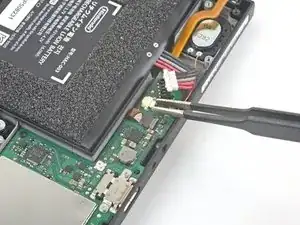
    you can also spread it with the spudger or any non-metalic tool if you are not sure how much you put

    just clean it afterwards

    Richard Aguirre -

    K5 (or thermal pads) is ONLY needed between the copper pipe and metal shield plate. It is a pad replacement compound and is not meant for high heat applications like CPUs as it boils and creates air gaps. Air=bad for heat transfer.

    Regular thermal compound/paste should be used on the CPU. You’ll have a sticky mess to clean but if you want proper cooling it needs to be done. The instructions clearly state that regular compound is used on the CPU.

    Cerus98 -

    i used artic silver 5 and worked just fine

    Richard Aguirre -

  25. rQZ4MFUYvvtPYQ5y
    rQZ4MFUYvvtPYQ5y
    rUoueUwIdGEXQ6Wx
    • Usa una herramienta de apertura o tu uña para levantar el candado del conector ZIF del digitalizador

    This step broke my switch i can't use my card reader anymore! i tried numerous time the reverse it seems my headphone jack works but my touchscreen and gamecard reader is broken. Even worse one of the screws to attach this plate was mangled so i cant even replace it anymore because the screw wont come out anymore. I reallly hate that i followed this guide others suggested to just keep the gamecard touchscreen ribbon attached and just fold it like a book. I wished i did that. I not gonna bother to even buy an gamecard replacement anymore. Its time to buy an switch oled and be done with this!

    Kar Wai Chan -

    The advice to "fold it like a book" will not work, as the cable will need to come out of the switch in order to replace the screen. It can not be kept in the slot.

    Loris Hofer -

    To anyone reading this step: This is not an isolated incident. The loss of functionality of the game reader board, which includes the use of reading cartridges, the touchscreen, and the headphone jack, is an possibility that can happen if you disconnect the board. Unless you are replacing the board itself, do not do this step. As of 1/15/2023, there is no know reason why this happens or no known solution other than buying a new game reader board.

    Henry Terrance -

    Update: If your Switch has lost the ability to read games and or the headphone jack in addition to touchscreen functionality, please consider reading this thread and its solution: Nintendo Switch Cartridge Reader Not Working After Fan Replacement

    Henry Terrance -

    it is really hard to see what you need to flip up. look at it from different angles. it's the thinnest little strip of black plastic.

    Patrick Laffan -

  26. DZvvJURso6ToAOGC
    DZvvJURso6ToAOGC
    hDh5KVIbZKGGXJBO
    • Utiliza unas pinzas para deslizar suavemente y de forma horizontal el cable plano del lector de tarjetas de juego fuera de su conector.

    • Antes de insertar el cable durante el reensamblaje, asegúrate de que la solapa de bloqueo del conector ZIF esté levantada.

    • Con el cable paralelo a la placa, deslízalo suavemente en su conector.

    • No fuerces el cable en el conector. Si no se inserta, asegúrate de que la lengüeta de bloqueo esté levantada, vuelve a colocar el cable y vuelve a intentarlo.

    • Si tu pantalla táctil no funciona después de la reparación pero tu lector de Game Card sí, asegúrate de que este cable esté correctamente insertado. Si su lector de Game Card tampoco funciona, verifica el conector de la tarjeta de juego en el siguiente paso.

    The reverse of this is a little tricky - it may be helpful to post some more detail about getting the ribbon all the way back in and ensuring the clasp goes down to troubleshoot some of the touchscreen comments below.

    Nick Wagner -

    This seems to be purely for the touchscreen to work, if you remove the headphone/card reader the switch will still function fine, however without somewhere for this cable to reattach your touchscreen will be disabled

    Ian Wilson -

    the reverse of this is tricky. i'd suggest a better tool kit with this that includes real tweezers so i don't have to use my wife's

    Patrick Laffan -

    Did you get it to work finally?!

    Chris Cotter -

    Hi Chris! From the thread, it looks like it's not this connector that's the problem, but the press connector in the step below. If your card reader won't read cards, check to make sure this connector is fully aligned and seated.

    Arthur Shi -

  27. KN5tf3YmYYyZqSqK
    KN5tf3YmYYyZqSqK
    VRHPAHEP3yhaZTfY
    • Usa la punta de un spudger para levantar el conector del jack de audífonos y el lector de tarjetas de juego y desconectarlo de la tarjeta madre

    • Para re-unir los conectores a presión como este, con cuidado alinea y presiona en un lado hasta que haga click en su lugar, luego repite en el otro lado. No presiones en el centro. Si el conector esta desalineado, los pines pueden doblarse y causar daño permanente.

    Note that if the card reader mentions it won't read cards, this cable has not been reconnected correctly. Watch the connectors are not bent when reattaching

    Shaniqua Bowdre -

    You need to push the connector upwards. Look at the image and you will see a very slight bend. This bent allows the connector to align with its dock. Very very careful when pressing down IT HAS TO BE ALIGNED.

    Juan Visani -

  28. YXxIDPKltgyQotMZ
    • Usa un destornillador JIS 000 o un PH 00 oficial de iFixit para remover los tres tornillos de 3.1 mm asegurando el conector de audífonos y el lector de tarjetas de juegos del dispositivo

  29. 11XREObwjflKJIUX
    11XREObwjflKJIUX
    nVbQQLtELMGTpGky
    • Usa unas pinzas o tus dedos para remover el zócalo del conector de auriculares.

  30. WlZNgkVHosIcqeyN
    WlZNgkVHosIcqeyN
    ZkbbE5GZGjxKrgVX
    • Usa un par de pinzas o tus dedos para remover la tarjeta del conector de audífonos y el lector de tarjetas de juego.

  31. VGRWYWYbVafLRqHb
    VGRWYWYbVafLRqHb
    MGKngVbJVTMcuwvL
    • Usa una herramienta de apertura, spudger, o tu uña para levantar una pequeña, solapa de seguro en el conector ZIF del cable plano del LCD

    I recommend when reinserting the LCD ribbon cable, DO NOT bother with the tweezers.

    The sharp end is incredibly hard and the Gold on the Ribbon cable incredibly soft. Even trying to avoid gold-plated end, I still damaged it re-inserting it into place.

    I recommend first turning the console around to face you (so you can see how the ribbon slides in), then pressing gently with your finger to try and slide it in.

    Yakarot Sennin -

  32. PqFre2XtEtPApB1l
    PqFre2XtEtPApB1l
    KHfEFbaKLZeoBak5
    • Usa un par de pinzas para jalar el cable plano afuera del conector en la placa madre.

  33. JAWLsaN5f2jevF2E
    JAWLsaN5f2jevF2E
    cIsmqrHq6FtFotMg
    • Usa una herramienta de apertura, spudger, o tu uña para levantar una pequeña, solapa de bloqueo en el conector ZIF del cable del ventilador.

  34. 5WiCAChCrwINmoAh
    5WiCAChCrwINmoAh
    BMaYjQxn5HAyRg6Y
    • Usa un par de pinzas para jalar el cable del ventilador afuera de su conector en la placa madre.

  35. VHi1jTYJLmAnJq4n
    VHi1jTYJLmAnJq4n
    p3kxB2G3RY6LFQ6M
    • Usa una herramienta de apertura, spudger, o tu uña para levantar una pequeña solapa de bloqueo en el conector ZIF del cable plano de los botones de volumen y encendido.

  36. QHA3aDtNWjQSfqPH
    QHA3aDtNWjQSfqPH
    3tdU42EQ5xo6yOPn
    • Usa un par de pinzas para jalar el cable plano afuera de su conector en la placa madre.

  37. MYkANyGPTjChNKYo
    MYkANyGPTjChNKYo
    bxUUPUsuV1ht1I3D
    • Usa una herramienta de apertura, spudger, o tu uña para levantar una pequeña solapa de bloqueo en el conector ZIF mas pequeño del cable plano del LCD.

  38. TZOTQNWD1Ea4HOY3
    TZOTQNWD1Ea4HOY3
    M216KbecZeRNyNPG
    • Usa un par de pinzas para jalar el cable plano afuera de su conector en la placa madre.

  39. UfKuNJtxgkLscxlM
    UfKuNJtxgkLscxlM
    nBfODGZOJ6IhYujP
    • Usa la punta de un spudger, una herramienta de apertura, o tu uña para levantar la pequeña solapa de bloqueo del conector ZIF del cable de datos del riel del sensor Joy Con.

  40. hV5YHxOCZ4mYlvXl
    hV5YHxOCZ4mYlvXl
    VQIVsQRNq6XMQUQH
    • Usa un par de pinzas para jalar el cable plano afuera del conector en la placa madre.

  41. QApTf5tXUCsaSkAJ
    QApTf5tXUCsaSkAJ
    yPxqHtMHWxqqCjyO
    • Usa la punta de un spudger para levantar el cable de la antena negra arriba del zocalo en la placa madre.

  42. ViXlNFSgMipeAIvv
    ViXlNFSgMipeAIvv
    6XwQnQDXD4xFFhXx
    • Usa la punta de un spudger para levantar el cable de la antena blanca arriba del zocalo en la placa madre.

  43. FKrPLgRUKa1sJPa4
    FKrPLgRUKa1sJPa4
    TDJFgZuExFEXQ6uo
    • Usa tus dedos o un par de pinzas para jalar el conector de la bocina derecha afuera del zocalo en la placa madre.

    • No jales el conector de la bocina por los cables. Son muy delgados y se pueden romper fácil del conector.

  44. iVUB2jqLyyJYcYZZ
    iVUB2jqLyyJYcYZZ
    rvZexlhoKZea2vXw
    • Usa tus dedos o un par de pinzas para jalar el conector de la bocina izquierda afuera del conector de la placa madre.

    • No jales el conector de la bocina izquierda de los cables. Son muy delgados y se pueden romper fácilmente del conector.

  45. wFnfZqoGneS1katO
    wFnfZqoGneS1katO
    ew4oreQX2Mnmwc4B
    • Usa una herramienta de apertura, spudger, o tu uña para levantar una pequeña solapa de bloqueo en el conector ZIF del cable de datos del riel del sensor Joy Con.

  46. eSbquibd34xjHEws
    eSbquibd34xjHEws
    6vOPBAGZMYBsNMya
    • Usa un par de pinzas para deslizar el cable del riel de datos Joy Con afuera de su conector en la placa madre.

  47. IwUM4IkG1tycaMVk
    • Usa un destornillador JIS 000 o una herramienta oficial iFixit PH000 para retirar los siguientes tornillos:

    • Cuatro tornillos de 2.5 mm

    • Dos tornillos de 3.1 mm

  48. HGyRKb3AdBCkyUOJ
    HGyRKb3AdBCkyUOJ
    pX2U3U3Fw22TSyJc
    trCKHVVNLFYf2ZMO
    • Inserta una spudger entre el espacio de la placa madre y el marco.

    • Cuidadosamente levanta la placa madre y remuevela del marco.

    My motherboard was getting caught on the fan, I found it much easier to remove the fan first, then the motherboard.

    I'd suggest steps 40/41 and 42/43 should be reversed

    Kitsune -

  49. AN2X3mjJAJVIXvAK
    AN2X3mjJAJVIXvAK
    aW2CSnTCJe2vl2EC
    • Si sólo vas a sustituir el altavoz izquierdo, sáltate los dos pasos siguientes.

    • Utiliza tus dedos o unas pinzas para sacar el conector del altavoz directamente de su hueco en la placa base.

    • No tires del conector por los cables del altavoz. Son muy finos y pueden romperse fácilmente del conector.

  50. tV1GK45MJQI5nUim
    tV1GK45MJQI5nUim
    dgavVpTidXsiChUG
    Z2auWhimJSnQRMGS
    • Utiliza la punta de un spudger para levantar el altavoz.

    • El altavoz está adherido con un ligero adhesivo dentro del hueco del altavoz, por lo que se requiere un poco de fuerza.

    • Usa tus dedos o unas pinzas para retirar el altavoz derecho.

  51. KdQIb6I3oPtkm4bV
    KdQIb6I3oPtkm4bV
    pLDyImGcWo5MgUAd
    • Sigue los tres siguientes pasos si estás remplazando el altavoz izquierdo.

    • Usa tus dedos o unas pinzas para retirar el conector del altavoz directamente de su conector en la placa base.

    • No tire del conector por los cables del altavoz. Son muy finos y pueden desprenderse fácilmente del conector.

  52. nokIkwcJ1QiXqv4j
    nokIkwcJ1QiXqv4j
    KbUxcoYh4Uv4iEjX
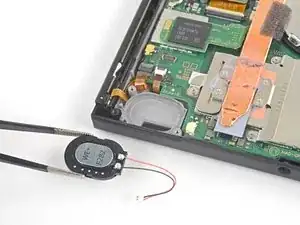
    • Utiliza la punta de un punzón para hacer palanca en el altavoz y soltarlo del hueco del altavoz.

    • El altavoz está adherido con un ligero adhesivo dentro del hueco del altavoz, por lo que se requiere un poco de fuerza.

  53. rI2dtlIpFMU5M3Y5
    rI2dtlIpFMU5M3Y5
    v5lGhDXdnDGciRe3
    • Usa tus dedos o unas pinzas para sacar con cuidado el altavoz del hueco del altavoz.

  54. VCFLjcvbytTXm14S
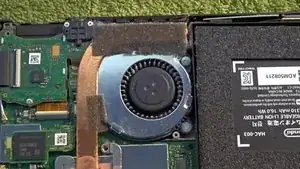
    • Usa un destornillador JIS 000 o uno PH 000 IFixit para extraer los tres tornillos (4,8mm) que sujetan el ventilador.

  55. JK3xrwPl6x5AbWER
    JK3xrwPl6x5AbWER
    nEssShSoZuEyDeXO
    • Usa unas pinzas o con los dedos para extraer el ventilador hacia arriba y sacarlo del interior de la consola.

    • Compara la pieza nueva con la antigua. Necesitas traspasar (piezas de goma) antes de instalarla.

  56. CRjCBoKwqcAGfRgG
    • Usa un destornillador JIS 000 o uno PH 000 IFixit para retirar los cuatro tornillos (3,7mm) que sujetan el carril al marco del dispositivo.

    • Estos tornillos están muy apretados y son dificiles de retirar. para prevenir de un posible desgaste presiona con firmeza al girar muy despacio y cambia de destornillador si este daña los tornillos.

  57. VDR5MpZ3LBCUWpMv
    VDR5MpZ3LBCUWpMv
    mLAH1UqwcVjK4RnS
    • Extrae el carril del Joy Con derecho.

    • Ten cuidado de no enganchar el cable del carril con el marco cuando lo extraigas.

  58. Ndu2KDHdDCyS5OUk
    Ndu2KDHdDCyS5OUk
    Z6FWAJ2eeXikTubY
    • Usa unas pinzas o los dedos para desconectar el cable de la batería sin dañar el cable del carril del Joy Con.

  59. MkkJuaAvgUONCFog
    MkkJuaAvgUONCFog
    uYHGwkJTlw2ijZNG
    3IUNxIBGFK2WYJNv
    • Usa unas pinzas o los dedos para desconectar el cable de la batería sin dañar el cable del carril del Joy Con derecho.

  60. 55tgFOFjqvwULU2d
    • Usa un destornillador JIS 000 o uno PH 000 IFixit para retirar los cuatro tornillos (3,7mm) que sujetan el carril al marco del dispositivo.

    • Estos tornillos están muy apretados y son dificiles de retirar. para prevenir de un posible desgaste presiona con firmeza al girar muy despacio y cambia de destornillador si este daña los tornillos.

  61. Fmx1DFoqKpp1qV4d
    Fmx1DFoqKpp1qV4d
    dBReUchCmcIZdqm2
    • Extrae el sensor del carril del Joy Con izquierdo.

  62. bCUTISHryYS3gDRN
    • Usa la parte plana de un spudger para levantar el cable flexible de encendido/volumen.

    Where is the step stating to remove the battery?

    Lynn -

    Hi Lynn,

    There is no instruction for removing the battery in this procedure because it's not necessary. Due to the way guides are combined into a single sequence, occasionally a step may be repeated or a picture may show parts in place or absent that aren't related to the particular job being done, which is what happened in this case.

    The photo was taken during a midframe replacement procedure; if you were replacing the midframe you'd need to remove the battery, but for just the front frame the battery can stay in place, especially since battery removal is rather difficult on these devices.

    Jerry W -

  63. QgEWLi5LCJZopggC
    QgEWLi5LCJZopggC
    jJXGDItcr1ssSGgw
    • Retira la placa de encendido/volumen con unas pinzas planas.

  64. Z3DQEGPECVXoBNLC
    • Extrae la membrana de goma con unas pinzas planas.

  65. oHnfmCOnKLKCCrDY
    oHnfmCOnKLKCCrDY
    Kja6kyJRJBHJD36e
    • Extrae los botones de encendido y volumen con unas pinzas planas.

  66. CdcPcaQtYmLsCiLI
    CdcPcaQtYmLsCiLI
    fNSahSJhQmMIgYtu
    VUpSCTUpfRrDEGWX
    • Extrae el cable negro coaxial del marco interno.

  67. OTWUiFKCyBjCgDvv
    OTWUiFKCyBjCgDvv
    4do6GJiW1CmdKWXT
    • Continua siguiendo el cable, extrayéndolo conforme avanzas.

  68. NRKepbfXmCtXllHt
    NRKepbfXmCtXllHt
    IZk2fDjOSJdmFWqE
    • Levanta la placa metálica alrededor del cable sacándola del marco interno.

  69. rjADLcliOFfcrCLL
    rjADLcliOFfcrCLL
    MmTbePpPIsdZawlu
    • Sujeta la placa de antena Wifi con unas pinzas y extráela hacia arriba.

  70. DRrS1WHgjXOVQaAM
    • Calienta con iOpener y aplícalo al borde inferior de la pantalla alrededor de dos minutos para debilitar el adhesivo.

    • Un secador de pelo, pistola de calor, o una plancha puede servir, pero debe usarse con mucho cuidado para no sobrecalentar el dispositivo (la pantalla y la batería interna son ambas muy sensibles al exceso de temperatura)

  71. FilLZLiURJF4hNWT
    FilLZLiURJF4hNWT
    DFBuj1LKBOyGFj4U
    5Yg2DKgtkaaHNcRL
    • Coloca una ventosa en la esquina inferior izquierda de la pantalla.

    • Estira con fuerza hacia arriba, si haces fuerza lentamente podría provocar una fisura.

    • Dependiendo de la antigüedad de tu dispositivo, esto podría ser difícil. Si tienes problemas, aplica calor de nuevo y vuelve a intentarlo.

    • Introduce el borde de una púa de plástico en la separación, asegurándote que sólo sean 5mm.

  72. 1Jn2IPsbO5TFwUqX
    1Jn2IPsbO5TFwUqX
    2CUesrdAF3gPV4D6
    rSSWAVuPDsctPDDw
    • Desliza la púa a lo largo del borde inferior para despegar el adhesivo.

    • Deja la púa introducida entre las dos piezas para evitar que vuelva a pegarse el adhesivo.

  73. kIymr2xLNQkstPwk
    kIymr2xLNQkstPwk
    6gWj2iMkZRi3hNFB
    5yEjO3cD2hcJJd6M
    • Inserta una segunda púa en la separación a la izquierda de la primera.

    • Desliza la segunda púa hacia la izquierda.

    • Deja la púa insertada entre las dos piezas.

  74. wylf4CRXLbJJcgiV
    • Calienta el borde izquierdo de la pantalla alrededor de dos minutos para reblandecer el adhesivo.

  75. eumZUtKEkUVjwKEN
    eumZUtKEkUVjwKEN
    j3VC2Pq1t3LP5JoC
    qmdW2MPqFUY1eTea
    • Continúa deslizando la púa alrededor de la esquina inferior izquierda para despegar al adhesivo.

  76. sGJhBBchuDhbQJXC
    sGJhBBchuDhbQJXC
    CD1pdWCGamUHDPf4
    • Continúa deslizando la púa a lo largo del borde izquierdo de la pantalla para despegar el adhesivo.

  77. JjWlkefTcKIgkykE
    • Calienta el borde superior de la pantalla alrededor de dos minutos para ablandar el adhesivo.

  78. Iivv1hQtjGeNEIbQ
    Iivv1hQtjGeNEIbQ
    fVqZ1NjbSZWmgaRS
    62EWMOx1JBlQyXTD
    • Continúa deslizando la púa alrededor del borde superior de la pantalla para despegar el adhesivo.

  79. hyLeVsclh5VTDP5f
    hyLeVsclh5VTDP5f
    jyruU1XkKkbkofUh
    DJTHsdjvrlc6ENK6
    • Continúa deslizando la púa a lo largo del borde superior de la pantalla para despegar el adhesivo.

  80. g2C2sMsNX6j2WiiI
    g2C2sMsNX6j2WiiI
    jYg4Ltr4qH4T4Dhd
    D2KGrQYtBylB1xJ1
    • Calienta el borde derecho de la pantalla alrededor de dos minutos para ablandar el adhesivo.

    • Coloca el lado plano de un puntero en la separación a lo largo del borde izquierdo de la pantalla.

    • Muy suavemente deslízalo despacio por el borde izquierdo de la pantalla, separándola como si abrieras un libro.

  81. QEt4yHSOYq1HAuxn
    QEt4yHSOYq1HAuxn
    EqTmxLowMhP6FSZs
    JpdCTSxZIyGXvVXK
    • Despega el borde derecho de la pantalla separándolo del dispositivo, retirando los cables flexibles a través del marco.

    • Ten cuidado con no doblar ningún cable del marco al retirarlo de la pantalla.

    • Puedes reutilizar el adhesivo si todavía está pegajoso. Por otro lado, reemplázalo si no se adhiere por cinta de doble cara.

    As well as the screen adhesive, you also need the double sided dust seal to go around the LCD / Digitizer. This seals the digitizer to the LCD screen.

    This is separate to the double sided tape that glues the digitizer to the frame.

    Mustafa Salim -

  82. NEH1sNoZoUD4ZxZC
    • Retira los cuatro tornillos que sujetan el marco frontal al marco interno.

  83. 2XB2JfuuMYdKRbYh
    2XB2JfuuMYdKRbYh
    fGFoYgm4MST2Q1fR
    2wmpEyRWXJGTqqHu
    • Despega el borde frontal del marco y entonces desliza el marco hacia arriba separándolo de la pantalla.

    There is a little clear bit of plastic that can fall out, make sure you put it back in the front frame before reassembly.

    Nathaniel King -

    Do the screws that attach rails screw into the front frame, mid-frame, or both? My son dropped his Switch and one of the rails came off. I replaced both rails but the screw holes on the broken side are damaged and the screws will not grab anything. I’m not sure if I need to replace front frame or mid-frame, or both.

    Bmd -

    The screws go into the midframe only; you won't need to do anything with the front frame except remove it to replace the midframe. When ordering a midframe, I'd suggest finding one that has the pad already installed on the LCD side; I had no luck finding that pad separately when I wrote the guide.

    Jerry W -

    If you're replacing the front shell, make sure you are also replacing the speaker dust covers. These did not come as standard with my ExtremeRate shell, so I had to buy separately.

    Mustafa Salim -

  84. adhNsePNBLZS2Jy2
    • Comprueba que el cable coaxial no está doblado o atascado en las guías internas que lo sujetan.

  85. aXORGV5xYVqbXSBR
    aXORGV5xYVqbXSBR
    QiyqKvAswHN5CRPj
    • La antena está sujeta con un adhesivo ligero, simplemente debes levantar suavemente para extraerla.

  86. gZbBYkgPUd4VmCvX
    • Retira al cable coaxial a través de la ranura del marco.

    • Las antenas de sustitución no suelen llevar la pieza negra de plástico, así que deberás retirarla de la antena vieja y ponerla en la nueva.

  87. ZDLVSHP1IIo4khmE
    ZDLVSHP1IIo4khmE
    kJVd4JgUXR6UElVg
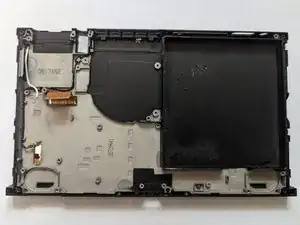
    • El marco medio ahora ha sido despojado.

    • Muchos marcos medios nuevos no vienen con la capa de aislamiento negro entre el marco medio y la pantalla, por lo que es posible que debas encontrar un sustituto o tratar de recuperar la capa de su marco medio anterior.

Conclusión

Para volver a armar tu dispositivo, sigue estas instrucciones en orden inverso.

Jerry W

Miembro Desde 21/03/22

31579 Reputación

5 comentarios

Great guide will be attempting this soon so this guide has given me some hope! I can’t seem to find the black insulation layer on the last step would that be a generic insulating foam or something else?

Cameron Ness -

Thanks, it should work, as I actually followed my own instructions the entire way through the replacement, although I had to add three other guides for completeness; the two antenna guides and the front frame guide.

I’m afraid I sidestepped the issue of the black insulation; I opted to buy a used frame that clearly showed the insulation still in place once I realized all of the new ones came without it. If you do come up with a solution for a replacement, we’d love to hear about it; I personally can’t think of a suitable substitute offhand.

Oh, one note on this guide; it’s put together using existing guides for the individual part removals, and as such it duplicates the instructions for removing some of the connectors such as the speakers and the display. So don’t worry if the instructions tell you to unplug a connector you’ve already unplugged; that’s just an artifact of combining separate guides. For example, both the motherboard and LCD replacement instructions tell you to unplug the LCD and digitizer cables

Jerry W -

Thanks for the reply,

I was planning on doing this repair as a switch I have purchased has cracked plastic at the bottom of the casing where the fan vents are but I’m weighing up the pros and cons of stripping it down purely for that reason.

I can’t find a housing with that thermal pad anywhere which puts me off buying the ones that claim to be OEM if they don’t come with it by default.

I found some closed cell Polyethylene insulating foam sheets that are about 2mm thick so I’m assuming that’s similar on eBay so might give that a try and see how it compares to the original.

Cameron Ness -

I poked around but had no luck finding anywhere the pad is sold separately; however I did come across a midframe being sold on Amazon with the pad (OEM pulls, removed from Switches). I’ve included a link in the parts list. The really good news is, it’s only about $11 US! Dang, wish I’d seen this when I was doing my replacement!

Jerry W -

Hey Cameron, just re-reading your latest comment and I have to wonder if you really need to do a full midframe replacement. If its just cracked plastic, that should mean just doing a front frame replacement instead of a full midframe. Still a lot to do; the main differences are that you don't have to remove the battery and speakers which would be good as the battery is pretty hard to pull.

Jerry W -