Introducción

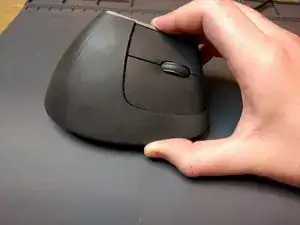
Mi MX Vertical desarrolló un doble clic fantasma en el botón izquierdo del mouse después de aproximadamente un año de uso. Sin garantía ni paciencia, lo desarmé para ver si podía reemplazar los interruptores. Para mi sorpresa, ¡desarmar y reparar el mouse fue casi un sueño!

El mouse se envió con interruptores OMRON D2FC-F-7N (10M) instalados. Puedes encontrar repuestos en muchos minoristas online, pero yo opté por reemplazarlos con interruptores OMRON D2FC-F-K (50M) en su lugar. Probablemente puedas elegir un tipo diferente de interruptor si lo deseas, siempre que comparta el factor de forma del D2F. ¡Este es un ejercicio que le dejo al lector!

Esta guía requiere soldadura, pero afortunadamente es un orificio pasante en algunas partes relativamente grandes. La parte más difícil del trabajo es mantener firme la placa mientras se suelda el primer contacto de los interruptores.

    • Apaga el mouse antes de comenzar el desmontaje.

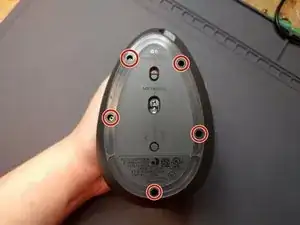
    • Dale la vuelta al mouse para que el sensor y el interruptor de encendido queden frente a ti.

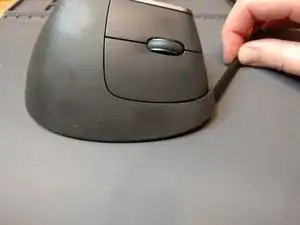
    • Inserta un spudger de plástico entre cada pie deslizante y la base de plástico del mouse. Haz palanca en el deslizador adhesivo de la base para acceder a los huecos de los tornillos.

    • Una cantidad cuidadosa de calor aplicada directamente al pie deslizante antes de quitarlo puede ayudarte a garantizar que sean reutilizables.

    • Es probable que los pies deslizantes del mouse queden inutilizables después de quitarlos; si es así, deberás reemplazarlos.

    More details about step 1 can be found here : Reemplazo de las patas del Logitech MX Vertical

    Guillaume Felix -

  1. DUEDBiiWZrUr3fYv
    DUEDBiiWZrUr3fYv
    Gb2QdS4hsaQoLOWO
    iDyXFRC3oiCagOq4
    • Retira los cinco tornillos Phillips de la parte inferior del mouse.

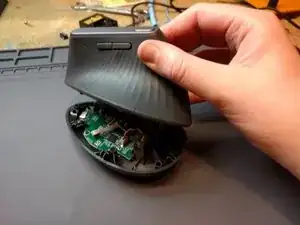
    • Dale la vuelta al mouse, sosteniendo tanto la base como la parte superior para evitar que se desmonte.

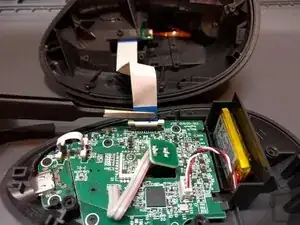
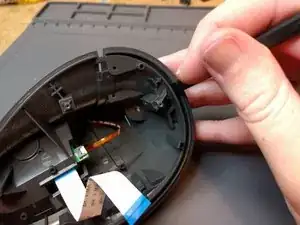
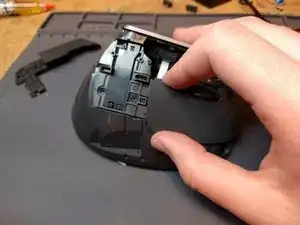
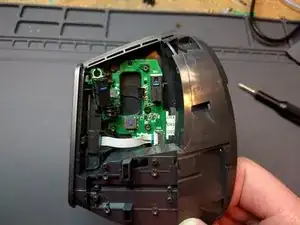
    • Levanta la parte superior del mouse hacia arriba y hacia afuera de la base. Una vez que esté libre de los orificios de los tornillos, gira la parte superior para colocarla sobre el lado del botón principal.

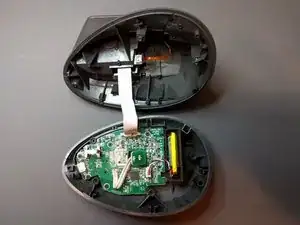
    • Un cable plano mantiene unidas estas piezas del mouse. ¡Ten cuidado durante este paso para evitar dañarlo!

  2. sIeXpaWgihHqjPfU
    sIeXpaWgihHqjPfU
    vPRA62dqS6H3iXMW
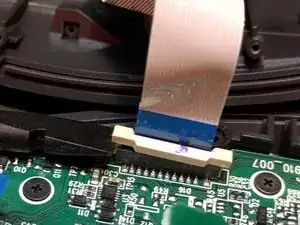
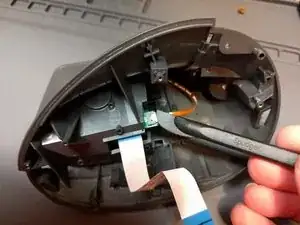
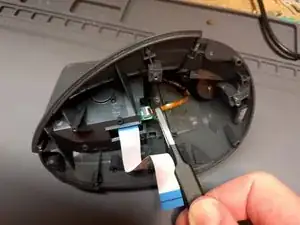
    • Usa un spudger de plástico para levantar ambos lados del bloqueo del cable plano en la base del mouse.

    • Levanta el cable plano para sacarlo de su zócalo en la base.

  3. tAkdV1WyAKPomMmZ
    • Voltea la parte superior del mouse para ver su interior.

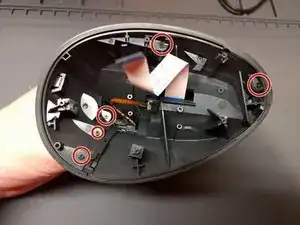
    • Retira los cinco tornillos Philips que sujetan la parte superior sujetando la carcasa por arriba. No es necesario quitar el tornillo más cercano al botón de cambio de DPI ubicado en la parte superior del mouse.

  4. RxSNEb63pTDl3PJT
    RxSNEb63pTDl3PJT
    NXsWZN1QgcrcmGGk
    r6iJEBeVsfcDcGwT
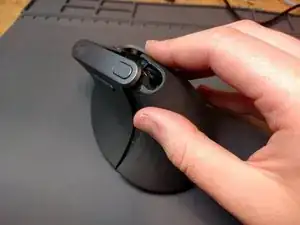
    • Voltea la parte superior del mouse para que esté en la orientación que tendría durante el uso normal. Gira la parte superior del mouse para que los botones principales y la rueda queden frente a ti.

    • Inserta un spudger de plástico en la costura de la parte delantera del mouse, más cerca del lado derecho de los botones. Debería salirse de su lugar.

    • Aplica presión al borde inferior de la cara debajo del medio de los botones del mouse. Debería salirse más de su lugar.

    • Voltea la parte superior del mouse para que los botones principales y la rueda del mouse queden hacia la superficie de trabajo.

    • Inserta un spudger de plástico en la costura entre la cara adherente y la base de plástico del mouse en su lado derecho. La cara debería salirse casi por completo de su lugar.

  5. OotaabwFCWK5EX3N
    • Voltea la parte superior del mouse para que esté en la orientación que tendría durante el funcionamiento normal. Gíralo para que los botones principales y la rueda queden de espaldas a ti.

    • Coge la cara adherente cerca del botón del conmutador DPI y muévela hacia la izquierda y hacia la derecha mientras la alejas de la parte superior del mouse.

  6. ykcqkQCxETLSrvFu
    ykcqkQCxETLSrvFu
    vSbMUyMfv1eLY5Me
    ZyeldJmJg4SGRYh5
    • Gira la parte superior del mouse para que los botones principales y la rueda queden frente a ti.

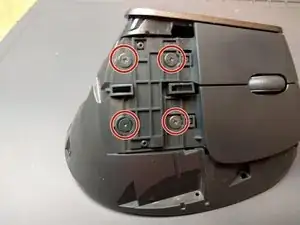
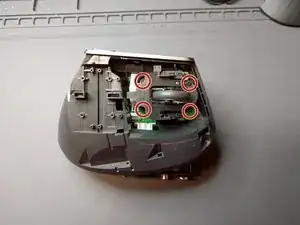
    • Retira los cuatro tornillos Phillips anchos que sujetan los botones del mouse al chasis superior.

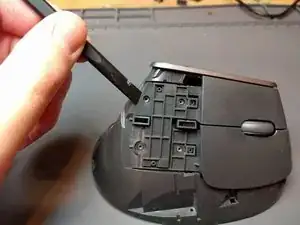
    • Inserta un spudger de plástico entre el lado izquierdo del botón izquierdo del mouse y el chasis. Haz palanca suavemente en el botón para liberarlo. Debe saltar, pero puede requerir un ligero empujón hacia la derecha para separarse por completo.

    • Coge el botón derecho del ratón a la izquierda de la rueda del ratón. Sácalo hacia la izquierda, alejándolo del chasis.

  7. pRpT23CVwf4sRKUr
    pRpT23CVwf4sRKUr
    QGFuCMwxANT3XmEF
    • Retira los cuatro tornillos Phillips que sujetan el ensamblaje de la rueda del mouse al chasis superior.

    • Toma el ensamblaje del mouse por la rueda o el plástico y sácalo del chasis.

    • La rueda del mouse puede girar libremente 180º desde su ensamblaje de plástico. Ten cuidado de mantener unido este conjunto mientras lo giras para colocarlo.

  8. 5MQDotAwJsinC2AY
    5MQDotAwJsinC2AY
    UCPeNVENhwQP4mAT
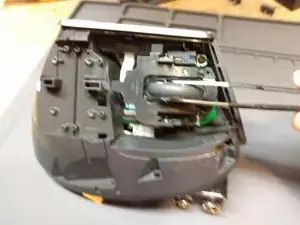
    • Usa un spudger de plástico para girar el bloqueo en el conector del cable plano para el botón del conmutador DPI.

    • Saca el cable plano de su conector.

  9. HZhQPQGObmetkIRY
    HZhQPQGObmetkIRY
    DWC4RDleWmhinCdY
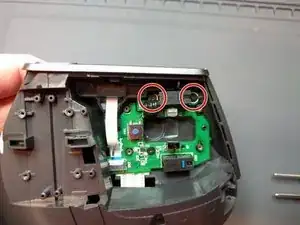
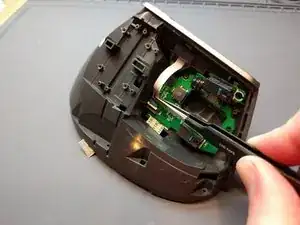
    • Retira los dos tornillos Phillips que sujetan la placa del micro-interruptor de clic izquierdo al chasis superior.

    • Tira suavemente hacia afuera y gira la placa para que quede libre del chasis.

    • Esta pequeña placa todavía está unida a la placa base del chasis superior principal. No mueva la placa pequeña más de lo necesario para sacarla de sus soportes de plástico.

  10. wXDEZiZIdaAQVgJx
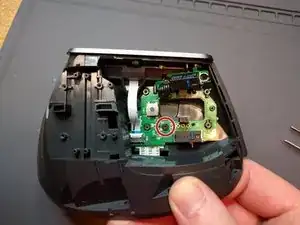
    • Retira el único tornillo Phillips que sujeta la placa base al chasis superior.

  11. LpO3V3xUYcbUF3Iq
    • Usa un spudger de plástico para girar el bloqueo en el conector del cable plano para el ensamblaje del botón de navegación, luego levanta el cable plano para sacarlo del conector.

  12. ZfodnNFm4a31ZQXp
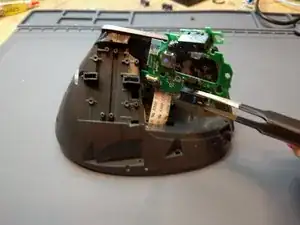
    • Toma la placa base del chasis superior con el micro-interruptor de clic derecho. Sácalo hacia ti para liberarlo de sus clavijas en el chasis, luego levántalo directamente hacia arriba y hacia afuera del chasis superior.

    • La placa base del chasis superior todavía tiene su cable de cinta principal conectado. Ten cuidado de levantarlo directamente del chasis sin cortar el cable.

  13. TTZ2Ck1hCv5ApkXP
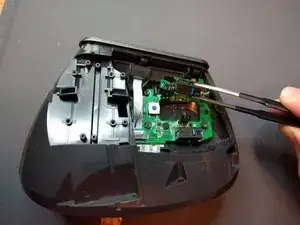
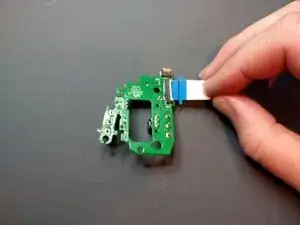
    • Usa un spudger de plástico para girar el bloqueo en el conector del cable plano, luego retira el cable plano del conector.

  14. 22HmRXsZLesWMNID
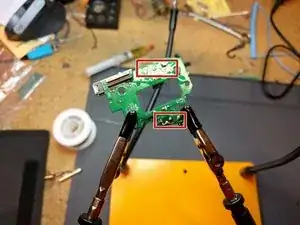
    • Pido disculpas por no tener imágenes más detalladas... No tengo una buena configuración para fotografiar mientras uso ambas manos.

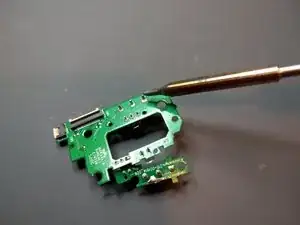
    • Agrega un poco de soldadura nueva a cada uno de los tres terminales en un micro-interruptor.

    • Mientras retiras el micro-interruptor de la placa, calienta sus tres terminales. El interruptor debe quedar libre.

    • Si tienes problemas con este método, es posible que tengas más suerte eliminando la mayor cantidad de soldadura posible con una mecha de soldadura y una ventosa de soldadura antes de retirar el micro-interruptor. Da igual cómo lo hagas, pero los tres terminales deberán estar lo suficientemente calientes para derretir su soldadura al mismo tiempo.

    • Limpia los terminales de cualquier exceso de soldadura usando una ventosa de soldadura y una trenza de soldadura. Los agujeros en el tablero deben ser claramente visibles, debe ser fácil insertar sus nuevos interruptores.

    • Vuelve a verificar para asegurarte de que cada almohadilla de soldadura en la parte inferior de la placa de circuito tenga continuidad con el rastro que rodea su orificio correspondiente en la parte superior de la placa de circuito en caso de que los hayas separado al extraer el interruptor anterior.

    • Repite estos pasos para el otro micro-interruptor.

  15. qnJEjSEoulGQHG5l
    • Inserta los contactos del interruptor a través de los agujeros de la placa.

    • ¡Cuidado con la orientación del interruptor! El actuador irá hacia la derecha de la placa base en esta imagen.

    • Suelda un contacto del interruptor a la placa mientras presionas el interruptor en la placa. Deja que el interruptor se enfríe.

    • Asegúrate de que el interruptor esté a ras con la placa; de lo contrario, los botones del mouse no harán clic correctamente.

    • Suelda los contactos restantes a la placa, permitiendo que el interruptor se enfríe cada vez.

Conclusión

Para volver a armar tu dispositivo, sigue los pasos 1 a 14 en orden inverso.
Dalton D

Miembro Desde 08/12/17

1801 Reputación

26 comentarios

Thanks! This is perfect.

Sébastien Dolard -

Super guide with details, done step by step, picture by picture, my MX Vertical working great now :) THANK YOU !!!!!

Chris mmhk -

Thanks for this guide !!!

Regarding Logitech quality: it’s a shame that such an expensive mouse (paid 100€ !) has only “normal” micro switches (10M)

I’ve also replaced the switches by a 50M variant (OMRON D2FC-F-7N(50M))

Michael Katzenberger -

Woah 100 bucks sounds like a theft. I had it for 35€ on Amazon on nov 2019.

Andrea Collet -

Great work on the guide. My mouse wouldn’t drag reliably anymore, all better now!

I wouldn’t classify this as difficult btw, medium maybe but everything is fairly easy to open.

Just one thing for anyone attempting:

-The first, big ribbon cable to the big mainboard is slide-to-unlock

-All other ribbon cables on the top half are tilt-to-unlock (lever style).

I didn’t look/read carefully and broke the latch on one of them trying to slide it…

Laurens Corijn -

Thank you! The original switches didn’t survive even a year of my work in Blender. I was considering just sending the mouse back since I had still a year of warranty on it but they would just replace the switches with another 10M or worse just throw away the mouse and send me a new one. Now I can continue using this mouse with my new 50M switches and have a good feeling from repairing it by myself. :)

Petr Křivonožka -

Super guide, thanks for putting it out there. I installed the Kailh GM 4.0 Micro Switch(60M) successfully and have to say I absolutely love the way they feel. Also, a little heat on the sliders before removal enabled me to reuse them without issue. Finally, I was a bit reckless in separating the old switches from the circuit board and found I had separated the trace from the solder pad on the opposite side of the board after putting it back together. It’s worth checking continuity on both sides of the board before soldering the new switches on. In my case I just used a single tiny strand of copper to reconnect them successfully.

arri -

This was really helpful, thank you!

I was able to reuse the bottom sliders. They were super sticky and I had no issues reapplying them and they aren’t peeling up. That may not be the case for everyone, but I would recommend that you try reusing them first and just order new ones after you verify you actually need them.

Also, the sliders are made up of 2 thin pieces stuck together. So to keep them in good shape for reuse, just make sure when you start peeling them off that you are peeling off the layer actually stuck to the mouse and not just the outer layer.

Todd -

This guide helped me do my first repair involving soldering things. Seriously, thank you so much. My left mouse click has been replaced with a nice Huano Blue switch and it’s no longer dropping clicks.

Donn -

I was ready to replace the mouse when I saw this guide. As I didn’t have a spare switch, I just sprayed contact cleaner inside the switch. It’s working like new now. It could be 2 things wrong with the switch: The plunger is sticky or the contacts are dirty. In any case, the cleaner solved the problem. Note: I believe that in most cases, the faulty switch would be the left button. An alternate solution if you don’t have a spare switch would be to swap switches. Note 2: I ran out of contact cleaner and used car brake cleaner.

Bert -

Thanks a lot! I was having trouble after using the mouse for about 2 years - I noticed that when clicking and dragging to select text, for example, it would mistakenly register that I stopped pressing and started again, losing the selction - very annoying. I followed your guide and replaced the switches with Kailh GM 2.0’s!

Artur Becker -

Thanks from 2022! Works like a charm, but removing the microswitch is a bit challenging without right tools.

Marcin -

Thanks for guide !!

One recommendation that I have is not to remove sliders but to take exacto knife and cut out screw holes. It saves you of mess of removing sliders and reinstalling them and also makes it easier to do repairs in the future.

Dragisa Jankovic -

Thank you! Awesome guide! This saved my from buying a new MX Vertical and now I've got 50M switches.

Those little cables sure a pain to lock back in. And I expected removing the switches would be difficult; but, solderwick worked pretty well to remove most all the solder.

Dan S -

Fantastic guide! Replaced my mouse with two Omron 50M, still took me 2 hours >_< ******

The most difficult step IMO was 5 and 6 because the closure just did not come off because of the strange shape.

One more thing notable was those 3 ribbon cable connector, especially 2 smaller ones, extremely difficult to install them back due to tiny size.

And allow me to say congrats to Logitech, you just build a mouse with no intention of repair, NOT AT ALL. Will NEVER buy your products again.

Neverends 4 -

Thank you for the guide! It's very difficult to desolder the Microswitches btw, the boards on which they are mounted are so small, that you definitely need a third hand.

Andrea Collet -

Thank you so much! Worked like a charm, this was my first ifixit thing (bought the Mako kit) and it went smoothly until I hit the de-soldering part. That took me a lot of tries to get right, but I got it in the end and I'm so happy I can continue to use my mouse. I've had 3 MX Verticals that the switches broke in after about a year!

Thomas Moon Kang -

Thanks a lot for the very detailed guide!

I successfully replaced both switches with Kailh GM 4.0s on my MX Vertical yesterday without any hiccup.

They're a bit noisier than I expected, but the feeling is better than the stock Omrons, so I'd say it's both a repair and an upgrade :).

Victor -

This is very difficult!!! Took me around 2.5 hours. Desoldering is the hardest part. Much easier if there is someone to help holding the board/microswitches.
Reconnecting the ribbons is also quite challenging, except for the big one.
But in the end I'm happy I followed this tutorial, I have a perfectly working mouse again and I'm not creating a lot of unnecessary electronic trash.
Thank you!

Eduardo Simioni -

The quide for the reassembly was really well documented.

For me unfortunelty while trying to unsolder the swiches the pad came off.

Used a very small wire to make a new connection point on the PCB. (Used a microsope for it).

Also used the 50M click version for the switches.

Works great now :)

Björn Koke -

Amazing guide, this did not miss a single detail and the instructions make the breakdown simple and easy to do without breaking anything. The 50m switches have a much crisper/snappier feel and were only $4 more, definitely recommend.

For those with limited desoldering tools or needing to make it easier to get the old switches out:

- Before desoldering, clip the excess metal on the three prongs underneath the switch (I used a flush wire cutter to get as close to the base as possible). This allows the switch to work its way out of the board more easily. I had a hard time heating all 3 pads at once, this method allowed me to heat two at a time and gradually work the switch out in a couple of passes.

- Once removed, use a pin punch or similar thin cylindrical tool to clear out any excess solder.

The only downside I saw here was that clipping the prongs created some small metal fragments. Regardless, it let me get this job done with no braid / solder removal tool.

Ryan -

Great instructions! Absolutely perfect! Very detailed pictures and tips that all helped. Thank you very much for your time!!!!!!!! I'm lazy so I did the button replacement on step 12.

Thank you again!

Aaron ALAI -

Thank you for the instructions. I followed them and was able to complete with no issues.

Helping hands are a must desoldering. A good solder sucker and solder wick are very useful. Be patient with desoldering if you don't do it much. It takes some time to remove these guys.

mouseclub.co has a great selection of switches and their customer service was awesome. I grabbed some Kailh GM 80M switches that I've been very happy with so far.

Dan Beard -

Any tips for a good silent (or at least much quieter) switch?

Aleš Grm -

Thanks for the easy to follow guide! This was extraordinarily helpful for completing this project. I used Black Kailh GM 8.0 Mouse Switches and bought them from here: https://a.co/d/2EXlibz for $6.23 for a 4-pack. Also, because more information is better than less. Here is a great guide that discusses the difference between Kailh 8.0 switches and Japanese Omron switches: https://www.xbitlabs.com/kailh-8-vs-japa... For my preference I went with the Kailh because I don't trust that I won't get a bait-and-switch on the Omron Japanese vs Chinese switches when buying on Amazon.

Mitchell M -

As an amateur who owns a solder and occasionally fixes some stuff, I've just successfully replaced my left button microswitch solving the issue where click & hold operations like drag or select were becoming more and more difficult. My MX Vertical has been my primary mouse for 4 years and apparently, the microswitch reached its end of life.

I heated the slider pads and managed to reuse them successfully. Watch out - they come in two layers - the slider pad itself and a glue layer. I used an empty waxpaper used to hold stickers.

Unfortunately, I broke the white motherboard ribbon clip in the process (one of its latches broke off), so I applied superglue to hold it in place as I had no other option, which might kick me in the future, though. This is because I did not know this type before.

Due to lack of equipment, I used a 1mm drill to clear out the solder of the holes after removing the original microswitch.

Other than that, I followed this really nice and accurate guide without any problems. Thank you very much!

Jiří Polcar -